Excel File Locked for Editing: 6 Fixes That Actually Work
Fix Excel file locked for editing with 6 methods. Covers stale lock files, network sessions, OneDrive sync, and password restrictions on Windows and Mac.
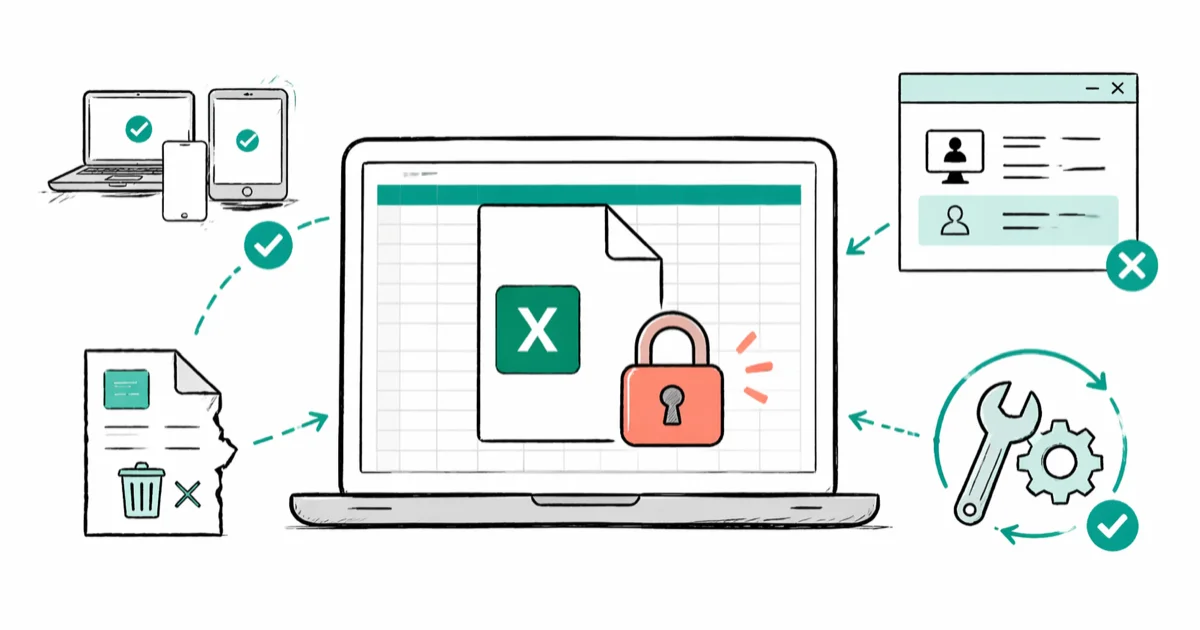
Quick AnswerClose the file on every device that has it open, then delete the hidden lock file named ~$yourfile.xlsx in the same folder. If the file stays locked, use Microsoft Management Console to force-close the active network session.
Excel shows “File Locked for Editing” when another session holds the workbook open. That session is sometimes another person, sometimes a crashed Excel process that never cleaned up, and sometimes OneDrive stuck mid-sync. The fix depends on which of those is actually happening, and the right starting point is almost always the hidden lock file in the same folder as your workbook.
- Deleting the hidden lock file clears the error almost instantly and leaves your data untouched
- Microsoft Management Console force-releases a network session in roughly 2 minutes on a local server
- Pausing OneDrive sync for about 30 seconds fixes the sync version of this lock error
- Converting older
.xlsfiles to.xlsxenables co-authoring for multiple editors at once - Password-restricted workbooks need a dedicated removal tool, not a lock file deletion
#Why Is Your Excel File Locked for Editing?
Excel uses file locking to stop two people from saving conflicting changes. When you open a workbook, Excel writes a temporary lock file in the same folder. It’s named ~$ followed by your filename, so budget.xlsx gets a lock file called ~$budget.xlsx. Windows hides these by default.
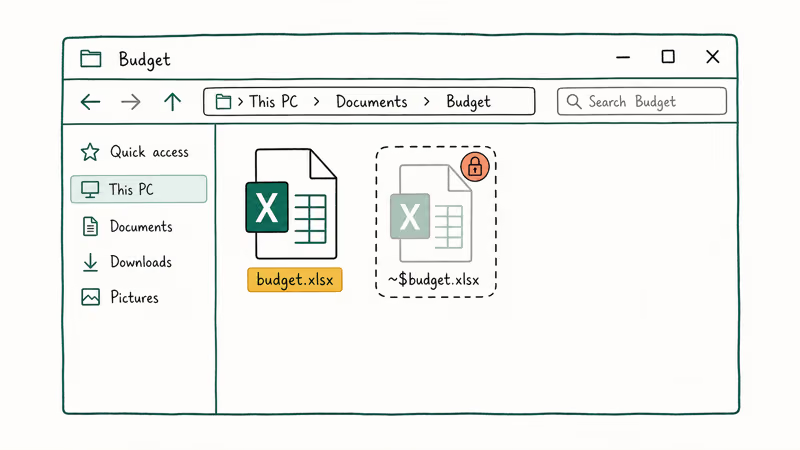
Same message, three different causes.
Two scenarios cause the self-lock: a second device left the file open, or the previous session didn’t close cleanly. The error shows your own name, which confuses people into thinking the message is wrong — it isn’t. Microsoft walks through both cases in Microsoft’s co-authoring documentation.
The co-authoring behavior Microsoft describes only works on modern .xlsx files stored in cloud locations. Wikipedia’s Office Open XML article states that Office Open XML was introduced in Office 2007 and supports 2 or more simultaneous editors through the newer format, while the older .xls binary format is limited to a single open session at a time.
#Fix 1: Delete the Hidden Lock File
Start here when Excel crashed, or when the person listed in the error already closed the file but the cleanup didn’t finish.
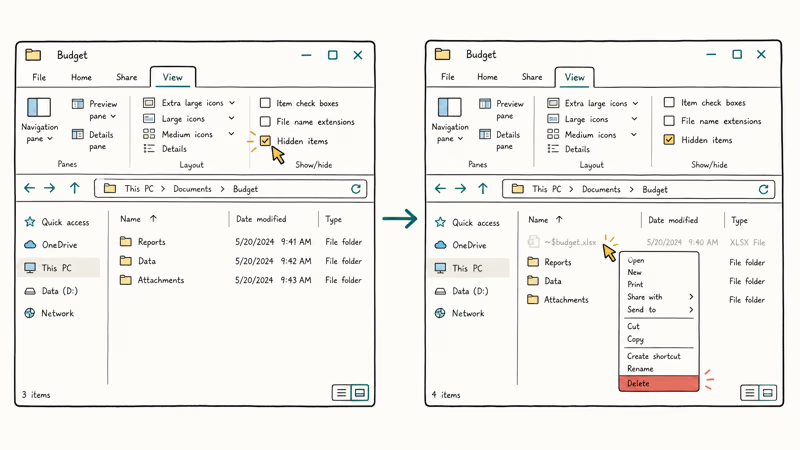
Go to the folder where the Excel file is stored. In File Explorer, select View > Show > Hidden items to reveal the lock file. Delete the file named ~$yourfilename.xlsx, then open the original workbook normally.
Once the lock file is deleted, the workbook opens for editing immediately, with no data loss since the lock file holds no spreadsheet content. On macOS, press Command + Shift + . in Finder to show hidden files, then delete the ~$ file the same way.
No lock file visible? That means a live session from another user holds the lock. Move to Fix 2.
#Fix 2: Use Microsoft Management Console to Force-Close the Session
This works when another user on a shared network has the file open and you can’t reach them to close it. The method disconnects their session without touching their computer.
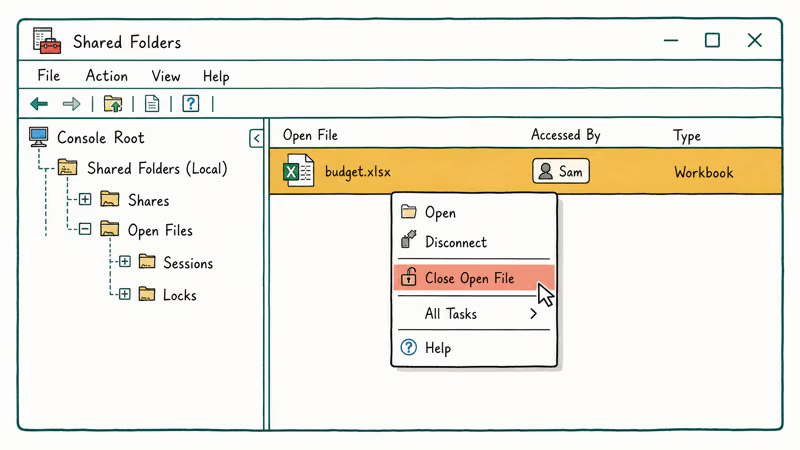
Press Windows + R, type mmc, and press Enter. Go to File > Add/Remove Snap-in, select Shared Folders, click Add, choose Local computer, then click Finish and OK. Expand Shared Folders in the left panel and click Open Files. Find your Excel file, right-click it, and select Close Open File.
The file releases immediately. On a Windows Server file share, the workbook unlocks almost instantly once the session is force-closed, and the other user sees a standard “file has been modified” prompt when they try to save.
This only works on the machine where the file lives. Files hosted on a server need this step run on that server, or your IT team can do it remotely.
#What Causes the Lock on OneDrive or SharePoint?
OneDrive sync problems produce a lock error that looks identical to the standard one. The file shows as locked even when nobody else is editing it. According to Microsoft’s “Excel file is locked for editing” support page, this happens when the sync client loses its connection mid-save and holds the file handle open instead of releasing it. A pause-and-resume cycle usually clears the stale handle within a few minutes.
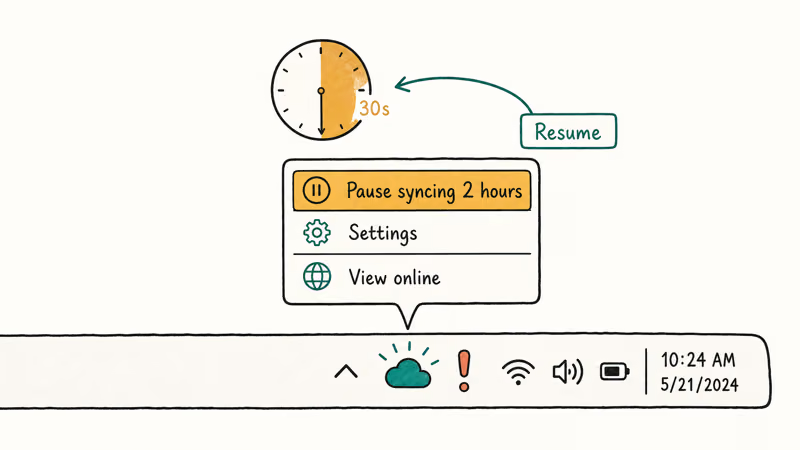
Three steps fix most OneDrive locks. Right-click the OneDrive icon in the system tray and select Pause syncing. Wait 30 seconds, then try opening the file again. If it opens, resume OneDrive after saving your work.
Still locked after pausing? Open the file directly in Excel for the Web at Office.com.
#Fix 3: Convert the File to a Supported Format
The .xls format doesn’t support co-authoring. If your file is in Excel 97-2003 format, only one person can have it open at a time. Everyone else hits the locked error. Converting to .xlsx solves this permanently.
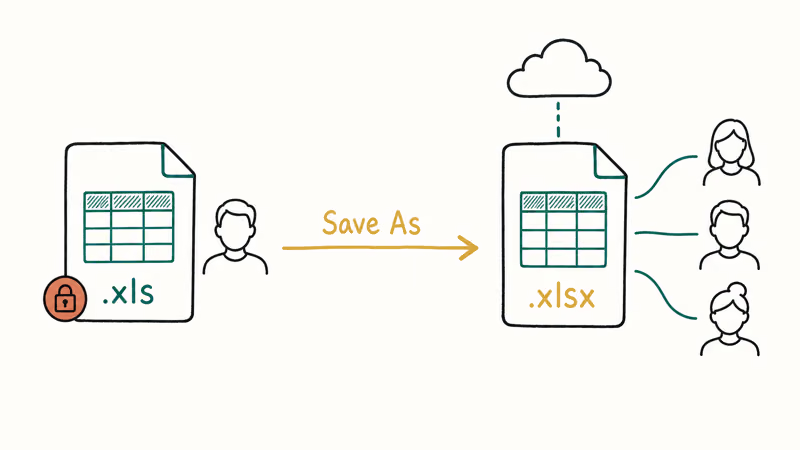
The conversion takes about 30 seconds:
Open the file in Read Only mode if needed, then go to File > Save As. Set the format to Excel Workbook (.xlsx) and replace the original file or share the new .xlsx with your team. Excel 365 and Excel for the Web both support real-time co-authoring on .xlsx, .xlsm, and .xlsb files stored in OneDrive or SharePoint, while local drives and mapped network drives won’t.
Cloud storage is the actual requirement, not format alone.
#Check Your Other Devices for an Open Session
According to Microsoft’s share-and-co-author support page, locking yourself out on a second device is one of the most reported scenarios for workbooks stored in personal OneDrive accounts. The locked message shows your own name. That’s the giveaway.
Close the workbook on every device, then reopen it on the one you’re using now.
If you use Microsoft 365 and the file is in OneDrive, go to OneDrive.com, find the file, and click More > Version History to check for an active session holding the lock. This also works if the file is stored in a SharePoint document library shared with your team.
#How to Fix Password-Protected Excel Files
The methods above solve technical lock errors only. If someone set a restriction password on specific worksheets or the entire workbook, deleting lock files does nothing. That’s a separate layer of protection.
For forgotten Excel passwords, a dedicated removal tool is the standard approach. PassFab for Excel removes restriction passwords and unlocks workbooks without touching the data.
Some links on this page are affiliate links, which means fone.tips may earn a commission at no extra cost to you.
If the issue is sheet-level protection rather than the full workbook, see our guide on how to unprotect an Excel workbook or how to unprotect an Excel sheet without a password.
For files encrypted with an open password where you can’t get into the file at all, the process is different. Our guide on how to decrypt an Excel file covers that case.
#How to Prevent the Locked for Editing Error
Two habits prevent this problem entirely.
Store files in OneDrive or SharePoint. Cloud-stored files support co-authoring in Excel 365, so multiple people can edit simultaneously with no lock. Local drives and mapped network drives always create lock files because they don’t have co-authoring infrastructure built in.
Close Excel properly by using File > Close or Ctrl + W instead of clicking X during a save. A clean close deletes the ~$ file every time. If Excel freezes, wait for Windows to fully end the process before reopening, because reopening too quickly leaves the lock behind. Our article on Excel not responding walks through freeze recovery steps.
IT teams run a PowerShell script (Remove-Item "~$*.xlsx") nightly to clean stale lock files off shared drives. On a department share with hundreds of workbooks, this cleanup runs in seconds.
#Bottom Line
Start with Fix 1: delete the ~$ lock file from the same folder as your workbook. It clears the error almost instantly, so it’s worth trying before anything else. If a real user session holds the lock, use Microsoft Management Console to force-close it. For OneDrive problems, pause sync and try again before you reach for anything more invasive.
Only reach for a password removal tool like PassFab for Excel if the workbook has an intentional restriction password set on it. Lock file errors and password prompts look similar but need completely different fixes. If Excel keeps freezing and leaving locks behind, read our guide on recovering unsaved Excel files for related stability fixes.
#Frequently Asked Questions
Can I edit the file in Read Only mode while it’s locked?
Yes. Click Open: Read Only when the locked error appears, then edit your local copy. Save under a different filename with File > Save As, and copy your changes back once the original lock releases.
What does the username in the locked message mean?
Excel shows the name of the Microsoft Office account or Windows user account that has the file open. If it shows your own name, check your other devices. If it shows someone who left the company or whose computer is off, the lock file is stale and safe to delete.
Is it safe to delete the tilde-dollar lock file?
Yes. The ~$ file stores only the lock record, not your actual data. Deleting it leaves the workbook completely untouched.
Why does Excel say “locked for editing by me”?
This happens when Excel didn’t close cleanly on another device you used — your own account holds the lock. Check your other computers, tablets, or phones where you might have left the file open, close it on each one, then delete the stale ~$ file. The error usually clears within 30 seconds.
Does this error happen on Mac too?
Yes. Press Command + Shift + . in Finder to show hidden files, then delete the ~$ lock file. All other troubleshooting steps are the same on macOS as on Windows.
How long does the lock file stay if nobody deletes it?
Indefinitely. Excel has no automatic cleanup for stale lock files, so they persist until someone manually deletes them. A file can appear locked for days or even weeks when no one is actually editing it, which is common on shared network drives where people rarely check for leftover ~$ files.
Can I automate lock file cleanup on a shared drive?
Yes. A PowerShell script using Remove-Item "~$*.xlsx" removes all stale lock files in a target folder. Set it as a scheduled task to run nightly. IT teams use this on shared file servers where many users open the same workbooks throughout the day.
What’s the difference between a locked file and a read-only file?
A locked file has an active edit session open somewhere that needs to be released. A read-only file has its Windows file properties set to read-only, or it was shared with view-only permissions. The fix is different for each: locked files need the session closed or the ~$ file deleted, while read-only files need their file properties updated or the share permissions changed by whoever controls access.

Google Messages Error 3100: Why RCS Is Broken on Galaxy
Google Messages RCS error 3100 hits Galaxy owners after phone or carrier switches. Google told 9to5Google a fix is coming. Here's what actually helps.

Is This Bank App Real? Spot a Fake App on Your Home Screen
A bank app can land on your home screen from a web page with no install warning. Learn the checks that tell a real banking app from a phishing web app.

Apps Crashing After iOS 27 Update? Fix Order (2026)
Apps crashing after the iOS 27 update? Update the app in the App Store first, then offload and reinstall to clear stale cache, then restart. The fix order.

Do AI Translation Earbuds Work Offline? What to Know
Do AI translation earbuds work offline? A few do with downloaded language packs, but most need the cloud. Here's what works offline and what you give up.