What Is Two-Factor Authentication? 2FA Explained (2026)
Two-factor authentication adds a second step to your login. Learn how 2FA works, why an authenticator app beats SMS, and how to turn it on safely.
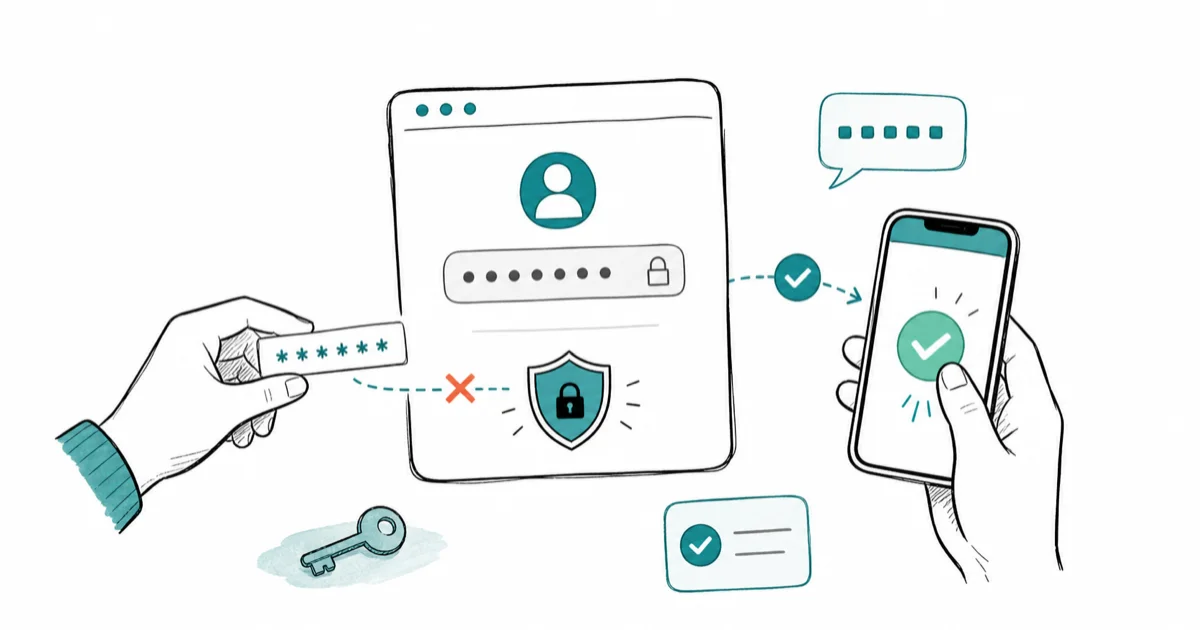
Quick AnswerTwo-factor authentication adds a second proof of identity beyond your password, usually a code or tap from your phone. A stolen password alone isn't enough to get in.
Two-factor authentication, or 2FA, asks for a second proof of identity on top of your password when you sign in to your own accounts. The second step is usually a code or tap from your phone. Even if someone steals your password, they can’t get in without it.
- 2FA combines something you know (password) with something you have (your phone or a key).
- A stolen password alone won’t unlock an account that has 2FA switched on.
- Authenticator apps and passkeys are safer than text-message codes, which can be intercepted.
- Save your backup codes somewhere safe, or a lost phone can lock you out for good.
- Turn 2FA on through each service’s official account-security settings, not a third-party tool.
#What Is Two-Factor Authentication?
At its core, 2FA is a second lock on your own door. The first factor is your password, something you know. The second is something you have, like your phone, or something you are, like a fingerprint.
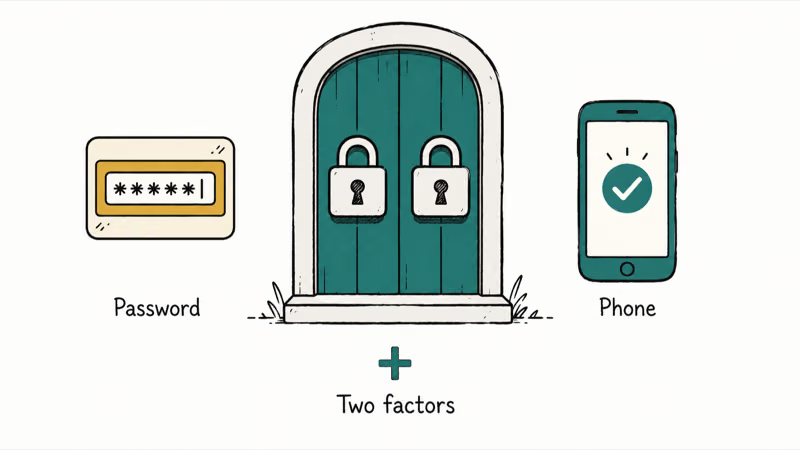
A password alone is a single point of failure.
Reused or leaked, it hands an attacker the keys. 2FA closes that gap by demanding a second, separate proof that’s much harder to steal remotely. If you’ve ever worried after a breach headline, the guide to checking for a data breach is a good first stop, and pairing 2FA with a password manager is the strongest combo.
#How Does 2FA Actually Work?
The flow is quick once it’s set up. You enter your username and password as usual, then the service asks for the second factor before it lets you in.
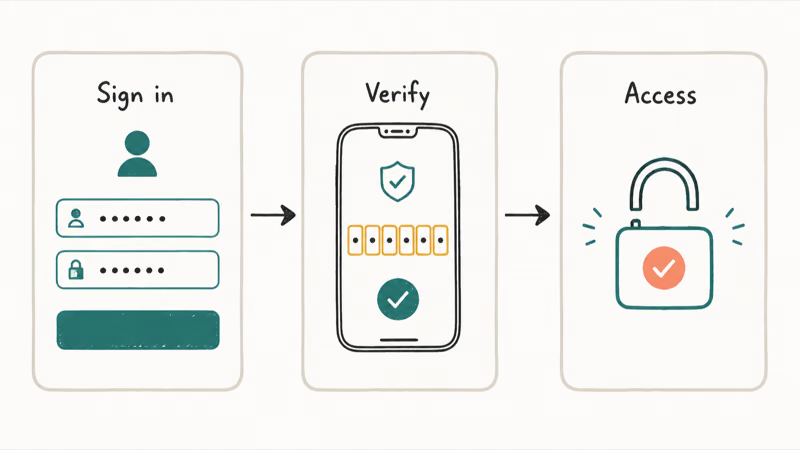
That second factor takes a few forms.
Apple’s two-factor authentication guide confirms that a 6-digit verification code appears on your trusted devices when you sign in to your Apple Account on something new. Other services send a push notification you tap to approve, or expect a code from an authenticator app. The exact prompt depends on the service and method you choose.
#Ranking the 2FA Methods by Security
Not all second factors are equal, and the gap is wide. SMS codes are the weakest, because a determined attacker can hijack your number through SIM swapping or intercept the text.
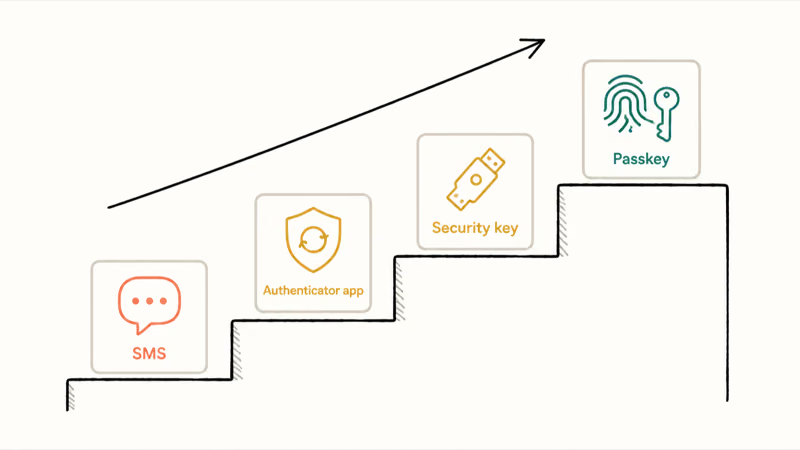
Authenticator apps are a clear step up.
They generate codes on your device with no signal needed, so there’s nothing to intercept over the network. Stronger still are security keys and passkeys, which are phishing-resistant by design and tied to the actual site you’re signing in to. The passkeys vs 2FA explainer digs into how those differ, and the best authenticator app roundup helps you pick one.
#Turning On 2FA Safely
Setup lives in each service’s security settings, not a separate download. Google’s 2-Step Verification guide states that you can download a set of 8-digit backup codes to use if you ever lose access to your phone.
That backup-code step is the one people skip and regret.
The US cybersecurity agency CISA recommends turning on multifactor authentication everywhere it’s offered, starting with email and banking. Work through your most important accounts first, choose an authenticator app or passkey over SMS where you can, and save the recovery codes before you finish. Authenticator apps keep generating codes without cell service, which makes them useful when SMS delivery is unreliable.
#Backup Codes and Losing Your Phone
This is the fear that stops people from enabling 2FA, and it’s avoidable. Backup codes are one-time strings the service gives you at setup, meant to get you in when your phone is gone.
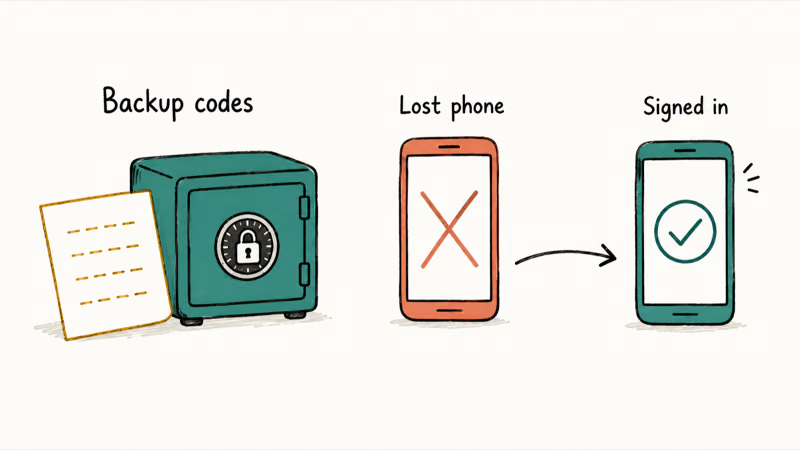
Print them or store them in your password manager.
If your phone is lost or replaced, you use a backup code, or a second registered device, to sign in and re-enroll a new authenticator. Authenticator apps also let you move your codes to a new device, which the guide to moving your authenticator walks through. The key is planning for the lost-phone day before it happens, so a missing device is an inconvenience, not a lockout.
#Common 2FA Myths and Mistakes
A few misconceptions keep people exposed. The biggest is “I’ll get locked out,” which only happens when backup codes are skipped, so save them and that fear disappears.
Another is treating SMS as good enough forever.
It’s far better than nothing, but where a service offers an app or a passkey, use that instead. The last mistake is enabling 2FA only on minor accounts while leaving email open, even though email is the master key that can reset everything else. Lock down email and banking first, then expand outward, and never share a code with anyone who contacts you, since legitimate services never ask for it.
One caveat worth stating plainly: these steps protect your own accounts. Trying to bypass another person’s 2FA, or using codes that aren’t yours, is illegal and a real privacy violation.
#Bottom Line
Turn on two-factor authentication everywhere it’s offered, because it stops a stolen password from becoming a stolen account. Use an authenticator app or a passkey rather than SMS where you can, and save your backup codes somewhere safe so a lost phone never locks you out. Start with email and banking, the accounts that can unlock everything else, and expand from there.
#Frequently Asked Questions
What does two-factor authentication actually protect against?
It protects against stolen or leaked passwords. Even if an attacker has your password, they still need your second factor, which lives on a device they don’t control.
Is an authenticator app safer than text-message codes?
Yes, meaningfully so. Authenticator apps generate codes directly on your device with no network involved, so there’s nothing for an attacker to intercept. Text-message codes can be hijacked through SIM swapping or intercepted on a compromised network. SMS is still far better than no second factor at all, but if a service offers an authenticator app or a passkey, choose that instead.
What is a backup code and why do I need it?
A backup code is a one-time string given at setup. Use it to sign in if you lose your phone. Save them, or a lost device locks you out.
What happens to my accounts if I lose my phone?
You use a backup code or a second registered device to get back in, then re-enroll a new authenticator on your replacement phone. This is exactly why saving backup codes at setup matters. Many authenticator apps also let you migrate your codes to a new device, so the move is painless if you planned ahead.
Is a passkey a form of two-factor authentication?
A passkey is different. It replaces the password with a key tied to your device and the site, and it’s phishing-resistant. Unlocking it needs your face or PIN.
Can two-factor authentication be hacked?
It’s much harder, but no security is absolute. Phishing pages can trick people into entering both a password and an SMS or app code, which is why phishing-resistant methods like security keys and passkeys are the strongest choice. For everyday accounts, any 2FA dramatically reduces your risk compared with a password alone.

Is This Bank App Real? Spot a Fake App on Your Home Screen
A bank app can land on your home screen from a web page with no install warning. Learn the checks that tell a real banking app from a phishing web app.

Passkeys Not Syncing Between iPhone and Windows? Read This
Passkeys not syncing between iPhone and Windows is by design, not a bug. Here is why iCloud passkeys skip Windows Hello and the three ways to fix it.

VPN Not Working on Snapdragon X? Why It Fails, How to Fix
Your VPN won't install or connect on a Snapdragon X Copilot Plus PC because Windows on ARM can't emulate the network driver. Here are the fixes that work.

How to Check If a Link Is Safe Before You Click It
Learn how to check if a link is safe with official-first steps: read the real domain, use the app instead, and treat scanners as a second opinion only.