How to Secure Your Home Wi-Fi Router the Right Way
How to secure home wifi: change the router admin password, update firmware, switch to WPA2 or WPA3, and disable WPS, all on your own network only.
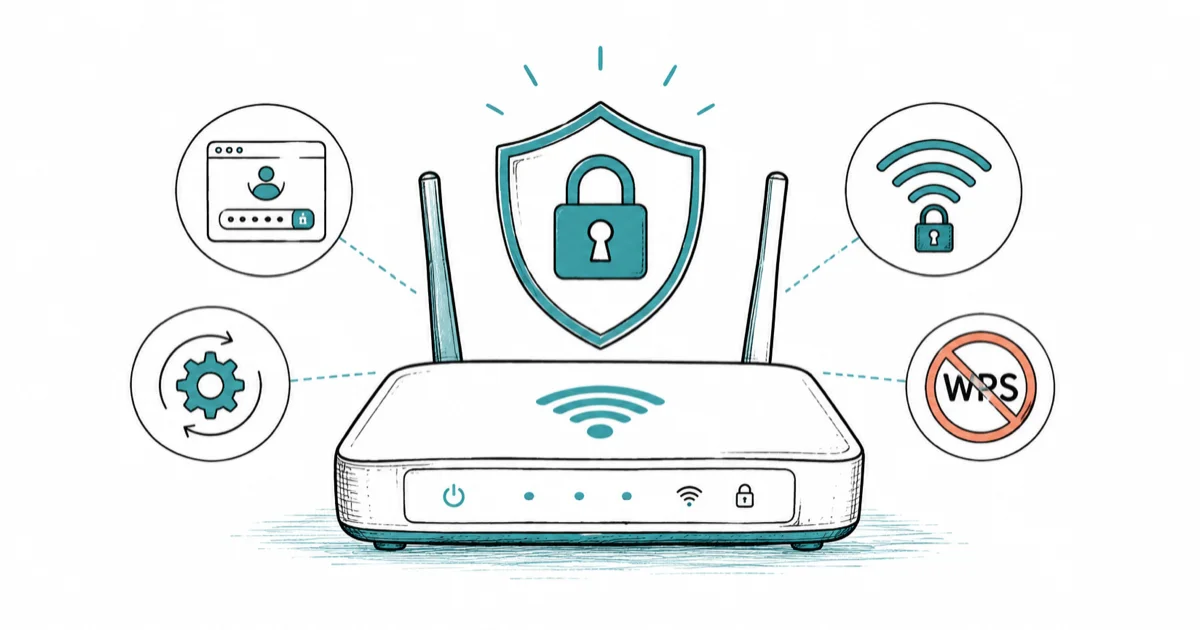
Quick AnswerStart with the router login. Change the default admin password, update the firmware, and switch encryption to WPA2 or WPA3 with a strong passphrase before touching anything more advanced.
How to secure home Wi-Fi starts at the router login, not with a fancy app or a VPN. Change the default admin password, update the firmware, and set encryption to WPA2 or WPA3 with a strong passphrase, and you block most attacks. This guide covers your own network only.
- Your router has two passwords: the admin password that controls settings, and the Wi-Fi password that devices use to connect. Change both away from the defaults.
- Use WPA2 or WPA3 encryption with a long passphrase, and avoid WEP or open networks, which offer almost no protection.
- Update the router firmware from the manufacturer’s site, since outdated firmware is a common, fixable weak point.
- Turn off WPS, UPnP, and remote management unless you actually need them, because each one widens the attack surface.
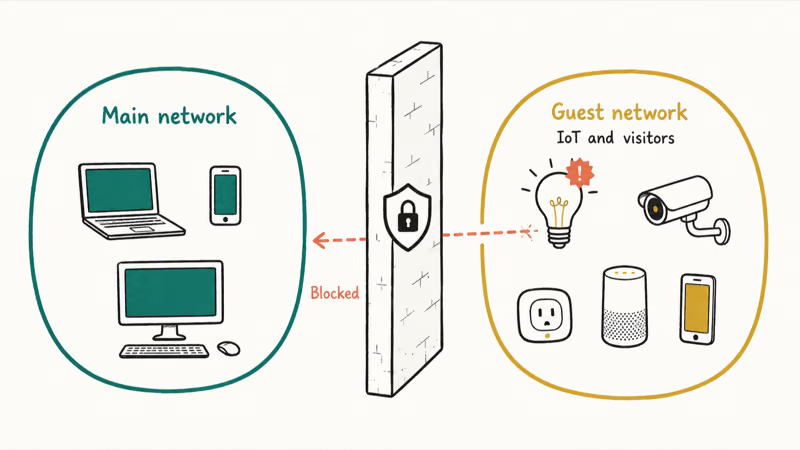
- Put guests and smart-home gadgets on a separate guest network so a compromised device can’t reach your main computers.
#Why Does Home Wi-Fi Security Start With the Router Login?
Because the router is the front door to everything on your network. If an attacker reaches its admin panel, they can change your DNS, snoop on traffic, or lock you out, so securing that login matters more than any single device behind it.
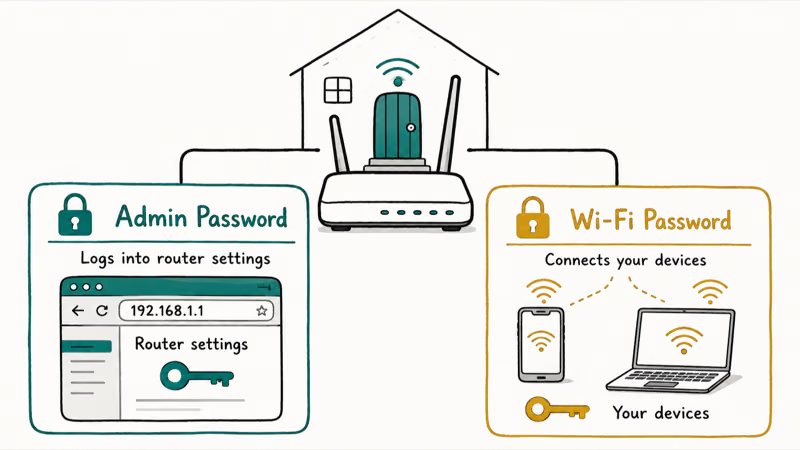
Two passwords confuse most people, so get the distinction clear first. The Wi-Fi password is what your phone or laptop types to join the network. The admin password is what you type to log into the router’s settings page, usually at an address like 192.168.1.1. According to the FTC’s home Wi-Fi guidance, both passwords need changing from their defaults, because manufacturer defaults are published online and trivially guessed.
Log in and change them now. Open the router’s address in a browser, sign in, and update the admin username, the admin password, and the network name to something unique that doesn’t reveal the router brand. If you think the router has already been tampered with, our guide on whether your router is hacked covers the warning signs to check first.
#Change the Router Admin Password and Update Firmware
With the admin password reset, update the firmware next. Outdated router firmware is one of the most common and most fixable weaknesses, since manufacturers patch security holes that attackers actively scan for.
Check for updates in the router’s admin panel, usually under a “Firmware” or “Administration” section. According to the FTC’s guidance, before setting up a new router or updating an existing one you should visit the manufacturer’s website to see whether newer software is available, then install it. Turn on automatic updates if your router offers them.
Firmware updates often bundle multiple security patches, so review the release notes before installing. A backup matters here too. Some routers let you export the current configuration before a firmware update, so save it first in case the update resets your settings.
#Use WPA2 or WPA3 With a Strong Wi-Fi Password
Encryption is what stops a neighbor or a parked car from reading your traffic. Find the wireless security setting and pick WPA3 if it’s offered.
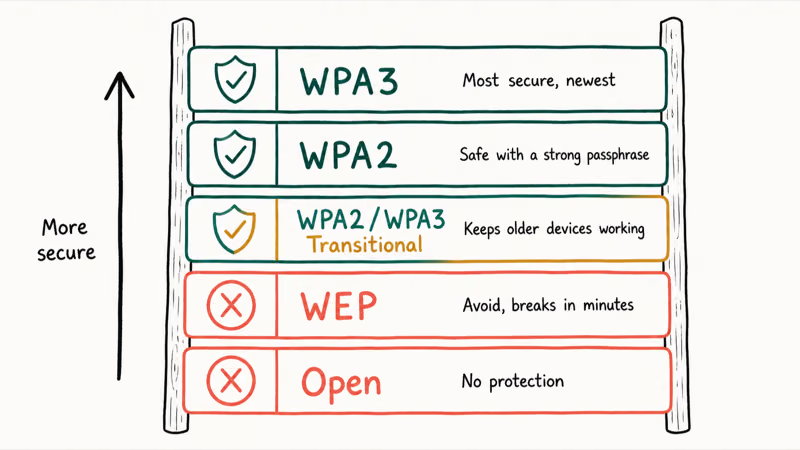
Match the standard to your hardware. According to Apple’s recommended router settings, WPA3 Personal is the newest and most secure option, while WPA2/WPA3 Transitional keeps older devices working, and you should avoid WEP entirely along with any “open” or unsecured mode. WEP is decades old and breaks in minutes.
Then set a strong passphrase. A long phrase of several unrelated words beats a short complex string, and our guide on creating a strong password shows how to build one you can actually remember. Don’t reuse your email or banking password here.
#What Should You Do About WPS, Guest Networks, and IoT Devices?
These three settings decide how much damage a single weak point can do. Handle them together, because they’re about limiting access rather than just locking the front door.
Turn off WPS first. Wi-Fi Protected Setup lets devices join with a PIN or a button press, but that PIN can be brute-forced, so disabling it closes a well-known hole. According to the FTC’s guidance, you should also turn off remote management and UPnP unless you specifically need them, since those convenience features weaken your network.
Then separate your devices. Most modern routers offer a guest network, and putting visitors and smart-home gadgets, the cameras, plugs, and speakers, on that separate network keeps a hacked gadget from reaching your main computers and phones. A cheap smart bulb is exactly the kind of device that gets compromised, and our guide on whether iPhones need antivirus explains how that isolation thinking applies to your other devices too.
#Review Unknown Devices and Remote Management
Once the basics are locked down, take stock of what’s connected. Your router’s admin panel lists every device, usually under “Connected Devices” or “DHCP Clients.”
Match each entry to something you own, but don’t panic at odd names. Many legitimate smart-home gadgets, printers, and appliances show cryptic hardware names instead of friendly labels, so identify before you assume the worst.
If you find a device you truly can’t account for, change the Wi-Fi password immediately, which kicks everything off and forces a reconnect, so only devices with the new password get back on. According to CISA’s guidance on securing wireless networks, limiting who can connect and keeping the network locked down are core defenses for any wireless setup.
Confirm remote management is off, too. It exposes the admin panel to the open internet, so leave it disabled unless you truly need it. Suspect a deeper compromise? A factory reset and fresh setup is the clean-slate fix.
#Set a Reminder to Recheck Router Security
Security isn’t a one-time task. New vulnerabilities surface, firmware updates ship, and devices come and go, so a quick recheck a few times a year keeps your setup from quietly drifting.
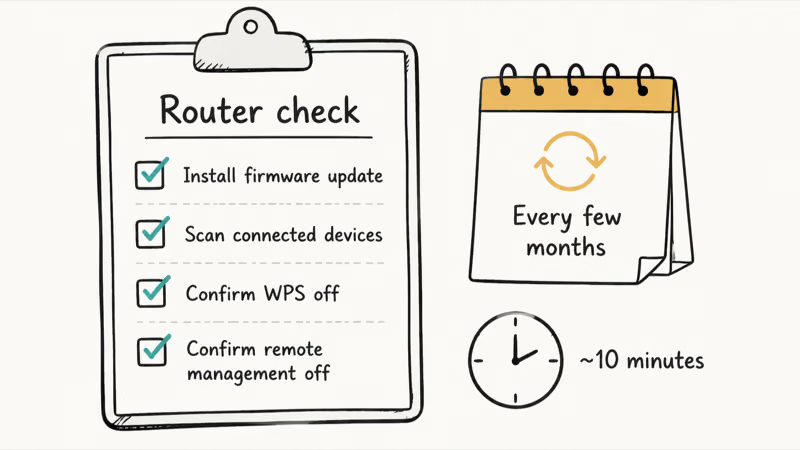
Put a recurring reminder on your calendar. Every few months, log in, install any firmware update, scan the connected-device list, and confirm WPS and remote management are still off, because routers sometimes re-enable a feature after a firmware update or a factory reset, and a quiet drift back to defaults is exactly how a hardened setup slowly loosens over a year or two without anyone noticing. The whole pass takes about 10 minutes.
Pair this with your other account hygiene. The same habit that protects your router protects your logins.
Our guides on securing your Google account and on why a VPN might not be working on iPhone round out a home setup that’s tough to break into.
#Bottom Line
Secure the router before adding anything extra. Change the admin password, update the firmware, set WPA2 or WPA3 with a strong passphrase, and disable WPS, UPnP, and remote management unless you truly need them, because those four moves alone shut out the overwhelming majority of opportunistic attacks that go after default credentials and stale firmware.
Then limit the blast radius. Put guests and smart-home gadgets on a separate guest network, and recheck the setup every few months.
#Frequently Asked Questions
What is the first setting to change on a home Wi-Fi router?
Change the router’s admin password, the one you use to log into its settings page, away from the factory default. Default admin credentials are published online, so leaving them in place is the single biggest risk. After that, update the firmware and set strong Wi-Fi encryption.
Is WPA3 required, or is WPA2 still safe enough?
WPA2 is still considered safe for home use when you pair it with a strong, long passphrase, so you don’t have to replace a working router just for WPA3. That said, WPA3 is the newer and more secure standard, so choose it if your router and devices support it, or use a WPA2/WPA3 transitional mode for a mix of old and new gear.
Should I turn off WPS on my router?
Yes, in most cases. WPS makes connecting easier with a PIN or button, but the PIN can be brute-forced. Unless you rely on it daily, turn it off.
What should I do if I see unknown devices on my Wi-Fi?
First, don’t assume the worst, since many “unknown” entries are just your own gadgets showing cryptic hardware names. Once you’ve ruled those out, change your Wi-Fi password right away, which disconnects every device and forces each one to reconnect with the new password, so anything you didn’t authorize is locked out. Then review the list again after everything reconnects, and if a device you can’t account for keeps reappearing, factory-reset the router and set it up fresh from scratch.
How often should I update router firmware?
Check every few months, and install updates as soon as they appear, since firmware patches often fix actively exploited security holes. Turning on automatic updates, if your router supports them, takes this off your plate entirely while keeping protection current.
Which official source should I trust first?
Start with your router manufacturer’s own support site for model-specific steps and firmware. For general security guidance, the FTC, CISA, and Apple’s router recommendations are reliable, and none of them ask you to install third-party tools to do the basics.

Is This Bank App Real? Spot a Fake App on Your Home Screen
A bank app can land on your home screen from a web page with no install warning. Learn the checks that tell a real banking app from a phishing web app.

Passkeys Not Syncing Between iPhone and Windows? Read This
Passkeys not syncing between iPhone and Windows is by design, not a bug. Here is why iCloud passkeys skip Windows Hello and the three ways to fix it.

VPN Not Working on Snapdragon X? Why It Fails, How to Fix
Your VPN won't install or connect on a Snapdragon X Copilot Plus PC because Windows on ARM can't emulate the network driver. Here are the fixes that work.

How to Check If a Link Is Safe Before You Click It
Learn how to check if a link is safe with official-first steps: read the real domain, use the app instead, and treat scanners as a second opinion only.