How to Strikethrough Text in Google Docs: 3 Methods
Add strikethrough in Google Docs using a keyboard shortcut, the Format menu, or the mobile app. Steps for Windows, Mac, Chromebook, and phones.
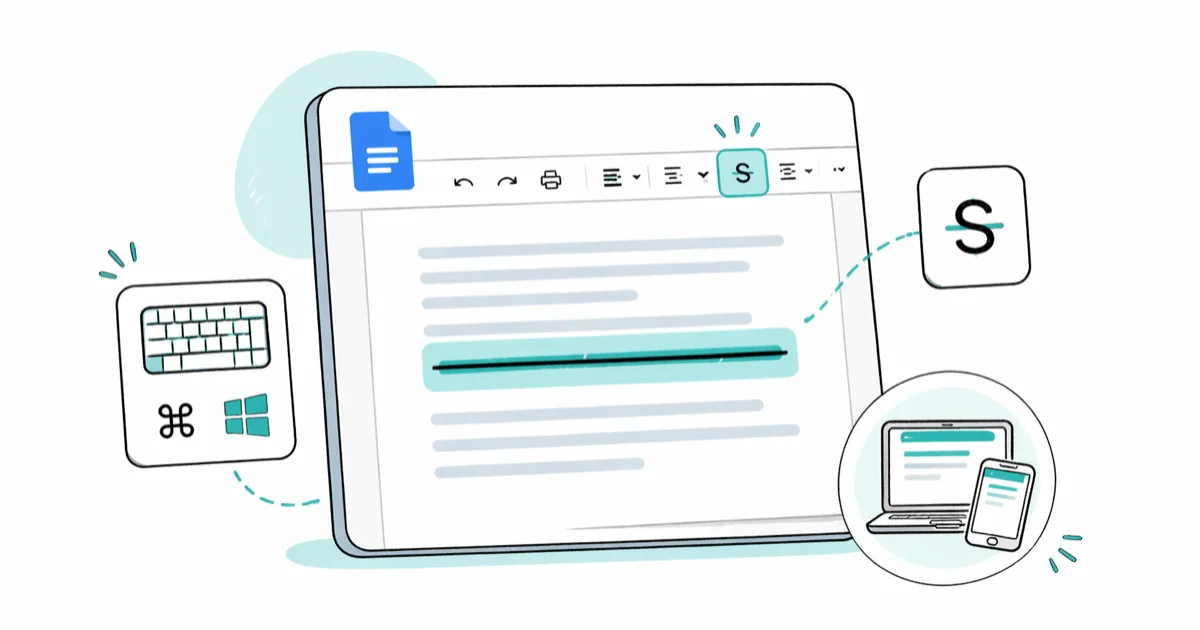
Quick AnswerPress Alt+Shift+5 on Windows or Chromebook, or Command+Shift+X on Mac, to add strikethrough in Google Docs. From the menu, go to Format, then Text, then Strikethrough to apply the same formatting.
Strikethrough in Google Docs lives behind a menu rather than the toolbar, which is why people miss it the first time they look. Google Docs gives you three reliable paths to apply it: a keyboard shortcut, the Format menu, and a one-tap option in the mobile app. The same basic paths work across personal Gmail and Google Workspace accounts.
- On Windows and Chromebook, Alt+Shift+5 toggles strikethrough on or off in the active selection
- On Mac, the strikethrough shortcut is Command+Shift+X
- The full menu path is Format, then Text, then Strikethrough
- In the mobile app, tap the Format icon (A with horizontal lines), then tap the S with a line through it
- The same Alt+Shift+5 shortcut works in Google Sheets and Google Slides
#What Is Strikethrough Used for in Google Docs?
Strikethrough draws a horizontal line through text without removing the characters underneath. Writers, editors, and project teams reach for it in four recurring situations.
Showing revisions inline is the most common use. When you update a published draft, crossing out the old wording instead of deleting it lets reviewers see exactly what changed. The crossed-out copy stays selectable and searchable, so anyone reviewing the doc later still has the original phrasing visible right next to the new version.
Task tracking comes next. Crossing off completed list items gives you a visible record of progress that doesn’t disappear once the work is done.
A third use case is collaborative editing without committing to the full Suggest Edits workflow. Strikethrough lets a co-writer mark passages for removal without permanently deleting them, so the document owner decides whether to keep the cut.
Sarcasm and stylistic humor round out the list. Writers cross out a word and leave a more honest one in its place; the trick works best when the crossed-out word is short and still legible.
According to Google’s text formatting documentation, strikethrough is one of 6 inline character styles in the Text submenu (bold, italic, underline, strikethrough, superscript, subscript), and it applies on a per-character basis rather than a per-paragraph one. For shared drafts, crossing out text instead of deleting it can preserve context without forcing reviewers to dig through version history.
#How Do You Apply Strikethrough With a Keyboard Shortcut?
The keyboard shortcut is the fastest method, and it toggles. Press it once to apply the line, press it again to remove it.
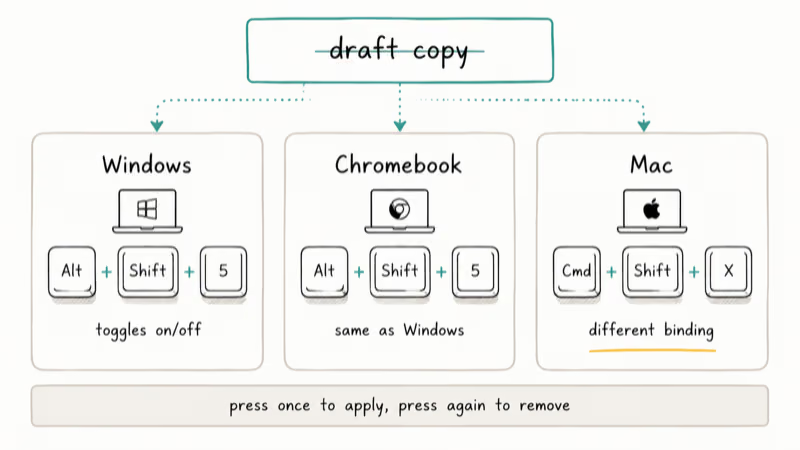
On Windows, select your text and press Alt+Shift+5. On a Chromebook, the same combination works because ChromeOS maps the modifier keys identically.
On Mac, select your text and press Command+Shift+X. You can also press the shortcut before typing, write the crossed-out copy, then press it again to switch the formatting off and continue normally.
Google’s keyboard shortcut reference for Docs states that Alt+Shift+5 is the only default strikethrough binding on Windows; the Mac binding uses Command+Shift+X to avoid colliding with browser shortcuts that already claim Cmd+Shift+5 for screenshots.
If the shortcut doesn’t respond, two common culprits show up. A browser extension may be intercepting the key combination — Grammarly and certain screenshot tools occasionally claim Alt+Shift+5. Open Tools, then Keyboard shortcuts to confirm the binding is still active, then disable extensions one at a time to find the conflict. For a side-by-side comparison of strikethrough shortcuts across Word, Notion, and Slack, our strikethrough keyboard shortcut guide lists every default.
#Apply Strikethrough From the Format Menu
The Format menu method works on any computer without memorizing shortcuts, and it only takes a few clicks.
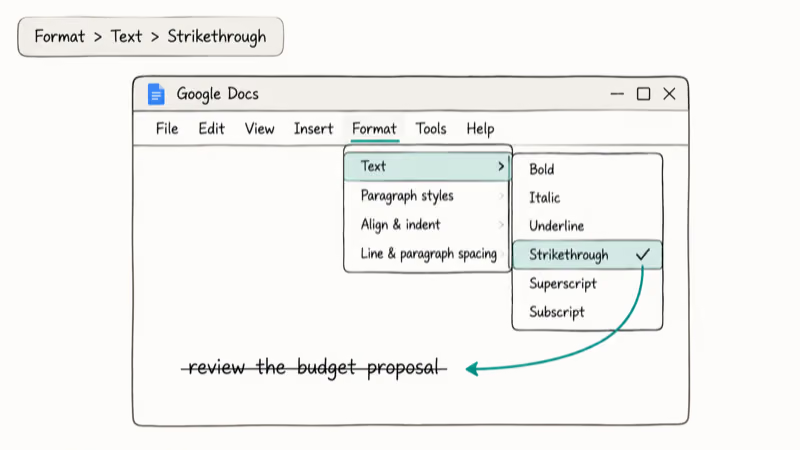
Open your Google Doc and select the text you want to format. Click Format in the menu bar, hover over Text, then click Strikethrough. The line appears immediately. To remove it, select the same text and follow the same path; clicking Strikethrough when it’s active toggles the formatting off.
The menu approach also handles text inside tables and footnotes correctly. Click into the cell or footnote, drag-select the text, then choose Format, then Text, then Strikethrough. Bullet and numbered list items behave the same way.
If you use strikethrough every day, the menu path starts to feel slow. The shortcut takes a few uses to internalize but is much faster once muscle memory takes over. The same keyboard mapping is used for strikethrough in Gmail and Google Slides, so learning it pays off across Google’s whole productivity stack.
#Strikethrough in the Google Docs Mobile App
The mobile flow looks different from desktop but produces identical formatting in the saved document.
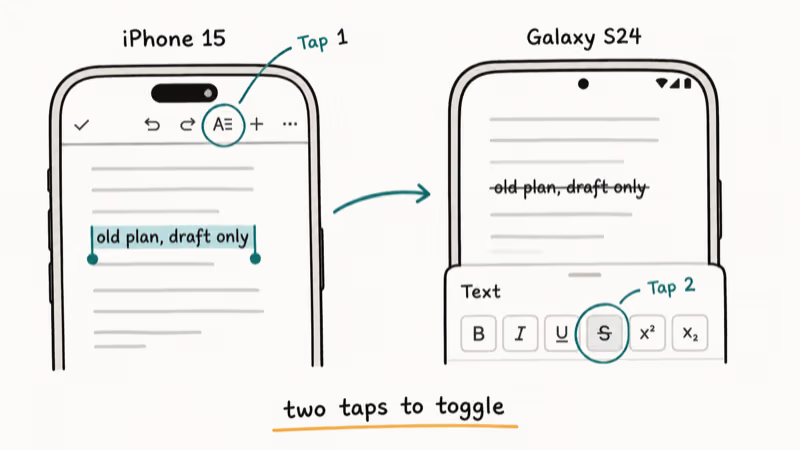
Open the Google Docs app and tap the document to place a cursor. Hold down on the word you want to format, then drag the selection handles to extend the highlight.
Tap the Format icon (the letter A with horizontal lines) in the top toolbar. Under the Text tab, tap the S with a strikethrough line through it. Tap the same S a second time to remove the formatting.
According to Google’s mobile editing support page, the mobile Format panel mirrors the desktop Text submenu.
If you regularly format documents on the move, you’ll want to know the related save images from a Google Doc workflow, since the same Format icon is the entry point for inserting and exporting media on mobile.
#Customize the Toolbar to Add Strikethrough
Google Workspace Business Standard and higher tiers can pin Strikethrough directly to the toolbar, which removes the menu hunt entirely.
Go to Tools, then Customize toolbar, then drag the Strikethrough icon to the toolbar surface. If you don’t see Customize toolbar in the Tools menu, your account doesn’t have access. Personal Gmail accounts, Workspace Individual, and most education tiers don’t include toolbar customization, so the Format menu or the keyboard shortcut remain the practical defaults.
For everyone without that feature, the Tools menu still gives you a fast workaround: assigning a custom keyboard binding through Tools, then Keyboard shortcuts. You can rebind any default shortcut, though most teams find the stock Alt+Shift+5 / Command+Shift+X bindings work well enough not to bother.
#Strikethrough in Google Sheets, Slides, and Forms
The strikethrough shortcut is consistent across most of the Google productivity suite, which is useful because you only need to learn it once.
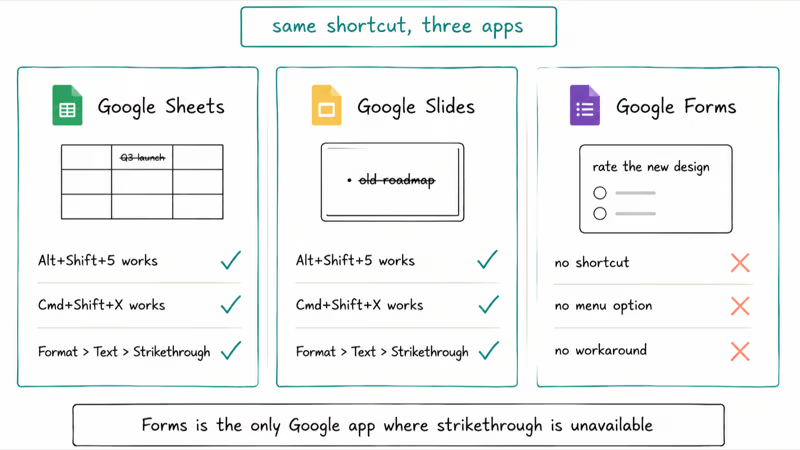
In Google Sheets, press Alt+Shift+5 on Windows or Command+Shift+X on Mac with cells selected. The line applies to the cell content directly. You can also use it on partial text inside a cell by double-clicking to enter edit mode first. For more spreadsheet-specific layout work, see our guide on how to freeze a row in Google Sheets.
In Google Slides, strikethrough works through Format, then Text, then Strikethrough, and Alt+Shift+5 also applies. Apply it to a single word, a bullet line, or an entire text box. The shortcut continues to toggle the same way it does in Docs.
In Google Forms, strikethrough isn’t supported in question text or answer choices, and Forms has no workaround.
For other document chores that share the Format menu, these guides walk through each task step by step:
- Highlight duplicates in Google Sheets
- Set up MLA format in Google Docs
- Delete a header in Google Docs
#Bottom Line
For day-to-day Google Docs work, make Alt+Shift+5 on Windows and Chromebook or Command+Shift+X on Mac your default. The shortcut toggles in both directions in under a second and works in Sheets and Slides unchanged. Reach for the Format menu only on a borrowed machine or an unusual keyboard layout. On mobile, the Format icon is one tap away.
#Frequently Asked Questions
How do I strikethrough text on a Chromebook?
Press Alt+Shift+5 with your text selected. Chromebooks run ChromeOS, and the keyboard mapping matches Windows exactly for this shortcut. If Alt+Shift+5 doesn’t respond, open Tools, then Keyboard shortcuts to check whether the binding has been overridden, and confirm no Chrome extension is intercepting the keypress.
Can I strikethrough a whole paragraph at once?
Yes. Select the paragraph by clicking at the start and Shift-clicking at the end, or press Ctrl+A to select the whole document. Apply Alt+Shift+5 (Windows or Chromebook), Command+Shift+X (Mac), or use Format, then Text, then Strikethrough.
Why is my strikethrough shortcut not working?
Two causes account for almost every reported failure. A Chrome extension may be capturing the same key combination, which happens most often with screenshot and grammar tools. The other common cause is a custom keyboard binding under Tools, then Keyboard shortcuts that has overridden the default. Disable browser extensions one by one until the shortcut responds again.
Does removing strikethrough also remove bold or italic?
No. Toggling strikethrough off removes only the strikethrough line. Bold, italic, underline, font color, and highlight all stay intact. You can layer strikethrough with any other formatting without conflict.
Can I find strikethrough text using Find and Replace?
No. Google Docs Find and Replace doesn’t filter by formatting attributes, so there’s no way to search for crossed-out text directly. The fastest workaround is to scroll the document visually. For documents over 50 pages, you can write a Google Apps Script that walks the document body and reports characters whose text style includes strikethrough.
Does strikethrough affect the word count?
No. Strikethrough is purely visual, so the Tools, then Word count tally still counts every crossed-out word.
Is strikethrough available in offline mode?
Yes. According to Google’s offline editing documentation, every basic text style (bold, italic, underline, and strikethrough) is available offline, and changes sync to Drive automatically once you reconnect. The same offline session also lets you draft a Google Calendar invitation without losing your formatting work.
Can I apply strikethrough to non-Latin scripts?
Yes. The strikethrough line is drawn over each character regardless of script, so Chinese, Japanese, Korean, Arabic, Hebrew, and Cyrillic text all receive the same formatting. The shortcut and menu path don’t change based on document language.

Google Messages Error 3100: Why RCS Is Broken on Galaxy
Google Messages RCS error 3100 hits Galaxy owners after phone or carrier switches. Google told 9to5Google a fix is coming. Here's what actually helps.

Is This Bank App Real? Spot a Fake App on Your Home Screen
A bank app can land on your home screen from a web page with no install warning. Learn the checks that tell a real banking app from a phishing web app.

Apps Crashing After iOS 27 Update? Fix Order (2026)
Apps crashing after the iOS 27 update? Update the app in the App Store first, then offload and reinstall to clear stale cache, then restart. The fix order.

Do AI Translation Earbuds Work Offline? What to Know
Do AI translation earbuds work offline? A few do with downloaded language packs, but most need the cloud. Here's what works offline and what you give up.