MLA Format on Google Docs: Complete 2026 Setup Guide
Set up MLA format in Google Docs in under 10 minutes. Step-by-step guide for fonts, margins, headers, double spacing, and the Works Cited page.
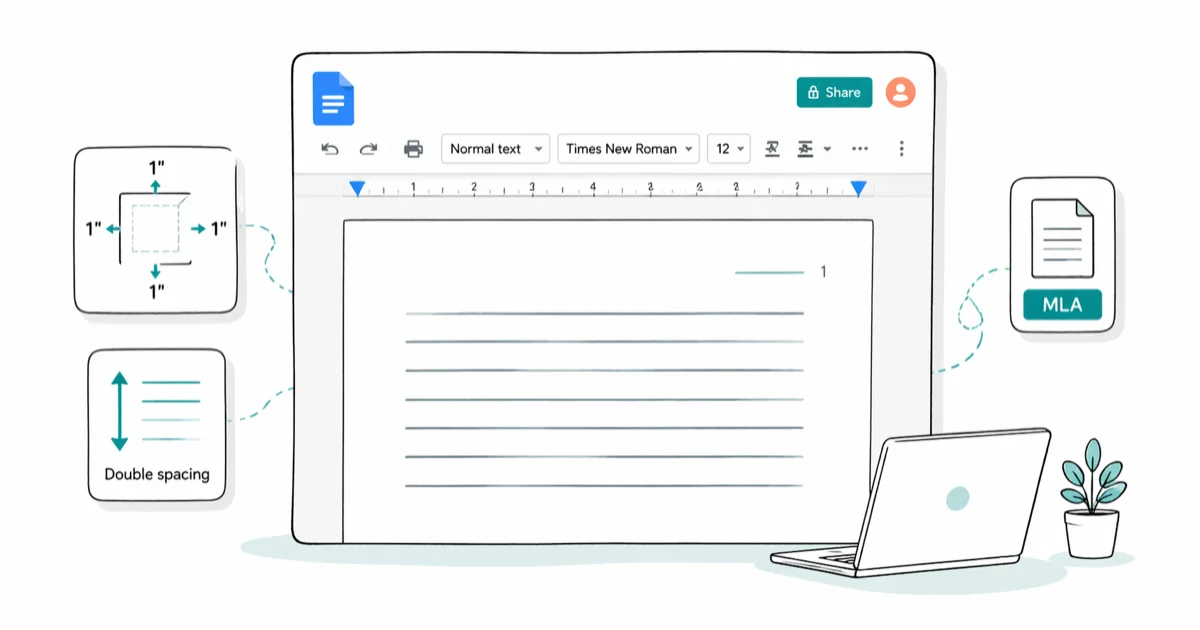
Quick AnswerOpen a blank Google Doc, set the font to Times New Roman 12pt, margins to 1 inch on all sides, and line spacing to double. Add a right-aligned header with your last name and page number to finish core MLA setup.
MLA format in Google Docs is a short setup once you know the required pieces. The same core setup applies whether you use the manual setup, the built-in template, or the Citations tool.
- Times New Roman 12pt, 1-inch margins on all four sides, and double-spacing throughout, including the Works Cited page
- Header: your last name plus page number, right-aligned in Times New Roman 12pt. Google Docs resets header font to Arial 11pt, so re-set it after opening
- First-page block: your name, instructor, course, and date on separate lines, left-aligned and double-spaced, before the centered title
- Works Cited entries use a 0.5-inch hanging indent, applied through
Format>Align &indent > Indentation options - Google Docs Citations tool (under Tools menu) auto-generates MLA 8th edition entries but defaults to “Bibliography”; rename it to “Works Cited” before submitting
#What Are the Core MLA Format Requirements?
Seven rules cover every visible element of an MLA paper. Miss any one and your professor will spot it during grading.
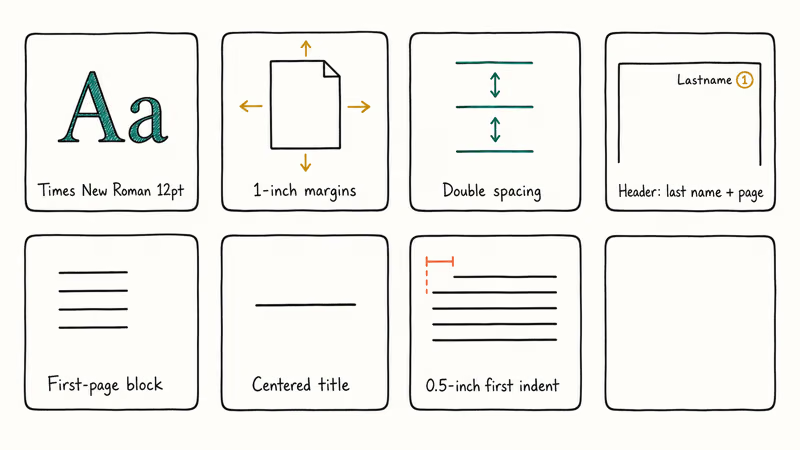
The full checklist:
- Font: Times New Roman, size 12
- Margins: 1 inch on all four sides
- Line spacing: Double-spaced throughout, including the Works Cited page
- Header: Last name and page number, right-aligned in the top-right corner
- First-page info: Your name, professor’s name, course name, and due date, left-aligned and double-spaced
- Title: Centered, on the line directly after the first-page info block
- Paragraph indentation: First line of each paragraph indented 0.5 inches (one Tab press)
Defaults work for none of this. A new Google Doc opens with Arial 11pt, single spacing, and roughly 1.1-inch margins.
According to Purdue OWL’s writing lab, MLA 9th edition rules are documented across 7 source types in their general format guide, with worked examples for books, websites, journal articles, videos, and social media posts. If you format more than ten sources a semester, bookmark the page.
#How Do You Set Up MLA Format in Google Docs Manually?
Manual setup gives you full control and works in any Google account, including school-managed Workspace ones where the template gallery is sometimes restricted. It’s the safest route when you need to match each visible MLA requirement directly. The seven steps below walk through that setup from start to finish.
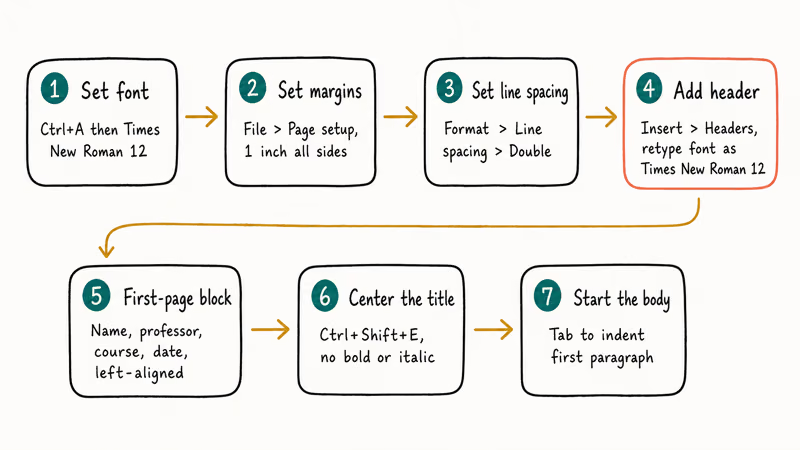
Step 1: Set the font and size.
Press Ctrl+A (Cmd+A on Mac) to select everything. Change the font dropdown from Arial to Times New Roman, then set the size to 12.
Step 2: Set margins to 1 inch.
Go to File > Page setup. Change all four margin fields (top, bottom, left, right) to 1 inch. Click OK.
Step 3: Set line spacing to double.
Go to Format > Line & paragraph spacing > Double. Apply this before you start typing, or select all existing text first with Ctrl+A.
Step 4: Add the header.
Go to Insert > Headers & footers > Header. The header opens at the top of the page.
Google Docs resets the font to Arial 11pt every time you open a header, so change it back to Times New Roman 12pt before typing anything.
Click Right align (or press Ctrl+Shift+R). Type your last name, add a space, then go to Insert > Page numbers and select the top-right option. Click Apply.
If your professor wants the page number to start on page 2, tick the “Different first page” box in the header options. You can also see how to delete a header in Google Docs if you need to remove it later.
Step 5: Add the first-page information block.
Click into the main body area. Press Ctrl+Shift+L to left-align. Type your full name, press Enter, then your professor’s name, course name (e.g., English 101), and due date (e.g., 30 April 2026). Each line is its own row, double-spaced.
Step 6: Add the title. Press Enter after the date, then center-align with Ctrl+Shift+E and type your paper’s title. Don’t bold it, italicize it, or wrap it in quotation marks unless the title includes a referenced work.
Step 7: Start the body. Tab once to indent the first paragraph and begin typing.
#Using the Built-In MLA Template
The built-in MLA template is the fastest option when you trust the defaults. Go to File > New > From template gallery, scroll to the Education section, and click Report MLA Add-on. A new document opens with placeholder text already formatted.
Replace the dummy text with your own content.
Open the header after loading the template and verify the font size before writing, because the header is easy to miss.
The template is the right choice if you want speed and don’t need any custom formatting. If your school account restricts the gallery, fall back to manual setup or save your own blank MLA file (see the tips section near the end of this guide).
#Adding a Works Cited Page in Google Docs
Works Cited goes on the last page, alphabetized by author last name.
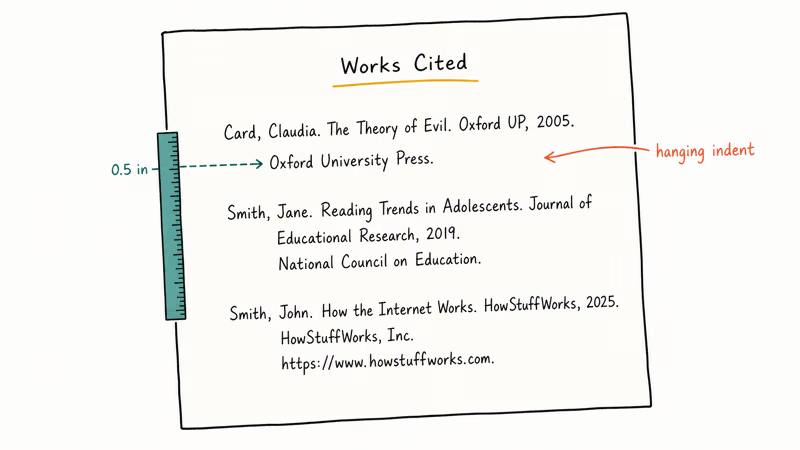
Setting up the page: at the end of your paper, go to Insert > Break > Page break to start a fresh page. Center-align and type “Works Cited” (no bold, no quotation marks, no italics). Press Enter, then switch back to left-align.
Adding the hanging indent: each Works Cited entry uses a hanging indent, where the first line is flush left and every subsequent line indents 0.5 inches. To set this:
- Select all your citations
- Go to
Format>Align &indent > Indentation options - Under “Special indent,” choose Hanging
- Set the value to 0.5 in and click Apply
A sample MLA citation for a book looks like this:
Card, Claudia. The Theory of Evil. Oxford UP, 2005.
According to MLA’s official 9th edition style center, the Works Cited overview simplified citation rules across all source types, including websites and social media posts. If you’re unsure which format to use for a specific source type, check the MLA Style Center first before guessing.
#Using the Citations Tool to Generate Sources Automatically
Google Docs has a built-in Citations tool that formats sources in MLA, APA, or Chicago and inserts a Works Cited list at the end. It saves time once you have more than five sources.
Here’s how to use it.
Go to Tools > Citations and select MLA from the sidebar dropdown. Click + Add citation source, choose your source type (book, journal, website, etc.), and fill in the required fields. Click Add citation source to save it.
To insert an in-text citation, place your cursor where you want it, then click Cite next to the source in the sidebar. A placeholder like (Author Page#) appears. Replace the # with the actual page number.
When you’re done, click Insert bibliography in the sidebar. The list goes wherever your cursor sits.
The Citations tool can create MLA entries, but it labels the inserted page “Bibliography” by default, not “Works Cited.” Change that text manually before submitting.
According to Google’s support documentation, the Citations tool supports MLA 8th edition formatting in their help article. If your professor requires MLA 9th edition specifically, double-check each generated entry against the current MLA handbook, since there are minor differences between editions.
#Formatting Works Cited Entries by Source Type
Different source types follow different MLA structures. Here are the three most common formats students need.
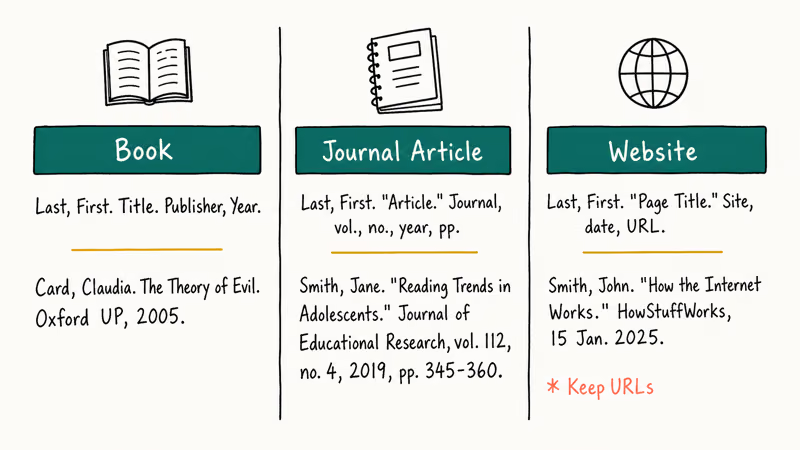
For a book by a single author, the structure is: Last Name, First Name, then Book Title in italics, Publisher, and Year.
Card, Claudia. The Theory of Evil. Oxford UP, 2005.
For a journal article, add the journal title, volume, issue, year, and page range.
Smith, Jane. "Reading Trends in Adolescents." Journal of Educational Research, vol. 112, no. 4, 2019, pp. 345-360.
For a website, list the page title, website name, publication or last-update date, and URL.
Smith, John. "How the Internet Works." HowStuffWorks, 15 Jan. 2025, www.howstuffworks.com/internet/internet.htm.
If no author is listed, start with the title of the page. If no date is listed, write “n.d.” in its place.
Purdue OWL recommends keeping URLs in entries even though MLA 8th edition originally made them optional, because URLs are the easiest way for graders to verify your sources without retyping them by hand.
#Additional Google Docs Tips for Academic Writing
Use voice typing for first drafts. Go to Tools > Voice typing. Say punctuation aloud (“comma,” “period”). It’s faster for getting a rough first draft down on a tight deadline.
Save a formatted blank template. After finishing setup, go to File > Make a copy and rename the new file “MLA Template - blank.” Keep it with no body text and use it as the starting point for every new paper. The font, margins, line spacing, and header are already in place, so you don’t repeat the same setup each time.
Use version history. Go to File > Version history > See version history. Every edit is saved automatically.
Two related guides: strikethrough in Google Docs and saving images from a Google Doc.
If you need to switch to Microsoft Word at some point, see how to double space in Word. For document recovery after a crash, see how to recover an unsaved Word document.
#Bottom Line
Manual setup is the most reliable path for any new MLA paper: font, margins, line spacing, header, then the first-page block. That core is quick and works regardless of which Google account you sign in with.
The built-in template is the fastest path when your account has access to the gallery, but verify the header font is set to Times New Roman 12pt before writing because the template loads with 11pt. Use the Citations tool once you have five or more sources, and always rename the inserted “Bibliography” heading to “Works Cited.”
Spot-check each generated entry against the MLA 9th edition handbook if your assignment requires that version. Save a clean MLA template after the first time you set one up. That single habit saves the most time over a semester.
#Frequently Asked Questions
Can you use Google Docs offline for MLA papers?
Yes.
Go to File > Make available offline in any Doc, then enable Chrome’s offline access in Drive settings. Edits save locally and sync automatically once you reconnect to the internet. Headers, margins, and the Citations tool all work in offline mode without missing features. Only newly added external links and shared comments need an active connection to load fully.
Does MLA format require Times New Roman specifically?
Not strictly. The MLA handbook says any legible 12pt font is acceptable. Times New Roman is the default recommendation because graders are used to it, so use it unless an instructor explicitly says you can choose your own font.
How do you add a running header that doesn’t show on the first page?
Open the header (Insert > Headers & footers > Header), then check “Different first page” in the header options toolbar. Page 1 gets a clean header area, while pages 2 onward show your last name and page number.
What’s the difference between a Works Cited page and a bibliography?
Works Cited lists only sources you cited in the paper. A bibliography lists every source you read or consulted, cited or not. MLA uses Works Cited.
Can you submit a Google Doc directly instead of a Word file?
Many instructors accept Google Docs through a share link.
If your professor needs a Word file instead, go to File > Download > Microsoft Word (.docx). Open the downloaded file in Word before submitting to confirm margins, fonts, and the running header transferred correctly. Some custom font sizes drop back to defaults during the conversion, so always re-check those exact settings in Word and re-apply them if anything shifted before you click Submit on your assignment portal.
How do you fix double spacing that only applies to part of the document?
The usual cause is pasted text carrying embedded formatting from another source. Select all with Ctrl+A and apply double spacing again. If that doesn’t work, select just the stubborn paragraphs, go to Format > Clear formatting, then reapply double spacing manually.
Does MLA format require a title page?
No. Standard MLA puts your name, professor’s name, course name, and due date in the upper-left of the first page (each on its own line, double-spaced), followed by the centered title. There’s no separate cover sheet. Some professors override this and require a title page anyway, so re-read your assignment instructions before formatting.
How do you insert a page break before the Works Cited page?
Put your cursor at the end of the last paragraph. Go to Insert > Break > Page break, then center-align and type “Works Cited.”

Google Messages Error 3100: Why RCS Is Broken on Galaxy
Google Messages RCS error 3100 hits Galaxy owners after phone or carrier switches. Google told 9to5Google a fix is coming. Here's what actually helps.

Is This Bank App Real? Spot a Fake App on Your Home Screen
A bank app can land on your home screen from a web page with no install warning. Learn the checks that tell a real banking app from a phishing web app.

Apps Crashing After iOS 27 Update? Fix Order (2026)
Apps crashing after the iOS 27 update? Update the app in the App Store first, then offload and reinstall to clear stale cache, then restart. The fix order.

Do AI Translation Earbuds Work Offline? What to Know
Do AI translation earbuds work offline? A few do with downloaded language packs, but most need the cloud. Here's what works offline and what you give up.