Strikethrough Shortcut: Word, Excel, Google Docs and More
Apply strikethrough fast with the right keyboard shortcut. Covers Word, Excel, Google Docs, Gmail, Slack, HTML, and common formatting use cases.
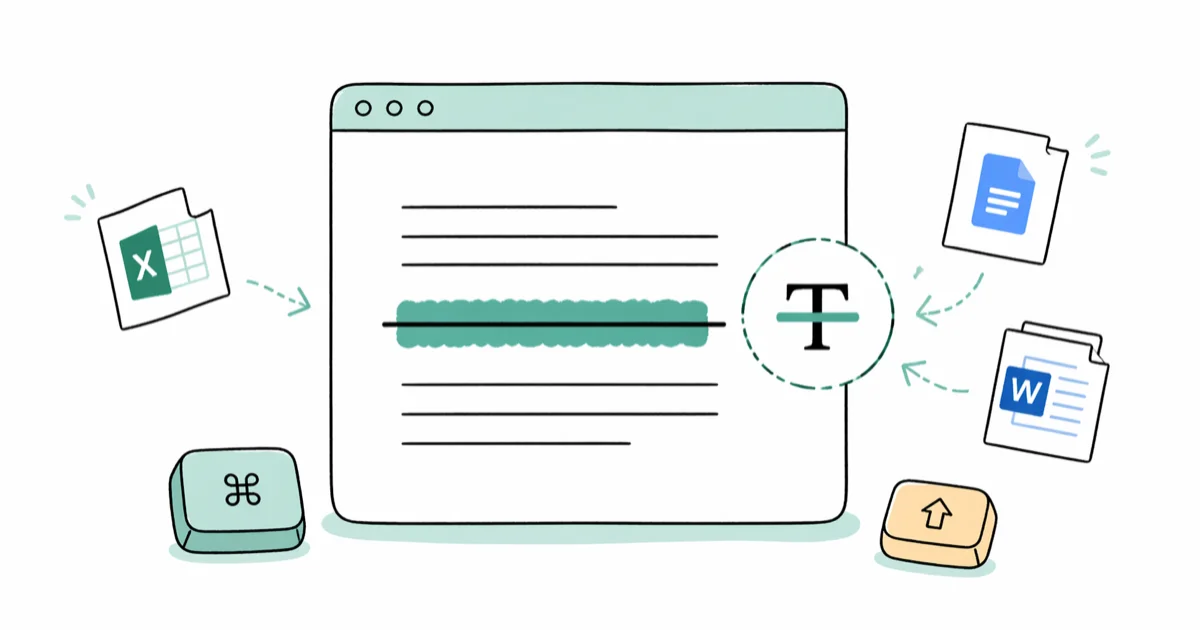
Quick AnswerIn Excel, press Ctrl+5. In Google Docs, press Alt+Shift+5 on Windows or Command+Shift+X on Mac. In Word, press Alt+H+4. In Slack, WhatsApp, and Telegram, wrap text in tildes like ~this~.
The strikethrough shortcut you need depends on the app you’re in. The methods below cover the current keyboard paths for Word, Excel, Google Docs, Gmail, Slack, WhatsApp, Telegram, HTML, and common editors.
- Excel has the fastest path: Ctrl+5 toggles strikethrough in one keystroke on Windows and Mac
- Word has no single default key; Alt+H+4 (sequence, not chord) is the fastest keyboard-only path
- Google Docs uses Alt+Shift+5 on Windows and Command+Shift+X on Mac, both confirmed by Google’s official shortcut docs
- Gmail’s strikethrough lives behind Ctrl+Shift+X in compose, the same shortcut Mac users press with Command+Shift+X
- Slack, WhatsApp, Telegram, and Discord all use tilde wrapping (
text) instead of OS-level shortcuts
#What Does Strikethrough Mean and When Should You Use It?
Strikethrough draws a line through text. The line says crossed out but readable.
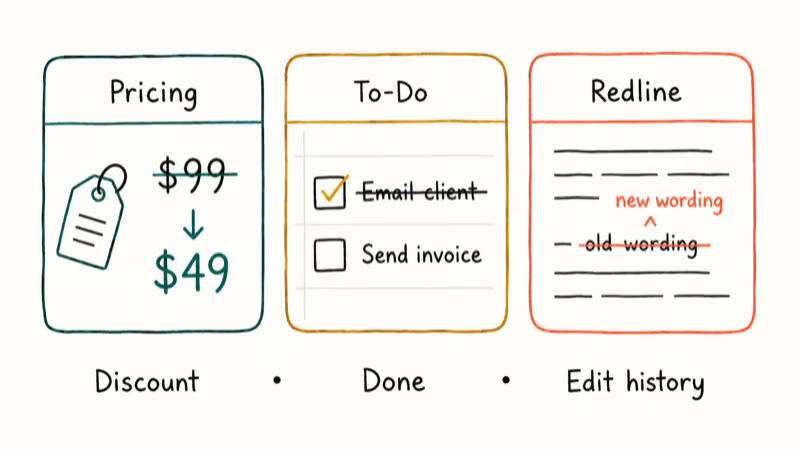
You see strikethrough most often in three places. Pricing layouts use it to show a discount: $99 $49. To-do lists use it to mark completed items. Tracked-changes documents use it to flag deletions while keeping the original visible for review.
The point is to show both what was there and what replaced it. That matters in legal redlines, editorial markup, and any negotiation where the audit trail is part of the value. Deleting the text loses that trail; strikethrough preserves it.
#How to Apply Strikethrough in Microsoft Word
Word never shipped a single-key default for strikethrough, which is why so many users default to clicking the ribbon button. There are two faster keyboard paths.
#Method 1: The Ribbon Sequence (Alt+H+4)
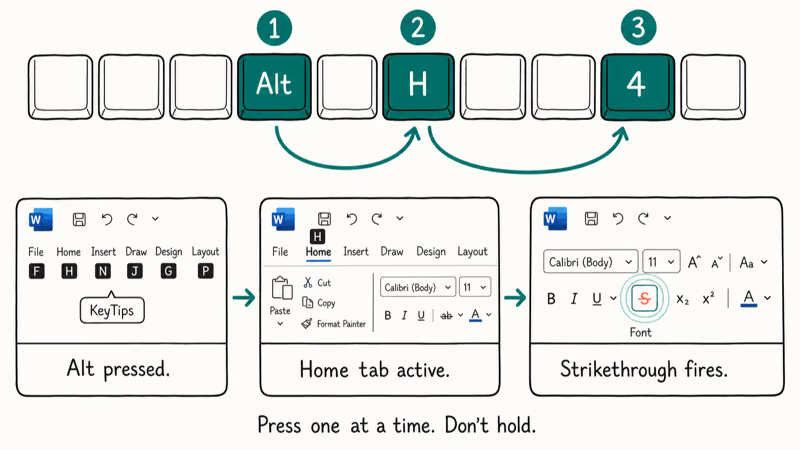
Select your text, then press Alt, then H, then 4 — one key at a time, not held together.
The strikethrough applies on the fourth keypress. Press the same sequence again to remove it. The sequence works across regular paragraphs, table cells, headers, footers, and text inside SmartArt shapes in current Microsoft 365 builds.
The “4” maps to the fourth formatting button in the Home ribbon’s Font group. Don’t hold the keys down: Alt activates KeyTips, H selects the Home tab, and 4 fires the button. Holding triggers different behavior.
#Method 2: The Font Dialog (Ctrl+D, then Alt+K)
Press Ctrl+D to open the Font dialog. Press Alt+K to toggle the Strikethrough checkbox. Press Enter to commit.
This dialog gives you access to four related effects from one screen: Strikethrough (Alt+K), Double Strikethrough (Alt+L), Subscript (Alt+B), and Superscript (Alt+P). Each underlined letter in the dialog label is the access key. According to Microsoft, more than 200 keyboard shortcuts ship with Word for Windows, listed on their Word keyboard shortcuts page, and the Alt+H+4 path is the fastest single chain for strikethrough specifically.
If you want a real one-key shortcut, you can map your own. Go to File > Options > Customize Ribbon > Keyboard Shortcuts > Categories > Home Tab > Strikethrough, then assign whatever combination you want (Ctrl+- works for many editors because it’s not bound to anything by default).
For other Word formatting tricks like landscape sections and rotated tables, our guide on how to rotate a table in Word covers more keyboard-friendly methods.
#How to Apply Strikethrough in Microsoft Excel
Excel has the cleanest strikethrough shortcut of any Office app: Ctrl+5. Select the cells, press Ctrl+5, done.
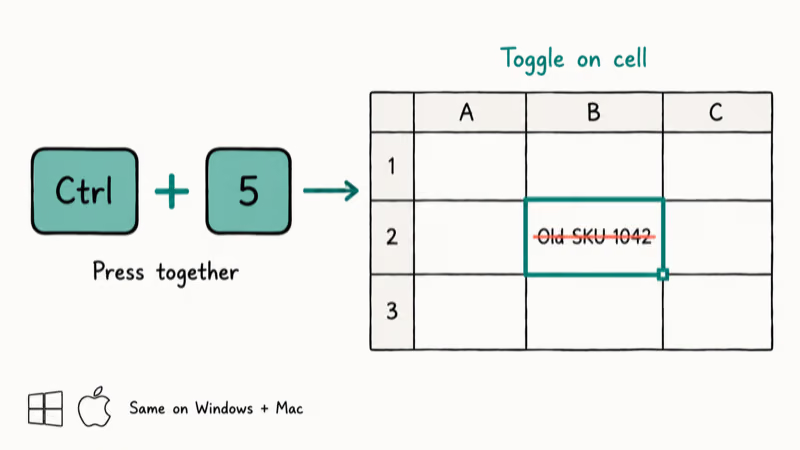
Ctrl+5 works on Excel for Microsoft 365 (Windows and Mac), Excel 2021, Excel 2019, and Excel for the web. Press it once to apply, press it again to remove. The shortcut also works on partial cell text if you’re in edit mode (F2) and have selected a substring.
For broader formatting control, press Ctrl+1 to open the Format Cells dialog, switch to the Font tab, and check the Strikethrough box. From here you can pair strikethrough with red text or a yellow fill, which is useful when you’re flagging deprecated rows in a shared workbook where deleting a row would break a downstream formula.
According to Microsoft, Ctrl+5 has been the strikethrough shortcut in every Excel version since Excel 2007, as confirmed by the Excel keyboard shortcuts documentation, making it one of the most stable shortcuts in Office.
For other Excel formatting headaches, the Excel file not opening guide covers the most common causes that block formatting work entirely.
#How to Apply Strikethrough in Google Docs
Google Docs splits its strikethrough shortcut by OS, which trips up users who switch between platforms.
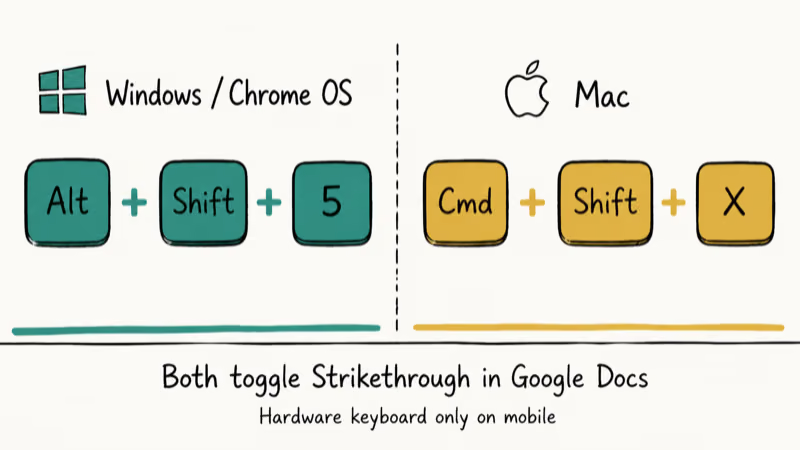
On Windows and Chrome OS, press Alt+Shift+5. On Mac, press Command+Shift+X. The shortcuts also work in the Google Docs Android and iOS apps if you’re using a hardware keyboard, but they don’t work with the on-screen touch keyboard.
If you’d rather click, go to Format > Text > Strikethrough in the menu bar. The keyboard route is faster after about three uses.
According to Google, the strikethrough shortcut has stayed the same since 2014, as documented in their Docs keyboard shortcuts reference. Several other Google Docs shortcuts changed during the 2023 Material 3 redesign, but Command+Shift+X remains the Mac shortcut for strikethrough.
For other Google Docs formatting fixes, the MLA format in Google Docs walkthrough and the how to delete a header in Google Docs guide cover common formatting requests.
#How to Apply Strikethrough in Gmail
Gmail tucks strikethrough behind a button in the compose toolbar, but the keyboard shortcut is the same on both platforms.
Press Ctrl+Shift+X on Windows, or Command+Shift+X on Mac. Both work in the standard compose window and the full-screen editor.
If the formatting toolbar isn’t showing in compose, click the underlined “A” icon in the bottom toolbar to expand it, then look for the “S” with a line through it. The button method takes about 3 seconds once you know where it lives, but the keyboard shortcut takes well under a second.
One caveat: the Ctrl+Shift+X shortcut only fires when the cursor is inside the message body. If your cursor is in the To, Subject, or CC field, the shortcut does nothing. Switch focus to the body first.
For more Gmail formatting edge cases, our Gmail strikethrough guide covers what to do when the formatting bar disappears and how to keep strikethrough when forwarding messages.
#How to Apply Strikethrough on Messaging Apps and PowerPoint
Messaging apps mostly skip OS-level shortcuts and use Markdown-style syntax instead.
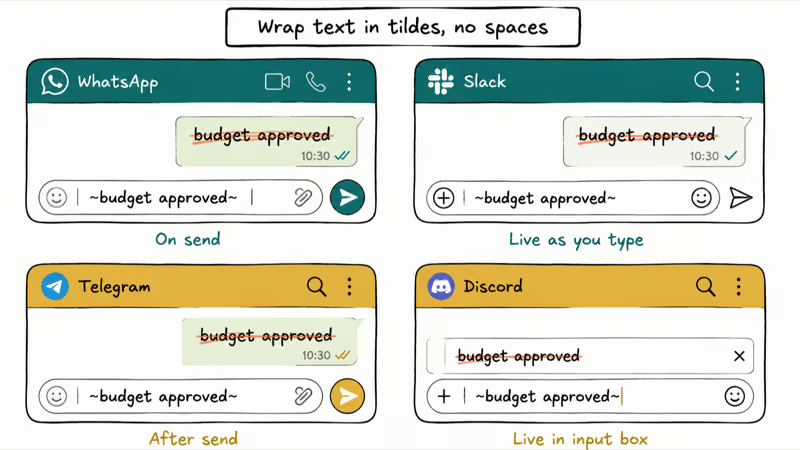
WhatsApp, Slack, Telegram, and Discord all support tilde wrapping. Type a tilde, your text, then a closing tilde with no spaces: ~this is struck~. WhatsApp converts the syntax when you send. Slack converts it as you type, Telegram converts after sending, and Discord renders the line live in the input box.
Slack also accepts a real keyboard shortcut: Shift+Cmd+Shift+5 on Mac and Shift+Ctrl+Shift+5 on Windows when you’re composing a message. According to Slack’s keyboard shortcuts page, the company added the shortcut in 2022 specifically because users requested parity with Google Docs.
Microsoft PowerPoint uses Alt+H+4, the same sequence as Word.
Microsoft Outlook also accepts Ctrl+Shift+X in the compose window when the message format is set to HTML or Rich Text. Plain text emails ignore the formatting shortcut because plain text has no markup to apply.
For a deeper look at the Google Docs path including custom shortcuts and mobile workarounds, our dedicated strikethrough in Google Docs guide has everything you need.
#Does Strikethrough Work in HTML and CSS?
Yes, and HTML actually has two different tags for it, each with a different meaning.
The <s> tag marks text that’s no longer accurate or relevant — for example, an outdated price or a canceled event. The <del> tag marks text that has been explicitly deleted, typically inside a <ins> and <del> pair to show what changed. Both render with a strikethrough line by default, but they carry different semantics in the document outline.
In CSS, the property is text-decoration: line-through, which works on any element. You can layer it with text-decoration-color, text-decoration-style: wavy, and text-decoration-thickness for full visual control. According to MDN’s documentation on the <del> element, screen readers handle <del> content differently from <s> content, often announcing the text as “removed” or “deleted” depending on the assistive technology, which makes <del> the better choice for accessibility when the content represents an actual edit.
For pure visual strikethrough that has no semantic meaning, MDN recommends using CSS text-decoration on a <span> rather than a presentational HTML tag, because semantic HTML should describe meaning, not appearance.
#Bottom Line
For 90% of strikethrough work, three keystrokes are enough: Ctrl+5 in Excel, Alt+H+4 in Word, and Alt+Shift+5 (or Command+Shift+X on Mac) in Google Docs. Memorize those three and you’ll cover almost every document and spreadsheet you touch. For chat apps, the tilde method is faster than any shortcut once it becomes muscle memory.
If your shortcuts aren’t firing at all, the keyboard hardware is usually the culprit, not the app. Our Windows 10 keyboard not working guide covers stuck keys, dead modifiers, and the registry tweaks that fix most ghost-input issues. For Chromebook users, the Chromebook keyboard not working walkthrough covers the same diagnostic order we use when keys go dead, including the hardware reset that resolves most input failures within 30 seconds.
#Frequently Asked Questions
What is the strikethrough shortcut in Excel?
Ctrl+5. Select the cells first, then press it. The shortcut works on Excel for Microsoft 365, Excel 2021, Excel 2019, and Excel for the web on both Windows and Mac. Pressing Ctrl+5 again removes the strikethrough from the selected cells.
What is the strikethrough shortcut in Google Docs?
Alt+Shift+5 on Windows and Chrome OS. Command+Shift+X on Mac. Both shortcuts work in the browser version and the desktop app, but they don’t work with on-screen mobile keyboards.
Why doesn’t Word have a default single-key shortcut for strikethrough?
Microsoft never assigned a default chord for strikethrough in Word, likely because it’s used less often than bold, italic, or underline, all of which date back to the original 1989 release. You can either use Alt+H+4 as a built-in workaround or map a custom shortcut through File > Options > Customize Ribbon > Keyboard Shortcuts.
How do I add strikethrough in WhatsApp?
Wrap the text in tildes with no spaces between the tilde and the first or last character: ~your text here~. Send the message and the tildes disappear, leaving the strikethrough line. The syntax works on WhatsApp for iOS, Android, and the desktop app.
Can I remove strikethrough formatting quickly?
Yes. The same shortcut that applies strikethrough also removes it. Select the formatted text and press Ctrl+5 in Excel, Alt+H+4 in Word, or Alt+Shift+5 in Google Docs. All three are toggle shortcuts.
Does strikethrough survive copy-paste between apps?
It depends on the paste method. Copying struck-through text from Word to another Office app preserves the formatting. Pasting into Notepad or any plain-text editor strips it, because plain text has no markup to carry. Pasting between Google Docs and Word usually preserves strikethrough through the rich-text clipboard, but using “Paste without formatting” (Ctrl+Shift+V) always strips it.
Is single strikethrough the same as double strikethrough?
No. Single strikethrough is one horizontal line, while double strikethrough is two parallel lines mainly used in legal redlines and historical documents. In Word, open the Font dialog (Ctrl+D), then press Alt+L to toggle double strikethrough. Excel and Google Docs don’t offer it.
What is the difference between the HTML <s> and <del> tags?
Both render strikethrough text by default, but they mean different things. <s> marks content that is no longer accurate or relevant. <del> marks content that has been deleted, often paired with <ins> to show an edit. Screen readers may announce <del> content as “deleted” while ignoring <s> styling, so <del> is the more accessible choice when the strikethrough represents an actual change.

Google Messages Error 3100: Why RCS Is Broken on Galaxy
Google Messages RCS error 3100 hits Galaxy owners after phone or carrier switches. Google told 9to5Google a fix is coming. Here's what actually helps.

Is This Bank App Real? Spot a Fake App on Your Home Screen
A bank app can land on your home screen from a web page with no install warning. Learn the checks that tell a real banking app from a phishing web app.

Apps Crashing After iOS 27 Update? Fix Order (2026)
Apps crashing after the iOS 27 update? Update the app in the App Store first, then offload and reinstall to clear stale cache, then restart. The fix order.

Do AI Translation Earbuds Work Offline? What to Know
Do AI translation earbuds work offline? A few do with downloaded language packs, but most need the cloud. Here's what works offline and what you give up.