How to Send a Google Calendar Invite: Complete Guide
Send Google Calendar invites from desktop, mobile, or Gmail in under a minute. Steps for adding guests, setting permissions, and tracking RSVPs.
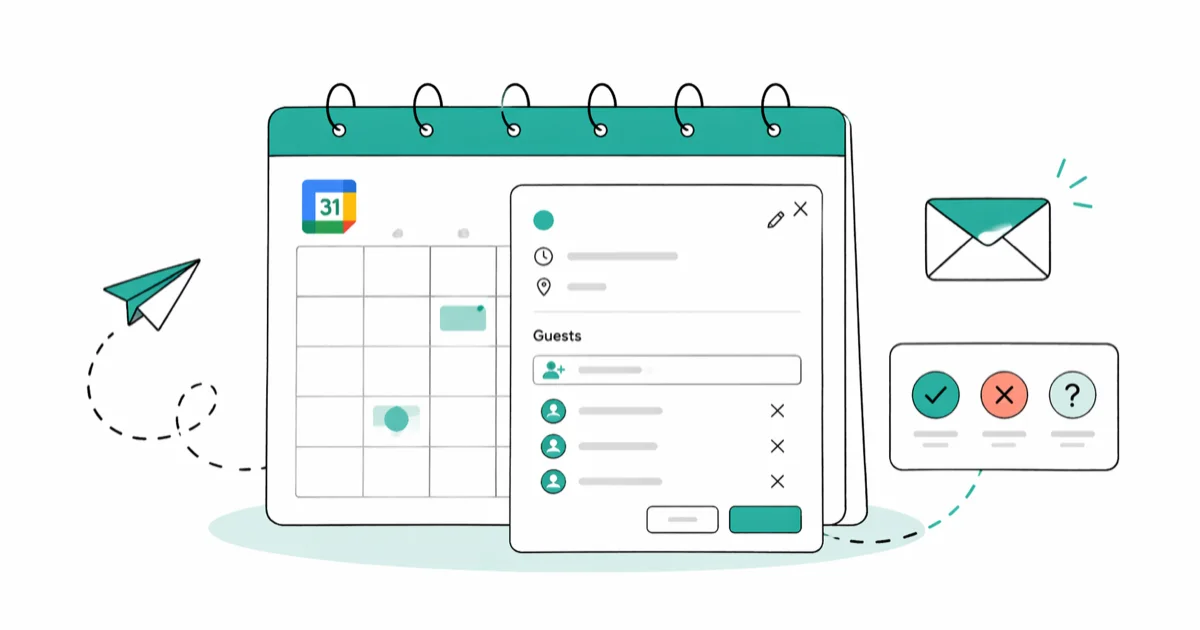
Quick AnswerOpen Google Calendar, click the event you want to share, tap the pencil icon to edit, then add guest email addresses under the Guests section. Click Save and choose Send to deliver the invitation. Guests get an email with Accept, Decline, and Maybe options.
Google Calendar invites take about 30 seconds to send once you know where to look. The process works on desktop browsers, Android phones, iPhones, and even directly from Gmail.
- Google Calendar lets you invite anyone with an email address, even non-Google users
- Desktop browser gives full control over guest permissions, while the mobile app is more limited
- You can invite up to 100,000 guests per event, though most personal events stay under 20
- Gmail users can create calendar invites directly from the compose window without switching apps
- Guests receive email notifications with one-click Accept, Decline, or Maybe buttons
#How Do You Send a Google Calendar Invite From a Browser?
The web version of Google Calendar at calendar.google.com gives you the most control, and the same event-creation flow works across major desktop browsers, so the browser choice matters less than using the full event editor.
Step 1. Go to calendar.google.com and sign in with your Google account.
Step 2. Find the event you want to share on your calendar. Click it once to see the summary popup.
Step 3. Click the pencil icon (Edit event) to open the full event editor.
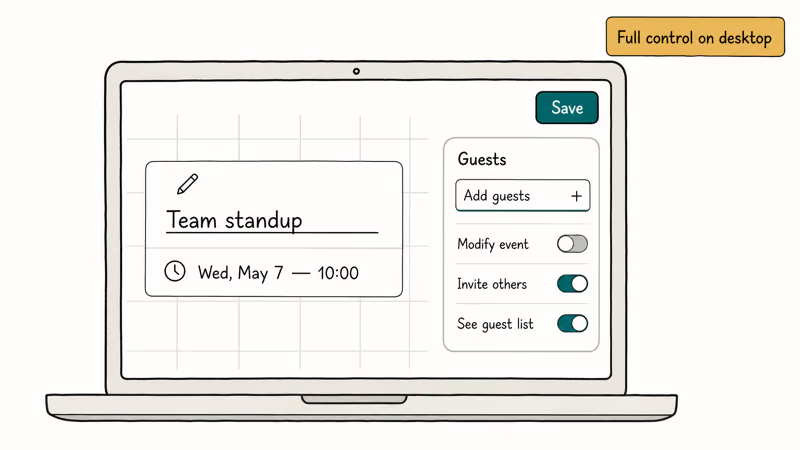
Step 4. Look at the right side of the screen. You’ll see a “Guests” panel. Type a name or email address into the “Add guests” field. Google auto-suggests contacts from your address book as you type.
Step 5. Add every guest you need, including external email addresses.
Step 6. Before saving, check the guest permissions at the bottom of the Guests panel. Three options appear:
- Modify event lets guests change event details
- Invite others allows guests to add more people
- See guest list controls whether attendees can view who else is invited
Step 7. Click Save in the top-right corner. A popup asks “Would you like to send invitation emails to Google Calendar guests?” Click Send.
That’s it. Each guest receives an email with the event title, date, time, location, and buttons to accept or decline. According to Google’s Calendar support page, guests who accept will see the event automatically added to their own calendar.
If you haven’t created the event yet, click + Create and add guests before saving.
#Sending Invites From the Google Calendar Mobile App
The mobile app works for quick invites when you’re away from your computer, with the same guest field available on Android and iPhone.
Step 1. Open the Google Calendar app on your phone.
Step 2. Tap the event you want to edit.
Step 3. Tap the pencil icon to open the editor.
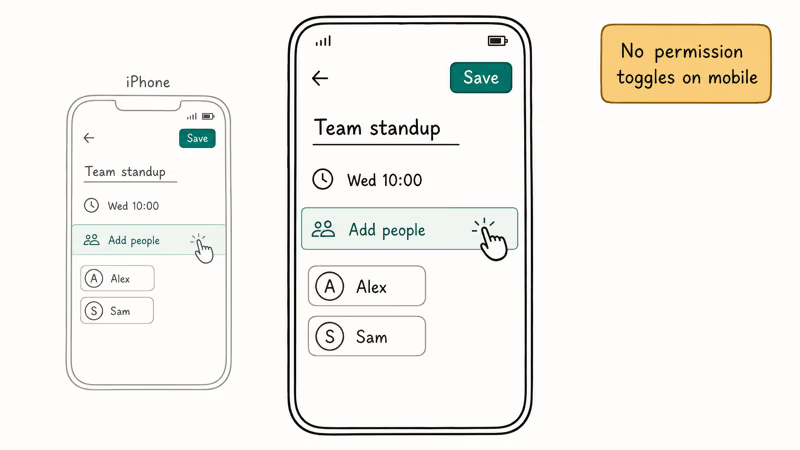
Step 4. Scroll down to “Add people” and tap it.
Step 5. Type the name or email address of each person you want to invite. The app pulls suggestions from your Google Contacts.
Step 6. Tap Save in the top-right corner. The app sends invitation emails immediately.
One limitation worth knowing: the mobile app doesn’t let you change guest permissions. If you need to control whether guests can modify the event or invite others, you’ll have to switch to a desktop browser. This is a long-standing restriction that Google hasn’t changed as of early 2026.
For new events on mobile, tap the + button in the bottom-right corner, select Event, fill in the details, and add people before saving.
#Sending Calendar Invites Directly From Gmail
You don’t need to leave your inbox. Gmail has a built-in calendar integration that works on the web version.
From the compose window:
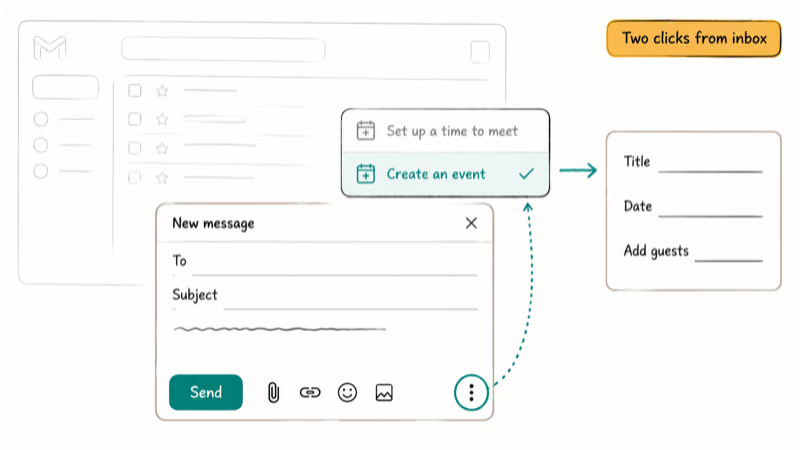
- Open Gmail and click Compose to start a new email
- Click the three vertical dots (More options) at the bottom toolbar
- Select Set up a time to meet, then choose Create an event
- A calendar event editor opens inside Gmail where you add event details and guests
- Save the event, and Google sends the calendar invitation
From a received email:
Gmail also lets you turn any email into a calendar event. Based on Google’s support documentation, you can click the three-dot menu on an email and select “Create event.” Gmail pulls the email subject as the event title and adds the sender as a guest automatically.
This Gmail method is particularly useful when someone emails you asking to set up a meeting. Instead of copying details back and forth, you convert the email into a calendar event in two clicks.
#What Happens After You Send the Invite?
Understanding the invite lifecycle helps you manage events without confusion.
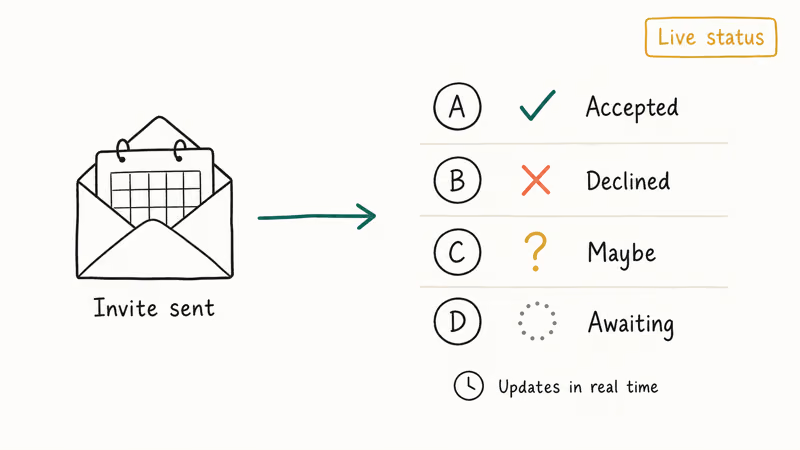
Guest responses show up in real time. Open your event and look at the guest list. Each person shows one of four statuses: Accepted (green checkmark), Declined (red X), Maybe (question mark), or Awaiting (no response yet). No refreshing needed.
Non-Google users still get invites. They receive an .ics file they can open in any calendar app.
Editing an event after sending invites triggers a new notification. When you change the time, date, or location, Google asks whether you want to notify guests. Always click Send so attendees don’t show up at the wrong time or place.
One known quirk: adding a Google Meet link after the initial invite sometimes doesn’t trigger a notification on Android devices. If you add a video call link later, send a quick heads-up to guests separately.
#Managing Guest Permissions and RSVPs
Guest permissions give you control over what attendees can do with your event. These settings are only available on the desktop web version.
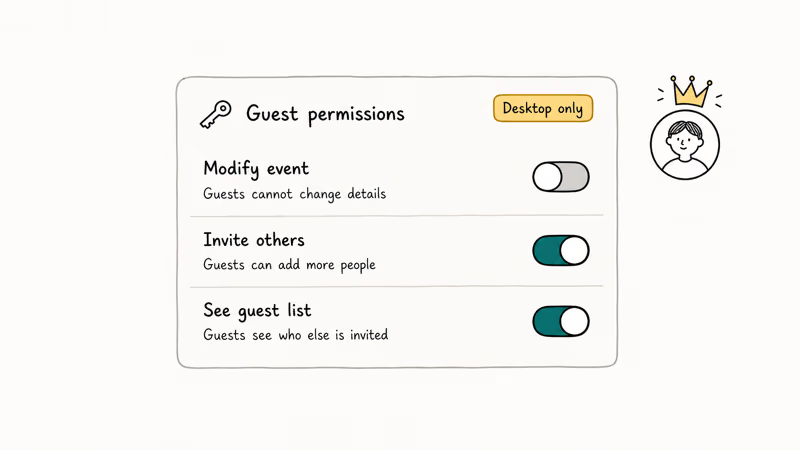
Default permissions for personal Google accounts:
| Permission | Default Setting |
|---|---|
| Modify event | Off |
| Invite others | Yes |
| See guest list | Yes |
Google Workspace admins can override these defaults. According to Google Workspace’s admin documentation, sharing policies are set at the organization level.
Tracking RSVPs at scale. For events with more than 10 guests, the event detail page groups responses into tabs: Yes, No, Maybe, and Awaiting. Click any guest’s name to send a follow-up email.
Removing a guest. Hover over their name in the guest list and click the X. Google asks if you want to notify the removed person. Think twice before choosing “Don’t notify” since they’ll still have the event on their calendar with no explanation of why they were removed.
If you organize family events regularly, creating a shared calendar for your household saves time. You add everyone once to the shared calendar, and they see every new event without individual invitations.
#Tips for Better Google Calendar Invitations
A few habits make your calendar invites more useful for everyone involved.
Always add a location or video link. Invites without a location force guests to ask “Where is this?” Google Calendar supports physical addresses (which link to Google Maps), Google Meet links, Zoom URLs, or custom text.
Use the description field. Put agendas, reference links, or prep instructions in the notes section below the event title. Guests see this in both the email and on their calendar.
Set the correct time zone. Double-check yours under Settings > General > Time zone. Google Calendar handles conversion for guests in other regions automatically, but only if your own zone is right. Google’s Calendar developer documentation confirms that time zone data travels with every invite.
Add reminders for guests. Set default notifications (10-minute or 30-minute) that apply to everyone who accepts. Reduces no-shows.
Use “suggested times” for group scheduling. When adding multiple guests on desktop, click the “Suggested times” tab. Google scans everyone’s available slots and proposes times that work for the whole group. This only works when guests share their calendar availability.
If your Gmail isn’t sending emails properly, calendar invitations may also fail to deliver. Fix your email setup first before troubleshooting calendar issues.
#Troubleshooting Common Invite Problems
Sometimes invitations don’t arrive or guests can’t respond. Here are the most common issues to check first.
Invites going to spam. Calendar invitations from personal Gmail accounts sometimes land in spam, especially on corporate email systems. Ask your guest to check their spam or promotions tab.
“Can’t RSVP” errors. This usually means the guest’s email provider doesn’t support .ics files properly. Ask them to download and open the .ics attachment directly in their calendar app instead of clicking the email buttons.
Event not showing on guest’s calendar. If a guest accepted but doesn’t see the event, they likely have multiple Google accounts and accepted with the wrong one. Have them check which account is active in their Calendar app. For Android users experiencing delayed notifications, the event might be there but the alert didn’t fire on time.
Can’t edit guest permissions on mobile. This is by design, not a bug. Switch to calendar.google.com on a desktop browser to change permissions.
Guests not receiving updates after you edit an event. Always select “Send” when prompted about notifying guests. If you click “Don’t send,” attendees keep the outdated event details on their calendar with no way to know something changed.
If you’re having trouble with your Google account overall, calendar functionality may be affected until you resolve the account issue.
#Bottom Line
Sending a Google Calendar invite takes under a minute once you’ve done it a couple of times. Use the desktop browser for full control over permissions and guest management. Use the mobile app for quick invites on the go. And try the Gmail integration when you’re already in your inbox and don’t want to switch apps.
Start with the desktop method to get comfortable with all the options. Most people find it becomes second nature after sending three or four invites.
#Frequently Asked Questions
How many guests can you add to a single Google Calendar event?
Google allows up to 100,000 guests per event. For most personal events, this limit won’t matter. Business users on Google Workspace may have lower limits set by their organization’s admin. If you’re planning a large event with hundreds of attendees, use the desktop web version for better performance.
Do guests need a Google account to receive calendar invitations?
No. Google sends a standard .ics file that works in Outlook, Apple Calendar, or any iCalendar-compatible app.
Can you send a Google Calendar invite without the guest knowing other attendees?
Yes. When editing the event, uncheck “See guest list” under guest permissions in the desktop browser. Each guest receives their own invitation email but can’t see who else was invited. This setting is useful for client meetings or situations where attendee privacy matters.
Why did my Google Calendar invitation go to the recipient’s spam folder?
Calendar invites from free Gmail accounts sometimes trigger spam filters, especially on corporate email systems. Ask the recipient to add your email to their contacts or whitelist your address. If this happens often, consider using a Google Workspace account, which has better email deliverability than free Gmail.
Can you recall or cancel a Google Calendar invitation after sending it?
You can’t recall an already-sent invitation email, but you can delete the event entirely. Open the event, click the trash icon, and select “Delete and notify guests.” Attendees receive a cancellation email, and the event disappears from their calendars automatically. For time changes instead of full cancellations, edit the event and send an update notification rather than deleting and recreating it.
How do you send recurring event invitations in Google Calendar?
Open the event and click “Does not repeat” to pick your recurrence pattern. Guests accept once and see every future instance on their calendar.
What is the difference between “event” and “appointment schedule” in Google Calendar?
An event is a standard calendar entry you create and invite people to. An appointment schedule (available on Google Workspace accounts) lets others book time slots on your calendar. Think of events as “I’m inviting you” and appointment schedules as “pick a time that works for you.” For group meetings, use events. For one-on-one bookings like office hours, use appointment schedules.
Can you customize the invitation email that Google Calendar sends?
Google Calendar doesn’t let you edit the invitation email template itself. However, anything you type in the event description field appears in the invitation email body. Use the description to add context, agendas, or instructions. For a fully customized invitation email, send a separate message through Gmail alongside the calendar invite.

Google Messages Error 3100: Why RCS Is Broken on Galaxy
Google Messages RCS error 3100 hits Galaxy owners after phone or carrier switches. Google told 9to5Google a fix is coming. Here's what actually helps.

Is This Bank App Real? Spot a Fake App on Your Home Screen
A bank app can land on your home screen from a web page with no install warning. Learn the checks that tell a real banking app from a phishing web app.

Apps Crashing After iOS 27 Update? Fix Order (2026)
Apps crashing after the iOS 27 update? Update the app in the App Store first, then offload and reinstall to clear stale cache, then restart. The fix order.

Do AI Translation Earbuds Work Offline? What to Know
Do AI translation earbuds work offline? A few do with downloaded language packs, but most need the cloud. Here's what works offline and what you give up.