Excel File Not Opening? 7 Proven Fixes for Windows
Fix an Excel file not opening with 7 proven methods. Covers Safe Mode, Open and Repair, add-in removal, and file association resets on Windows 10 and 11.

Quick AnswerStart Excel in Safe Mode by holding Ctrl while launching the app. If the file opens, a faulty add-in is the cause. If it still does not open, use the Open and Repair tool under File > Open to recover the workbook.
Your Excel file won’t open, and you’re staring at a blank white screen or an error about the file format. These 7 fixes work on Excel 365, 2021, 2019, and 2016 across Windows 11 and Windows 10. Start with Safe Mode below. It’s the fastest fix and almost always points at the real cause within seconds.
Before changing these settings, use the steps only on your own device, computer, or account, or with explicit permission from the owner. Unauthorized access can violate law, privacy rights, and platform terms, so don’t use this guide to bypass someone else’s controls. When available, start with the official support option, built-in settings menu, or vendor documentation before trying manual fixes, especially if the device or account belongs to work, school, or another person.
- Safe Mode disables add-ins and startup items so you can isolate the cause
- Open and Repair recovers most formulas and formatting from a damaged workbook in under a minute
- Resetting file associations forces .xlsx files to open in the correct Excel version
- Disabling hardware graphics acceleration fixes blank launches on older integrated GPUs
- COM add-ins from PDF printers and CRM plugins cause most file-opening failures
#Why Is Your Excel File Not Opening?
Excel files fail to open for a short list of specific reasons. The error you see tells you which fix to try first.
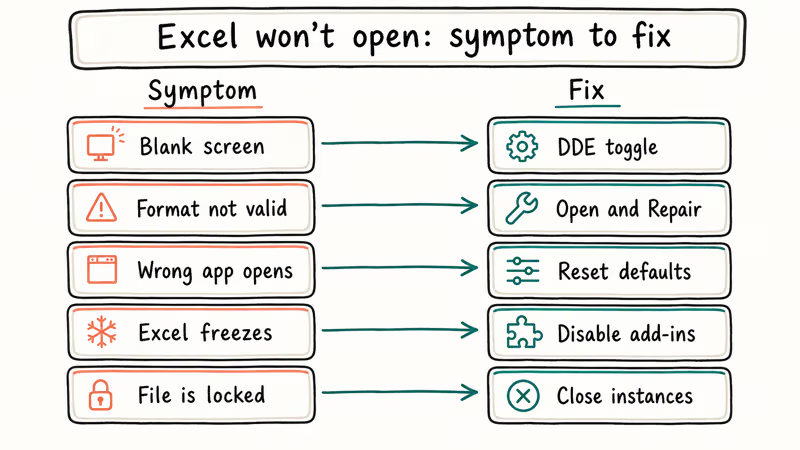
A blank white screen after a double-click usually means a broken add-in or a DDE toggle got disabled. An error saying “the format or file extension is not valid” points to file corruption or a version mismatch. If Excel itself won’t launch at all, the Office installation is damaged.
Here’s a quick symptom-to-fix map:
| Symptom | Cause | Fix |
|---|---|---|
| Blank screen | DDE disabled | DDE toggle |
| “Format not valid” | Corruption | Open and Repair |
| Wrong app opens | Bad association | Reset defaults |
| Excel freezes | Add-in conflict | Disable COM add-ins |
| “File is locked” | Background process | Close Excel instances |
Microsoft’s support documentation states that the recommended Excel troubleshooting order has 5 ordered steps: Safe Mode, installing updates, inspecting add-ins, repairing Office, and checking antivirus interference. The full sequence is in Microsoft’s Excel-not-responding guide. If you’re dealing with a file that’s locked for editing, that’s a separate problem with its own fixes.
#How Do You Open Excel in Safe Mode?
Safe Mode strips away add-ins, custom toolbars, and startup files. It’s the fastest way to split the question “Is Excel broken, or is something attached to it misbehaving?”
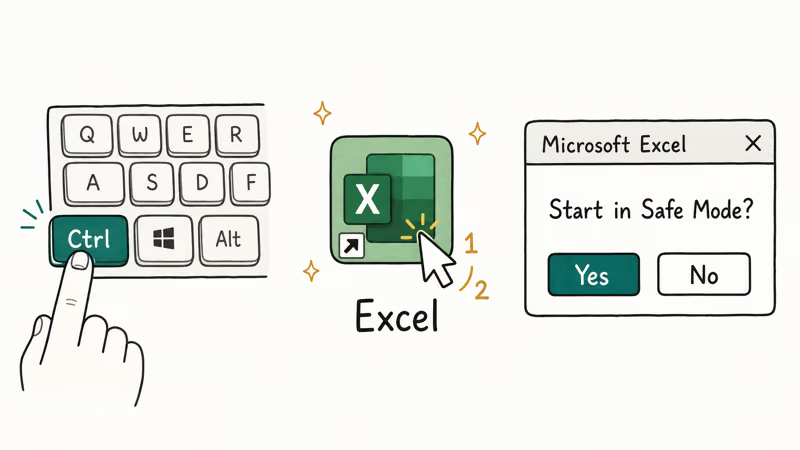
Method 1: Keyboard shortcut
- Hold down the Ctrl key
- Double-click the Excel shortcut on your desktop or taskbar
- A dialog box asks “Would you like to start Excel in safe mode?” Click Yes
Method 2: Run command
- Press Windows + R to open the Run dialog
- Type
excel /safeand press Enter
Both methods are reliable, and the Ctrl method is the quickest. If your file opens normally in Safe Mode, an add-in or startup file is the cause. If it still won’t open in Safe Mode, the file itself is almost certainly corrupt, so move on to Open and Repair below.
Microsoft’s Office Safe Mode documentation states that Safe Mode bypasses 5 Excel startup categories: COM add-ins, the alternate startup location, changed toolbars, the xlstart folder, and Excel add-ins. Full detail is in Microsoft’s Safe Mode guide. If the file still won’t open after bypassing all five, the file itself is likely corrupt.
#How to Use the Open and Repair Tool
Excel has a built-in repair feature that recovers formulas, values, and most formatting from a damaged workbook. It usually finishes in under a minute.
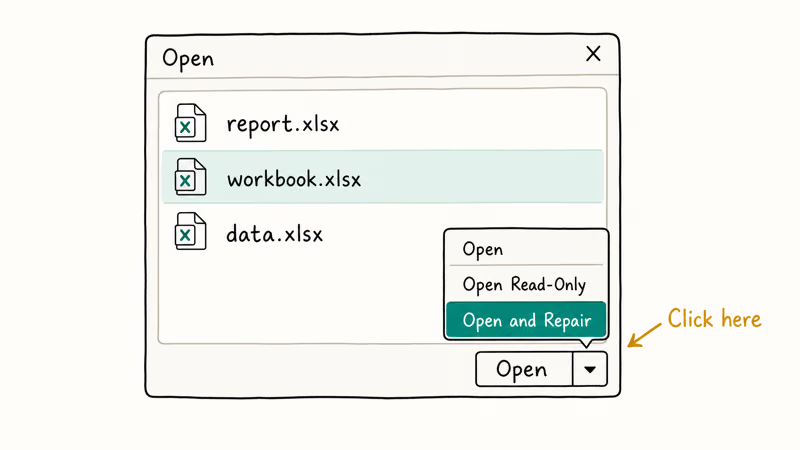
- Open Excel and go to
File>Open>Browse - Select the problem file (don’t double-click it)
- Click the arrow next to the Open button, pick Open and Repair, then click Repair
If Repair fails, click Extract Data instead. You’ll keep cell values and formulas but lose charts and conditional formatting. That’s usually a worthwhile trade when the alternative is losing the workbook entirely.
Microsoft’s corrupted workbook documentation confirms that Open and Repair works on 3 main Excel file formats: .xlsx, .xlsm, and .xls. Step-by-step instructions are on Microsoft’s workbook repair page. Even on a large multi-sheet workbook, the tool usually finishes recovery in seconds. If your file corruption goes deeper than Repair can reach, you may need to fix corrupted files using dedicated recovery utilities.
#How to Disable Problematic Add-ins
COM add-ins from third-party software are the top cause of Excel refusing to open files. PDF printers, CRM connectors, and older security plug-ins are the usual suspects.
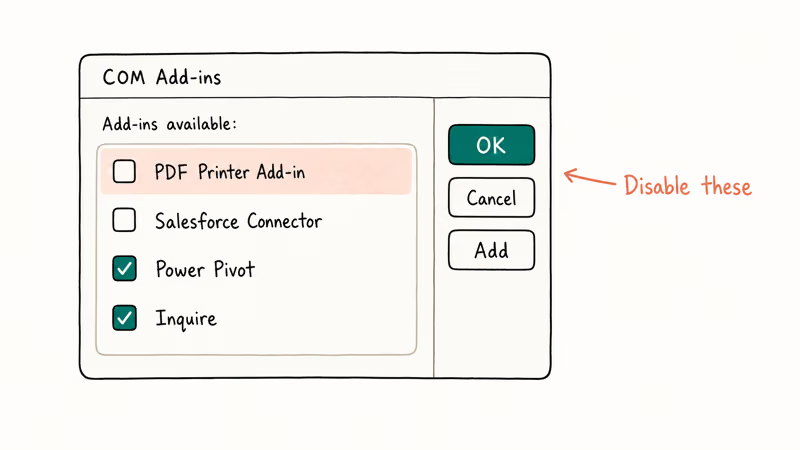
- Open Excel in Safe Mode (hold Ctrl and launch)
- Go to
File>Options>Add-ins - Set Manage to COM Add-ins, click Go, uncheck all, click OK, then restart Excel
Try opening your file now. If it works, re-enable add-ins one at a time until the problem returns.
PDF printer add-ins are a frequent offender, and disabling just that one often fixes a blank-screen launch while other connectors stay enabled without trouble. If your Excel isn’t responding at all, disabling add-ins should be your first move.
#How to Reset File Associations in Windows
Multiple Office versions on the same PC cause this. After a Windows update, .xlsx files sometimes get assigned to the wrong Office version or to no program at all.
On Windows 11:
- Open
Settings>Apps>Defaultapps - Click Choose defaults by file type and search for .xlsx
- Click the current default, select Microsoft Excel, then repeat for .xls and .xlsm
On Windows 10:
- Go to
Settings>Apps>Defaultapps - Click Set defaults by app, find Microsoft Excel, and click Manage
- Set every Excel file type to open with Excel
If resetting defaults doesn’t stick, Microsoft’s file association fix page recommends running a Quick Repair on Office. Go to Settings > Apps > Installed apps, find Microsoft Office, click the three dots, then select Modify > Quick Repair. The repair takes about two minutes and leaves your Office preferences alone.
If you’ve forgotten your Excel password, fix that first. Defaults won’t help you past a locked workbook.
#How to Fix the DDE Setting
DDE, or Dynamic Data Exchange, is the inter-process protocol Windows uses to tell Excel which file to open when you double-click it. When the toggle gets flipped off, every .xlsx double-click shows a blank Excel window.
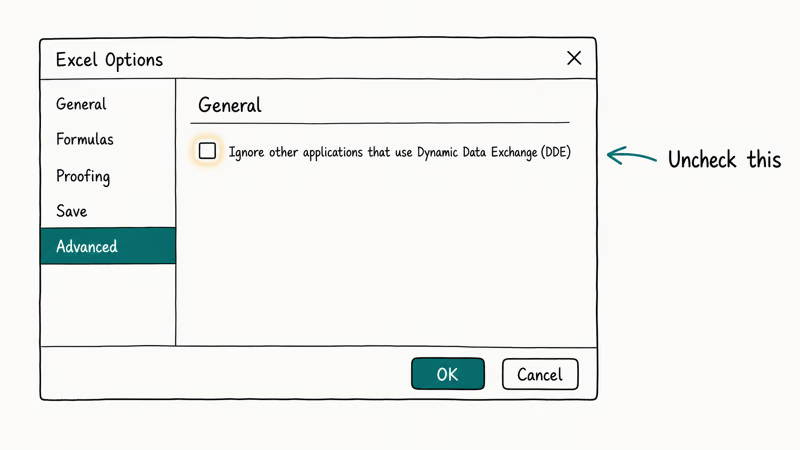
- Open Excel manually from the Start menu (not by double-clicking a file)
- Go to
File>Options>Advancedand scroll to the General section - Uncheck “Ignore other applications that use Dynamic Data Exchange (DDE)” and click OK
Close Excel, then double-click your file. It should open normally now. The whole fix takes about 30 seconds. Windows updates can toggle this setting without warning, and antivirus suites that harden Office security are known to flip it too, so check it any time files suddenly stop opening after a system update.
#How to Disable Hardware Graphics Acceleration
Blank white screen but the menus and ribbons still respond to clicks when you hover and tap them? The GPU rendering path inside Excel is the likely culprit, not the file or your add-ins. Older graphics drivers and integrated Intel HD Graphics chips on laptops trigger this most often, and business laptops from around 2017 to 2019 are especially prone to it.
- Open Excel and go to
File>Options>Advanced - Under Display, check Disable hardware graphics acceleration
- Click OK and restart Excel
On older laptops with integrated Intel graphics, this fix is often instant: the blank screen clears and workbooks open cleanly on the next launch.
If none of these 7 methods solve it, run a full Office repair. Go to Settings > Apps > Installed apps, find Microsoft Office, and choose Online Repair. This downloads fresh Office components and takes 10 to 15 minutes depending on your connection. For encrypted Excel files that won’t open, the root cause is password-related, not a software problem, so chase the password route instead.
#How to Use Password Recovery for Locked Files
Sometimes an Excel file won’t open because it’s password-protected and you’ve lost the password. That’s different from corruption. You’ll see a password prompt, not an error dialog.
PassFab for Excel recovers lost passwords with three approaches: a dictionary attack (tries common passwords first), brute force with a mask (uses partial clues you supply like length or known characters), and full brute force (tries every combination from scratch). A short, common password recovered through the dictionary attack typically takes only minutes, while a long, random one can take far longer.
Some links on this page are affiliate links, which means fone.tips may earn a commission at no extra cost to you.
It also removes editing restrictions from worksheets and workbooks without needing the original password. If you need to unlock an Excel password or compare tools, our roundup of the best Excel password removers covers more options.
Note that password recovery is a separate workflow from data recovery: if your workbook was never saved at all, a recovered unsaved Excel file needs a different approach entirely.
#Bottom Line
Hold Ctrl while launching Excel. That’s the first move, every time.
If the file opens in Safe Mode, an add-in is the cause. Disable COM add-ins in File > Options > Add-ins until the blank screen stops. If it still won’t open, run Open and Repair.
#Frequently Asked Questions
Why does Excel open but show a blank white screen?
DDE is probably off. Open Excel from the Start menu, go to File > Options > Advanced, scroll to the General section, and uncheck “Ignore other applications that use Dynamic Data Exchange (DDE).” If that doesn’t clear the blank screen, flip on Disable hardware graphics acceleration in the same Advanced menu under Display, then restart Excel.
Can I recover data from a corrupted Excel file?
Yes, in most cases. Go to File > Open > Browse, select the corrupted file, click the arrow next to the Open button, and pick Open and Repair. Choose Repair first because it attempts the fullest recovery and keeps formatting intact. If Repair fails, click Extract Data, which saves cell values and formulas but drops charts, macros, and conditional formatting from the workbook.
How do I start Excel in Safe Mode?
Hold Ctrl and double-click the Excel shortcut. Click Yes when the Safe Mode prompt appears.
What causes Excel to stop responding when opening a file?
COM add-ins from third-party software. PDF converters, CRM plugins, and security tools install add-ins that load at startup and conflict with each other. Disable all COM add-ins through File > Options > Add-ins, restart Excel, and re-enable them one at a time until the hang comes back.
Does repairing Office fix Excel file opening issues?
Sometimes. Go to Settings > Apps > Installed apps, find Microsoft Office, and select Modify. Quick Repair runs in about 2 minutes without touching your preferences. Online Repair redownloads every Office component and takes 10 to 15 minutes, but it fixes deeper installation damage that Quick Repair misses.
Will I lose data if I use Open and Repair?
Repair keeps formulas, values, and most formatting. Extract Data keeps values and formulas but drops charts, conditional formatting, and macros.
How do I fix Excel file association problems on Windows?
Open Settings > Apps > Default apps. On Windows 11, click “Choose defaults by file type,” search for .xlsx, and set it to Microsoft Excel. On Windows 10, click “Set defaults by app” and find Excel. Repeat the same steps for .xls and .xlsm if you work with older or macro-enabled Excel formats.
Can a virus cause Excel files not to open?
Yes. Malware corrupts file headers, changes registry keys, and installs rogue add-ins. Run a full antivirus scan first, then open Excel in Safe Mode to rule out malicious add-ins. If the file itself is infected rather than the app, restore the workbook from a clean backup.

Google Messages Error 3100: Why RCS Is Broken on Galaxy
Google Messages RCS error 3100 hits Galaxy owners after phone or carrier switches. Google told 9to5Google a fix is coming. Here's what actually helps.

Is This Bank App Real? Spot a Fake App on Your Home Screen
A bank app can land on your home screen from a web page with no install warning. Learn the checks that tell a real banking app from a phishing web app.

Apps Crashing After iOS 27 Update? Fix Order (2026)
Apps crashing after the iOS 27 update? Update the app in the App Store first, then offload and reinstall to clear stale cache, then restart. The fix order.

Do AI Translation Earbuds Work Offline? What to Know
Do AI translation earbuds work offline? A few do with downloaded language packs, but most need the cloud. Here's what works offline and what you give up.