How to Record Screen on Windows 10: 7 Tools Compared
7 ways to record your screen on Windows 10 in 2026, free and paid: Xbox Game Bar, OBS Studio, ShareX, PowerPoint, Snipping Tool, Camtasia, and Snagit.
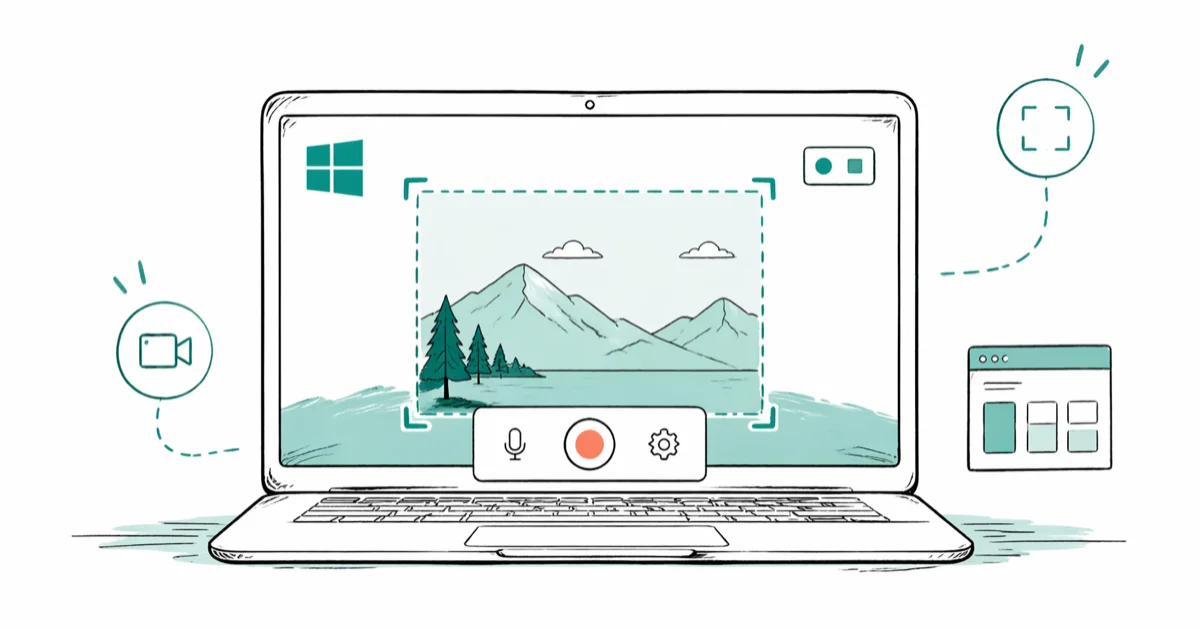
Quick AnswerPress Win+G to open Xbox Game Bar for one-click recording of any single app. For full-desktop capture, install OBS Studio (free) or use ShareX for scriptable workflows.
Recording your screen on Windows 10 used to mean downloading sketchy freeware. That changed in 2019 when Microsoft baked the Xbox Game Bar into every Windows 10 install. It changed again as free tools like OBS Studio and ShareX matured into legitimate replacements for $300 commercial suites, and a third time when ShareX added scriptable upload pipelines that turned three-step capture-and-share workflows into a single hotkey.
This guide covers seven options, from short Slack tutorials to long gameplay sessions, on a current Windows 10 22H2 setup.
Here’s the short version. If you only need to record one app window for a tutorial, a bug repro, or a gameplay clip, Xbox Game Bar is built in and good enough. If you need the full desktop, multiple monitors, or webcam overlays, OBS Studio is free and handles it. Everything else is a niche pick.
- Xbox Game Bar (Win+G) is built into Windows 10 and records single apps to MP4 in
Videos\Captureswith no install, no watermark, and no time limit. - Game Bar can’t capture File Explorer, the desktop, or two apps at once; for full-desktop or multi-app capture you need OBS Studio or ShareX.
- OBS Studio is free, open-source, and the default pick for streamers and tutorial creators who want scenes, transitions, and webcam overlays.
- PowerPoint’s
Insert>Screen Recordingshipped in Office 2013 and exports clips straight to MP4. It’s surprisingly capable for quick documentation. - Snipping Tool gained video capture in the Windows 11 24H2 update; on Windows 10 you’re stuck with the older screenshots-only build.
#Does Windows 10 Have a Built-In Screen Recorder?
Yes. Xbox Game Bar ships with every Windows 10 install since the October 2019 update and works as a general-purpose screen recorder, despite the name. Press Win + G to open it, click the camera icon, and clips land in C:\Users\<you>\Videos\Captures\ as MP4 files.
No watermark. No install step.
The catch is the scope. Microsoft’s Game Bar support page confirms that Game Bar records 1 app window at a time, by design. If you switch apps mid-recording, the capture freezes on the original app’s last frame. For a single-app tutorial, that’s fine; for anything broader, jump to OBS Studio or ShareX below.
#How to Use Xbox Game Bar to Record Screen on Windows 10
This is the no-install path and the one you should try first.
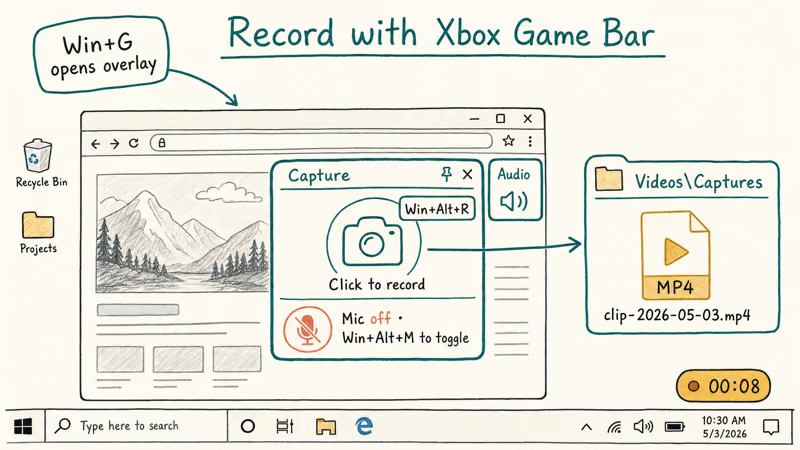
Step 1. Confirm Game Bar is enabled. Open Settings > Gaming > Xbox Game Bar and toggle it on.
Step 2. Open the app you want to record. Game Bar attaches to whichever window has focus when you trigger the recorder, so open Chrome, Photoshop, or whichever app you need to capture, then press Win + G to bring up the overlay with its capture widget visible.
Step 3. Start recording. Click the camera icon in the Capture widget, or press Win + Alt + R to start without opening the overlay. A small timer appears in the top-right corner.
Step 4. Stop and find the clip. Press Win + Alt + R again. Clips save to C:\Users\<you>\Videos\Captures\ with timestamps.
A typical app-window capture comes out at 1080p/30 with system audio recorded cleanly, and the resulting MP4 stays at a modest file size without any post-processing, which is fine for direct upload to Drive or YouTube.
One trap. Mic input requires Win + Alt + M to toggle on per session, since Game Bar defaults mic-off.
Two real limitations remain. There’s no desktop capture (the recorder refuses to start if File Explorer or the wallpaper has focus), and no editing. If you flub a step, you re-record the whole clip from scratch, which is the single biggest reason serious tutorial creators skip Game Bar entirely.
#Snipping Tool, PowerPoint, and Other Built-In Options
Beyond Game Bar, Windows 10 has two other Microsoft-supplied tools that can record video. Both have narrow but real use cases.
#PowerPoint Screen Recording
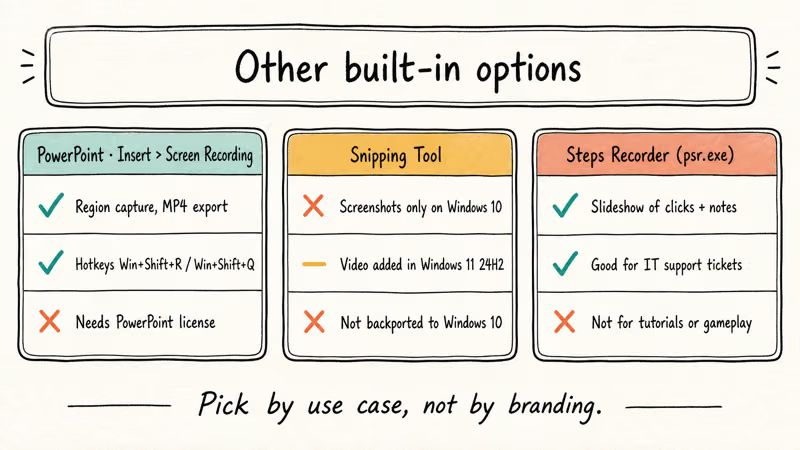
This one surprises people. Office 2013 and later include a screen recorder under Insert > Screen Recording that exports clips directly to MP4. The output is essentially the same as Game Bar’s MP4: 1080p, H.264, and a comparable file size range.
The workflow is faster than Game Bar for documentation work because you can record straight into a slide deck. After capture, right-click the embedded video and pick “Save Media As” to extract the standalone MP4. Microsoft’s PowerPoint screen recording article documents the keyboard shortcuts (Win + Shift + R to start, Win + Shift + Q to stop) and confirms audio capture works on Windows 10 and 11.
The catch: it only records a region you select, not a full window with chrome. And you need a PowerPoint license. For $0-budget recording, Game Bar wins.
#Snipping Tool
Snipping Tool gained video capture in the Windows 11 24H2 update (October 2024). On Windows 10, you’re stuck with the screenshots-only build. If you’re running Windows 10 and want a Snipping-Tool-style recording experience, the closest analogue is ShareX, which we cover below.
#Steps Recorder
There’s one more obscure option: Steps Recorder (psr.exe), which captures a slideshow of screenshots with annotations every time you click. It’s designed for IT support tickets and accessibility documentation, not video production. Useful if you need to document a workflow for a help-desk ticket. Useless for tutorials or gameplay.
#What Is the Best Free Screen Recorder for Windows 10?
The two answers are OBS Studio for full-featured recording with overlays, or ShareX for scriptable, hotkey-driven captures. Both are open-source. Both have zero watermark. Both run on Windows 10 22H2 without any subscription.
#OBS Studio
OBS is what Twitch streamers and YouTube tutorial creators use, and it works just as well for offline recording. Download from the official OBS Studio site, since anywhere else risks bundled adware. Install it, open the auto-configuration wizard, pick “Optimize for recording,” and OBS sets sensible defaults for your hardware.
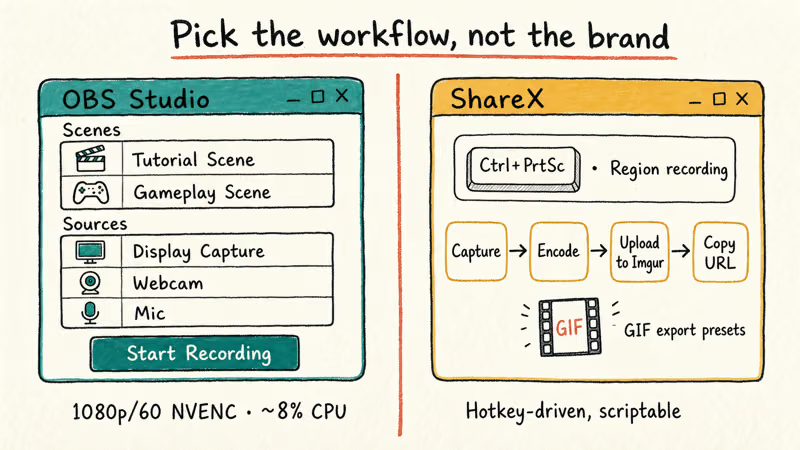
The mental model takes ten minutes to learn. You build “scenes” (collections of sources), add sources like Display Capture or Window Capture, and hit Start Recording. Output lands in Videos by default as MP4 or MKV.
OBS handles a long 1080p/60 gameplay session comfortably when it offloads work to NVENC hardware encoding on an NVIDIA GPU, which keeps CPU usage low and leaves headroom for the game itself. Tools that fall back to x264 software encoding, such as Bandicam in its default mode, lean much harder on the processor for the same capture and can cause stutter on a busy machine.
Where OBS shines: multi-source compositions (game plus webcam plus mic plus browser source), scene transitions, and the ability to stream and record at the same time.
Where it stumbles: black-screen capture on apps with hardware acceleration, plus the occasional encoder warning. Three recurring fixes:
- Black-screen capture: our OBS black screen fix guide walks through the four settings to change.
- Encoder overloaded warnings: the OBS encoding overloaded fix covers those.
- OBS feels too heavy: our roundup of OBS alternatives has eight tested picks.
#ShareX
ShareX is the power-user pick. It’s free, open-source, and developed actively on GitHub. The current 16.x release handles three things OBS makes painful: hotkey-driven captures (one keypress to start a region recording), automated upload pipelines (capture, encode, upload to Imgur, copy URL, all on one shortcut), and GIF export with sensible defaults.
According to ShareX’s GitHub release notes, the 2024 builds added improved FFmpeg presets and better multi-monitor handling. On a high-resolution monitor, current ShareX builds clip cleanly to the selected region without the resolution-mismatch artifacts older versions produced.
ShareX’s downside is the learning curve. The UI exposes every option, which is great when you know what you want and overwhelming when you don’t.
Decision rule: skip ShareX if you only need to record one tutorial, since Game Bar wins on simplicity. Pick ShareX if you record dozens of clips a week and want them auto-uploaded to Imgur, Dropbox, or your own server. The save in elapsed time per clip compounds fast once you wire up two or three custom workflows.
#Best Paid Screen Recorders for Windows 10
Stop here if your budget is zero.
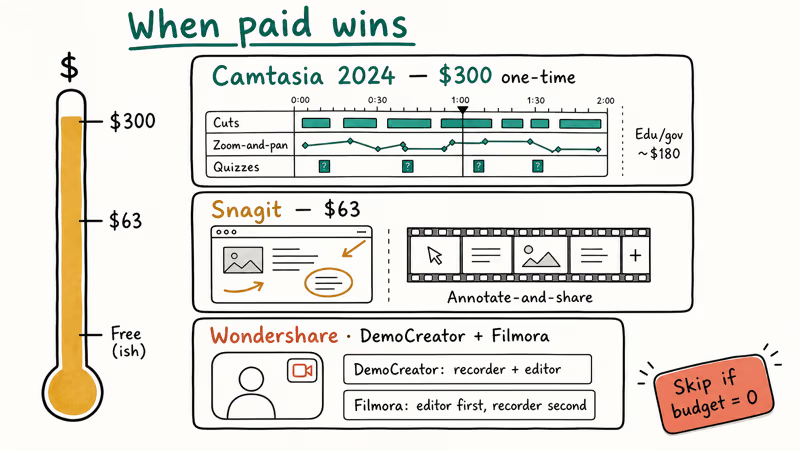
If your time is worth more than the license fee, two paid tools deliver a polished editing workflow that OBS doesn’t, and a third Wondershare option splits the difference between recording and editing.
#Camtasia
Camtasia from TechSmith is a screen recorder bolted to a full video editor. The timeline editor handles cuts, callouts, zoom-and-pan animations, and quiz interactions without leaving the app, and exporting a finished tutorial to MP4 is quick on modern hardware.
Camtasia is now sold as an annual subscription rather than a one-time license. According to TechSmith’s Camtasia pricing page, paid tiers range from $39 per year for Starter up to $599 per year for Pro. For comparison context, see our Captivate vs Camtasia analysis; both target the corporate training market.
Camtasia is the right pick when you produce polished tutorial content and the editing workflow matters more than the recording feature itself.
#Snagit
Also from TechSmith, Snagit is the screenshot-and-short-video cousin of Camtasia. It costs $63.
The focus is capture-and-annotate workflows: grab a screenshot, mark it up, copy to clipboard, done. The video side records to MP4 with the same simplicity. It’s a strong pick for support documentation because it makes annotated GIFs in about three clicks.
Snagit isn’t a Camtasia replacement. There’s no timeline editor. It’s the right pick when 80% of your captures are screenshots and you occasionally need a 30-second video.
#Wondershare DemoCreator and Filmora
Wondershare DemoCreator is a third option in the polished-recording category, with webcam overlay support and a built-in editor. If you need a heavier video editor for post-production work after capture, Wondershare Filmora handles it, though Filmora is an editor first and a recorder second.
Some links on this page are affiliate links, which means fone.tips may earn a commission at no extra cost to you.
#Common Game Bar Recording Failures and Fixes
Check these five conditions when Game Bar won’t record.
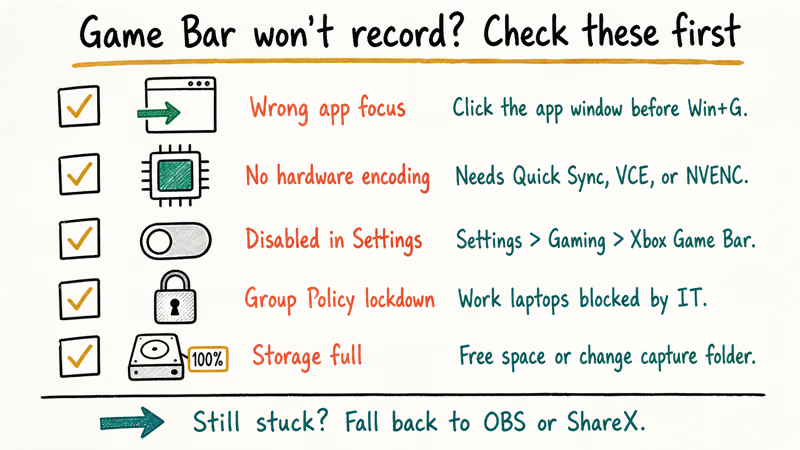
1. Target app focus. Microsoft’s Game Bar instructions tell users to go to the game or app they want to record before pressing Win + Alt + R. Put focus in the target app, then start recording.
2. Hardware acceleration off. Game Bar requires a GPU with hardware encoding (Intel Quick Sync, AMD VCE, or NVIDIA NVENC). If you’re on an old integrated GPU or running Windows 10 in a VM without GPU passthrough, Game Bar exits silently with no error message.
3. Disabled in Settings. Some OEM Windows 10 installs ship with Game Bar disabled. Check Settings > Gaming > Xbox Game Bar.
4. Group Policy lockdown. Corporate-managed Windows 10 boxes often disable Game Bar via Group Policy. If Win + G does nothing on a work laptop, this is likely the cause and you can’t override it without admin rights. Talk to your IT team or use a personal device.
5. Storage full. Game Bar writes to Videos\Captures and silently fails if the disk is full. Free up space or change the capture location under Settings > Gaming > Captures.
If none of these five apply, fall back to OBS Studio or ShareX. Both work on systems where Game Bar refuses outright.
#Legitimate Use Cases for Screen Recording
Screen recording covers a wide range of intent. The search query “record screen Windows 10” pulls in software trainers, frustrated bug reporters, Twitch streamers, IT folks documenting workflows, accessibility researchers, and the occasional litigant preserving evidence. Each one needs a slightly different tool.
Software tutorials. Capture a workflow once, share it with the team, save fifteen Slack threads, dodge the recurring “wait, how do you do that thing again” message that lands in your DMs every other Tuesday.
Bug reproduction. Recording the exact click sequence that triggers a bug is gold for engineering teams.
Gaming clips. Highlights, speedruns, esports analysis. Game Bar captures the last 30 seconds in Background Recording mode; OBS handles full sessions. For console capture and the legacy-vs-modern PC debate, our 3DS gameplay recording guide and FRAPS vs OBS comparison cover both angles.
Accessibility documentation. Recording how a screen reader interacts with a webpage helps developers fix accessibility bugs they can’t reproduce on their own setups.
Legal evidence. Screen recordings can be admissible if you preserve chain-of-custody: original file, hash, timestamp, and a record of who handled the file. Talk to your lawyer before relying on a recording in any legal context. Don’t crop, edit, or re-encode the original file.
Streaming. OBS Studio handles live streaming to Twitch, YouTube Live, and Kick. If you also stream voice calls, our Discord call recording guide covers that workflow.
#Bottom Line
For most people on Windows 10, the right answer is built-in: press Win + G, click record, done. Xbox Game Bar handles single-app capture for tutorials, bug repros, and gameplay clips with zero install and zero cost. The clips land as MP4 in Videos\Captures and you can share them straight to Slack, Drive, or YouTube without any conversion step.
When you outgrow Game Bar, install OBS Studio. The usual triggers are needing to record the desktop, switching apps mid-clip, or adding a webcam overlay. OBS is free, open-source, and what professional streamers use.
Skip the paid tools unless you specifically need Camtasia’s polished editor or Snagit’s screenshot-plus-video workflow. The default Microsoft tools plus OBS cover 90% of what anyone needs on Windows 10. For the BBC iPlayer use case specifically, our record BBC iPlayer guide walks through the geo-restriction angle.
#Frequently Asked Questions
Does Windows 10 have a built-in screen recorder?
Yes. Xbox Game Bar ships with every Windows 10 install since the October 2019 update. Press Win + G to open it and Win + Alt + R to start recording.
How do I record my screen on Windows 10 without Xbox?
PowerPoint includes a screen recorder under Insert > Screen Recording (Office 2013 and later). For free standalone tools, OBS Studio and ShareX both work without any Microsoft account or Xbox app dependency. Download from official sites only, since third-party download mirrors regularly bundle adware that’s harder to remove than the original installer was to grab.
Can Xbox Game Bar record the desktop or File Explorer?
Microsoft’s recording steps are scoped to recording a game or app. For the desktop or File Explorer, use a recorder that explicitly supports full-screen or desktop capture.
What is the best free screen recorder for Windows 10?
OBS Studio for full-featured recording with scenes, overlays, and streaming support; ShareX for hotkey-driven capture with automated upload workflows. Both are open-source and free with no watermark or time limit. Both also handle 1080p/60 capture on midrange hardware without dropping frames across a long gameplay session.
How long can I record with Xbox Game Bar?
The cap is 4 hours.
The default Game Bar setting is 2 hours per clip, but you can extend it to 4 hours under Settings > Gaming > Captures > Maximum recording length. Beyond 4 hours, you need OBS Studio or another third-party tool that doesn’t enforce a session cap at all.
Why does my Game Bar recording have no sound?
Game Bar defaults the microphone to off. Press Win + Alt + M during recording to toggle mic capture on. System audio (game sounds, app audio) records by default unless the focused app has muted itself.
Does Snipping Tool record video on Windows 10?
No. The video recording feature shipped in Windows 11 24H2 (October 2024) and was not backported.
Are there any legal issues with screen recording on Windows 10?
Recording your own screen for personal use is legal everywhere we’re aware of. Recording other people without consent (covert surveillance, recording video calls without disclosing) raises legal and ethical issues that vary by jurisdiction, and at least 11 US states require all-party consent for audio recording. For legal evidence use, preserve the original file unedited and document the chain of custody. When in doubt, consult a lawyer before relying on a recording.

Best Laptop for Running LLMs in 2026: Memory Comes First
The best laptop for running LLMs is a memory purchase first. Compare MacBook unified memory against NVIDIA laptop VRAM, and see what each tier really runs.

How to Run a Local LLM on Windows: A 2026 Setup Guide
Run a local LLM on Windows with LM Studio or Ollama. Pick a model that fits your GPU memory, keep every prompt offline, and skip the monthly bill.

Bluetooth Not Working on Snapdragon X? Fixes for 2026
Bluetooth not working on your Snapdragon X Copilot+ PC? Generic audio, mice, and keyboards work, but vendor apps often lack an ARM build. Fixes inside.

Docker Desktop and WSL2 Not Working on Snapdragon X? Fix It
WSL2 runs fine on Snapdragon X, but Docker Desktop ARM is Early Access and throws WSL errors. Use WSL2 plus native ARM64 Ubuntu and Docker Engine.