How to Fix the OBS Encoding Overloaded Warning (2026)
Fix the OBS encoding overloaded warning fast: lower the output resolution, drop FPS, switch x264 to a hardware encoder, and free up CPU and GPU headroom.
Quick AnswerOBS shows "encoding overloaded" when your CPU or GPU cannot process frames fast enough. Lower the output resolution to 1280x720, drop FPS from 60 to 30, and switch the encoder from x264 to NVENC, AMD HW H.264, or Apple VT to clear it in most cases.
If you stream to Twitch or YouTube and OBS keeps flashing the encoding overloaded warning, the software is telling you the encoder is missing frame deadlines. The fix almost never lives in a single setting. It’s a budget problem: pixel count, frame rate, encoder choice, and background load all draw from the same CPU and GPU pool, and you have to bring the total back under what your hardware can sustain.
Use the same fix order on most systems: shrink the canvas, drop the frame rate, then move encoding off the CPU.
- Encoding overloaded means OBS is dropping rendered frames because the encoder can’t finish them in time
- Lowering Output (Scaled) Resolution from 1920x1080 to 1280x720 cuts encoder load by roughly half on the same FPS
- Switching from x264 to NVENC (NVIDIA), AMD HW H.264, or Apple VideoToolbox moves work off the CPU
- The x264 CPU preset trades quality for speed; “veryfast” is the OBS-recommended starting point for streaming
- A wired Ethernet connection removes upload jitter that compounds visible encoder lag during livestreams
#What the Encoding Overloaded Warning Actually Means
OBS renders your scene at a target frame rate, hands each frame to the encoder, and waits for the encoder to compress it into the output stream or recording. If the encoder can’t keep up at that frame rate, OBS skips frames so the stream stays in sync with real time, and the status bar shows a yellow or red Encoding overloaded! message.
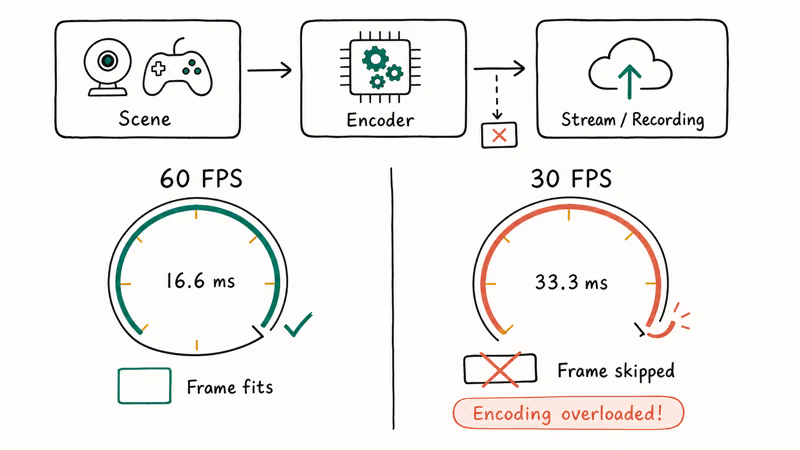
The warning is about throughput, not crashes. Your stream stays online, but viewers see stutter and dropped frames, and the recording file gains visible jitter.
The OBS Project’s general performance and encoding issues wiki confirms that the message tracks frames the encoder failed to compress within the budget set by your FPS — 16.6 ms at 60 FPS, 33.3 ms at 30 FPS. Either number alone is a softer signal, and a quick settings tweak usually clears it.
Two numbers in OBS Stats decide if you’re in trouble. Open View > Stats and watch the Skipped frames due to encoding lag counter and the Average time to render frame value. When both rise together, the warning is about to fire.
#Why Does OBS Encoding Get Overloaded?
There’s rarely one cause. The four common culprits are:
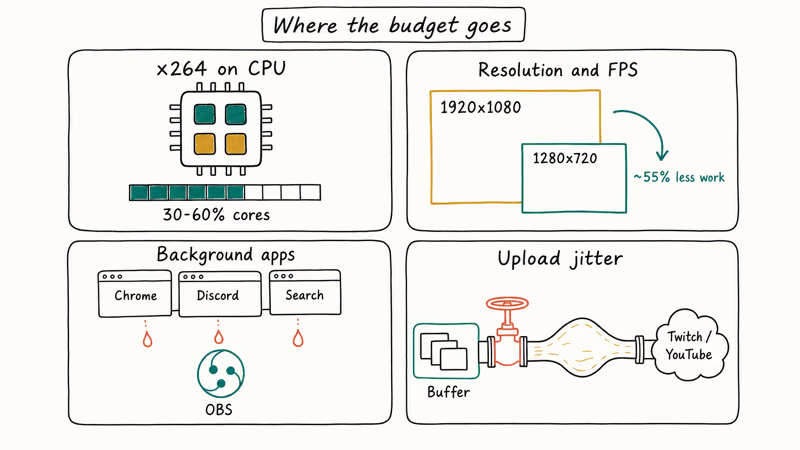
- Software encoding on a mid-tier CPU. The default x264 encoder runs entirely on the CPU. On a 6-core CPU at 1080p60 with the “veryfast” preset, x264 will use 30 to 60 percent of all cores depending on scene complexity. If you’re also playing a CPU-heavy game on the same machine, you’ll run out of cycles fast.
- Resolution and FPS set too high for the encoder. A 1920x1080 frame contains 2.07 million pixels; a 1280x720 frame contains 0.92 million. Cutting the canvas saves roughly 55 percent of the per-frame encoding work, and dropping from 60 to 30 FPS halves the workload again. Two settings, four times less work.
- Background apps stealing cycles. Discord overlays, Chrome tabs running JavaScript-heavy sites, and Windows Search indexing all bid for CPU time. A single Chromium browser source inside OBS can push CPU usage up on its own.
- Network upload jitter. When OBS streams to Twitch or YouTube, the encoded frames sit in an output buffer waiting for upload. If your upload bandwidth fluctuates, that buffer fills, the encoder stalls waiting for room, and the warning fires even though the CPU itself has headroom.
Hardware temperature is the silent fifth cause. Once a CPU or GPU thermally throttles, encoding throughput drops without any setting change, so a fan-clogged laptop will overload a stream that ran fine the week before.
#How Do You Fix OBS Encoding Overloaded Quickly?
Work through this list top to bottom and stop when the warning clears. Each step roughly halves encoder load.
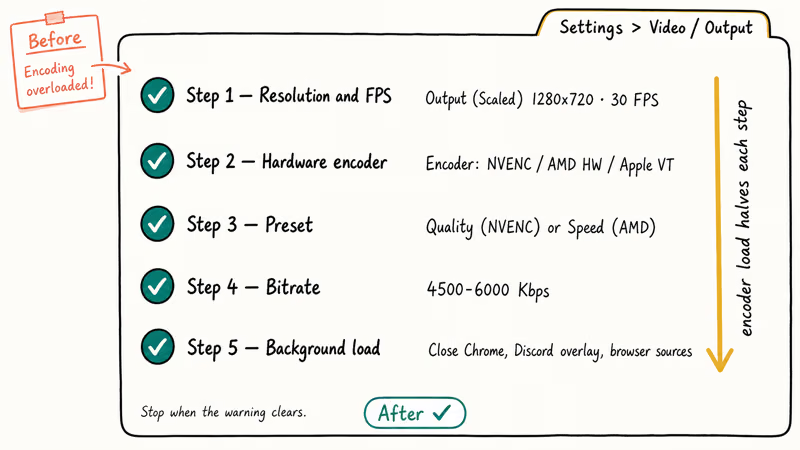
Open OBS Settings>Video. Set Output (Scaled) Resolution to 1280x720 even if your Base Canvas is 1920x1080. Set Common FPS Values to 30.Open Settings>Output andswitch to Output Mode: Advanced. Under the Streaming or Recording tab, change Encoder from x264 to NVIDIA NVENC H.264, AMD HW H.264, or Apple VT H.264 Hardware Encoder, depending on your GPU.- Set the encoder preset to Quality (NVENC) or Speed (AMD). These map to the best balance of quality and CPU offload.
- Set the bitrate to 4500 to 6000 Kbps for 720p60 or 720p30. Twitch caps non-partners at 6000 Kbps anyway.
- Close Chrome, Discord overlays, and any browser sources you aren’t using. Restart OBS so the new encoder loads cleanly.
After step 2, most users see the warning disappear because the encoding work moves off the CPU entirely.
If your GPU is also fully loaded by a game, fall back to step 3’s lower preset and step 4’s lower bitrate. If you stream to Twitch and the warning still appears, also check our Twitch lagging fix guide, since upload-side problems can mimic encoder overload, and the symptoms look identical from the OBS status bar.
#Tune Your OBS Output for Smoother Encoding
Once you’ve switched to a hardware encoder, the next lever is output settings. OBS defaults assume a high-end desktop.
- Output Resolution. Stay at 1280x720 unless your viewers specifically ask for 1080p and your hardware proves it can sustain it for an hour without thermal throttle. The OBS bitrate calculator and OBS quickstart guide both flag 720p as the safer default for first-time streamers.
- FPS. Choose 30 FPS for talking-head, art, just-chatting, or strategy game streams. Reserve 60 FPS for fast-action shooters or racing where motion clarity matters. The encoder load roughly doubles between the two.
- Keyframe Interval. Set this to 2 seconds. Twitch’s broadcasting guidelines page states that 2-second keyframes are required for smooth playback and clip generation, and a higher interval often triggers transcoding issues on the platform side.
- Bitrate. Use 4500 Kbps for 720p30, 6000 Kbps for 720p60, and 6000 Kbps for 1080p30 if your GPU can handle it. Going above 6000 Kbps as a non-partner on Twitch won’t help your viewers; the platform throttles anyway.
- Rate Control. Pick CBR for streaming, CRF or VBR for local recording. CBR keeps the upload rate flat, which prevents the buffer-stall feedback loop described earlier.
These values are a practical starting point because they reduce encoder workload before you fine-tune quality.
#Switch From x264 to NVENC, AMD, or QuickSync
Hardware encoders are dedicated silicon blocks on your GPU or CPU, and they exist specifically to do this job without taxing the rest of the machine. Picking the right one depends on your GPU.
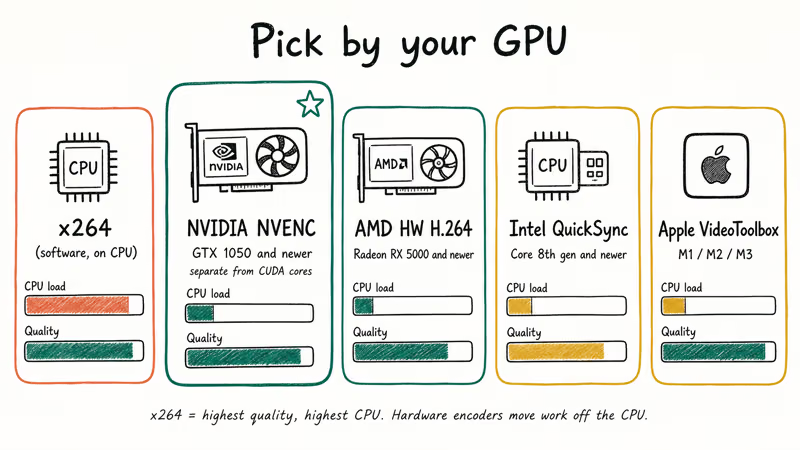
- NVIDIA NVENC. Available on every GeForce GTX 1050 and newer, every RTX card, and all Quadro and Tesla cards from Maxwell forward. The NVENC chip is separate from the CUDA cores, so it doesn’t slow down the game your GPU is rendering. Wikipedia’s NVENC entry states that NVENC reached its 7th generation on RTX 40 series cards and added AV1 hardware encoding alongside H.264 and HEVC, with quality matching x264 medium at a fraction of the CPU load.
- AMD AMF / HW H.264. Available on Radeon RX 5000 series and newer with the most recent driver. Older RX 400 and 500 series GPUs technically support it but at noticeably lower quality than NVENC.
- Intel QuickSync. Built into most Intel CPUs from 8th generation Core onward, including the iGPU on H-series mobile chips. Useful when you have no discrete GPU or when your GPU is fully loaded by the game.
- Apple VideoToolbox H.264. Built into Apple Silicon and recent Intel Macs. Surprisingly close to NVENC quality on M1, M2, and M3 chips. It’s also the only practical encoder choice on a Mac because x264 will overheat the chassis fast.
x264 still produces the highest visual quality at low bitrates, but it requires CPU cores you probably need for the game itself. For most people the quality difference is invisible at 4500 to 6000 Kbps.
#Reduce Background Load on Your CPU and GPU
Even with the right encoder, a system that’s already at 95 percent CPU usage will drop frames. Trim the background before you start streaming.
- Close every Chrome window. Chrome tabs running React or video sites consume CPU even when minimized. Closing idle video tabs is one of the fastest ways to free CPU headroom.
- Disable Discord hardware acceleration and overlays. Discord uses Chromium under the hood and behaves the same way Chrome does.
- Quit unused OBS browser sources. Each one launches a Chromium instance. If your scene has six widgets you don’t show on stream, hide them or remove them.
- Turn off Windows Game Bar and Xbox Game DVR. Both run their own background recorders that compete with OBS for the encoder.
- Check temperatures. Run HWMonitor or iStat Menus during a 10-minute test stream. If your CPU passes 85 C, clean the fans before tuning anything else.
- Use Ethernet instead of Wi-Fi. Upload jitter on Wi-Fi can cause OBS to skip frames waiting for buffer space, which the warning misreads as encoder lag.
If you also see your scene preview going blank during the warning, that’s a different bug — our OBS black screen fix walks through the display capture permissions and graphics settings that cause it.
#When to Move to a Lighter Recorder
Some hardware just isn’t enough for OBS plus the game you want to stream. If you’ve already lowered resolution, dropped FPS, switched to NVENC, and closed every background app, and the warning still appears within five minutes of starting a stream, the realistic options are upgrading the GPU or moving to a lighter capture tool for local recording.
For local recording without streaming, Wondershare DemoCreator handles 1080p30 capture on Intel UHD integrated graphics where OBS would overload immediately. It bundles a basic editor, which removes the OBS-to-DaVinci-Resolve handoff for short recordings. The tradeoff: no Twitch or YouTube live integration, so the export-then-upload flow takes an extra five minutes per video.
Some links on this page are affiliate links, which means fone.tips may earn a commission at no extra cost to you.
Movavi Screen Recorder takes a similar approach, with slightly tighter codec defaults and built-in webcam picture-in-picture. We covered the side-by-side options in our OBS alternatives roundup.
For Windows-only built-in capture, a few alternatives are worth reviewing:
- The native Windows 10 game bar recorder works for short clips but caps at the game window only.
- Our Fraps vs OBS comparison covers when an even older lightweight tool is the right pick.
- The vMix overview is worth reading if you’re thinking about a paid streaming alternative entirely.
#Bottom Line
For a mid-range PC interrupted by the encoding overloaded warning, the fix is short: switch to NVENC at 1280x720 and 30 FPS.
That combination reduces pixel count, frame rate, and CPU encoder load at the same time, which is why it works as the first practical target. Push to 1080p60 only after you’ve confirmed temperatures stay under 85 C for a full hour. For local recording without livestream needs, DemoCreator or Movavi Screen Recorder will save you the OBS configuration work entirely.
#Frequently Asked Questions
What does the OBS encoding overloaded message actually mean?
It means OBS could not finish compressing one or more frames within the time budget set by your FPS. At 60 FPS that budget is 16.6 ms per frame; at 30 FPS it’s 33.3 ms. When the encoder runs over, OBS skips the frame so the stream stays in sync with real time, and viewers see brief stutter.
Will switching from x264 to NVENC reduce video quality?
Slightly, but the difference is hard to see at typical streaming bitrates of 4500 to 6000 Kbps.
Do I need a dual-PC streaming setup?
Most streamers don’t. A dedicated stream PC made sense before NVENC, when the only encoder option was the CPU. With a modern NVIDIA, AMD, or Apple GPU, a single PC handles 1080p60 streaming and gameplay together for everything except the most CPU-hungry titles.
Why does the warning come back after I close it the first time?
Thermal throttle. The CPU or GPU heats up after five or ten minutes and slows down.
Can a slow internet connection cause the encoding overloaded warning?
Yes, indirectly. When upload bandwidth drops, the OBS output buffer fills with encoded frames waiting to send, the encoder stalls waiting for room, and OBS reports it as encoding lag. Wired Ethernet and a stable upload of at least 6 Mbps for 720p60 or 10 Mbps for 1080p60 prevents most of this.
Is the encoding overloaded warning safe to ignore?
Not really. Every flash means you dropped at least one frame, and viewers see it as stutter.
What FPS and resolution should new streamers start at?
Start at 1280x720 at 30 FPS with NVENC at 4500 Kbps and a 2-second keyframe interval. This combination keeps encoder load modest on GPUs with NVENC support and still looks sharp on phone and tablet viewers.

Google Messages Error 3100: Why RCS Is Broken on Galaxy
Google Messages RCS error 3100 hits Galaxy owners after phone or carrier switches. Google told 9to5Google a fix is coming. Here's what actually helps.

Is This Bank App Real? Spot a Fake App on Your Home Screen
A bank app can land on your home screen from a web page with no install warning. Learn the checks that tell a real banking app from a phishing web app.

Apps Crashing After iOS 27 Update? Fix Order (2026)
Apps crashing after the iOS 27 update? Update the app in the App Store first, then offload and reinstall to clear stale cache, then restart. The fix order.

Do AI Translation Earbuds Work Offline? What to Know
Do AI translation earbuds work offline? A few do with downloaded language packs, but most need the cloud. Here's what works offline and what you give up.