How to Fix OBS Studio Black Screen: 6 Proven Methods
Fix OBS black screen in game capture and display capture. 6 practical methods for Windows 10/11 with step-by-step GPU, admin, and overlay fixes.
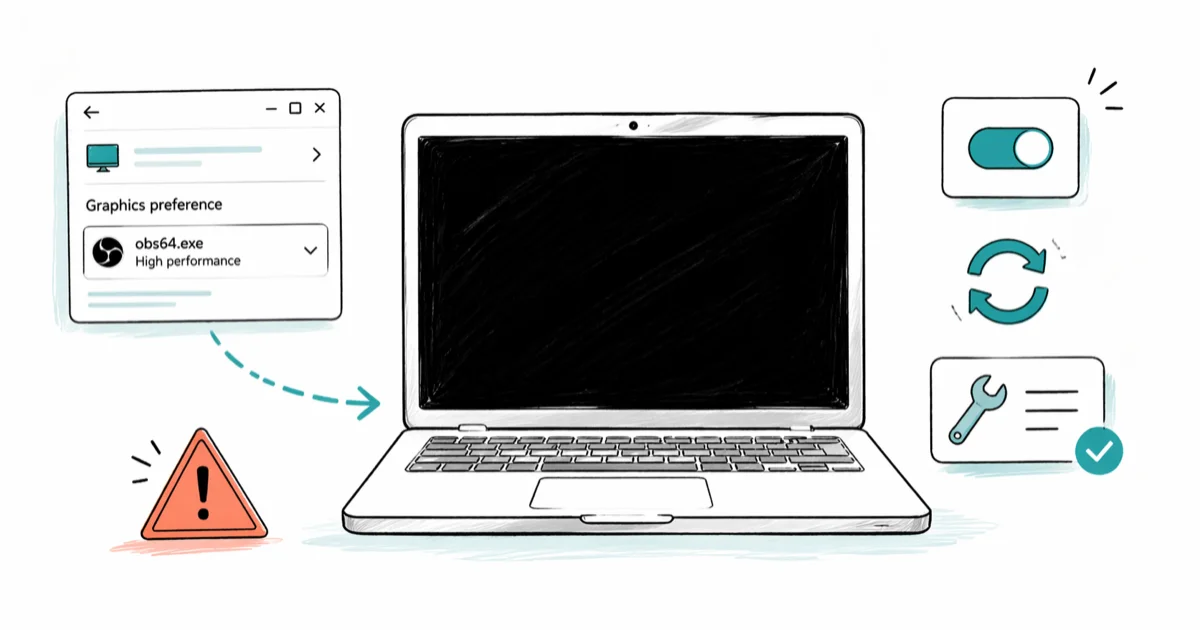
Quick AnswerOBS shows a black screen when it captures from a different GPU than your game. Open Windows Graphics Settings, add obs64.exe, and set it to High performance. This fix resolves the most common cause on Windows 10 and 11.
OBS Studio black screen is the recording problem streamers hit first and curse the most. It almost always means OBS and your game are running on different GPUs, and Windows is quietly refusing to let them share frames. The fixes below focus on GPU assignment, admin permissions, capture mode, overlays, drivers, and OBS configuration.
- Black screens happen because OBS captures from 1 GPU while your game renders on another
- Windows Graphics Settings lets you force OBS onto the same GPU your games use
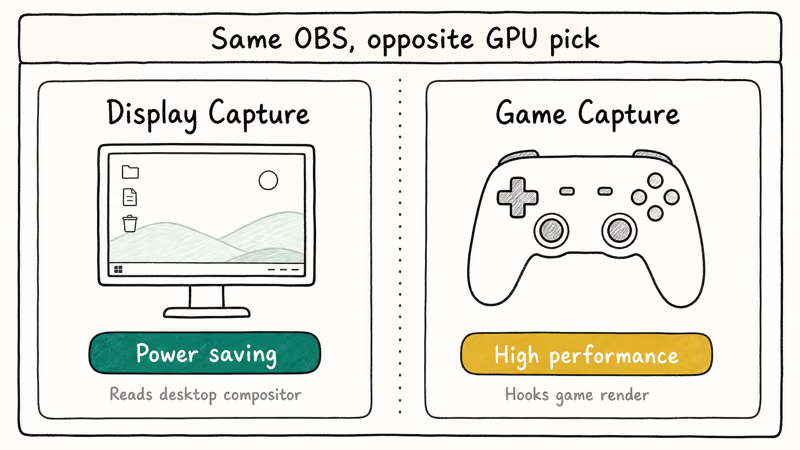
- Display Capture needs “Power saving” GPU, Game Capture needs “High performance” (opposite settings)
- Running obs64.exe as administrator unblocks exclusive full-screen DirectX titles
- OBS 32.1.1 (April 2026) is the current stable release and ships with every known black screen fix
#Why Does OBS Show a Black Screen?
The black screen isn’t random. It isn’t a bug in OBS either. It’s a GPU mismatch.
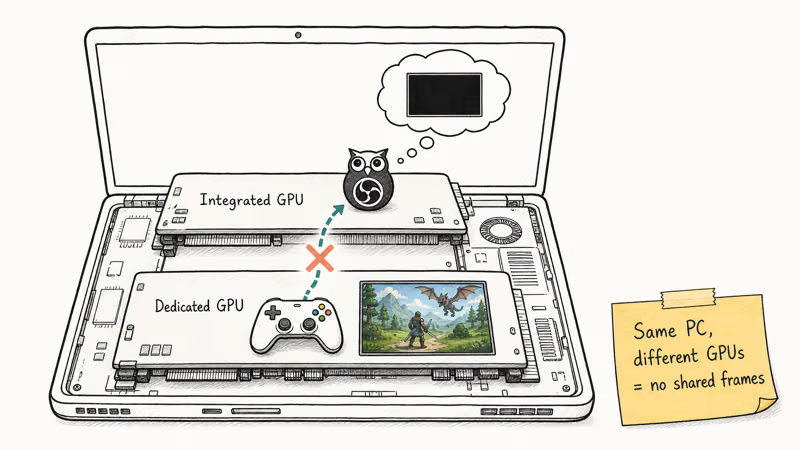
Modern laptops and many desktops ship with 2 graphics processors. Integrated chips like Intel UHD or AMD Radeon Graphics handle the desktop, browsing, and video playback, while a dedicated card like an NVIDIA GeForce RTX or AMD Radeon RX runs games and heavy rendering. Windows assigns each app to whichever GPU it thinks is best, and the assignment is usually invisible.
The mismatch starts when your game lands on the dedicated card while OBS gets stuck on the integrated one. OBS literally can’t see frames rendered on a different GPU, so Game Capture returns nothing and shows pure black.
According to the OBS Studio laptop troubleshooting wiki, OBS “can only run on one of these GPUs, but your open applications and games could be running on either.” The wiki adds this is “just the way laptops are designed to save power and battery life.”
Desktops and mini PCs can hit the same mismatch.
That mismatch is enough for the game to run normally while Game Capture stays black until OBS is forced onto the same GPU.
#How Do You Fix the GPU Mismatch in OBS?
Start here. This fix clears the most common Windows GPU mismatch, and you only have to do it once per install.
#On Windows 10 and 11 (Recommended Method)
Close OBS completely from the system tray first. Then:
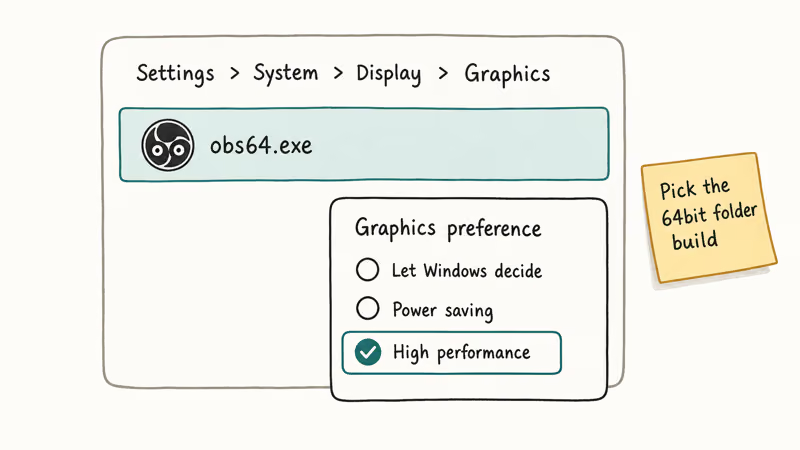
- Go to
Settings>System>Display>Graphics - Click Browse and pick
C:\Program Files\obs-studio\bin\64bit\obs64.exe - Click Options, pick High performance, and save
Reopen OBS and test Game Capture. The OBS wiki confirms this path works on Windows 10 version 1903 and newer and that you must “choose High performance for Game/Window Capture.” Pick the file in the 64bit subfolder, not the 32bit one.
Now the catch nobody talks about. Display Capture wants the opposite. If you only use Display Capture (not Game Capture), pick Power saving instead. Display Capture reads from the Windows display compositor, which lives on the integrated GPU, so forcing it to High performance produces the same black screen in reverse.
#On Laptops With NVIDIA Optimus
Right-click your desktop and open NVIDIA Control Panel. Then:
- Go to Manage 3
D Settings>Program Settings - Click Add, browse to
obs64.exe, and pick it - Set “Preferred graphics processor” to High-performance NVIDIA processor
- Click Apply and restart OBS
This override sits at the driver level and takes priority over Windows’ automatic assignment. Use it when Windows forgets the Graphics Settings choice after a driver update. The override can survive cases where the in-OS Graphics Settings toggle gets reset.
AMD users should open AMD Software: Adrenalin Edition, go to Gaming > Graphics, find the OBS entry, and switch its profile to High Performance. Same result.
#Run OBS as Administrator
Exclusive full-screen games can block non-admin capture.
Right-click obs64.exe, pick Properties, open the Compatibility tab, tick Run this program as administrator, and click Apply. OBS will now always launch with elevated rights.
The OBS game capture knowledge base article states that at least 4 specific games need administrator mode: Call of Duty, Genshin Impact, Honkai: Star Rail, and Zenless Zone Zero. The same page says admin mode “will help with performance in some cases” beyond just fixing black screens.
One warning: admin mode means Windows prompts you with a UAC dialog every launch unless UAC is off system-wide. That’s a reasonable trade for a working capture.
#Fix Black Screen With Display Capture
Display Capture grabs the whole monitor output instead of hooking into a specific game. That means it has different failure modes than Game Capture, and the fix order is different too.
In OBS, right-click your Display Capture source, pick Properties, and change Capture Method to Windows 10 (1903 and up). Click OK.
This capture mode uses the Windows Graphics Capture API instead of the older DirectX mirror driver. It works on every Windows 10 build from 1903 onward and on all Windows 11 builds. If the dropdown only shows Automatic and DXGI, your OBS is older than version 27 and you need to update.
Also confirm OBS is pointing at the monitor you actually use.
According to Microsoft’s DXGI documentation, the OS builds 1 swap chain per window and tracks each monitor with its own adapter interface, which is why picking the wrong display index returns a valid but empty surface instead of throwing an error. That is exactly the condition that shows up as a black preview.
Still on OBS 26 or older? Update before doing anything else. The current stable release is OBS Studio 32.1.1, released April 2nd 2026, and it includes years of accumulated capture fixes.
#Disable Overlays and Game Mode
Overlays fight OBS for the same rendering hooks. When 2 programs try to wedge themselves into a game’s render pipeline, 1 wins and the other gets blackness.
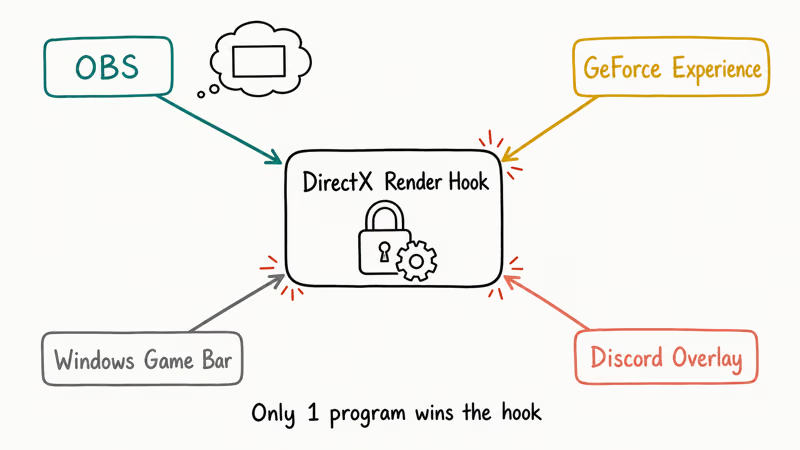
Windows Game Mode. Open Settings > Gaming, turn Game Mode off, then open Game Bar in the same screen and disable it too. Game Mode reallocates GPU cycles to the active foreground game, which can starve OBS of frames on tight systems, especially laptops running a GPU under 6 GB VRAM.
GeForce Experience. Open GeForce Experience, click the gear icon, and turn off In-Game Overlay. NVIDIA’s overlay injects into the same DirectX hooks OBS uses for Game Capture, so 1 of them always loses.
Discord overlay. Go to Discord Settings > Game Overlay and turn Enable in-game overlay off. If your Discord overlay was already flaky, read Discord overlay not working for deeper fixes before re-enabling it.
After flipping everything off, fully close OBS and the game, then relaunch both. Minimize-and-reopen doesn’t re-attach the hooks.
#Update Graphics Drivers and OBS
Outdated drivers cause fewer black screens than GPU mismatch, but they matter when other fixes don’t stick. Driver regressions are also what turn a working capture into a black screen overnight after a Windows Update.
#Update GPU Drivers
Skip Windows Update here. Grab drivers directly from the chipmaker:
- NVIDIA driver downloads for GeForce RTX and GTX cards
- AMD driver downloads for Radeon RX cards
- Intel Graphics Command Center for Intel Iris Xe and UHD
If you just updated Windows and the black screen appeared the same day, install a fresh driver before anything else. Both GeForce Experience and AMD Adrenalin can auto-detect the right version for your card. Manual installers from the links above work too and are the only option when the vendor app refuses to launch under admin.
#Update OBS
Open OBS and pick Help > Check for Updates. Still on 27 or 28? Pull a fresh installer from obsproject.com/download instead.
Update OBS before deeper resets.
Driver updates also help if you edit captured clips in Premiere Pro and need to reverse a clip, or if you hit iMovie rendering errors on a Mac companion machine.
#Bonus: Reset OBS Configuration
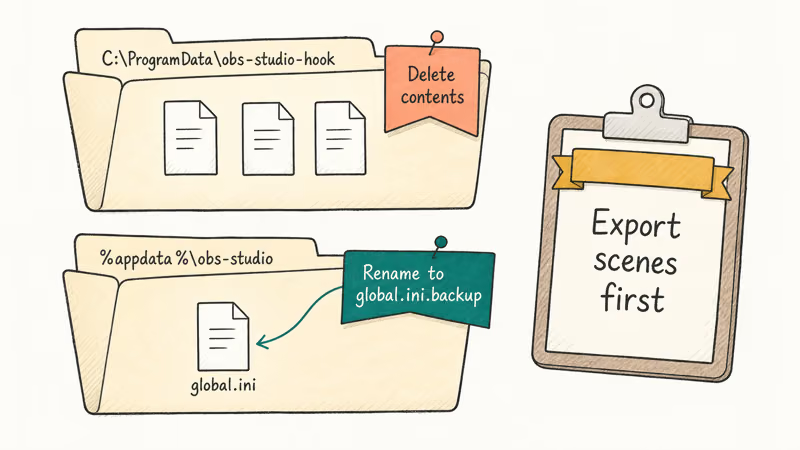
Still stuck? Reset the config after exporting your scenes.
- Go to
Help>Log Files>Show Log Filesin OBS to find your profile folder - Quit OBS, then delete everything inside
C:\ProgramData\obs-studio-hook - Open
%appdata%\obs-studioand renameglobal.initoglobal.ini.backup
Relaunch OBS and re-add your sources.
If the same system is also giving you audio dropping out in games or buzzing speakers on recordings, corrupted audio drivers often cause all 3 problems at once, and the reset above won’t touch them. Reinstall the chipset audio driver separately.
#Bottom Line
Open Settings > System > Display > Graphics, add obs64.exe, and set it to High performance. If you only use Display Capture, pick Power saving instead and switch the source Capture Method to Windows 10 (1903 and up).
That single combo fixes the most common OBS black screen cause without touching drivers or reinstalling. The same steps apply to Streamlabs Desktop voice changer setups and to setups that route audio through a Discord voice changer. If admin mode, GPU switch, and overlay disable all fail together, reset the config: it’s the fix that rebuilds every capture hook on the system.
#Frequently Asked Questions
Why does OBS show a black screen only with game capture?
Game Capture hooks directly into a running game’s render process, and both programs need to live on the same GPU for the hook to work. If Windows put OBS on the integrated chip and your game on the dedicated one, the frame buffer is unreachable. Fix it by forcing OBS to High performance in Windows Graphics Settings. Display Capture uses a different API so it may still work even when Game Capture returns black.
Does running OBS as administrator fix the black screen?
Yes, when permissions are the cause. Exclusive full-screen DirectX games block non-admin capture. Set OBS to run as admin through its Compatibility tab.
Can Windows Game Mode cause OBS black screen?
Yes. Game Mode hands GPU cycles and scheduling priority to the foreground game. On tight systems that can starve OBS of frames until Game Capture returns solid black.
What OBS version fixes the black screen issue?
OBS Studio 32.1.1 is the current stable build. It ships with every known capture fix and runs on Windows 10 and 11. Update before troubleshooting if you’re on 26 or older.
How do I fix OBS black screen on a laptop with two GPUs?
Laptops with integrated and dedicated GPUs are the most common source of OBS black screens. Go to Settings > System > Display > Graphics, add obs64.exe, and pick High performance. For NVIDIA laptops, back that up by adding OBS to Manage 3D Settings in NVIDIA Control Panel so the setting survives driver updates. AMD laptops use Adrenalin Edition instead and expose the same High Performance toggle per app.
Does display capture work differently than game capture in OBS?
Yes, and the GPU setting is the opposite. Display Capture reads from the Windows display compositor, which runs on the integrated GPU, so set OBS to Power saving if that’s your only capture mode.
Will reinstalling OBS fix the black screen?
A full reinstall is usually not needed. Deleting the files inside C:\ProgramData\obs-studio-hook and renaming global.ini forces OBS to rebuild its capture hooks while keeping scenes and sources intact. Reinstall only if the config reset doesn’t help: a standard reinstall doesn’t touch the hook folder, so it won’t clear the actual problem.
Can overlays from Discord or GeForce Experience cause OBS black screen?
Yes. Overlays inject into the same DirectX and Windows Graphics Capture hooks OBS uses, and when 2 programs compete for the same hook 1 of them always fails silently. Turn off the GeForce Experience in-game overlay and Discord’s game overlay before streaming, then fully restart both OBS and the game. Steam’s overlay can cause the same conflict on some titles, so test with it off if the NVIDIA and Discord fixes don’t stick.

Pixel 11 vs Pixel 10: What Changed and Who Should Upgrade
Pixel 11 vs Pixel 10: same screen and camera resolution, new Tensor G6, 25W wireless, and Gemini Intelligence. Here is who should actually upgrade.

Verizon Not Receiving Texts? How to Fix It in 9 Steps
Verizon not receiving texts? Fix it in 9 steps: check Message Blocking in My Verizon, reset network settings, deregister iMessage, and call support.

Pixel Battery Drain: What Google's July Fix Really Covers
Google marked the Pixel idle battery drain bug fixed in July, but only some phones got the patch. Here is who is covered, who is not, and what to try.

iPhone Stuck on EDGE? How to Get 5G or LTE Back (2026)
iPhone stuck on EDGE with crawling data? Here's why the E icon appears, which settings force 5G or LTE back, and when the problem is your carrier.