Captivate vs. Camtasia: A Comparative Guide for Educators
Captivate vs. Camtasia: which tool is right for educators and trainers? Compare pricing, features, system requirements, and best use cases for both tools.
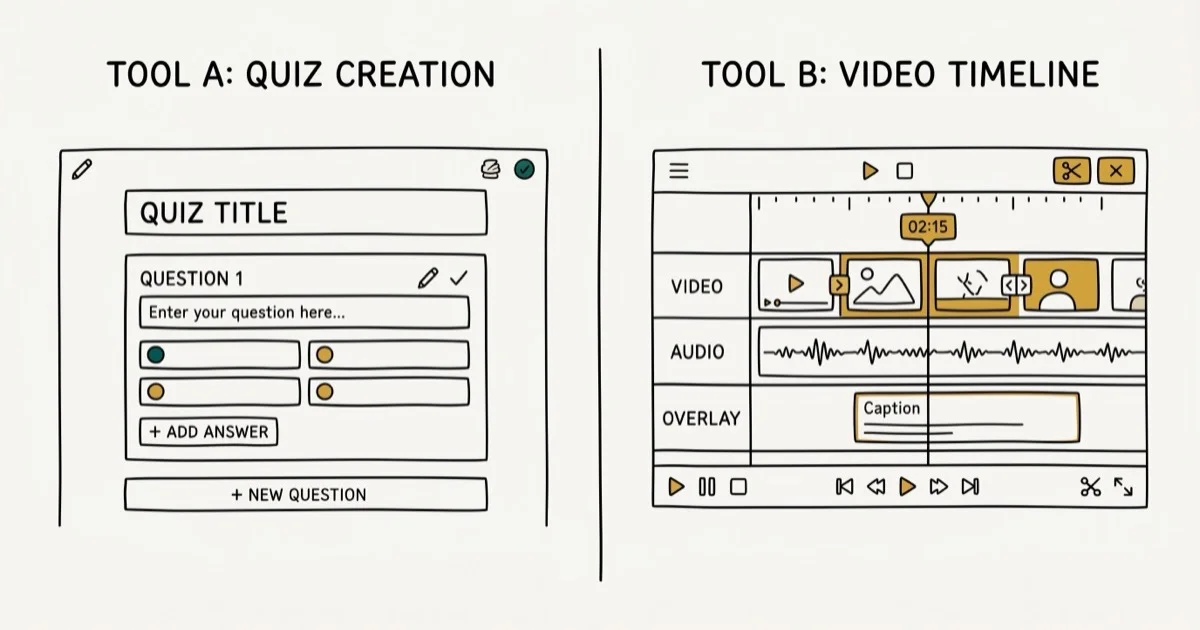
Quick AnswerAdobe Captivate is better for creating interactive e-learning courses with quizzes and branching scenarios. Camtasia is better for screen recording and producing tutorial videos quickly. Camtasia starts at $169.99 and is easier to learn; Captivate starts at $33.99/month and offers more authoring power for LMS deployment.
Adobe Captivate and TechSmith Camtasia serve the same general audience, educators and trainers creating digital content, but they solve different problems. Captivate builds interactive courses with quiz logic and SCORM export; Camtasia records and edits screen video for tutorial delivery.
This comparison focuses on export quality, timeline editing speed, interactivity features, and LMS compatibility. For related video editing tools, our iMovie vs Final Cut Pro comparison covers Apple’s offering, and our DaVinci Resolve vs. Premiere Pro guide covers professional-grade alternatives.
- Captivate is better for interactive e-learning with quizzes, branching scenarios, and SCORM/xAPI output
- Camtasia is better for screen recording and producing tutorial videos with minimal setup time.
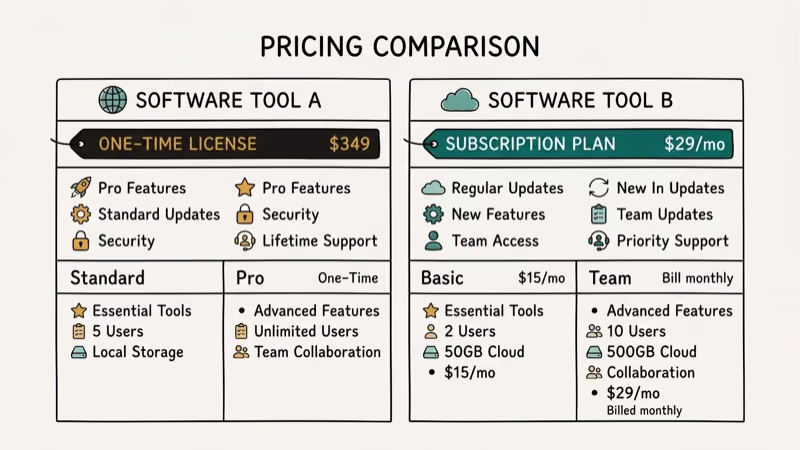
- Camtasia costs $169.99 one-time (perpetual license); Captivate costs $33.99/month or $399.88/year.
- Both tools run on Windows 10/11 and macOS 12+; Camtasia requires a 2GHz dual-core processor minimum.
- Camtasia has a shorter learning curve; Captivate offers more authoring power for LMS deployment.
#What Is the Core Difference Between Captivate and Camtasia?
Adobe Captivate handles quizzes, branching, and LMS deployment; Wikipedia’s article on Adobe Captivate confirms that Captivate supports xAPI, SCORM 1.2, and SCORM 2004.
TechSmith Camtasia is a screen recorder and video editor. It captures your screen activity, records webcam and microphone, then provides a timeline editor for cutting, annotating, and exporting tutorial videos. According to TechSmith’s product documentation, Camtasia is used by over 3 million people worldwide for instructional video production.
The distinction matters: if you need quizzes that report pass/fail scores to a corporate LMS, Captivate is the right tool. If you need a polished screencast tutorial, Camtasia is faster and simpler.
#Captivate vs. Camtasia Pricing Compared
Pricing is a significant differentiator. Camtasia uses a perpetual license model; Captivate is subscription-only.
Camtasia pricing:
- Perpetual license: $169.99 (one-time, includes 1 year of maintenance)
- Annual subscription: $99.50/year (discounts for educators and non-profits)
- Student/education pricing: 40% discount available with valid .edu email
Captivate pricing:
- Monthly: $33.99/month
- Annual (prepaid): $399.88/year ($33.32/month equivalent)
- Perpetual (older versions): $1,299 one-time (Captivate 2019 and earlier only)
- Student pricing: $399 one-time license for qualifying students
Camtasia’s upfront license is usually more economical for individual educators producing tutorial content, while Captivate’s monthly subscription makes more sense when you need SCORM authoring for corporate training deployments. For hardware requirements for running either tool, see our best laptop for video editing under $1000 guide.
#System Requirements Side by Side
Both tools run on similar hardware, with minor differences in CPU and storage requirements.
Similarities:
- Both support Windows 10 (64-bit) and Windows 11
- Minimum 4GB RAM required for both (8GB recommended)
- Both support multi-track timeline editing for presentations
Differences:
- Camtasia requires a 2.0GHz dual-core processor; Captivate runs on a 1.0GHz single-core
- Camtasia needs 2GB minimum disk space; Captivate requires 5GB minimum
- Camtasia requires a 64-bit OS only; Captivate supports both 32-bit and 64-bit Windows (older versions)
The disk space difference reflects Captivate’s asset library and course-building infrastructure. A typical 30-minute course built in Captivate generates significantly larger project files than an equivalent Camtasia recording.
#Camtasia Learning Curve and Key Features
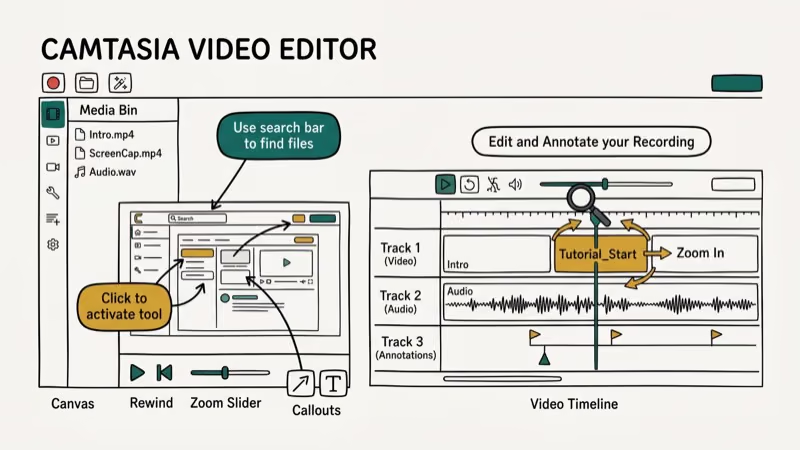
Yes. Camtasia is one of the most accessible screen recording tools available. Beginners can start with recording, trimming, callout annotations, and 1080p export before touching Camtasia’s deeper timeline tools.
Camtasia key features:
- Screen recorder with webcam overlay support
- Timeline editor with drag-and-drop media bin
- Annotations including callouts, arrows, and zoom effects
- Auto-captions using speech recognition
- Export to MP4, Screencast, Google Drive, and YouTube directly
- Smart Focus: automatic zoom-in tracking for recorded content
The interface is intuitive and TechSmith designed it to be learned in hours, not weeks. Google’s educator training resources found that educators prefer tools with shorter onboarding times, which is Camtasia’s primary advantage over Captivate. Our OpenShot vs. Shotcut comparison shows free alternatives if Camtasia’s price is a barrier.
#Captivate Features and Authoring Power
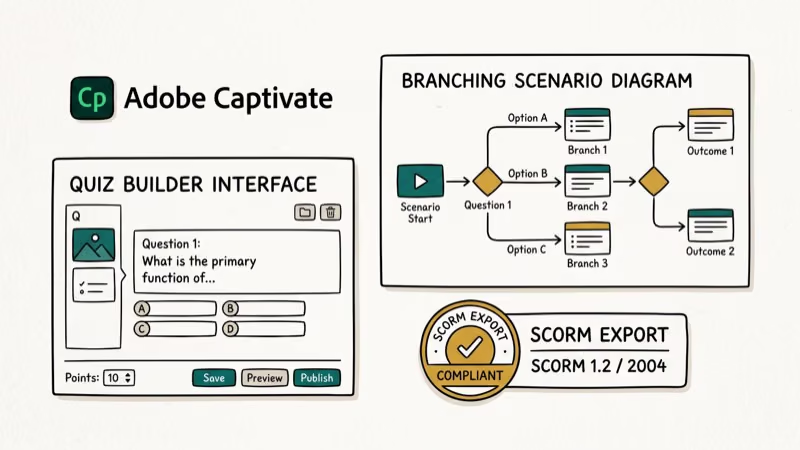
Yes, for the right audience. Captivate suits instructional designers who need SCORM courses and graded quizzes. Captivate supports branching scenarios; Camtasia can’t do branching at all.
Captivate key features:
- 360-degree VR learning content creation
- Interactive quizzes with pass/fail score reporting to LMS
- Branching scenarios with conditional navigation
- Responsive design for mobile, tablet, and desktop delivery
- SCORM 1.2, SCORM 2004, xAPI, and AICC export formats
- Adobe Typekit integration for custom fonts in course delivery
The learning curve is steep. Expect 10-20 hours before you’re proficient. For basic screen capture while learning Captivate, our record screen on Windows 10 guide covers the built-in options.
#Which Tool Should You Choose?
The decision is simple: video output = Camtasia, interactive course = Captivate.
Choose Camtasia if:
- You need to record screencasts and tutorials quickly
- Your audience will watch videos, not interact with course modules
- You’re an individual educator without LMS infrastructure
- You want a lower upfront cost and shorter learning curve
Choose Captivate if:
- You need SCORM or xAPI output for LMS integration
- You’re building courses with quizzes and completion tracking
- You have instructional design experience or resources
- You’re working in a corporate training environment
Free recorders like OBS work too. See fix OBS black screen.
#Bottom Line
Captivate and Camtasia are different tools for different jobs. Camtasia is better for most educators: cheaper at $169.99 one-time vs. $33.99/month, and easier to learn. Choose Captivate only if you specifically need SCORM/xAPI output for an LMS.
#Frequently Asked Questions
Can you do screen recording in Captivate?
Yes. Captivate includes a screen recording feature, but it’s more limited than Camtasia’s. Captivate’s recorder is designed to capture software demonstrations for use inside course modules. Camtasia’s recorder is more flexible for general tutorial production with better post-recording editing options.
Which tool works on Mac?
Both run on macOS 12+. Camtasia’s Mac version is identical to Windows; Captivate’s Mac version is more limited.
Is Captivate harder to learn than Camtasia?
Yes, significantly. Camtasia’s learning curve is measured in hours, while Captivate’s slide-based authoring model, responsive design engine, and quiz logic take weeks to master. Most instructional designers report needing 2-4 weeks to become comfortable in Captivate, compared to 1-2 days for Camtasia. The gap is especially noticeable when building branching scenarios or setting up LMS integration, which requires understanding Captivate’s publishing workflow on top of its authoring interface.
Can both tools export to SCORM?
No. Only Captivate exports SCORM. Camtasia is video-only (MP4, MOV, GIF).
Do either of these tools add watermarks?
No. Neither Camtasia nor Captivate add watermarks to exported content in their paid versions. Both have trial versions that may add watermarks or limit export resolution. The full paid versions of both tools produce clean, unbranded output.
What’s the best free alternative to Camtasia?
OBS Studio is the most capable free alternative for screen recording. It lacks Camtasia’s timeline editor, but recording quality is comparable. For basic editing after recording, pairing OBS with a free editor like OpenShot covers most tutorial production workflows without cost.