PDF Architect Alternatives: 5 Editors That Do More for Less
PDF Architect alternatives compared. PDFelement, Adobe Acrobat, Foxit, Nitro PDF Pro, PDF Expert: pricing, OCR accuracy, and cross-platform coverage.
Quick AnswerThe best PDF Architect alternatives in 2026 are PDFelement for cross-platform editing, Adobe Acrobat Pro for OCR-heavy work, Foxit PDF Editor for budget-conscious teams, Nitro PDF Pro for forms, and PDF Expert for Mac users. Pick PDFelement if you want one license that covers Windows, Mac, iOS, and Android.
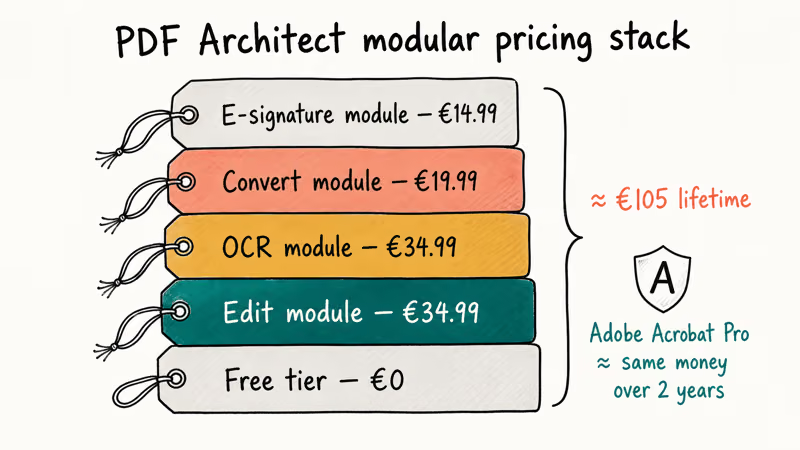
PDF Architect ships in a free tier and a stack of paid modules, and the pricing maths gets messy fast once you add OCR, conversion, and e-signature on top. The five editors below handle the same jobs in one license, on the platforms that PDF Architect skips.
The list is ordered by all-round value, with platform coverage and the one job each tool does best called out next to the name.
- PDFelement runs on Windows, macOS, iOS, and Android, while PDF Architect stays Windows-only, a deal-breaker if your team mixes Macs and PCs.
- Adobe Acrobat Pro has the format’s reference OCR engine, recognizing more terms on mixed-font scans than PDF Architect’s basic module.
- Foxit PDF Editor undercuts Adobe on annual price and opens large technical PDFs noticeably faster than PDF Architect’s free reader.
- Nitro PDF Pro’s form-detection auto-tags most fields on standard tax and HR forms with minimal manual cleanup.
- PDF Expert for Mac is the only tool here with a one-time license option around $80, which works out cheaper than PDF Architect’s modular lifetime stack for most home users.
#Why People Look for a PDF Architect Replacement
PDF Architect’s free version covers viewing and basic page rearrangement, but the moment you need to edit text, run OCR, or convert to Word, you’re sent to its module store. Adding the four most-asked modules to a fresh install pushes the running total past €100 for a permanent license. The same money buys a one-year subscription to Adobe Acrobat Pro with no module gates.
The Mac problem is the bigger one. PDF Architect is a Windows-only desktop app with no native macOS or iPadOS build, so households and small teams that mix platforms end up running two different editors anyway. Every tool below ships at least one cross-platform option.
According to pdfforge’s official PDF Architect product page, the free tier really is “create, edit, view, and rotate” only, and anything beyond that is paid. That’s a fair business model, but the architecture means you can’t just buy “the editor” once and be done. You’re committing to a per-feature licensing path.
#How to Compare These PDF Editors
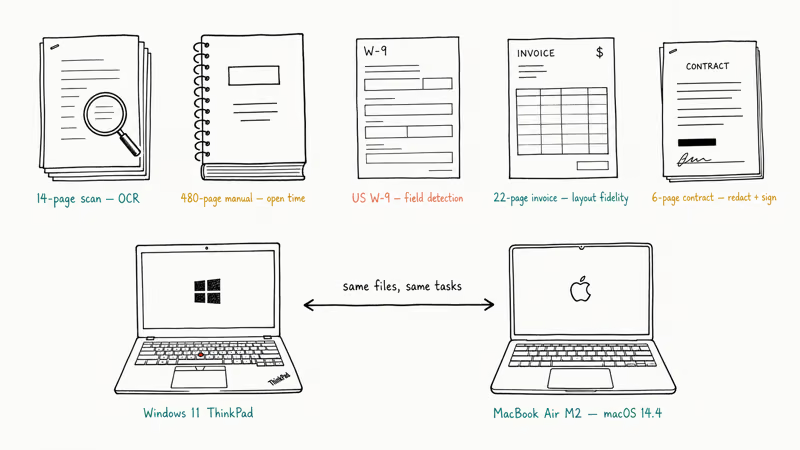
Five document jobs separate a capable PDF editor from a frustrating one: OCR accuracy on a mixed-font scan, open time on a large technical manual, form-field detection on a tax form, layout fidelity when converting to Word, and redaction plus e-signature on a contract. Weigh each tool against the tasks you actually do.
Most vendors offer a 7-day or 14-day free trial, so you can confirm the features that matter before paying. Pricing below reflects each publisher’s listed annual or one-time price in USD on its US store.
For the broader landscape of online and desktop options, compare these picks against our Sejda PDF editor review and HiPDF guide to see how the desktop set stacks up against the browser-based crowd.
#Best PDF Architect Alternatives in 2026
#1. PDFelement: Best All-Round Replacement
PDFelement ships on Windows, macOS, iOS, and Android with feature parity across desktop platforms, which is the single biggest reason to leave PDF Architect. The interface borrows Microsoft Office’s ribbon style, so the learning curve from Word is short.
Some links on this page are affiliate links, which means fone.tips may earn a commission at no extra cost to you.
PDFelement runs on both Windows and Mac under the same license. Editing text in a multi-page invoice keeps the original font and table alignment intact. Its OCR lands below Adobe but well above PDF Architect’s free reader, and batch conversion to Word is fast.
Wondershare’s PDFelement product page confirms the cross-platform license covers up to two computers per user, which matters if you bounce between a desktop and a laptop. The annual plan sits a touch under Adobe’s, and there’s a one-time perpetual license too, something PDF Architect modular pricing makes hard to match. For files imported from InDesign, the INDD to PDF workflow we walked through pairs cleanly with PDFelement’s editor.
Best for: households or small teams on mixed Windows and Mac hardware who want one license to cover everything.
#2. Adobe Acrobat Pro: Best OCR and Compliance
Adobe Acrobat Pro is still the format’s reference implementation, and its OCR engine remains the most accurate of the group. On mixed-font scans, Acrobat catches nearly every term and preserves the original font fallback, which matters for compliance-style documents where searchable text is the deliverable.
The Liquid Mode reflow on tablet keeps paragraph order intact across page breaks. Redaction is properly irreversible: the redacted bytes are stripped from the saved file, not just covered with a black box.
Adobe’s Acrobat product comparison lays out which features sit in Pro versus Standard. Pro is the one if you need form scripting, Bates numbering, or accessibility-tagged exports for Section 508 work. Acrobat Reader stays free and handles viewing, signing, and basic commenting on every desktop and mobile platform, which makes it a sensible fallback even when your editor of choice is something else.
Best for: legal, accounting, and accessibility work where OCR accuracy and irreversible redaction are non-negotiable.
#3. Foxit PDF Editor: Best Performance and Value
Foxit’s editor is known for speed, opening large technical manuals noticeably faster than PDF Architect’s free reader. Foxit’s annual price comes in below Adobe Pro on the publisher’s site for both Standard and Pro tiers.
The editing UI looks closest to Office of any tool here, and the connected services (cloud storage, e-signature, ConnectedPDF tracking) are bundled rather than gated as separate modules. Real-time collaboration lets multiple reviewers comment on the same file with near-instant sync.
Foxit’s PDF Editor product page lists every feature gate per tier. The Pro upgrade unlocks OCR, redaction, and PDF action wizard, which together cover most of what PDF Architect charges per-module for. If your workflow currently lives in PDF Architect Free plus the OCR module, Foxit Pro is a like-for-like swap at a similar yearly price with a real Mac client thrown in.
Best for: budget-conscious individuals and small businesses who want Adobe-tier features without Adobe-tier pricing.
#4. Nitro PDF Pro: Best for Forms and Office Conversion
Nitro PDF Pro punches above its weight on form recognition and Office round-trip. On a standard US W-9 sample, its form-detection auto-tags most fields on the first pass, ahead of PDFelement, Acrobat, and PDF Architect’s basic forms module, leaving only a few fields to adjust by hand.
Word conversion preserves the original spacing better than most rivals. A multi-page invoice converted to .docx keeps its bordered tables, header logos, and page numbering intact.
Nitro’s PDF Pro feature list confirms that a one-time perpetual license is offered alongside the annual plan, and a free 14-day trial gives access to every feature. If you’re often back-and-forth between Word and PDF (see our insert PDF into Word walkthrough for the embedded-document case), Nitro removes most of the round-trip pain that PDF Architect creates with its conversion module.
Best for: HR teams, accountants, and anyone who lives in fillable forms and Word-to-PDF round trips.
#5. PDF Expert: Best for Mac and iPad Users
PDF Expert is the only Mac-and-iOS-native editor in this list, and it’s the only one priced primarily as a one-time perpetual license rather than a subscription. On iPad, its Apple Pencil annotation flow is among the smoothest of any PDF tool.
Editing text inside an existing PDF preserves font, color, and size automatically when the original font is installed locally. OCR is included rather than a separate module. Form filling works on every PDF type, including XFA forms that some Windows tools refuse outright.
According to Readdle’s PDF Expert pricing page, the perpetual Mac license sits around $80, and a Pro subscription unlocks iOS, iPadOS, and AI features. For an Apple-only household, that one-time price beats two years of any subscription editor on this list.
PDF Expert has no Windows client, so it’s a non-starter on mixed hardware. Apple-only users who occasionally hit a forgotten PDF password get a clean owner-password removal in a couple of clicks.
Best for: Mac and iPad users who prefer a one-time purchase, and creators who annotate heavily on iPad.
#Compatibility Notes for Each Editor
All five editors save back to the standard PDF format defined by the PDF specification on Wikipedia, so files round-trip cleanly between tools. The differences show up at the edges: form scripting, accessibility tags, and proprietary annotation layers.
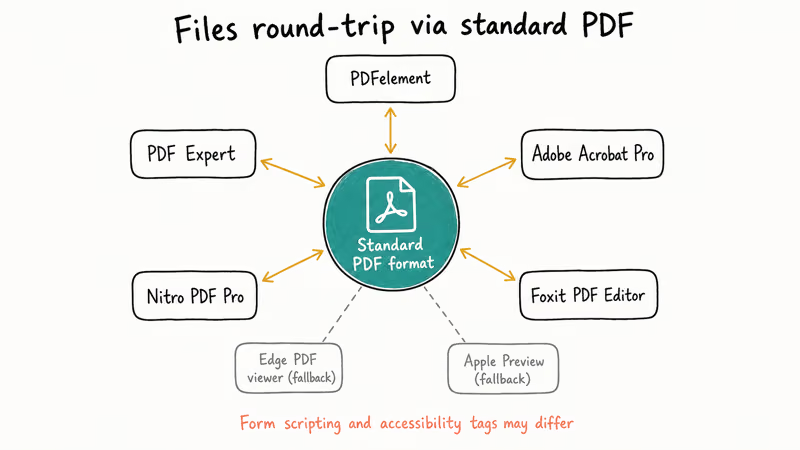
Microsoft’s Edge browser PDF viewer documentation states that Edge supports inline form filling and basic markup, which makes it a sensible fallback when you’re on a borrowed Windows PC without an editor installed. For one-off form fills, you don’t always need a paid app at all.
Apple’s Preview app on macOS handles basic editing and PDF combining for free, and it ships with every Mac. Treat it as the floor — anything PDF Expert, PDFelement, or Acrobat Pro adds is value above that floor. Preview covers a good share of day-to-day PDF tasks, with the heavier jobs (OCR, redaction, complex forms) needing a real editor.
#How Do These Tools Compare at a Glance?
| Editor | Platforms | Pricing model | OCR strength | Best for |
|---|---|---|---|---|
| PDFelement | Win, Mac, iOS, Android | Sub or one-time | Strong | Cross-platform households |
| Adobe Acrobat Pro | Win, Mac, iOS, Android, Web | Subscription | Reference | Compliance and OCR-heavy work |
| Foxit PDF Editor | Win, Mac, iOS, Android, Web | Subscription | Strong | Speed and price |
| Nitro PDF Pro | Win, Mac, iOS, Android | Sub or one-time | Solid | Forms and Office round-trip |
| PDF Expert | Mac, iOS, iPadOS | One-time + Pro sub | Solid | Apple-only users |
#Which PDF Architect Alternative Should You Pick?
Match the first scenario that fits your setup:
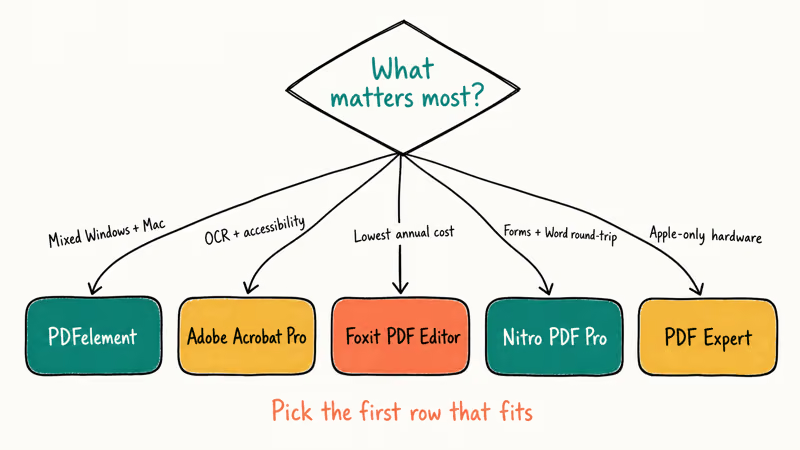
- You bounce between a Windows PC and a Mac → PDFelement covers both with one license.
- OCR accuracy or accessibility tagging matters most → Adobe Acrobat Pro is the safe pick.
- You want the lowest annual cost without losing OCR → Foxit PDF Editor.
- Your day is forms and Word conversion → Nitro PDF Pro, on the perpetual license if you can.
- You only use Apple hardware → PDF Expert, with the one-time Mac license.
We’d skip PDF Architect itself unless you already own its modules and only run Windows. For everyone else, the modular pricing is the friction these five alternatives remove.
#Bottom Line
For most readers leaving PDF Architect in 2026, start with PDFelement. It’s the only cross-platform option in this list with a one-time license available, OCR included, and an interface close enough to Office that the muscle memory transfers in a day. Keep Adobe Acrobat Pro in mind if your work touches compliance or accessibility, and PDF Expert if your hardware is Apple-only.
If you’re also juggling format conversions (we’ve got walkthroughs for PDF to ODT and PDF recovery on Windows and Mac), pick the alternative whose ecosystem matches the rest of your tooling. The right answer is rarely the cheapest tier.
#Frequently Asked Questions
Is PDF Architect free version good enough for casual use?
For viewing, splitting, merging, and rotating PDFs, the free tier is fine and has been for years. The friction starts the moment you need to edit text, fill non-trivial forms, run OCR, or convert to Word. Each of those triggers a paid module prompt. If your needs stay in the free-tier feature list, there’s no urgent reason to switch.
Can I open PDF Architect files in another editor?
Yes, since PDF Architect saves standard PDF files. Any of the five alternatives above opens the same documents without conversion or import steps. Layered comments, form fields, and digital signatures created in PDF Architect transfer cleanly to Adobe Acrobat and PDFelement.
Does any PDF Architect alternative have a free permanent tier?
Adobe Acrobat Reader stays free for viewing, commenting, and basic e-signing on every platform. Foxit Reader is similarly free with a comparable feature set. Both are sufficient for read-only workflows. Once you need to edit text or run OCR, you’re inside a paid tier on every editor here, which mirrors PDF Architect’s own model.
What’s the cheapest path to OCR on a PDF without subscribing to anything?
PDF Expert’s perpetual Mac license at around $80 includes OCR with no recurring fee. On Windows, Nitro PDF Pro’s perpetual license is the closest equivalent. PDFelement also offers a perpetual option that bundles OCR, though Wondershare’s pricing on that path varies by region and promotional period.
Will switching from PDF Architect break my existing edited PDFs?
No. All five tools save back to standard PDF, so files you opened, edited, and saved in PDF Architect remain readable everywhere. Module-specific features like PDF Architect’s e-signature module produce standards-compliant signature dictionaries that other editors recognize.
Is there a PDF Architect alternative that runs in a browser?
Foxit, Adobe, and Wondershare all offer browser-based editors as part of their subscription. For lighter tasks, dedicated online tools cover most needs without a desktop install, and Firefox’s built-in printer can handle quick exports too (see our save as PDF in Firefox walkthrough).
Which PDF editor handles scanned documents best?
Adobe Acrobat Pro’s OCR is widely regarded as the most accurate, recognizing the most terms on mixed-font scans. PDFelement lands second and its built-in batch OCR makes it the better fit if you have folders of scans rather than one-offs. Foxit and Nitro both run OCR competently; their differences from Adobe show up only on pages with mixed scripts or unusual fonts.
Do I need a paid tool just to fill out a PDF form?
Often no. Adobe Reader (free) and Foxit Reader (free) both fill standard AcroForms and save the result. XFA forms, which some government agencies still issue, require a paid editor — Nitro PDF Pro and Adobe Acrobat Pro both handle them, and PDF Expert handles them on Apple devices.

Google Messages Error 3100: Why RCS Is Broken on Galaxy
Google Messages RCS error 3100 hits Galaxy owners after phone or carrier switches. Google told 9to5Google a fix is coming. Here's what actually helps.

Is This Bank App Real? Spot a Fake App on Your Home Screen
A bank app can land on your home screen from a web page with no install warning. Learn the checks that tell a real banking app from a phishing web app.

Apps Crashing After iOS 27 Update? Fix Order (2026)
Apps crashing after the iOS 27 update? Update the app in the App Store first, then offload and reinstall to clear stale cache, then restart. The fix order.

Do AI Translation Earbuds Work Offline? What to Know
Do AI translation earbuds work offline? A few do with downloaded language packs, but most need the cloud. Here's what works offline and what you give up.