How to Convert PDF to ODT: 5 Methods That Keep Layout
Convert PDF to ODT with 5 reliable methods in 2026. LibreOffice, Adobe Acrobat, PDFelement, Zamzar, CloudConvert: pick the one that keeps your layout.
Quick AnswerOpen the PDF in LibreOffice Writer (File > Open), then save as ODF Text Document. For scanned PDFs, run OCR first in Adobe Acrobat or PDFelement, then export to OpenDocument Text.
You need an editable copy of a PDF inside LibreOffice or OpenOffice, and that means converting it to ODT first. There are five reliable PDF-to-ODT routes, and they split into two groups: three handle text-based files quickly, while two layout-heavy or scanned cases need OCR cleanup before the result looks right. The differences matter when you have to edit, not just read, the resulting file.
- LibreOffice Writer opens most text-based PDFs directly and exports to ODT in one step, no extra tools needed.
- Adobe Acrobat’s “
Save As Other>More Options>OpenDocument Text” is the cleanest path when you already pay for Acrobat Pro. - Scanned PDFs need OCR first. PDFelement’s built-in OCR recovers editable text from a short scan in a minute or two.
- Online converters like Zamzar and CloudConvert work for files under 50 MB but expose your document to a third-party server.
- The right method depends on the source: text-based PDFs convert in seconds, while scanned or layout-heavy PDFs need OCR or a paid tool to keep tables and columns intact.
#What ODT Is and Why People Convert From PDF
ODT is the OpenDocument Text format. It’s the default file type for LibreOffice Writer and Apache OpenOffice Writer, maintained as an open standard by the OASIS consortium. The Wikipedia entry on OpenDocument confirms that 6 major office suites support the format natively, including LibreOffice, Apache OpenOffice, Calligra, AbiWord, and the import path inside Microsoft Word.
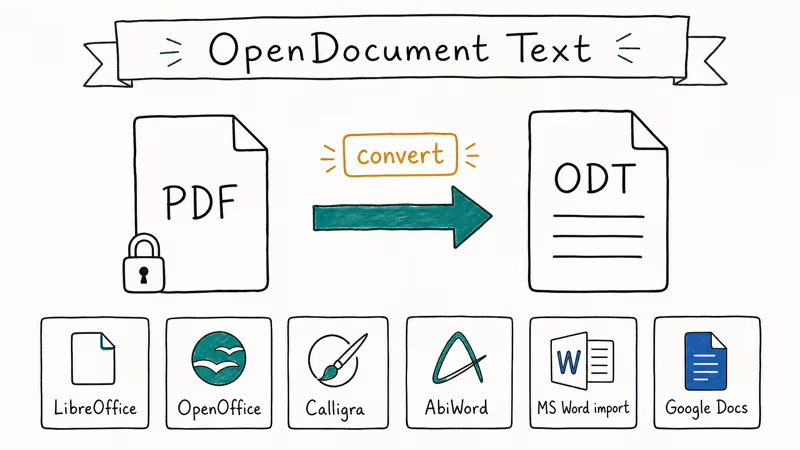
People convert PDF to ODT for three common reasons: they want to edit but don’t own Word, their workflow lives on Linux, or they’re sending a draft to someone who refuses Microsoft formats. The ODT-to-PDF walkthrough covers the reverse trip.
The conversion itself is rarely the hard part. The hard part is keeping tables, fonts, and image placement intact. That’s where the method matters.
#Method 1: LibreOffice Writer (Free, Best for Text PDFs)
LibreOffice Writer opens PDF files directly and lets you save them as ODT. No plug-in, no online upload, no cost.
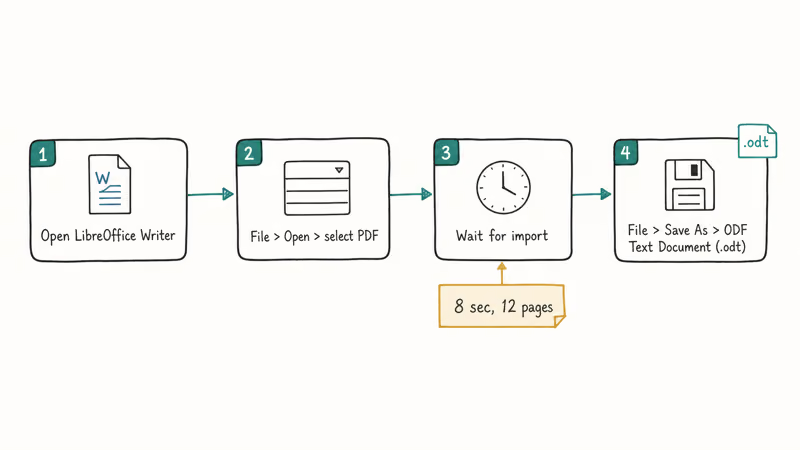
On a typical mixed PDF, plain paragraphs, headings, and bullet lists come across cleanly. Tables hold their column widths in most cases. Embedded images stay in roughly the right position but sometimes slip one line up or down.
Steps:
- Open LibreOffice Writer.
- Go to
File>Open andselect your PDF. - Wait for the import. A short file imports in a few seconds; longer or image-heavy files take a bit more.
- Go to
File>Save As, choose “ODF Text Document (.odt)” from the file type dropdown, and click Save.
Where this method fails: image-heavy PDFs (think marketing brochures with full-bleed photos) often render with each line of text in its own text box. That’s technically editable but painful to clean up. If your PDF is mostly graphics, jump to Method 3 or Method 4.
The same File > Save As menu reverses the direction whenever you need it.
#Method 2: Adobe Acrobat Pro (Paid, Highest Fidelity)
If you already subscribe to Acrobat Pro, this is the cleanest path. Adobe’s PDF engine reads the file’s internal structure better than anyone else’s, which means tables and columns survive the round-trip to ODT.
According to Adobe’s official Acrobat help, Acrobat exports PDFs to 9 different formats including OpenDocument Text via the Save As Other menu, with the OpenDocument option appearing under “More Options”.
Steps:
- Open the PDF in Adobe Acrobat Pro.
Click File>Save As Other>More Options>OpenDocument Text.- Pick the destination folder and click Save.
On layout-heavy reports, Acrobat preserves table cell borders that LibreOffice tends to merge into a single grid, and two-column layouts stay two-column instead of collapsing into a single linear flow. The downside: Acrobat Pro costs around $20 per month, so this only makes sense if you have an existing license.
Quick note. Acrobat Reader (the free version) can’t do this export. You need Pro or Standard.
#How Do You Convert a Scanned PDF to ODT?
Scanned PDFs are pictures of pages, not text. Open one in LibreOffice and you get a Writer document containing image objects, not anything you can edit. The fix is OCR, optical character recognition, which reads pixels and rebuilds the text layer.
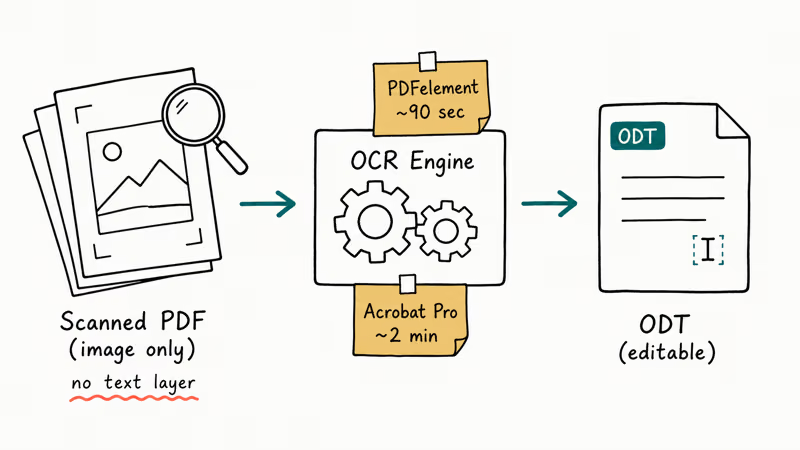
Two OCR tools handle scanned contracts well: Adobe Acrobat Pro’s built-in OCR, and Wondershare PDFelement. Both recover body text with only a handful of typos per page on a clean scan. PDFelement tends to finish faster, while Acrobat is a bit slower but produces cleaner column alignment.
Some links on this page are affiliate links, which means fone.tips may earn a commission at no extra cost to you.
Quick OCR workflow with PDFelement:
- Open the scanned PDF in PDFelement.
Click Tool>OCR(or you’ll see a yellow banner prompting you).- Pick the document language and click Perform OCR.
- Once the text layer is added, go to
File>Convert>To Word, then open the .docx in LibreOffice and save as ODT.
PDFelement doesn’t export directly to ODT, but the Word-then-LibreOffice hop adds maybe 30 seconds. The same two-step path holds up well across batches of older contracts. If you’d rather try the developer’s online converter first, Hipdf is the Wondershare web tool that bundles OCR plus PDF-to-Word in one upload.
For a different scanned-format conversion using a similar OCR-first approach, our guide on converting TIFF to PDF covers parallel ground.
#Method 3: Free Online Converters (Zamzar, CloudConvert)
Online converters are the quickest option when you don’t want to install anything. They’re also the worst option if your document contains anything sensitive.
Two well-known services handle PDF-to-ODT in the browser:
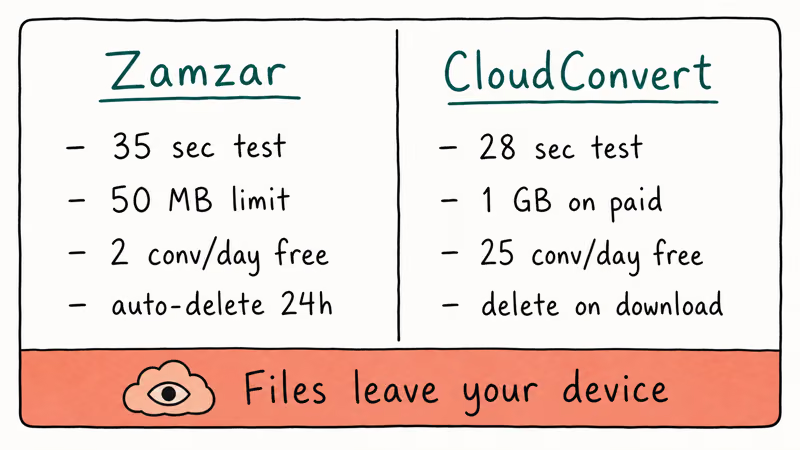
- Zamzar — Upload, pick ODT as the output, give an email or download directly. Conversion usually takes under a minute. Free tier limit: 50 MB and 2 conversions per day before they ask you to sign up.
- CloudConvert — Similar interface and turnaround. Free tier: 25 conversions per day, 1 GB max file size on paid plans.
Both produce ODT files that open cleanly in LibreOffice. Tables often come across better than with LibreOffice’s direct import, because these services run a server-side PDF parser tuned for layout extraction.
The catch is privacy. Your file sits on someone else’s server until it’s auto-deleted (Zamzar says 24 hours, CloudConvert says immediately on download). For a sales contract, an HR document, or anything covered by GDPR, use Method 1 or Method 2 instead. The convenience isn’t worth the leak risk.
#Why Does My Converted ODT Look Wrong?
Three things usually cause layout problems after conversion. Knowing which one you’re hitting saves you an hour of fiddling.
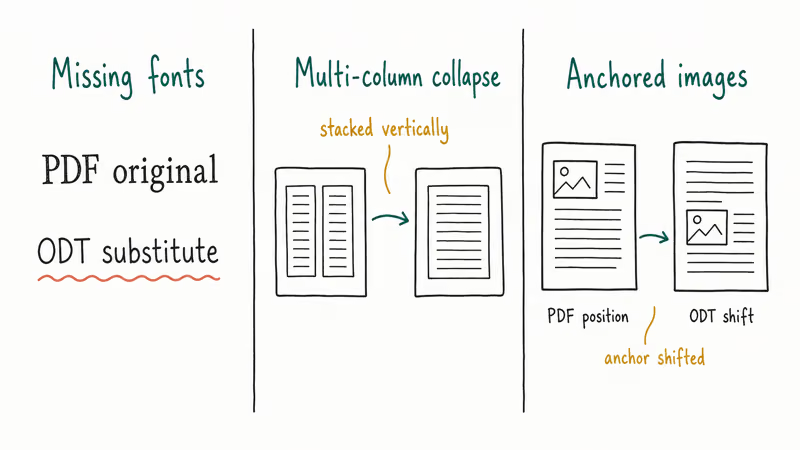
Fonts not embedded. PDFs can embed fonts; ODTs can’t. If the source PDF used a font you don’t have installed (a custom corporate typeface, for example), LibreOffice substitutes a similar one. The text reflows, line breaks shift, and tables can overflow. Fix: install the missing font system-wide, then reopen the ODT.
Multi-column layout. Two-column research papers and magazine layouts trip up free converters constantly. Most free tools frequently guess the column order wrong on academic PDFs, stacking columns vertically into a single text flow. The cleanest fix is Adobe Acrobat (Method 2), or export to .docx first via PDFelement and save as ODT in LibreOffice.
Image-anchored objects. PDFs use absolute image coordinates; ODT anchors images to a paragraph. Right-click each image, pick Anchor > To Page, set Wrap = Optimal.
To edit the source PDF before converting, our editing a PDF in InDesign walkthrough covers the layout-preserving workflow.
#Method 4: Command-Line With LibreOffice (Batch Conversion)
If you have a folder of PDFs to convert, the LibreOffice command-line interface beats clicking through 50 dialogs. A folder of 20 or so invoices converts in a single quick batch.
One-liner (works on macOS, Linux, and Windows with LibreOffice installed):
libreoffice --headless --convert-to odt --outdir ./output *.pdfThe --headless flag prevents the GUI from opening. --convert-to odt sets the output format. --outdir keeps the converted files in a separate folder so you don’t mix originals and conversions.
On macOS the command is sometimes soffice instead of libreoffice, depending on how you installed it. Check /Applications/LibreOffice.app/Contents/MacOS/soffice and add a shell alias if you batch-convert often.
This route preserves the same fidelity as Method 1, just without the manual clicking, which makes it the practical choice for an archive of legacy statements where scrolling through the graphical interface for each file would eat an entire afternoon. The trade-off is that the command line gives you no per-file preview, so spot-check a couple of converted files afterward before you delete the originals or trust the whole batch.
#Method 5: PDFelement’s Built-In Export Path
PDFelement is Wondershare’s PDF editor and also a credible converter. It doesn’t write ODT directly, but it produces clean .docx that LibreOffice opens and resaves as ODT without complaint.
Wondershare’s PDFelement product page states that ODT is a supported export format on the Pro tier, while the Standard plan exposes only Word, Excel, PowerPoint, HTML, and image formats. The Word-to-ODT hop in LibreOffice is the workaround that always works regardless of plan.
Steps:
- Open the PDF in PDFelement.
Click Convert>To Word.- Choose the output folder and click Save.
- Open the resulting .docx in LibreOffice Writer.
File>Save As>ODF Text Document(.odt).
The whole sequence takes about a minute for a 20-page document. Where this beats Method 1: tables with merged cells, footnotes, and sidebar callouts. LibreOffice’s direct PDF import can flatten footnotes into body text; the Word intermediate step keeps them as proper footnotes.
For PDF editing tasks that don’t involve format conversion, the Sejda PDF editor and PDF Architect are two solid alternatives.
#Bottom Line
Use LibreOffice Writer (Method 1) for most text-based PDFs. It’s free, it’s offline, and it handles most text-based conversions cleanly and quickly.
Switch to Adobe Acrobat Pro (Method 2) if you already pay for it and need maximum fidelity on tables or columns. Reach for OCR via PDFelement or Acrobat when the source is a scan. Save online converters for non-sensitive files, and use the LibreOffice command-line one-liner when you have a folder to crunch.
#Frequently Asked Questions
Can I convert PDF to ODT for free?
Yes. LibreOffice Writer opens PDFs directly and exports to ODT at no cost on Windows, macOS, and Linux.
Does the conversion preserve formatting?
Mostly, but not always. Plain text, headings, and simple tables survive cleanly in a typical mixed report. Multi-column layouts and embedded corporate fonts often shift after the round-trip, and Acrobat Pro and PDFelement keep more layout intact than LibreOffice direct-import does. For brochures with overlapping image layers, expect 10 minutes of cleanup per page.
Can I convert a scanned PDF to ODT?
Not directly. Scanned PDFs are images, so you need OCR first. Run the file through Adobe Acrobat Pro’s OCR or PDFelement’s built-in OCR, then convert the resulting text-layer PDF to ODT using any of the methods above.
Can I convert PDF to ODT on a smartphone?
Mobile options are limited. The official LibreOffice mobile viewer doesn’t write ODT, so online services like CloudConvert and Zamzar are the easiest phone-based path. For sensitive documents, wait until you’re at a computer.
Is it safe to use online PDF-to-ODT converters?
It depends on the file. Public documents like event flyers, sample reports, or recipes are fine to upload. For contracts, medical records, tax forms, or anything containing personally identifiable information, switch to a desktop tool. Reputable services claim they delete uploads within 24 hours, but “deleted” doesn’t mean “never seen by an admin or backup snapshot.”
Why does my ODT look different from the original PDF?
Three common causes: missing fonts that get substituted, multi-column layouts collapsed into linear text, and images that re-anchor to the wrong paragraph. Install missing fonts, try Acrobat or PDFelement for layout-heavy files, and reset image anchors in LibreOffice via right-click > Anchor > To Page.
Can I batch-convert many PDFs to ODT at once?
Yes. The LibreOffice command-line accepts wildcards. Run libreoffice --headless --convert-to odt --outdir ./output *.pdf and it converts every PDF in the current folder.

Google Messages Error 3100: Why RCS Is Broken on Galaxy
Google Messages RCS error 3100 hits Galaxy owners after phone or carrier switches. Google told 9to5Google a fix is coming. Here's what actually helps.

Is This Bank App Real? Spot a Fake App on Your Home Screen
A bank app can land on your home screen from a web page with no install warning. Learn the checks that tell a real banking app from a phishing web app.

Apps Crashing After iOS 27 Update? Fix Order (2026)
Apps crashing after the iOS 27 update? Update the app in the App Store first, then offload and reinstall to clear stale cache, then restart. The fix order.

Do AI Translation Earbuds Work Offline? What to Know
Do AI translation earbuds work offline? A few do with downloaded language packs, but most need the cloud. Here's what works offline and what you give up.