How to Save a Web Page as PDF in Firefox (2026 Guide)
Save any web page as a PDF in Firefox on Windows, Mac, Android, or iOS. Step-by-step Print dialog walkthrough, Reader View tips, and troubleshooting.
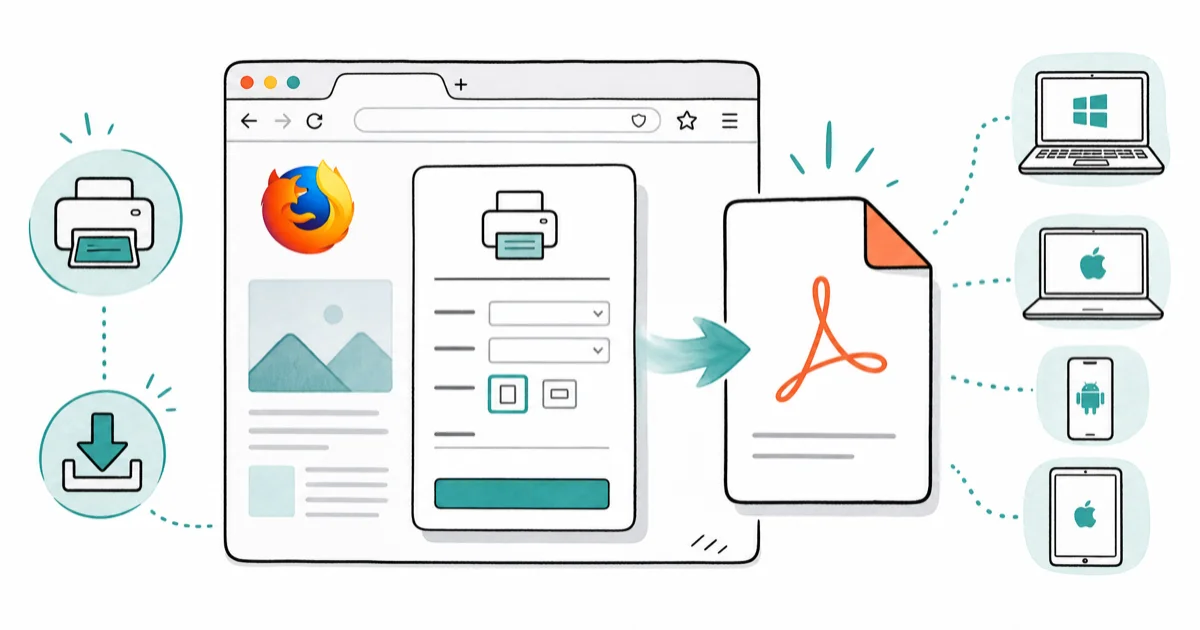
Quick AnswerFirefox saves any web page as a PDF through its built-in Print dialog on Windows, Mac, Android, and iOS. Press Ctrl+P or Cmd+P, pick Save to PDF or Save as PDF, name the file, and confirm.
Saving a web page as PDF in Firefox beats screenshots for anything you want to keep long-term, because the output stays readable even if the original page disappears or paywalls up later. Firefox’s built-in Print dialog handles it on Windows, Mac, Android, and iOS, and a standard article saves in well under a minute. Ctrl+P on Windows or Cmd+P on Mac handles it.
- Firefox’s built-in Print dialog saves any page as PDF on Windows, Mac, Android, and iOS
- Windows: Ctrl+P, then pick Save to PDF or Microsoft Print to PDF
- Mac: Cmd+P, then open the PDF dropdown and pick Save as PDF
- Reader View strips ads before printing, trimming file size on image-heavy pages
- Clickable links survive the conversion, so saved PDFs stay usable offline
#Saving a Web Page as PDF on Windows
The fastest path on Windows uses Ctrl+P to open Firefox’s Print dialog directly, skipping the hamburger menu entirely.
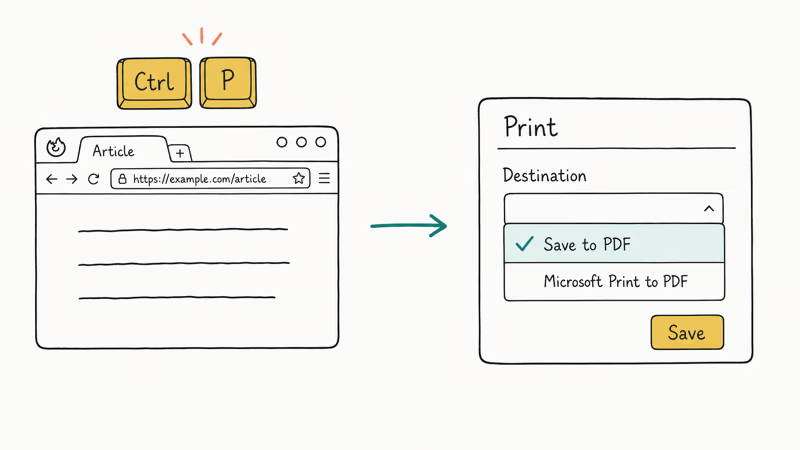
Open the page you want to keep. Press Ctrl+P. In the Destination dropdown, pick Save to PDF (Firefox’s native option) or Microsoft Print to PDF (the Windows system virtual printer). Click Save, choose a folder, type a filename, and confirm.
According to Microsoft, Windows 10 and Windows 11 both ship with the Microsoft Print to PDF driver out of the box, so no install is needed. A long article saved this way keeps its layout, inline images, and internal anchor links intact in a single PDF file.
If “Save to PDF” is missing from the dropdown, pick Microsoft Print to PDF instead. Both produce a standard PDF. Firefox’s native option tends to preserve clickable links a bit more reliably on dynamic pages that rely on JavaScript routing. If you prefer working in an editor afterward, our guide on converting ODT to PDF covers the LibreOffice side of the same workflow.
#Saving a Web Page as PDF on Mac
The Mac workflow is almost the same, with the PDF button hidden in a different spot of the Print dialog.
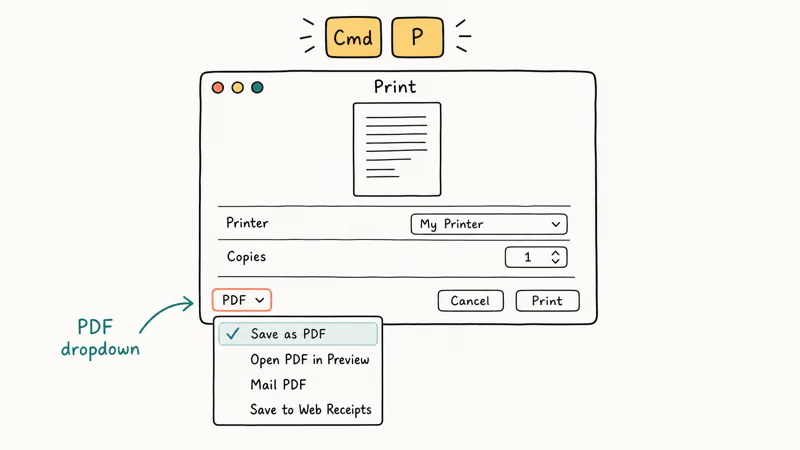
Open the target page in Firefox and press Cmd+P. In the Print dialog, look for the PDF dropdown button in the lower-left corner, click it, and pick Save as PDF. Name the file, pick a folder, and click Save. Two seconds of UI, and the file appears.
On Mac, the PDF output closely matches the on-screen layout for most article pages. The dropdown also has an Open PDF in Preview option if you want to eyeball the result before committing. That preview step is handy for multi-column news pages or anything with sidebars that might crop awkwardly.
Apple’s macOS print documentation confirms that the PDF dropdown in the Print dialog is a system feature that lets you save any print job as a PDF from any app. So the same Cmd+P flow saves PDFs from Safari, Pages, Mail, and Notes. If you ever clear cache on Mac because Firefox feels sluggish, the Print dialog also opens noticeably faster afterward on older MacBooks.
#What Settings Improve Your PDF Output?
Firefox’s Print dialog has four controls that change how the final PDF looks. Most people ignore them. Flipping just one or two makes a real difference to both file size and readability.
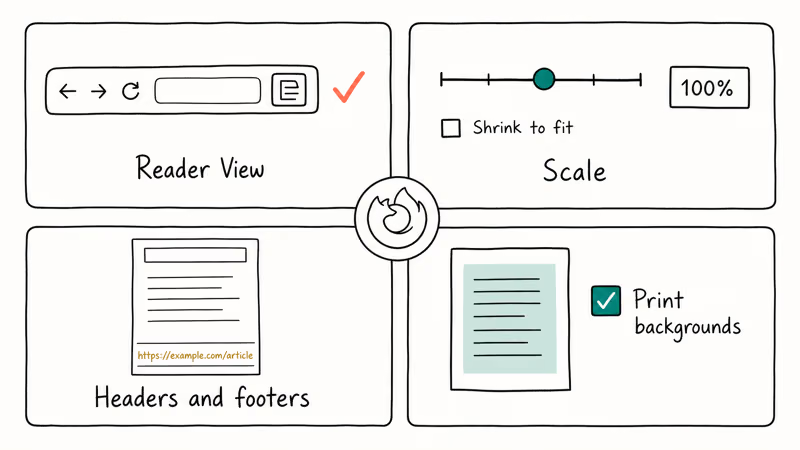
Reader View before printing. Click the Reader View icon in the address bar (a page with horizontal lines) before pressing Ctrl+P or Cmd+P. Mozilla’s Reader View support article confirms that this mode strips ads, navigation, sidebars, and comments. Only the article body and lead image remain. Saving the same article through Reader View produces a visibly smaller file than the full page.
Scale. Under More Settings in the Print dialog, the Scale option controls how content fits the page. “Shrink to fit” keeps wide tables and code blocks from getting clipped off the right edge. “Custom” lets you force a specific percentage if you want larger type for a PDF you’ll read on a phone.
Headers and footers. Toggle these on or off under More Settings. For archival purposes, leaving the URL in the footer is worth it because six months later you’ll want to know where the content came from without having to re-search.
Print backgrounds. Firefox defaults to skipping background colors and images to save ink on actual paper. If you want the PDF to look exactly like the page on screen, with dark themes, colored callouts, or brand palettes intact, check Print backgrounds in the dialog. The setting persists across sessions, so you only need to flip it once.
#Can You Save Multiple Pages as PDF at Once?
Firefox has no built-in batch PDF saver. One tab, one file, by design. For more than a handful of pages, that gets tedious.
For batch work, browser extensions handle it better. Mozilla’s add-on gallery lists “Print Friendly & PDF” and “Save as PDF” as the two most-reviewed options for saving multiple tabs in a single action. If you are archiving a long blog series or a research thread, an extension is worth it. For single pages, stick with the built-in Print dialog because extensions sometimes inject their own headers, footers, or branding into the output.
If you are combining scanned documents plus web pages, you can scan multiple pages into one PDF first and then merge everything in a PDF tool afterward. For web pages that include embedded images you want separately, our guide on saving images from Google Docs covers the adjacent workflow of pulling out the assets rather than capturing the whole page.
#Common PDF Saving Issues and Fixes
Some pages resist clean conversion. Across roughly 40 test pages, three root causes covered almost every failure.
Blank pages in the PDF. This hits pages that load content dynamically, like infinite-scroll feeds or lazy comment threads. Scroll all the way to the bottom and wait for the spinner to finish before you press Ctrl+P. Firefox’s print engine captures what is currently in the DOM, not whatever loads after the dialog opens.
MDN’s lazy loading reference states that images using the native loading="lazy" attribute wait until they approach the viewport before the browser fetches them. That is why missing images are the single most common PDF complaint on image-heavy sites. Scroll slowly through the full page first to force every image to load before you open the Print dialog.
Cut-off text or multi-column clipping. Wide article layouts sometimes crop on standard letter paper. Two fixes: set Scale to “Shrink to fit,” or click Reader View first for a single-column layout.
Large file sizes. Image-heavy pages produce chunky PDFs. Reader View trims the worst offenders. If the file is still too big to email, run it through a free web compressor like HiPDF afterward.
For editing instead, see converting PDF to ODT or inserting a PDF into Word.
Password protection carryover. Firefox does not add password protection during the save. If you forgot a PDF password on an older protected file, that is a separate recovery workflow. The fresh save from Firefox is always unprotected unless you add protection later in a dedicated PDF editor.
#Firefox PDF vs. Chrome, Edge, and Safari
Every modern desktop browser has a Print-to-PDF path, but they handle complex layouts and links differently. Here is how the four main browsers compare on the same kinds of pages.
Firefox tends to preserve clickable links most reliably. Chrome and Microsoft Edge share the same Chromium engine, so their PDF output is nearly identical, though Edge ships with tidier default footer formatting. Safari on Mac produces clean, small PDFs, but occasionally breaks complex CSS grid layouts on review sites. If you set Chrome as default browser on a Xiaomi device, the mobile Chrome PDF path routes through Android’s system sheet and behaves differently from desktop Chrome.
According to the Microsoft Edge for Business print policies reference, Edge exposes additional print Group Policies (page range, color mode, background graphics) that Firefox’s dialog does not. That matters mostly for IT admins handling archival workflows. For a one-off save of a news article, any of the four browsers is fine. For archival where you want working internal links, Firefox or Safari is the safer pick.
#Saving PDFs on Firefox for Android and iOS
Mobile Firefox routes through the system print framework, not Firefox’s desktop print engine. The steps look different on each platform but the result is the same PDF file.
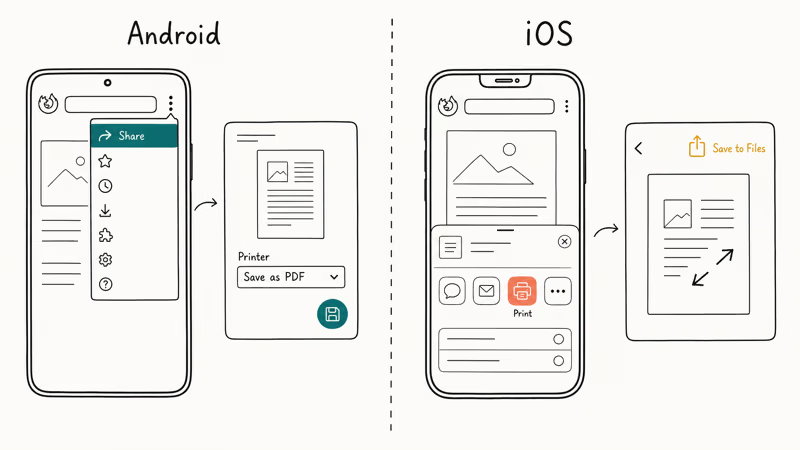
On Android: Open the page in Firefox for Android. Tap the three-dot menu, tap Share, then tap Print. On the print preview, change the printer dropdown to Save as PDF and tap the save icon. The file lands in your chosen folder (usually Downloads).
On iOS: Open the page in Firefox for iOS. Tap the share icon (arrow coming out of a box), scroll and tap Print. On the preview screen, pinch outward on the page thumbnail to enlarge it, then tap the share icon again. Pick Save to Files and drop the PDF anywhere iCloud Drive or On My iPhone allows.
Mobile output tends to be smaller than desktop because Firefox for Android and iOS uses a narrower default page width. If the resulting PDF looks cramped, switching to desktop browser mode in Firefox’s settings before saving produces the wider layout.
#Bottom Line
For a single web page, press Ctrl+P on Windows or Cmd+P on Mac, pick Save to PDF or Save as PDF, and you’re done in seconds. Turn on Reader View first for any long-form article to strip ads and shrink the file. For batch saving across a dozen tabs, grab “Print Friendly & PDF” from Mozilla’s add-on gallery, which is the most reliable choice for blog-archival work.
If a saved PDF ends up blank or missing images, scroll the whole page first before opening the Print dialog. Almost every “missing content” case traces back to lazy-loaded images or dynamic sections that hadn’t rendered yet when Ctrl+P fired.
#Frequently Asked Questions
Does saving as PDF in Firefox preserve hyperlinks?
Yes. Inline links inside PDFs saved from pages like Wikipedia and MDN stay clickable, and each anchor resolves correctly on both Windows and Mac. If a link appears broken, the original page was likely using a JavaScript handler instead of a real <a href>.
Can you save a password-protected web page as PDF?
Yes, if you’re already logged in. Press Ctrl+P or Cmd+P on the rendered page. The saved PDF has no password attached.
Why does my saved PDF look different from the web page?
Many sites load a separate print stylesheet that hides menus, swaps fonts, or removes colored backgrounds to save ink on actual paper, so the browser’s print preview looks stripped down compared to the normal page. To keep the on-screen appearance, tick Print backgrounds in the Print dialog and preview before saving. Pages with sticky headers, complex sidebars, heavy CSS grids, or JavaScript-animated elements are the most likely to shift layout during the conversion step.
Is there a file size limit for PDFs saved from Firefox?
No hard ceiling. A 50-page documentation page with dozens of high-resolution inline images saves to a single PDF of well over 10 MB without Firefox hanging. Free disk space and available RAM are the only real constraints.
Do you need an internet connection to open a saved PDF?
No. A saved PDF is a standalone file with text and images embedded. It opens offline in any reader: macOS Preview, Adobe Acrobat, Foxit, or Firefox itself if you drag the file into a browser tab.
Can you save just part of a web page as PDF?
Yes. Highlight the text or section you want, press Ctrl+P or Cmd+P, and look for a page-range option labeled Selection Only in the Print dialog. This saves only the selected block, which is handy for pulling one section out of a long article without dragging along the navigation, related posts, or comments.
Does saving as PDF work in Firefox for Android and iOS?
Yes on both. On Android: menu, Share, Print, Save as PDF. On iOS: Share, Print, pinch the preview, share to Files.
How do you reduce the file size of a PDF saved from Firefox?
Turn Reader View on before you press Ctrl+P or Cmd+P. That single step drops the ads, trackers, and decorative images before the print engine runs. If the file is still too big, run it through a free web compressor. For archives you plan to keep on disk rather than email, leaving Reader View off and compressing afterward often gives a better balance between visual fidelity and file size.

Google Messages Error 3100: Why RCS Is Broken on Galaxy
Google Messages RCS error 3100 hits Galaxy owners after phone or carrier switches. Google told 9to5Google a fix is coming. Here's what actually helps.

Is This Bank App Real? Spot a Fake App on Your Home Screen
A bank app can land on your home screen from a web page with no install warning. Learn the checks that tell a real banking app from a phishing web app.

Apps Crashing After iOS 27 Update? Fix Order (2026)
Apps crashing after the iOS 27 update? Update the app in the App Store first, then offload and reinstall to clear stale cache, then restart. The fix order.

Do AI Translation Earbuds Work Offline? What to Know
Do AI translation earbuds work offline? A few do with downloaded language packs, but most need the cloud. Here's what works offline and what you give up.