PCUnlocker Alternatives: 5 Ways to Reset Windows Password
Forgot the password to your own Windows PC? Skip PCUnlocker. Use Microsoft account reset, a reset disk, net user, install media, or a clean reinstall.
Quick AnswerIf you forgot the password to your own Windows PC, the best alternatives to PCUnlocker are Microsoft's online account reset, a password reset disk you made earlier, the built-in net user command from a separate admin account, and a clean reinstall as last resort.
This guide covers what to use instead of PCUnlocker when you’ve forgotten the password to a Windows PC that you personally own. Every method below targets your own machine, your own account, and your own data. Trying them on a work-issued laptop, a school device, or a computer that isn’t legally yours can violate US and UK computer-misuse laws even when the technical steps look identical.
Each path below applies to Windows 11 and Windows 10 on modern hardware. The five options are the ones that still work, in order of preference, plus the official caveats Microsoft has added to lock down older bypass tricks.
- The Microsoft account online reset at account.microsoft.com is the only method that works for a Windows 10 or 11 PC signed in with a Microsoft account, and it takes about 5 minutes.
- A password reset disk only works if you created it on the same PC, before the password was lost, and only for local accounts.
- The net user command resets a forgotten password in seconds, but you must already have access to a separate administrator account on that same PC.
- The Windows installation media reset trick (swapping utilman.exe for cmd.exe at the lock screen) is blocked on modern devices that ship with Secure Boot, TPM 2.0, and BitLocker enabled by default.
- A backup-and-clean-install is the last-resort path that always works, and pairing it with OneDrive or Google Drive prevents the same lockout from happening twice.
#Authorization Scope and Legal Notes
This article assumes the PC is yours. Recovering access to your own machine isn’t a crime. Doing the same thing to a computer you found, borrowed, inherited without paperwork, or that belongs to a former employer is a different legal category in almost every jurisdiction.
According to the US Department of Justice manual on the Computer Fraud and Abuse Act, accessing a computer “without authorization” or in excess of authorized access is a federal offense under 18 USC § 1030. The UK’s Computer Misuse Act 1990 covers the same ground for British residents. If a device was issued by your employer, school, or a leasing company, contact the IT desk or the leasing company instead of resetting it yourself.
We also don’t cover SAM hive extraction or rainbow-table cracking. Those tools have legitimate forensic uses, but they sit outside the scope of “I forgot my own password and want back in.” For the related Android scenario, see our forgot Android password guide.
#Why PCUnlocker Isn’t the Right Pick Anymore
PCUnlocker bills itself as a bootable password recovery tool, but the project has been largely dormant since around 2018. On a Windows 11 install with default Secure Boot and TPM 2.0 settings, its boot disk does not pass UEFI validation without disabling Secure Boot first.
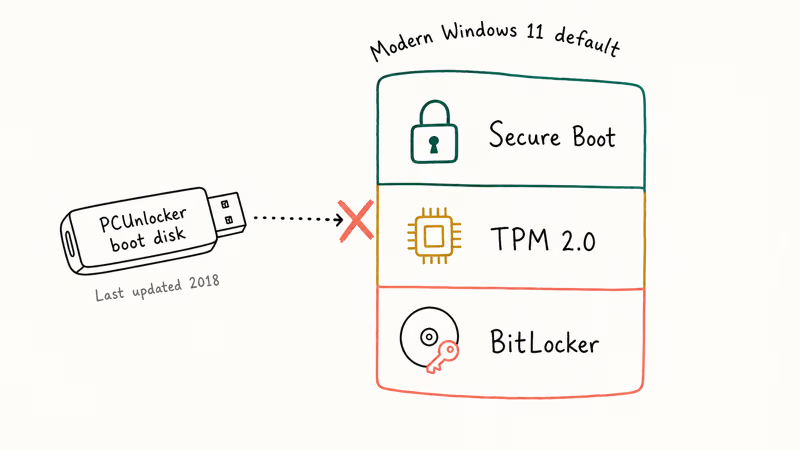
Disabling Secure Boot on a BitLocker-protected machine triggers the recovery key prompt on the next reboot. That’s the exact wall most users are trying to avoid.
Microsoft has tightened Windows lock-screen behavior across multiple updates. The accessibility-tool swap that older guides relied on doesn’t work out of the box on Windows 11 22H2 and later when BitLocker is on. Microsoft confirms that BitLocker is now enabled by default on personal Windows 11 devices during a fresh install, as detailed in the Windows 11 24H2 release notes. The combination of full-disk encryption plus measured boot is what closes the legacy paths.
The five alternatives below either work with Microsoft’s modern security model or sit in the narrow case where the legacy trick still applies. None require buying a tool that hasn’t been updated in seven years.
#Method 1: Reset Your Microsoft Account Password Online
If your PC sign-in shows your email address under your name on the lock screen, this is the only method you need. The reset happens on Microsoft’s servers, not on your PC.
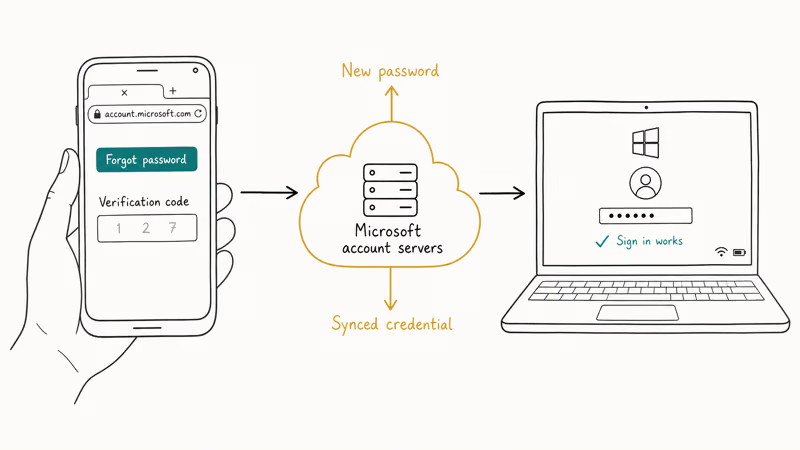
On any working device (a phone, a tablet, another computer), open account.microsoft.com in a browser. Tap “Sign in,” enter the email address tied to your Windows login, then choose “Forgot password?” Microsoft sends a verification code to your recovery email or phone number. After you confirm the code and pick a new password, return to the locked PC and sign in with the new credentials.
The PC needs an active internet connection to fetch the updated password. Connect it to Wi-Fi or Ethernet at the lock screen first.
Microsoft’s account recovery support page confirms that the online reset is the recommended path for any Windows device with a Microsoft account login. Once the password is changed, the locked PC accepts the new credentials after a brief wait at the lock screen for the credential cache to refresh.
This method does nothing for a Windows local account. If your sign-in shows just a username with no email address, skip to Method 2.
#Method 2: Use the Password Reset Disk You Made Earlier
A password reset disk is a USB stick that Windows creates from Control Panel > User Accounts > Create a password reset disk. The catch is the name: you make it before you lose access. If you don’t already have one, this method isn’t available, and you should jump to Method 3 or Method 5.
If you do have one, plug the USB into the locked PC at the sign-in screen. Type any password to trigger the failure prompt, then click “Reset password” under the password field. The Reset Password Wizard launches and walks you through choosing a new password.
The whole flow takes about 90 seconds. It only works for the local account it was originally generated for.
According to Microsoft’s documentation on creating a password reset disk, you don’t have to create a new disk when you change your password. Note the scope: that page is about a local Windows account, not a Microsoft account. The lesson here is forward-looking: make one now, before you need it. This is also the path our forgot laptop password walkthrough recommends as preventive insurance.
#Method 3: Reset From a Separate Admin Account With net user
The net user command rewrites a Windows account password in one line, but you need to already be signed in to a different administrator account on the same PC. If you set up the machine for a family member and kept your own admin profile, this is the fastest path.
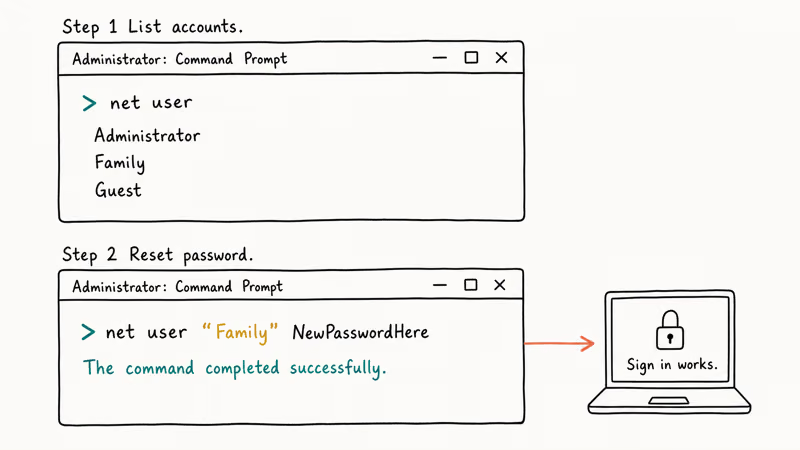
Sign in to the spare admin account. Press Windows + S, type “cmd,” right-click “Command Prompt,” and choose “Run as administrator.” Then run:
net userThat lists every local account on the machine. Find the username whose password you forgot, then run:
net user "ExactUsername" NewPasswordHereUse the exact username from the previous list, including any spaces (which is why the quotes matter). The command returns “The command completed successfully” when it works. Sign out of the admin account, return to the locked account on the sign-in screen, and the new password works immediately.
No reboot, no BitLocker prompt. For the related case of regaining admin rights, see reset admin password Windows 10 and administrator privileges on Windows 7.
#Method 4: Boot From Windows Installation Media (Caveats Apply)
This is the well-known utilman.exe swap. It still works on a narrow band of PCs that meet three conditions: Secure Boot is off or can be disabled without losing data, BitLocker isn’t encrypting the system drive, and you have a Windows installation USB you made on another machine.
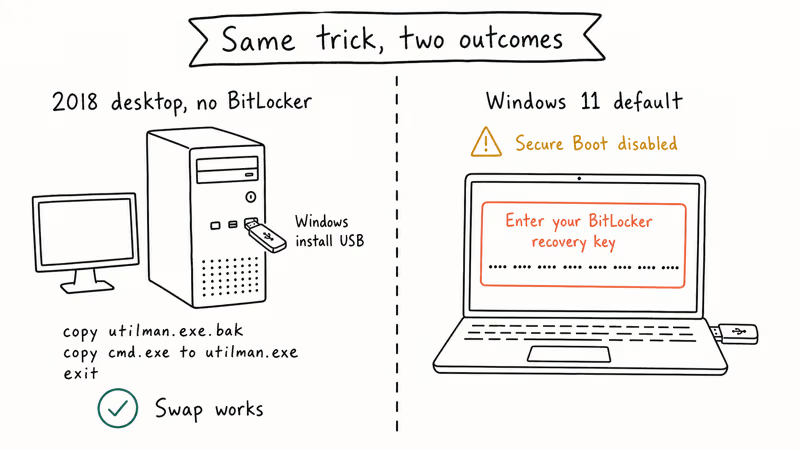
Microsoft’s official “Create installation media for Windows” page walks through making the USB on a working computer.
Boot the locked PC from that USB using the boot-menu key (F12 on most ThinkPads, F9 on HP, Esc + F9 on newer Dells). At the Windows Setup screen, press Shift + F10 to open a command prompt. Then run:
copy c:\windows\system32\utilman.exe c:\windows\system32\utilman.exe.bak
copy c:\windows\system32\cmd.exe c:\windows\system32\utilman.exe
Your Windows install may not be on C: from the recovery environment. Use dir c:\ and dir d:\ first to find the drive that has the Windows\ folder. Reboot, return to the lock screen, and click the accessibility icon at the bottom right. Instead of Ease of Access, you get a SYSTEM-level command prompt where net user "Username" NewPasswordHere works without any prior login.
On an older desktop with no BitLocker, the swap completes in a few minutes. On a modern Windows 11 machine, disabling Secure Boot triggers the BitLocker recovery key prompt, which defeats the purpose if you also forgot your Microsoft account password and never saved that 48-digit key.
After you regain access, copy utilman.exe.bak back over utilman.exe from an admin command prompt. Leaving the swap in place is a real security gap: anyone with physical access can repeat the trick.
#Method 5: Back Up and Clean-Install as the Last Resort
If Methods 1 through 4 don’t apply, a clean Windows install is the path that always works. You lose installed apps and system settings, but your files are recoverable as long as the drive itself is intact and not BitLocker-encrypted with a key you no longer have.
Boot from the same Windows installation USB used in Method 4. Pick “Custom: Install Windows only” at the partition step and reformat only the partition that holds Windows itself.
If your data and Windows share one partition (the default for most factory installs), boot a separate Linux live USB first. Ubuntu’s installer USB works in Try Ubuntu mode. Copy the contents of Users\YourName\ to an external drive, and only then run the Windows install. Our factory reset Windows 10 without password guide covers the GUI-driven equivalent if you’d rather stay inside Windows recovery.
To prevent a third lockout, set up cloud sync immediately after the new install boots.
Microsoft, in its OneDrive backup guidance, confirms that Documents, Pictures, and Desktop folders sync automatically once Folder Backup is enabled in Settings > Accounts > Windows Backup. Pair that with Google Drive for desktop and a password manager. That single setup removes most of the pain of a future clean install — see OneDrive to Google Drive for a side-by-side.
#How Do These Methods Compare?
| Method | Works for | Time | Data loss | Difficulty |
|---|---|---|---|---|
| Microsoft account reset | Microsoft account logins on Win 10/11 | ~5 min | None | Easy |
| Password reset disk | Local accounts (disk must exist) | ~2 min | None | Easy |
| net user from admin account | Any local account, if spare admin exists | ~1 min | None | Easy |
| Install media utilman swap | Local accounts on non-BitLocker PCs | ~10 min | None | Medium |
| Backup + clean install | Any locked PC, last resort | ~2 hours | App settings | Medium |
For a typical home Windows 11 laptop bought in the last three years, Method 1 covers most cases because Windows 11 nudges users toward Microsoft account sign-in during setup. Method 3 covers most of the rest when the household has a second admin account. The utilman trick is now a niche path, not a default.
#Which Method Is Right for Your Situation?
Pick the first one that matches your sign-in type and what you already have on hand:
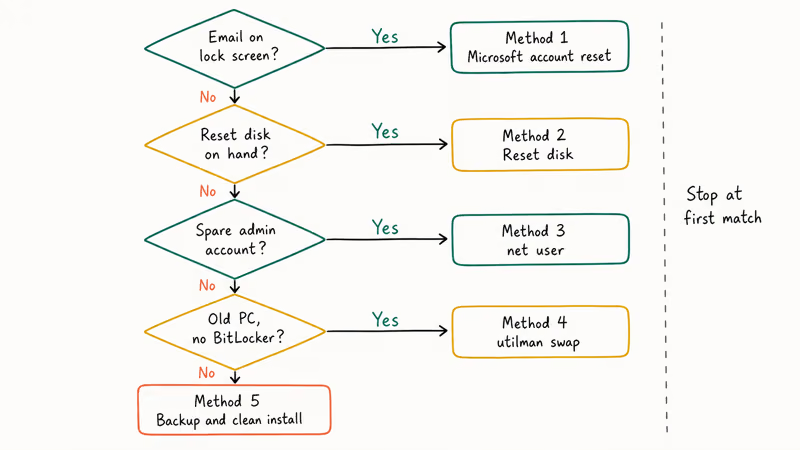
- You see your email address on the lock screen → Method 1 (Microsoft account online reset).
- You see only a username and you made a reset disk before → Method 2 (password reset disk).
- You see only a username and another adult in the household has a working admin account on the same PC → Method 3 (
net user). - Local account, no spare admin, no reset disk, no BitLocker on the drive → Method 4 (install media swap), but expect Secure Boot and BitLocker to block this on most post-2022 hardware.
- None of the above → Method 5 (back up and clean install), and turn on cloud sync afterward.
Resetting a forgotten password on your own PC is also a good time to think about adjacent security upgrades. If you reuse the same password elsewhere, change it on those accounts now while you have a fresh one in mind.
#Bottom Line
For a Windows 10 or 11 PC you own with a Microsoft account login, start with Method 1: open account.microsoft.com on your phone, reset the password, and sign in. That single path covers the majority of forgotten-password situations on modern Windows hardware. Keep Method 2 (a fresh reset disk made today) as your insurance policy for the local-account corner case, and treat Method 5 as the safety net that always works when nothing else does.
If you’re also dealing with an HP-specific lockout, our reset HP laptop password without disk guide walks through the same five paths with HP-specific BIOS and recovery details. For Windows Server admins, the steps differ and we cover them in change password on Windows Server 2012.
#Frequently Asked Questions
Is using PCUnlocker on my own PC illegal?
No. The legal line is whose computer you’re touching, not which tool you used. This guide skips PCUnlocker for a technical reason rather than a legal one: it hasn’t been updated since 2018, and Windows 11’s Secure Boot plus BitLocker defaults block its boot disk on most modern PCs without first disabling protections that you may not be able to safely re-enable. Stick with the five methods above instead, in the order presented.
Can I reset a Windows password if BitLocker is encrypting my drive?
You can still reset the password through Method 1 or Method 3 because neither touches the disk encryption layer. Methods 4 and 5 will trigger a BitLocker recovery key prompt the moment they boot from external media. You’ll need that 48-digit recovery key, which is stored in your Microsoft account at account.microsoft.com/devices/recoverykey for any device that synced it. If you never saved the key and never linked the device to a Microsoft account, the encrypted data is unrecoverable by design.
What if I forgot both my Windows password and my Microsoft account password?
Reset the Microsoft account first at account.live.com/acsr, then follow Method 1.
Will resetting my Windows password delete my files?
Methods 1 through 4 don’t delete files. Only Method 5 wipes the OS, and even then a clean install onto a separate partition keeps your data intact.
Can the net user command reset another user’s Windows password without their knowledge?
Technically yes, if you already have an administrator account on that PC. Doing so on a shared family computer raises the same authorization questions covered in the legal notes section above. We cover this method specifically for the case where you forgot your own password and have a spare admin account you set up yourself.
How long does the Microsoft account password reset take to apply on the locked PC?
The new password usually works on the first attempt shortly after you change it on Microsoft’s site. The PC needs an active internet connection to refresh the cached credential. If the lock screen still rejects the new password after 2 minutes, click the network icon at the bottom right to confirm Wi-Fi or Ethernet is connected, then try again.
Does the utilman.exe swap still work on Windows 11?
Only on machines without BitLocker and with Secure Boot off. Most retail Windows 11 PCs sold since late 2024 ship with both protections on by default, which closes the path.
What should I do to avoid being locked out of my Windows PC again?
Three things. Switch to a Microsoft account login if you aren’t already, since it gives you the online reset path on every future incident. Make a password reset disk from Control Panel > User Accounts > Create a password reset disk and store the USB somewhere safe. Save your BitLocker recovery key to your Microsoft account or print it on paper, so a future Methods 4 or 5 attempt doesn’t lose your data.

Google Messages Error 3100: Why RCS Is Broken on Galaxy
Google Messages RCS error 3100 hits Galaxy owners after phone or carrier switches. Google told 9to5Google a fix is coming. Here's what actually helps.

Is This Bank App Real? Spot a Fake App on Your Home Screen
A bank app can land on your home screen from a web page with no install warning. Learn the checks that tell a real banking app from a phishing web app.

Apps Crashing After iOS 27 Update? Fix Order (2026)
Apps crashing after the iOS 27 update? Update the app in the App Store first, then offload and reinstall to clear stale cache, then restart. The fix order.

Do AI Translation Earbuds Work Offline? What to Know
Do AI translation earbuds work offline? A few do with downloaded language packs, but most need the cloud. Here's what works offline and what you give up.