Forgot Android Password? Official Recovery Options
Forgot your Android PIN or pattern? Learn what Find Hub can do, why old ADB tricks no longer work, and when a factory reset erases local data.
Quick AnswerIf you forgot your Android screen lock, Google says you’ll need to erase the phone and set it up again. Find Hub can secure a lost phone, but it doesn’t replace a forgotten PIN on an already locked device.
If you forgot the PIN, pattern, or password on your own Android phone, plan for a factory reset. Google’s current recovery path doesn’t promise a new remote password or preservation of unbacked-up data.
- Google says a phone you can’t unlock must be erased before you set a new screen lock
- Find Hub’s lost-device lock uses the phone’s existing PIN, pattern, or password
- A remote or recovery-mode factory reset permanently erases local data
- The Google sign-in reset for a forgotten pattern is limited to Android 4.4 or lower
- Samsung remote controls differ by country, model, carrier, and software version
Use these methods only on a phone you own or are authorized to manage.
Accessing someone else’s locked phone can violate privacy and computer-access laws.
#What Happens When You Forget an Android Screen Lock?
According to Google’s locked Android device guidance, if you can’t unlock the phone, you’ll need to erase it and set it up again. The page warns that the erase removes apps, photos, music, and other data stored locally.
Backed-up data is different. Google says a backup can be restored when you know the device PIN or pattern used when that backup was made. Check your cloud backups from another device before erasing anything, then use our Android backup and restore guide to understand what may return.
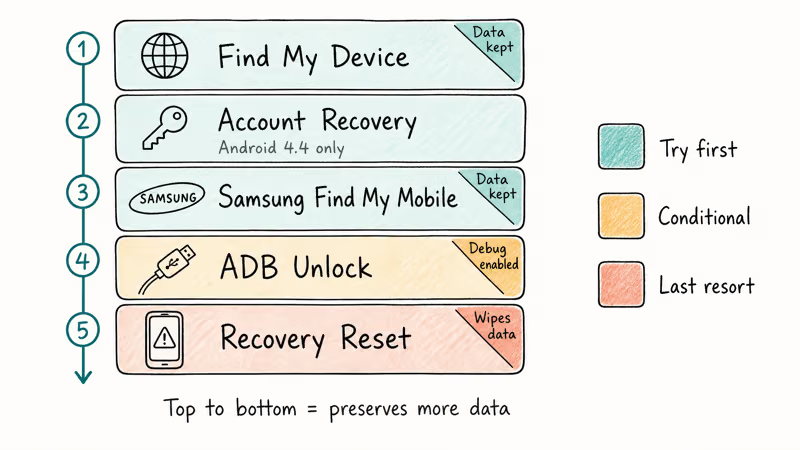
| Option | Purpose | Can It Replace a Forgotten Lock? | Local Data |
|---|---|---|---|
| Google Find Hub | Locate, lock, or erase a lost or stolen phone | No | Kept when marked lost; erased by factory reset |
| Legacy Forgot pattern | Android 4.4 or lower | Yes, on supported old devices | Kept |
| Samsung remote service | Actions shown for your region and registered device | Varies; don’t assume Unlock is present | Depends on the displayed action |
| Old ADB file deletion | Historical, unsupported workaround | No current supported path | Can make the lock state worse |
| Factory reset | Official recovery when the screen won’t unlock | Removes the old lock by erasing the phone | Erased unless already backed up |
#Method 1: Use Find Hub for a Lost or Stolen Phone
Find Hub, formerly Find My Device, is an anti-theft service. It isn’t Google’s data-preserving answer to a forgotten PIN.
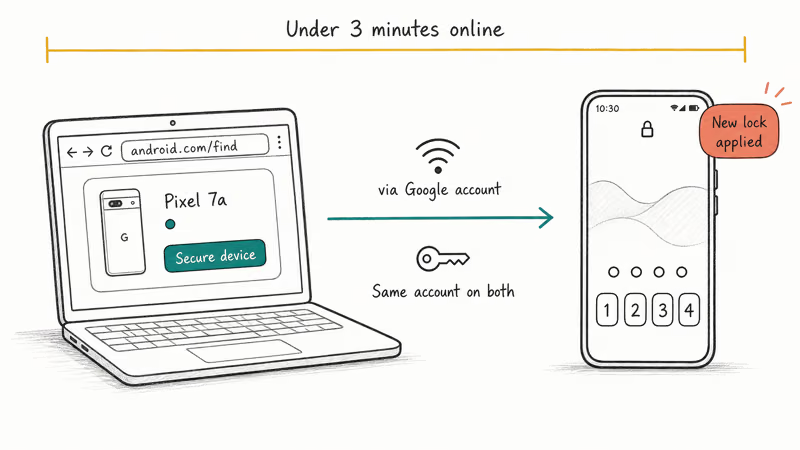
- Open Find Hub on another device and sign in with the Google account already on the missing phone.
- Select the phone from the device list.
- Use Mark as lost to secure a missing phone, add contact information, or display a return message.
- Use Factory reset only when the phone is lost and protecting its data is more important than keeping local files.
According to Google’s current Find Hub page, Mark as lost locks the device with its existing PIN, pattern, or password. The factory-reset action permanently deletes the device’s data and may leave an SD card untouched.
That means Find Hub has two different security outcomes. Marking a phone lost protects data without replacing a forgotten credential; resetting it removes local data and lets the owner start setup again.
#Method 2: Reset a Pattern on Android 4.4 or Lower
This legacy route applies only to Android 4.4 or lower. Google’s locked-device page still lists a Forgot pattern flow for those versions.
- After several failed pattern attempts, tap Forgot pattern if it appears.
- Sign in with the Google account previously added to that phone.
- Follow the prompt to set a new screen lock.
Android 5.0 and later don’t get that documented option. Skip any article that presents the old prompt as a current recovery method.
#Method 3: Check Samsung Options by Region
Samsung’s remote controls aren’t described the same way across its support regions. Sign in to SmartThings Find or Samsung Find, select your registered Galaxy, and trust the actions shown for that device rather than an article that promises a universal Unlock button.
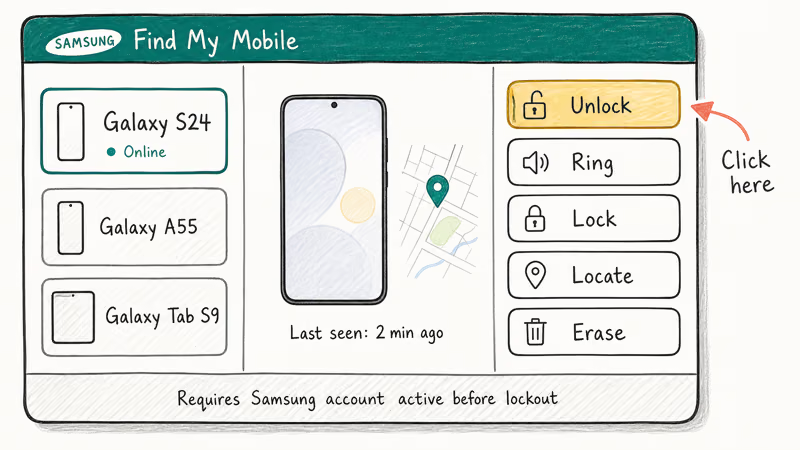
Samsung’s US lockout page states that a registered phone can use SmartThings Find’s Erase data action, followed by setup and restoration from backup. It doesn’t promise a no-wipe remote unlock.
Samsung UK’s current lockout guidance states that remote unlock through SmartThings Find is no longer available and directs a locked-out owner without another configured method to a factory reset.
Samsung Caribbean’s November 2025 guidance confirms that Lock and Erase data are lost-device actions.
Its remote lock creates a return PIN for that action, so don’t treat it as proof that every Galaxy can replace an existing forgotten lock.
| Support Region | Current Documented Remote Actions | Forgotten-Lock Takeaway |
|---|---|---|
| United States | Locate, lock lost device, erase | Lockout recovery page uses erase and restore |
| United Kingdom | Locate, lost-device controls, erase | Current lockout page says SmartThings remote unlock is no longer available |
| Samsung Caribbean / Latin America | Locate, create a lost-device lock, erase | The lost-device PIN isn’t a universal replacement for an existing lock |
If the portal shows a supported recovery action for your exact device, read its warning before confirming. Otherwise, use Samsung support or the factory-reset path below. Our Samsung recovery guide covers backup and repair choices without promising a regional feature.
#Method 4: Old ADB Lock-File Deletion Is Historical
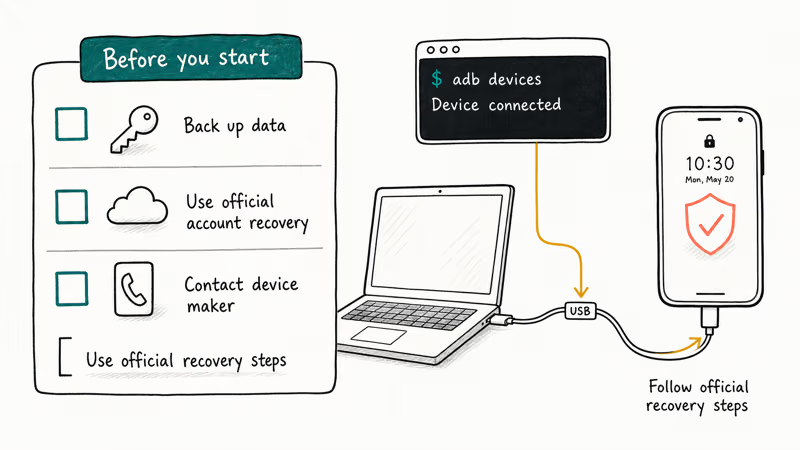
Old Android guides told users to delete lock database files through Android Debug Bridge. That isn’t a current recovery method.
Modern Android protects credential storage and encrypted user data. ADB also needs USB debugging plus prior authorization from that computer, which a locked phone normally can’t grant. Deleting lock-related files can damage the device’s security state without decrypting the owner’s data.
Don’t run copied terminal commands against a locked modern phone. If the device can’t reach Android at all, separate the boot problem from the forgotten credential and start with our Android boot-screen guide.
#Method 5: Factory Reset as the Official Recovery Path
A factory reset removes the screen lock by erasing the phone. Treat it as destructive even when you trigger it remotely.
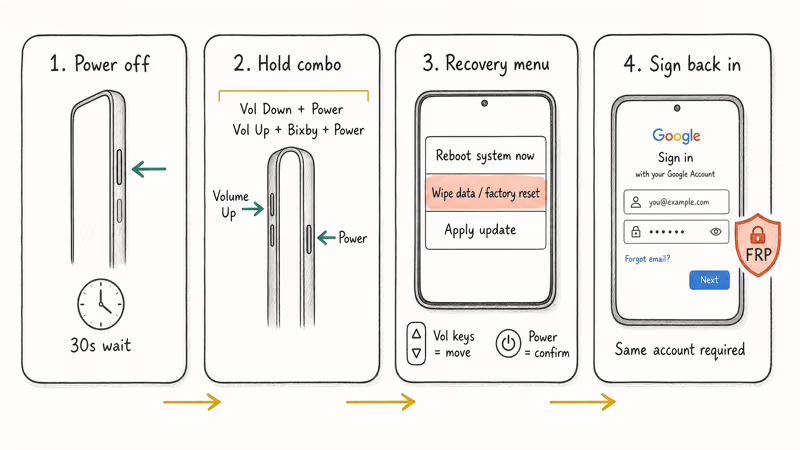
Before you start:
Confirm which photos, contacts, messages, and app data already exist in Google or Samsung cloud storage. Anything stored only on the phone can be lost permanently.
- Use Find Hub’s factory-reset action if the phone is online and tied to your account.
- If remote erase isn’t available, open the phone maker’s support site from another device and find the recovery-mode instructions for your exact model.
- Choose the factory-reset or wipe-data action only after reading the on-screen warning.
- Set up the phone again and sign in with the Google account previously synced to it.
- Restore only the backups you can verify.
FRP stays active after the wipe. Keep the previously synced Google account ready for setup.
Our Android factory reset guide explains the erase boundary and setup checks.
#Can Biometrics Still Work Before a Reset?
Try fingerprint or face unlock if the phone still offers it. It may work before a reboot or another security trigger, but don’t count on it.
Android can require the main PIN, pattern, or password after a restart, a security timeout, or failed biometric attempts. If biometric unlock succeeds, back up your data immediately; changing or removing the screen lock can still require the forgotten credential. Our Android face unlock guide explains common recognition failures without claiming that biometrics bypass the main lock.
#Habits That Reduce the Damage Next Time
Keep cloud backup on and verify it from another device. Store the screen lock in a password manager or another secure record that you can reach without the phone.
Review Find Hub before you lose the phone; its job is locating, securing, or erasing missing hardware.
After recovery, use a trusted device to secure your Google account and update its recovery phone and email. Don’t give passwords or one-time codes to third-party unlock sellers.
#Bottom Line
If biometrics are still offered, try them before restarting. Otherwise, Google’s current answer to a forgotten Android screen lock is an erase followed by setup and backup restoration.
#Frequently Asked Questions
Can Find Hub set a new password on my locked phone?
Not as a forgotten-PIN recovery path. Its current Mark as lost action uses the phone’s existing PIN, pattern, or password; its factory-reset action erases local data.
Can I unlock Android without losing data?
Only if a legitimate method already available on that phone works, such as a still-offered biometric or a device-specific regional recovery action. Google doesn’t promise a data-preserving unlock for a forgotten modern Android credential.
Will a factory reset restore my photos?
The reset itself won’t restore anything. Photos and other data return only from backups that existed before the erase and that you can unlock during setup.
Does the old ADB file-deletion method still work?
Treat it as historical and unavailable on modern Android. It isn’t a supported recovery flow, and deleting protected lock files can leave the device in a worse state.
What if the phone is offline?
Remote actions wait until the phone reconnects, if the service supports queuing them. For a forgotten credential, follow the manufacturer’s recovery-mode reset instructions for that exact model.
Will FRP block me after the reset?
FRP will ask for a Google account previously added and synced to the phone. Recover that account before erasing the device if you aren’t sure you can sign in.

Pixel 11 vs Pixel 10: What Changed and Who Should Upgrade
Pixel 11 vs Pixel 10: same screen and camera resolution, new Tensor G6, 25W wireless, and Gemini Intelligence. Here is who should actually upgrade.

Verizon Not Receiving Texts? How to Fix It in 9 Steps
Verizon not receiving texts? Fix it in 9 steps: check Message Blocking in My Verizon, reset network settings, deregister iMessage, and call support.

Pixel Battery Drain: What Google's July Fix Really Covers
Google marked the Pixel idle battery drain bug fixed in July, but only some phones got the patch. Here is who is covered, who is not, and what to try.

iPhone Stuck on EDGE? How to Get 5G or LTE Back (2026)
iPhone stuck on EDGE with crawling data? Here's why the E icon appears, which settings force 5G or LTE back, and when the problem is your carrier.