How to Factory Reset Windows 10 Without a Password (2026)
Locked out of your own Windows 10 PC? Reset it without the password using the sign-in screen, installation USB, or Microsoft account recovery.
Quick AnswerOn your own PC, hold Shift while clicking Restart on the sign-in screen, then choose Troubleshoot, Reset this PC, and Remove everything. If that path is unavailable, boot from a Windows 10 installation USB and pick Repair your computer to reach the same recovery environment.
Forgetting the sign-in credentials on your own Windows 10 laptop is frustrating, but the fix is built into the operating system itself. You can factory reset Windows 10 without a password using the Windows Recovery Environment Microsoft ships with every copy of Windows, and on most healthy machines you’ll be back at a working sign-in screen in under an hour without paying for any third-party tools.
This guide covers four official routes for your own machine: Microsoft account password recovery, the sign-in screen reset, a Windows 10 installation USB, and OEM support. Each section flags the time cost and the gotchas.
- Try Microsoft account password recovery first because a successful sign-in resets the lock without wiping any files.
- The sign-in screen Reset path needs a working keyboard, Shift+Restart, then Troubleshoot, Reset this PC, Remove everything.
- A Windows 10 installation USB (created on a second PC) is the most reliable fallback when WinRE refuses to load on the locked machine.
- Remove everything deletes user files, installed apps, and local credentials, including BitLocker partitions you don’t have the recovery key for.
- Bring proof of ownership (purchase receipt or Microsoft account email) before contacting OEM or Microsoft support, because both will ask.
This guide covers a PC you legally own. Resetting someone else’s device without consent can violate federal CFAA law. Return a borrowed laptop, or talk to your IT department for a work machine.
#Try Microsoft Account Recovery Before You Reset
Before you wipe anything, check which kind of account is on the lock screen. Windows 10 sign-in pages show either a local username or a Microsoft account email under the user tile. If you see an email address (like name@outlook.com or name@gmail.com), that’s a Microsoft account, and you can almost always avoid a factory reset.
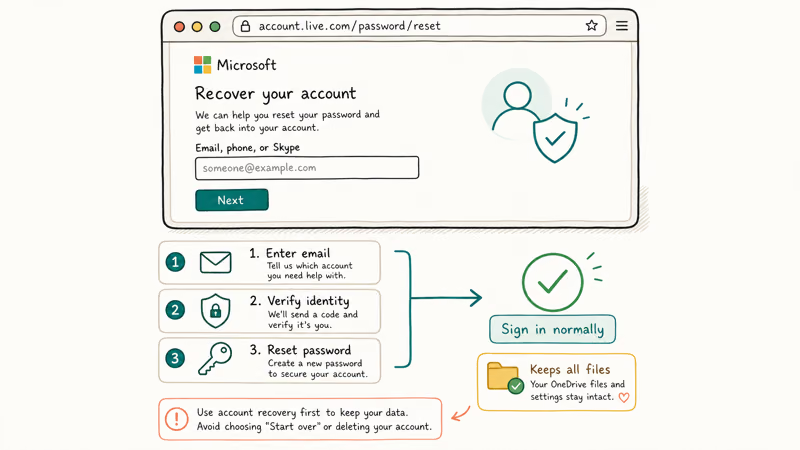
Compare the two paths first. Recovering the Microsoft account password is quick. “Remove everything” with cloud download takes far longer and adds reinstall time on top.
To recover, open account.live.com/password/reset from another device. Microsoft’s reset a forgotten Microsoft account password article states that recovery uses a verification code delivered to a phone number or alternate email you set up earlier, and the code expires after about 30 minutes. If that recovery info is current, you’re back into your PC without losing files.
Local username with no email? Recovery isn’t an option for that user. Move to the reset paths below.
#How Do I Factory Reset Windows 10 From the Sign-In Screen?
This is the cleanest reset path because it uses the Windows Recovery Environment (WinRE) baked into every Windows 10 install. No USB stick, no password, no admin account required.
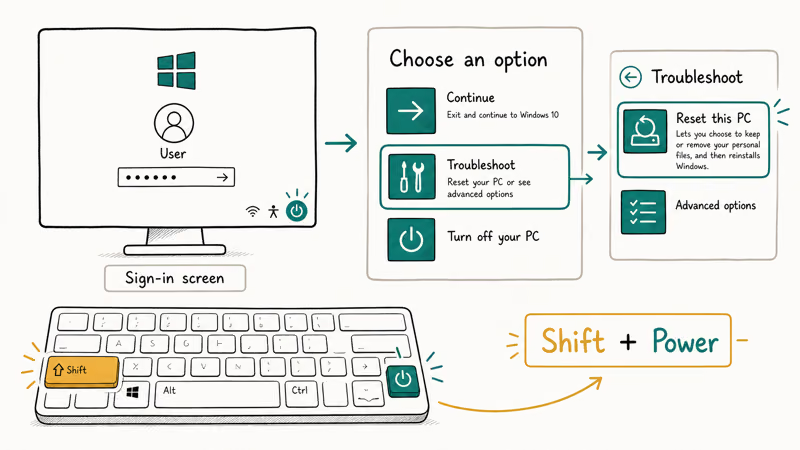
- On the sign-in screen, hold the Shift key.
- While still holding Shift, click the Power icon in the bottom-right corner.
- Choose Restart from the small menu, and keep Shift held until the blue WinRE menu appears.
- Pick Troubleshoot → Reset this PC.
- Choose Remove everything (the factory-reset option; “Keep my files” still asks for your password).
- Pick Cloud download if you have a fast connection (it pulls a fresh Windows image), or Local reinstall to use the recovery files already on disk.
- Read the warnings, then click Reset.
The reset runs through three to five automatic restarts.
Keep the laptop plugged in throughout.
On a system with an NVMe SSD, the local reinstall path is usually the faster of the two. Cloud download takes longer because of the firmware pull, and the gap widens on slower connections. Don’t unplug the laptop, and don’t touch the keyboard while the percentage counter climbs.
If the WinRE menu won’t open, usually because Shift+Restart was hijacked by an OEM tool or the Reset this PC option is greyed out, read our guide on there was a problem resetting your PC and try the installation-media route below instead.
#What If Reset This PC Fails or the Option Is Missing?
Two things commonly block the sign-in-screen reset.
The recovery partition might have been deleted to free up disk space, or a Windows update may have corrupted the WinRE image. Microsoft’s recovery options in Windows page confirms that a missing or damaged recovery partition is the leading reason Reset this PC fails on out-of-warranty laptops, and recommends rebuilding recovery using installation media.
When that happens, the Windows installation USB takes over. You need a working PC, an 8 GB or larger USB stick, and a few minutes.
- On a second PC, download the Media Creation Tool from
microsoft.com/software-download/windows10. - Plug in the USB stick, run the tool, accept the license, and pick Create installation media for another PC.
- Choose language, edition (Windows 10), and 64-bit, then pick USB flash drive as the target.
- When the tool finishes (typically 20 to 30 minutes), eject the USB stick.
- Plug it into the locked PC. Power on, then press the boot-menu key for your brand: F12 on most Dell, Lenovo, and HP models; F9 or F11 on others; and Esc on a few Acer machines.
- Select the USB drive from the boot menu, and the Windows Setup screen appears.
- Click Next, then click Repair your computer (small text bottom-left, not Install).
- Pick Troubleshoot → Reset this PC → Remove everything → Cloud download or Local reinstall.
Same WinRE flow, loaded from USB instead of disk. This route works even on an older laptop with a deleted recovery partition, since the installation media supplies its own recovery environment and can pull a fresh image via cloud download.
Keep the laptop plugged in the entire time.
If the keyboard isn’t responding to the boot-menu key, the issue is likely hardware rather than recovery, especially on machines older than five years where USB ports often degrade. Try a different USB port (back panel, not front) and a different keyboard. Our Windows 10 keyboard not working write-up walks through quick keyboard diagnostics before you commit to an install media run on a possibly faulty board.
#When to Skip the Reset and Call OEM Support
A few cases don’t belong in a self-service reset. BitLocker is the big one. If the drive is encrypted with BitLocker (common on Pro editions and many newer business laptops), the reset demands the 48-digit recovery key before it’ll touch the drive.
Microsoft’s BitLocker recovery overview confirms that without the recovery key, which is tied to the Microsoft account that enabled encryption, an encrypted partition is mathematically unrecoverable, and a reset can’t bypass it.
Bring the laptop’s serial number, proof of purchase, and the original Microsoft account email to either Microsoft Support or the laptop manufacturer (Dell, HP, Lenovo, ASUS, Acer, MSI). Tom’s Hardware reported that Microsoft’s consumer support team will assist with BitLocker recovery if you can verify ownership through the account tied to the device.
The OEM may charge a service fee. Worth it for important data.
Other times to call support:
- The laptop won’t reach the WinRE menu or the BIOS boot menu (likely firmware or storage failure).
- The screen shows a Secure Boot or Trusted Boot error on every restart.
- The Reset this PC option throws the same error on USB and disk routes.
- The PC was bought used and the previous owner left an activation lock from a work or school account; that needs the prior owner or their organization, not a reset.
A related case is the recovery partition. Some HP, Dell, and Lenovo laptops ship with a built-in factory-reset partition that bypasses the sign-in altogether using a brand-specific key combo (F11 on HP, F8 or Alt+F10 on others). Our how to reset password on HP laptop without disk guide covers the HP key sequence specifically, and reset admin password Windows 10 explains the netplwiz path when you do have one working admin account on the box.
#What Data Survives the Reset (and What Doesn’t)
Short answer: nothing on the local drive survives a “Remove everything” reset. The Windows Recovery Environment wipes the user profile, installed apps, app data, and the local account database (including the forgotten password). Even hidden folders and recycle-bin contents are gone.
What does survive lives outside the reset’s reach:
- Files in OneDrive, Google Drive, Dropbox, or any other cloud sync (re-download after sign-in).
- Email in Outlook.com, Gmail, and Yahoo (it’s on the provider’s servers, not your PC).
- Photos backed up to OneDrive Camera Roll, iCloud for Windows, or Google Photos.
- Microsoft 365 / Office licenses tied to your Microsoft account; sign in after the reset to reactivate.
- Windows 10 product key embedded in BIOS firmware on OEM machines (Windows reactivates automatically).
What doesn’t survive:
- Locally stored documents in C:\Users\YourName\Documents that weren’t synced anywhere.
- Photos in C:\Users\YourName\Pictures unless backed up.
- Browser bookmarks and saved passwords stored only in a non-synced profile.
- Installed desktop programs (you’ll need installers or original setup files).
- Game saves not synced through Steam Cloud, Xbox, or the game’s own account.
If you’re not certain whether your files are backed up, hold off on the reset and try Microsoft account recovery first. Once the WinRE wipe finishes, there’s no going back without specialist data-recovery services. Even then, recovery isn’t guaranteed for SSDs because TRIM erases blocks immediately after deletion.
#Why We Don’t Recommend Third-Party Password Tools
You’ll find dozens of paid “Windows password recovery” utilities online, and some of them do work on local accounts. We don’t recommend them, for three concrete reasons.
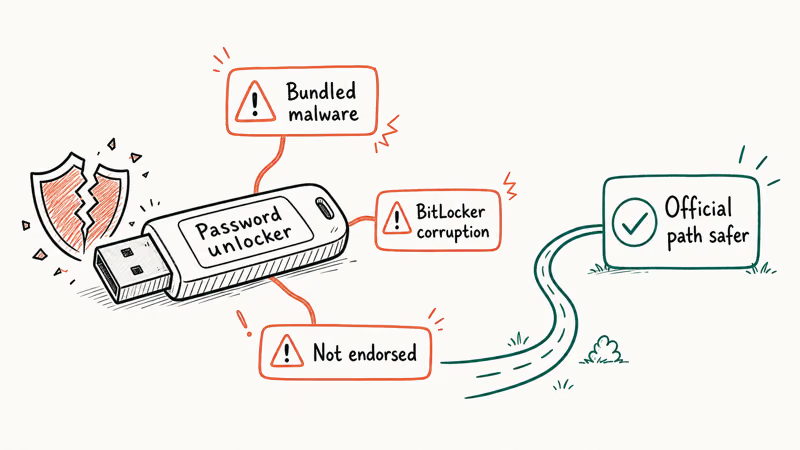
First, none bypass BitLocker. Microsoft’s documentation states that BitLocker’s 128-bit or 256-bit AES encryption is independent of the Windows sign-in layer, so removing the sign-in password leaves the drive encrypted and unmounted. Any tool claiming to bypass BitLocker without the recovery key is either lying or installing something it shouldn’t.
Second, these tools require booting a third-party USB image. Bleeping Computer reported that “free” password tools bundled browser hijackers and coin miners during 2022 and 2023, with at least one writing itself into the UEFI partition.
Third, the official Reset this PC path is free, ships with Windows, and gets the same end result (a working PC you can sign into) without third-party code touching your hardware.
If you want a deeper comparison of legitimate alternatives to one paid tool we’ve seen recommended, our PCUnlocker alternative walkthrough covers the official Microsoft and OEM paths side by side. And for unrelated Windows boot errors that may pop up after a reset, bad pool caller covers a common BSOD on freshly reinstalled systems.
#Bottom Line
For your own PC: start with Microsoft account password recovery. It’s the only path that keeps your files intact.
If recovery isn’t an option, hold Shift, click Restart, and run Reset this PC then Remove everything. When the on-disk WinRE is gone, build a Windows 10 installation USB on another PC and use Repair your computer to reach the same recovery environment. Reserve OEM or Microsoft support for BitLocker-encrypted drives, firmware-locked boot menus, or used laptops where the prior owner’s account is still attached. Skip third-party password tools.
#Frequently Asked Questions
Will a factory reset remove the Windows 10 license?
No. OEM laptops have the product key embedded in BIOS firmware, and Microsoft-account-linked licenses re-attach automatically after sign-in.
Can I keep my files when resetting without a password?
The “Keep my files” option exists, but it requires signing in with a working admin password during the reset. Without that password, “Remove everything” is the only choice, and it deletes all local files in Documents, Pictures, Downloads, Videos, and Desktop. To save data first, recover the Microsoft account password, or pull the drive and copy files via a USB-to-SATA adapter.
How long does a factory reset take on Windows 10?
Expect an SSD local reinstall to be the quickest, an HDD reinstall to take considerably longer, and a cloud download to add extra time on top of either.
What if my PC is BitLocker encrypted and I forgot the password?
You need the 48-digit BitLocker recovery key. Sign in to account.microsoft.com/devices/recoverykey to retrieve it.
Will a factory reset remove viruses and malware?
A “Remove everything” reset wipes the OS partition where most malware lives, removing nearly all consumer-grade infections. Rootkits in the EFI or firmware area survive a reset. Run a fresh antivirus scan after sign-in.
Do I need an internet connection to factory reset Windows 10?
Not for local reinstall, which pulls the recovery image from your disk. Cloud download mode does need internet during the reset because Windows pulls a fresh install image (roughly 4 GB) from Microsoft. Either way, plug in Ethernet for the post-reset setup; Wi-Fi tends to flake during driver and Windows Update steps more often than a wired connection does.
Can I cancel a factory reset that’s already started?
Not after the percentage counter starts climbing. Power-cycling mid-reset usually leaves Windows unbootable. Before the final Reset button, you can safely back out of the WinRE menu and restart normally.
What’s the difference between Reset this PC and a clean install?
Reset this PC uses the on-disk recovery image and recreates Windows with whatever drivers and OEM apps were bundled originally. A clean install from a Microsoft USB image downloads pure Windows with no OEM bloatware. Both wipe the user partition; the difference is what software lands afterward, and how much manual driver hunting you sign up for.

Is This Bank App Real? Spot a Fake App on Your Home Screen
A bank app can land on your home screen from a web page with no install warning. Learn the checks that tell a real banking app from a phishing web app.

Passkeys Not Syncing Between iPhone and Windows? Read This
Passkeys not syncing between iPhone and Windows is by design, not a bug. Here is why iCloud passkeys skip Windows Hello and the three ways to fix it.

VPN Not Working on Snapdragon X? Why It Fails, How to Fix
Your VPN won't install or connect on a Snapdragon X Copilot Plus PC because Windows on ARM can't emulate the network driver. Here are the fixes that work.

How to Check If a Link Is Safe Before You Click It
Learn how to check if a link is safe with official-first steps: read the real domain, use the app instead, and treat scanners as a second opinion only.