How to Use WhatsApp on a Computer: Web and Desktop
Use WhatsApp on a Windows or Mac computer with WhatsApp Web or the desktop app. Here's how to link it by QR code and what works without your phone.
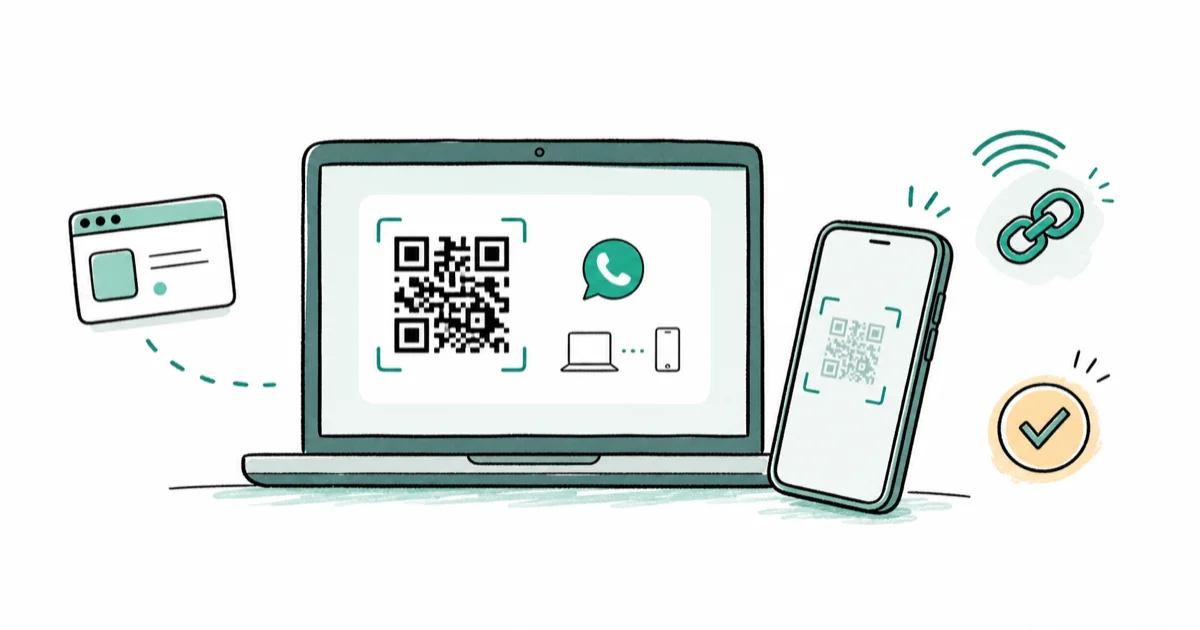
Quick AnswerOpen web.whatsapp.com or install the WhatsApp desktop app, then on your phone go to Settings, Linked Devices, and scan the QR code on the computer screen. Thanks to multi-device support, your linked computer keeps working even when your phone is off.
Typing long WhatsApp messages on a phone keyboard gets old fast. The good news: you can run WhatsApp Web or the desktop app on a computer after linking by QR code, and multi-device support means your phone doesn’t have to stay nearby.
- Two routes exist: WhatsApp Web in a browser, or the downloadable desktop app for Windows and Mac
- Link either one by scanning a QR code from your phone’s Linked Devices screen
- Multi-device support keeps your computer working even with your phone off for up to 14 days
- The desktop app adds keyboard shortcuts and native notifications that the browser lacks
- Always log out from Linked Devices when you use a shared or public computer
#WhatsApp Web vs the Desktop App
Both show the same chats. The difference is convenience, not features.
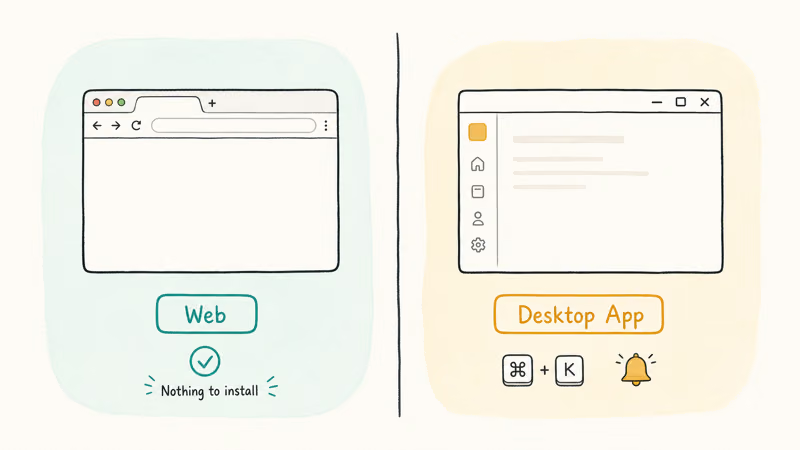
WhatsApp Web runs in any browser with nothing to install, which makes it perfect for a quick check on a borrowed or work machine. Because it’s just a browser session, it logs out cleanly the moment you close the tab or sign out, leaving no app behind on a computer that isn’t yours, which is exactly what you want on shared hardware.
The desktop app is the better daily driver. According to Tom’s Guide, the desktop clients “send notifications through your operating system” and add keyboard shortcuts for jumping between chats, which the browser version can’t match.
Choosing a desktop messenger more broadly? iMessage for Windows covers the Apple side, and Discord vs WhatsApp weighs the two for group chat.
#How Do You Link WhatsApp to Your Computer?
The setup is one quick scan. Open web.whatsapp.com in a browser or install the desktop app, and a QR code appears on screen.
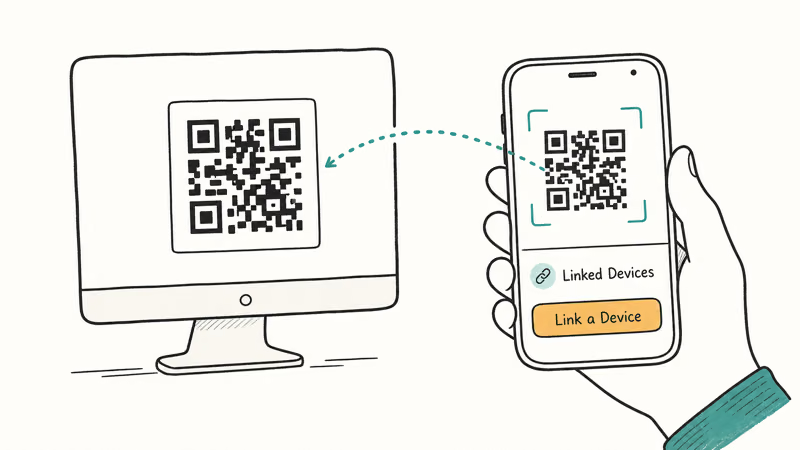
Now grab your phone. On iPhone, tap Settings, then Linked Devices. On Android, open the menu and tap Linked Devices. Either way, choose Link a Device and point the camera at the QR code on your computer.
That’s it. Your chats sync into the computer session. Tick “Keep me signed in” only on a machine you trust, since it skips the scan next time. If the page just spins or the code won’t take, here’s how to fix WhatsApp Web not working.
#Does It Work When Your Phone Is Off?
Yes, and this is the upgrade that changed everything. According to WhatsApp’s linked devices help, the modern Linked Devices system runs each computer independently of your phone.
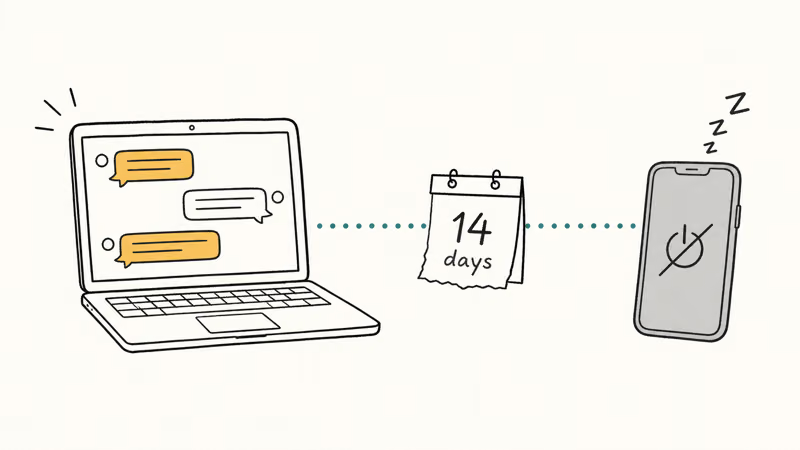
Tom’s Guide confirms that you can “chat freely on your linked devices without accessing your main phone for up to two weeks.” So your laptop keeps sending and receiving even if your phone’s battery dies.
There’s a hard limit, though. Tom’s Guide states that linked devices log out after 14 days of phone inactivity, so you have to open WhatsApp on your phone at least once every two weeks to keep the link alive. A few features, like viewing live location, still need the phone active.
#What You Can and Can’t Do on Desktop
Most of WhatsApp travels to the computer intact. You get all your chats, calls, file sharing, and full history sync on supported clients.
A handful of things stay phone-only or behave differently. Live location sharing needs the phone, and running two separate accounts on one computer isn’t a clean process.
For backups, the rules differ by platform. Your chat history lives in your phone’s cloud backup, not on the linked computer, so if you’re moving phones, follow the platform-specific steps such as how to back up WhatsApp messages on Samsung. The desktop link mirrors your chats live; it isn’t a separate backup.
#Logging Out and Keeping It Secure
A linked computer stays linked until you remove it, which is great at home and risky anywhere else. Treat each link like an open, logged-in session, because that’s all it really is.
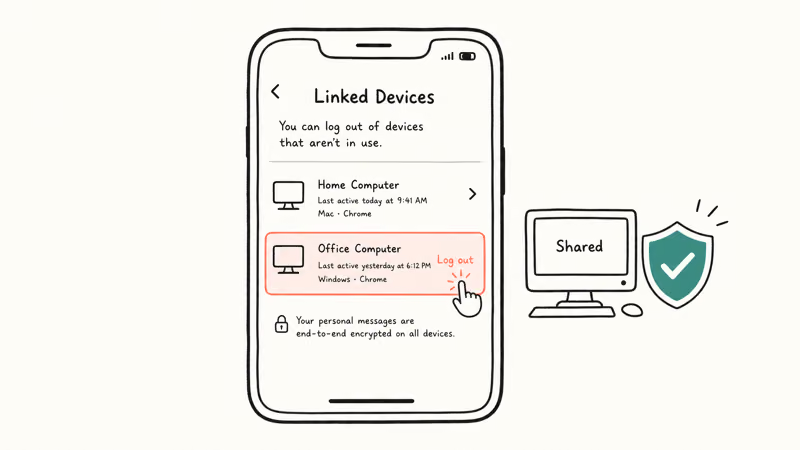
To cut a device loose, open Linked Devices on your phone, tap the computer in the list, and log it out. You can do this remotely from anywhere, so a session you forgot on a library PC is one tap away from gone.
Make this a habit on shared machines. If you ever spot a device you don’t recognize in the list, log it out immediately and treat it as a sign your account may be exposed. Avoid unofficial desktop clients and modified WhatsApp apps entirely, since they can quietly break end-to-end encryption.
#Getting the Desktop App and Notifications Right
If you go the app route, grab it straight from the official WhatsApp download page rather than a third-party mirror. That keeps you on a genuine, secure client.
After linking, the first prompt usually asks to enable desktop notifications. Say yes, since native pop-ups are the whole point of running the app instead of leaving a browser tab open. Keep the app updated too, because WhatsApp regularly ships security and feature fixes to the desktop client that the browser version inherits automatically.
#Bottom Line
If you only need WhatsApp occasionally on a borrowed or work machine, WhatsApp Web in a browser is the lighter choice and logs out cleanly. If you message all day from your own computer, install the desktop app for proper notifications and calling. Either way, scan the QR code once and lean on multi-device support. Just always log the device out from Linked Devices the moment you finish on a public PC.
#Frequently Asked Questions
What is the difference between WhatsApp Web and the desktop app?
Both show the same conversations. WhatsApp Web runs in a browser with nothing to install, which suits quick, occasional use. The desktop app, which you download for Windows or Mac, adds keyboard shortcuts and native operating-system notifications, making it the better pick if you message from your computer all day.
How do I link WhatsApp to my computer?
Open web.whatsapp.com or the desktop app to bring up a QR code. On your phone, go to Linked Devices, tap Link a Device, and scan the code.
Does WhatsApp on my computer work when my phone is off?
Yes. Multi-device support lets a linked computer run on its own for up to 14 days without your phone connected. After that window, you must open WhatsApp on your phone again to keep the link active, and a few features like live location still need the phone awake.
Can I make WhatsApp calls from my computer?
Yes, on the desktop app. Voice and video calling work from the WhatsApp desktop clients on Windows and Mac, so you can take a call without picking up your phone.
How do I log out of WhatsApp Web?
Open Linked Devices on your phone, find the computer in the list, and tap to log it out. This works remotely, so you can cut off a session on a machine you no longer have in front of you, which is the safest way to handle a forgotten login on a public computer.
Can I use WhatsApp on a computer without my phone at all?
Not for the initial setup. You need your phone once to scan the QR code and link the device, and again at least every 14 days to keep the link from timing out. Between those moments, the computer works on its own.

Google Messages Error 3100: Why RCS Is Broken on Galaxy
Google Messages RCS error 3100 hits Galaxy owners after phone or carrier switches. Google told 9to5Google a fix is coming. Here's what actually helps.

Is This Bank App Real? Spot a Fake App on Your Home Screen
A bank app can land on your home screen from a web page with no install warning. Learn the checks that tell a real banking app from a phishing web app.

Apps Crashing After iOS 27 Update? Fix Order (2026)
Apps crashing after the iOS 27 update? Update the app in the App Store first, then offload and reinstall to clear stale cache, then restart. The fix order.

Do AI Translation Earbuds Work Offline? What to Know
Do AI translation earbuds work offline? A few do with downloaded language packs, but most need the cloud. Here's what works offline and what you give up.