Netflix App Not Working? 9 Fixes for Every Device in 2026
Fix the Netflix app not working with an ordered checklist that separates account and service problems from one-device crashes, VPN blocks, and TV restarts.
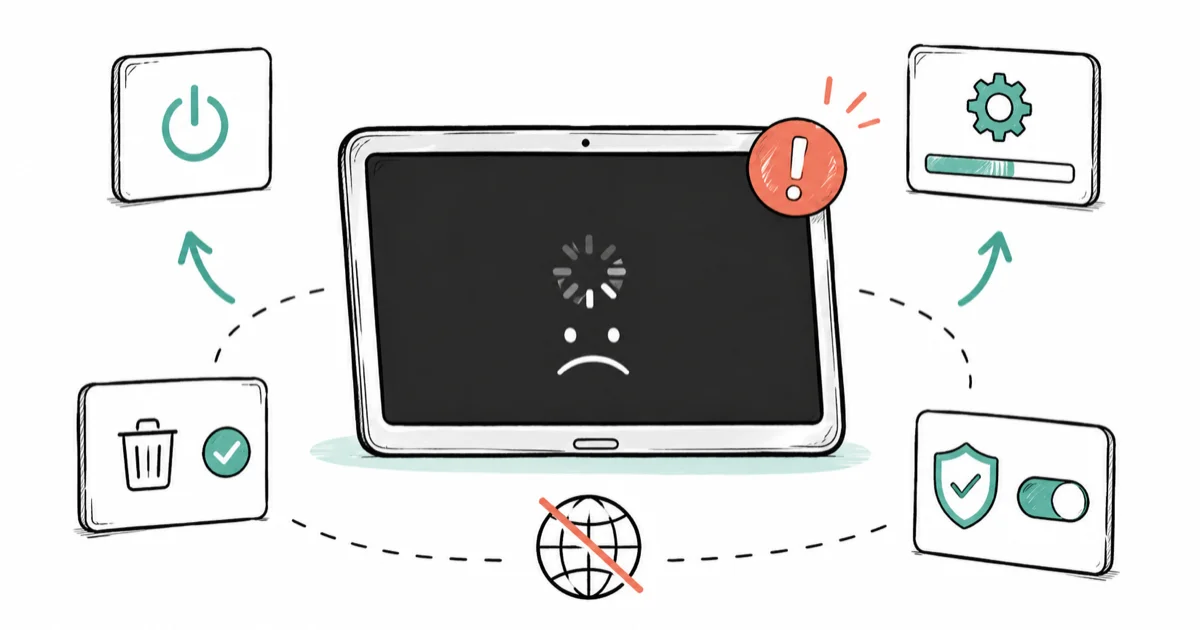
Quick AnswerWhen the Netflix app isn't working, test it on a second device first. If Netflix plays elsewhere, the fault is your one device, so restart it, update or reinstall the app, and clear its data. If Netflix flags a VPN or proxy, turn that off rather than chasing cache fixes.
The Netflix app not working usually comes down to one device, not your whole account. A crash, black screen, or stuck loading spinner on your TV often clears in minutes once you know whether the problem is Netflix itself, your network, or that single device. This guide sorts those apart first, then walks the safe fixes in order.
A full restart is usually the fastest first fix for black screens and stuck loading, while reinstalling belongs later. Start with the device test below and stop when the app plays again.
- Test Netflix on a second device first to tell an account problem from a one-device fault
- A black screen or stuck logo usually clears with a full power cycle, not a reinstall
- Out-of-date OS versions stop supporting the Netflix app, so check for system updates
- A VPN or proxy can trigger a Netflix block; turn it off rather than hunting cache fixes
- Clearing app data or reinstalling fixes corrupted downloads without touching your account
#The Three Buckets Behind a Broken Netflix App
Netflix failures split into three buckets: a service outage, a network problem, or a single misbehaving device. Each needs a different fix. Restarting your Fire TV won’t help if Netflix is down for everyone.
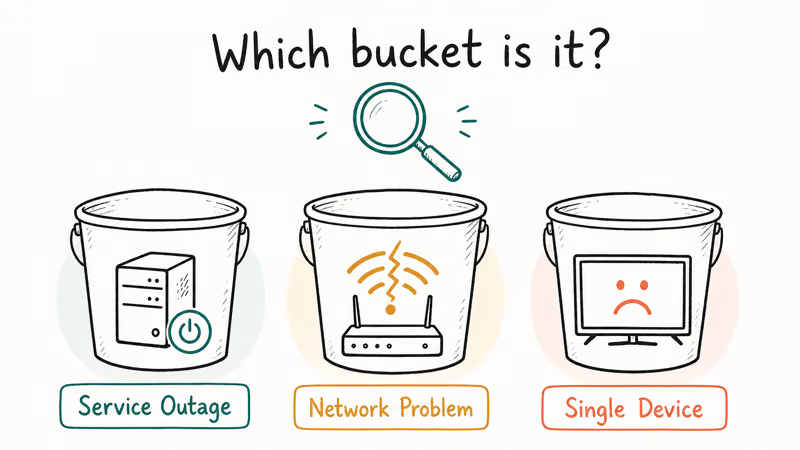
Sort it fast. If the app fails on one device but plays fine on another, the fault is that device. If it fails everywhere on your account, suspect the network or a Netflix-side issue, and that single split decides everything that follows in this guide, from a quick power cycle to a full reinstall.
#Check Whether Netflix Works on Another Device
Open Netflix on a phone, tablet, or computer browser using the same account. This one test is the fastest diagnostic you have.
If Netflix plays on the other device, your account and the service are fine, so focus on fixing the original device. If it fails everywhere, the problem is bigger than one app, and you should check your home network. Restart your modem and router, wait a minute, and test again. You can also compare with the youtube buffering guide, since a network that chokes Netflix often chokes other streaming apps the same way.
When you’ve confirmed it’s one device, move to the crash and loading fixes.
#How Do You Fix a Netflix Crash, Black Screen, or Stuck Loading?
Start with a real restart, not just closing the app. Power the device fully off, unplug it for 30 seconds, then plug it back in and reopen Netflix.
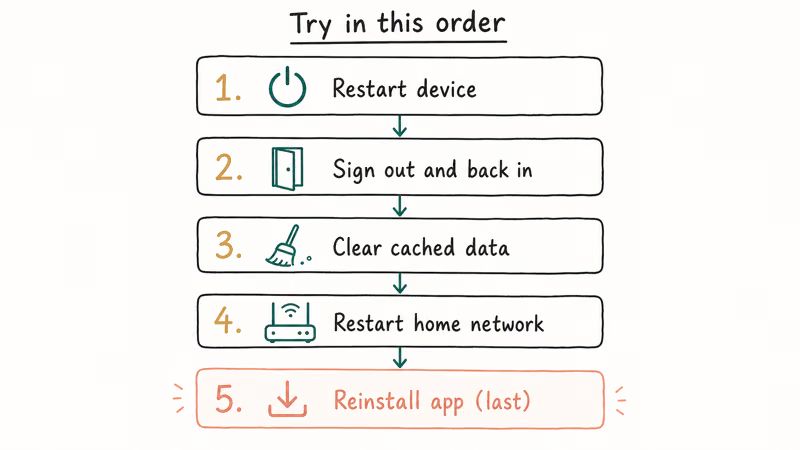
According to Netflix’s freezes, stops responding, or gets stuck loading help page, the standard fixes, in order, are to restart your device, sign out and back in, clear cached data, restart your home network, and reinstall the app only as a last step once the quicker fixes have all failed.
On a computer, Netflix points you to netflix.com/clearcookies to reset its stored data without touching the rest of your browser. Work through those steps in order. A reinstall is the slowest fix, so it belongs last.
A black screen with sound usually means a display or HDCP handshake issue on a TV, so try a different HDMI port or cable. A stuck spinner more often points at the network or a sign-in glitch. If audio plays in other apps, as the spotify wont play guide covers, your speakers are fine and the issue is Netflix-specific.
#What If Netflix Blocks Playback Because of VPN or Proxy?
Seeing a “you seem to be using a VPN or proxy” message? The fix is simple: turn the VPN off. Netflix detects network tools that hide your location and blocks streaming until you disable them, which is why no amount of clearing cache or reinstalling will get past that specific error until the VPN or proxy connection is actually switched off on the device or router.
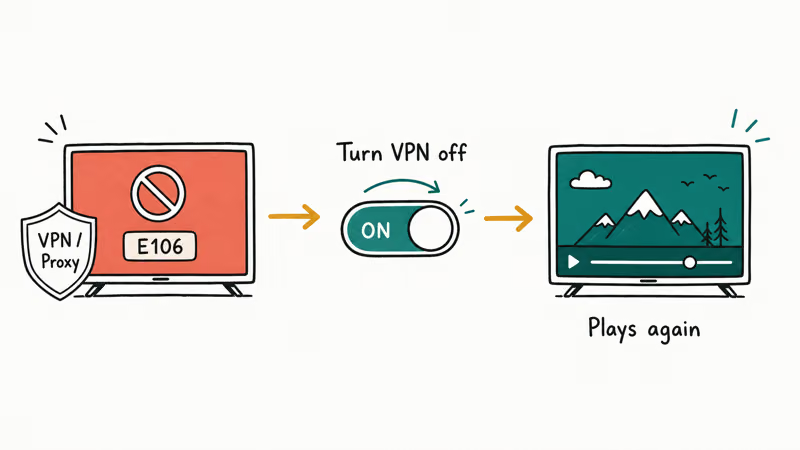
Netflix’s you seem to be using a VPN or proxy help page states that this is error code E106 and that the primary fix is to turn off any active VPN, then reload Netflix. It also suggests checking fast.com to confirm your real location.
Ways to dodge regional libraries aren’t covered here; the supported fix is to disable the network tool, full stop. If you use a VPN for privacy, disconnect it just for streaming and reconnect afterward.
Once any VPN is off and Netflix still fails, the app or the device’s OS may be out of date.
#Update or Reinstall Netflix the Safe Way
An outdated app or operating system breaks Netflix more often than people expect. Netflix drops support for older OS versions over time, so a device that worked last year can simply age out.
Check for both an app update and a system update. On phones and tablets, update the Netflix app from your app store, and check Settings for an OS update too. Google’s Fix an installed Android app that isn’t working page recommends restarting the phone, checking for Android and app updates, force-stopping the app, and clearing its cache and data before you uninstall and reinstall.
Clearing app data signs you out and removes downloads but never touches your Netflix account. If the device is several OS versions behind and can’t update, the app may no longer run there.
When updates and a clean reinstall don’t help on a TV or stick, restart the hardware properly.
#Restart Your TV, Fire TV, Roku, or Phone the Right Way
A proper restart on streaming hardware means a full power cycle, not a standby tap. Many TVs and sticks keep power flowing in standby, which is why the app stays broken until you truly cut power.
Run this on the stubborn device:
- Turn the device off and unplug it from the wall (not just the remote).
- Wait 30 seconds so the internal memory fully clears.
- Plug it back in and let it boot completely.
- Reopen Netflix and sign in if prompted.
On a Roku, you can also restart from Settings > System > Power, and on a Fire TV from Settings > My Fire TV > Restart. The roku not working and amazon app not working guides cover device-specific quirks if other apps misbehave too. A clean hardware restart fixes the lingering faults that a simple app relaunch leaves behind.
#Bottom Line
Test Netflix on another device first. If your account works elsewhere, the fault is that one device, so restart it fully, update the app and OS, clear app data, or reinstall. If Netflix names a VPN or proxy, disable the network tool instead of chasing cache fixes or looking for bypasses, and reach out to Netflix support only when a clean reinstall on an up-to-date device still fails.
#Frequently Asked Questions
Why is the Netflix app not working?
It’s usually a single-device problem, an outdated app or OS, a network issue, or a VPN block. Test Netflix on another device to learn whether your account is fine, then fix the device that’s failing.
What should I check first?
Open Netflix on a second device using the same account. If it plays there, the problem is the original device.
Can an update cause this?
Yes, in two ways. A buggy app update can introduce crashes, and an outdated operating system can lose Netflix support entirely as older OS versions age out of compatibility. Update both the app and the device’s OS, then reinstall the app if a recent update was clearly the trigger for the new crashes you’re seeing.
Will clearing app data delete my account or downloads?
No. Clearing app data or reinstalling Netflix signs you out and removes offline downloads, but it never deletes your account, profiles, or watch history. Those live on Netflix’s servers.
When should I contact Netflix support?
Reach out to Netflix if the app fails on every device, if you see a billing or account-hold message, or if a clean reinstall on a fully updated device still won’t play. Those point to an account or service issue rather than a device fix.
How do I prevent this from happening again?
Keep the Netflix app and your device’s OS current, restart streaming hardware occasionally, and disconnect VPNs before watching. Clearing the continue watching list won’t fix crashes, but keeping the app updated prevents most repeat failures.

Is This Bank App Real? Spot a Fake App on Your Home Screen
A bank app can land on your home screen from a web page with no install warning. Learn the checks that tell a real banking app from a phishing web app.

Apps Crashing After iOS 27 Update? Fix Order (2026)
Apps crashing after the iOS 27 update? Update the app in the App Store first, then offload and reinstall to clear stale cache, then restart. The fix order.

Do AI Translation Earbuds Work Offline? What to Know
Do AI translation earbuds work offline? A few do with downloaded language packs, but most need the cloud. Here's what works offline and what you give up.
How to Set Up Translation Earbuds (Pairing and Modes)
How to set up translation earbuds: charge, install the app, pair over Bluetooth, pick two languages, and choose a mode. A step-by-step first-use guide.