YouTube Keeps Buffering? 9 Fixes That Work in 2026
YouTube buffering even when your internet is fine? Fix it with DNS, quality, cache, and router steps for phone, browser, and TV apps, in order.
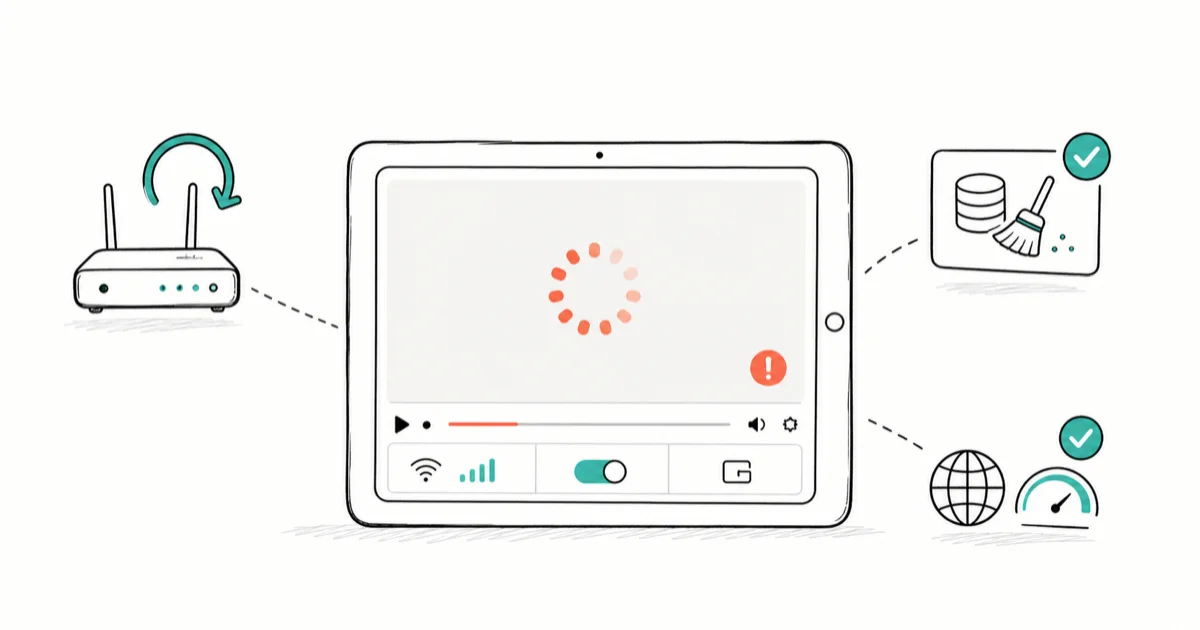
Quick AnswerYouTube buffering usually traces to your connection, a congested router, or a video-quality setting that is too high for your speed. Lower the quality, restart your router, clear the app cache, and switch to a faster DNS before blaming YouTube itself.
YouTube keeps buffering even though every other site loads fine, which is the maddening part. That clue actually narrows things down: when the rest of your connection is healthy, the cause is usually a quality setting too high for your speed, a congested router, the route your traffic takes through DNS, or a clogged app cache. A congested Wi-Fi band can rebuffer video even when other sites seem fine.
This guide works network-first, then app-side, with fixes for phone, browser, and TV apps.
- Buffering with a healthy connection usually means the quality is set too high, or your DNS route is slow, not your raw speed
- Manually lowering the resolution stops the buffer wheel instantly when your link can’t sustain auto-selected quality
- Switching to a public DNS resolver fixes persistent buffering a speed test can’t explain
- A VPN or an ad blocker is the bottleneck if buffering only happens with that tool active
- On a TV, a wired connection beats Wi-Fi and removes most rebuffering on its own
#Why Does YouTube Keep Buffering When Your Internet Is Fine?
When other sites load and only YouTube stutters, your total speed usually isn’t the problem. The issue is on the delivery side, not your raw bandwidth.
DNS is the quiet culprit here. Your traffic routes through caching servers, and a slow or distant one rebuffers video even when a speed test looks perfect. Evening congestion is the other big one, when everyone in the house streams, games, and video-calls at once.
This isn’t unique to YouTube. The same delivery-side causes hit other services, which is why our guide to Netflix buffering walks the same logic, and our older YouTube buffering primer covers the basics if you want the short version. Fix the delivery path and most apps improve together, because they all pull video the same way.
#Quick Network Fixes: Router, Speed, and DNS
Start with the router, because a stale router is the most common fixable cause. Restart it by unplugging for 30 seconds, which clears its memory and re-establishes a clean connection to your ISP.
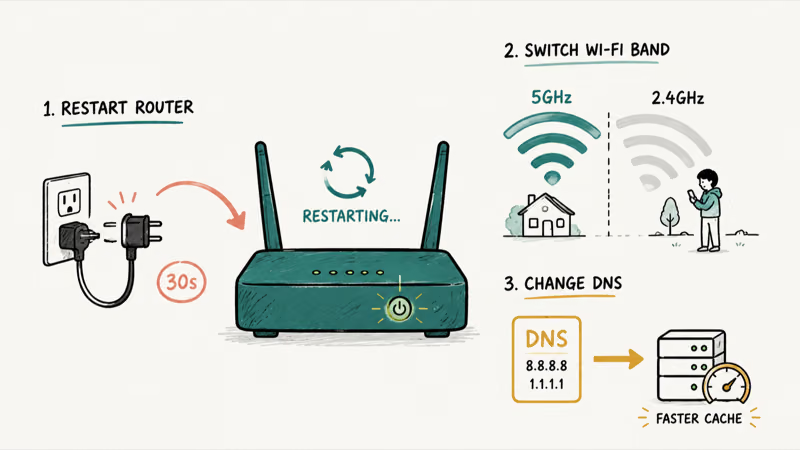
Then move closer or switch bands. A 5GHz network is faster but shorter-range, while 2.4GHz reaches farther but congests easily, so if you’re far from the router, the band may be your bottleneck. If your device won’t hold the connection at all, our fixes for an iPhone that won’t connect to Wi-Fi and a Mac connected but with no internet sort that first.
DNS is the strongest fix for buffering a speed test can’t explain. Switching to a public DNS resolver can help when buffering doesn’t match your speed test, because DNS affects which YouTube cache your connection reaches. A public resolver like the ones built into many routers is a free change worth trying. If your connection drops entirely afterward, our note on DNS probe finished no internet covers the recovery.
#Does Lowering the Quality Stop the Buffering?
The fastest fix is the simplest: lower the resolution. Tap the gear icon, switch from Auto to a fixed lower quality like 720p or 480p, and the buffer wheel usually stops on the spot.
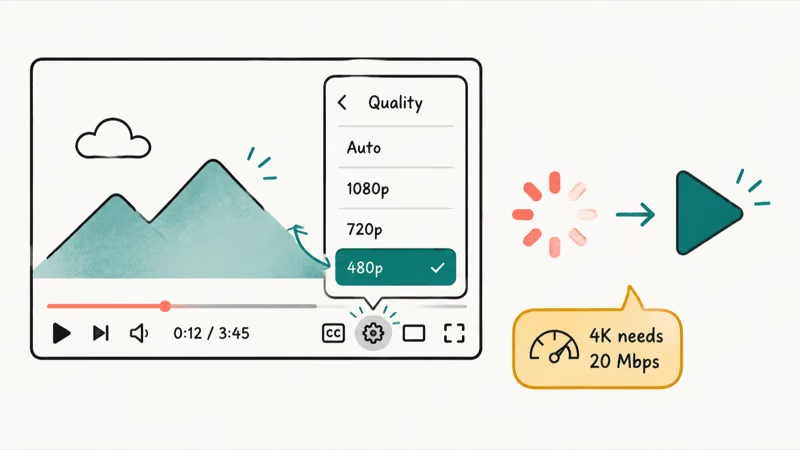
YouTube’s system requirements page states that 4K UHD playback needs at least 20 Mbps, so if your link can’t hold that, Auto keeps overreaching and stalling. You can confirm the figure on the YouTube system requirements page. Its video quality settings help also offers a Data saver mode that caps quality to protect a weak connection.
Cache is the other quick win. A clogged app cache slows playback over time, so clear it on Android through the app’s storage settings, or clear your browser’s cache on desktop. Our walkthrough on clearing the cache on Android covers the exact steps.
#Device-Specific Fixes: Phone, Browser, and TV
Where you watch changes the fix. On a phone, update the YouTube app, clear its cache, and try mobile data briefly to confirm whether the problem is your home Wi-Fi.
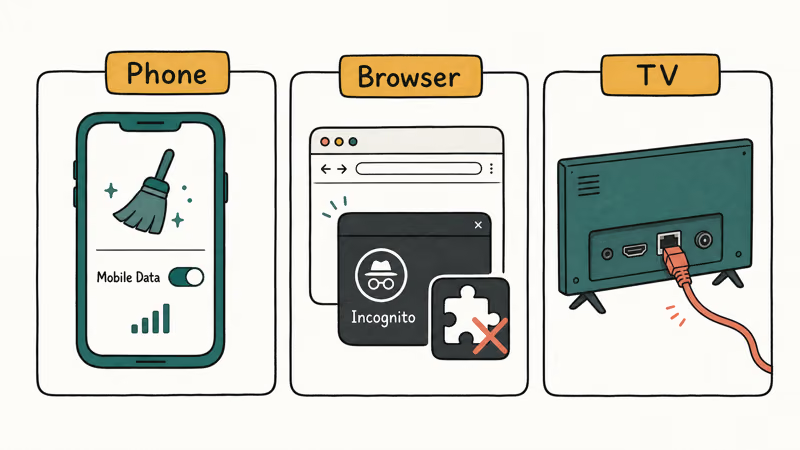
In a browser, the suspect is usually an extension. If buffering only happens in one browser, open a private window, which disables extensions, and see if it clears. When it does, an ad blocker or other extension is the cause, and you disable them one at a time to find it.
On a TV, go wired. YouTube’s help recommends hardwiring the connection and closing other programs, and an Ethernet cable to a streaming stick or smart TV removes the Wi-Fi variable entirely. If your TV only has Wi-Fi, move the router closer or add a mesh node, and our pick of the best Wi-Fi router for 2026 covers upgrades that hold a steady stream.
#Extensions, VPNs, and Account Settings
A VPN routes your video through an extra hop. That can throttle throughput and cause buffering that vanishes the moment you turn it off, so if your only buffering happens on a VPN, disable it for YouTube.
Ad blockers can stall playback too. Some interfere with how YouTube loads video segments, so pausing the blocker for the site is a quick test. According to Tom’s Guide in its streaming quality fix, the problem often isn’t your raw speed at all, and small tweaks beat paying for a faster plan.
One last check: sign out and back in, and update the app and OS. A fresh session occasionally clears playback that nothing else would, and if the buffering only started recently, an outdated app is a likely culprit that the update alone may fix without any of the steps above.
#A Quick Order to Work Through
If you want a checklist, run the fixes in this order. Lower the quality, restart the router, switch DNS, then clear the cache.
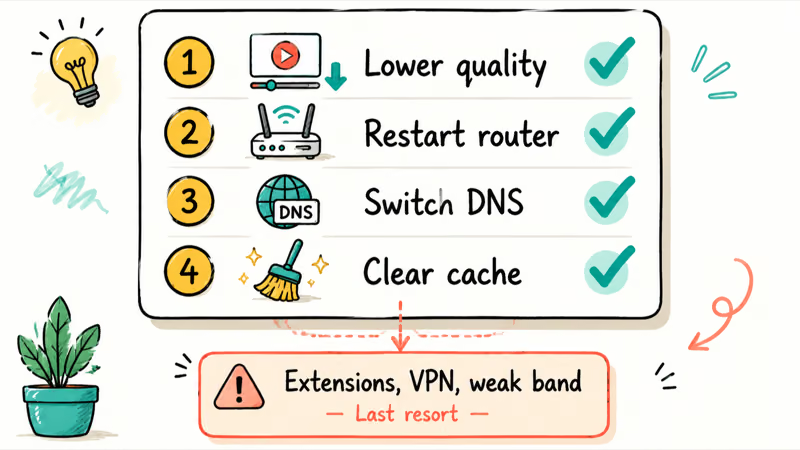
Only after those do you chase the device-specific causes: a browser extension, a VPN hop, or a 2.4GHz band too weak for the distance. Working top-down means you usually stop buffering in the first two or three steps and never touch the harder ones.
#Bottom Line
If other sites load fine but YouTube buffers, the fix is on the delivery side, not your whole connection. Set the quality manually and try a public DNS resolver before anything drastic, since those two clear most cases. Restart the router and move closer to it, and on a TV use a wired connection. If buffering only happens through a VPN or with an ad blocker on, that tool is the bottleneck, so disable it for YouTube.
#Frequently Asked Questions
Why does YouTube buffer when my internet is fine?
Because total speed isn’t the only factor. A quality setting too high for your real bandwidth, a slow DNS route to YouTube’s servers, or evening congestion from other devices all cause buffering even when a speed test looks healthy.
What internet speed do I need for YouTube?
It depends on the resolution. YouTube’s own system requirements list 4K UHD at around 20 Mbps, while HD needs far less, so 1080p plays comfortably on a typical home connection unless something else is competing for bandwidth.
Does lowering the video quality stop buffering?
Usually, yes. Switching from Auto to a fixed 720p or 480p stops YouTube from overreaching your connection, and it’s the fastest fix to try.
Can my ISP be throttling YouTube?
It’s possible. If a speed test looks fine but YouTube consistently stalls while other sites don’t, a slow DNS route or ISP-side congestion may be the cause. Switching to a public DNS resolver is a legitimate way to test for it.
Why does YouTube buffer only in my browser?
Almost always an extension, usually an ad blocker. Open a private window, which disables extensions, and check if the buffering stops.
Will a VPN make YouTube buffer more?
It can. A VPN adds an extra network hop that lowers throughput, so if your buffering only appears with the VPN on, turn it off for YouTube. The rebuffering usually stops the moment the connection goes direct again.

Google Messages Error 3100: Why RCS Is Broken on Galaxy
Google Messages RCS error 3100 hits Galaxy owners after phone or carrier switches. Google told 9to5Google a fix is coming. Here's what actually helps.

Is This Bank App Real? Spot a Fake App on Your Home Screen
A bank app can land on your home screen from a web page with no install warning. Learn the checks that tell a real banking app from a phishing web app.

Apps Crashing After iOS 27 Update? Fix Order (2026)
Apps crashing after the iOS 27 update? Update the app in the App Store first, then offload and reinstall to clear stale cache, then restart. The fix order.

Do AI Translation Earbuds Work Offline? What to Know
Do AI translation earbuds work offline? A few do with downloaded language packs, but most need the cloud. Here's what works offline and what you give up.