How to Move Files From OneDrive to Google Drive in 2026
Move files from OneDrive to Google Drive in 2026 with four reliable methods, including direct download, drag and drop, and cloud-to-cloud transfer.
Quick AnswerDownload your OneDrive files to a local folder, then upload them to Google Drive in a browser. For folders past 50 GB, use a cloud-to-cloud transfer service like MultCloud so your local disk never touches the data.
Switching from OneDrive to Google Drive comes down to picking the right transfer path for your file size. Microsoft cut OneDrive’s free tier from 15 GB to 5 GB in 2016, while Google Drive still gives every account 15 GB. The best tool depends on total size and whether sharing rules need to follow.
- Manual download then upload still works for transfers under 5 GB but breaks on slow connections
- The OneDrive desktop app turns the move into a drag-and-drop between two Explorer or Finder windows
- MultCloud and similar cloud-to-cloud services skip the local round-trip and handle 100 GB-plus jobs in the background
- Permissions, shared links, and version history don’t carry over, so plan to rebuild sharing on the Google Drive side
- A clean transfer takes about 1 hour per 30 GB on a typical home connection, longer if files are mostly small documents
#Method 1: Download From OneDrive and Upload to Google Drive
This is the path with zero extra software. Open OneDrive in a browser, download a zip, then upload it to Google Drive.
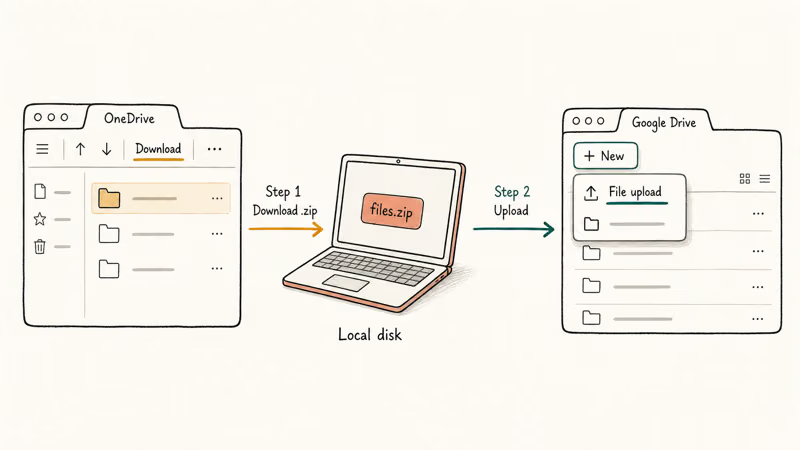
Step 1. Sign in to your account at https://onedrive.live.com. The interface lists your folders down the left side.
Step 2. Select the folders or files you want to move, then click Download in the top toolbar. OneDrive packages multi-file selections into a single .zip archive, which keeps the structure intact when you unpack it later.
Step 3. Wait for the zip to finish downloading. Large folders can split into multiple zip parts; check Microsoft’s OneDrive support hub if a download stalls partway through.
Step 4. Open Google Drive in another tab at https://drive.google.com, click + New → File upload or Folder upload, then pick the unzipped contents from your local disk. According to Google, single-file uploads to Drive can be up to 5 TB, listed on Google’s Drive file size guide.
Step 5. Keep the tab open. Google’s Drive upload guide confirms that closing the browser cancels in-flight uploads.
This approach works best for small transfers. It gets painful once uploads run long enough that a browser crash, sleep state, or network drop can force a restart.
#Method 2: Drag and Drop With OneDrive Desktop
If the OneDrive desktop sync client is already installed, the move turns into two folder windows side-by-side.
Step 1. Make sure the OneDrive desktop app is signed in and your files have synced locally. You’ll see them under OneDrive in File Explorer (Windows) or Finder (Mac).
Step 2. Open Google Drive in your browser. Click + New → Folder upload so nested folders keep their structure.
Step 3. Drag the OneDrive folder from File Explorer or Finder straight into the open Google Drive tab. Chrome and Firefox handle the drop natively. Edge and Safari sometimes refuse, so use Chrome if you hit a permissions error.
Step 4. Wait for upload completion. A status bar appears in the bottom-right of Drive showing per-file progress.
Drag-and-drop on a synced folder is faster and lighter on memory than the browser-only download-then-upload route, since the desktop clients handle the transfer in the background. The trade-off: every byte still leaves your computer, so you pay disk space twice, once when OneDrive syncs and once when Google Drive uploads.
#Method 3: Use a Cloud-to-Cloud Transfer Tool
Cloud-to-cloud services move files server-to-server through OAuth-linked accounts. The data never touches your computer.
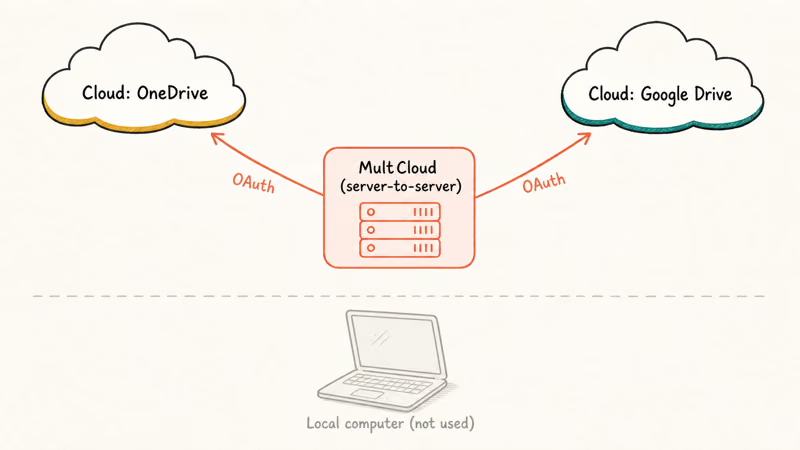
MultCloud is the most-used free tier in this category, with native OneDrive, Google Drive, Dropbox, Box, and pCloud connectors. Its free plan covers around 5 GB of monthly transfer traffic, enough for one small move. Heavier jobs need a paid plan starting at $10/month, and a higher tier removes the per-job size cap if you’re moving multi-terabyte archives in one shot.
Step 1. Create a free account at MultCloud’s site, then click Add Cloud Drive and authorize OneDrive followed by Google Drive. Both connections use OAuth, so MultCloud never sees your password.
Step 2. Pick OneDrive as the source and Google Drive as the destination.
Step 3. Click Transfer Now. The job runs server-side, so close the browser if you like. Because the transfer happens between cloud services, your local upload speed is not the bottleneck.
Step 4. When the job finishes, MultCloud emails you. Spot-check 3-5 folders in Google Drive to confirm file counts and sizes match.
If MultCloud’s free quota isn’t enough, Air Explorer works the same way and is similar to a transfer between Dropbox and Google Drive.
For long-term cloud backup pricing, see our Degoo review.
#Method 4: Move Selected Folders With OneDrive Mobile and Files App
For partial moves on the go, both OneDrive and Google Drive mobile apps support file pickers that talk to each other.
Step 1. Install both apps on the same phone and sign in.
Step 2. Open OneDrive, long-press to multi-select files, then tap Share → Save to Drive. Android sends the files through the system intent layer; iPhone routes the export through the Files app.
Step 3. Watch for the upload toast in Google Drive. Each file appears with its original name. Folder hierarchy doesn’t carry over on the mobile path, so flatten before you start if structure matters.
Step 4. Repeat per folder. Mobile transfers work best for under 100 files; past that, switch to a laptop.
This route is fine for grabbing a few photo albums or PDFs. For large mixed folders, switch to a laptop before the mobile Share sheet becomes the bottleneck.
#Which Transfer Method Should You Pick?
The right method comes down to two variables: how much data you’re moving, and how often you’ll need to do this.
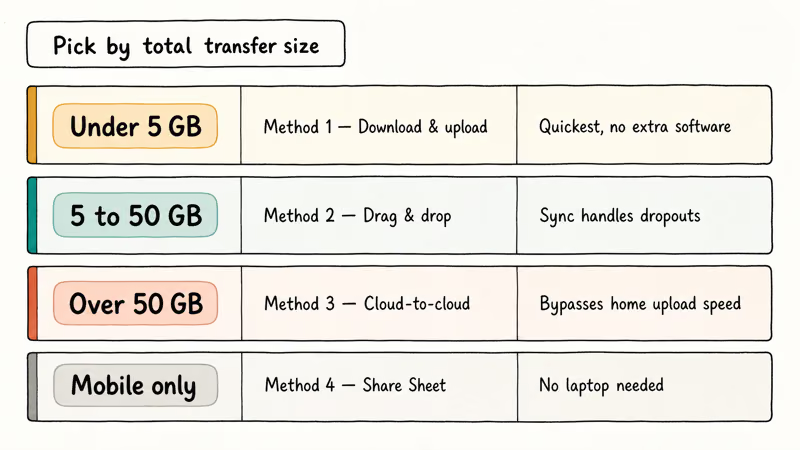
| Total size | Best method | Why |
|---|---|---|
| Under 5 GB | Method 1 (download/upload) | No software, finishes in under an hour |
| 5-50 GB | Method 2 (drag and drop) | Local sync handles disconnects gracefully |
| Over 50 GB | Method 3 (MultCloud) | Server-to-server bypasses your home upload speed |
| Mobile only | Method 4 (Share sheet) | No laptop needed, capped at small folder sizes |
If your file count is low but the total size is large (think a single 40 GB video archive), Method 2 wins. According to Google, Drive caps each account at roughly 750 GB of new uploads per day, so plan multi-day moves around that ceiling. The exact daily limits live on Google’s Drive size limits page.
For mixed data sets where some files are sensitive (tax records, medical PDFs), do those folders manually with Method 1 so you can verify each upload.
#What Happens to File Permissions and Sharing Links?
Cloud-to-cloud transfers don’t carry permissions across providers. OneDrive shared links break the moment files leave OneDrive’s namespace, and Google Drive starts every uploaded file with default sharing set to “Restricted.” Treat the move as an upload, not a migration.
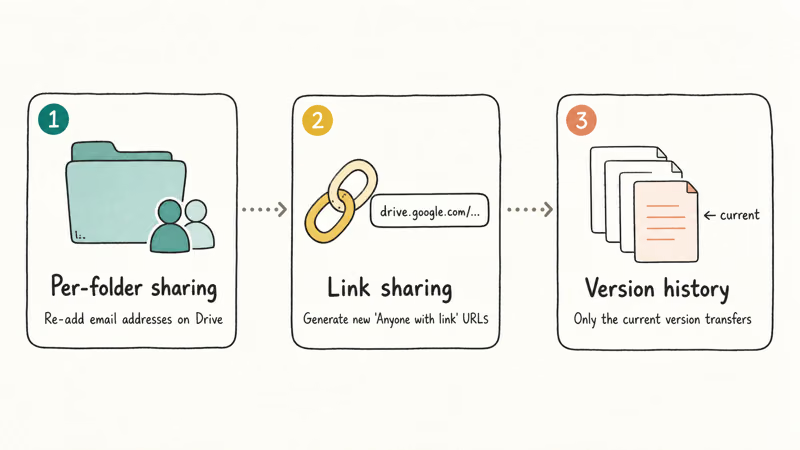
Three things to redo on the Google Drive side:
- Per-folder sharing. Right-click each top-level folder in Google Drive, pick Share, then re-add the email addresses or groups that had access on OneDrive.
- Link-based sharing. Generate fresh “Anyone with the link” URLs in Google Drive. Old OneDrive share URLs return 404 once the source files are deleted.
- Version history. OneDrive keeps file versions, but the version stack doesn’t transfer. Only the current version of each file lands in Google Drive.
Microsoft’s documentation states that OneDrive sharing permissions tie to the source item itself, which is why they can’t follow a file to another service. The full sharing rules sit on Microsoft’s OneDrive sharing support page.
If you need OneDrive contacts on iPhone after the move, see our walk-through on transferring contacts from OneDrive backup to iPhone. For images saved out of Google Docs that need similar permission rebuilding, our save images from Google Doc guide has the steps.
If iCloud sync issues are blocking your backup work, check our iCloud notes not syncing fixes.
If OneDrive itself is stuck and Files On-Demand won’t hydrate a blue-cloud file, work through our fixes for stalled OneDrive Files On-Demand downloads before you export anything.
#Bottom Line
For personal moves under 5 GB, plain download-and-upload from Method 1 finishes during lunch with no extra software. For folders past 50 GB or recurring monthly syncs, MultCloud’s server-to-server transfer is the only path that doesn’t tax your home upload bandwidth, so pay the $10/month if you’ll use it more than twice. Always rebuild sharing permissions on the Google Drive side; assume nothing transferred. Compare that to the single-cloud sync approach in our WhatsApp contact backup guide.
#Frequently Asked Questions
Can you move OneDrive files directly to Google Drive without downloading?
Yes, but only through a third-party cloud-to-cloud service like MultCloud or Air Explorer. Microsoft and Google don’t offer a native one-click migration between the two platforms.
Will OneDrive sharing permissions follow my files to Google Drive?
No. Sharing rules tie to each platform’s identity system, so Drive treats every uploaded file as private until you re-share it manually.
Is it safe to move files using MultCloud?
MultCloud uses OAuth tokens scoped to read and write files in each connected account, so it never sees your Microsoft or Google password. Tokens can be revoked at any time from your OneDrive and Google account security pages, which you should do once the transfer finishes.
How long does transferring 100 GB from OneDrive to Google Drive take?
A direct download then upload takes 8-12 hours on a 50 Mbps home connection. A MultCloud server-to-server transfer typically finishes in 4-6 hours because the data never crosses your local network.
Can I keep file version history during the move?
Only the current version transfers. Older versions stay locked in OneDrive’s history; download them manually first.
What happens to OneDrive shared links after I delete files from OneDrive?
The shared link returns a 404 error once the underlying file is gone. Email anyone who depended on those links and send them new Google Drive share URLs to avoid silent broken-link failures.
Will my OneDrive subscription auto-cancel if I move my files out?
No. Moving files doesn’t cancel a Microsoft 365 or OneDrive standalone subscription. Cancel it manually in your Microsoft account billing page if you no longer need the storage.
Can I do this transfer entirely on a phone?
Technically yes, but expect frustration. Both apps support file selection and upload over Wi-Fi, but tapping through hundreds of files on a phone screen is impractical. Stick to a desktop browser unless you only have a handful of files to move.

Best Laptop for Running LLMs in 2026: Memory Comes First
The best laptop for running LLMs is a memory purchase first. Compare MacBook unified memory against NVIDIA laptop VRAM, and see what each tier really runs.

How to Run a Local LLM on Windows: A 2026 Setup Guide
Run a local LLM on Windows with LM Studio or Ollama. Pick a model that fits your GPU memory, keep every prompt offline, and skip the monthly bill.

Bluetooth Not Working on Snapdragon X? Fixes for 2026
Bluetooth not working on your Snapdragon X Copilot+ PC? Generic audio, mice, and keyboards work, but vendor apps often lack an ARM build. Fixes inside.

Docker Desktop and WSL2 Not Working on Snapdragon X? Fix It
WSL2 runs fine on Snapdragon X, but Docker Desktop ARM is Early Access and throws WSL errors. Use WSL2 plus native ARM64 Ubuntu and Docker Engine.