How to Use ChatGPT Memory: Manage What It Remembers
ChatGPT Memory personalizes answers by remembering your preferences. Here's how to add, view, delete, and turn off memories, plus the privacy catches.

Quick AnswerChatGPT Memory lets it remember preferences across conversations. Add a memory by saying "Remember that...", view or delete them in Settings under Personalization and Manage Memories, and use a Temporary Chat for a one-off conversation that ignores memory entirely.
ChatGPT Memory makes the assistant feel like it actually knows you. Tell it once that you’re vegetarian, and weeks later it still skips the chicken recipes.
That convenience comes with a few real catches, especially around what sticks when you delete a chat, so it’s worth understanding the controls before you rely on it.
- ChatGPT Memory has two parts: Saved Memories you ask for, and chat-history insights it gathers on its own
- Add a memory by saying “Remember that…” and check it with “What do you remember about me?”
- Manage everything under Settings, Personalization, then Manage Memories
- Deleting a conversation does not delete the memory it created, which trips up most people
- A Temporary Chat ignores memory completely, so nothing gets stored from it
#What Is ChatGPT Memory and How Does It Work?
Memory lets ChatGPT carry context from one chat into the next, so you stop repeating yourself. According to OpenAI’s Memory FAQ, it works two ways: “saved memories you’ve asked it to remember and chat history, which are insights ChatGPT gathers from past chats to improve future ones.” Those are separate mechanisms with separate controls.
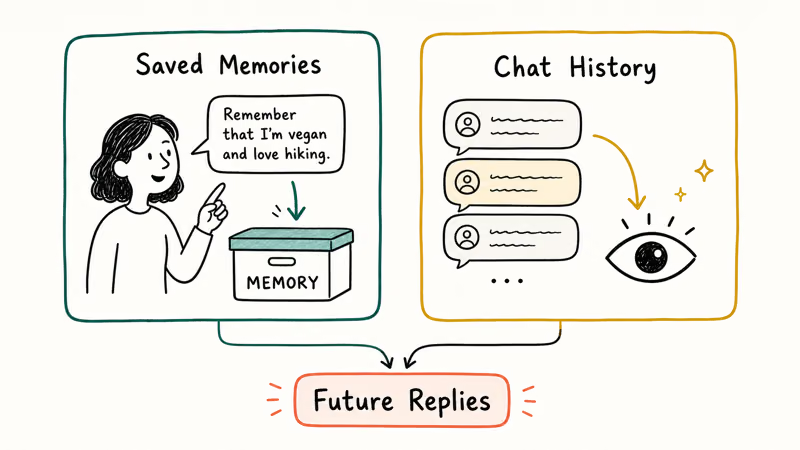
Saved Memories are explicit facts. You tell it “Remember that I work in marketing,” and it files that away. The second type quietly reads patterns across your old conversations, then folds them into future replies. OpenAI’s What is Memory help page describes the two as working together to personalize answers, which is why responses get noticeably sharper the longer you stick with one account and the more it learns about how you actually work.
If you want ChatGPT to follow a fixed style or role in every reply, that’s a different tool. You set that up with custom instructions rather than Memory. Power users layer Memory on top of ChatGPT Projects, which keep separate context for separate jobs.
#How Do You Teach ChatGPT to Remember Something?
The simplest method is to just say it. Start a message with “Remember that…” and ChatGPT saves it. OpenAI’s example is “Remember that I am vegetarian when you recommend recipes.”
It also saves things on its own. If you mention a detail that looks useful later, it may store that as a memory without you asking.
To audit what it has, type “What do you remember about me?” and it lists everything currently saved. That quick check can surface details you didn’t realize were saved, which is exactly why it’s worth running. It’s the fastest way to catch anything it picked up that you didn’t intend.
#Viewing, Editing, and Deleting Saved Memories
Everything lives in one place: Settings, Personalization, then Manage Memories. Each saved memory shows as its own line, and you can delete them one at a time or clear the whole list.
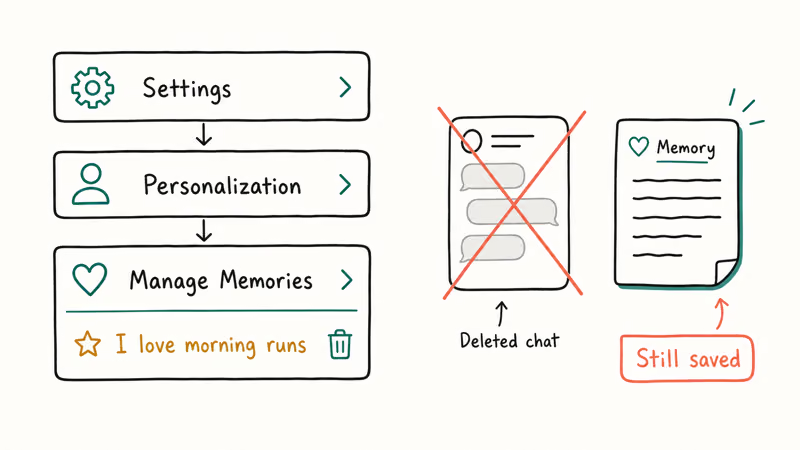
You don’t even need the menu. OpenAI states that you can simply “tell ChatGPT to delete or forget it,” and the memory goes away conversationally. On the web, the three-dot menu also lets you view history and restore a previous version if you wiped something by accident.
Here’s the part worth bolding: deleting a chat does not delete its memories. OpenAI confirms that saved memories are “stored separately from your chat history,” so a memory survives even after you trash the conversation that created it.
To fully remove a fact, do two things. Delete it in Manage Memories, then delete the original chat too, because either one alone leaves a usable trace.
#Turning Memory Off and Using Temporary Chats
You can switch Memory off anytime under Settings, Personalization, Memory. While it’s off, ChatGPT won’t create or use memories. One catch worth knowing: OpenAI notes that turning saved memory off “won’t delete anything that’s already been remembered,” so flip the toggle and your old list still sits there until you clear it.
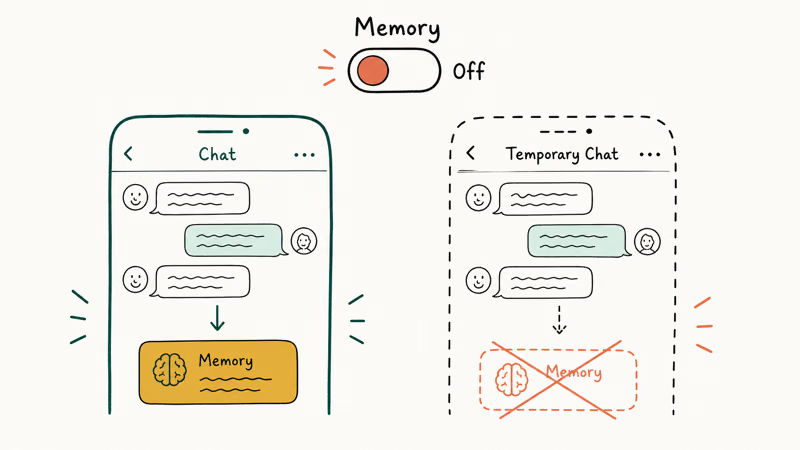
For a clean, no-trace conversation, use a Temporary Chat. It won’t reference or update memory at all, which makes it the right pick for anything sensitive. OpenAI states that deleted chat-history data is removed from its systems within 30 days once you switch the setting off. If a whole conversation vanished and you needed it, here’s how to recover missing ChatGPT chat history.
#Memory and Custom GPTs
Not the way you’d expect. As Tom’s Guide reports, custom GPTs you build are effectively stateless, so they don’t carry your saved memories between chats the way the main assistant does.
That distinction matters if you’ve built a custom ChatGPT study helper and wonder why it keeps forgetting you. The fix isn’t Memory; it’s baking the context into the GPT’s own instructions instead.
#The Privacy Catches You Should Know
Memory is convenient, but it’s also a record. Anything you tell ChatGPT to remember sits in your account until you remove it, and it can resurface in later answers when you least expect it. Treat it like a notepad that other prompts can read.
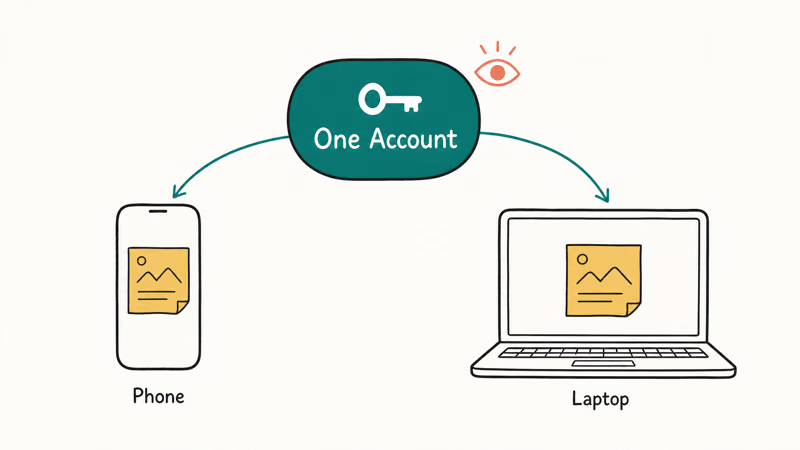
The biggest gotcha is the delete trap covered above, where wiping a chat leaves the memory intact. The second is account scope. Because memories are tied to your login, they sync across your devices, so a memory you added on your phone shows up on your laptop. If you share an account or a device, audit Manage Memories regularly and lean on Temporary Chats for private topics.
#Bottom Line
Treat Memory as a home for short, durable facts, such as your role, your tone preferences, or recurring goals. Don’t use it as a place to paste full templates, which it handles poorly. Audit Manage Memories every few weeks and clear anything stale.
The one real gotcha is the delete trap: wiping a conversation does not erase the memory it created, so remove that separately if you want it gone. For anything sensitive, open a Temporary Chat so nothing is stored at all.
#Frequently Asked Questions
How do I make ChatGPT remember something?
Just tell it. Begin a message with “Remember that…” and ChatGPT saves the fact to your account, usually replying with a quick confirmation that it’ll keep that in mind. It also picks up useful details on its own as you chat, so it’s worth periodically asking “What do you remember about me?” to see the running list and prune anything you didn’t mean for it to keep.
Is ChatGPT memory available on the free plan?
Saved Memories are available on the free tier, so you can add and manage explicit memories without paying. The deeper chat-history referencing that learns from your past conversations is tied to paid plans, which is one factor in whether ChatGPT Plus is worth it for you. OpenAI adjusts those tiers over time, so confirm the current limits in your own settings before assuming a feature is included.
How do I see what ChatGPT remembers about me?
Open Settings, Personalization, then Manage Memories. Or just ask it directly in any chat.
Does deleting a chat delete its memories?
No, and this is the most common mistake people make. Saved memories are stored separately from your conversations, so deleting a chat leaves any memory it created fully intact. To remove the fact for good, delete it in Manage Memories and delete the original chat as well, since one without the other still leaves a trace.
How do I turn off ChatGPT memory?
Go to Settings, Personalization, then Memory, and switch it off. While it’s off, ChatGPT won’t create or reference memories. Turning it off does not delete what’s already saved, so clear the list separately if you want a clean slate.
Does ChatGPT memory sync across my devices?
Yes. Because memories are attached to your account rather than a single device, anything saved on your phone shows up when you log in on a computer. That sync is handy, but it’s also why you should audit the list if you share the account.

Google Messages Error 3100: Why RCS Is Broken on Galaxy
Google Messages RCS error 3100 hits Galaxy owners after phone or carrier switches. Google told 9to5Google a fix is coming. Here's what actually helps.

Is This Bank App Real? Spot a Fake App on Your Home Screen
A bank app can land on your home screen from a web page with no install warning. Learn the checks that tell a real banking app from a phishing web app.

Apps Crashing After iOS 27 Update? Fix Order (2026)
Apps crashing after the iOS 27 update? Update the app in the App Store first, then offload and reinstall to clear stale cache, then restart. The fix order.

Do AI Translation Earbuds Work Offline? What to Know
Do AI translation earbuds work offline? A few do with downloaded language packs, but most need the cloud. Here's what works offline and what you give up.