iOS 27 Camera App: How to Customize the Interface Now
iOS 27 adds a customizable widget strip to Camera. Add flash, resolution, depth of field, and Live Photo controls you actually use and hide the rest.

Quick AnsweriOS 27 redesigns the Camera app with a customizable widget strip along the bottom. You can add shortcuts for flash, resolution, exposure, depth of field, and Live Photo to the strip, removing controls you never use. The feature requires iOS 27 on any supported iPhone.
iOS 27 finally lets you rearrange the Camera app. The fixed toolbar is gone. Apple replaced it with a widget strip you build yourself.
- iOS 27 replaces the fixed Camera toolbar with a customizable widget strip along the bottom of the interface
- You can add or remove up to 8 controls including flash, resolution, Live Photo, exposure lock, and depth of field
- iPhone 15 Pro and 16 Pro users get additional controls like Photographic Styles and macro mode
- Camera customization is separate from Control Center and only affects the Camera app itself
- The widget strip persists across photo and video modes unless you configure each mode separately
#What Changed in the iOS 27 Camera App?
The Camera app in iOS 26 had a fixed row of icons across the top of the viewfinder. You couldn’t move them or hide them. Switching from 12MP to 48MP ProRAW meant three taps through a buried menu, every time you wanted to do it.
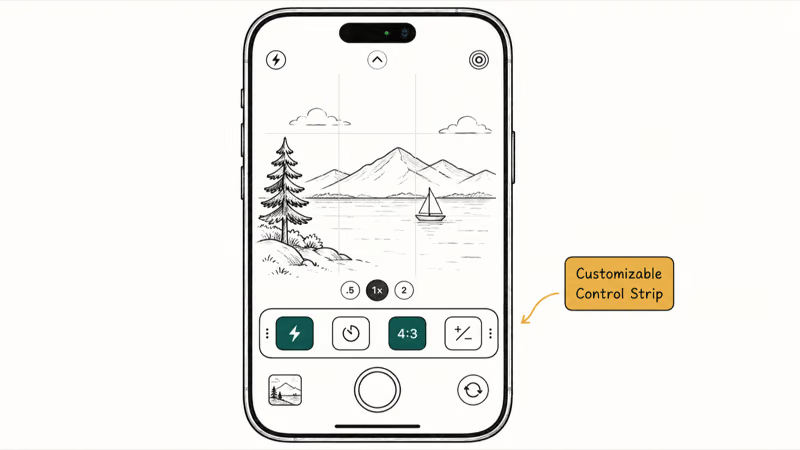
iOS 27 replaces that fixed row. The new widget strip sits at the bottom of the screen, above the shutter button. It’s fully customizable: you pick which controls appear, arrange them in any order, and save different configurations for Photo, Video, Portrait, and other shooting modes.
According to 9to5Mac’s reporting on the iOS 27 Camera redesign, the change came directly from user feedback showing that people regularly hunt for the same two or three settings but rarely touch most of the others. Apple’s solution was to let you build your own toolbar, showing only what you actually need. This is one of the headline changes in the full iOS 27 new features list.
#How to Customize the iOS 27 Camera Widget Strip
The customization menu lives inside the Camera app itself, not in Settings. If your Camera app is crashing instead, check our iPhone camera not working guide first. Here’s the full customization process:
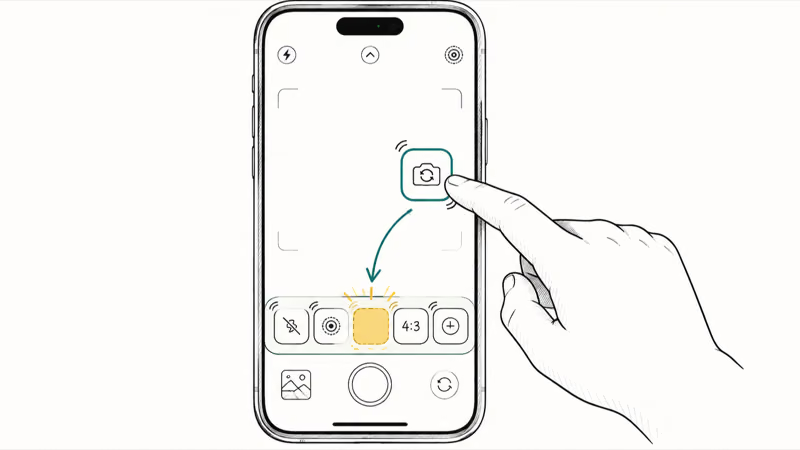
- Open the Camera app on your iPhone
- Tap the arrow icon at the top center of the viewfinder to expand the toolbar
- Tap Customize at the far right of the expanded strip
- The widget picker slides up from the bottom of the screen
- Tap the + next to any control to add it to your strip
- Tap the minus (-) button next to any control to remove it
- Press and hold a control, then drag left or right to reorder
- Tap Done to save your layout
The customization screen shows a live preview of your strip as you build it. Adding and removing controls is a short in-app flow, and the layout should persist after restarting the Camera app.
Beta note: iOS 27 hasn’t shipped publicly yet, so everything here is drawn from Apple’s developer betas rather than a final release. According to Apple’s August 24 release entry, developer beta 7 is build 24A5424a. The public beta is available (it opened in July 2026). Final behavior may still differ slightly when iOS 27 ships this fall.
You can also set different widget layouts per shooting mode. Switch to Video mode, then go through the same Customize flow. Your video strip saves separately from your Photo strip.
#Camera Controls You Can Add or Remove
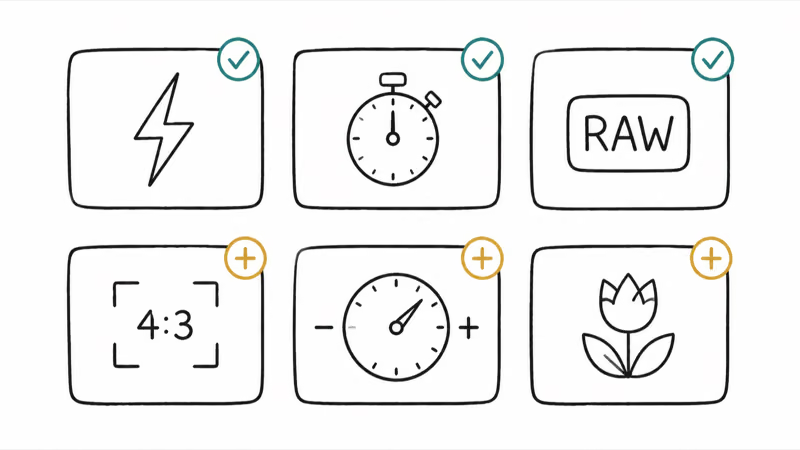
These are the controls available in the iOS 27 widget picker:
| Control | What it does | Available on |
|---|---|---|
| Flash | Toggle flash on, off, or auto | All iPhones |
| Resolution | Switch between 12MP and 48MP | iPhone 14 Pro+ |
| Live Photo | Toggle Live Photo on/off | All iPhones |
| Exposure Lock | Lock exposure to current brightness | All iPhones |
| Depth of Field | Blur background strength in Portrait mode | iPhone 13+ |
| Night Mode | Force-enable or disable Night Mode | All iPhones |
| Timer | 3-second or 10-second shutter delay | All iPhones |
| Aspect Ratio | Switch between 4, 16, and square | All iPhones |
| Photographic Styles | Choose a visual tone preset | iPhone 15 Pro, 16 Pro |
| Macro Mode | Toggle macro focus on/off | iPhone 15 Pro, 16 Pro |
| ProRAW | Switch to ProRAW format | iPhone 15 Pro, 16 Pro |
| ProRes Video | Toggle ProRes video recording | iPhone 15 Pro, 16 Pro |
The strip holds a maximum of 6 controls at once on standard iPhones. Pro models with the Action button row can display up to 8.
#Compatible iPhones for Camera Customization
iOS 27 supports iPhone 12 and later. That’s the A14 Bionic chip and newer, covering every iPhone released from late 2020 through 2026.
All of those iPhones get the customizable strip.
Standard iPhone models (iPhone 12 through 16, non-Pro) get the general-purpose controls: flash, Live Photo, exposure lock, timer, aspect ratio, and Night Mode. That’s six controls, which is exactly how many fit on the default strip for these devices.
Pro models (iPhone 13 Pro, 14 Pro, 15 Pro, 16 Pro) get the full list including Photographic Styles, macro mode, ProRAW, and ProRes video. According to Apple’s developer documentation on iOS 27 Camera, Pro-specific controls are hardware-gated and won’t appear in the picker on non-Pro devices. You can’t add macro mode to an iPhone 14 standard, for example, even after updating to iOS 27.
If you’re on an iPhone 11 or older, iOS 27 won’t install. Camera customization isn’t available regardless of the hardware. See the full iOS 27 compatible iPhones list for the complete breakdown.
#Can You Save Different Camera Layouts in iOS 27?
iOS 27 saves a separate widget strip layout for each shooting mode: Photo, Video, Portrait, Cinematic, Slow-Mo, and Time-Lapse. Each stores its own configuration independently, so your video controls don’t interfere with your portrait controls.
No named presets yet. One layout per mode.
That’s a real limitation if you frequently switch between styles for the same subject. The per-mode approach works exactly as advertised, though.
A dedicated video layout can put resolution, frame rate, and ProRes front and center, then load those controls when you switch into Video mode. No extra taps, no digging through menus.
MacRumors reported in May 2026 that Apple is considering a named multi-profile option for a future iOS 27 point release, but it’s not in the current beta. Don’t plan on it at launch. If you’re running the iOS 27 beta, the controls available may differ slightly from the final release version this fall.
#iOS 27 Camera vs iOS 26 Camera: What’s Different
The Camera app got more than just a customizable strip in iOS 27. Here’s a side-by-side of the meaningful changes:
| Feature | iOS 26 | iOS 27 |
|---|---|---|
| Toolbar layout | Fixed row of icons, not movable | Fully customizable widget strip |
| Access to settings | Tap icon in fixed row | Tap your chosen control in the strip |
| Per-mode layouts | Single layout for all modes | Separate layout per shooting mode |
| Pro controls visibility | Always visible on Pro models | Only visible if you add them |
| Top bar controls | Arrow → expands fixed row | Arrow → expands your custom strip |
The biggest change is for people who switched between 12MP and 48MP regularly. In iOS 26, that meant expanding the toolbar, finding the resolution icon, tapping, and confirming every single time. iOS 27 cuts that to one tap once you’ve added the control to your strip.
Casual shooters won’t notice anything different at all.
According to MacRumors’ coverage of the iOS 27 Camera changes, the default iOS 27 strip ships with the same controls that were visible in iOS 26, so if you never adjusted camera settings in the first place, iOS 27 Camera looks completely identical to iOS 26 on first launch.
#Bottom Line
The iOS 27 widget strip is the Camera change most iPhone users will actually notice. Start with your Photo mode strip. Add the two or three controls you reach for most, and remove everything else. That takes under a minute to set up.
Pro model users get the biggest payoff. Clearing out the timer and timer-adjacent clutter to put Photographic Styles and ProRAW one tap away is a real improvement. The strip holds up to 8 controls on Pro models, so there’s room for your six most-used controls plus two extras you reach for occasionally. For more on what else is new in iOS 27, see our iOS 27 AI features breakdown and iOS 27 Visual Intelligence guide.
#Frequently Asked Questions
Can you customize the Camera widget strip on an older iPhone?
Yes, as long as your iPhone runs iOS 27. The cutoff is the A14 Bionic chip — that means iPhone 12 and later. Older iPhones (iPhone 11, XS, X, and everything before them) can’t install iOS 27 and won’t get the customizable strip. There’s no way to backport the feature to unsupported hardware.
Does Camera customization affect the Control Center camera shortcut?
No. The widget strip customization only changes the Camera app itself. The Control Center camera shortcut and the lock screen camera button both still open the standard Camera interface. Changes you make in the Camera app’s Customize menu don’t affect those entry points.
What’s the maximum number of controls in the iOS 27 Camera strip?
Standard iPhones (iPhone 12 through iPhone 16 non-Pro) hold up to 6 controls in the strip at once. iPhone 15 Pro and iPhone 16 Pro models can show up to 8, using the wider display and the additional control row near the Action button. If you try to add a seventh control on a standard iPhone, the oldest one in the strip gets bumped off.
Do Camera widget settings sync across iPhone devices via iCloud?
Based on the iOS 27 developer beta, Camera customization settings sync across devices signed in to the same Apple ID. If you set up your widget strip on an iPhone 16 Pro, signing into a new iPhone and restoring from iCloud backup should carry your Camera layout over.
Can you reset the Camera widget strip back to the iOS default?
Yes. Go into the Camera app, expand the toolbar, tap Customize, and tap Reset at the bottom of the widget picker. This restores the default iOS 27 strip layout for that shooting mode.
Will Camera customization come to iPad?
Yes. iPadOS 27 ships alongside iOS 27 and includes the same Camera app redesign.
Does changing the resolution in the widget strip affect video recording too?
No. The resolution control in the Photo mode strip only affects still photos. Video resolution is a separate setting and lives in the Video mode widget strip or in Settings > Camera > Record Video.

Mac mini M6 vs M5 Pro: Which Model Should You Buy?
Mac mini M6 vs M5 Pro compared on price, memory, ports, displays, and real workloads. Find the better 2026 Mac mini for your desk and budget.

Apple Siri Settlement: Who Qualifies and How to Claim
Apple's $250 million Siri settlement covers iPhone 15 Pro and iPhone 16 models bought June 2024 to March 2025. See who qualifies and how claims work.

iOS 26.6.1 Security Update: What Apple Fixed and Who Gets It
Apple released iOS 26.6.1 on August 17 with 29 security fixes, including an IPSec interception bug. See what it patches, who gets it, and how to update.

iPhone Adaptive Power: How It Works and When to Use It
Learn how iPhone Adaptive Power works, which models support it, what it changes, and when Low Power Mode is still the better battery-saving choice.