How to Use Copilot in Windows 11: A Practical Guide
Open Copilot in Windows 11 from the taskbar, Copilot key, or Win+C, and use it for OS tasks, Copilot Vision, and Click to Do. Here is what it can do.
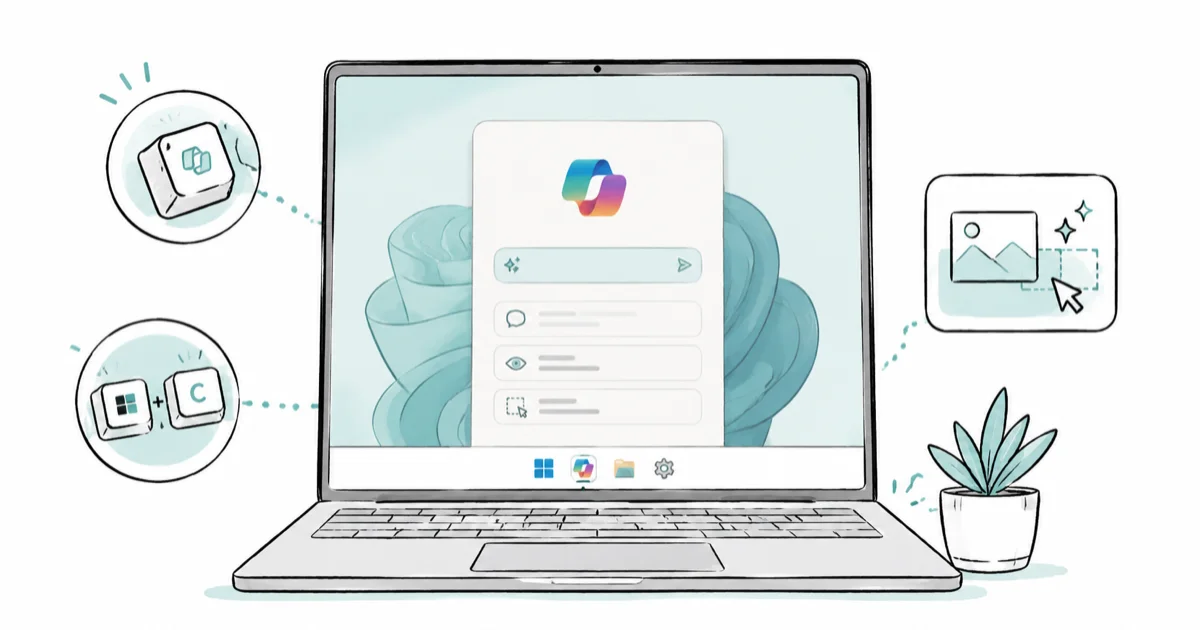
Quick AnswerOpen Copilot in Windows 11 from the taskbar icon, the dedicated Copilot key, or by pressing Win+C. From there you can ask questions, summarize on-screen content with Copilot Vision, and trigger actions with Click to Do, with some features limited to Copilot Plus PCs.
Copilot in Windows 11 is the AI assistant built into the operating system itself, reachable from a taskbar icon, a dedicated key, or the Win+C shortcut. This guide covers what it does inside Windows specifically, including Copilot Vision and Click to Do, and which features need a Copilot Plus PC.
This is the in-Windows angle. For the broader web and chat app, see the full Microsoft Copilot guide linked below.
- Win+C, the dedicated Copilot key, and the taskbar icon all open Copilot, and you can pin or unpin it freely
- Copilot Vision can look at your screen and summarize or explain what is on it during a shared session
- Click to Do lets you act on on-screen text and images, but it’s a Copilot Plus PC feature, not standard Windows 11
- Copilot Plus PCs need a neural processing unit rated at 40+ TOPS to run on-device features like Recall and Click to Do
- On a standard Windows 11 PC, chat and Vision are the parts you’ll actually use day to day
#How Do You Open Copilot in Windows 11?
You have three quick ways in. The simplest is the Win+C shortcut, which launches Copilot from anywhere in Windows.
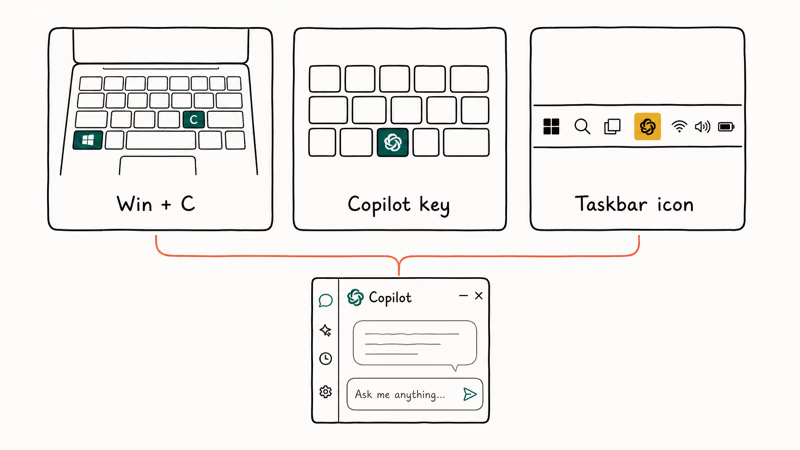
According to Microsoft’s getting started with Copilot guide, you can also open it from the taskbar icon, the Start menu, or a dedicated Copilot key if your keyboard has one. That key arrived on new devices in 2024 and sometimes replaces the right Ctrl key.
If Win+C does nothing, the shortcut may be off. Microsoft’s guide states that you enable it under Settings, then Personalization, then Taskbar, where you turn on the Copilot toggle. Once it’s on, the shortcut and the taskbar icon both wake Copilot.
#What Copilot Can Do Inside Windows
Most of what you’ll use is conversational. Ask a question, draft an email, summarize pasted text, or generate an image, all in a side panel over your work.
It answers questions about Windows itself, too. Ask where a setting lives, and Copilot points you to it, which pairs well with the Windows 11 25H2 new features it builds on.
Just don’t expect it to reconfigure Windows for you yet. The deep system-action features are still maturing, so today Copilot is more of a guide and a drafting tool than a hands-on operator that flips your switches for you, walks settings menus on its own, or makes changes without you doing the clicking. Coming from another assistant? Our ChatGPT vs Claude vs Gemini comparison shows how the chat side stacks up.
#Copilot Vision and Click to Do, Explained
Copilot Vision is the feature that lets Copilot see your screen. You start a session, share a window, and ask it to summarize an article or explain a chart. Because Vision is cloud-based, it can summarize or explain shared content without requiring Copilot Plus hardware.
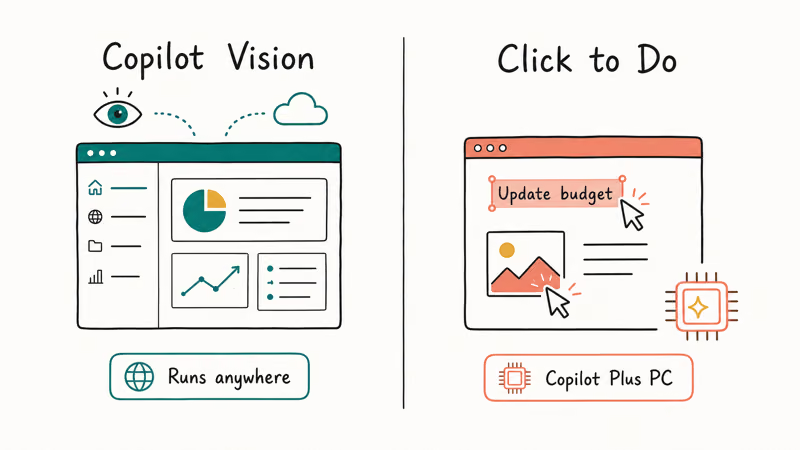
Click to Do is the more powerful, more restricted cousin. Microsoft’s Click to Do guide states that it identifies text and images on screen so you can act on them, processed on-device rather than in the cloud.
The catch is hardware. Click to Do is tied to Recall and the Copilot Plus platform, so a standard machine doesn’t have it. On a non-Copilot Plus PC, Click to Do stays unavailable while Vision can still work, which is the clean line between cloud features that run anywhere and on-device features that need the new chip.
#Copilot App vs Copilot on the Web
Two front doors lead to similar places. The Windows app and the web version at copilot.microsoft.com share your chat history and most features when you sign in with the same Microsoft account, so your conversations follow you between them without any extra setup or export.
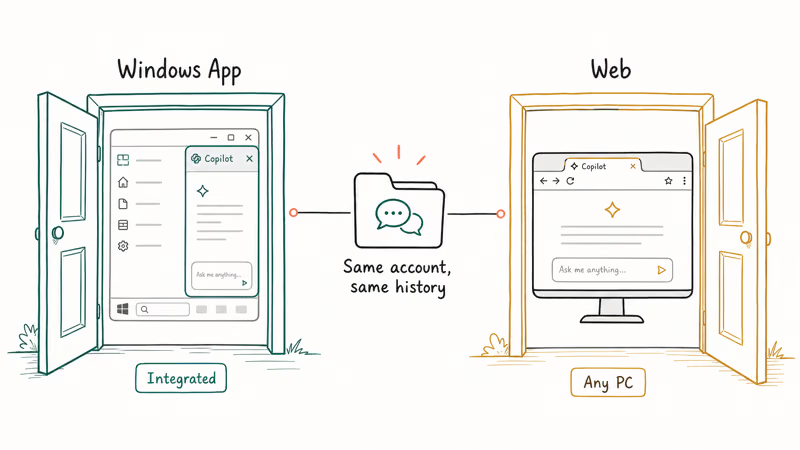
The app’s advantage is integration. It launches from the key, sits over your desktop, and hooks into Windows-only features like Vision. The web version is just a browser tab, fine on a borrowed PC.
If you only want the assistant, either works. The full Microsoft Copilot guide covers the chat, drafting, and image features that carry across both.
#Which Features Need a Copilot Plus PC?
This is the line that confuses people. On-device AI like Recall and Click to Do needs Copilot Plus hardware. Cloud-based features like the chat panel and Vision run on any Windows 11 PC.
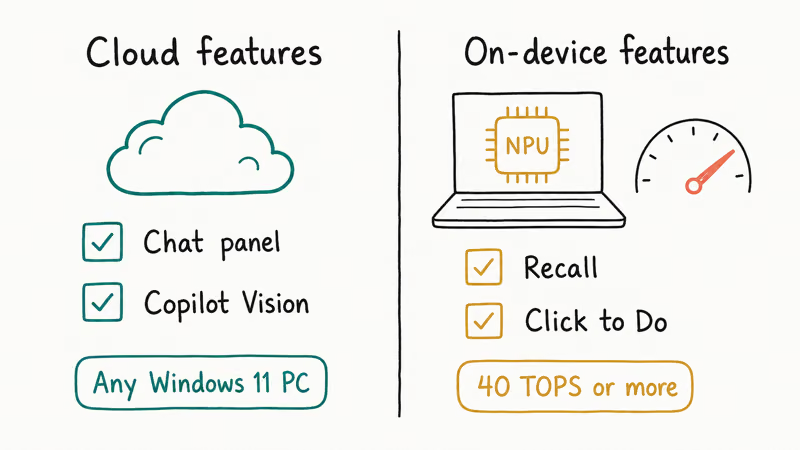
Microsoft’s Copilot Plus PC requirements page states that these machines need a neural processing unit doing more than 40 trillion operations per second, or 40 TOPS. You can confirm the figure on the Copilot Plus PC requirements page. A regular laptop chip can’t reach that, which is why the on-device features stay locked to the newer hardware.
Not sure which camp your PC falls in? The guide to checking if your PC can run Windows 11 helps you read the hardware. A Copilot Plus badge or an NPU line in the specs is the tell.
#Customizing the Copilot Key and Shortcut
The Copilot key isn’t locked to Copilot. If you’d rather it do something else, remap it under Settings, Bluetooth and devices, Keyboard, where Windows lets you point it at a different app or function.
You can also tune the Win+C behavior. Microsoft’s settings let the shortcut open the full app or a smaller quick view, so pick whichever fits how you work. If you lean on AI for writing tasks, the walkthrough on using AI to make a resume shows the kind of drafting Copilot handles well once you’ve got it open.
#Bottom Line
For most Windows 11 users, Copilot is most useful as a fast on-screen helper. Press Win+C or the Copilot key, ask a question, or use Vision to summarize what’s in front of you. Don’t expect it to deeply reconfigure Windows yet, since the OS-action features are still maturing and several, like Click to Do and Recall, require a Copilot Plus PC. If you’re on a standard machine, the chat and Vision features are what you’ll actually use day to day.
#Frequently Asked Questions
How do I open Copilot in Windows 11?
Press Win+C, tap the Copilot key if you have one, or click the taskbar icon. If Win+C does nothing, enable the Copilot toggle under Settings, Personalization, Taskbar first.
What does the Copilot key do?
It launches Copilot with one press. The key appeared on new keyboards in 2024 and you can remap it in Settings.
Is Copilot in Windows 11 free?
Yes, the core chat and Vision features are free with a Microsoft account, and you can open the assistant, ask questions, draft text, and summarize on-screen content at no cost. A paid Copilot subscription unlocks higher usage limits and some advanced features, but everyday use needs no payment at all.
What is Copilot Vision?
Copilot Vision looks at a window you choose to share, then summarizes or explains what’s on it. You start the session deliberately, so it only sees what you point it at.
Do I need a Copilot Plus PC to use Copilot?
No. The chat panel and Copilot Vision run on any Windows 11 PC. You only need a Copilot Plus PC for on-device features like Click to Do and Recall, which depend on a fast NPU rated at 40 TOPS or more, so the everyday assistant is open to everyone regardless of hardware.
Can Copilot change my Windows settings for me?
Not deeply, at least not yet. Copilot can tell you where a setting lives and walk you through changing it, but the OS-action features that let it flip settings directly are still maturing and limited in what they touch.

Google Messages Error 3100: Why RCS Is Broken on Galaxy
Google Messages RCS error 3100 hits Galaxy owners after phone or carrier switches. Google told 9to5Google a fix is coming. Here's what actually helps.

Is This Bank App Real? Spot a Fake App on Your Home Screen
A bank app can land on your home screen from a web page with no install warning. Learn the checks that tell a real banking app from a phishing web app.

Apps Crashing After iOS 27 Update? Fix Order (2026)
Apps crashing after the iOS 27 update? Update the app in the App Store first, then offload and reinstall to clear stale cache, then restart. The fix order.

Do AI Translation Earbuds Work Offline? What to Know
Do AI translation earbuds work offline? A few do with downloaded language packs, but most need the cloud. Here's what works offline and what you give up.