How to Get Administrator Privileges on Windows 7 (3 Methods)
Get administrator privileges on Windows 7 with three methods: Safe Mode login, CMD commands, and password reset tools. Step-by-step with exact commands.

Quick AnswerTo get administrator privileges on Windows 7, boot into Safe Mode (press F8 at startup), click the built-in Administrator account on the login screen, then go to Control Panel > User Accounts to change your account type to Administrator.
Getting administrator privileges on Windows 7 lets you install software, change system settings, and manage user accounts. Start with the built-in Administrator account when it hasn’t been disabled, then use Command Prompt or a recovery tool if Safe Mode isn’t enough.
Before changing these settings, use the steps only on your own device, computer, or account, or with explicit permission from the owner. Unauthorized access can violate law, privacy rights, and platform terms, so don’t use this guide to bypass someone else’s controls. When available, start with the official support option, built-in settings menu, or vendor documentation before trying manual fixes, especially if the device or account belongs to work, school, or another person.
- Boot into Safe Mode by pressing F8 at startup and log in as the built-in Administrator account.
- From Safe Mode, go to
Control Panel>User Accountsto change any account to Administrator. - Use CMD with “net user [username] /add” and “net localgroup administrators” to create a new admin account.
- The built-in Administrator account has no password by default unless someone set one manually.
- If both methods fail, a Windows password reset tool can help recover access when Safe Mode and CMD aren’t available.
#Method 1: Safe Mode and the Built-In Administrator Account
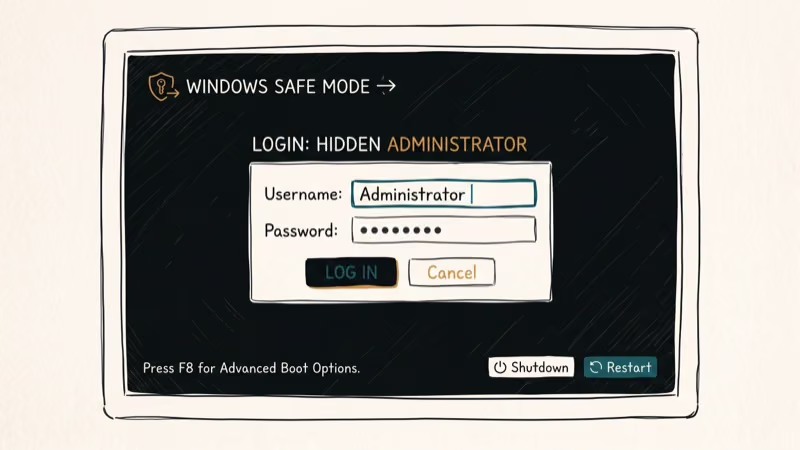
Windows 7 includes a hidden built-in Administrator account. In Safe Mode, this account appears on the login screen even if it’s not visible during normal boot.
- Restart your PC. Before Windows loads, press F8 repeatedly to open Advanced Boot Options.
- Select Safe Mode using the arrow keys and press Enter.
- When the login screen appears, click Administrator. No password is required by default.
- Once logged in, open Start > Control Panel > User Accounts and Family Safety.
- Click Add or remove user accounts.
- Select your standard account and click Change the account type.
- Choose Administrator and click Change Account Type.
Restart the PC to boot normally. Your account now has administrator privileges. According to Microsoft’s Windows 7 help documentation, the built-in Administrator account is disabled by default on clean installs but enabled on upgrades from Vista.
#Method 2: Create a New Admin Account Using Command Prompt
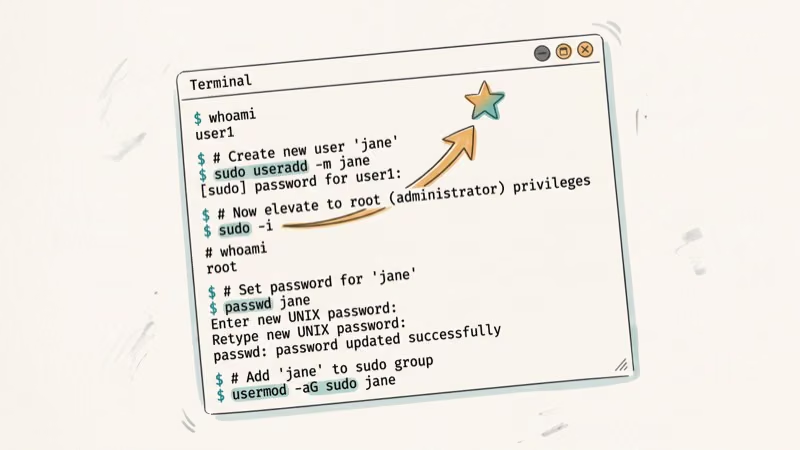
If the Safe Mode method doesn’t work or you need a separate admin account, use Command Prompt.
Requirements: You must be logged into an account with existing admin access. This method creates an additional admin account, not bypasses a completely locked one.
- Click Start and type
cmdin the search box. - Right-click Command Prompt and select Run as administrator.
- Type the following command and press Enter:
net user NewAdminName NewPassword /addReplace NewAdminName with your chosen username and NewPassword with a password.
- Now add the new user to the Administrators group:
net localgroup administrators NewAdminName /add- Press Enter. You’ll see “The command completed successfully.”
- Log out and log in with the new administrator account.
According to Microsoft’s command-line reference, the net localgroup command changes group membership immediately, no restart required. After both commands complete, log out and choose the new administrator account from the login screen.
#Getting Admin Privileges When Completely Locked Out
Yes, but only through specific recovery methods. If you’re completely locked out (no account with admin access), you need to boot from external media.
The Safe Mode trick in Method 1 works if the built-in Administrator account is active. If it’s been disabled, you’ll need a Windows 7 password reset tool. Tools like Windows 7 Password Reset Tool can boot from USB or DVD and reset any account password, including the Administrator account.
Also useful if you’re locked out: how to factory reset Windows 10 without a password for a clean start, or how to reset an HP laptop password without a disk for laptop-specific methods.
#What Do Administrator Privileges Actually Let You Do?
With admin access, you can:
- Install and uninstall software system-wide
- Change system settings including network, display, and power
- Access and modify other users’ files and folders
- Enable or disable Windows features
- Change UAC (User Account Control) settings
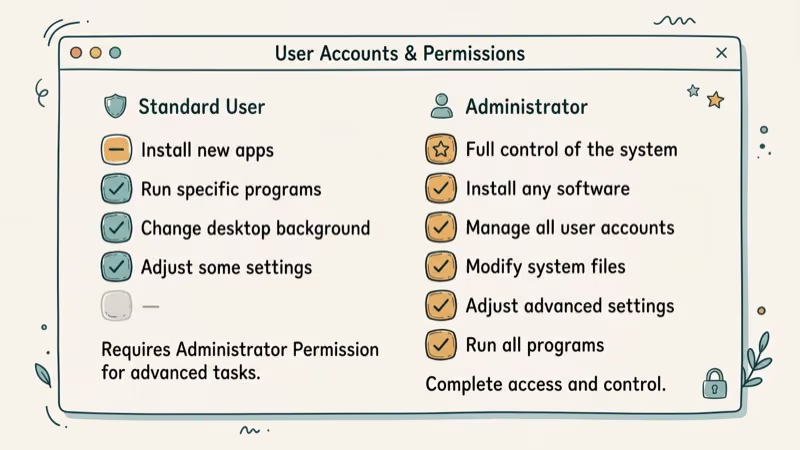
Without admin privileges, Windows blocks these actions with a UAC prompt asking for an administrator password. According to Wikipedia’s article on Windows User Account Control, running as a standard user for daily tasks and only elevating to admin when needed significantly reduces malware infection risk. Microsoft’s own research has confirmed that the vast majority of critical Windows vulnerabilities can’t be exploited when the user is not running as an administrator.
#How Do You Check Your Current User Privileges?
- Open
Start>Control Panel>User Accounts. - Your account name appears with your account type (“Administrator” or “Standard user”).
Alternatively, run this command in CMD: net user YourUsername. Look for the “Local Group Memberships” line. It shows whether you’re in the Administrators group.
#Bottom Line
Use Safe Mode (Method 1) first. It’s the simplest approach on Windows 7 machines where the built-in Administrator account hasn’t been explicitly disabled. If you need to add a new admin account without changing an existing one, Method 2 with CMD is the direct option.
If you’ve forgotten your admin password entirely, a Windows 7 password reset tool is your safest recovery option. For Windows 10 admin issues, the steps are different. See how to reset admin password on Windows 10.
#Frequently Asked Questions
Can you get administrator privileges on Windows 7 without a password?
Yes, via Safe Mode. The built-in Administrator account on Windows 7 has no password by default. Boot into Safe Mode by pressing F8 at startup, click Administrator on the login screen, and you’re in without needing a password.
Why doesn’t the Administrator account appear in Safe Mode?
The built-in Administrator account may have been manually disabled. To check, boot from a Windows 7 recovery disk and enable it using: net user administrator /active:yes in the recovery command prompt.
What is the difference between Administrator and Standard user in Windows 7?
Administrators have full system access including software installation, system settings, and user management. Standard users can run programs and change personal settings but can’t install system-wide software or modify other users’ accounts.
Is it safe to run Windows 7 in administrator mode all the time?
No. Running as an administrator increases the risk of malware gaining system access. Use a standard account for daily tasks and only elevate privileges when needed. Windows 7’s UAC prompts exist specifically to enforce this practice.
Will these methods work on Windows 10 or Windows 11?
Partially. Safe Mode still works in Windows 10 and 11, but the login behavior is different. The CMD method with net user works across all Windows versions. For Windows 10-specific admin issues, check the dedicated guide on resetting the admin password on Windows 10, and the forgot laptop password recovery guide covers Microsoft and Apple ID recovery paths.
How do you re-disable the built-in Administrator account after using it?
Open CMD as an administrator and run: net user administrator /active:no. This re-hides the Administrator account from the login screen. It’s good practice to disable it again after making the changes you needed to make.

Best Laptop for Running LLMs in 2026: Memory Comes First
The best laptop for running LLMs is a memory purchase first. Compare MacBook unified memory against NVIDIA laptop VRAM, and see what each tier really runs.

How to Run a Local LLM on Windows: A 2026 Setup Guide
Run a local LLM on Windows with LM Studio or Ollama. Pick a model that fits your GPU memory, keep every prompt offline, and skip the monthly bill.

Bluetooth Not Working on Snapdragon X? Fixes for 2026
Bluetooth not working on your Snapdragon X Copilot+ PC? Generic audio, mice, and keyboards work, but vendor apps often lack an ARM build. Fixes inside.

Docker Desktop and WSL2 Not Working on Snapdragon X? Fix It
WSL2 runs fine on Snapdragon X, but Docker Desktop ARM is Early Access and throws WSL errors. Use WSL2 plus native ARM64 Ubuntu and Docker Engine.