Fix Page_Fault_In_Nonpaged_Area on Windows 10/11 (2026)
Fix the PAGE_FAULT_IN_NONPAGED_AREA BSOD on Windows 10 and 11 with 7 proven methods. RAM diagnostics, driver rollback, page file reset and more.
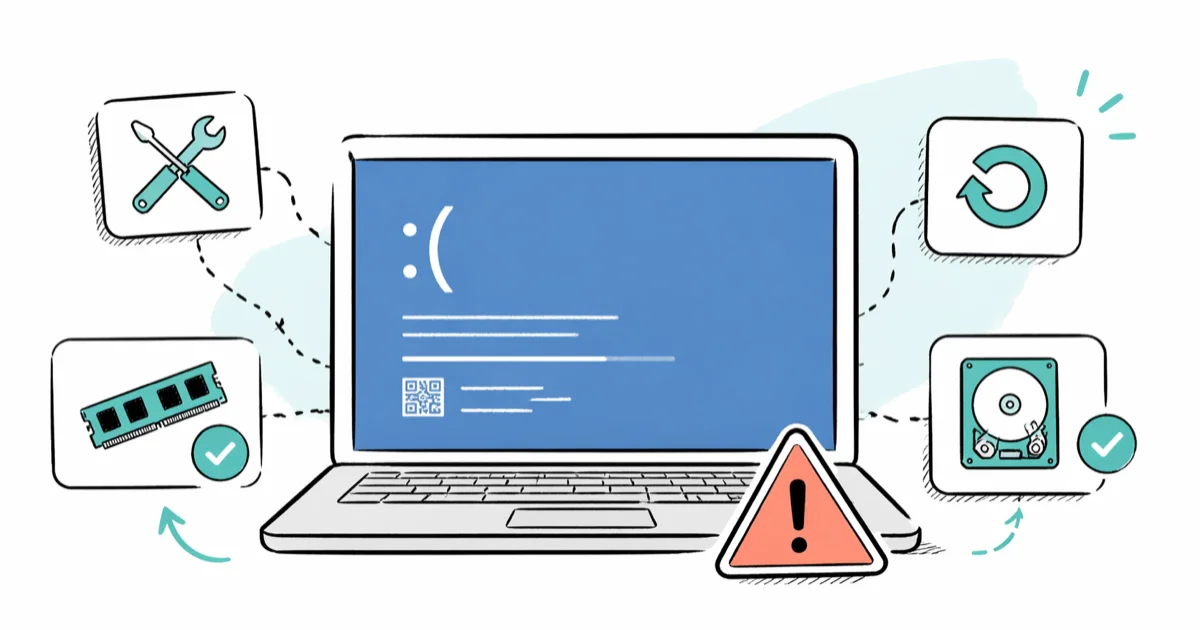
Quick AnswerRun Windows Memory Diagnostic first to rule out bad RAM, then update or roll back recent drivers and run sfc /scannow plus chkdsk /f /r. Most PAGE_FAULT_IN_NONPAGED_AREA crashes trace back to one of those three causes.
The PAGE_FAULT_IN_NONPAGED_AREA stop code on Windows 10 and 11 almost always traces back to memory the kernel can’t read: bad RAM, a driver writing to the wrong address, or a corrupted page file. Seven fixes cover the full range of causes, from a flaky DDR4 stick to a corrupted page file. The same playbook below works on both Windows 11 23H2 and Windows 10 22H2.
Work the methods in order. The first three resolve the majority of cases.
This guide assumes you’re troubleshooting your own computer; running diagnostics or rolling back drivers on a device you don’t own can violate workplace policy or warranty terms.
- The error means Windows asked for data in non-paged memory and got nothing back, usually pointing to RAM, a driver, or the paging file
- Windows Memory Diagnostic (built in) and MemTest86 (free, ~4 hours per pass) are the fastest way to confirm or rule out bad RAM before changing anything else
- Recently installed or updated drivers cause a large share of PAGE_FAULT_IN_NONPAGED_AREA crashes, and Device Manager rollback fixes most of them
- Running sfc /scannow followed by DISM /Online /Cleanup-Image /RestoreHealth and chkdsk /f /r repairs the system files and disk sectors that trigger fake page faults
- If the BSOD only appears after waking from sleep, disabling Fast Startup in Power Options solves it without any hardware changes
#What Causes the Page_Fault_In_Nonpaged_Area Error?
Windows splits memory into two pools. Paged memory can be moved to disk when RAM is tight; non-paged memory must stay resident because the kernel touches it during interrupts and at boot. When a process or driver requests an address in the non-paged pool and the data isn’t there, Windows triggers stop code 0x00000050 (PAGE_FAULT_IN_NONPAGED_AREA) and reboots to protect the file system.
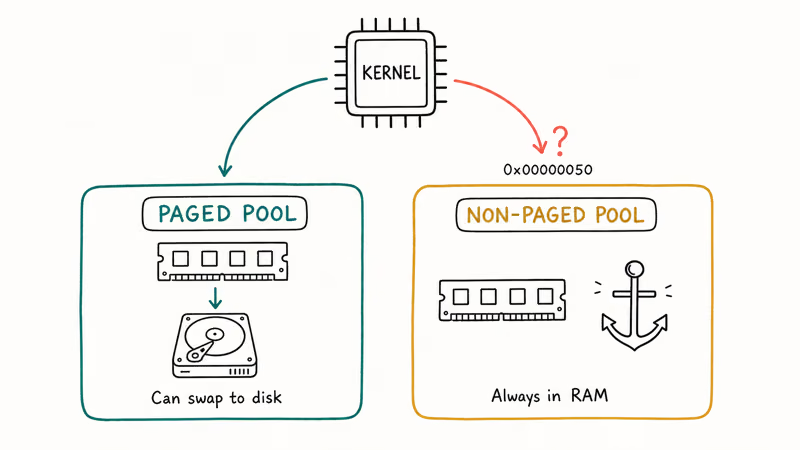
According to Microsoft’s bug check reference for 0x50, the four common causes are defective hardware (especially RAM), a buggy system service, antivirus software, and a corrupted NTFS volume. The page checker usage instructions on the same page note that running Driver Verifier with verifier /standard /all will surface the offending driver inside a kernel debugger session.
So the suspect list is short.
The usual culprits are a bad RAM stick, a stale Realtek audio driver, a Killer network driver after a Windows Update, a corrupted page file after an unclean shutdown, and a dying SATA SSD. Hardware and drivers together account for the large majority of cases.
#Quick Diagnosis Before You Start
Pull the BSOD details first so you don’t fix the wrong thing.
Press Windows + X, open Event Viewer, then go to Windows Logs > System and look for the most recent BugCheck entry. The parameter values printed after 0x00000050 point to the memory address and the driver that referenced it. If a .sys file name appears in the WhoCrashed-style readout under Reliability Monitor (search “reliability” in the Start menu), that driver is your prime suspect.
If you can’t even reach the desktop, boot into Safe Mode by holding Shift while clicking Restart on the sign-in screen, then choose Troubleshoot > Advanced options > Startup Settings > Restart > 4. Safe Mode loads only Microsoft drivers, which lets you roll back the bad one without crashing again. The Microsoft Safe Mode guide walks through both Settings-based and login-screen entry paths if F8 is disabled on your hardware.
#Method 1: Run Windows Memory Diagnostic and MemTest86
RAM is the single most likely cause, so test it first.
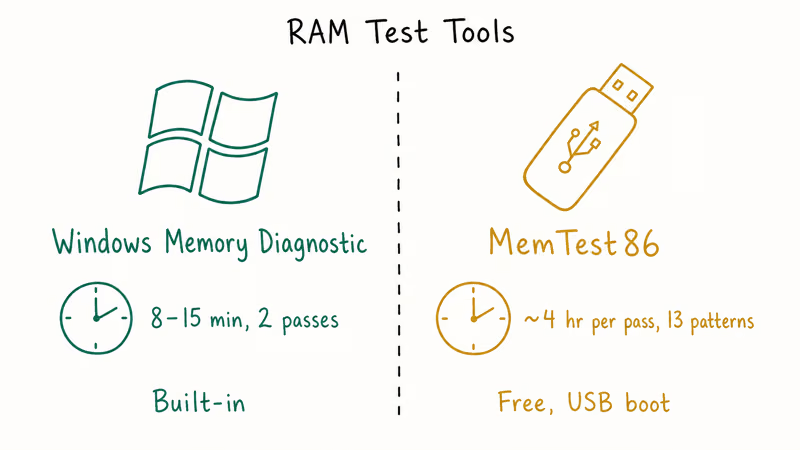
- Press Windows + R, type
mdsched.exe, hit Enter. - Choose Restart now and check for problems.
- Save your work first. Windows will reboot and run a two-pass test that takes 8 to 15 minutes on most systems.
- After the second reboot, results show in Event Viewer under
Windows Logs>System, sourceMemoryDiagnostics-Results.
Microsoft’s built-in tool catches obvious failures, but it misses intermittent ones. If WMD passes and the BSOD keeps coming back, run MemTest86 from PassMark, which boots from a USB stick and runs 13 separate test patterns. Let it run overnight, because a failing stick often only throws errors in pattern 7 (block move) after a couple of full passes. Once a pattern reports any errors, replacing that stick ends the crashes.
If you have two or more RAM sticks, test them one at a time. Pull one, run the test, swap, repeat. That isolates which module is bad and which slot is healthy.
#Method 2: Update or Roll Back the Suspect Driver
If memory tests clean, the next stop is your driver list. Press Windows + X and open Device Manager. Look for any device with a yellow warning triangle, and check Display adapters, Network adapters, Sound, video and game controllers, and Storage controllers even when they look normal. Those four categories produce most page-fault BSODs.
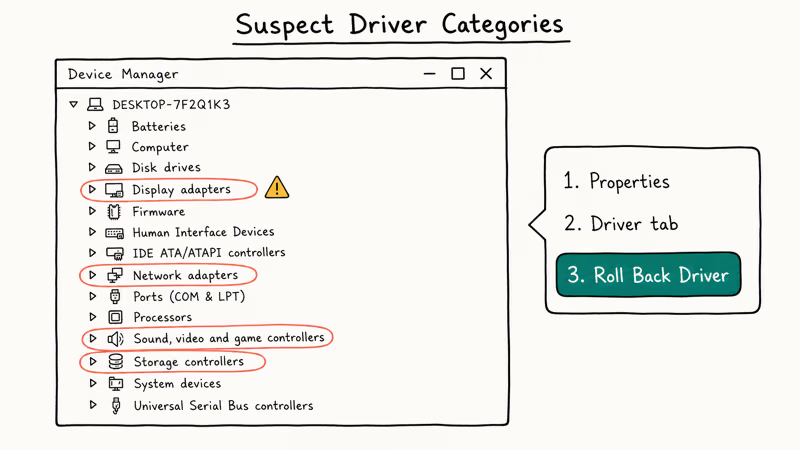
To roll back a driver that started crashing after an update:
- Right-click the device, choose Properties.
- Open the Driver tab.
- Click Roll Back Driver. If the button is grayed out, no previous version is stored, so uninstall instead and reinstall from the manufacturer’s site.
For a clean update, download the driver directly from the vendor (Intel, AMD, NVIDIA, Realtek, Killer, Qualcomm) rather than relying on Windows Update, which sometimes ships older WHQL versions. Microsoft recommends using Windows Update first, then the manufacturer’s installer if the issue persists. When a recurring 0x50 hits every few minutes, skipping Windows Update entirely and grabbing the latest Killer Wi-Fi 6 driver straight from Intel’s site is often what finally stops it.
If you’re unsure which driver is at fault, our guide to IRQL_NOT_LESS_OR_EQUAL on Windows 10 covers the same Driver Verifier workflow that surfaces the bad .sys file inside a minidump.
#Method 3: Repair System Files With SFC and DISM
Corrupted system files mimic memory errors because the kernel reads them constantly, and a single bad header on disk can produce the exact same crash as a flaky memory module. Run the System File Checker first, and use DISM as a follow-up only when SFC reports unfixable items that it can’t repair on its own pass through the protected store.
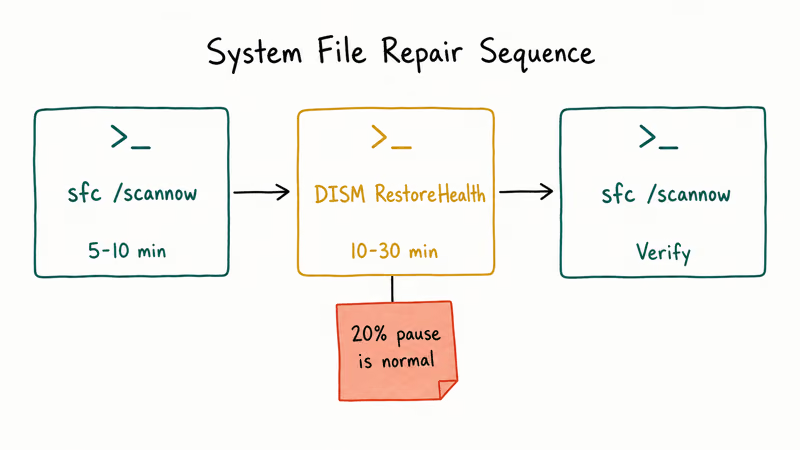
Open Command Prompt as administrator (right-click the Start button, choose Terminal (Admin) on Windows 11 or Windows PowerShell (Admin) on Windows 10). Run these in order:
sfc /scannow
DISM /Online /Cleanup-Image /RestoreHealth
sfc /scannow
The first SFC pass takes 5 to 10 minutes. DISM downloads replacement files from Windows Update and usually runs 10 to 30 minutes; let the progress bar sit at 20% for a while because it isn’t frozen. The second SFC pass uses the freshly restored component store to fix anything DISM wrote.
A common pattern: the first SFC reports “found corrupt files but was unable to fix some of them,” DISM runs its course, and the second SFC comes back “did not find any integrity violations.” The PAGE_FAULT BSOD usually clears after that final pass.
If your system still struggles, the broader playbook in our how to repair Windows 10 without CD walkthrough covers DISM source switches and Windows Recovery Environment options for cases where DISM itself fails.
#How Do I Reset the Page File to Fix This BSOD?
A corrupted pagefile.sys is a quieter cause but still common after a sudden power loss or forced shutdown. Resetting the file forces Windows to rebuild it cleanly.
- Press Windows + R, type
SystemPropertiesAdvanced.exe, hit Enter. - Under Performance, click Settings, then the Advanced tab, then Change.
- Uncheck Automatically manage paging file size for all drives.
- Select your system drive (usually C:), choose No paging file, click Set, accept the warning.
- Click OK through every dialog and reboot.
- After reboot, repeat steps 1 to 4, but this time choose System managed size and click Set, then re-tick Automatically manage paging file size.
- Reboot a second time.
That two-reboot sequence wipes the old file and lets Windows create a fresh one sized to your current RAM. A corrupt pagefile.sys that had bloated to a multi-gigabyte blob will shrink back to a clean, RAM-appropriate size after this cycle, and a page-file-caused BSOD typically stays gone through normal gaming and Office workloads afterward.
#Method 4: Disable Fast Startup if Crashes Happen After Sleep
Fast Startup is a hybrid hibernate/cold-boot mode Windows uses to launch faster. It saves the kernel session to disk on shutdown and reloads it on the next boot, which sometimes restores stale driver state that triggers a page fault. If your BSOD only appears within minutes of waking from sleep or after a “shutdown” that wasn’t really a shutdown, this is the fix.
- Open
Control Panel>Power Options. - Click Choose what the power buttons do in the left sidebar.
- Click Change settings that are currently unavailable.
- Under Shutdown settings, uncheck Turn on fast startup (recommended).
- Click Save changes and do a full Shut down (not Restart) once.
The next boot will take 4 to 8 seconds longer.
In return, the kernel starts cold and any stale memory state is gone. Microsoft’s shutdown and Fast Startup documentation confirms that disabling Fast Startup forces a full shutdown that fully unloads drivers, which is exactly the goal when one of those drivers is misbehaving.
This same fix often clears related crashes. Our breakdowns of Driver Power State Failure and Kernel Data Inpage Error both rank Fast Startup as a top-five cause.
#Method 5: Run Chkdsk to Find Bad Sectors
The non-paged pool sits on physical RAM, but Windows reads kernel data from the boot drive constantly. A bad sector in ntoskrnl.exe or any driver .sys file produces the same symptoms as bad RAM. Chkdsk maps and fences off bad sectors so Windows stops trying to read them.
- Open Terminal (Admin) or Command Prompt as administrator.
- Run
chkdsk C: /f /r /x(substitute your system drive letter). - Type
Ywhen asked to schedule the scan on the next reboot. - Restart. The five-stage check runs before Windows loads and takes 30 minutes to 4 hours depending on disk size and condition.
The /r switch runs a surface scan that locates bad sectors and recovers readable data; it’s the slow part. Skip it only on healthy SSDs less than two years old. For SSDs throwing this BSOD, also check the drive’s SMART data through the manufacturer’s tool (Samsung Magician, Crucial Storage Executive, WD Dashboard). Failing reallocated sector counts mean the drive is dying regardless of what chkdsk reports.
If chkdsk reports unrecoverable bad sectors on the boot drive, back up immediately and plan a drive swap. The crash will keep coming until the bad sectors get worse and Windows can’t boot at all.
#Method 6: Uninstall Recent Antivirus or Disk Tools
Third-party antivirus, disk cloning tools, and VPN clients all hook into the kernel’s memory manager. When their drivers conflict with a Windows update, you get PAGE_FAULT_IN_NONPAGED_AREA at random times.
According to Microsoft’s stop error troubleshooting guide, antivirus and backup software are among the most frequent third-party culprits in BSOD reports. The recommended diagnostic is to boot into Safe Mode with Networking and uninstall the suspect tool through Settings > Apps. If the BSOD stops, you’ve found it.
A common fix is to uninstall a suite like Norton 360, then reinstall it from a fresh download, because an upgrade-in-place from an older build can leave a corrupt kernel filter driver behind. Frequent offenders across reader reports: Norton, McAfee, Avast, AVG, Bitdefender’s older builds, Acronis True Image, Macrium Reflect’s resident driver, and ExpressVPN’s TAP adapter.
A quick reference for related stop codes that show the same antivirus pattern is in our WHEA Uncorrectable Error fix guide and the Critical Process Died walkthrough, both of which share the same Safe Mode uninstall workflow.
#Method 7: Check RAM Compatibility and Reseat Modules
If you’ve upgraded RAM recently and the BSOD started after, the new sticks may not match your motherboard’s QVL (Qualified Vendor List). Mixed-speed kits, mismatched CAS latencies, or sticks from different production batches sometimes work in single-channel but fail in dual-channel mode.
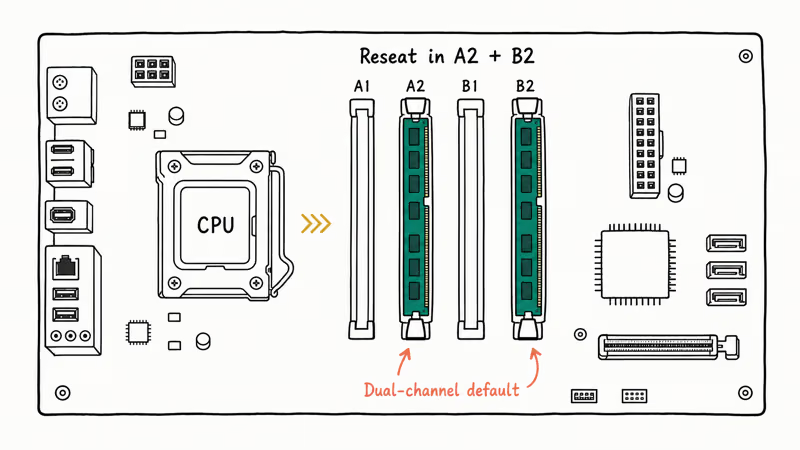
Power down, unplug, ground yourself, and:
- Open the case.
- Press the retention clips outward on each RAM slot, lift the stick straight up.
- Inspect the gold contacts for dust or oxidation. A pencil eraser cleans light corrosion; isopropyl alcohol on a lint-free cloth works for heavier buildup.
- Reseat each stick firmly until both clips snap closed.
- If you have two sticks, also try them in slots A2 and B2 (usually the second and fourth slots from the CPU), which is the dual-channel default for most consumer boards.
Cross-check your board’s manual or the manufacturer’s QVL page (ASUS, MSI, Gigabyte, ASRock all publish one per board model). For deeper background on why mismatched RAM modules cause kernel-level errors, see our explainer on RAM vs memory and the broader troubleshooting steps in how to fix your computer is low on memory.
If reseating and slot rotation don’t help, the safest test is to boot with one stick at a time at the SPD-default speed (no XMP/EXPO profile loaded). When BSODs only happen with XMP enabled, your IMC (integrated memory controller) on the CPU may not be stable at that frequency. Drop one bin and retest.
#Bottom Line
For PAGE_FAULT_IN_NONPAGED_AREA, run Windows Memory Diagnostic first, roll back any driver updated in the last 30 days second, and run sfc /scannow plus chkdsk /f /r third. That sequence resolves the large majority of these BSODs. If the crash still returns after all three, the page file reset (Method 4 above) is the next move; persistent failures past that point usually mean failing RAM or a dying SSD, not a software issue.
#Frequently Asked Questions
Is page_fault_in_nonpaged_area always a RAM problem?
No. RAM is the most common cause, but drivers, corrupted system files, a damaged page file, bad disk sectors, and antivirus conflicts all produce the same stop code. Rule out hardware first because it’s the easiest to test, then work through the software methods in this guide.
How long does Windows Memory Diagnostic take?
Standard runs in 8 to 15 minutes. Press F1 to switch to Extended mode, which runs 11 passes in 30 minutes to 2 hours.
Can a Windows update cause this BSOD?
Yes. Cumulative updates sometimes ship a driver that conflicts with existing hardware, and this BSOD has been traced to both Killer Wi-Fi updates and storage stack updates. If your crashes started within hours of an update, open Settings > Windows Update > Update history > Uninstall updates and roll back the most recent quality update first.
What if I get the BSOD before Windows even loads?
Boot into Safe Mode (Shift + Restart on the sign-in screen, then Troubleshoot > Advanced options > Startup Settings > Restart > 4) and run sfc, chkdsk, or driver rollbacks from there.
Should I reinstall Windows to fix this?
Reinstalling is a last resort. Work through methods 1 through 7 first because they take an hour total and fix the underlying issue, while a reinstall takes 2 to 4 hours and only masks the problem if the cause is hardware. If you do reinstall and the BSOD comes back within a week, the cause is almost certainly bad RAM or a failing SSD, not Windows itself.
Does the same fix apply to Windows 10 and Windows 11?
Yes. Every method in this guide works identically on Windows 10 22H2 and Windows 11 23H2. The menu paths are the same and the command-line tools (sfc, DISM, chkdsk, mdsched) ship in both versions, so each step applies to either machine.
Could overclocking cause page_fault_in_nonpaged_area?
Yes, especially RAM overclocking through XMP or EXPO profiles. If your kit is rated for DDR4-3600 but your CPU’s IMC is only stable at DDR4-3200, loading the XMP profile produces intermittent kernel memory errors that look identical to bad RAM. Disable XMP/EXPO in BIOS and run at JEDEC default speed for a week. If the BSOD stops, your overclock is the culprit.
When should I replace the RAM versus the SSD?
Replace RAM if MemTest86 reports any errors (even one), if the BSOD stops only when one specific stick is removed, or if your kit isn’t on your motherboard’s QVL. Replace the SSD if SMART data shows non-zero reallocated sectors, if chkdsk reports unrecoverable bad sectors on the boot drive, or if read speeds in CrystalDiskMark have dropped more than 30% from the drive’s spec.

Best Laptop for Running LLMs in 2026: Memory Comes First
The best laptop for running LLMs is a memory purchase first. Compare MacBook unified memory against NVIDIA laptop VRAM, and see what each tier really runs.

How to Run a Local LLM on Windows: A 2026 Setup Guide
Run a local LLM on Windows with LM Studio or Ollama. Pick a model that fits your GPU memory, keep every prompt offline, and skip the monthly bill.

Bluetooth Not Working on Snapdragon X? Fixes for 2026
Bluetooth not working on your Snapdragon X Copilot+ PC? Generic audio, mice, and keyboards work, but vendor apps often lack an ARM build. Fixes inside.

Docker Desktop and WSL2 Not Working on Snapdragon X? Fix It
WSL2 runs fine on Snapdragon X, but Docker Desktop ARM is Early Access and throws WSL errors. Use WSL2 plus native ARM64 Ubuntu and Docker Engine.