How to Fix Critical_Process_Died Error in Windows 10
Fix Critical_Process_Died BSOD in Windows 10 using Safe Mode, sfc /scannow, driver rollback, and malware removal. Step-by-step guide with proven results.
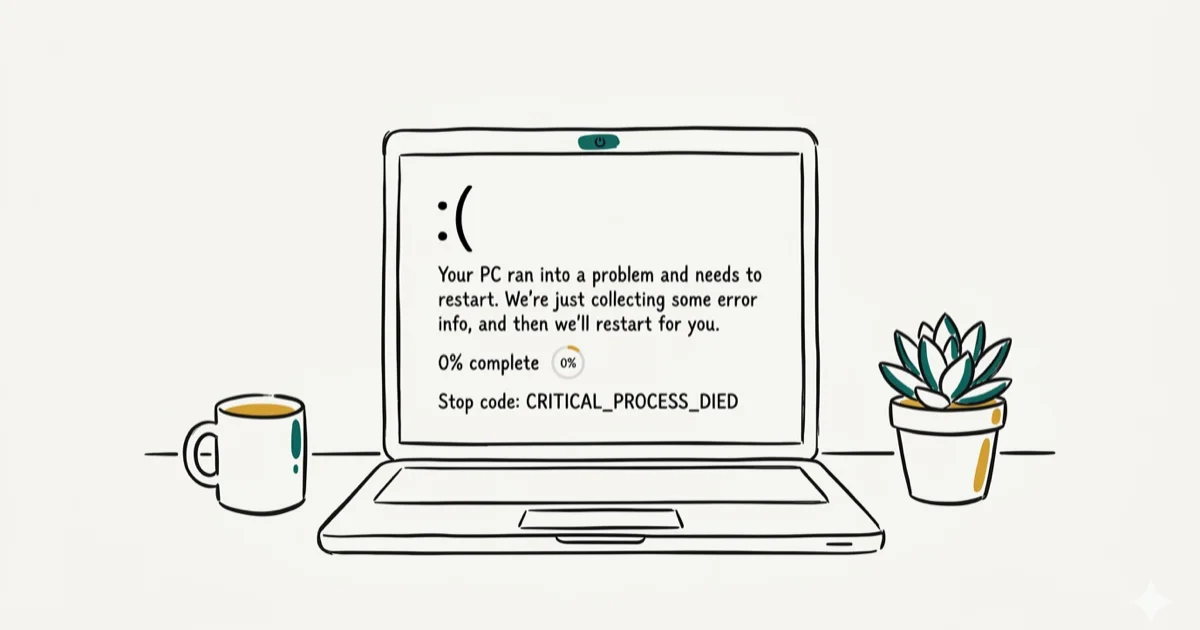
Quick AnswerThe Critical_Process_Died BSOD error appears when Windows detects a critical system process has exited unexpectedly. Restart in Safe Mode, run sfc /scannow, update or roll back recent drivers, and scan for malware. Most cases resolve within 30 minutes using these steps.
The Critical_Process_Died BSOD error stops your PC cold with a blue screen, forcing an automatic restart. The fixes below focus on the usual software causes: corrupted drivers, damaged system files, malware, and recent system changes.
- Critical_Process_Died (stop code 0x000000EF) triggers when Windows detects a core process like winlogon.exe or smss.exe has exited in an invalid state.
- Running sfc /scannow from an elevated Command Prompt repairs corrupted system files without removing user data.
- A clean boot disables all third-party startup items so you can isolate which app or driver is triggering the crash.
- Updating or rolling back a recently installed driver is the fastest fix when the BSOD started right after a Windows Update.
- Malware can corrupt critical processes, so run a full Windows Defender scan before assuming a hardware fault.
#What Is the Critical_Process_Died Error?
Critical_Process_Died (stop code 0x000000EF) means Windows ended a process it can’t run without. The most common triggers are corrupted system files, a driver that modified protected memory, or malware disguising itself as a system process.
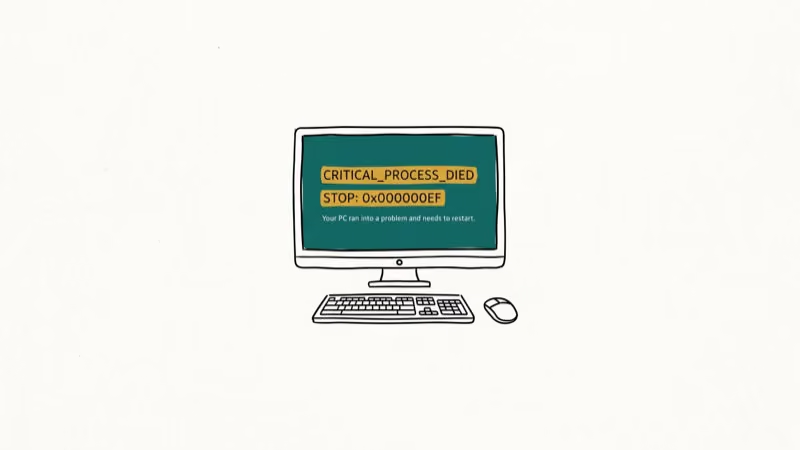
According to Microsoft’s stop code documentation, when a critical system process terminates unexpectedly, Windows halts the OS immediately to prevent data corruption. It’s the stop code’s job to describe exactly what went wrong, not hide it behind a generic code.
You’ll face this BSOD on any Windows version. Many users see it after installing a new driver, a Windows cumulative update, or a third-party app that hooks into system processes. If you’re also seeing Unmountable Boot Volume errors or OBS encoding overloaded issues, those often share driver or file-system root causes.
#Why Does Critical_Process_Died Keep Happening?
The error recurs when the underlying cause isn’t fixed. A bad driver keeps loading on every boot. Corrupted system files stay corrupted until SFC or DISM repairs them. Malware reinstalls itself if only the process is killed without removing the infection.
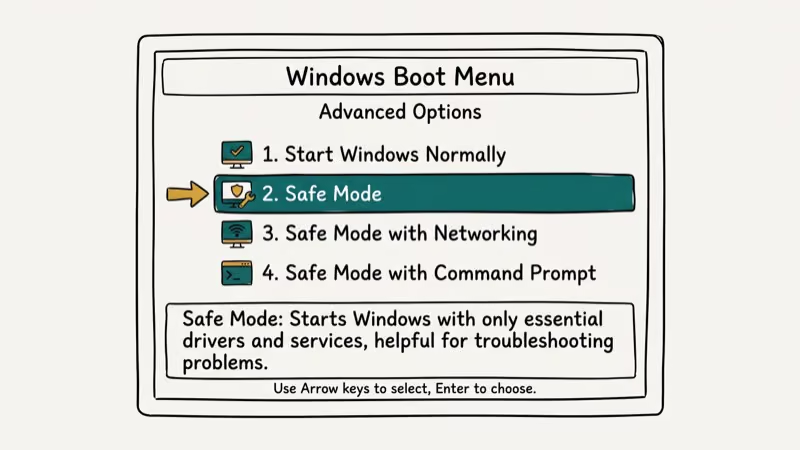
Not everyone gets a crash loop. Some see it once and never again. If your PC reboots into a BSOD before reaching the desktop, boot into Safe Mode first, then apply the fixes below.
Hold Shift and click Restart from the Windows login screen. Then go to Troubleshoot > Advanced Options > Startup Settings and press F4 to enable Safe Mode. This loads only Microsoft-signed drivers. If the BSOD disappears in Safe Mode, a third-party driver or app is the culprit.
#First Steps: SFC Scan and Clean Boot
Work through these two methods first. They target the most common software-side causes before you move into driver and malware checks.
#Method 1: Run System File Checker
SFC is usually the best first step because it checks protected Windows system files before you change drivers or reset Windows.
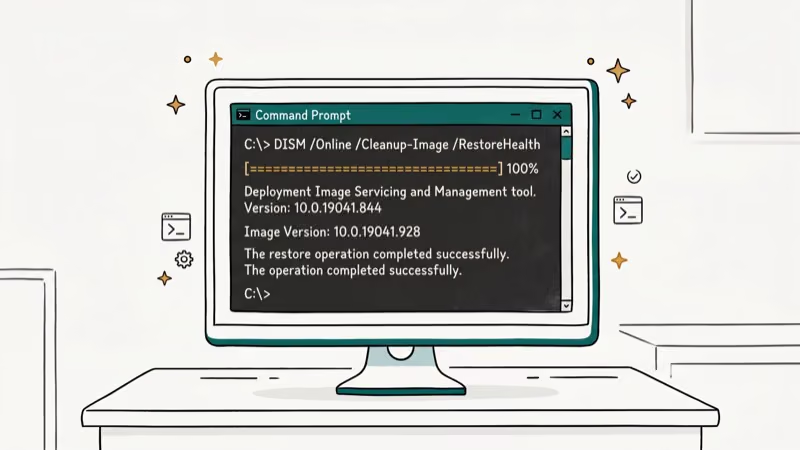
Press Win + S, type cmd, right-click Command Prompt, and select Run as administrator. Type sfc /scannow and press Enter. The scan takes 10 to 20 minutes.
Tom’s Guide recommends running SFC as the first step for BSOD errors because it repairs corrupted system files without removing any user data or programs.
If SFC can’t fix everything, run: DISM /Online /Cleanup-Image /RestoreHealth. Then run SFC again.
#Method 2: Clean Boot to Find the Cause
A clean boot starts Windows with only Microsoft services running. If the crash stops, a third-party program is responsible.
Press Win + R, type msconfig, and press Enter. On the Services tab, check Hide all Microsoft services, then click Disable all. Go to the Startup tab, click Open Task Manager, and disable every startup entry. Click OK and restart.
If the BSOD is gone, re-enable services in batches of 5 to find the problem app, then uninstall or update it.
You can also check the guide on fixing a Windows 10 slow PC for more startup optimization steps.
#Driver and Malware Fixes
If the first two methods don’t resolve it, a driver conflict or malware is the likely cause.
#Method 3: Update or Roll Back Drivers
When the BSOD started after a Windows Update or driver install, rolling back that driver often fixes it immediately.
Right-click Start and select Device Manager. Look for any device with a yellow exclamation mark, then right-click it and choose Update driver or Roll Back Driver. Pay special attention to display adapters, audio devices, and chipset drivers.
If you’re unsure which driver changed, check Windows Update history under Settings > Update & Security > View update history. This is especially effective for default gateway not available situations where network adapters have conflicting driver versions.
#Method 4: Scan for Malware
Malware frequently disguises itself as legitimate Windows processes. A fake or corrupted process triggers Critical_Process_Died when Windows detects the mismatch.
Open Windows Security, go to Virus and threat protection, click Scan options, and choose Full scan. Let it run to completion since it typically takes 30 to 60 minutes.
Remove any threats found, restart, and check whether the BSOD returns. Microsoft’s Safety Scanner page states that the tool runs independently of Windows Defender and can help with malware removal.
#Method 5: Reinstall Problem Drivers
If clean boot identified a specific driver but updating didn’t help, reinstalling from the manufacturer’s website works better than using Windows Update’s version.
Open Device Manager, right-click the problematic device, and select Uninstall device. Restart your PC — Windows reinstalls a basic driver automatically. Then visit the manufacturer’s website (NVIDIA, AMD, Intel, or Realtek) and download the latest stable driver. Install it and restart once more.
#System Restore and Reset Options
If the error persists after all five methods, use a system restore point. Type System Restore in the Start menu search, select a restore point from before the crashes started, and let Windows roll back. You won’t lose personal files, but apps installed after that date are removed.
A Windows 10 reset via Settings > Update & Security > Recovery > Reset this PC keeps your files while reinstalling the OS components cleanly. This fixes even the most stubborn cases where file corruption is too widespread for SFC or DISM to repair.
#Keeping Windows Stable After the Fix
Once the BSOD is gone, a few habits prevent it from returning. Keep Windows Update enabled — cumulative updates include patches for the kernel-level bugs that trigger stop codes like Critical_Process_Died. Set drivers to update automatically via Device Manager, but avoid beta drivers for daily-use machines since they’re more likely to introduce instability.
Create a system restore point after any major driver install. Open the Start menu, search for Create a restore point, and click Create to save a snapshot. If a future update breaks something, you’ll have a clean rollback point ready.
#Bottom Line
Critical_Process_Died sounds severe, but it’s fixable in most cases without reinstalling Windows. Start with SFC since it resolves the error for the majority of users. If the BSOD started after a specific change (a driver update, a new app, or a Windows Update), roll that change back first. Clean boot helps when you can’t pinpoint the cause.
Run a malware scan in parallel with any other fixes to rule out infection. For related process issues on Windows, the guide on csrss.exe trojan explains how to identify whether suspicious system processes are legitimate. You can also check the coverage of CTF Loader high CPU for another common Windows process issue with similar troubleshooting steps.
#Frequently Asked Questions
Is Critical_Process_Died caused by hardware failure?
Usually not. The error is most often caused by software: corrupted system files, a bad driver, or malware. Hardware can trigger it (failing RAM or an overheating CPU can corrupt running processes) but rule out software causes first since they’re far more common and easier to fix.
Can a Windows Update cause Critical_Process_Died?
Yes. Cumulative updates occasionally install drivers or system files that conflict with existing hardware. If the BSOD started right after an update, go to Settings > Update & Security > View update history > Uninstall updates and remove the most recent one.
How do I know which process died?
Boot into Safe Mode and check the Windows Event Viewer. Press Win + X, select Event Viewer, and go to Windows Logs > System. Look for Critical or Error entries near the time of the crash. The entry often names the specific process that triggered the stop code.
Will I lose files if I do a factory reset?
Not with the “Keep my files” option. Going to Settings > Update & Security > Recovery > Reset this PC and selecting “Keep my files” reinstalls Windows without touching your documents, photos, or desktop files. Apps and settings are removed.
Does Critical_Process_Died happen on Windows 11?
Yes. The same stop code exists on Windows 11, and the same fixes apply. The error is less common on Windows 11 because Microsoft tightened driver signing requirements, but it still occurs after bad driver installs or malware.
How long does sfc /scannow take?
Usually 10 to 20 minutes on a standard hard drive. SSD systems finish in under 10 minutes. Don’t close the Command Prompt window while it runs since interrupting the scan can leave files in a worse state than before.

Best Laptop for Running LLMs in 2026: Memory Comes First
The best laptop for running LLMs is a memory purchase first. Compare MacBook unified memory against NVIDIA laptop VRAM, and see what each tier really runs.

How to Run a Local LLM on Windows: A 2026 Setup Guide
Run a local LLM on Windows with LM Studio or Ollama. Pick a model that fits your GPU memory, keep every prompt offline, and skip the monthly bill.

Bluetooth Not Working on Snapdragon X? Fixes for 2026
Bluetooth not working on your Snapdragon X Copilot+ PC? Generic audio, mice, and keyboards work, but vendor apps often lack an ARM build. Fixes inside.

Docker Desktop and WSL2 Not Working on Snapdragon X? Fix It
WSL2 runs fine on Snapdragon X, but Docker Desktop ARM is Early Access and throws WSL errors. Use WSL2 plus native ARM64 Ubuntu and Docker Engine.