IRQL_NOT_LESS_OR_EQUAL on Windows 10: 7 Fixes That Work
Fix the IRQL_NOT_LESS_OR_EQUAL BSOD on Windows 10 with 7 proven steps. Covers driver rollbacks, RAM diagnostics, SFC scans, and overclock fixes.
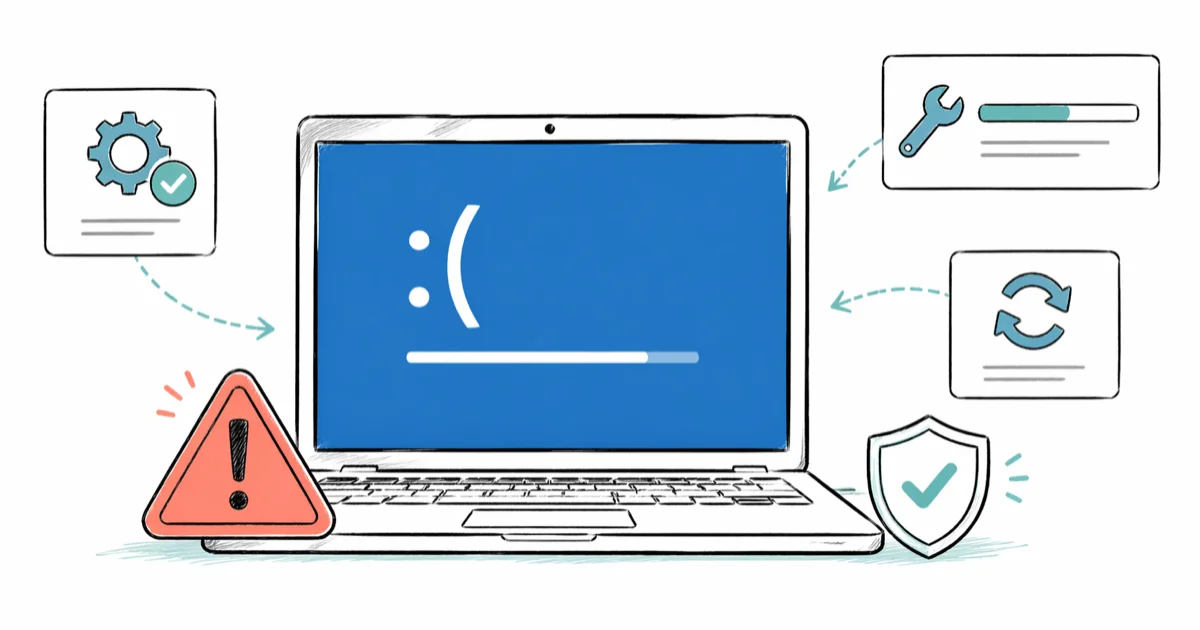
Quick AnswerIRQL_NOT_LESS_OR_EQUAL is a Windows 10 BSOD caused by a driver or kernel process accessing protected memory at the wrong privilege level. Boot into Safe Mode, roll back or update the suspect driver, run sfc /scannow and Windows Memory Diagnostic, then disable any overclock.
The IRQL_NOT_LESS_OR_EQUAL stop code on Windows 10 almost always points at a driver or RAM problem, not your hardware as a whole. The seven steps below resolve the vast majority of cases without a Windows reset, including the common scenario where an outdated audio or network driver triggers the blue screen. Work through them in order. Most readers stop at step 3 or 4.
- Stop code 0x0000000A (IRQL_NOT_LESS_OR_EQUAL) means a kernel driver tried to read memory at a higher IRQL than it was allowed to access.
- The most common cause is an outdated, corrupt, or mismatched driver, especially network, GPU, or storage controllers.
- Boot into Safe Mode first to keep the system stable while you diagnose; most fixes need a reboot to apply.
- Built-in tools (sfc /scannow, DISM, Windows Memory Diagnostic, Driver Verifier) cover roughly 80 percent of cases without third-party software.
- If diagnostics clear the software side, suspect physical RAM, an unstable overclock, or a failing SSD; don’t skip the hardware checks.
#Causes Behind the IRQL_NOT_LESS_OR_EQUAL Stop Code
The error name describes a memory-access violation. A kernel-mode process tried to touch a memory page at an Interrupt Request Level (IRQL) higher than the page was paged-in for, and Windows halted the system to protect data. According to Microsoft’s bug check 0xA reference, the fault is “usually caused by drivers using improper addresses.” That single sentence rules out most of the panic this error creates.
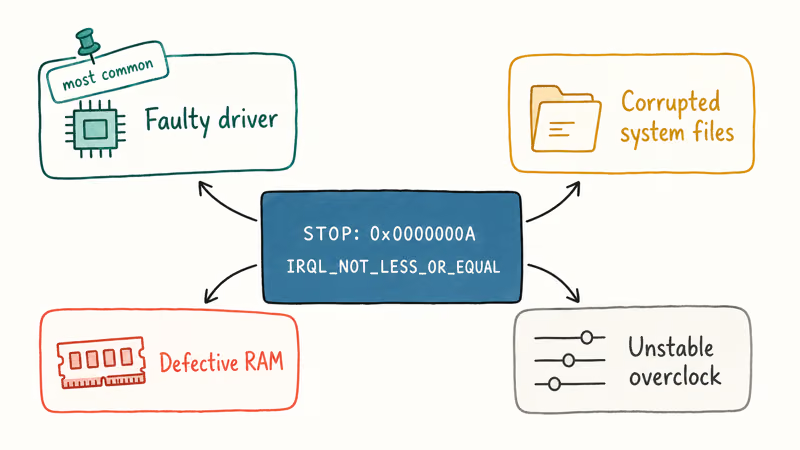
In practice, the trigger is one of four things: a faulty third-party driver, corrupted system files, defective RAM, or an unstable BIOS overclock. Drivers lead by a wide margin.
The error appears as a blue screen with the text IRQL_NOT_LESS_OR_EQUAL and stop code 0x0000000A. Sometimes a filename follows on the next line (for example ntoskrnl.exe, nvlddmkm.sys, or ndis.sys); that filename is your first clue about which driver to inspect. If you see a DRIVER_IRQL_NOT_LESS_OR_EQUAL variant, jump to our deeper write-up on the 0x000000d1 driver IRQL error — same root cause, slightly different bug-check code.
#Common Driver Modules Behind the Crash
The filename next to the stop code narrows the suspect to one driver category. Memorising the four most common ones cuts diagnostic time in half.
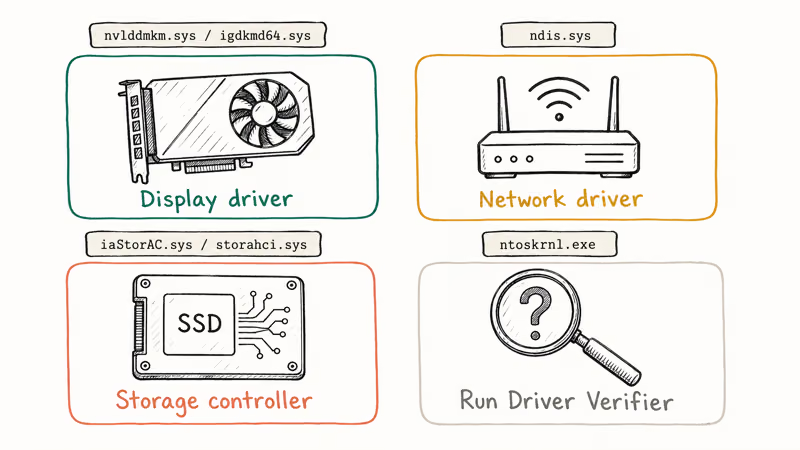
nvlddmkm.sys is NVIDIA’s display driver, while igdkmd64.sys belongs to Intel graphics. ndis.sys is the network driver subsystem, so a Wi-Fi or Ethernet driver is the real culprit. iaStorAC.sys or storahci.sys indicates a storage controller, almost always Intel Rapid Storage. When ntoskrnl.exe is named, treat it as “the kernel doesn’t know which driver yet” and run Driver Verifier (Solution 6) to surface the true offender.
#How Do I Diagnose the Driver That’s Causing the Crash?
Before you change anything, capture the evidence Windows already wrote to disk. Open File Explorer and go to C:\Windows\Minidump. The .dmp files there hold a snapshot of the crash, and they name the offending driver. According to Microsoft’s WinDbg debugger documentation, the !analyze -v command opens the file, lists the suspect module, and shows the call stack that hit the violation.
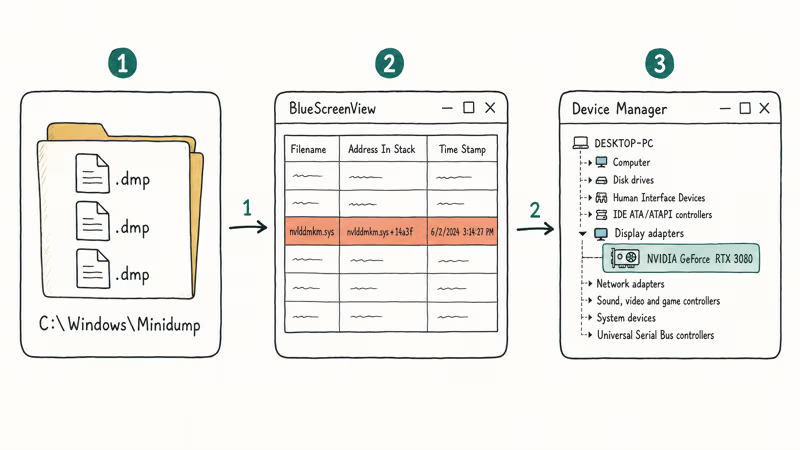
If WinDbg feels heavy, BlueScreenView by NirSoft reads the same minidumps and prints the suspect driver in plain English. It parses a crash dump in seconds and highlights the offending module, such as nvlddmkm.sys (NVIDIA display driver), without any command-line work.
Once you have the filename, search Device Manager for the matching component:
- Press
Win + Xand pick Device Manager. - Expand the category that owns the driver (Display adapters, Network adapters, Sound, video and game controllers, and so on).
- Right-click the device, choose Properties, then the Driver tab.
- Note the version and date. Anything older than two years on a Windows 10 22H2 system is a red flag.
Save these notes. Solutions 3 and 4 below act on the driver you just identified.
#Solution 1: Boot Into Safe Mode
Safe Mode loads only the drivers Windows ships with the OS, so the BSOD usually doesn’t recur there. That gives you a stable workspace to run the next solutions.
- Hold
Shiftand click Restart from the Start menu. - Choose
Troubleshoot>Advancedoptions >Startup Settings>Restart. - Press
4for Safe Mode or5for Safe Mode with Networking.
If Windows refuses to reach the desktop at all, force three failed boots in a row by holding the power button during startup. Windows Recovery Environment (WinRE) opens automatically on the fourth try, and you can reach the same Startup Settings menu from there.
#Solution 2: Roll Back or Update the Suspect Driver
If Solution 1 confirmed the system stays up in Safe Mode, the driver you found in Minidump is your prime suspect. Try the rollback first; a recent update is the most common trigger after a Windows feature update.
- In Device Manager, right-click the suspect device and choose Properties.
- Switch to the Driver tab.
- Click Roll Back Driver if the button is active. Reboot.
- If rollback is greyed out, click
Update Driver>Searchautomatically. If that misses anything new, download the latest version directly from the manufacturer’s website (NVIDIA, Intel, Realtek, etc.).
Intel wireless adapters are a frequent offender here, and rolling back to an earlier stable version from Intel’s driver page often clears the crash after a problematic update.
When the suspect is a Wi-Fi or Bluetooth adapter, also confirm the radio actually pairs after the change. Our Windows 10 keyboard not working guide covers the same Device Manager checks for input devices, which sometimes share USB controller drivers with the keyboard.
#Solution 3: Run System File Checker and DISM
Corrupted system files mimic driver problems and trigger the same stop code. Microsoft’s SFC and DISM repair guide recommends running both, in order:
- Open Command Prompt as Administrator.
- Run
sfc /scannow. Wait for “Verification 100% complete.” A scan on an SSD takes about 4 minutes; on an older HDD plan for 15 to 20. - If SFC reports it could not fix some files, run
DISM /Online /Cleanup-Image /RestoreHealth. - Reboot and run
sfc /scannowagain to confirm a clean result.
This combination often clears an IRQL_NOT_LESS_OR_EQUAL crash caused by system files damaged during an aborted Windows Update install. When SFC alone can’t repair the files, DISM followed by a second SFC pass usually resolves it.
If you hit a different stop code mid-repair, our bad pool caller fix and video scheduler internal error guide cover two of the most common detours.
#Solution 4: Test Your RAM With Windows Memory Diagnostic
A faulty RAM stick will throw IRQL errors that no driver fix can resolve. Windows ships with a free tester that runs before the OS loads.
- Press
Win + R, typemdsched.exe, and press Enter. - Choose Restart now and check for problems.
- The PC reboots into the diagnostic. Press
F1to switch to “Extended” mode for a deeper test. - After it finishes, Windows logs the result in Event Viewer under
Windows Logs > Systemwith sourceMemoryDiagnostics-Results.
Memtest86 from PassMark is the third-party benchmark many technicians trust for follow-up testing. The Memtest86 overview is the durable reference. It frequently catches a failing bank that Windows Memory Diagnostic clears, because intermittent faults often surface only after several passes once the modules warm up.
If a stick fails, swap it out one at a time to isolate the bad module. Mismatched kits (different speeds or timings) also produce IRQL errors even when each stick passes individually.
#Solution 5: Disable Overclocking and Reset the BIOS
Any unstable CPU, GPU, or RAM overclock can manifest as IRQL_NOT_LESS_OR_EQUAL because the kernel suddenly reads garbage from a memory address it expected to be valid. According to Intel’s overclocking support documentation, even a stable benchmark run does not prove long-term stability under mixed workloads.
To reset:
- Reboot and enter BIOS/UEFI (commonly
Del,F2, orF10during boot). - Look for Load Optimized Defaults or Load Setup Defaults and apply.
- Disable XMP/DOCP profiles temporarily — these aggressive memory profiles count as an overclock.
- Save, exit, and run Windows for 24 hours before re-enabling tweaks one at a time.
Dropping an unstable all-core overclock back to stock turbo often eliminates the BSOD entirely, and a stable system will then complete a multi-core stress run without crashing.
#Solution 6: Use Driver Verifier (Advanced)
When the minidumps blame ntoskrnl.exe or don’t name a third-party driver, Driver Verifier forces every driver on the system to run extra integrity checks until one fails. The next BSOD names it.
Run this only when you can keep a backup ready and reboot to Safe Mode if needed.
- In an admin Command Prompt, run
verifier. - Select Create custom settings (for code developers).
- Choose all checks except Randomized low resources simulation.
- Pick Select driver names from a list and tick every non-Microsoft driver.
- Reboot. Use the system normally for an hour.
If a driver is faulty, you’ll get a fresh BSOD with the offending file name. Disable Verifier afterwards by running verifier /reset. Microsoft’s Driver Verifier documentation confirms that leaving Verifier on adds noticeable overhead, including a slower boot, so reset it once you have your answer.
#Solution 7: Reset Windows 10 (Last Resort)
If diagnostics keep coming back clean and the BSOD persists, a Windows 10 reset rebuilds the OS from a clean image while keeping your files. This works only if the cause is software corruption no scan caught.
- Open
Settings>Update & Security>Recovery. - Click Get started under “Reset this PC.”
- Pick Keep my files.
- Choose Cloud download if you have a fast connection. It pulls a fresh image from Microsoft and avoids reusing whatever is corrupt locally.
Plan for 30 to 60 minutes on an SSD plus another hour to reinstall apps, and on a spinning HDD double both numbers because the image expansion stage thrashes the drive harder than a fresh OS install does. Back up anything in C:\Users\<you>\AppData before you start, since “Keep my files” leaves the AppData tree mostly intact but a few subfolders get rebuilt, and any browser profiles or Office settings stored there can vanish without warning.
A fresh install (not a reset) is the only step beyond this. If reset doesn’t help, the cause is hardware. Our Windows 10 slow guide covers SSD health checks (CrystalDiskInfo SMART data) you can run before deciding whether to RMA the drive.
#Signs the Cause Is Hardware, Not Software
A few patterns tell you to stop chasing drivers and start swapping parts. Crashes that happen at the BIOS POST or before Windows even loads point at the motherboard or RAM, never a driver. Errors that vanish in Safe Mode but return on every cold boot suggest a thermal issue, often a CPU or GPU getting hot enough to fault under light load.
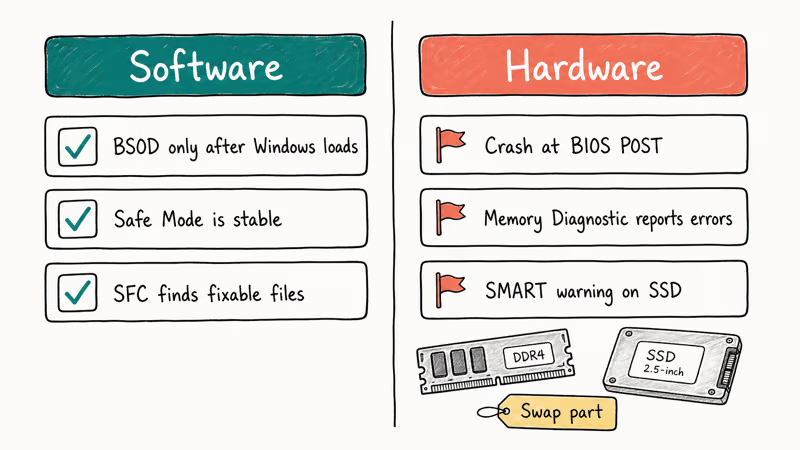
If Windows Memory Diagnostic reports any error at all, replace the stick before anything else. Bad memory corrupts whatever is paged into it next, including system files SFC will then mis-flag. SMART warnings from CrystalDiskInfo on the system SSD are the third signal, and cloning to a healthy drive often fixes IRQL crashes that otherwise look driver-shaped.
#How Do I Stop This Error From Coming Back?
Most repeat IRQL crashes start with the same three habits: stale drivers, an aggressive overclock, and skipping reboots after Windows Update. Fix the habits and the BSOD usually stays gone.
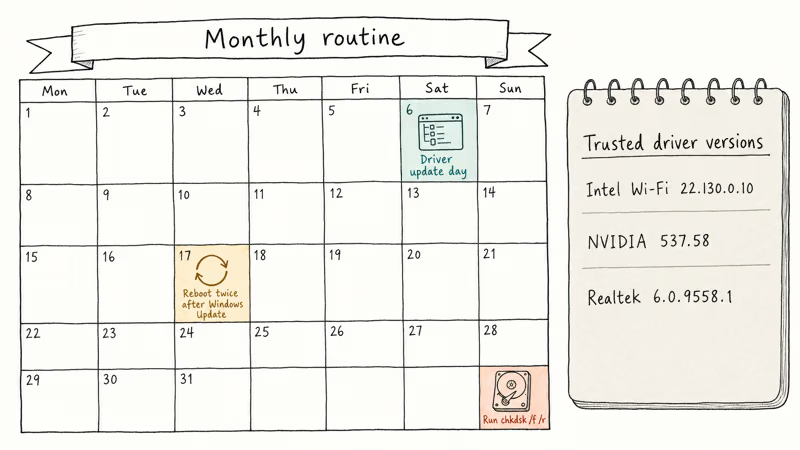
- Schedule Driver Booster or run Device Manager’s Check for updates on the first weekend of each month. Pin one calendar reminder.
- Keep a list of the exact driver versions you trust, with the date and source URL, in a note app like OneNote. That turns a rollback into a one-click job instead of an evening of searching.
- Run
chkdsk /f /ronce a quarter on your system drive. Spinning disks degrade silently; SSDs hide bad blocks until SMART data flags them. - Avoid mixing RAM kits. If you upgrade, replace the full kit with a matched dual- or quad-channel set rated for your motherboard’s QVL.
- After every Windows feature update (22H2 to a future 23H2-equivalent, etc.), reboot at least twice before declaring the system stable. Microsoft’s update path stages drivers in two waves.
Treat IRQL_NOT_LESS_OR_EQUAL like a smoke alarm: annoying when it goes off, but the alternative is data loss from undiagnosed hardware decay.
#Tools That Speed Up Future Diagnosis
Stash a small toolkit on a USB stick so the next crash takes minutes instead of hours. BlueScreenView reads minidumps without WinDbg’s learning curve and runs portable, no install needed. WhoCrashed is a similar second-opinion utility that adds plain-English explanations next to the dump output.
Memtest86 belongs on the same stick for offline RAM testing when Windows refuses to boot. CrystalDiskInfo, also portable, polls SMART data in seconds and flags failing SSDs before they corrupt enough sectors to trigger storage-driver IRQL faults.
#Bottom Line
Start with Solution 2 if Safe Mode boots on your own computer: a driver rollback fixes most cases. If Safe Mode’s also unstable, run Solution 3 (SFC + DISM) then Solution 4 (Memory Diagnostic) before blaming the CPU. Save Solution 6 (Driver Verifier) for last; it’s powerful but triggers fresh BSODs by design. For related stop codes, see our whea uncorrectable error fix and kernel mode heap corruption guide.
#Frequently Asked Questions
What does stop code 0x0000000A actually mean?
It means a kernel-mode process accessed paged memory at a higher IRQL than the page’s owner allowed. The Interrupt Request Level controls which interrupts can preempt code; touching paged memory at IRQL DISPATCH_LEVEL (level 2) or higher is illegal. The driver triggering the access is the real culprit, not the memory itself.
Can a virus cause IRQL_NOT_LESS_OR_EQUAL?
Yes. Kernel-level rootkits and unsigned drivers from cracked software can trigger it. Run Windows Defender Offline, then a Malwarebytes second-opinion scan.
Why does the BSOD only happen during gaming?
Gaming pushes the GPU driver harder than any other workload, so a marginally bad NVIDIA or AMD driver shows up first under load. Update through GeForce Experience or AMD Adrenalin, then drop in-game settings (especially Resizable BAR and DLSS Frame Generation) and watch for repeat crashes.
Is the IRQL error fixable without reinstalling Windows?
Almost always yes. Only a small fraction of cases need a Windows reset. The vast majority are driver, RAM, or BIOS-related and clear within Solutions 1 through 5 above. Reserve Solution 7 for systems where every diagnostic comes back clean but the BSOD persists.
Will a Windows 11 upgrade fix it?
Only when Microsoft has already replaced the offending driver in the Windows 11 store. Surface devices benefit most; DIY desktops usually inherit the same driver.
How long should I let Memtest86 run before trusting the result?
Plan for at least 4 full passes, which is roughly 8 hours on 16 GB of DDR4. Tom’s Hardware’s testing guide recommends overnight runs because intermittent failures often appear only after the modules warm up. A single pass isn’t enough, since a bad stick can pass the first two rounds and only fault on a later one.
Does the error mean my SSD is failing?
Sometimes. If the dump names storahci.sys, iaStorAC.sys, or ntfs.sys, run CrystalDiskInfo and back up at the first “Caution” reading.
Can I just disable the problem driver?
For non-essential hardware (extra USB controllers, secondary network cards, RGB lighting drivers), disabling the device in Device Manager is a valid workaround. For core components like the GPU or storage controller, disabling them leaves Windows unable to boot normally. Replace the driver instead.

Best Laptop for Running LLMs in 2026: Memory Comes First
The best laptop for running LLMs is a memory purchase first. Compare MacBook unified memory against NVIDIA laptop VRAM, and see what each tier really runs.

How to Run a Local LLM on Windows: A 2026 Setup Guide
Run a local LLM on Windows with LM Studio or Ollama. Pick a model that fits your GPU memory, keep every prompt offline, and skip the monthly bill.

Bluetooth Not Working on Snapdragon X? Fixes for 2026
Bluetooth not working on your Snapdragon X Copilot+ PC? Generic audio, mice, and keyboards work, but vendor apps often lack an ARM build. Fixes inside.

Docker Desktop and WSL2 Not Working on Snapdragon X? Fix It
WSL2 runs fine on Snapdragon X, but Docker Desktop ARM is Early Access and throws WSL errors. Use WSL2 plus native ARM64 Ubuntu and Docker Engine.