How to Fix WHEA Uncorrectable Error on Windows 11 and 10
WHEA Uncorrectable Error is a Windows BSOD usually caused by hardware faults, bad drivers, or overclocking. Here is how to diagnose and fix it.
Quick AnswerWHEA Uncorrectable Error is a Windows BSOD that signals a hardware fault, driver conflict, or unstable overclock. Reset overclocks and XMP in BIOS, update CPU and chipset drivers, then run sfc /scannow, DISM, chkdsk /f /r, and Windows Memory Diagnostic to isolate the failing component.
WHEA Uncorrectable Error is a Windows stop code that fires when the kernel’s Windows Hardware Error Architecture catches a CPU, RAM, disk, or motherboard fault that it can’t recover from. The crash usually appears at boot, during long gaming sessions, or when the system is under sustained load. This guide walks through nine fixes for Windows 10 and Windows 11, ordered to catch the most common causes first.
- WHEA stands for Windows Hardware Error Architecture; the uncorrectable variant means the operating system could not safely retry the failing operation
- BIOS or UEFI overclocks are the single most common software-side trigger, so reset CPU multipliers, voltage offsets, and XMP or EXPO memory profiles before anything else
- Update chipset, storage, network, and GPU drivers from the vendor pages at Intel, AMD, NVIDIA, and Realtek rather than relying on Windows Update alone
- Run sfc /scannow, then DISM /Online /Cleanup-Image /RestoreHealth, then chkdsk /f /r in that order to clear corrupt system files and disk errors
- If the bug check survives clean drivers and a stock CPU, treat it as hardware: reseat or swap RAM sticks, test the SSD with vendor tools, and confirm load temperatures stay below the silicon’s throttle point
#What Triggers a WHEA Uncorrectable Error?
The WHEA family of bug checks is the kernel’s way of saying that a hardware machine check exception reached the operating system and could not be silently corrected. The most common triggers, in rough order of frequency, are unstable CPU overclocks or undervolts, mismatched or failing memory, outdated chipset or storage drivers, a dying NVMe SSD, and inadequate cooling on a Ryzen or high-end Intel chip.
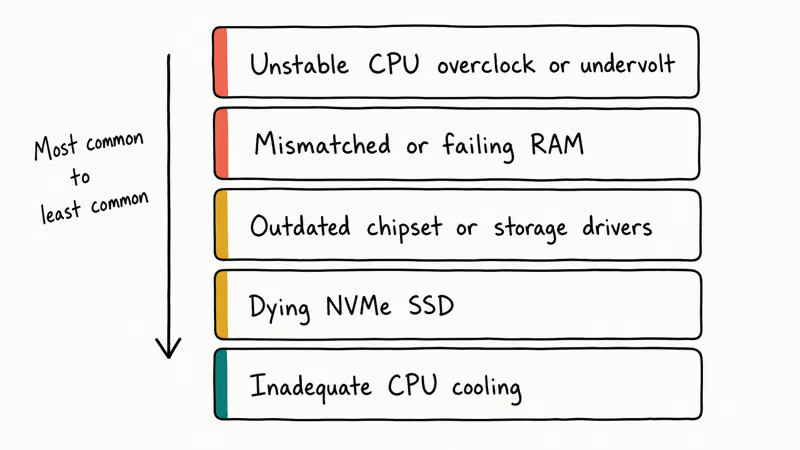
According to Microsoft’s bug check 0x124 reference, the second parameter identifies the source: 0x0 processor, 0x1 memory, 0x2 PCI bus, 0x4 PCI Express. Read it first.
If your crash dump points instead at the watchdog timer (DPC_WATCHDOG_VIOLATION), follow our 0x00000133 DPC Watchdog Violation guide; that bug check has a different root cause, a different fix list, and rarely tracks back to the CPU or memory itself.
#How Do You Read a WHEA Bug Check?
The BSOD itself only shows the friendly name WHEA_UNCORRECTABLE_ERROR. To get the underlying parameters you need either Event Viewer or a dump file analyzer.
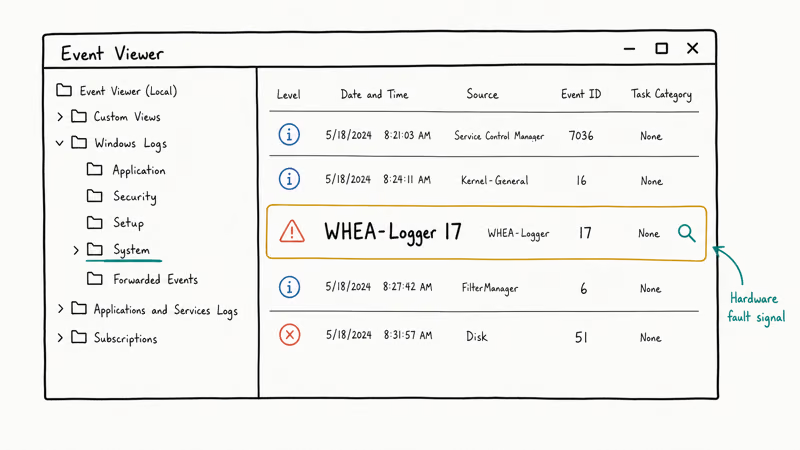
Open Event Viewer (eventvwr.msc), expand Windows Logs > System, and filter for source WHEA-Logger and BugCheck. Each WHEA-Logger entry lists the component (Processor Core, Cache, Memory) and the type of error (corrected, uncorrected, fatal). A pattern of WHEA-Logger 17 events leading up to the crash is the strongest hint that you’re chasing a real hardware fault and not a Windows file corruption issue.
For deeper analysis, install the Windows Debugger from the Windows SDK and run !analyze -v on the MEMORY.DMP file in C:\Windows\. The output names the failing component and, on modern CPUs, the affected core or thread.
#Reset Overclocks and XMP Profiles in BIOS
This is the fastest fix in the list and it solves the majority of WHEA cases on enthusiast hardware. A common pattern: a system that started crashing after a Curve Optimizer offset was pushed across all cores. Dropping Precision Boost Overdrive back to Auto and clearing the offset often stops WHEA crashes within one boot cycle, with no other changes.
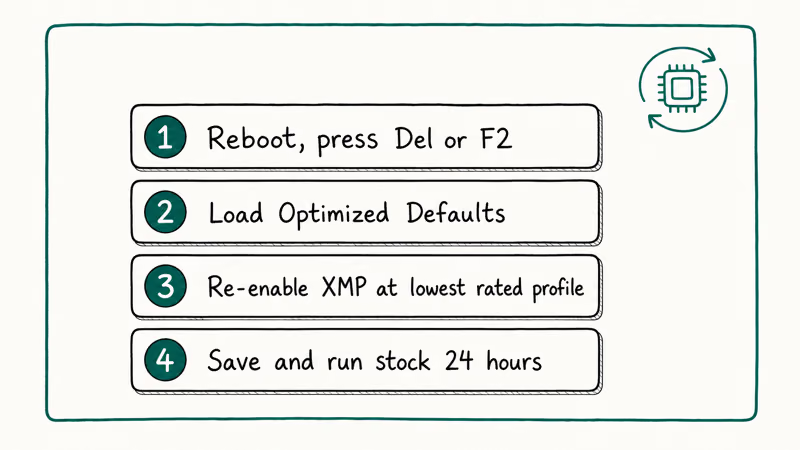
To reset overclocks safely:
- Reboot and press
Delete,F2, orF10(depending on the board) to enter BIOS/UEFI. - Load Optimized Defaults or Setup Defaults from the Exit menu.
- If you need memory speed back, re-enable XMP (Intel) or EXPO/DOCP (AMD), but pick the lowest rated profile your kit supports.
- Save and exit, then run the system at stock for at least 24 hours.
AMD’s Ryzen Master documentation states that Curve Optimizer offsets that look stable in light testing can fail under AVX-heavy workloads, and recommends returning to defaults whenever a system shows machine check exceptions. Intel’s equivalent advice in its overclocking guides is the same: a stable Cinebench run is not proof of stability when sustained AVX or AVX-512 workloads can pull more current and stress the same cores differently.
In many of these cases the memory kit runs fine at its full XMP profile after the reset, staying stable through a long Prime95 small-FFT run. The CPU itself is fine; the aggressive undervolt is the trigger.
#Update Drivers the Right Way
Outdated or mismatched drivers, especially on AMD chipset, Intel storage controllers, and NVIDIA GPUs, are the second most common WHEA cause. The fix isn’t Windows Update; it’s downloading the vendor’s current package directly.
In order of priority:
- Chipset drivers from AMD or Intel for your specific platform (X670, B650, Z790, B760, etc.)
- Storage drivers for your NVMe SSD: Samsung Magician, Western Digital Dashboard, or the vendor’s NVMe driver package
- GPU drivers from NVIDIA, AMD, or Intel Arc, using the manufacturer’s clean install option
- Network drivers from Intel, Realtek, or Killer, since faulty Ethernet or Wi-Fi drivers can throw WHEA events on certain platforms
If your system has been hitting a different stop code such as SYSTEM_THREAD_EXCEPTION_NOT_HANDLED, our system thread exception not handled fix list covers driver isolation in more detail.
Avoid third-party “driver updater” utilities. They install generic Microsoft-signed drivers from a pool, which is often older or less specific than what the hardware vendor ships, and several products in that category have been reported as bundleware. Stick with the vendor download pages.
#Repair Windows System Files With SFC, DISM, and CHKDSK
Corrupt system files and bad sectors can throw WHEA-style events when Windows can’t read what it expects from disk. Microsoft recommends running sfc /scannow first, and following with DISM if SFC reports it can’t repair some files.
Open Command Prompt as administrator and run, one at a time:
sfc /scannow
DISM /Online /Cleanup-Image /RestoreHealth
chkdsk /f /r
The chkdsk command will ask to schedule itself on the next reboot when run against the boot drive. Microsoft’s chkdsk command reference confirms that /f fixes errors on disk and /r locates bad sectors and recovers readable information; on a large HDD this pass can take several hours, so run it overnight.
If SFC bails out with a “Windows Resource Protection could not perform the requested operation” error, our Windows Resource Protection fix guide covers the recovery path before you can complete the repair.
#Test RAM, Storage, and Temperatures
Once drivers are clean and the CPU is at stock, the remaining suspects are physical. Work through them in this order:
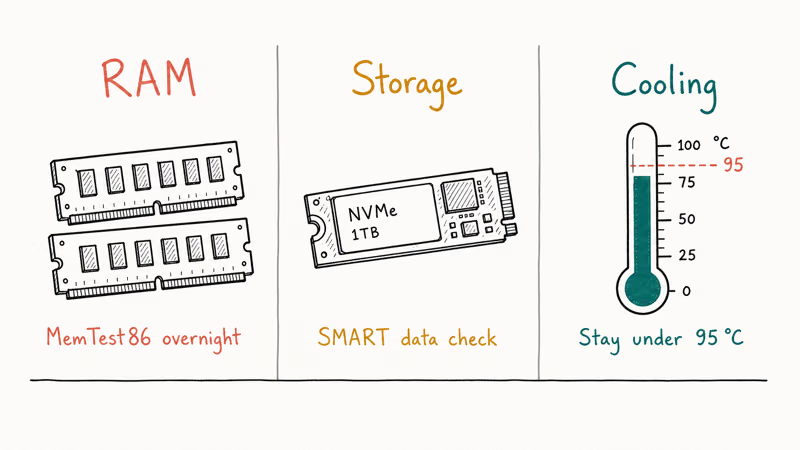
Memory. Run Windows Memory Diagnostic (mdsched.exe), then boot MemTest86 from a USB stick overnight. A single error condemns the stick. With two or four modules installed, retest one stick at a time so you know which one to replace.
Storage. Pull the SMART data with the vendor’s utility (Samsung Magician, Crucial Storage Executive, WD Dashboard). Watch for media wear-out indicators above 90, reallocated sector counts above zero on an SSD, or any uncorrectable error counts on an NVMe. A WHEA bug check on a system that won’t boot cleanly often points back at a dying boot drive. Our unmountable boot volume guide covers the recovery steps before you swap the drive.
Temperatures. Install HWInfo64 and watch CPU package, VRM, and SSD temperatures during a 15-minute Cinebench R23 run. Idle and load package temps should stay well within safe limits; anything above 95 °C sustained, or 70 °C on an NVMe SSD, will reliably trigger machine checks once silicon reaches its throttle point.
#Roll Back Recent Changes With System Restore
If WHEA started after a Windows update, a driver install, or a new program, System Restore lets you reverse the change without touching personal files.
Press the Windows key, type Create a restore point, and hit Enter. Click System Restore, pick a restore point from before the crashes began, and run through the wizard. The system reboots automatically and rolls drivers and registry state back to the chosen date.
System Restore won’t help with hardware failure, and it won’t undo a BIOS update. If TiWorker.exe has been spiking CPU and disrupting updates in the background, our TiWorker.exe troubleshooting guide addresses that root cause before you spend time on restore points that may already be corrupted.
#Safe Mode Diagnostics and Last-Resort Fixes
When Windows won’t stay up long enough to finish any of the steps above, boot into Safe Mode and work from there.
Force three failed boots in a row by holding the power button during the Windows logo. On the fourth try Windows boots into Automatic Repair. Choose Troubleshoot > Advanced Options > Startup Settings > Restart, then press 4 for Safe Mode or 5 for Safe Mode with Networking. If you get stuck cycling in Automatic Repair without ever reaching the menu, our Windows 10 automatic repair loop fix guide walks through the recovery path with command prompt.
In Safe Mode, run Device Manager (devmgmt.msc) and look for any device with a yellow warning triangle. Disable the device, reboot to normal Windows, and see if the crash returns. This is the cleanest way to identify a single bad driver when System Restore points are not available.
If nothing else works, an in-place repair install of Windows reinstalls system files without erasing apps or data. Download the Windows 11 (or Windows 10) ISO from Microsoft, mount it from File Explorer, run setup.exe, and choose Keep personal files and apps. This route preserves your data while replacing the entire system image. It’s slower than a reset but catches corruption that SFC and DISM can’t.
#Bottom Line
For most WHEA Uncorrectable Error cases on a self-built or enthusiast system, the fastest path to a stable machine is to walk down this exact list: clear all BIOS overclocks and XMP/EXPO, install vendor chipset and storage drivers, run sfc/DISM/chkdsk, then test memory and SSD health. If the BSOD survives all of that, the issue is hardware. Start with RAM, then storage, then check whether a still-warranty CPU should go back to AMD or Intel.
On pre-built systems, skip the BIOS step and start with vendor drivers and disk repair. If the BSOD shows a generic “Your PC ran into a problem” screen instead, our related fix list covers that variant.
#Frequently Asked Questions
What is a WHEA uncorrectable error?
It’s a Windows stop code (bug check 0x124) that fires when the Windows Hardware Error Architecture catches a fatal machine check exception from the CPU, memory controller, or PCI Express bus. The “uncorrectable” part means the hardware itself reported the error as one that can’t be silently retried. The kernel then forces a controlled crash to keep the rest of the system from acting on bad data, which is why you see a blue screen instead of a frozen application.
Is whea uncorrectable error always a hardware problem?
Not always, but it usually points at hardware or hardware behavior. The most common software-side triggers are aggressive BIOS overclocks or undervolts, mismatched memory timings, and outdated chipset or storage drivers. Try resetting BIOS to defaults and updating vendor drivers before you assume something has physically failed.
Will a Windows reset fix whea uncorrectable error?
Sometimes. A reset helps when the cause is software, but doesn’t touch hardware faults or BIOS overclocks.
How do I check if my RAM is causing the crash?
Run MemTest86 from a USB stick for at least four full passes, ideally overnight. If you see a single error, run it again with one stick at a time to identify the failing module.
Can a BIOS update fix whea uncorrectable error?
Sometimes, especially on AMD AM4 and AM5 platforms where AGESA microcode updates have addressed real WHEA-related stability bugs. Check your motherboard vendor’s support page for any BIOS released in the last six months that mentions stability, AGESA, or memory compatibility, and read the release notes carefully before flashing. Don’t try a beta BIOS unless you’ve already exhausted the safer fixes. A failed flash is far harder to recover from than a few BSODs.
What does the 0x124 stop code mean?
0x124 is the WHEA bug check identifier the kernel uses internally. The four parameters that follow identify the error source, the machine check exception record address, and two halves of the model-specific register state from the failing core. Read the first parameter to know which subsystem to start with: processor, memory, or PCI Express.
Does undervolting cause whea errors?
Yes. Undervolts that look stable under light workloads can fail under AVX-heavy loads like Prime95 or video encoding. Reset Curve Optimizer or XTU offsets to defaults before treating anything else as the cause.
When should I stop troubleshooting and replace hardware?
If you’ve cleared overclocks, installed fresh vendor drivers, run sfc/DISM/chkdsk clean, passed MemTest86, and the SSD reports clean SMART data, the next suspect is the CPU or motherboard. At that point, swap parts if you have spares to test with, or send the CPU back under warranty if it’s still covered. Don’t keep trying software fixes on what’s almost certainly a silicon problem; you’ll just lose more time.

Best Laptop for Running LLMs in 2026: Memory Comes First
The best laptop for running LLMs is a memory purchase first. Compare MacBook unified memory against NVIDIA laptop VRAM, and see what each tier really runs.

How to Run a Local LLM on Windows: A 2026 Setup Guide
Run a local LLM on Windows with LM Studio or Ollama. Pick a model that fits your GPU memory, keep every prompt offline, and skip the monthly bill.

Bluetooth Not Working on Snapdragon X? Fixes for 2026
Bluetooth not working on your Snapdragon X Copilot+ PC? Generic audio, mice, and keyboards work, but vendor apps often lack an ARM build. Fixes inside.

Docker Desktop and WSL2 Not Working on Snapdragon X? Fix It
WSL2 runs fine on Snapdragon X, but Docker Desktop ARM is Early Access and throws WSL errors. Use WSL2 plus native ARM64 Ubuntu and Docker Engine.