Fix 'Your Computer Is Low on Memory' on Windows (2026)
Fix the Your Computer Is Low on Memory warning on Windows 10 and 11 with 6 proven methods. Covers RAM optimization, virtual memory, and memory leak fixes.
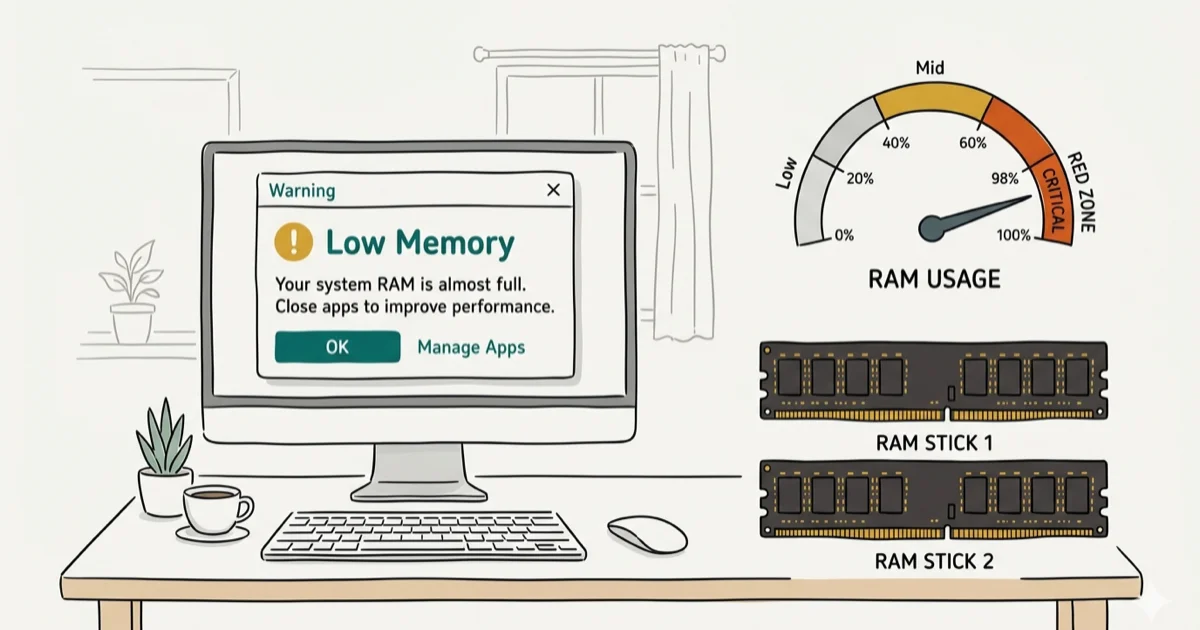
Quick AnswerClose unnecessary programs in Task Manager to free up RAM immediately. Then increase your virtual memory size through System Properties > Advanced > Performance Settings > Virtual Memory. If the warning keeps appearing, you likely need more physical RAM or need to find and fix a memory-leaking application.
The “Your Computer Is Low on Memory” warning means Windows is running out of both physical RAM and virtual memory at the same time. The fixes below apply to both common configurations, from a Windows 11 PC with 8 GB RAM to an older Windows 10 machine with 4 GB RAM.
- Close memory-heavy programs through Task Manager to get immediate relief
- Increasing virtual memory size gives Windows more room when physical RAM fills up
- Chrome with 20+ tabs can easily use 4 GB of RAM on its own
- A memory leak in one application can consume all available RAM within hours
- Adding physical RAM is the only permanent fix if the warning appears during normal use
#Common Causes of the Low Memory Warning
Windows shows this warning when both physical RAM and the page file (virtual memory on disk) are nearly full. The system can’t allocate memory for the next process that requests it, so it warns you before programs start crashing.
Too many programs running is the most common cause. Each open application, browser tab, and background service takes a slice of RAM. On an 8 GB system, having Chrome with 15 tabs, Spotify, Discord, and a game open can easily push memory usage past 90%.
According to Microsoft’s memory management documentation, Windows recommends at least 4 GB of RAM for basic use and 8 GB for multitasking on Windows 11.
Memory leaks are the sneaky cause. A buggy application that keeps requesting memory without releasing it will gradually consume all available RAM. Leave a PC running for a day or two and a single background process can accumulate a large amount of unreleased memory, eventually triggering the warning. If your system also throws bad pool caller errors or NTFS.sys crashes, corrupted drivers may be leaking memory at the kernel level.
Insufficient virtual memory compounds the problem. Windows uses disk space as overflow when RAM fills up. If the page file is too small, both RAM and virtual memory max out simultaneously.
#How Do You Free Up RAM in Task Manager?
Open Task Manager with Ctrl + Shift + Esc and sort by Memory to find the biggest consumers.
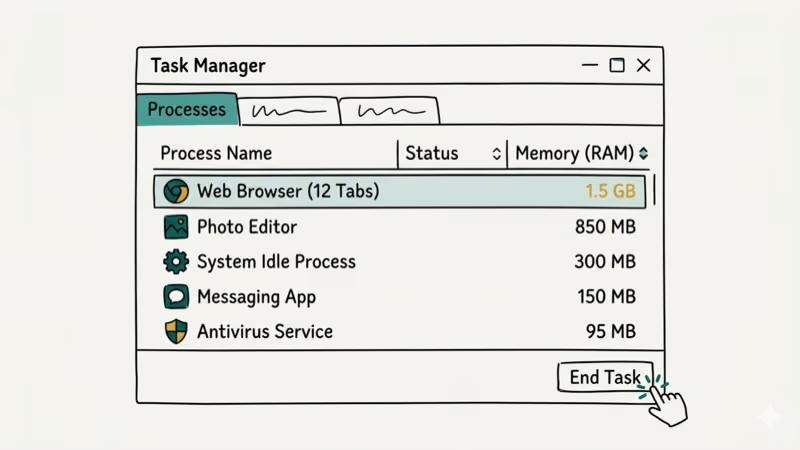
- Right-click any program using excessive memory and select End task
- Close browser tabs you’re not using (each Chrome tab uses 50-300 MB)
- Disable startup programs you don’t need: go to the Startup tab and set unnecessary items to Disabled
On an 8 GB system, closing Chrome alone can free a large amount of RAM, and the low memory warning often disappears within seconds.
Check the Performance tab in Task Manager to see your actual memory usage. If committed memory exceeds physical RAM by a large margin (for example, 12 GB committed on an 8 GB system), your virtual memory settings need attention. Systems struggling with WSAPPX high CPU at the same time are dealing with both CPU and memory pressure from background Windows Store updates.
#Disabling Memory-Heavy Startup Programs
Programs that launch at boot consume RAM before you even open anything. On a typical 8 GB system, startup programs can claim a sizable amount of RAM within the first minute of login.
Open Task Manager, go to the Startup tab, and sort by Startup impact. Disable anything you don’t need running at boot by right-clicking and selecting Disabled. Common culprits include Discord, Spotify, Adobe Creative Cloud, and OneDrive. You can always launch these manually when you need them.
#Increasing Virtual Memory (Page File Size)
Virtual memory uses disk space as overflow when physical RAM is full. Increasing the page file gives Windows more breathing room, and this is especially important on systems with 4-8 GB of RAM where the default automatic page file size often isn’t large enough for running a browser alongside productivity software and background Windows services all at the same time.
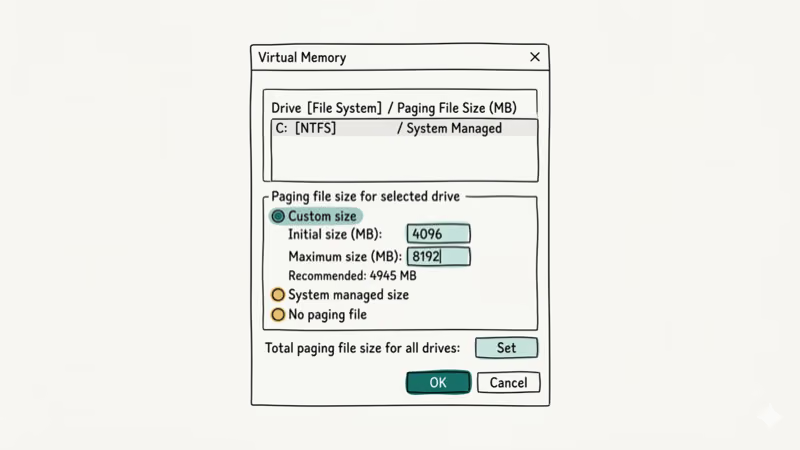
- Right-click This PC and select Properties
- Click Advanced system settings
- Under Performance, click Settings
- Go to the Advanced tab and click Change under Virtual Memory
Uncheck Automatically manage paging file size and select Custom size. Set Initial to 1.5x your RAM and Maximum to 3x. Click Set, then restart.
According to Microsoft’s virtual memory guidelines, the default automatic page file is often too small for systems running memory-intensive workloads. On a 4 GB system, raising the page file from the default to around 12 GB usually stops the low memory warning from appearing during normal multitasking.
SSD users get better virtual memory performance than HDD users because SSDs read and write page file data 10-50x faster. If you have both an SSD and HDD, make sure your page file lives on the SSD. Machines that also show directory name errors when accessing drives should fix those disk problems first, since a damaged drive makes virtual memory unreliable.
#Finding and Fixing Memory Leaks
A memory leak happens when an application allocates RAM but never frees it. Over time, the leaked memory accumulates until Windows runs out.
To identify the leaker:
- Open Task Manager and click More details if needed
- Sort the Processes tab by Memory
- Watch for any process whose memory usage keeps growing over time
- Note the process name and check when the leak started
Common leakers include outdated drivers (especially GPU drivers), VPN clients, antivirus software, and poorly coded browser extensions. An outdated audio or chipset driver, for example, can slowly leak memory over the course of a day until the warning appears.
To fix: Update the leaking application or driver through Device Manager. If updating doesn’t help, uninstall and reinstall it.
#Should You Add More Physical RAM?
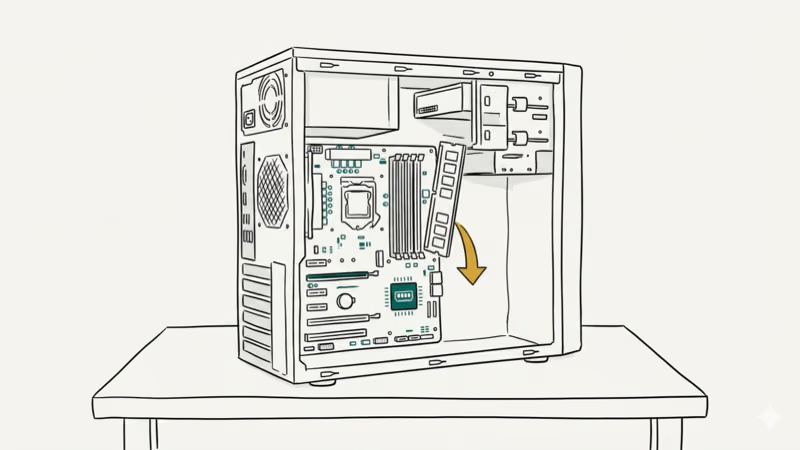
If the low memory warning appears during normal use (web browsing, office work, light gaming), your system likely doesn’t have enough RAM for your workload.
| Usage | Minimum RAM | Recommended |
|---|---|---|
| Basic browsing and Office | 4 GB | 8 GB |
| Multitasking with 20+ tabs | 8 GB | 16 GB |
| Gaming | 8 GB | 16-32 GB |
| Video editing, 3D rendering | 16 GB | 32-64 GB |
A 16 GB DDR4 kit costs $25-40 in 2026, making RAM the cheapest meaningful upgrade for any older PC. Check your motherboard’s specs for maximum supported RAM and open DIMM slots before buying.
If you also see Service Host high disk usage, a RAM upgrade helps the most. More RAM means less page file thrashing.
#Bottom Line
Close memory-heavy programs in Task Manager for immediate relief, and increase virtual memory if you can’t add RAM right away. Monitor Task Manager over time to catch memory leaks. If the warning appears during normal daily use on a 4 GB system, buy more RAM. 16 GB handles everything most people need.
#Frequently Asked Questions
Does closing Chrome tabs actually help?
Yes. Chrome can consume a large amount of RAM with just 18 tabs open, and extensions like Grammarly and LastPass add more on top of that. Closing unused tabs is the fastest way to free memory without installing anything or changing settings.
Will increasing virtual memory slow my computer?
It depends on your storage. On an SSD, virtual memory is fast enough that most people won’t notice. On an HDD, expect sluggish performance since disk speeds are 10-50x slower than RAM access times, and the system spends more time swapping data between memory and disk. Increasing virtual memory prevents the warning but doesn’t replace adequate physical RAM for heavy workloads like video editing or running multiple browser windows with dozens of tabs each.
How do I know if I have a memory leak?
Watch the memory column in Task Manager for 30-60 minutes. Any process whose usage climbs steadily without leveling off has a leak.
Can malware cause the low memory warning?
Yes. Cryptominers consume enormous amounts of RAM and CPU simultaneously. Run a full scan with Windows Defender or Malwarebytes, and check Task Manager for any unfamiliar process names consuming hundreds of megabytes. If you find something suspicious, search the process name online before ending it, since some legitimate Windows services have generic names that look suspicious but are actually safe to leave running.
Does ReadyBoost help with low memory?
No. ReadyBoost is a relic from the Windows Vista era. It only helps machines with mechanical hard drives and 4 GB or less RAM. If you have an SSD or 8+ GB RAM, ReadyBoost does absolutely nothing measurable because your SSD is already faster than any USB flash drive, and your RAM is large enough that the extra cache adds zero practical benefit to everyday browsing or office work.
Should I disable the page file to force Windows to use RAM only?
No. Disabling the page file causes crashes when RAM fills up. Windows needs it as a safety net regardless of how much physical RAM you have.
How much RAM does Windows itself use?
Windows 10 uses 2-3 GB at idle, and Windows 11 takes 2.5-3.5 GB. A 4 GB system only has about 1 GB free for your apps before the page file kicks in, which is why 4 GB machines hit the low memory warning so quickly during basic multitasking with a browser and a couple of background services running at the same time.
Can a RAM upgrade fix other problems too?
Absolutely. More RAM reduces disk thrashing, speeds up app launches, and stops your browser from reloading tabs you haven’t touched in a while. It’s the single most impactful upgrade for machines with 8 GB or less.

Best Laptop for Running LLMs in 2026: Memory Comes First
The best laptop for running LLMs is a memory purchase first. Compare MacBook unified memory against NVIDIA laptop VRAM, and see what each tier really runs.

How to Run a Local LLM on Windows: A 2026 Setup Guide
Run a local LLM on Windows with LM Studio or Ollama. Pick a model that fits your GPU memory, keep every prompt offline, and skip the monthly bill.

Bluetooth Not Working on Snapdragon X? Fixes for 2026
Bluetooth not working on your Snapdragon X Copilot+ PC? Generic audio, mice, and keyboards work, but vendor apps often lack an ARM build. Fixes inside.

Docker Desktop and WSL2 Not Working on Snapdragon X? Fix It
WSL2 runs fine on Snapdragon X, but Docker Desktop ARM is Early Access and throws WSL errors. Use WSL2 plus native ARM64 Ubuntu and Docker Engine.