How to Fix Modern Setup Host High Disk Usage or Crashes
Fix Modern Setup Host high disk usage and stopped working errors. Six methods: DISM, clean boot, and SoftwareDistribution reset. Windows 10 and 11.
Quick AnswerModern Setup Host is a legitimate Windows component that runs feature update installs. If it shows high disk usage or crashes, run the Windows Update Troubleshooter first, then DISM Restorehealth.
Modern Setup Host is the Windows process that installs feature updates, and it can stall during large updates. When SetupHost.exe pegs your disk for hours or quits mid-install, the cumulative update sits half-applied and the $Windows.~BT folder keeps growing. Use the fixes below to separate a normal long-running update from a true stall, then reset Windows Update safely.
- SetupHost.exe is a legitimate Windows installer that lives in the hidden
$Windows.~BTstaging folder, not malware - High disk usage during a feature update is normal for up to 4 hours before manual intervention is warranted
- The Windows Update Troubleshooter is the safest first repair before clearing caches or running DISM
- DISM Restorehealth pulls clean replacement files from Windows Update when system image corruption blocks the installer
- Clearing SoftwareDistribution and restarting the Windows Update service forces a clean re-download of stuck packages
#What Modern Setup Host Actually Does
SetupHost.exe is the engine Windows uses to apply major feature updates and large cumulative rollups. It’s a built-in component, not a third-party process.
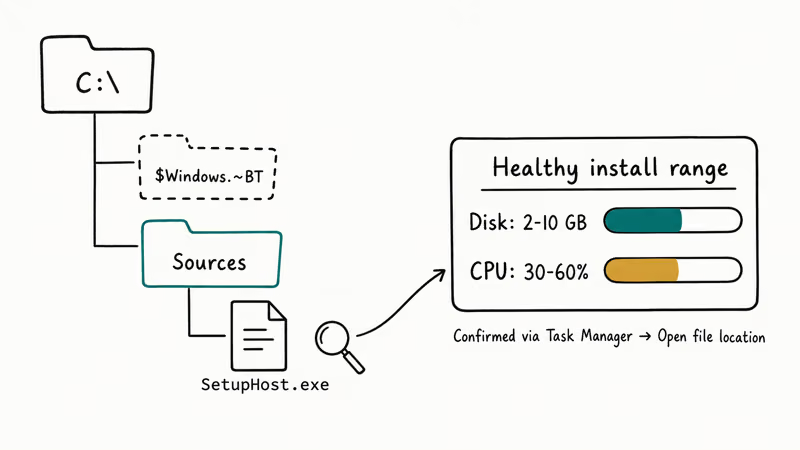
When Windows downloads a feature update, it creates a hidden staging directory called $Windows.~BT on the C: drive. SetupHost.exe runs from that folder and handles file extraction, prerequisite checks, and the install handoff. Confirm the file is genuine in 10 seconds: open Task Manager, right-click SetupHost.exe, and pick Open file location. The path should land in $Windows.~BT\Sources, and anywhere else is a malware indicator.
During an active install, disk use and CPU can legitimately spike. A true stall is different: the numbers stop changing for a long stretch while the staging folder keeps growing or never clears.
This process often shows up alongside unsecapp.exe in Task Manager. Unsecapp handles WMI client subscriptions and has nothing to do with updates.
#Common Causes of Modern Setup Host Failures
Four root causes account for most Modern Setup Host stalls.
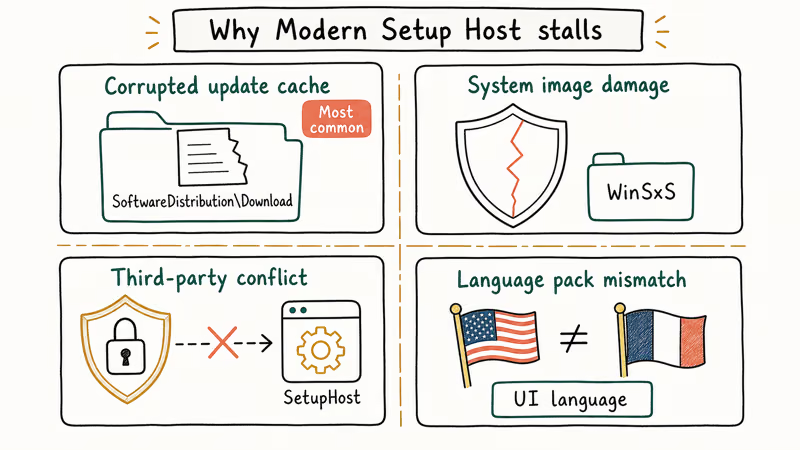
Corrupted update cache. The SoftwareDistribution\Download folder holds the temporary update payload. If a previous install was interrupted by a forced shutdown, network drop, or BSOD, the next attempt reuses the partial files and stalls on the same step. This is the most common cause and the cheapest to rule out.
System image damage. Component Store files inside WinSxS get corrupted by failed updates, bad RAM, or drive errors. SetupHost.exe relies on those files and refuses to proceed when checksums fail. DISM Restorehealth fixes this.
Third-party software conflicts. Endpoint security tools sometimes quarantine SetupHost.exe mid-write. Background apps with auto-start entries can lock files the installer needs. A clean boot eliminates both at once without uninstalling anything.
Language pack mismatch. When the system UI language drifts out of sync with the installed language pack — common after a regional reset — the update engine throws a generic error with no language clue in the message. Easy to miss, fast to fix once you know it.
#How to Tell If Modern Setup Host Is Actually Stuck
A long-running install isn’t always a stuck install. Use Task Manager to verify before you intervene.
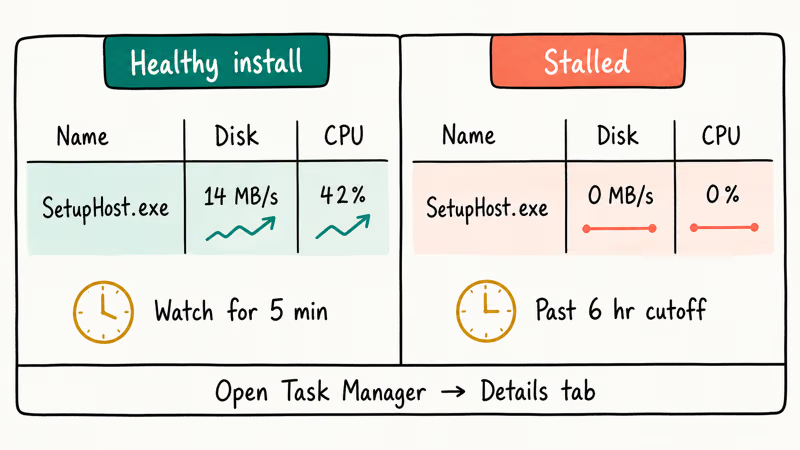
Open Task Manager (Ctrl + Shift + Esc), switch to the Details tab, and watch SetupHost.exe for 5 minutes. A healthy install shows the disk column changing every few seconds and CPU bouncing between 5% and 60%. A stalled install holds the same disk and CPU values for the full 5 minutes with no movement at all.
The 6-hour rule is the safe cutoff. Below 6 hours, leave it alone. Beyond 6 hours with flat metrics, treat it as stuck and start the fixes below.
#How Do You Fix Modern Setup Host High Disk Usage?
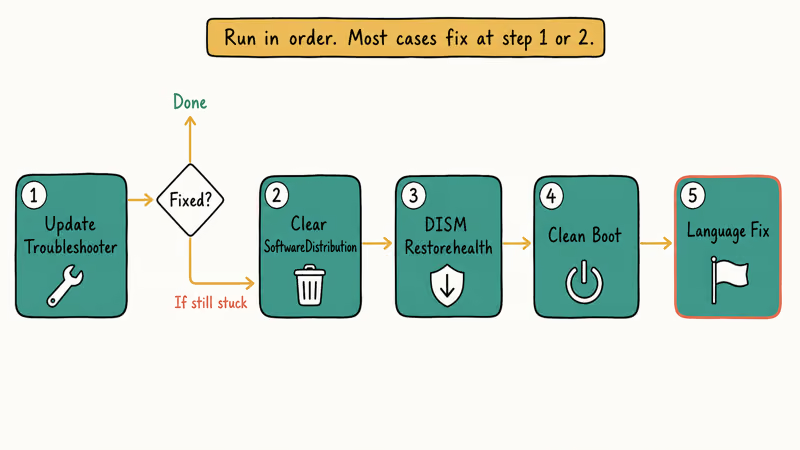
Work down the list in order. Most readers fix the issue before reaching the clean boot step.
#Run the Windows Update Troubleshooter
This is the fastest first move. The built-in troubleshooter resets the Windows Update service, clears stuck states, and re-registers update components. If the issue is a stuck update state rather than system-image damage, this step may be enough on its own.
- Press Windows + I to open Settings
- Go to
System>Troubleshoot>Othertroubleshooters on Windows 11, orUpdate & Security>Troubleshoot>Windows Updateon Windows 10 - Click Run next to Windows Update and follow the prompts
- Restart when finished, then check for updates again
According to Microsoft’s Windows Update troubleshooter documentation, the tool is supported on Windows 10 and Windows 11 and resets the BITS service, the Windows Update service, and the cryptographic services that signature-check update files. If it reports “Not fixed” after running, move to the next method without re-running.
#Clear the SoftwareDistribution Folder
Wipe the cache. Windows then pulls a clean copy.
- Press Windows + R, type
services.msc, press Enter - Find Windows Update, right-click it, and select Stop
- Press Windows + R, type
C:\Windows\SoftwareDistribution\Download, press Enter - Press Ctrl + A, then Delete to clear the folder
- Return to services.msc, right-click Windows Update, select Start
Open Settings>Windows Update andclick Check for updates
Deleting Windows update files this way is the next step when the troubleshooter can’t clear a stuck installer. Restarting the service forces Windows to fetch a clean package on the next update check.
#Run DISM to Repair the Windows Image
DISM rebuilds the underlying Windows image that SetupHost.exe reads from. It pulls replacement files from Windows Update over the network, so plug into ethernet if you can.
- Press the Windows key, search for cmd, right-click Command Prompt, and choose Run as administrator
- Run these three commands in order, pressing Enter after each:
DISM.exe /Online /Cleanup-image /Scanhealth
DISM.exe /Online /Cleanup-image /Checkhealth
DISM.exe /Online /Cleanup-image /Restorehealth
According to Microsoft, 3 DISM commands handle Windows image repair: /Scanhealth, /Checkhealth, and /Restorehealth. The full DISM command-line reference confirms that /Restorehealth automatically downloads replacement files from Windows Update when it detects component-store corruption. Plan for 10-30 minutes per command on most home connections. If the third command fails with DISM error 87, the syntax is the issue, usually a missing space before /Restorehealth or a stray slash.
After DISM finishes, run Windows Update again before moving on.
#Perform a Clean Boot
Background services and startup apps can hold file handles that block SetupHost.exe writes. A clean boot strips Windows back to Microsoft services only, which isolates third-party conflicts in a single reboot.
- Press Windows + R, type
msconfig, press Enter - On the General tab, choose Selective startup and uncheck Load startup items
- On the Services tab, check Hide all Microsoft services, then click Disable all
- On the Startup tab, click Open Task Manager and disable every enabled startup item
- Close Task Manager, click OK in System Configuration, then restart
Try Windows Update after the reboot. If the install completes, re-enable startup items in batches of five until the conflict reappears. The same approach helps isolate other Windows process problems, including Desktop Window Manager high CPU caused by overlay tools or RGB control software.
#Fix the System Language Setting
This step is skipped in most guides and is the only fix that works when language pack drift is the cause. Run the DISM language check first to confirm.
- Press Windows + R, type
cmd, run as administrator - Run
dism /online /get-intl - Note the value next to Default system UI language
Then in Settings:
- Press Windows + I, go to
Time & Language>Language & Region - Confirm the Windows display language matches the DISM output exactly
- If the values differ, move the matching language to the top of the list, sign out, and sign back in
- Run Windows Update again
#Disabling Modern Setup Host Is Not the Answer
No. SetupHost.exe is required to install every major update Microsoft ships, including security-critical cumulatives. Disabling the Windows Update service stops feature updates and security patches at the same time, which leaves the system exposed.
If you’re trying to cancel a single broken install rather than block updates forever, the SoftwareDistribution clear in Method 2 is the correct lever. It cancels the in-flight update without disabling the update system or affecting future patches.
#What If Modern Setup Host Keeps Crashing?
When all five methods fail and SetupHost.exe still crashes during install, you’re past the update engine and into deeper system damage.
Run System File Checker as the next step. Open an elevated Command Prompt and run sfc /scannow. SFC repairs the live Windows installation while DISM repairs the source image SFC copies from, so always run DISM first and SFC second. SFC takes 10-30 minutes on a healthy SSD.
According to Microsoft’s SFC support article, if SFC reports “found corrupt files but was unable to fix some of them,” kernel-level damage is the likely cause. At that point a Windows in-place repair install using the Media Creation Tool preserves your files and apps while replacing every system component, which is the cleanest fallback before considering a full reset.
On older hardware, contention with other Windows components like wsappx or the TrustedInstaller service can starve SetupHost.exe of resources during the install phase. Killing those processes doesn’t help, but waiting for them to settle before retrying often does.
#Bottom Line
Run the Windows Update Troubleshooter first because it’s built for stuck update states. If the install still stalls, clear the SoftwareDistribution Download folder and run DISM Restorehealth. Move to clean boot and the language fix only when the troubleshooter and DISM both come back clean and the install still stalls.
#Frequently Asked Questions
What is the Modern Setup Host process in Windows?
Modern Setup Host (SetupHost.exe) is a built-in Windows component that drives the installation of major feature updates and large cumulative rollups. It runs from the hidden $Windows.~BT folder on your C: drive, which Windows creates automatically when a feature update starts downloading. It’s a genuine Microsoft executable, not malware. The fastest way to confirm is to right-click the process in Task Manager, choose Open file location, and verify the path lands inside $Windows.~BT\Sources.
Is it safe to end the Modern Setup Host task in Task Manager?
Yes. Ending SetupHost.exe cancels the current update attempt without corrupting anything else. Windows recreates the process the next time you check for updates.
Why does Modern Setup Host use so much disk space?
The process unpacks the update payload into the $Windows.~BT folder, which can reach 10-15 GB during a major Windows 11 feature update. Windows automatically deletes those staging files after the update completes successfully. If the folder keeps growing past 15 GB or sits at the same size for more than 6 hours, a stalled install is the likely cause. You can safely clear it by stopping the Windows Update service first, then deleting the contents of $Windows.~BT.
Can Modern Setup Host errors cause Windows Update error 0x80070422?
Yes. A failed Modern Setup Host process can leave Windows Update stuck, which often surfaces as error 0x80070422. The Windows Update Troubleshooter clears most of these errors in one pass.
How long should Modern Setup Host run?
For a typical cumulative update, expect 30-90 minutes on a modern SSD and 1-3 hours on older hardware. A major feature update can run 2-5 hours, and up to 6 hours on a 5400 RPM HDD. If the process is still active after 6 hours with no measurable CPU or disk activity in Task Manager, treat it as stuck.
Does Modern Setup Host need an internet connection?
Only during the initial download phase. Once Windows has fetched the full update payload, SetupHost.exe runs entirely from the local $Windows.~BT folder. A dropped connection mid-download stalls the process, and clearing the SoftwareDistribution folder forces a clean re-download when you reconnect. The actual install phase needs no network access at all.
Why does Modern Setup Host show up on Windows 11?
Windows 11 inherits the same servicing stack and update architecture as Windows 10, including SetupHost.exe. The process appears whenever a major cumulative or feature update installs, and the troubleshooting steps in this guide apply identically across both versions.
What is the difference between Modern Setup Host and TrustedInstaller?
TrustedInstaller is the Windows Modules Installer service that owns and protects core system files and registry keys. Modern Setup Host is the upgrade-time installer that applies feature updates. They run at the same time during major updates because TrustedInstaller has to grant SetupHost.exe permission to modify protected files. High TrustedInstaller CPU during an active update is normal and usually settles within an hour after the install finishes.

Best Laptop for Running LLMs in 2026: Memory Comes First
The best laptop for running LLMs is a memory purchase first. Compare MacBook unified memory against NVIDIA laptop VRAM, and see what each tier really runs.

How to Run a Local LLM on Windows: A 2026 Setup Guide
Run a local LLM on Windows with LM Studio or Ollama. Pick a model that fits your GPU memory, keep every prompt offline, and skip the monthly bill.

Bluetooth Not Working on Snapdragon X? Fixes for 2026
Bluetooth not working on your Snapdragon X Copilot+ PC? Generic audio, mice, and keyboards work, but vendor apps often lack an ARM build. Fixes inside.

Docker Desktop and WSL2 Not Working on Snapdragon X? Fix It
WSL2 runs fine on Snapdragon X, but Docker Desktop ARM is Early Access and throws WSL errors. Use WSL2 plus native ARM64 Ubuntu and Docker Engine.