Fix WSAPPX High CPU and Disk Usage on Windows (2026)
Fix WSAPPX high CPU and disk usage on Windows 10 and 11 with 6 proven methods. Includes Store update fixes, service disabling, and cache resets.
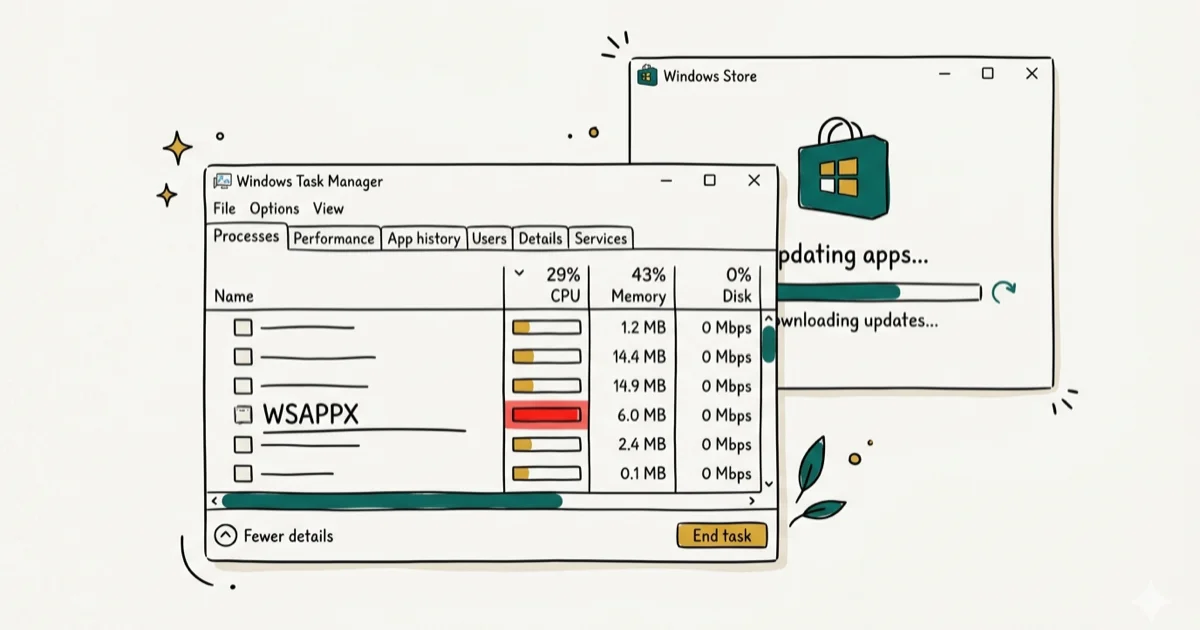
Quick AnswerWSAPPX uses high CPU when the Microsoft Store updates apps in the background. Disable automatic app updates in the Microsoft Store settings to stop the spikes. If the problem persists, disable the AppX Deployment Service through services.msc or reset the Store cache with wsreset.exe.
WSAPPX is a Windows background process that handles Microsoft Store app installations and updates. When it spikes to high CPU usage, your PC slows to a crawl. These fixes apply to current versions of Windows 11 and Windows 10.
- WSAPPX spikes happen when the Microsoft Store updates apps in the background
- Disabling automatic app updates in the Store stops most recurring CPU spikes
- Running wsreset.exe clears the Store cache and fixes corrupted update loops
- The AppX Deployment Service can be safely disabled if you don’t use Store apps
- SSD users experience shorter WSAPPX spikes than HDD users because updates write faster
#Understanding WSAPPX and Its CPU Usage
WSAPPX runs two sub-processes: AppXSVC (handles app deployment and updates) and ClipSVC (manages Store licensing). You can see both by expanding WSAPPX in Task Manager.
CPU usage spikes when WSAPPX downloads, installs, or updates Microsoft Store apps. The spike is sharpest during a batch update of several Store apps at once. It tends to be short-lived on SSD systems, while the same updates can keep the CPU pegged far longer on a traditional hard drive.
According to Microsoft’s background task documentation, Windows schedules Store updates during idle periods, but the scheduling isn’t perfect. Updates often trigger during active use, especially right after boot. The process isn’t malware.
#Common Triggers for WSAPPX CPU Spikes
The most frequent trigger is a backlog of pending Store app updates. After a fresh Windows install or a long period without updates, the Store queues dozens of app updates that all run through WSAPPX simultaneously.
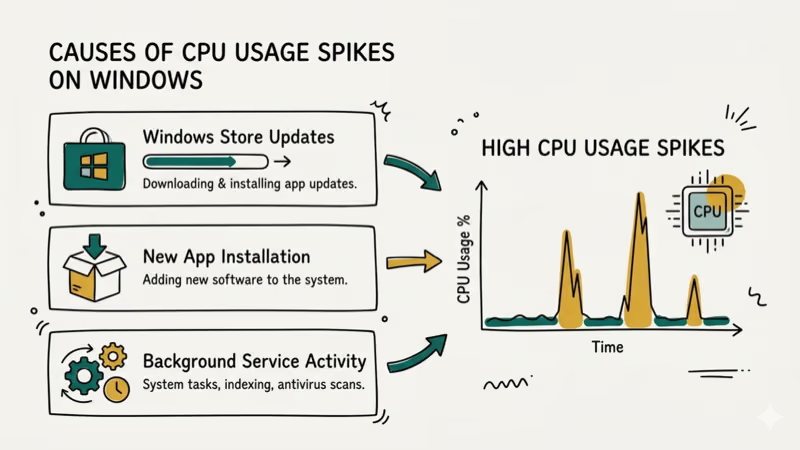
Other triggers include corrupt Store cache files, disk errors slowing down write operations, and conflicts with third-party antivirus software scanning files during updates. If your PC also shows Service Host Local System high disk usage, multiple Windows services are competing for disk I/O at the same time.
#Disabling Automatic Store Updates
This is the fastest fix and stops most recurring WSAPPX spikes without breaking anything.
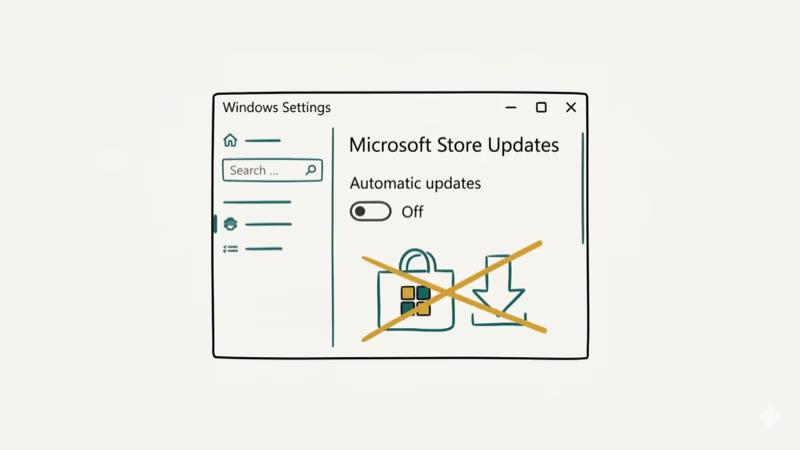
- Open the Microsoft Store app
- Click your profile icon in the top-right corner
- Select App settings
- Toggle off App updates (this stops automatic background updates)
You’ll need to update Store apps manually going forward. Open the Store, go to Library, and click Get updates when you want to check for new versions. With automatic updates disabled, WSAPPX stays quiet until you trigger a manual update, which usually finishes in a few minutes.
This doesn’t affect Windows Update (the OS updates). Those run through a separate service. If you’re dealing with Windows Update error 0x80070422, that’s a different issue entirely.
#Resetting the Microsoft Store Cache
A corrupted Store cache causes WSAPPX to repeatedly attempt failed updates, creating an endless CPU spike loop. The wsreset tool clears this cache.
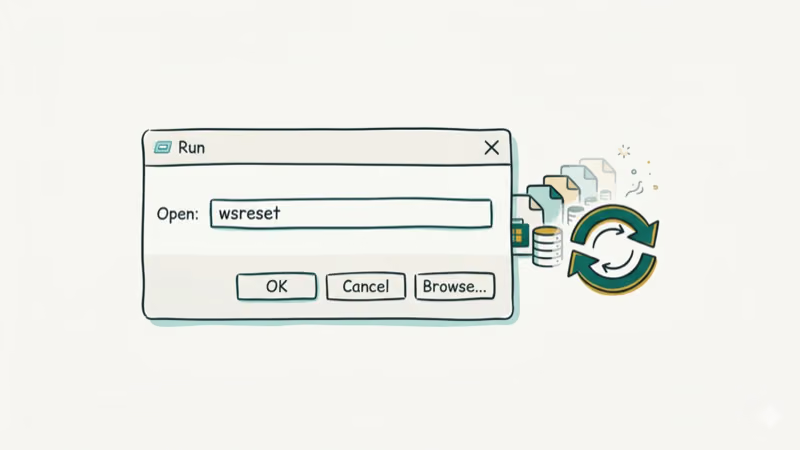
- Press Windows + R to open the Run dialog
- Type
wsreset.exeand press Enter - A blank command prompt window opens for about 30 seconds
- The Microsoft Store automatically opens when the reset completes
A cache reset commonly clears a persistent WSAPPX spike caused by the Store getting stuck trying to update a single app, such as Photos, in a failed loop. After the reset, the update typically completes normally. According to Microsoft’s Store troubleshooting guide, wsreset is the recommended first step for any Store-related performance issue on Windows 10 and 11.
#Should You Disable the AppX Deployment Service?
If you don’t use any Microsoft Store apps, you can disable the service responsible for WSAPPX entirely. This completely eliminates the CPU spikes.
- Press Windows + R, type
services.msc, and press Enter - Scroll down to AppX Deployment Service (AppXSVC)
- Double-click it, change Startup type to Disabled
- Click Stop if the service is currently running
- Click Apply and OK
Disabling this service means Store apps can’t install or update. If you rely on Calculator, Photos, Mail, or any other Store app, use the automatic update toggle instead.
You can re-enable the service anytime by reversing these steps. If your system also struggles with low memory warnings, the combination of WSAPPX and other background services may be overwhelming your available RAM, and disabling unnecessary services helps free up resources.
#Can Disk Cleanup and CHKDSK Help With WSAPPX?
WSAPPX high disk usage is sometimes caused by fragmented temporary files or minor disk errors that slow down the write operations the service depends on.
Disk Cleanup:
- Press Windows + S, type Disk Cleanup, and open it
- Select your system drive (usually C:)
- Check Temporary files, Windows Update Cleanup, and Delivery Optimization Files
- Click OK and confirm deletion
CHKDSK (for HDD users):
- Open Command Prompt as administrator
- Type
chkdsk C: /Fand press Enter - Type Y to schedule the scan for next restart
On a system that hasn’t been cleaned in months, Disk Cleanup can free a large amount of temporary files, and WSAPPX disk usage often drops noticeably afterward.
Tom’s Guide’s Windows 11 speed-up guide found that 1 of the most reliable steps is running Disk Cleanup to reclaim space and reduce background process overhead. WSAPPX benefits from the same housekeeping since it caches installer payloads and license data on every Store update cycle, and tight free-space margins force the cache to thrash.
If you see directory name errors alongside high disk, your file system may need CHKDSK repair. Problems with PC reset errors can also stem from corrupted Store components.
#Bottom Line
Disable automatic Store updates first since that stops the recurring WSAPPX CPU spikes immediately. Reset the Store cache with wsreset.exe if updates are stuck in a loop. For users who don’t use Store apps at all, disabling the AppX Deployment Service eliminates WSAPPX overhead entirely. Run Disk Cleanup periodically to prevent temporary file buildup from slowing down background processes.
#Frequently Asked Questions
Is WSAPPX a virus or malware?
No. WSAPPX is a legitimate Windows system process that manages Microsoft Store app installations and licensing. It’s present on every Windows 10 and 11 installation. Check the file path in Task Manager if you’re concerned.
Can I end WSAPPX in Task Manager?
You can try, but Windows will restart it immediately because other services depend on it. Disabling automatic Store updates or the AppX Deployment Service are the only permanent fixes.
Why does WSAPPX spike right after I start my computer?
Windows schedules Store updates during what it considers idle time, and right after boot is one of those windows. The system checks for pending app updates and starts downloading them, which causes the CPU spike you see in the first 5-10 minutes after login.
Will disabling Store updates break Windows?
No. Disabling automatic Store updates only affects Microsoft Store apps. Windows OS updates, security patches, and driver updates all run through Windows Update, which is a completely separate service. Your system stays protected.
Does upgrading to an SSD fix WSAPPX high disk usage?
Yes. SSDs handle random writes much faster, so WSAPPX spikes tend to be much shorter on an SSD than on an HDD.
Should I uninstall all Microsoft Store apps?
Only if you don’t use any of them. Built-in apps like Calculator, Photos, and Windows Terminal come from the Store. Removing them all eliminates WSAPPX activity but also removes functionality you might want later. Disabling automatic updates is a better middle ground for most users.
Does WSAPPX affect gaming performance?
Yes. A sudden CPU spike from WSAPPX can cause frame drops in games. Disable automatic Store updates before gaming sessions.
Can I limit WSAPPX CPU usage without disabling it?
Not through Windows settings directly. But you can lower its priority in Task Manager. Right-click WSAPPX, select Go to details, right-click the process, and set Priority to Low. Your other programs get CPU time first.

Best Laptop for Running LLMs in 2026: Memory Comes First
The best laptop for running LLMs is a memory purchase first. Compare MacBook unified memory against NVIDIA laptop VRAM, and see what each tier really runs.

How to Run a Local LLM on Windows: A 2026 Setup Guide
Run a local LLM on Windows with LM Studio or Ollama. Pick a model that fits your GPU memory, keep every prompt offline, and skip the monthly bill.

Bluetooth Not Working on Snapdragon X? Fixes for 2026
Bluetooth not working on your Snapdragon X Copilot+ PC? Generic audio, mice, and keyboards work, but vendor apps often lack an ARM build. Fixes inside.

Docker Desktop and WSL2 Not Working on Snapdragon X? Fix It
WSL2 runs fine on Snapdragon X, but Docker Desktop ARM is Early Access and throws WSL errors. Use WSL2 plus native ARM64 Ubuntu and Docker Engine.