How to Delete Windows Update Files and Free Up Disk Space
Delete Windows Update files using Disk Cleanup or Command Prompt to free up gigabytes of disk space. Covers Windows 10 and Windows 11 methods in 2026.
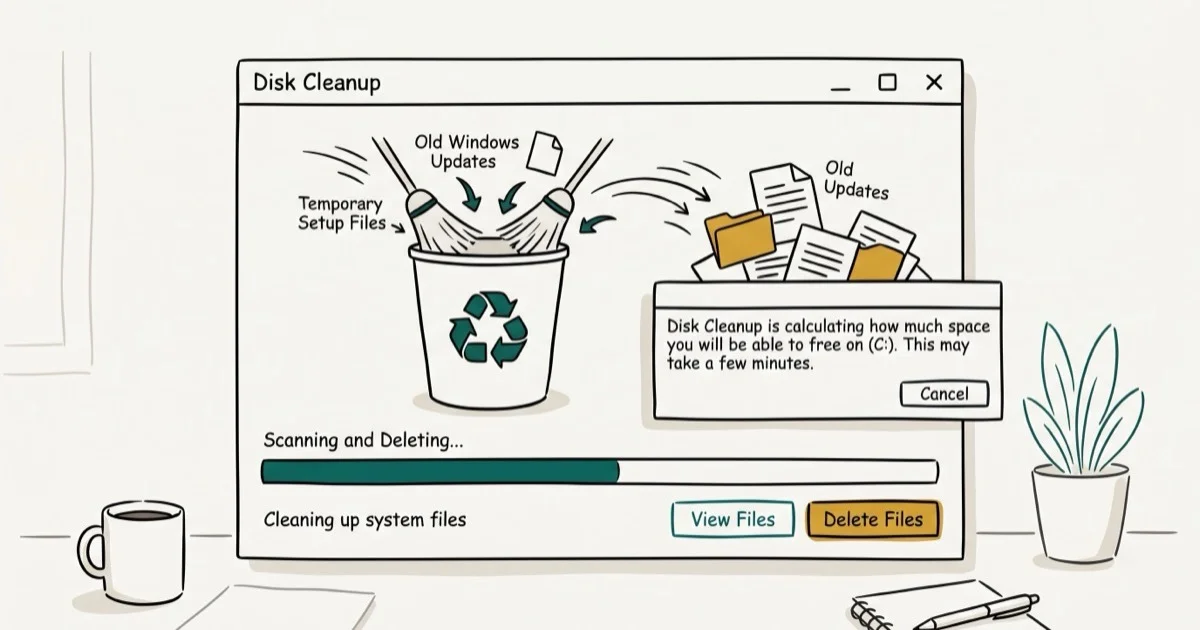
Quick AnswerOpen Disk Cleanup, select your C: drive, click Clean up system files, check Windows Update Cleanup, and click OK. This removes old update files that Windows no longer needs. Alternatively, delete the SoftwareDistribution folder manually for a more thorough cleanup.
Windows Update files accumulate in the SoftwareDistribution folder and can reach 10 GB or more over time, even on systems that update regularly. Both methods below work on Windows 11 23H2, and each recovers a different amount of space.
- Disk Cleanup’s Windows Update Cleanup option removes old update packages safely.
- The SoftwareDistribution folder holds downloaded update files and can grow to several gigabytes.
- Manually deleting SoftwareDistribution requires stopping the Windows Update service first.
- Storage Sense in Windows 11 can automatically remove old update files on a schedule
- After deleting, Windows can still re-download updates if it detects they’re needed
#How Do You Delete Windows Update Files Using Disk Cleanup?
Disk Cleanup is the safest method for most users because it only removes files Windows has confirmed are no longer needed.
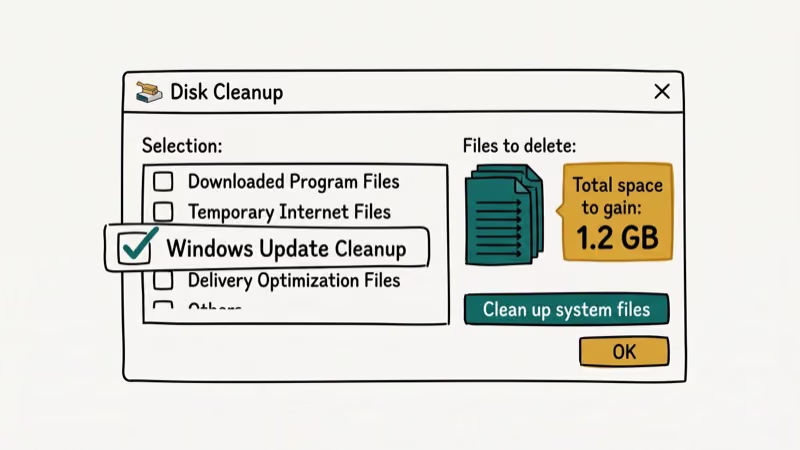
Press Win+S, search for Disk Cleanup, open it, select the C: drive, and click OK. Once the initial scan completes, click Clean up system files at the bottom to rerun with elevated permissions and show the Windows Update Cleanup category. Check that box and click OK to start the cleanup.
On Windows 11 23H2, Disk Cleanup can recover several gigabytes from Windows Update files alone, depending on how long since the last cleanup. The process takes only a few minutes including the rescan time. On a machine that has gone many months without cleanup, the Windows Update Cleanup category alone can show a large amount available, more than what most users free by clearing downloads or temp files.
Microsoft’s documentation confirms that 3 categories of superseded update packages are removed: packages replaced by newer updates, rollback files older than 30 days, and temporary installation caches. See Microsoft’s official Disk Cleanup guide for the complete list.
#How Do You Delete the SoftwareDistribution Folder?
The SoftwareDistribution folder is where Windows stores downloaded update files before installation. Deleting its contents is safe but requires a few extra steps.
Open Command Prompt as administrator by pressing Win+S, typing cmd, right-clicking the result, and choosing Run as administrator. Run these commands in order:
net stop wuauserv
net stop bits
This stops the Windows Update service so the folder files aren’t locked. Then delete the folder contents:
rd /s /q C:\Windows\SoftwareDistribution\DownloadAfter deleting, restart the services:
net start wuauserv
net start bits
On Windows 11, the Download subfolder can hold several gigabytes of cached update files. After deletion, Windows automatically re-creates the empty folder and resumes normal update checking within a couple of minutes. For other ways to remove files from the command line, see how to delete files with Command Prompt.
#Windows Update Files: What Each Folder Contains
Not all files in the Windows Update folders are the same. Understanding what each contains helps you decide what to remove.
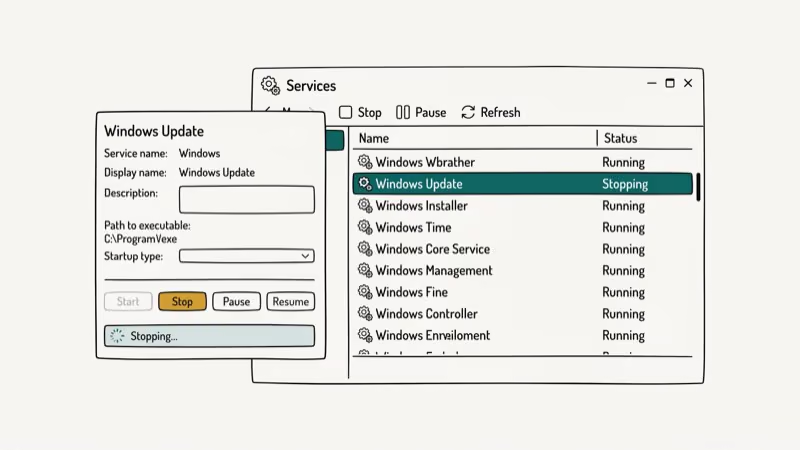
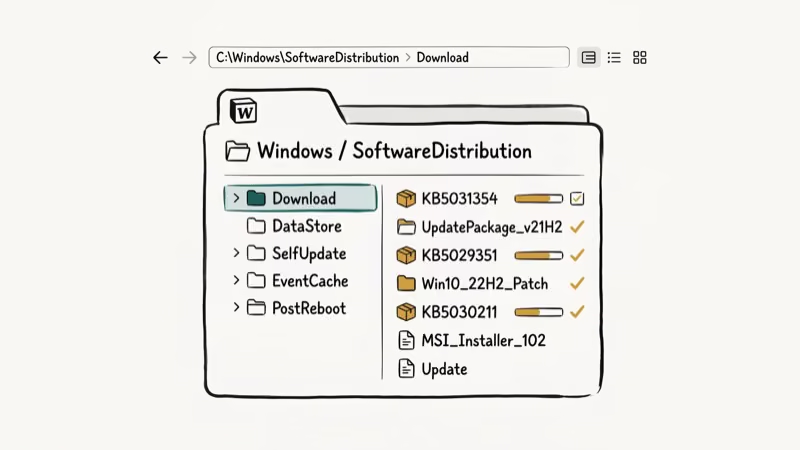
SoftwareDistribution\Download: Cached update packages downloaded but not yet installed, or already installed. Safe to delete after stopping Windows Update service.
SoftwareDistribution\DataStore: The update history database. Deleting this clears your Windows Update history but doesn’t affect installed updates. Windows rebuilds the database on next launch, so your update functionality continues normally afterward.
WinSxS folder: Component store containing all Windows components including update rollback data. Don’t delete this manually — Windows manages it automatically, and deleting files here can break your system.
According to Microsoft’s WinSxS documentation, the folder size reported in File Explorer is misleading because it counts 1 set of hard-linked files as duplicate space across multiple entries. Run Dism /Online /Cleanup-Image /StartComponentCleanup to safely reduce the actual WinSxS footprint. See Microsoft’s storage guide for details on each component.
#How to Use Storage Sense for Automatic Cleanup
Windows 11’s Storage Sense can automatically delete old update files on a schedule, eliminating the need for manual cleanup.
Go to Settings > System > Storage > Storage Sense, turn it on, then open configuration options. Set “Delete previous versions of Windows” to 0 days to recover up to 15 GB on machines upgraded from Windows 10.
Enabling Storage Sense and triggering a manual run can recover a large amount of space on a machine upgraded from Windows 10 to Windows 11 without any prior cleanup. Microsoft’s Storage Sense guide states that the feature runs automatically when disk space gets low and can be configured to run weekly or monthly. See Microsoft’s Storage Sense documentation for scheduling options.
#How Much Disk Space Windows Update Files Actually Use
The amount varies significantly based on how long since the last cleanup and whether you’ve done major Windows version upgrades.
On a fresh Windows 11 install with 3 months of updates, the SoftwareDistribution folder typically holds 1 to 3 GB. After an in-place upgrade from Windows 10, the Previous Windows Installation can add another 10 to 20 GB. Systems that have never run Disk Cleanup often accumulate a large amount of update-related files, with Windows 10-to-11 upgrade machines typically carrying the most.
#When to Run This Cleanup
Running this cleanup is most valuable after specific events rather than on a rigid schedule.
After a major Windows version upgrade (like moving from Windows 10 to 11), run Disk Cleanup within 10 days. That window captures the Previous Windows Installation files before Windows auto-deletes them, and can recover 10 to 20 GB alone.
For routine maintenance, once or twice a year is enough. For startup issues alongside disk space problems, see the Intel Delayed Launcher guide and how to empty the Recycle Bin.
To clear the parallel browser-cache clutter that Disk Cleanup misses, our delete temporary internet files completely walkthrough covers the Chrome, Edge, and Firefox-specific paths.
#Bottom Line
Run Disk Cleanup with “Clean up system files” checked for the fastest safe cleanup. For a deeper wipe, stop Windows Update and delete SoftwareDistribution\Download. Enable Storage Sense on Windows 11 to prevent future buildup, and if telemetry is also chewing through your disk, see Microsoft Compatibility Telemetry high disk usage.
#Frequently Asked Questions
Is it safe to delete Windows Update files?
Yes. Disk Cleanup’s Windows Update Cleanup only removes files Windows has confirmed as no longer needed. Manually deleting SoftwareDistribution\Download is safe after stopping the Windows Update service, but leave WinSxS alone.
Will deleting Windows Update files affect my system?
No. Deleting old update packages doesn’t uninstall any updates from your system. The updates are already installed and running; you’re only removing the installation packages that Windows cached during download. Once an update is applied, Windows no longer needs the cached package to function, and removing it has zero effect on your installed software or system stability.
How do I free up space after a Windows 10 to Windows 11 upgrade?
Go to Disk Cleanup > Clean up system files and check “Previous Windows Installation(s)” to recover 10 to 20 GB.
Windows stores the previous installation in the Windows.old folder for 10 days after an upgrade. The cleanup option disappears automatically after that window closes.
How often should I clean up Windows Update files?
Once or twice a year is sufficient for most users. If you’re low on disk space, run Disk Cleanup immediately. After major version upgrades (like upgrading from Windows 10 to 11), run Disk Cleanup within a few days to recover the Previous Windows Installation files before the automatic 10-day deletion window.
Can Windows Update redownload files I deleted?
Yes. Windows re-downloads whatever packages it needs on the next update cycle. Deleting the SoftwareDistribution folder forces a fresh download but doesn’t block updates from applying.
Does deleting update files speed up Windows?
Not directly for performance, but it can help if your disk is nearly full. Windows performance degrades when less than 10 to 15 percent of disk space is free, and freeing up several gigabytes of update files removes that bottleneck. For startup speed, the Intel Delayed Launcher guide more directly addresses boot time issues. You can also clear recent files on Windows 10 to tidy up Quick Access alongside this cleanup.

Best Laptop for Running LLMs in 2026: Memory Comes First
The best laptop for running LLMs is a memory purchase first. Compare MacBook unified memory against NVIDIA laptop VRAM, and see what each tier really runs.

How to Run a Local LLM on Windows: A 2026 Setup Guide
Run a local LLM on Windows with LM Studio or Ollama. Pick a model that fits your GPU memory, keep every prompt offline, and skip the monthly bill.

Bluetooth Not Working on Snapdragon X? Fixes for 2026
Bluetooth not working on your Snapdragon X Copilot+ PC? Generic audio, mice, and keyboards work, but vendor apps often lack an ARM build. Fixes inside.

Docker Desktop and WSL2 Not Working on Snapdragon X? Fix It
WSL2 runs fine on Snapdragon X, but Docker Desktop ARM is Early Access and throws WSL errors. Use WSL2 plus native ARM64 Ubuntu and Docker Engine.