Unsecapp.exe in Windows: What It Is and If It's Safe
Unsecapp.exe is the WMI Sink callback receiver that ships with Windows. Learn what it does, why it runs, and how to check if your copy is genuine.
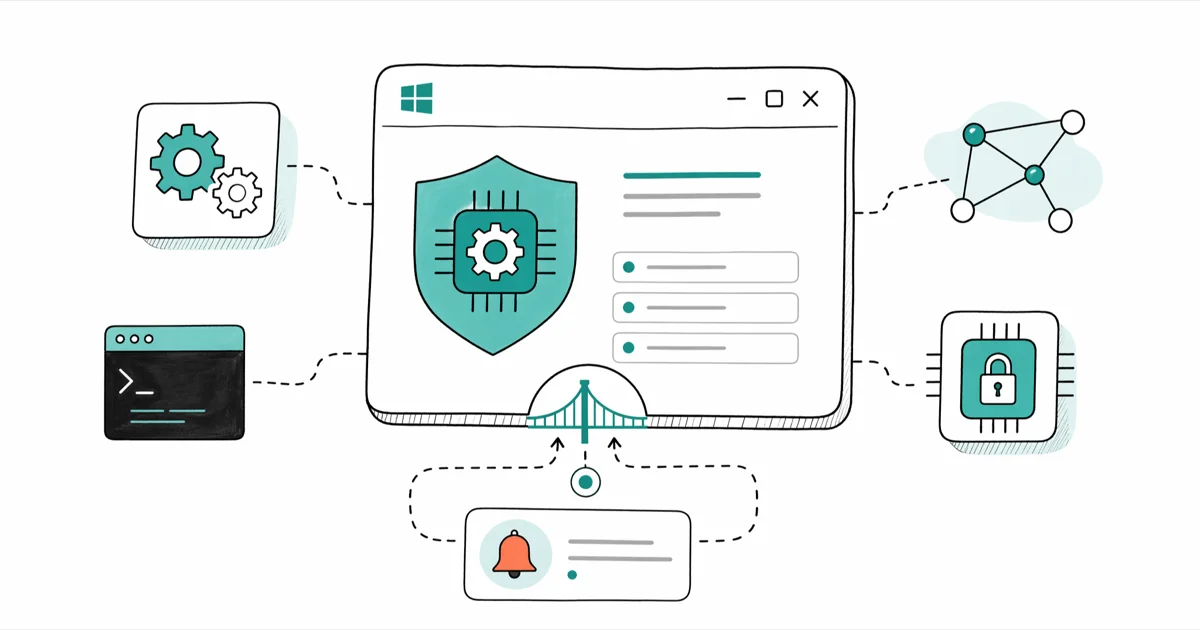
Quick AnswerUnsecapp.exe is a legitimate Windows process that receives asynchronous callbacks from Windows Management Instrumentation (WMI). It's safe when it runs from C:\Windows\System32\wbem, but a file with the same name running from any other folder warrants an immediate antivirus scan.
Unsecapp.exe shows up in Task Manager whenever a Windows app talks to a remote service through WMI. It’s a built-in Windows component, not malware, but the filename is a common disguise target. This guide assumes you’re inspecting your own computer; here’s how to tell whether the copy on your PC is the real thing.
- Unsecapp.exe is shorthand for “Sink to receive asynchronous callbacks for WMI client application” and ships with every Windows release since Windows 2000.
- The genuine file always lives in C:\Windows\System32\wbem; any other location is a red flag for impersonating malware.
- Normal CPU usage stays under 1% with memory below 15 MB at idle, even when several WMI-aware apps are running.
- Disabling unsecapp.exe is technically possible but breaks Skype, Discord, antivirus updaters, and Windows Update on the same machine.
- A full Windows Defender scan plus a file-location check in Task Manager resolves most “is this a virus” doubts in under 5 minutes.
#What Unsecapp.exe Is and Why Windows Runs It
Think of it as Windows’ answering machine for system events.
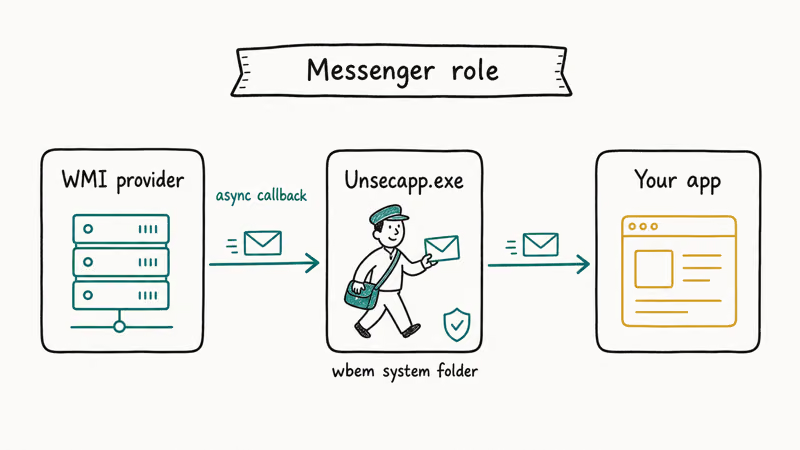
Unsecapp.exe belongs to the Windows Management Instrumentation (WMI) subsystem. The name expands to “Sink to receive asynchronous callbacks for WMI client application,” which is why technicians refer to the process as the WMI Sink. Microsoft’s WMI documentation confirms that WMI shipped with every Windows release since 2000 and is the standard way for software to query system state or subscribe to events.
On a genuine Windows install, the executable lives at C:\Windows\System32\wbem\unsecapp.exe and is signed by Microsoft Windows.
The process exists so that programs can receive event notifications without polling. When Discord starts a voice call, when Skype receives an incoming message, or when your antivirus syncs definitions, the supporting Windows service raises an asynchronous event. Unsecapp.exe catches that event and hands it back to the calling app. The Wikipedia article on Windows Management Instrumentation confirms that WMI is the Microsoft implementation of the Common Information Model (CIM) standard from the Distributed Management Task Force.
Despite the cryptic name, the binary is one of the most-used callback brokers on Windows. Microsoft Defender, Discord, Skype, Steam, OneDrive, NVIDIA GeForce Experience, and many enterprise tools all rely on it. If you killed the process every time it appeared, you’d cripple half of those apps.
For related cleanup reading, see our guides on the Modern Setup Host process and on the 0x80070032 error, both of which involve the same WMI infrastructure.
#Why Does Unsecapp.exe Start Randomly?
Plenty of users see unsecapp.exe spin up “out of nowhere” and assume something is wrong. The truth is calmer: a program just asked WMI for a callback, and Windows started the receiver in response.
Common triggers include:
- Voice and messaging apps. Skype, Discord, Microsoft Teams, and WhatsApp Desktop all hook into WMI events for presence and connection state.
- Game launchers. Steam, Origin (EA app), Epic Games, and Battle.net spin up unsecapp.exe at launch to register update callbacks.
- Antivirus engines. Avast, AVG, Bitdefender, Malwarebytes, and Windows Defender all use WMI to subscribe to security events. The myth that unsecapp.exe ships with Avast is wrong, since Avast piggybacks on the existing Windows binary like every other AV vendor.
- Cloud sync clients. OneDrive, Google Drive for Desktop, and Dropbox all trigger callbacks for file change events.
- Driver utilities. NVIDIA GeForce Experience, AMD Adrenalin, and Intel Driver & Support Assistant register WMI subscriptions on launch.
Simply opening Discord triggers unsecapp.exe almost immediately, and the process stays resident as long as Discord is open. Closing Discord lets the receiver linger briefly before exiting, which is normal Windows service-host behavior.
Windows Vista is the one exception. On Vista, unsecapp.exe starts at boot rather than on demand. Vista support ended in 2017, so this only matters for legacy systems still in service.
#Is Unsecapp.exe Safe or a Virus?
The genuine unsecapp.exe is safe and signed by Microsoft. It isn’t spyware, it doesn’t track keystrokes, and it doesn’t send data to remote servers on its own. The risk comes from impersonation. Malware authors know users won’t kill an “innocent-looking” Windows process, so they copy the filename and drop a hostile binary in a different folder.
A few common impersonation patterns:
- Wrong location. The malicious copy lives in
C:\Users\YourName\AppData\Local\Temp,C:\ProgramData\, or any random folder, never inC:\Windows\System32\wbem. - Subtle misspellings. Variants like unsec4pp.exe, unsekapp.exe, unsec-app.exe, or unsecapp32.exe rely on the eye glossing over the filename.
- Missing or fake signature. The genuine binary is signed by “Microsoft Windows.” A blank or “Unknown publisher” signature on a process named unsecapp.exe is suspicious by itself.
- Persistent network traffic. The legitimate process talks to local services only. Outbound connections from an executable named unsecapp.exe deserve scrutiny.
For background on lookalike Windows processes, see our deep dives on conhost.exe and how to tell it apart from malware and on the csrss.exe trojan disguise. The verification pattern is the same in all three cases.
#How to Verify Unsecapp.exe Is Genuine in Task Manager
A two-minute check confirms whether you’ve got the Microsoft binary or an impersonator. The same procedure works for any process you’re unsure about.
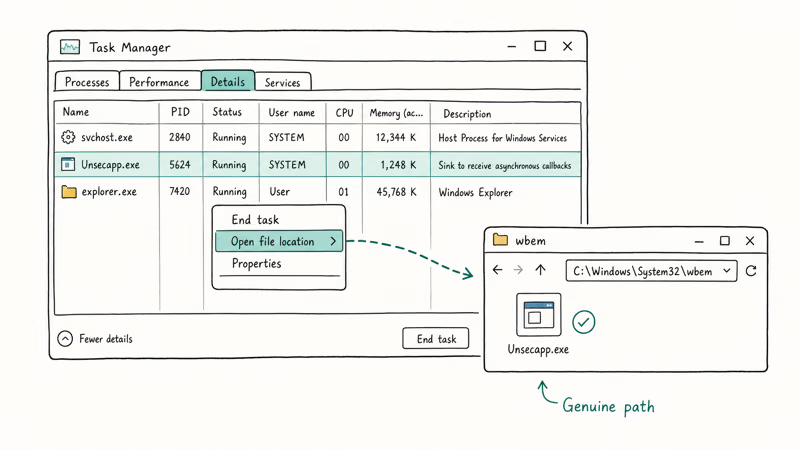
- Press Ctrl + Shift + Esc to open Task Manager.
- Click the Details tab. If you only see Processes, click More details at the bottom-left first.
- Scroll to unsecapp.exe in the list. Right-click it and choose Open file location.
- Confirm the folder that opens is exactly
C:\Windows\System32\wbem. If it isn’t, you’re looking at a suspect file. - Right-click the file in Explorer, choose Properties, switch to the Digital Signatures tab, and confirm the signer reads Microsoft Windows.
- Right-click the process again in Task Manager and select Scan with Microsoft Defender for an on-demand check.
For deeper inspection, download Microsoft’s Process Explorer, which is a free Sysinternals tool. It surfaces command-line arguments, parent process, and the full digital-signature chain that Task Manager hides, and it can verify image signatures against Microsoft’s certificates with one menu option. Since the genuine WMI sink is launched by the Windows service host and signed by Microsoft, those two details alone usually settle whether the file is the real broker or an impersonator.
If the file path is wrong or the signature is missing, jump straight to a full antivirus scan. Don’t simply delete the suspect file. Quarantine through your antivirus engine preserves logs and rollback paths.
| Signal | Genuine | Impersonator |
|---|---|---|
| File path | C:\Windows\System32\wbem | AppData, Temp, ProgramData, random folder |
| Digital signature | Microsoft Windows | Unsigned or "Unknown publisher" |
| Idle CPU usage | Under 1% | Often sustained above 20% |
| Working-set RAM | Around 5 to 15 MB | Frequently above 100 MB |
| Outbound network | None (local IPC) | Unknown external endpoints |
#Unsecapp.exe High CPU and Memory Usage
The healthy baseline on modern Windows 10 and Windows 11 builds is near-zero CPU and a small memory footprint when idle. Brief spikes when Discord, Steam, or your antivirus checks in for updates are normal. Sustained high CPU or steadily climbing RAM isn’t.
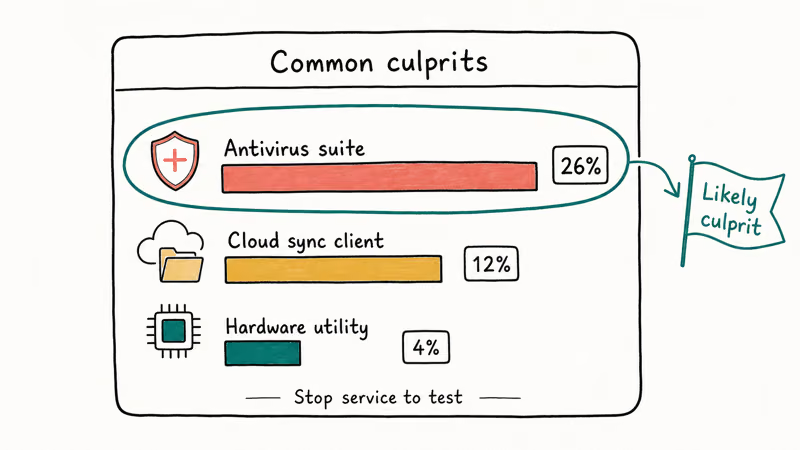
If you see persistent high resource use, walk through these in order:
- Restart the machine. A clean boot clears stuck WMI subscriptions that piled up after a sleep/wake cycle.
- Stop one suspect app at a time. Close Discord, then Steam, then your AV, watching unsecapp.exe in Task Manager after each shutdown. The process is reactive: the load it carries is the load its callers are generating.
- Update Windows. Microsoft has patched several WMI repository bugs over the years, and out-of-date builds occasionally leak event subscriptions. Open
Settings>Update & Security>Windows Update. - Rebuild the WMI repository as a last resort. From an elevated Command Prompt, run
winmgmt /resetrepository. Microsoft recommends this only when normal cleanup fails because it forces every WMI subscriber to re-register. - Scan for malware. If steps 1-4 don’t help, a hidden process driving WMI calls is the most common remaining cause.
For related Windows performance work, these guides cover the broader RAM and startup tuning that complements WMI cleanup:
- Computer running low on memory walks through RAM pressure fixes when WMI cleanup alone isn’t enough.
- Slow Windows 10 PC tackles startup app trimming and visual effects tuning.
- Javaw.exe explainer applies the same verification pattern to another commonly suspected executable.
#How to Remove a Malicious File Disguised as Unsecapp.exe
If verification shows the file lives in the wrong folder or carries no Microsoft signature, treat it like any other Windows malware. Don’t try to disable the genuine WMI sink. You don’t want to leave the impersonator running while you break the legitimate copy.
A reliable cleanup sequence:
- Disconnect from the network. Pull the Ethernet cable or disable Wi-Fi. This stops the malicious file from beaconing while you work.
- Boot into Safe Mode with Networking (Shift +
Restart>Troubleshoot>Advancedoptions >Startup Settings>Restart> press 5). Many persistence mechanisms don’t load in Safe Mode. - Run a full scan with Windows Defender plus a second-opinion scanner like Malwarebytes Free. Microsoft’s Windows Security guide walks through Defender’s full-scan workflow.
- Quarantine, don’t delete. Quarantine keeps a copy of the file and the registry persistence keys so you can review the report.
- Check startup entries. Open
Task Manager>Startup, MSConfig, andshell:startupfor entries you don’t recognize. Malware often points back to the disguised file. - Reset browser settings if the same machine is showing redirected search or ad pop-ups. Trojans riding the WMI namespace often install browser hijackers as a second stage.
- Change passwords from a clean device. Banking, email, and any accounts saved in your browser should be rotated once cleanup is confirmed.
You shouldn’t run a manual winmgmt /resetrepository on a compromised system before the malware is removed. The rebuild process can re-register hostile WMI subscriptions and re-infect on the next boot.
#Bottom Line
Leave the real unsecapp.exe alone. If it’s in C:\Windows\System32\wbem, signed by Microsoft, and using less than 1% CPU, it’s doing its job and several of your favorite apps depend on it. If anything about that picture looks off, run a full Windows Defender scan first, then re-verify before considering manual removal.
#Frequently Asked Questions
Is unsecapp.exe a virus?
No. The genuine file is a legitimate Microsoft Windows process that handles WMI callbacks. The risk is impersonation by malware reusing the filename in a different folder.
Can I disable unsecapp.exe?
You can, but you shouldn’t. Skype, Discord, your antivirus engine, Windows Update, and OneDrive all depend on WMI callbacks, so killing the receiver breaks them silently until the next reboot.
Why is unsecapp.exe using high CPU?
Almost always, a WMI-heavy caller is hammering it: a Discord update, an antivirus leaking subscriptions, or a stuck driver utility. Closing apps one by one usually identifies the source within minutes. As a last resort, winmgmt /resetrepository from an elevated prompt rebuilds the WMI store. If nothing helps, scan for cryptominer malware impersonating the binary.
Where is the real unsecapp.exe located?
The genuine file lives at C:\Windows\System32\wbem\unsecapp.exe. Any other path is a red flag.
Does unsecapp.exe ship with Avast antivirus?
No. The myth is common because Avast uses WMI heavily, but the binary is part of Windows itself. Uninstalling Avast won’t remove unsecapp.exe, and it doesn’t need to.
How can I tell if unsecapp.exe is the real Microsoft file?
Right-click the process in Task Manager, choose Open file location, and confirm the folder is C:\Windows\System32\wbem. Then right-click the file, open Properties > Digital Signatures, and confirm the signer is “Microsoft Windows.” If both checks pass, you’re looking at the legitimate binary.
Should I delete unsecapp.exe to fix a slow PC?
No. Deleting it breaks Windows Update, antivirus, and most modern apps. Profile the real high-CPU callers in Task Manager and fix those instead.
Will Windows reinstall unsecapp.exe if I remove it?
Removing the real file is hard because Windows protects system binaries with Trusted Installer permissions, and the System File Checker (sfc /scannow from an elevated prompt) restores it on the next run. The cleaner path is to leave the file alone and instead remove whatever is driving the high CPU.

Best Laptop for Running LLMs in 2026: Memory Comes First
The best laptop for running LLMs is a memory purchase first. Compare MacBook unified memory against NVIDIA laptop VRAM, and see what each tier really runs.

How to Run a Local LLM on Windows: A 2026 Setup Guide
Run a local LLM on Windows with LM Studio or Ollama. Pick a model that fits your GPU memory, keep every prompt offline, and skip the monthly bill.

Bluetooth Not Working on Snapdragon X? Fixes for 2026
Bluetooth not working on your Snapdragon X Copilot+ PC? Generic audio, mice, and keyboards work, but vendor apps often lack an ARM build. Fixes inside.

Docker Desktop and WSL2 Not Working on Snapdragon X? Fix It
WSL2 runs fine on Snapdragon X, but Docker Desktop ARM is Early Access and throws WSL errors. Use WSL2 plus native ARM64 Ubuntu and Docker Engine.