How to Fix Windows Update Error 0x80070422 (7 Methods)
Fix Windows Update error 0x80070422 with 7 proven methods. Restart the Update service, run SFC, reset components. Works on Windows 10 and 11.
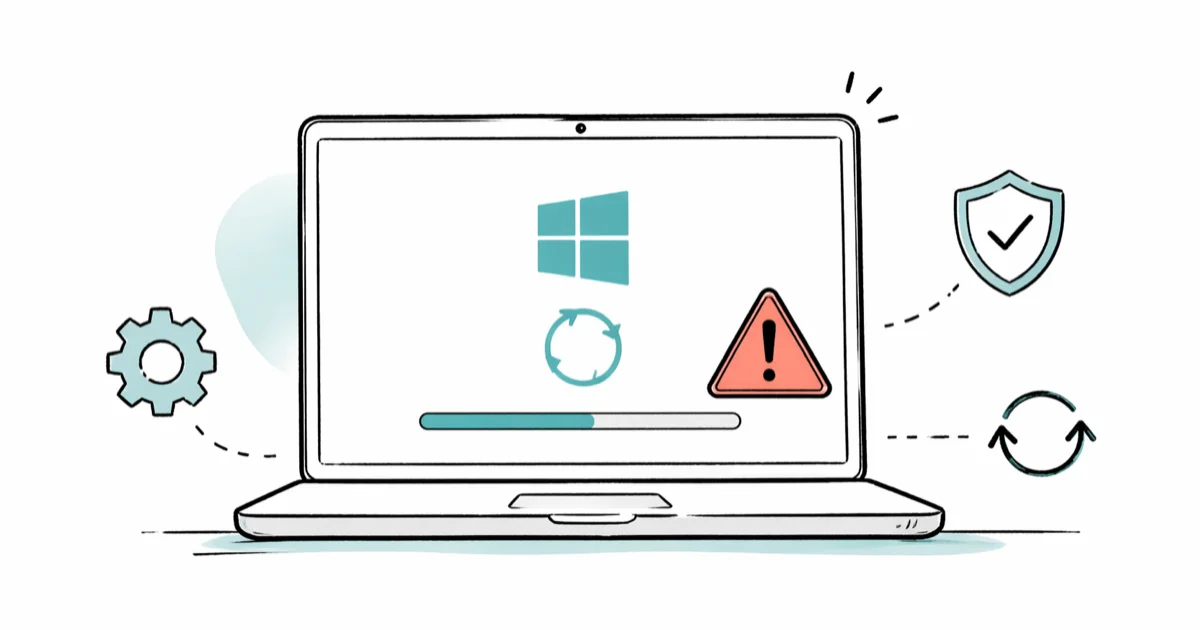
Quick AnswerWindows Update error 0x80070422 means a required service is stopped. Open services.msc, set Windows Update to Automatic, and start it. That single fix clears the error in most cases.
Windows Update error 0x80070422 almost always points to a stopped service. Seven fixes cover the error on both Windows 10 and Windows 11 PCs, and the order below runs from fastest to last resort. Start with Method 1. It works for most people on the first try.
Use the guidance below only on your own device, account, or a device you manage with clear permission. Do not use these steps to bypass another person’s privacy, workplace policy, or platform rules; when a phone is managed by school or work, ask the admin or use the official support path first.
- 0x80070422 is a service-state error, not a corruption error. The Windows Update service or one of its dependencies is set to Disabled or stopped.
- Restarting the Windows Update service via services.msc resolves the error on the majority of affected machines without touching anything else.
- Disabling IPv6 helps when the error appears alongside Windows Defender or Firewall failures, not just Windows Update.
- The built-in Windows Update troubleshooter at
Settings>System>Troubleshoot>Othertroubleshooters resets most service states automatically. - If the error returns after every reboot, run SFC and DISM in that order. They rebuild the component store the Update service depends on.
#What Causes Windows Update Error 0x80070422?
Error 0x80070422 fires when Windows tries to call a service that’s set to Disabled or has crashed. The service is almost always Windows Update (wuauserv), but the same code shows up for Windows Defender Firewall, Network List Service, and BitLocker because they share the same start-failure handler.
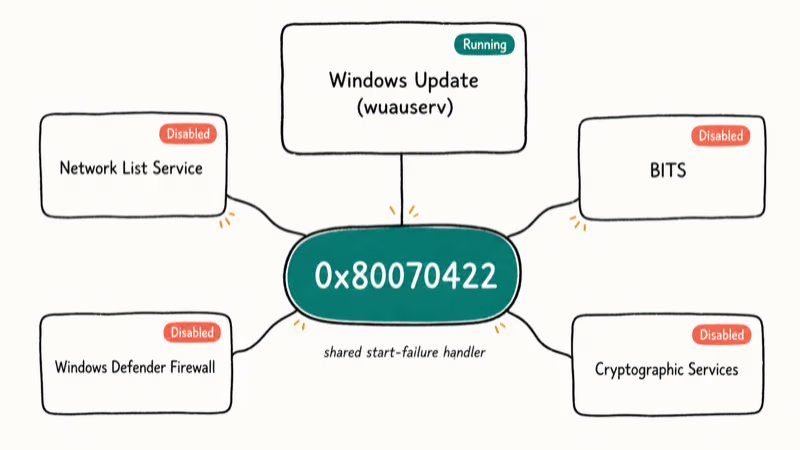
According to Microsoft’s Windows Update troubleshooting documentation, 0x80070422 means the Windows Update service is disabled or stopped, and the fix it gives for this code is to open services.msc, set the Windows Update service’s Startup type to Automatic, and start it if it isn’t already running. That’s a service-state problem rather than a broken update, and a fix that holds through several reboot cycles is what counts as a stable repair rather than a transient one.
If the error keeps returning after a fix, the problem is usually a third-party tool (privacy tweakers, telemetry blockers, or “Windows debloater” scripts) that flips the service back to Disabled on boot. Check Task Scheduler. Refurbished machines sometimes ship with one of these tools re-disabling wuauserv at every login.
#Method 1: Restart the Windows Update Service
This is the fix that works for most readers. You’ll need an Administrator account.
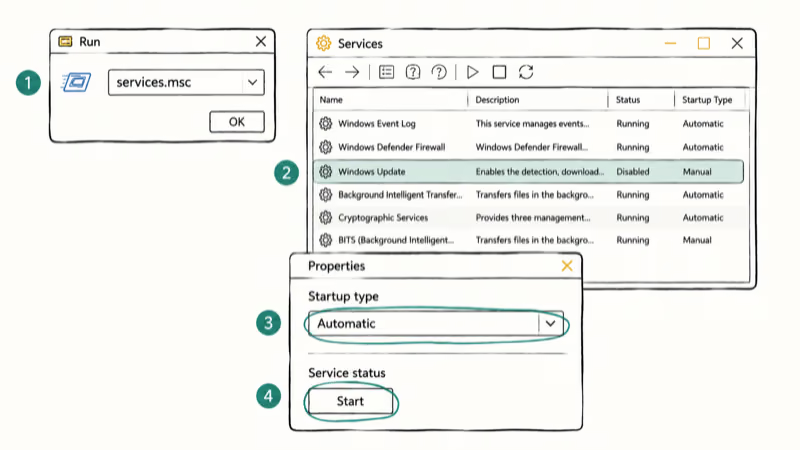
- Press Windows + R, type
services.msc, and hit Enter. - Scroll down (or press W) to find Windows Update.
- Right-click it and pick Properties.
- Set Startup type to Automatic.
- Under Service status, click Start if the service is stopped.
- Click Apply, then OK.
While you have services.msc open, set these dependencies to Automatic and Running as well:
- Background Intelligent Transfer Service (BITS)
- DCOM Server Process Launcher
- Cryptographic Services
- Windows Defender Firewall
Reboot and retry the update. This clears 0x80070422 on most affected machines. If the error persists, the service may have been re-disabled by a startup task. Open Task Manager > Startup apps and disable anything labeled “tweaker,” “optimizer,” or “debloater” before rerunning the update.
If you also see related Update errors during the same session, the fixes for Windows Update error 0x800705b4 and potential Windows Update database error detected often complement this method, especially when BITS or Cryptographic Services are also stopped.
#Method 2: Disable IPv6 in Network Adapter Settings
Some Windows builds throw 0x80070422 when an IPv6-only DNS lookup fails. Disabling IPv6 forces the Update service to fall back to IPv4 and usually resolves the issue.
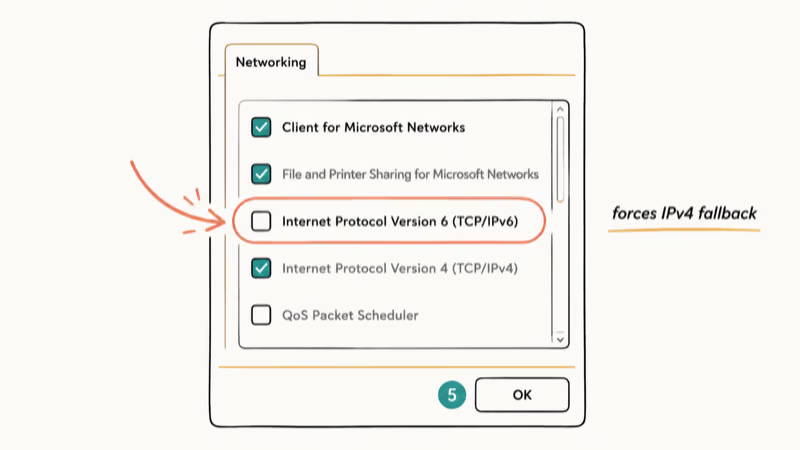
- Press Windows + X and pick Network Connections.
- Click Network and Sharing Center in the right pane.
- Click your active connection, then Properties.
- Uncheck Internet Protocol Version 6 (TCP/IPv6).
- Click OK and reboot.
On a home network using a router with flaky IPv6 propagation, the Update service often starts working immediately after the reboot. If you still face related issues like WSAPPX high CPU or service host local system high disk usage, those usually share a root cause with the Update service and are worth checking next.
A quick caveat. Some VPN clients and corporate networks need IPv6 enabled. If your work laptop loses connectivity after this change, re-tick the box and try Method 4 instead.
#Method 3: Disable the Network List Service
Network List Service occasionally enters a stuck state where it blocks other services from binding to the network adapter. Disabling it briefly forces a clean rebind.
- Open services.msc again.
- Locate Network List Service (press N to jump there).
- Right-click > Properties.
- Set Startup type to Disabled.
- Click Stop if the service is running.
- Click Apply and OK.
- Reboot.
After the reboot, set Network List Service back to Manual and start it. The reset itself does the work, and the rebind is what fixes the broken Update binding. Leaving it disabled long-term breaks the network status icon and Wi-Fi auto-connect, so don’t forget to flip it back. On some machines Wi-Fi looks dead until Network List Service is restored to Manual.
#Method 4: Run the Windows Update Troubleshooter
Microsoft’s built-in troubleshooter automates most of Methods 1 through 3 in one click. It’s the fastest fix if you only have a minute.
On Windows 11:
- Open
Settings>System>Troubleshoot>Othertroubleshooters. - Find Windows Update and click Run.
On Windows 10:
- Open
Settings>Update & Security>Troubleshoot>Additionaltroubleshooters. - Click
Windows Update>Runthe troubleshooter.
Microsoft recommends the troubleshooter as the opening move for update errors that stall or get interrupted, so it’s worth a pass here, though its own 0x80070422 entry points at the services console first. Clearing the SoftwareDistribution cache is a separate manual job on that same page, not something the troubleshooter does for you.
#Method 5: Run SFC and DISM Scans
If the error returns after every reboot, the Update service is likely calling into a corrupted component store. SFC repairs system files, and DISM repairs the component store SFC depends on. Run them in that order.
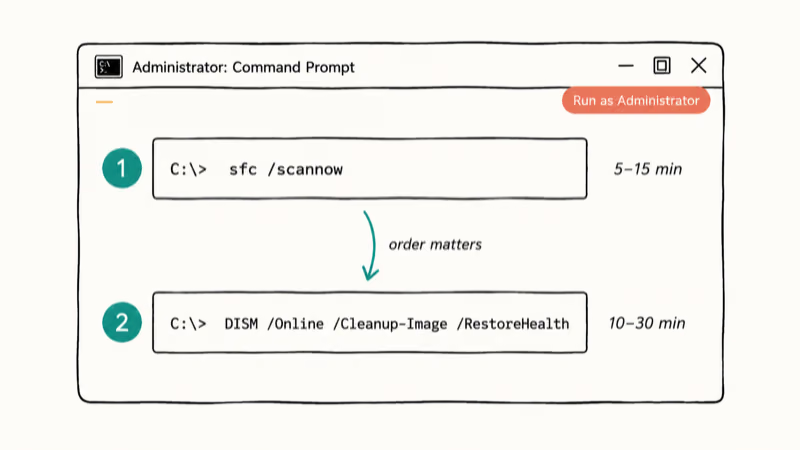
- Open Command Prompt as Administrator.
- Run
sfc /scannowand wait for it to finish (5 to 15 minutes). - Run
DISM /Online /Cleanup-Image /RestoreHealth(10 to 30 minutes depending on disk speed). - Reboot and retry Windows Update.
Microsoft confirms that SFC alone can’t repair the component store, which is why DISM is the second pass. In a stubborn 0x80070422 case where SFC reports “could not repair some files,” DISM clears the underlying corruption and SFC then runs clean on a second attempt.
If DISM itself errors out, see our fix for DISM error 87.
#When Should You Reset Windows Update Components?
If Methods 1 through 5 all failed, the SoftwareDistribution and catroot2 folders are probably holding broken update payloads. Resetting them forces Windows to re-download a clean catalog.
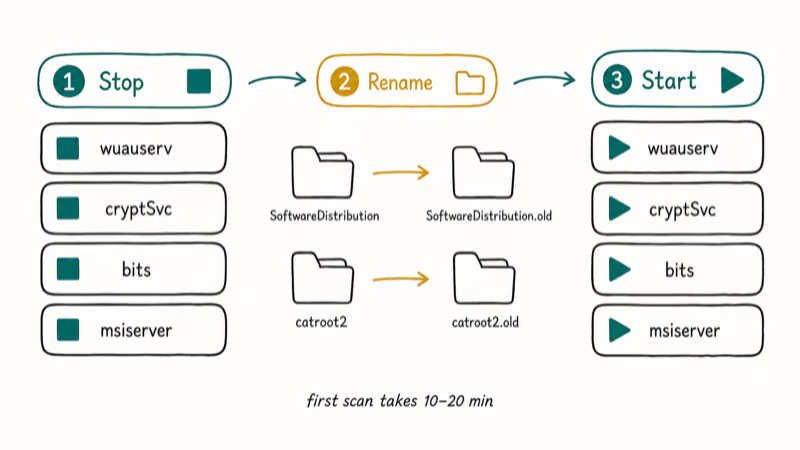
- Open Command Prompt as Administrator.
- Run these commands one at a time:
net stop wuauserv
net stop cryptSvc
net stop bits
net stop msiserver
ren C:\Windows\SoftwareDistribution SoftwareDistribution.old
ren C:\Windows\System32\catroot2 catroot2.old
net start wuauserv
net start cryptSvc
net start bits
net start msiserver- Reboot and retry Windows Update.
The first scan after the reset takes longer than usual (10 to 20 minutes) because Windows is rebuilding the catalog from scratch. If you have stockpiled stuck downloads, our walkthrough on deleting Windows Update files completely covers a deeper cleanup, including how to manually purge the Delivery Optimization cache and the WindowsApps update staging folder that Windows Update writes to during a sync.
This same component-reset block solves several adjacent errors. Readers stuck on error code 0x80070426 usually clear it on the same pass.
#Update Drivers If Methods 1-5 All Fail
The 0x80070422 error sometimes traces back to a malfunctioning network adapter driver. If your Wi-Fi or Ethernet card has a corrupted driver, Windows Update can’t reach the catalog server and falls back to the generic service-stopped error.
The cleanest path is to grab the latest driver from your laptop manufacturer’s support page, not from a generic driver site. Search “Driver downloads” plus your exact model number. Apply the chipset, network, and storage drivers in that order, rebooting between each.
If you’re not comfortable hunting drivers manually, Driver Easy automates the scan and download. The free version installs one driver at a time, while the paid version pushes them all in one click and includes a 30-day money-back guarantee. When several drivers are out of date at once, the one-click route saves the time a manual round would take.
Some links on this page are affiliate links, which means fone.tips may earn a commission at no extra cost to you.
Run System Restore first.
Create a restore-point checkpoint before any bulk driver update. Driver rollbacks via Device Manager are reliable but slow if you have to do five of them.
#Bottom Line
Start with Method 1. The Windows Update service is set to Disabled or stopped on most affected machines, and a 30-second visit to services.msc clears the error. If the service refuses to stay started, jump to Method 5 (SFC + DISM) before touching the component reset in the “When Should You Reset” section. Reserve the Driver Easy route for cases where Methods 1 through 5 all fail and Device Manager flags an unknown or yellow-bang network adapter.
#Frequently Asked Questions
Can I disable the Windows Update service to avoid 0x80070422?
No. Disabling Windows Update is the cause of the error, not a workaround for it. Even if you skip feature updates, you still need security patches. Set the service to Automatic and let it run.
Why does 0x80070422 keep coming back after I fix it?
Something is flipping the service back to Disabled on every reboot. The usual suspects are third-party “privacy” tools, “Windows debloater” scripts, group policy entries pushed by an old MDM enrollment, or leftover Task Scheduler jobs from a tweaker you’ve uninstalled. Open Task Scheduler and look for tasks containing “wuauserv,” “telemetry,” or “debloat” in the action, and check gpedit.msc for any “Configure Automatic Updates” policy set to Disabled. The fix sticks once the trigger is gone.
Does running SFC actually fix 0x80070422?
Sometimes. SFC repairs corrupted system files that the Update service depends on, but it can’t repair the component store itself. Run SFC first, then DISM, then SFC again if the first SFC pass reported uncorrected files.
Will resetting Windows Update components delete my files?
No. The reset only renames SoftwareDistribution and catroot2 (your update cache and signature catalog). Your documents, apps, and settings are untouched.
Is it safe to disable IPv6 to fix this error?
For a typical home user on a residential Internet connection, disabling IPv6 has no downside. If you are on a corporate VPN, gaming network, or ISP that requires IPv6 (some Comcast and Spectrum regions do), re-enable it after troubleshooting and use Method 4 or 5 instead. According to Microsoft’s IPv6 guidance for IT pros, disabling IPv6 is supported but a few features rely on it.
How long does the Windows Update troubleshooter take?
Under three minutes on a modern SSD, and up to ten minutes on an older HDD. The reset writes a small log to %WINDIR%\Logs\WindowsUpdate after it finishes.
What if 0x80070422 appears in Windows Defender, not Windows Update?
It’s the same root cause. Open services.msc and confirm Windows Defender Firewall and Microsoft Defender Antivirus Service are set to Automatic and running. If they’re stopped and refuse to start, third-party antivirus often blocks them. Uninstall the third-party AV completely (use the vendor’s removal tool, not Programs and Features) and reboot before retrying.
Should I uninstall recent updates if 0x80070422 keeps blocking new ones?
Only as a last resort. Roll back the most recent update from Settings > Windows Update > Update history > Uninstall updates, reboot, then retry. Our walkthrough on Modern Setup Host covers cases where the installer itself misbehaves.

Fortnite Stuck on the Loading Screen? Fix It in 2026
Fortnite stuck on the loading screen? Check server status, fix the Windows N Media Pack and DirectX 11 on PC, clear the console cache, and verify files.

Minecraft Keeps Crashing? Java and Bedrock Fixes (2026)
Minecraft keeps crashing on startup or mid-game? Update your GPU driver, remove mods on Java, and reinstall Gaming Services on Bedrock. Fixes for both.

Pokemon GO Not Loading? Fix the Loading Screen 2026
Pokemon GO not loading or stuck on the Pokeball? Check server status, fix automatic date and time, grant location permission, clear the cache, and update.

PS5 Controller Not Charging? 9 Fixes That Work (2026)
DualSense not charging? Swap the cable, use a rear port in Rest Mode, clean the USB-C port, and check power settings. 9 fixes for a dead PS5 controller.