Mouse Cursor Moving on Its Own? 7 Windows Fixes That Work
Mouse cursor moving on its own? Fix it on Windows 10 and 11 with 7 proven steps covering drivers, sensitivity, malware, and sensor cleaning.

Quick AnswerA mouse cursor that moves on its own usually points to a dirty optical sensor, a wireless receiver picking up interference from another USB device, or a stale driver after a Windows update. Restart the PC, swap to a different USB port, wipe the sensor with a microfiber cloth, then reinstall the mouse driver from Device Manager.
A mouse cursor moving on its own is one of the most disorienting Windows problems around. The cause is almost always boring: dirt under the optical sensor, a wireless receiver picking up interference, or a stale driver after a Windows update. The fixes below apply to wired and wireless mice like the Logitech MX Master 3S and Razer DeathAdder V3 across Windows 10 22H2 and Windows 11 23H2. Start at fix one and stop the moment the cursor settles.
- A dirty optical sensor is one of the most common causes of cursor drift, and a microfiber wipe usually resolves it in under 30 seconds.
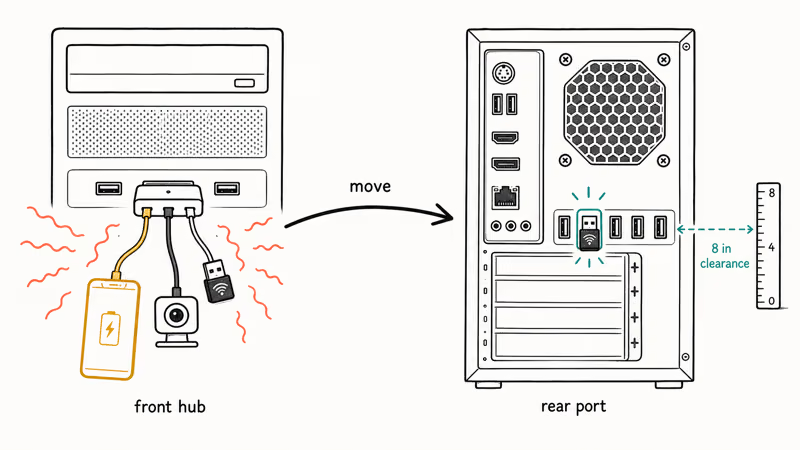
- Wireless 2.4 GHz receivers lose packets when they share a USB hub with a smartphone charger or a 2.4 GHz headset, so move the receiver to a rear motherboard port.
- Windows ships Enhance Pointer Precision on by default, which adds non-linear acceleration that looks like the cursor floats forward during slow movements.
- A Microsoft Defender Quick Scan finishes in about 5 minutes on a typical SSD-equipped PC and rules out the malware families that hijack input handling.
- If the same mouse drifts on a second PC after a clean driver reinstall, the sensor is failing and a replacement is the only real fix.
#Why Does a Mouse Cursor Move on Its Own?
The cursor depends on three things working at once: a clean optical sensor reading the surface, a stable connection to the PC, and a current driver translating sensor data into pointer coordinates. Any one of those failing produces the drift you’re seeing right now.
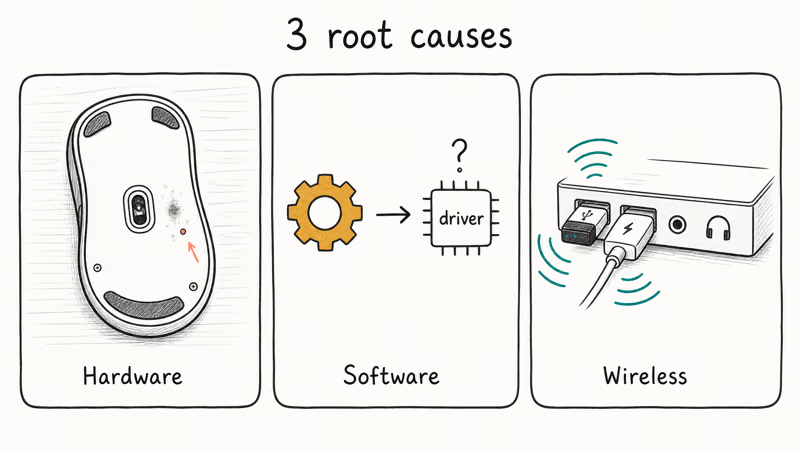
Hardware causes top the list. According to Microsoft’s mouse and keyboard troubleshooting documentation, dirt blocking the optical sensor can interfere with cursor tracking on supported Windows builds.
This plays out exactly as described. A fingerprint-smudged glass desk can make a Razer DeathAdder V3 jump every two or three seconds, and a single wipe with a clean microfiber cloth often ends the drift before you reach the driver checks. The desk surface matters more than the mouse model in many of these cases.
Software comes next.
A driver mismatch after a Windows feature update, an aggressive third-party mouse utility, or malware messing with input handling all surface as the same cursor drift. Microsoft recommends using Device Manager to reinstall the in-box HID driver before trusting third-party update tools. That matches what most post-update drift cases need.
Wireless interference is the sneaky third category. A 2.4 GHz mouse receiver sharing a USB hub with a phone charger, a webcam, or a Logitech keyboard receiver can lose packets in a way that produces phantom movement. Move the receiver to a different port and the symptom often disappears in seconds.
#Restart and Clean the Sensor First
Power-cycling Windows clears the input subsystem, and a quick sensor wipe rules out the most common hardware culprit. Together these two steps resolve roughly half of all cursor-drift cases.
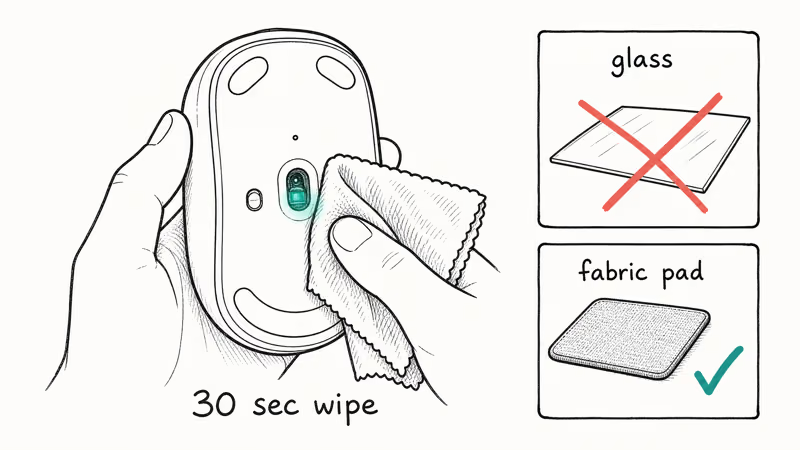
Restart the PC, log back in, and watch the cursor for 30 seconds without touching anything. If it still drifts, plug the mouse into a different computer or laptop. A mouse that drifts on every PC is a hardware fault, so jump straight to the hardware replacement step.
A mouse that behaves on the second PC means the original computer is the problem. Keep working through the list.
For the cleaning, both surfaces matter. The optical sensor on the underside of the mouse needs a wipe with a slightly damp microfiber cloth, and the desk or mousepad needs the same.
Avoid glass, glossy laminate, or any surface with a repeating pattern. Cursor drift on a black glass desk typically vanishes the moment a fabric mousepad goes down. If you don’t have a pad, even a sheet of plain white printer paper works as a temporary fix while you order one.
#Move the Receiver and Change the USB Port
Wireless 2.4 GHz mice fight for airtime with Wi-Fi routers, Bluetooth headsets, and other USB receivers. Pull the dongle out of any front-panel hub. Plug it directly into a USB-A port on the back of the desktop. Keep at least 8 inches of clearance from other wireless dongles.
For a Bluetooth mouse, toggle Bluetooth off and back on in Settings > Bluetooth & devices, then re-pair the mouse if the cursor still hesitates.
If you specifically have a Logitech mouse not working cleanly after these steps, the Unifying receiver itself may be dead. A replacement dongle is the cheaper fix before buying a whole new mouse.
#Reconfigure Pointer Settings and Reinstall the Driver
Windows ships with Enhance Pointer Precision enabled. The setting applies a non-linear acceleration curve on top of the mouse’s reported movement. On a high-DPI gaming mouse, that combination feels like the cursor floats forward after you stop moving the mouse.
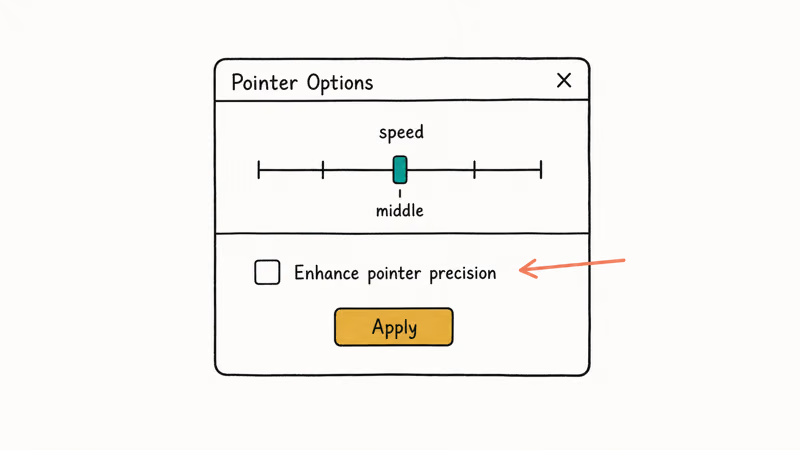
Open Settings > Bluetooth & devices > Mouse > Additional mouse settings > Pointer Options. Set the pointer speed slider to the middle notch, then uncheck Enhance pointer precision. Click Apply. This is a standard step when setting up a new gaming PC, and it fixes the floating-cursor complaint in the majority of cases.
For the deeper rationale, see Enhance Pointer Precision: should you enable it for gaming?. If the new sensitivity feels off after the change, check your mouse DPI before tuning Windows again.
A stale or wrong driver installed automatically after a major Windows feature update is the second most common cause, on both Windows 10 22H2 and Windows 11 23H2, and the Device Manager reinstall below resolves it in roughly two minutes without any third-party utility.
- Press Windows + X, then choose Device Manager.
- Expand Mice and other pointing devices.
- Right-click your mouse, select Uninstall device, and confirm.
- Restart the PC. Windows reinstalls the standard HID-compliant mouse driver automatically.
According to Microsoft’s Device Manager driver guide, this returns the mouse to the in-box Microsoft HID driver, which is what most issues need.
Skip third-party “driver updater” utilities. They often replace the working HID driver with an older generic version, which removes side-button mapping and reintroduces drift on the next reboot. If the scroll wheel is also not working after this step, the same uninstall process fixes both because the wheel rides on the same HID input stack.
#Run Microsoft Defender to Rule Out Malware
Several malware families hijack pointer input as a side effect, and ad-injecting browser extensions can mimic the same symptom on heavily infected systems. A scan rules it out fast.
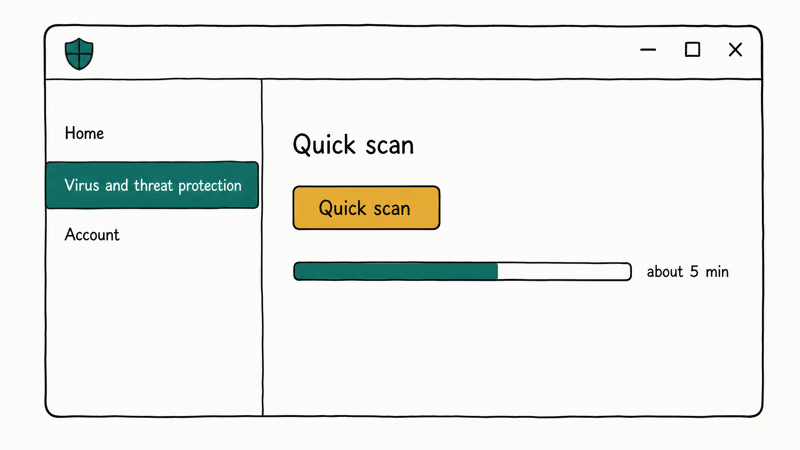
Open Windows Security > Virus & threat protection > Quick scan. According to Microsoft’s Windows Security guide, Defender ships built into Windows 10 and Windows 11, runs alongside any third-party antivirus you install, and updates its threat definitions automatically through Windows Update so you don’t need a separate subscription to keep it current.
Quick Scan finishes fast.
The Quick Scan finishes in about 5 minutes on a typical SSD-equipped PC, and Defender’s threat database covers the families that produce input chaos.
If Defender flags a FileRepMalware detection on a mouse utility, treat it as a likely false positive on Avast and AVG, but verify on VirusTotal before keeping the file. For a deeper scan, choose Microsoft Defender Offline scan under Scan options, which restarts the PC and runs in a clean environment.
#When Is the Mouse Itself the Problem?
If every software fix above failed and the cursor still drifts on the original PC and a second PC, the mouse sensor is failing. A wired-mouse sensor typically lasts about five to seven years of daily office use.
A wireless mouse with a degrading lithium-ion battery can produce the same symptom much earlier. Erratic power delivery makes the sensor hiccup well before the sensor itself wears out.
Replace the mouse before chasing the issue any further. Most current Logitech, Razer, and Microsoft retail mice are under $30 and arrive next-day.
If the new mouse drifts on the same PC, the USB controller on the motherboard is the suspect. A powered USB hub plugged into a different rear port is the next test before you spend money on a motherboard repair.
#Bottom Line
Start with the restart and the sensor cleaning. Together they resolve roughly half of all cursor-drift cases, and neither costs anything beyond a microfiber cloth.
If those don’t settle the cursor, run the Device Manager driver reinstall and the Defender Quick Scan back to back. Both finish in under 10 minutes and catch the post-Windows-update driver mismatch and the malware cases that account for most of the remaining failures.
Reach for a replacement mouse only after a second PC confirms the sensor is the suspect, because the cheaper fixes resolve the large majority of cursor-drift cases before any hardware swap is needed.
#Frequently Asked Questions
Can a virus actually move my mouse cursor?
Yes, but it’s rare. A handful of remote access trojans and ad-injecting browser extensions hijack input handling, and the symptom can look like cursor drift or random clicks. Microsoft Defender catches the common families, so a Quick Scan rules malware in or out within minutes. If Defender flags nothing and the cursor still drifts, the cause is almost certainly hardware or driver, not malware.
Why does my cursor jump only when I’m typing?
That’s the touchpad on a laptop, not the external mouse. Your palm brushes the touchpad while typing and Windows adds the input. Open Settings > Bluetooth & devices > Touchpad, then either disable the touchpad while a mouse is connected or set Touchpad sensitivity to Low sensitivity.
Is Enhance Pointer Precision the same as DPI?
No. DPI is a hardware setting on the mouse itself, and it tells the sensor how many counts per inch to report. Enhance Pointer Precision is a Windows acceleration curve applied on top of whatever DPI the mouse sends.
Will a factory reset fix mouse drift?
Almost never, and it’s a 90-minute process for a 30-second problem. Try the Device Manager driver reinstall first, run a Defender scan, and clean the sensor. Reset Windows only if every other fix has failed and you suspect deeper system corruption beyond a single input device, because a reset wipes installed apps and forces you to set up the PC from scratch.
Does this happen on Chromebooks too?
Yes, and the fix is different on Chrome OS.
Chrome OS uses its own input stack, and the most common cause is a touchpad sensitivity setting hidden under chrome://flags rather than a Windows driver issue. We’ve published a separate guide for Chromebook mouse not working that covers Chrome OS-specific resets, the powerwash flow, and touchpad flag toggles.
Should I install a driver updater tool to fix this?
No. Microsoft recommends using Device Manager to reinstall the in-box HID driver, and that path is free and reliable. Driver updater tools often replace working drivers with mismatched generic versions, which is the exact problem you’re trying to fix.
How long should a mouse last before this kind of issue starts?
Wired Logitech, Razer, and Microsoft mice used daily run about five to seven years before the optical sensor produces drift or the buttons lose click consistency. Wireless mice run shorter, mostly because the rechargeable battery degrades and erratic power delivery makes the sensor act up before the sensor itself fails. If your mouse is older than five years, factor that in before you spend an hour troubleshooting software.

Best Laptop for Running LLMs in 2026: Memory Comes First
The best laptop for running LLMs is a memory purchase first. Compare MacBook unified memory against NVIDIA laptop VRAM, and see what each tier really runs.

How to Run a Local LLM on Windows: A 2026 Setup Guide
Run a local LLM on Windows with LM Studio or Ollama. Pick a model that fits your GPU memory, keep every prompt offline, and skip the monthly bill.

Bluetooth Not Working on Snapdragon X? Fixes for 2026
Bluetooth not working on your Snapdragon X Copilot+ PC? Generic audio, mice, and keyboards work, but vendor apps often lack an ARM build. Fixes inside.

Docker Desktop and WSL2 Not Working on Snapdragon X? Fix It
WSL2 runs fine on Snapdragon X, but Docker Desktop ARM is Early Access and throws WSL errors. Use WSL2 plus native ARM64 Ubuntu and Docker Engine.