Magic Mouse Not Working? Fix Apple Mouse Problems Fast
Fix Magic Mouse pairing failures, scroll issues, and cursor freezing on macOS and Windows. Covers Bluetooth resets, driver fixes, and battery checks.
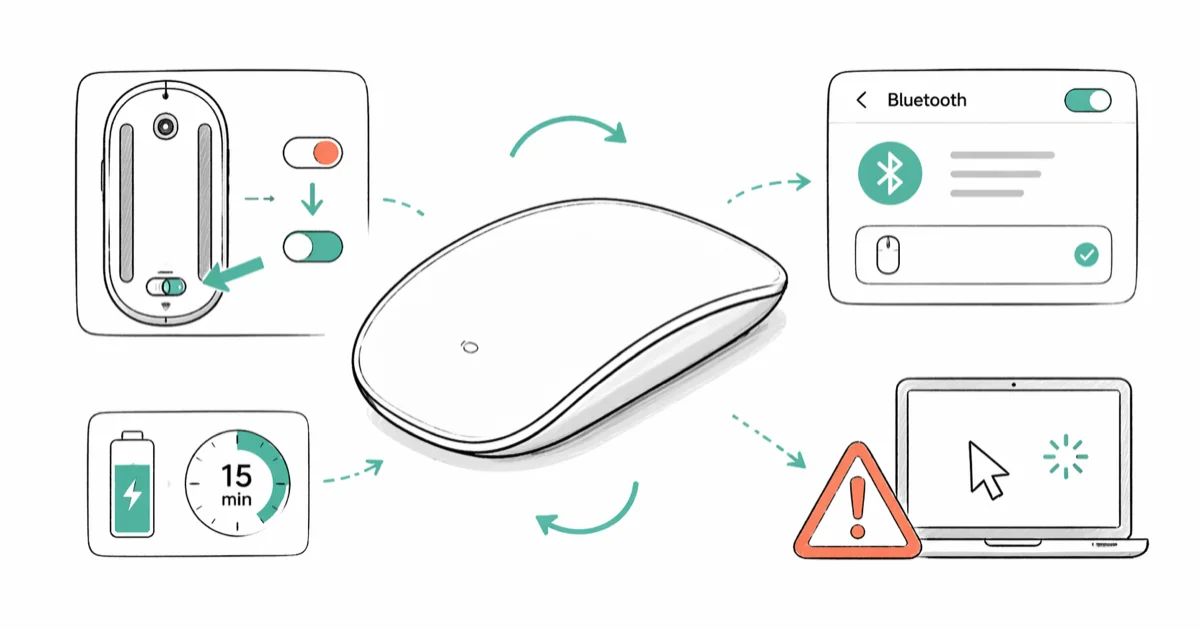
Quick AnswerTurn the Magic Mouse off and back on using the switch on its underside, then re-pair it through System Settings > Bluetooth. If it still does not connect, charge it and try again.
Magic Mouse problems usually fall into one of three buckets: a battery that drained without warning, a Bluetooth pairing that lost its handshake, or a Multi-Touch surface that needs cleaning. The simplest causes account for most failures, so always rule them out before deleting Bluetooth preferences or running NVRAM resets.
- A 15-minute charge gives the Magic Mouse 2 enough power for a full workday per Apple’s charging guidance
- Bluetooth interference from USB 3.0 ports causes many disconnection issues that look like hardware failure
- The Magic Mouse 2 needs Boot Camp drivers or a third-party tool to enable scrolling on Windows
- Resetting the Bluetooth module on macOS rebuilds the connection without forgetting other paired devices
- Replacing the Lightning cable solves charging failures more often than replacing the mouse itself
#Why Does the Magic Mouse Keep Disconnecting?
Low battery is the cause about half the time. Charge the mouse first.
Apple’s Magic Mouse specifications state that the rechargeable battery lasts about a month or more between charges. Connect the included USB-C to Lightning cable to your Mac to charge and pair the mouse before assuming the hardware is broken.
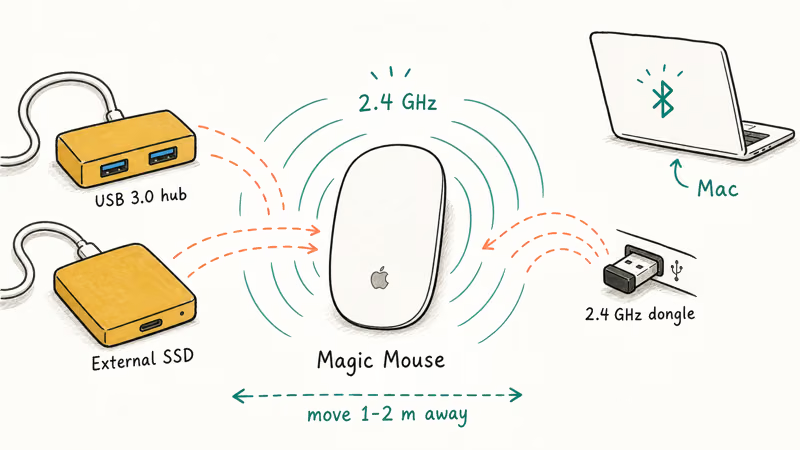
If charge level checks out, suspect Bluetooth interference next. USB 3.0 hubs, 2.4 GHz wireless devices, and external SSDs sit on overlapping radio frequencies. Moving an external USB 3.0 drive from a front port to a rear port can stop a stubborn cycle of disconnections within minutes. Microwave ovens and densely packed Wi-Fi networks can also wreck the connection if the mouse is more than a meter or two from the Mac.
If your Bluetooth is showing as unavailable on your Mac entirely, that’s a system-level issue blocking all wireless devices, not just the mouse. Fix the Bluetooth stack first, then come back to the mouse.
#How to Re-Pair a Magic Mouse That Won’t Connect
Flip the mouse over, slide the power switch off, wait five seconds, then slide it back on. The green LED should blink briefly. That single step clears most “Not Connected” states without any other action.
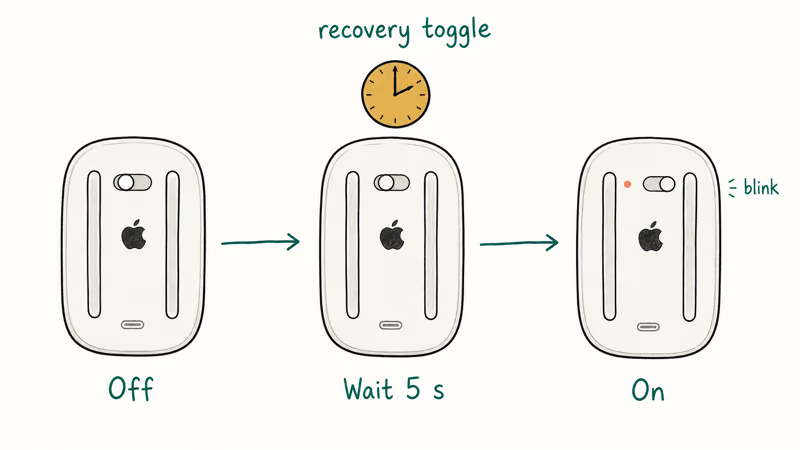
Open System Settings > Bluetooth on your Mac. If the Magic Mouse appears in the list, click Connect. If it’s missing, click the info icon next to its name (when listed at all), pick Forget This Device, and toggle the mouse off and on again to trigger fresh discovery. This forget-and-re-pair routine recovers a Magic Mouse stuck on “Not Connected” after a macOS update, and the whole pairing takes about ten seconds.
Before you delete any Bluetooth preference files, take a Time Machine backup or copy the file to your desktop first. The plist controls every paired device on the Mac, and a corrupted recreation can knock keyboards and AirPods offline at the same time.
If pairing still fails, try the steps in order:
-
Connect the mouse to your Mac with its charging cable, even if you think it has charge
-
Restart the Mac
-
Reset the Bluetooth module by holding Shift + Option and clicking the Bluetooth icon in the menu bar, then choosing Reset the Bluetooth module
-
Delete
/Library/Preferences/com.apple.Bluetooth.plistonly after you have a backup, then restart
If you have an original Magic Mouse with AA batteries instead of a Magic Mouse 2, swap the batteries even when the icon shows 30-40% remaining. Older alkalines lose voltage under load, so pairing can fail on cells that still read fine on a multimeter.
#How to Fix Magic Mouse Scrolling Problems on macOS
Scrolling fails more often than any other Magic Mouse function. The cursor moves but the page sits still, or it stutters and skips a screen at a time.
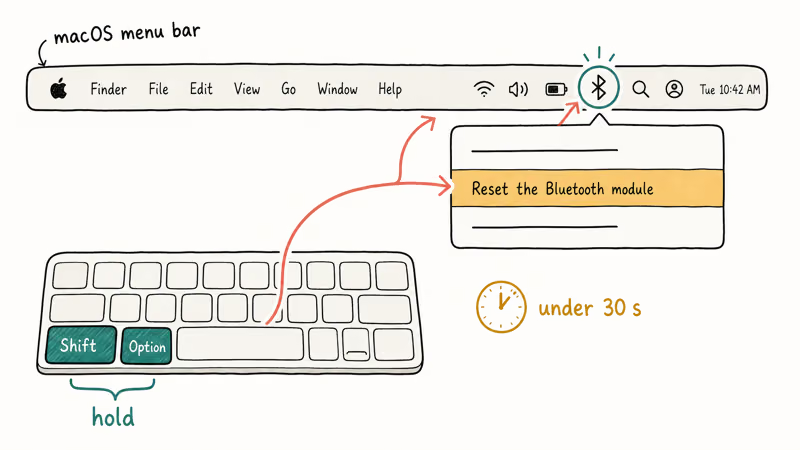
The first fix is the Bluetooth module reset described above. Hold Shift + Option, click the Bluetooth icon, and choose Reset the Bluetooth module. The mouse drops for 10-15 seconds, then reconnects. This reset routinely restores scrolling that has been broken for days, since it rebuilds the wireless link the gestures ride on.
If that fails, clean the Multi-Touch sensor with a dry, lint-free cloth. A cursor that drifts on its own often signals the same dirt-on-sensor problem.
When cleaning fails, suspect a macOS regression. According to Apple’s macOS release notes, several point updates between Ventura 13.2 and Sonoma 14.1 introduced Bluetooth input device bugs that Apple later patched. Update to the latest release before assuming the hardware is at fault.
A quieter fix is hiding in System Settings > Mouse: toggle Natural scrolling off and back on. That refreshes the scroll handler without rebooting.
#Charging and Battery Issues on Magic Mouse 2
The Lightning port on the Magic Mouse 2 is its weakest link. When charging stops working, the cable usually fails before the mouse does.
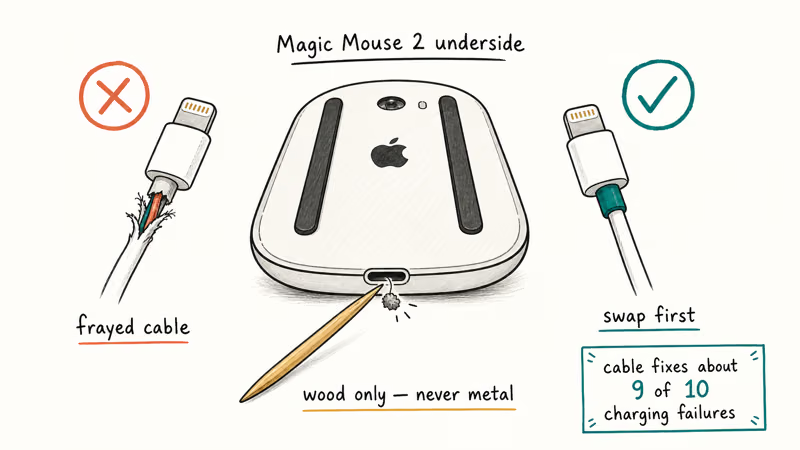
Try a known-good Lightning cable before anything else. Apple’s stock cables fray near the connector, and a cheap replacement cable clears the great majority of charging faults. Once the cable problem is ruled out, the Magic Mouse 2 tends to hold close to Apple’s 30-day battery rating under moderate daily use.
If a fresh cable still won’t charge, clean the Lightning port. Use a wooden toothpick to lift lint out gently. Never a metal probe; metal can short the pins.
When the mouse refuses to wake even with full charge showing, plug it in for two minutes minimum before pairing again. A fully drained battery needs that initial trickle to come back online, and skipping that step is the single most common reason a recharge “doesn’t fix” the mouse.
#Bluetooth Module Reset vs NVRAM Reset
Reset the Bluetooth module before NVRAM. It’s safer, faster, and fixes most cases on its own.
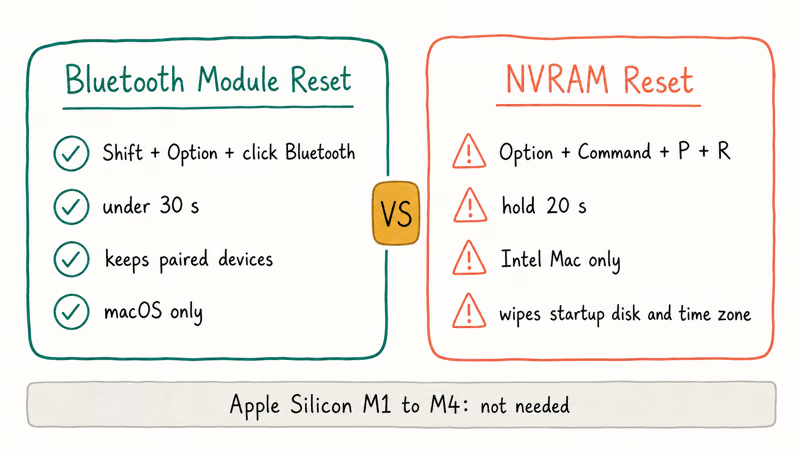
The Bluetooth module reset only affects the wireless stack on macOS. Your paired devices stay paired in most cases, and you can repeat it without losing data. Hold Shift + Option, click Bluetooth in the menu bar, and choose Reset the Bluetooth module. The whole reset takes under 30 seconds.
NVRAM reset is heavier but worth trying on Intel Macs that disconnect the Magic Mouse repeatedly after sleep. Apple Silicon Macs (M1, M2, M3, M4) handle NVRAM differently and don’t need a manual reset for input device issues. According to Apple’s NVRAM and PRAM reset guide, Intel Mac users can reset NVRAM by shutting down, then powering on while holding Option + Command + P + R for about 20 seconds.
Before you reset NVRAM, screenshot or write down the settings stored there: startup disk, display resolution, time zone, and recent kernel panic info. The reset wipes all of them, and you’ll have to set them again. Run a Time Machine backup if you have not done so recently.
#Using the Magic Mouse on Windows
Windows handles the Magic Mouse over Bluetooth, but only at the basic level. Cursor movement works out of the box. Scrolling and gestures need extra software.
For a Mac running Windows through Boot Camp, install Boot Camp Support Software from the macOS side. Apple’s Boot Camp support page confirms that the package includes the AppleWirelessMouse64.exe driver that enables scrolling and right-click. Run the installer in Windows, restart, and the Magic Mouse picks up gestures within a minute.
For Windows on a non-Apple PC, the Boot Camp installer won’t run. Magic Utilities is the standard workaround, restoring two-finger scrolling and tap-to-click on a Windows 11 PC soon after installation. Trackpad Magic is a similar option at the same price tier. Both run as a system tray service and need to launch at startup for gestures to keep working.
To pair the mouse on Windows:
-
Open
Settings>Bluetooth &devices -
Click Add device, then choose Bluetooth
-
Slide the Magic Mouse switch off and on to put it in pairing mode
-
Pick the Magic Mouse from the discovered list
If Device Manager flags a driver error for the mouse, that’s expected on Windows installations without Apple’s drivers. The pointer still works.
#When Is It Time to Replace the Magic Mouse?
Replace the mouse if the Multi-Touch surface is physically cracked, if specific touch zones don’t respond, or if the housing is split. None of those have a software fix.
For charging failures, exhaust three checks before buying a new mouse: try a different Lightning cable, clean the Lightning port, and try the cable on a different Mac to rule out the USB-C or USB-A side.
Apple doesn’t offer battery replacement on the Magic Mouse 2; the cell is glued in place, so a confirmed dead battery means a new mouse at $79-99 retail or a switch to a third-party model. Before you buy, check whether the mouse is still under AppleCare or your standard 1-year warranty by entering its serial number on Apple’s coverage check page, since an in-warranty replacement avoids the full retail hit.
If you’d rather switch shape or troubleshoot a different pointing device, these guides cover the common alternatives:
- Want a slimmer ergonomic option? See our pen mouse guide.
- Already own a Logitech model? Try the Logitech mouse fix guide.
- Trackpad showing the same symptoms? Check our MacBook Pro trackpad notes.
#Bottom Line
Charge the mouse, then re-pair it before doing anything more invasive. That sequence rules out the simplest power and pairing causes. If scrolling specifically is broken, reset the Bluetooth module, and swap to a fresh Lightning cable before assuming the mouse is dead. Keep NVRAM reset and plist deletion as last-resort steps with a Time Machine backup ready.
Mac Tips & Tricks
#Frequently Asked Questions
Why does my Magic Mouse keep losing its Bluetooth connection?
Battery and interference cause the bulk of disconnection issues. Connect the mouse to its charging cable and re-test before assuming a hardware fault. If charge looks fine, move USB 3.0 drives, hubs, and 2.4 GHz peripherals away from the Mac and try again.
Can I use a Magic Mouse with a Windows PC that isn’t a Mac?
Yes, with limits. Cursor movement and basic clicking work over Bluetooth without extra software. Scrolling and gestures need Magic Utilities or Trackpad Magic.
How long does the Magic Mouse 2 battery last on a full charge?
Apple rates the Magic Mouse battery for about a month or more between charges. Actual battery life varies with use.
Is it safe to delete the Bluetooth plist on macOS?
It’s safe if you back up first. Copy /Library/Preferences/com.apple.Bluetooth.plist to your desktop or run a Time Machine snapshot before deleting the file. The plist rebuilds on the next boot, but every paired device, including the keyboard, AirPods, and headphones, has to be added back manually. Keep a USB keyboard or wired pointer plugged in before you start, since you’ll lose Bluetooth input briefly until the rebuild finishes and you re-pair the keyboard.
What should I do if my Magic Mouse won’t charge at all?
Start with the cable. Apple’s stock Lightning cables wear out at the connector, and a $12 replacement fixes most charging failures. Next, look inside the Lightning port for lint or debris and clean it with a wooden toothpick. Only then suspect the internal battery, which Apple doesn’t service on the Magic Mouse 2.
Why does the cursor move but the Magic Mouse won’t scroll?
Scrolling uses a different part of the Multi-Touch surface than cursor tracking. Reset the Bluetooth module, clean the top, then update macOS. If AirPods also won’t connect, suspect a system-wide stack problem.
How do I check the Magic Mouse battery level on macOS?
Click the Bluetooth icon in the menu bar and hover over the Magic Mouse name. The percentage shows in the tooltip. You can also open System Settings > Mouse to see it at the bottom of the panel.
Does an NVRAM reset fix Magic Mouse problems on Apple Silicon Macs?
No. Apple Silicon Macs (M1 through M4) handle NVRAM automatically, and there’s no manual reset shortcut equivalent to the old Option-Command-P-R combination. If the Magic Mouse keeps dropping on an Apple Silicon Mac, focus on the Bluetooth module reset and the Lightning cable instead. On Apple Silicon, the Bluetooth module reset alone often fixes Magic Mouse drops that survived several reboots and a fresh pairing.
macOS 27 Golden Gate: Release Date and Compatible Macs
macOS 27 Golden Gate was announced at WWDC 2026. Here is the release date, the Apple Silicon-only compatible Mac list, and every confirmed new feature.
How to Copy and Paste on a Mac: Shortcuts and Fixes
Copy and paste on a Mac with Command-C and Command-V. Learn the cut shortcut, paste without formatting, Universal Clipboard, and fixes when it breaks.

How to Use the Phone App on Mac: macOS Tahoe Setup Guide
Set up the Phone app on macOS Tahoe to relay iPhone cellular calls. Covers requirements, FaceTime setup, Call Screening, and common firewall fixes.
How to Use iPhone Mirroring on Mac: Full 2026 Setup Guide
Set up iPhone Mirroring on macOS Sequoia with iOS 18. Covers hardware requirements, the six common error messages, EU limits, and a shared-Mac privacy fix.