How to Use ChatGPT Canvas: Complete 2026 Walkthrough
Open ChatGPT Canvas, use inline edits and the shortcut row, handle code reviews, and decide when to keep regular chat instead. Step by step for 2026.
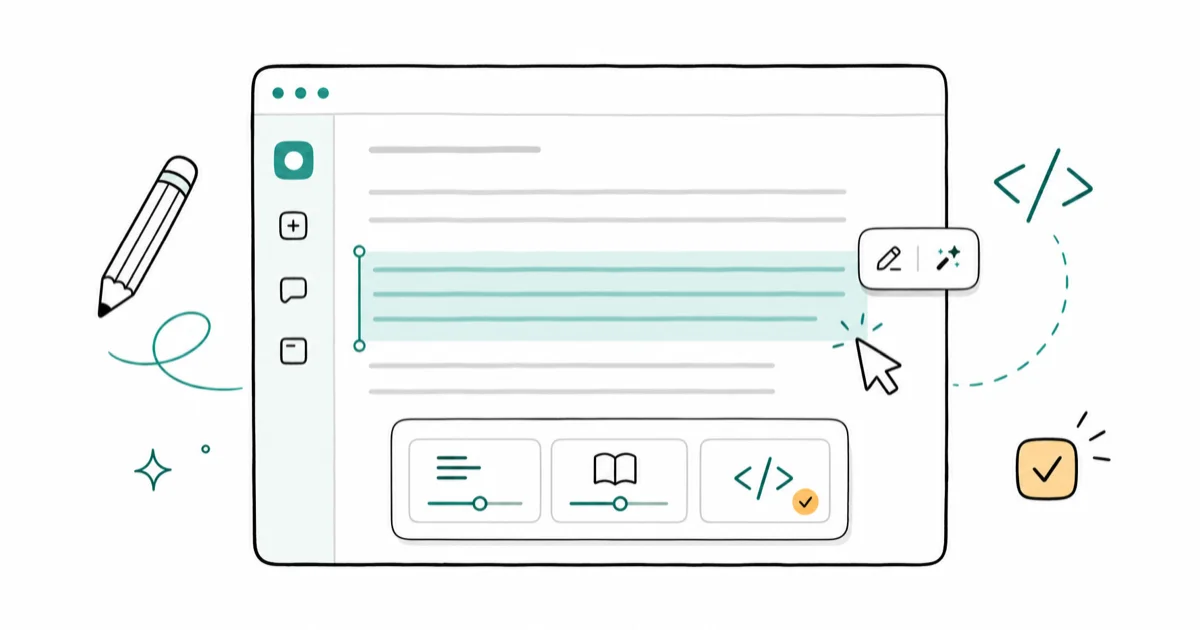
Quick AnswerOpen ChatGPT, start a chat, click the + plus icon and pick Canvas, or type /canvas. Use inline highlights to edit a paragraph and the shortcut row to adjust length, reading level, or review code.
ChatGPT Canvas is the side-by-side editor that splits the screen so your chat stays on the left and an editable document sits on the right. This walkthrough focuses on opening Canvas, editing inline, using shortcuts, and deciding when regular chat is better.
- Canvas is a separate surface, not a setting, and it auto-opens for longer writing or coding requests but you can force it any time with the + plus icon or the /canvas slash command
- Inline edits work by selecting a span of text inside the document and choosing from a small floating menu, which rewrites only that selection instead of regenerating the entire draft
- The shortcut row at the bottom of a Canvas changes based on whether ChatGPT detects writing or code, swapping between length and reading-level tools for prose and review and refactor tools for code
- Canvas keeps a version history with back and forward arrows, so a bad shortcut press is recoverable and you can flip between two drafts without copying anything out
- Use Canvas the moment a document needs more than one revision pass, and stay in regular chat for one-shot questions, lookups, and brainstorming you won’t edit again
#What ChatGPT Canvas Is (and What It Isn’t)
Canvas is a split-pane editor inside ChatGPT. On the left you see the conversation you’ve always had; on the right you see a document or code file that ChatGPT can edit in place. Highlight a sentence in the document, and a small menu lets you ask for a shorter version, a longer rewrite, a rephrase, or a comment. Only that selection changes.
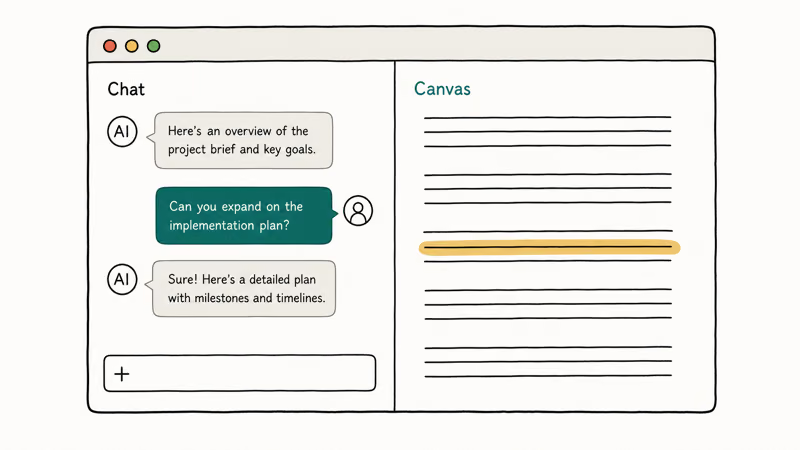
Close the panel and you’re back to a normal chat.
The point is to stop watching ChatGPT regenerate an 800-word draft because you wanted one paragraph tightened. Regular chat produces a new full message for every edit. Canvas is built around the document, so most edits land inline and the rest of the text stays exactly as you wrote it. That’s the whole pitch in one sentence.
Canvas isn’t ChatGPT Projects. Projects is the folder that pins chats, files, and instructions together; Canvas is the document inside one chat. It’s also separate from ChatGPT custom instructions, which configure how the assistant behaves globally. Custom instructions set the voice rules; Canvas is just a surface where those rules play out.
According to OpenAI’s Canvas launch announcement, Canvas is positioned as a workspace for projects that need more than chat, with 2 core surfaces (writing and code).
Use it whenever a piece of writing or code is going to get more than one revision pass.
#How Do You Open Canvas?
Three reliable ways, and the right one depends on what you’re about to do.
The first is automatic: ask ChatGPT for a long-form piece of writing or a code task, and the model often opens Canvas on its own. According to OpenAI’s Canvas help page, the model triggers Canvas for longer writing and coding tasks across 5 standard scenarios (drafts, essays, emails, scripts, code reviews). There’s no published threshold; just a fuzzy line the model decides per prompt.
The second is the + plus icon.
Click the plus next to the message composer, and a small menu appears with Canvas as one option. Pick Canvas and the next response opens in split view. This is the way to force Canvas when the model wants a quick chat reply but you know you’ll iterate.
The third is the slash command. Type /canvas at the start of a message and a small picker appears confirming Canvas mode. Hit Enter and your prompt routes into a Canvas document.
If Canvas opens and you don’t want it, the close button sits at the top-right of the document panel. The action collapses the panel, but it doesn’t delete the document. You can reopen it from the message history by tapping the document preview, which is useful when an auto-opened Canvas turns out to be the right place after all and you closed it on reflex during a busy session of back-and-forth edits.
#Using Inline Edits and the Comment Tool
This is the workflow most people miss in their first session.
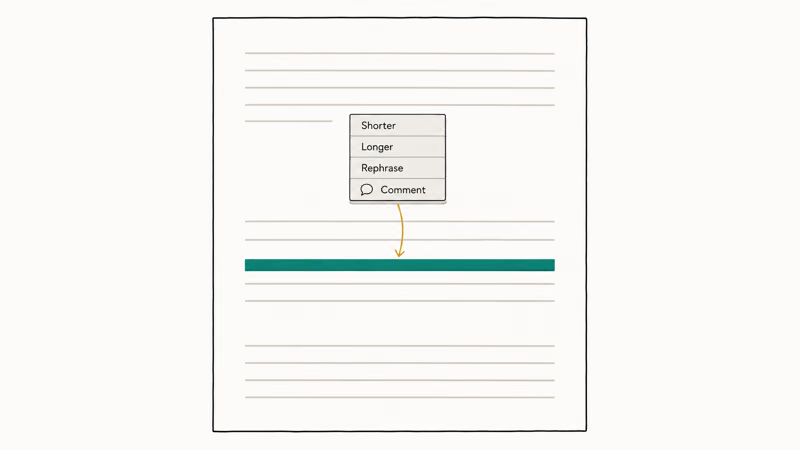
With the Canvas panel open, drag inside the document to select a paragraph, a sentence, or even a phrase. A small floating menu appears next to the selection with options for Shorter, Longer, Rephrase, and a comment field for free-form instructions. Pick Shorter and only the selected text gets a tighter rewrite. Pick Longer and only the selected text expands.
The rest of the document stays untouched.
Inline edit is useful because it changes only the selected text. A normal chat prompt often returns a full new draft when all you wanted was a tighter paragraph.
The comment tool fits a different case. Select the same span, click the comment icon, and type a note like “this sentence buries the lede” or “this is too casual for the audience.” ChatGPT returns a suggested rewrite as a pending change you can accept or reject, rather than overwriting the text.
Use comments when you’re not sure the AI suggestion will be better than the current text.
If an edit changes more than you intended, the back arrow at the top restores the previous version. Canvas keeps a running version history, and the arrows let you flip between drafts without copying anything out. That’s the safety net.
#The Shortcut Row: Length, Reading Level, and Polish
At the bottom of every writing Canvas there’s a row of one-click shortcuts that operate on the entire document. The row changes based on the content the model thinks it’s editing. For writing, OpenAI’s Canvas help page states that the default row lists 5 shortcuts: Suggest edits, Adjust length, Change reading level, Add final polish, and Add emojis.
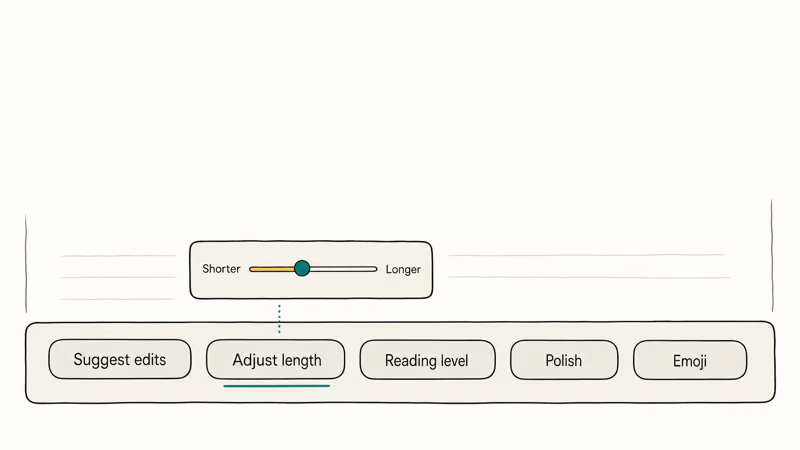
Five shortcuts, one row.
Suggest edits returns a list of proposed inline changes you can step through. Adjust length opens a slider between shorter and longer.
The length slider rewrites the whole document toward shorter or longer, so use it when you want a document-wide pass rather than a single paragraph edit.
Change reading level changes sentence complexity.
Drag the slider from “Grade school” up to “Graduate school” and the same paragraph picks up multi-clause sentences, semicolons, and technical vocabulary. Drag it the other way and you get short declarative sentences a middle schooler could read. Use the reading-level slider as a vocabulary check before handing a draft to a general audience.
Add final polish is the last pass.
It fixes grammar, tightens sentences, and removes obvious AI tells without rewriting the substance. Add emojis is what it sounds like, and it usually doesn’t belong in professional drafts.
A quick caveat: shortcuts apply to the entire document, not a selection. If you only want to tighten one section, use inline edit instead. A shortcut can change paragraphs you meant to keep.
If you’re using Canvas for content that will face downstream AI-detection (academic submissions, hiring portals, freelance platforms with originality requirements), Add final polish doesn’t humanize AI text the way a dedicated rewriter does. Treat the shortcut as a copyedit pass, not a detection bypass, and run your final draft through one of the AI detection tools you trust if that matters for the use case.
#Using Canvas for Code Reviews and Refactors
When ChatGPT detects a code block in the Canvas, the shortcut row swaps to a code-specific set.
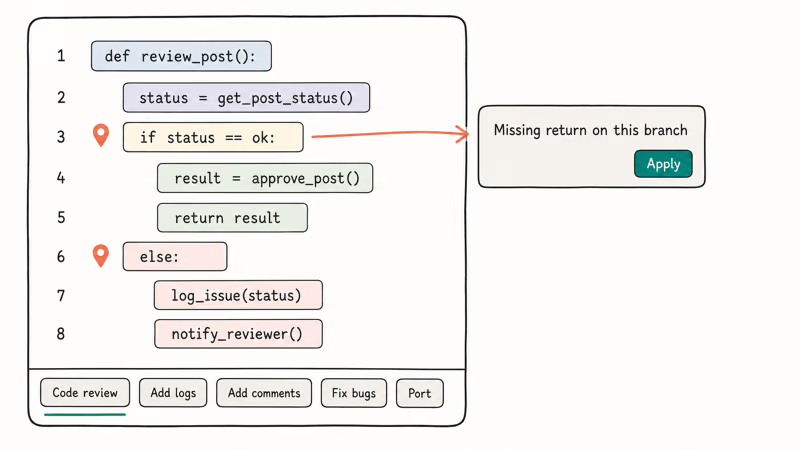
The 5 code shortcuts are Code review, Add logs, Add comments, Fix bugs, and Port to a language. The inline edit menu adopts code-aware options too, so the right-click suggestions differ from the prose surface.
Code review reads through the open file and queues inline suggestions wherever it spots a defect, a missing edge case, or a style violation. The suggestions appear beside the relevant lines instead of as a separate chat response.
Clicking Apply patched only that block.
The rest of the file stays identical to the surrounding code. Compared to pasting the same script into a regular chat and asking “review this code,” the inline workflow saves the round-trip of copying the response back into a file.
Add logs inserts print or log statements at strategic points so you can trace execution without writing the boilerplate yourself. Use it for debugging unclear async failures, because the logs land at function boundaries without hand-writing instrumentation.
Port to a language is the shortcut for converting a working script.
Click it, pick the target language from a dropdown, and the document is replaced with a port. The version history arrow gets you back to the original, so porting is useful when you want to compare idioms. Canvas’s code mode is best for small-to-medium files, while very large files can slow down because the entire document sits in the model’s context.
If you have a very large file, paste only the relevant function into a fresh Canvas. For broader tradeoffs, our roundup of the best AI for coding compares Canvas to Copilot, Cursor, and Claude.
#When Canvas Auto-Opens vs. When to Force It
The model decides when to auto-open Canvas based on signals in your prompt.
In practice, the pattern is consistent.
A prompt like “write me a 600-word product launch email” auto-opens Canvas almost every time. “Draft a quick reply to this customer message” usually doesn’t.
“Review this 80-line Python script” auto-opens. “Explain what a Python decorator does” doesn’t. The pattern is the model trying to predict whether the output is something you’ll edit again or something you’ll read once and move on from.
Force Canvas manually when you know the model will guess wrong. Two common cases: a short prompt that produces a long output (asking for a list of 20 ideas may stay in chat even though you’ll probably edit the list), and an iterative refinement (you asked for a one-line tagline but you know you’ll ask for five more variants in a row).
The reverse also happens.
Canvas opens for a prompt that didn’t need it, and the panel takes up half the screen for what’s really just a paragraph of explanation. Close it with the X at the top-right of the panel, and the response collapses into the regular chat. You haven’t lost anything; the message is still in the conversation thread.
There’s one platform behavior worth knowing. When Canvas auto-opens for a code task, the model sometimes drops a brief explanation in the chat pane and the actual code in the Canvas. If you don’t look at the Canvas panel, you’ll think the response is incomplete. This can confuse first-time Canvas users into asking for the code a second time, which produces a duplicate.
#Canvas vs. Regular Chat: Which Should You Use?
The decision rule is simple.
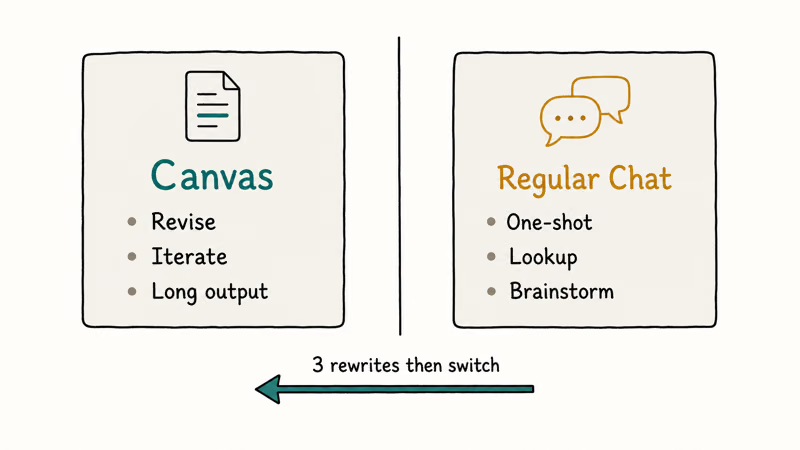
Use Canvas when the output is something you’ll revise. Use regular chat for everything else.
Anything you’ll read once and not touch again belongs in regular chat. Quick lookups, brainstorming, conversational explanations, and one-shot replies all read more naturally in the chat flow without the Canvas panel competing for screen space. Brainstorming sessions usually belong in chat too, because the Canvas panel encourages premature editing of ideas you should still be generating.
Canvas earns its keep when you’ll rewrite, refactor, or hand off the output.
Long-form writing, code you’ll iterate on, multi-section documents, and anything you’ll edit by sentence rather than by paragraph all belong in Canvas from the start.
A reliable trigger to switch: if you’re still rewriting the same passage after three chat replies, you should be in Canvas. Open the plus menu, pick Canvas, and ask ChatGPT to put the current version into a Canvas. The chat history stays intact, and now you have inline edits.
Other AI editors work in a similar shape.
Claude Artifacts and Gemini Gems are the closest comparable surfaces, and each has its own quirks around mobile behavior, code language support, and the granularity of inline edits, so the right pick depends on which assistant you’re already paying for and what you write most.
The split also matches what Tom’s Guide reports: Canvas wins for documents and code that need iteration, while regular chat wins for the conversational use cases ChatGPT was originally built around.
#Bottom Line
Open Canvas the moment a piece of writing or code crosses from “one quick answer” into “I’m going to iterate on this.” Use the inline highlight menu to fix a single paragraph instead of regenerating the whole draft, lean on the shortcut row for length and reading-level adjustments, and reach for the code-specific shortcuts (Code review, Fix bugs, Port to a language) when you’re debugging.
Keep regular chat for short questions.
Lookups, brainstorming, and anything you won’t edit again all belong in the chat thread. If Canvas opens uninvited and the request was a one-liner, close it. If you’re still rewriting the same passage after three chat replies, force Canvas with the plus icon or /canvas. That single rule turns Canvas from a feature that pops up at random into a tool you reach for on purpose.
AI Tools Guide
#Frequently Asked Questions
What is ChatGPT Canvas?
A split-screen editor inside ChatGPT.
The chat stays on the left and an editable document or code file sits on the right, and ChatGPT can edit the document in place by inline selection, comment, or shortcut. Canvas is meant for any output you’ll revise more than once, and the inline-edit menu is the part that distinguishes it from regular chat replies most clearly.
How do I open Canvas?
Three ways.
The model auto-opens it for longer writing or code tasks, you can force it by clicking the + plus icon next to the message composer and picking Canvas, or you can type /canvas as a slash command at the start of a message. All three route the next response into the Canvas panel.
What can the Canvas shortcuts actually do?
It depends on what you’re writing.
The shortcut row at the bottom changes based on content. For writing it includes Suggest edits, Adjust length, Change reading level, Add final polish, and Add emojis (5 options). For code it swaps to Code review, Add logs, Add comments, Fix bugs, and Port to a language. Shortcuts apply to the whole document; for a single paragraph, use inline selection instead.
Canvas vs regular chat, when should I use which?
Use Canvas when the output is something you’ll revise: long-form writing, code you’ll iterate on, multi-section documents. Use regular chat for one-shot questions, lookups, brainstorming, and anything you’ll read once. A reliable trigger: if you’re still rewriting the same passage after three chat replies, you should be in Canvas.
Does Canvas work on mobile?
Yes, with caveats.
Canvas shows up in the ChatGPT iOS and Android apps, and in landscape on a tablet the split-pane view is usable for documents and code. On a phone in portrait the document takes over most of the screen, and inline edits can feel cramped because the selection menu floats over the text you’re trying to edit. For heavier edits, the web app or a tablet in landscape is easier than a phone in portrait.
Can Canvas edit my code?
Yes. When ChatGPT detects code, the shortcut row swaps to Code review, Add logs, Add comments, Fix bugs, and Port to a language, and the inline edit menu becomes code-aware. Code review queues inline patches at the lines it flags; Port replaces the document with a translation to another language and the back arrow restores the original. Canvas is solid for small-to-medium files and slows down on very large ones.
Does Canvas use my data to train the model?
Canvas inherits the same data settings as the rest of ChatGPT. If you’ve disabled training in your account settings, Canvas content is treated the same way. Anything you paste into a Canvas document still sits on OpenAI’s servers under the standard retention policy, so don’t paste anything you wouldn’t paste into a normal chat.
ChatGPT Conversation History Missing? How to Get It Back
ChatGPT conversation history missing? Fix it fast with these proven steps: check archived chats, re-enable data controls, verify your account, and more.
ChatGPT Voice Mode Not Working? 7 Fixes That Actually Work
Fix ChatGPT Voice Mode fast. Covers mic permissions, app updates, network fixes, account tier checks, and reinstall steps for iOS and Android.
ChatGPT vs Claude vs Gemini: Which AI to Use in 2026
ChatGPT vs Claude vs Gemini compared side-by-side for writing, coding, research, and everyday tasks. Find out which AI to use and when in 2026.
Claude vs ChatGPT for Writing: Which AI Is Better?
Claude wins on tone and long-form coherence. ChatGPT is faster for brainstorming and short copy. A side-by-side comparison for writers in 2026.