How to Use ChatGPT Custom Instructions (2026 Guide)
Set ChatGPT custom instructions in Settings, fill both prompt boxes, and copy our ready-to-paste examples for concise answers, coding, and writing.
Quick AnswerOpen ChatGPT Settings, go to Personalization, then Custom instructions. Fill the two boxes about you and how you want replies, toggle "Enable for new chats," and save. They apply to every new chat.
Custom instructions are the setting that stops you from re-typing “answer concisely, no preamble” at the top of every ChatGPT chat. You fill two boxes once, and the rules stick to every new conversation. A concise response-style rule can stop ChatGPT from opening every answer with generic preamble.
- Custom instructions live under Settings, then Personalization, then Custom instructions, on the web app and the iOS and Android apps
- There are two boxes: one about you, one about how you want ChatGPT to respond, and you don’t have to fill both
- Each long-form box holds up to 1500 characters, and the “Enable for new chats” toggle controls whether the rules apply
- Custom instructions are fixed rules you write, while Memory is what ChatGPT learns on its own, and Projects can override your global instructions inside one workspace
- Instructions only change new chats, so an old conversation that ignores your rules isn’t a bug, it just predates them
#Where Are ChatGPT Custom Instructions in 2026?
Open ChatGPT, click your account name in the bottom-left, and pick Settings. Select the Personalization tab, then open Custom instructions. That’s the whole path on the web app, and the mobile apps match it almost exactly.
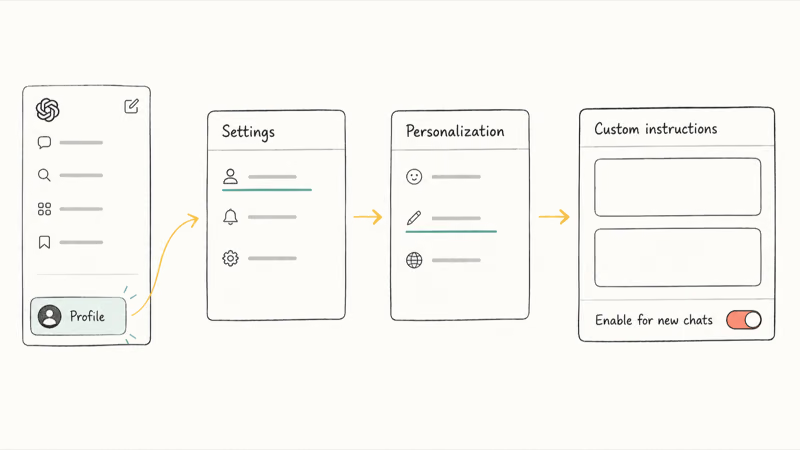
The mobile route is nearly the same. Tap your profile picture, then Personalization, then Custom instructions on the iPhone or Android app. The two text boxes look identical to the desktop version, and because the setting lives on your account rather than the app, anything you save shows up on every device you sign into.
According to Tom’s Guide’s walkthrough of the feature, custom instructions now sit under the Personalization tab and are part of the free plan. No paid account needed.
The rules follow your account, not the app you opened it from. If you launch ChatGPT from an Action Button shortcut or through Siri, the same instructions load, though the Siri route also depends on your device meeting the Apple Intelligence requirements for that integration to function on older hardware.
Check one thing before you leave.
The Enable for new chats toggle has to be on, or you can save all the text you want and nothing changes, because the instructions never load. Turn it on, then save.
#What to Put in Each Box
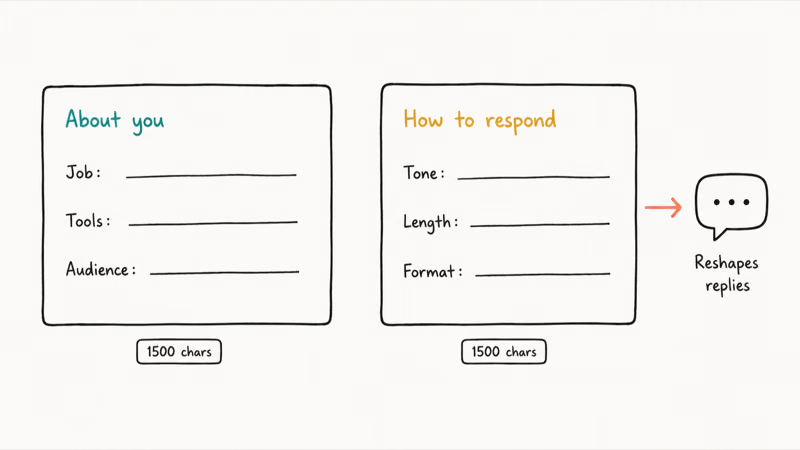
The first box asks “What would you like ChatGPT to know about you to provide better responses?” This is context: your job, your skill level, the tools you use, the audience you usually write for. The second box asks how you want ChatGPT to respond, which covers tone, length, and format.
Keep each box short.
OpenAI’s custom instructions documentation states that each long-form field holds 1500 characters, but you almost never need that much. A few precise lines beat a paragraph of vague preferences, because ChatGPT can’t tell which sentence in a wall of text is the one that matters.
You don’t have to fill both boxes. Leaving the “about you” box empty and using only the response-style box is a clean way to start: write a few lines about response style first, live with it for a bit, then add an “about you” block only once you spot what ChatGPT keeps getting wrong about your context.
The response box does most of the work. Telling ChatGPT “be direct, skip the recap, answer before the reasoning” reshapes nearly every reply. The “about you” box matters more for niche cases, like flagging that you write iOS code and want Swift examples instead of pseudocode.
#Custom Instructions Examples You Can Copy
The four blocks below are starting points. Paste one into the response box, tweak it, and save.
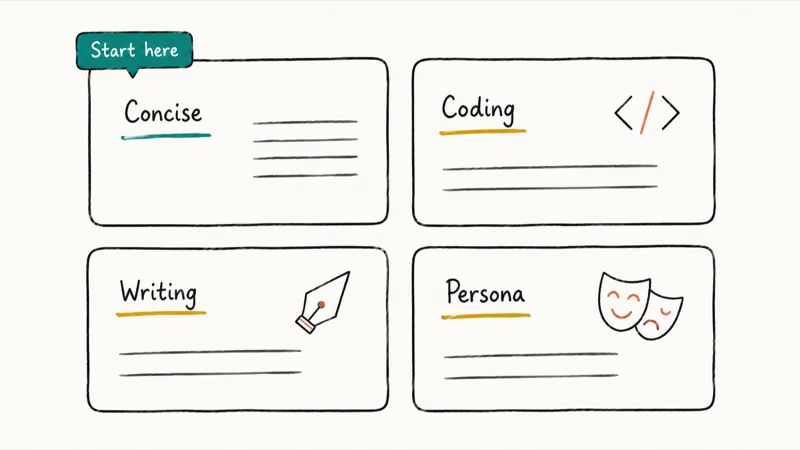
Concise, no fluff:
Be direct and skip preamble. Answer the question before explaining the reasoning. Keep most replies under three short paragraphs unless I ask for depth, and never open with “Certainly” or “Great question.”
Coding helper:
I write TypeScript and Swift. Default to working code over prose, with comments only where the logic isn’t obvious. Flag deprecated APIs, and when a question has more than one valid approach, show the simplest first, then note the trade-off in a sentence.
Writing and editing:
Edit for clarity at a grade-9 reading level. Cut filler and hedging, but keep my voice and don’t replace my word choices wholesale. When you suggest a rewrite, show the before and after so I can see what changed.
A named role:
Act as a skeptical product reviewer named Mara. Push back on weak claims, ask for evidence, and don’t agree with me just to be agreeable. Stay in this role unless I say “drop the persona.”
These work the same whether you’re on ChatGPT or a rival assistant. If you’ve set up profiles in Claude, the structure transfers: state the role, the audience, and the format. A full 1500-character instruction wall makes it harder to tell which rule changed behavior, so start with a short block and expand only when needed.
#How to Edit or Remove Your Instructions
Changing them later takes the same path: Settings, then Personalization, then Custom instructions.
Edit the text, save, and the new version takes over from your next chat onward. To switch the feature off entirely, flip the Enable for new chats toggle back off, or just clear both boxes.
One catch surprises people. Editing or deleting your instructions doesn’t rewrite chats you’ve already had, because the old text was baked in when those conversations started. The OpenAI documentation notes that updates apply only to future conversations, and removing instructions from old chats means clearing those chats from your history. So if a months-old conversation still answers in the style you’ve since dropped, that’s expected, not broken.
#Custom Instructions vs Memory vs Projects
People mix these three up constantly, so here’s the clean split.
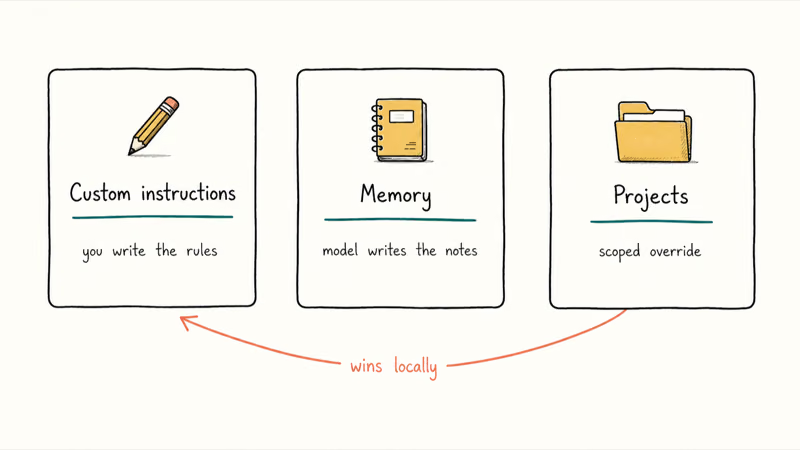
Custom instructions are fixed rules you write by hand. They don’t change unless you edit them, and they apply account-wide to every new chat. Think of them as a standing order.
Memory is different.
According to OpenAI’s Memory documentation, it works through 2 parts: saved memories you ask it to keep, and details it pulls from your past chats automatically. You can view and delete memories, but you don’t author them line by line the way you do with custom instructions. Memory learns; custom instructions are told.
Projects add a third layer.
Inside a workspace, you can write project-only instructions that take priority over your global custom instructions for that workspace. Our ChatGPT Projects guide covers the full setup, but the short version is that a Project’s instructions win locally while your global ones keep running everywhere else.
If you also use Google’s assistant, the closest equivalent to a packaged, instruction-driven workspace is Gemini Gems, which bundles a role and reference files the way a Project does. The mental model carries across tools: global preferences at the account level, scoped overrides at the workspace level.
#Why Aren’t My Custom Instructions Working?
Start with the Enable for new chats toggle. If it’s off, your text is saved but inert.
Next, remember that instructions only affect new chats. An old conversation you opened before saving won’t suddenly obey the rules, because the instructions loaded at the start of a chat and don’t reach back in time. Start a fresh chat to test any change.
Still ignored? Check for a conflict.
When you’re inside a Project, that Project’s instructions override your global ones, so a “be concise” global rule loses to a Project rule that says “explain in detail.” Long, contradictory instructions also confuse the model. Telling it to “be brief but thorough and exhaustive” gives it nothing clear to follow.
Finally, the model isn’t perfect at obeying every line on every turn. A single ignored instruction isn’t a settings failure. If it keeps dropping the same rule, shorten it, move it to the top of the box, and phrase it as a hard constraint.
#Bottom Line
Start small.
Put two lines in the response box (“be direct, skip preamble, answer before explaining”) and leave the “about you” box empty for the first week. Once you notice what ChatGPT keeps getting wrong about your context, add a short “about you” block that fixes exactly that.
Don’t paste a 1500-character wall on day one.
You won’t be able to tell which line is doing the work, and trimming a bloated block later is harder than adding to a lean one. If a rule isn’t sticking, check the toggle first, then start a new chat to test.
AI Tools Guide
#Frequently Asked Questions
Where are custom instructions in ChatGPT?
Open ChatGPT, go to Settings, select the Personalization tab, then open Custom instructions. The same path works on the web app and the iOS and Android apps, since the setting is tied to your account rather than one device.
What should I put in custom instructions?
Put context in the first box (your job, skill level, the tools or audience you work with) and response rules in the second. Keep both short. A few precise lines outperform a long, vague block, because the model can act on a clear constraint far faster than it can parse a rambling paragraph of preferences and figure out which sentence you actually meant.
Do custom instructions work on the free plan?
Yes, on every plan. They’re available across Web, Desktop, iOS, and Android, so a free account gets the same two boxes a paid one does.
What’s the difference between custom instructions and memory?
You write custom instructions by hand, and they stay fixed until you edit them. Memory is generated automatically as ChatGPT picks up details from your chats. One is a standing order you author; the other is a running notebook the model keeps for you, and you can clear those saved memories anytime without touching a single line of your instructions.
Why aren’t my custom instructions working?
Usually the toggle. The most common reason is “Enable for new chats” being off, which saves your text but never loads it. The second is testing in an old chat instead of a fresh one.
Can I use different instructions for different chats?
Not at the chat level, but Projects give you the next best thing. Inside a Project, you can write project-only instructions that take priority over your account-wide custom instructions. So each Project effectively gets its own ruleset, while your global instructions quietly handle everything outside it, including every chat you start from the main sidebar rather than within a workspace.
Do custom instructions affect the API or just chatgpt.com?
Just the apps and chatgpt.com. The API has no concept of your account’s custom instructions, so anything you build there sets its own system prompt instead. Configure ChatGPT to answer a certain way, then call the API, and the API won’t inherit a word of it.
ChatGPT Conversation History Missing? How to Get It Back
ChatGPT conversation history missing? Fix it fast with these proven steps: check archived chats, re-enable data controls, verify your account, and more.
ChatGPT Voice Mode Not Working? 7 Fixes That Actually Work
Fix ChatGPT Voice Mode fast. Covers mic permissions, app updates, network fixes, account tier checks, and reinstall steps for iOS and Android.
ChatGPT vs Claude vs Gemini: Which AI to Use in 2026
ChatGPT vs Claude vs Gemini compared side-by-side for writing, coding, research, and everyday tasks. Find out which AI to use and when in 2026.

Claude vs ChatGPT for Writing: Which AI Is Better?
Claude wins on tone and long-form coherence. ChatGPT is faster for brainstorming and short copy. A side-by-side comparison for writers in 2026.