ChatGPT Conversation History Missing? How to Get It Back
ChatGPT conversation history missing? Fix it fast with these proven steps: check archived chats, re-enable data controls, verify your account, and more.
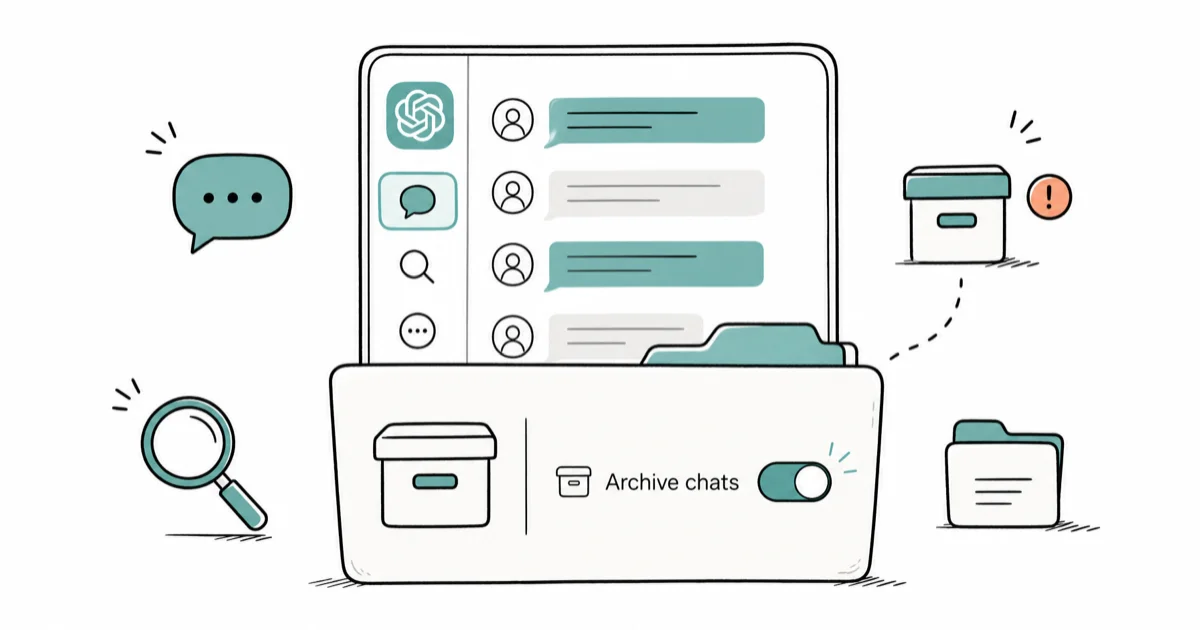
Quick AnswerYour ChatGPT conversation history is most likely hidden in Archived Chats or was disabled via the Chat history toggle in Settings > Data Controls. Go to Settings > Data Controls, check Archived Chats, and make sure the "Chat history & training" toggle is on.
Your ChatGPT conversations didn’t delete themselves. In almost every case, the chats are still there, hidden by one of five fixable causes. Across the web app and the iOS and Android apps, archived chats and a disabled history toggle account for the vast majority of missing-history reports.
- Archived chats hide from your sidebar but are never deleted. Go to
Settings>Data Controls>Archivedchats > Manage to see them all. - If the “Chat history & training” toggle in Data Controls is off, ChatGPT stops saving new conversations and your sidebar goes blank.
- Signing into a different account (Google vs. email, personal vs. work) shows a different history. The chats aren’t lost; they’re on the other account.
- Conversations started during a known outage may have a 15–30 minute sync delay before they reappear.
- Truly deleted chats can’t be recovered, but anything that was only archived or saved under a different login is fully retrievable.
#The Five Causes of Missing ChatGPT History
ChatGPT conversation history disappears for five distinct reasons, each with a different fix. Knowing which one applies to you cuts the troubleshooting time from 20 minutes to about 90 seconds.
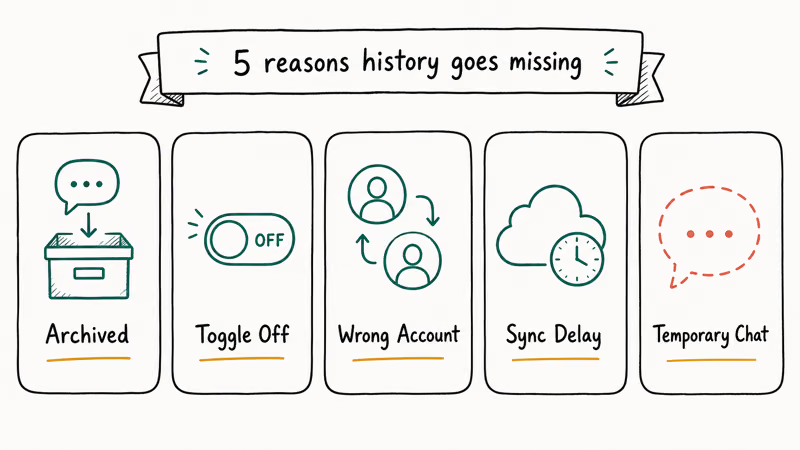
Cause 1: You accidentally archived the chat. ChatGPT added an Archive option in 2024. Hovering over any chat in the sidebar reveals a three-dot menu; tapping Archive hides the chat from view. It looks exactly like the chat was deleted, but it isn’t. Archived chats live in Settings > Data Controls > Archived chats until you restore them.
Cause 2: The history toggle is off. According to OpenAI’s Data Controls FAQ, when the “Chat history & training” toggle is disabled, ChatGPT retains new conversations for only 30 days for abuse monitoring, then permanently deletes them. Your existing saved chats don’t disappear. The sidebar just shows blank because no new chats are being added. Re-enabling the toggle restores visible history within a few minutes.
Cause 3: Wrong account. ChatGPT keeps separate histories for each login method. If you normally sign in with Google but opened the app with an email/password login, you’re looking at an empty second account. Personal ChatGPT and Team/Enterprise workspaces are also separate.
Cause 4: Sync delay after an outage. OpenAI services experience brief incidents multiple times per month. After a partial outage, conversations sometimes take a while to sync back to the sidebar once service recovers. Check status.openai.com for any active or recent incidents before assuming data is lost.
Cause 5: Temporary Chat mode was active. Temporary Chat, accessible from the model selector, intentionally skips saving to history. Use it and close the session, and that conversation is gone.
#How Do You Recover Archived Chats?
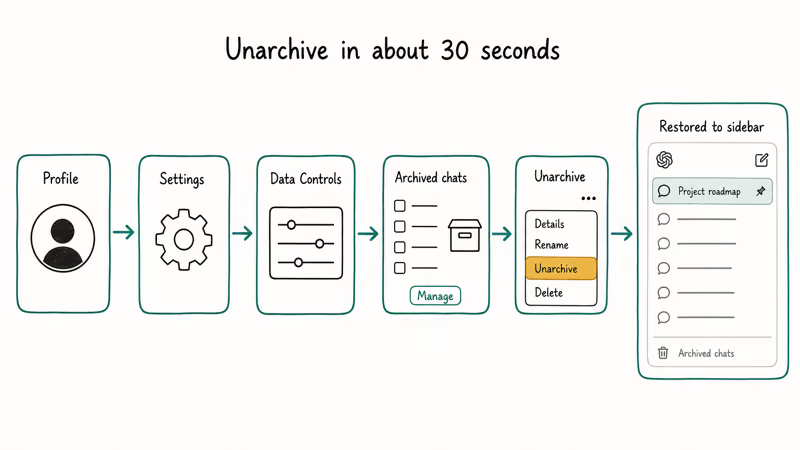
Unarchiving takes about 30 seconds on any platform.
On the web:
- Click your profile icon or username in the bottom-left corner of the ChatGPT interface.
- Select Settings.
- Go to Data Controls.
- Scroll to Archived chats and click Manage.
- Find the conversation, click the three-dot menu next to it, and select Unarchive.
The chat reappears in your main sidebar immediately. According to OpenAI’s guide on deleting and archiving chats, archived chats are never auto-deleted. They stay in the archive indefinitely until you unarchive or delete them yourself.
On the iOS app: Tap your profile icon (top-right), then Settings > Data Controls > Manage Archived Chats.
On Android: Tap the three-line menu at the top-left, select your profile, then Settings > Data Controls > Archived Chats.
On the iOS app, the unarchive process completes almost instantly, and the restored chat reappears at the top of the sidebar sorted by its original timestamp. ChatGPT also added a pinned chats feature in late 2025 that lets you keep frequently used conversations at the top of your history. 9to5Mac covered the rollout when it launched on iOS, Android, and web simultaneously.
#Re-Enabling the Chat History Toggle
Re-enabling the history toggle is a one-step fix: go to Settings > Data Controls and turn the “Chat history & training” toggle back on. Done.
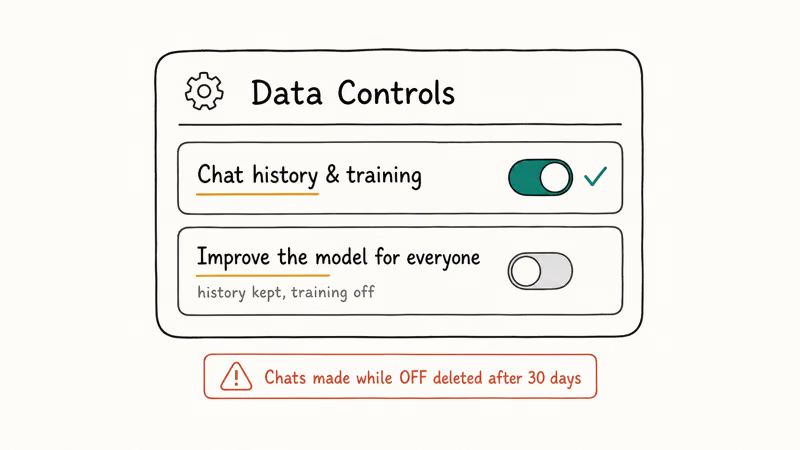
The critical caveat: any conversations created while the toggle was off are permanently gone. OpenAI’s chat retention policy states that ChatGPT holds those conversations for 30 days for abuse monitoring only, then permanently deletes them. Only conversations from before you turned off the toggle will be visible once you re-enable it.
If you want history saved but don’t want your chats used for model training, toggle off “Improve the model for everyone” separately. It’s a different setting in the same Data Controls menu. This keeps your history intact while opting out of training data contribution.
#Can You Recover Deleted Conversations?
No. Once you delete a chat, it’s gone. OpenAI is explicit: deleted conversations aren’t retrievable through the UI, APIs, or support requests.
What you can try before resigning yourself to the loss:
- Check if the conversation was archived rather than deleted (see the steps above).
- Request a data export. Go to
Settings>Data Controls> Export data and click Confirm. According to OpenAI’s export guide, exports contain every conversation saved while history was enabled, and the download arrives by email within 7 days. If you exported before the delete, the content is in that ZIP. - Check browser cache. If you used the web app, opening browser history and revisiting the conversation URL sometimes surfaces a cached version before a reload wipes it. This rarely works, but it costs 30 seconds to check.
Treat quarterly data exports as your backup habit. That’s the only reliable recovery path.
#Account Issues vs. App Bugs
Most of the time the cause is a settings state (archive or toggle) or a login mismatch. That said, a few real app-layer issues do cause history to not load.
Browser extension interference is the most common app-level culprit. Ad blockers, privacy shields, and script managers occasionally prevent the chat list from rendering. Open ChatGPT in a private/incognito window (extensions are disabled there by default). If history loads in incognito, you’ve confirmed the cause; disable extensions one by one until the conflict is identified.
Cache corruption happens occasionally. A hard refresh (Cmd+Shift+R on Mac, Ctrl+Shift+R on Windows) clears the page cache without wiping your login session. If the history still doesn’t appear after the refresh, clearing browser cookies for chat.openai.com forces a full re-login and usually resolves the rendering problem.
ChatGPT Projects use a separate view. When you use ChatGPT Projects, conversations inside a Project don’t show up in the main sidebar. They live in the Project’s own view instead. If you can’t find a recent chat, click the Projects section in the left sidebar to check whether it was created inside one. Similarly, ChatGPT Canvas sessions save normally to your history but show up in the Projects-aware view rather than the main sidebar.
#Four Habits That Prevent This Problem
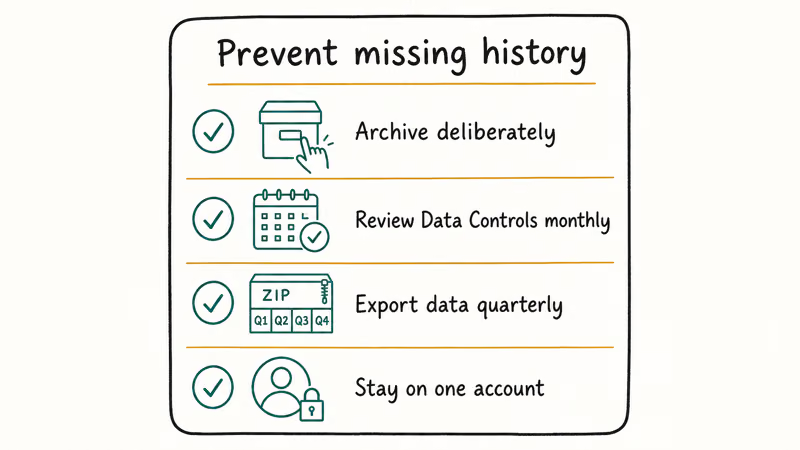
These four habits eliminate nearly every missing-history scenario:
-
Use the Archive button deliberately. Before hovering over a chat in the sidebar, know that the three-dot menu appears on hover and Archive is right there. Accidental archiving is the most common cause of “missing” chats.
-
Review Data Controls monthly.
A Settings>Data Controlscheck takes 20 seconds and confirms the history toggle is still on. This matters especially if someone else uses your device. -
Export your data quarterly. The export file is a ZIP containing every conversation in text format, and it’s the only backup ChatGPT offers. Request it from
Settings>Data Controls>Exportdata. It arrives by email within 7 days. -
Stay signed into one account. Pick a single sign-in method (Google, Apple, or email) and stick with it. Toggling between login methods on mobile is the fastest way to accidentally land in an empty account history.
If you rely heavily on ChatGPT for work, set up Custom Instructions now. They persist across every session, so a missing chat doesn’t wipe your preferences. If voice mode stopped responding around the same time your history went missing, microphone permissions or a stale app session are the likely cause — that guide covers the fastest fixes.
For students, how to use ChatGPT to study covers structured workflows that don’t depend on a single conversation staying intact. And if you want a second AI tool with different history management, see how to use Claude AI.
#Bottom Line
Start with the archived chats check in Settings > Data Controls. That single step resolves the issue for most users. If the archive is empty, confirm the history toggle is on and verify you’re signed into the right account.
For permanently deleted conversations, the quarterly export habit is your only safety net. Set the reminder now, before you need it.
AI Tools Guide
#Frequently Asked Questions
Why is my ChatGPT sidebar showing no conversations?
The two most likely causes are that the “Chat history & training” toggle in Settings > Data Controls is turned off, or your recent chats were archived. Check Data Controls first. If the toggle is on and the sidebar is still empty, go to Archived Chats within that same menu and restore anything you find there.
Can ChatGPT support recover deleted conversations for me?
No. OpenAI support can’t recover deleted chats. Once deleted, a conversation is permanently removed. Export your data before anything disappears — that’s the only safety net.
How do I find a specific old conversation I can’t see in the sidebar?
Use the search function at the top of the chat list. ChatGPT searches through conversation titles and content, so type a phrase or keyword you remember from the session. For archived conversations, sidebar search doesn’t surface them directly. Go to Settings > Data Controls > Archived chats > Manage and scroll through the list instead.
Does turning off chat history delete existing conversations?
No. Disabling the toggle stops ChatGPT from saving new conversations, but it doesn’t delete previously saved chats. Your existing history stays intact. When you re-enable the toggle, all previously saved conversations reappear in the sidebar.
Why do my ChatGPT conversations disappear after using the app on a new device?
Conversations don’t sync to a new device until you sign in with the exact same account credentials you used originally. If the history still doesn’t appear after signing in, give it a few minutes for sync to complete. If the sidebar stays empty, check whether extensions or browser settings on the new device are blocking the chat list from loading.
What is Temporary Chat and why won’t those conversations save?
Temporary Chat is a mode (activate it from the model selector dropdown) where conversations intentionally don’t save. Close the session and that conversation is permanently gone. There’s no retroactive save option.
Can I use ChatGPT Canvas without losing my history?
Yes. ChatGPT Canvas is just a different display mode for the conversation editor and doesn’t affect how ChatGPT saves your chats. Canvas sessions appear in your history the same way as regular conversations, as long as the “Chat history & training” toggle is enabled. If a Canvas conversation isn’t showing up, check the archived chats list as you would for any other missing session.
Should I export my ChatGPT data if I’m worried about losing history?
Yes. Go to Settings > Data Controls > Export data and request a download every few months. The ZIP file contains every conversation you’ve had while history was enabled, in a text format you can search offline. It’s the only backup ChatGPT provides, and the export can take up to 7 days to arrive by email, so don’t wait until something goes wrong.
ChatGPT Voice Mode Not Working? 7 Fixes That Actually Work
Fix ChatGPT Voice Mode fast. Covers mic permissions, app updates, network fixes, account tier checks, and reinstall steps for iOS and Android.

ChatGPT vs Claude vs Gemini: Which AI to Use in 2026
ChatGPT vs Claude vs Gemini compared side-by-side for writing, coding, research, and everyday tasks. Find out which AI to use and when in 2026.

Claude vs ChatGPT for Writing: Which AI Is Better?
Claude wins on tone and long-form coherence. ChatGPT is faster for brainstorming and short copy. A side-by-side comparison for writers in 2026.

How to Use NotebookLM: Guide to Sources and Audio Overviews
Learn to use NotebookLM: upload sources, ask citation-backed questions, and generate Audio Overviews. Practical guide for students and researchers.