Best AI for Coding in 2026: A Use-Case Decision Guide
Pick the right AI coding tool by what you do all day: in-IDE autocomplete, chat refactors, agentic whole-repo work, or learning to code from scratch.
Quick AnswerNo single AI wins for every coding task. Use GitHub Copilot for in-IDE autocomplete, Claude Code for agentic refactors, ChatGPT for learning, and Gemini for Google Cloud work.
The best AI for coding is the one that matches what you do. GitHub Copilot fits daily autocomplete, Claude Code handles terminal refactors, and ChatGPT works for teaching Python from scratch. Each tool wins a different scenario.
- GitHub Copilot is the lowest-friction starting point because it ships as an extension in VS Code, JetBrains, Vim, Neovim, and Visual Studio with a real free tier
- Claude Code runs in your terminal as an agent that plans, edits multiple files, runs tests, and asks for permission before destructive actions
- Cursor is a fork of VS Code that bakes AI into the editor itself, with a Composer panel for multi-file edits and an indexed view of your whole repo
- ChatGPT is the strongest pick for learning to code because it explains concepts in plain language and walks you through errors line by line
- Gemini Code Assist is built for Google Cloud workflows like Firebase, Cloud Run, and BigQuery, where its GCP awareness matters more than raw chat quality
#What Counts as the Best AI for Coding in 2026?
There’s no single ranking that holds up once you change the job.
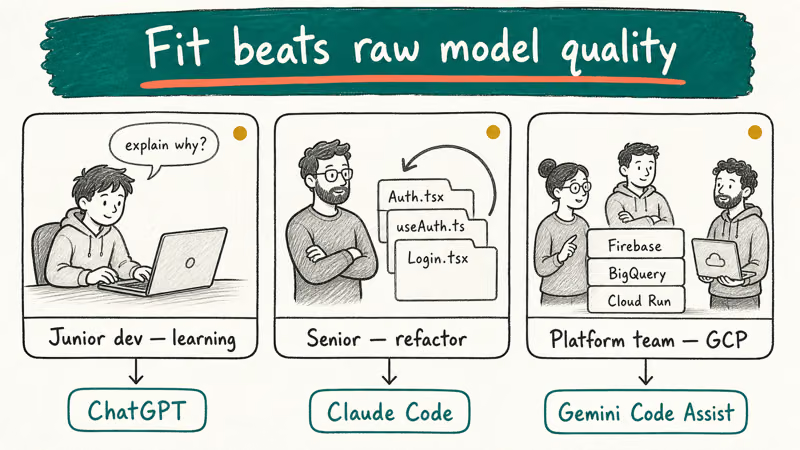
A junior dev learning JavaScript wants a chatty tutor. A senior engineer cleaning up a 40-file refactor wants an agent that touches the filesystem. A platform team building on Firebase wants something that already knows the GCP service catalog.
The same tool that feels miraculous in one scenario will feel clumsy in the others. Fit beats raw model quality, every time.
A fair comparison weighs each tool across a handful of real tasks rather than one: a small static site build, a React component refactor, a Python script debug, and explaining a sorting algorithm to a beginner. Those four jobs stress different strengths.
If you’re still getting your bearings with chat-based AI in general, our Claude AI walkthrough is a gentler starting point before you weigh coding-specific tools.
#How should you evaluate each tool?
Install each tool from its official source. Free tier first. Only upgrade when the free tier hits a wall on a real task.
Run the same prompts on the same codebase so the comparison is apples to apples. Three things matter most: whether the suggestion compiles, how often you have to re-prompt, and how disruptive the install is. Disruption matters more than people expect, because switching editors mid-week kills momentum and reveals which tools fit existing habits and which demand new ones from day one.
The Stack Overflow developer survey is the most-cited adoption snapshot, but treat it as background, not a verdict. Popularity tracks marketing budgets as much as code quality. What you should care about is fit, not market share.
#GitHub Copilot: The Default Starting Point
GitHub Copilot is what you should try first.
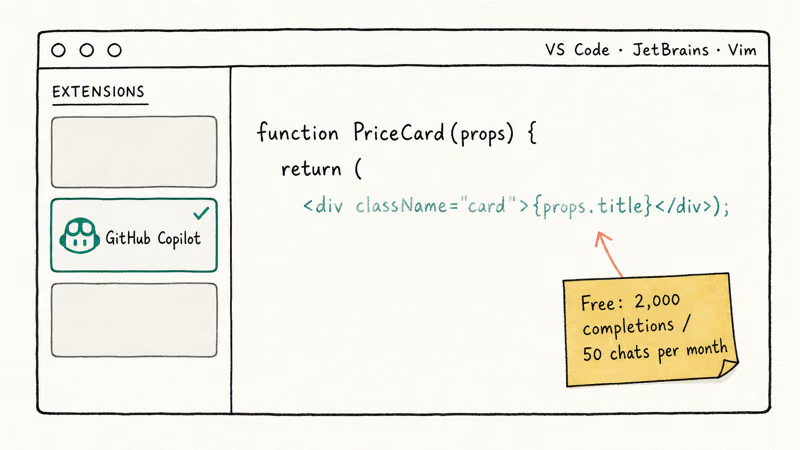
Setup is trivial.
The install is one extension. The sign-in is your existing GitHub account. Autocomplete kicks in within seconds of opening a file. On a typical React component, Copilot finishes prop type definitions and basic hooks correctly on the first try most of the time, and the suggestions feel context-aware rather than generic.
The free tier is real. According to GitHub’s Copilot plans page, Copilot Free gives individual developers 2,000 code completions and 50 chat requests per month with no credit card required. That’s enough for a hobby project. Verified students and maintainers of popular open source projects get Copilot Pro free.
Where Copilot starts to feel limited is anything bigger than a single file.
It autocompletes a function inside the file you’re looking at, but it won’t plan a four-file refactor. For that, you want one of the agent-style tools below.
Copilot is the floor of the category, not the ceiling — and that’s a compliment. Most working developers do fine with just Copilot.
#When to Pick Copilot
Pick Copilot if you’re mostly writing or extending code in a familiar IDE, you want the lowest install friction, and inline autocomplete is the feature you’d miss the most. It’s the right answer for a large share of working developers who aren’t trying to delegate whole tasks.
#Claude Code: The Agentic Pick for Multi-File Work
Claude Code is Anthropic’s command-line tool.
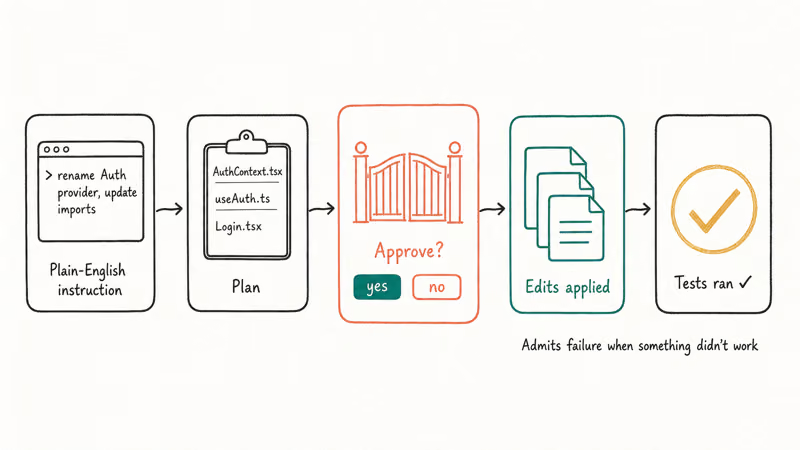
You install it once, point it at a project directory, and describe what you want in plain English. Give it a task like rename the Auth context provider and update every import on a small Next.js codebase, and it produces a plan, lists the files it would touch, asks you to confirm, then runs the edits and the build. That confirmation step is the difference between an autocomplete tool and an agent.
According to Anthropic’s Claude Code documentation, Claude Code operates “at the project level” rather than line by line, with built-in permission gates before file edits. That matches its behavior in practice. It reads adjacent files before making a suggestion, runs your test command after edits, and tells you when something it tried didn’t work.
A tool that admits failure is more useful than one that hides it.
The price of that capability is mental load.
You have to write a clear instruction and read what it proposes before approving the run. If your instinct is “I just want a suggestion while I type,” this is the wrong tool. If it’s “I want to delegate the whole task,” Claude Code is a strong fit. A short refresher on writing tighter prompts, similar to what we cover in our guide to ChatGPT custom instructions, makes a noticeable difference.
#When to Pick Claude Code
Pick Claude Code when the task spans more than one file. Pick it when you want a tool that runs your tests for you. Pick it when you’re comfortable working in a terminal next to your editor. Pair it with Copilot if you want both inline autocomplete and an agent on tap.
#Cursor: The AI-First Editor for Whole-Repo Edits
Cursor is a fork of VS Code. The layout, keybindings, and most extensions you already know carry over. What’s different is the Composer panel.
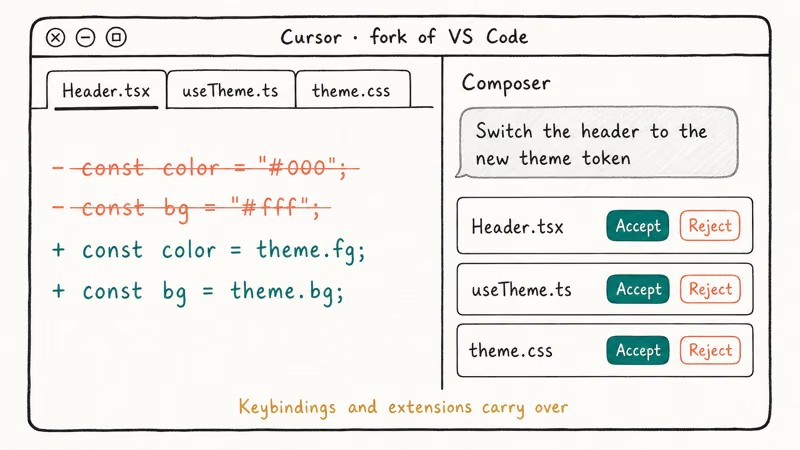
Composer proposes multi-file edits in one pass and shows you a diff before you accept. Cursor’s documentation describes Composer and the codebase-aware chat as first-class features rather than extensions bolted on as an afterthought.
Cursor’s strongest moment comes on a refactor that touches three React files plus a hook. Describe the change once and you can accept most of the proposed diffs as-is. That’s faster than the same task in plain VS Code with Copilot, and faster than the same task in Claude Code, because there’s no switch to a terminal at all.
The tradeoff is migration.
You have to actually move into Cursor as your daily editor.
Not every team is willing to do that, particularly when JetBrains IDEs or managed dev environments are involved and the switch costs more than it saves over a single quarter.
Cursor has a free Hobby plan and several paid tiers. Month-to-month prices aren’t quoted here, because they change often. The Cursor pricing page is the only number you should trust on the day you sign up.
#When to Pick Cursor
Pick Cursor if you’re willing to change editors, you want AI features that feel native rather than tacked on, and your work routinely touches more than one file at a time. Skip it if you have heavy investment in JetBrains IDEs or you can’t install third-party editors on a managed work machine.
#ChatGPT: The Best Place to Start If You’re Learning
ChatGPT isn’t a code editor, and it isn’t pretending to be one.
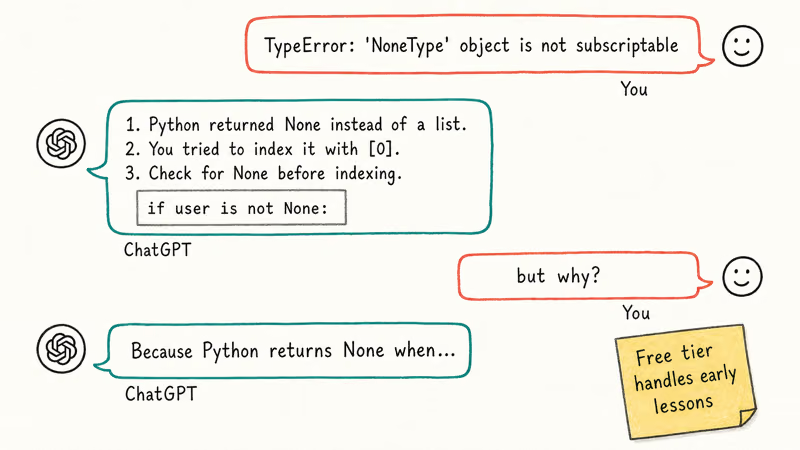
In 2026, what it’s become is one of the most patient teachers available.
ChatGPT will explain why a Python list comprehension is faster than a for loop, walk through a recursion example one stack frame at a time, and answer “but why” three times in a row without losing the thread.
OpenAI’s ChatGPT page describes it as a general-purpose assistant, and that breadth is the point when you’re still learning. You can paste an error message, ask what it means, and get a plain-English answer. The free tier is enough for early lessons.
It’s a patient study buddy.
Pair ChatGPT with whatever editor your course or bootcamp uses, and you have a tutor that never runs out of patience. If you want to keep your learning materials in one place, we cover how in our ChatGPT Projects walkthrough.
OpenAI also ships Codex, a cloud-based coding agent bundled into ChatGPT subscriptions plus an open source CLI.
Codex sits in the same category as Claude Code: agentic, terminal-friendly, and aimed at delegation more than autocomplete.
#When to Pick ChatGPT
Pick ChatGPT if you’re learning to code, you want one tool that also helps with everything else, or you mostly use AI for planning and explanation rather than direct code edits. It’s the conversational option in a category that’s otherwise editor-bound.
#Gemini: The Google Cloud Native Choice
Gemini Code Assist makes sense if your work depends on Google Cloud services. It plugs into Cloud Workstations and the GCP console. It knows the service catalog the way Copilot knows GitHub.
Based on Google’s Gemini Code Assist page, it integrates natively with Firebase, Cloud Run, BigQuery, and the rest of GCP. Google states that Gemini Code Assist supports over 20 programming languages, including Java, Python, JavaScript, TypeScript, Go, C++, and SQL. Outside Google Cloud, Gemini is competent but not differentiated.
Platform awareness tips the scale.
The conversational depth is similar to ChatGPT. The IDE integration is thinner than Copilot, and the agent story is less developed than Claude Code.
On a typical BigQuery query refactor, Gemini handles the GCP-specific syntax well, while a general agent like Claude Code tends to return a similar answer plus a comment block explaining the change.
For GCP-specific tasks, that platform awareness matters more than chat depth. If you already use Gemini for documents and want to extend that habit, our piece on Gemini in Google Docs covers the workflow side. Power users who lean on custom Gems will find our Gemini Gems guide useful too.
#When to Pick Gemini
Pick Gemini if Google Cloud is the platform you ship to, you want a code assist tool that already understands GCP service IDs and Firebase config, or you’re on Workspace and want a single Google login across docs, sheets, and code.
#The Decision Matrix by Use Case
The matrix below is the shortest honest summary of where each tool wins. It maps the four task types above against the capabilities each vendor documents publicly.
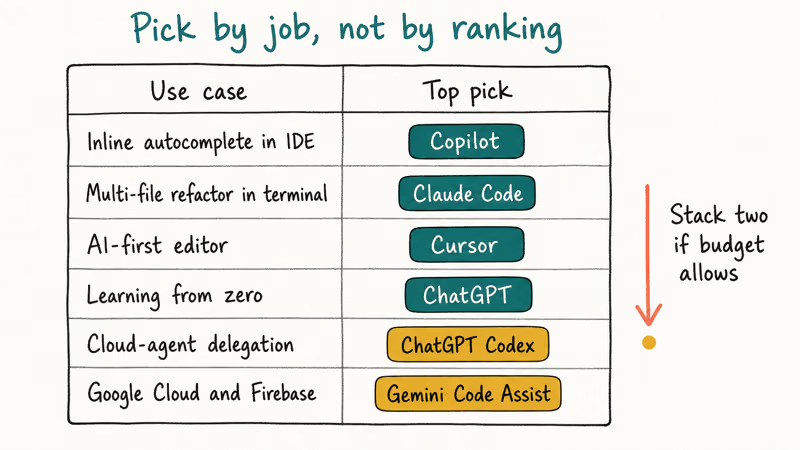
| Use case | Top pick | Why |
|---|---|---|
| In-IDE autocomplete while you type | GitHub Copilot | Lowest install friction, real free tier, supported across VS Code, JetBrains, Vim, Neovim, and Visual Studio. |
| Agentic multi-file refactor in a terminal | Claude Code | Plans the change, asks permission, runs your tests, and tells you when something failed. |
| AI-first editor with whole-repo context | Cursor | Composer panel proposes multi-file diffs in one pass, keeps your VS Code muscle memory intact. |
| Learning to code from zero | ChatGPT | Plain-language explanations, patient with follow-up questions, free tier is enough for beginners. |
| Cloud-agent delegation from any device | ChatGPT Codex | Runs in a cloud sandbox tied to your ChatGPT subscription, pushes to GitHub, good for async work. |
| Heavy Google Cloud and Firebase work | Gemini Code Assist | Native GCP awareness, integrates with Cloud Workstations, knows the service catalog. |
#What should you actually budget for pricing?
Pricing in this category moves every quarter. Here’s the short version, with a pointer to the source.
GitHub Copilot has a free tier plus paid Pro tiers. Anthropic, OpenAI, Cursor, and Google all publish current numbers on their own pricing pages. Always check the vendor page on the day you sign up. The free tiers hit a real ceiling within a week for any serious use.
Budget for a paid plan if this is your job.
The honest framing: at roughly the same monthly tier, the choice isn’t which tool is cheaper. It’s which workflow each one rewards.
Copilot rewards staying in your IDE. Claude Code rewards delegating. Cursor rewards moving editors. ChatGPT rewards conversation, and Gemini rewards staying in Google Cloud.
#The Stack Approach: Combining Tools
The stack approach combines all three. Copilot inside VS Code for inline edits. Claude Code in a terminal for multi-file refactors. ChatGPT in a browser tab for the “why does this work” questions.
It works well, with one caveat. You’ll pay for two subscriptions, and you’ll spend the first few days deciding which task belongs to which tool.
After that, the split becomes muscle memory.
If you only want to pay for one tool, pick the one matching the task you do most. For most working developers in 2026, that’s Copilot.
For staff or senior engineers running larger refactors, it’s Claude Code. For students and career switchers, it’s ChatGPT.
#Bottom Line
Install GitHub Copilot in your existing IDE today. Add Claude Code in a terminal when your next refactor touches more than one file. Try Cursor only if you’re willing to change editors.
Use ChatGPT if you’re learning, and reach for Gemini Code Assist when the project is hosted on Google Cloud. Skip benchmarks and rankings, since your stack and your habits decide which one is the best AI for coding for you. For hands-free access to AI while you code, our roundup of the best AI earbuds in 2026 covers earbuds that let you query an AI assistant without leaving the keyboard.
AI Tools Guide
#Frequently Asked Questions
What is the best AI for coding right now?
It depends on the job. For most working developers in VS Code or JetBrains, GitHub Copilot is the safest starting point because of its real free tier and broad IDE support. If your day is mostly multi-file refactors, Claude Code is the stronger pick. Use whichever one matches the task you do most often.
Is GitHub Copilot or Claude better for coding?
Different jobs, different winners. Copilot wins inline autocomplete inside your editor, while Claude Code wins when you want a tool that plans multi-file changes, runs your tests, and works from a terminal. They aren’t substitutes.
Is there a free AI coding assistant?
Yes, several. GitHub Copilot Free gives individuals 2,000 completions and 50 chat requests monthly with no credit card. ChatGPT has a free tier that handles plenty of beginner questions, and Cursor offers a free Hobby plan. Anthropic and Google both ship free tiers on their chat products that work for casual help, and verified students even get Copilot Pro free through GitHub Education.
Which AI is best for beginners learning to code?
ChatGPT. It’s the strongest pick for beginners because it explains concepts in plain language, walks through errors one step at a time, and answers follow-up questions without losing the thread. The free tier is enough for early lessons.
Can AI write a whole app?
Sort of. Agent-style tools like Claude Code and ChatGPT Codex can scaffold a small app, run the build, and fix common errors, but a human still has to read the output and decide what’s correct. The realistic framing is that AI shortens the path, it doesn’t remove the path, and you still own the architecture decisions.
Is Cursor worth it over Copilot?
If you do a lot of multi-file work and you’re willing to change editors, yes. If you’re happy in VS Code with Copilot, the upgrade is real but not dramatic. Try Cursor’s free Hobby plan for a week on a real project before you decide.
ChatGPT Conversation History Missing? How to Get It Back
ChatGPT conversation history missing? Fix it fast with these proven steps: check archived chats, re-enable data controls, verify your account, and more.
ChatGPT Voice Mode Not Working? 7 Fixes That Actually Work
Fix ChatGPT Voice Mode fast. Covers mic permissions, app updates, network fixes, account tier checks, and reinstall steps for iOS and Android.
ChatGPT vs Claude vs Gemini: Which AI to Use in 2026
ChatGPT vs Claude vs Gemini compared side-by-side for writing, coding, research, and everyday tasks. Find out which AI to use and when in 2026.

Claude vs ChatGPT for Writing: Which AI Is Better?
Claude wins on tone and long-form coherence. ChatGPT is faster for brainstorming and short copy. A side-by-side comparison for writers in 2026.