How to Use Gemini Gems: A 2026 Setup and Build Guide
Build your first Gemini Gem in 5 steps. Covers the Gem manager, premade Gems, knowledge files, sharing, and the real Gems vs GPTs tradeoffs.
Quick AnswerOpen Gemini, click Gems in the left sidebar, then open Gem manager. Copy a premade Gem, rewrite the instructions for your task, then save.
Gemini Gems are saved Gemini chats with persistent instructions and optional knowledge files. You build one once, then open it from the Gemini sidebar whenever you need that same job done the same way. The Writing Editor premade Gem is a practical first copy target because it gives you a concrete editing brief to adapt instead of starting from a blank prompt.
The guide below walks through the Gem manager, the five-step build flow, the magic-wand prompt expander, knowledge files, sharing limits, and the honest tradeoffs against ChatGPT GPTs. It applies to any account you own: personal Gemini, or a Workspace Gemini license your employer assigned you.
- Gems are free on the basic Gemini plan; unlimited Gems require Google One AI Premium or a Workspace Gemini license
- The Gem manager lives in the left sidebar of the Gemini web app and the Gemini mobile app
- Each Gem holds up to 10 knowledge files, with live Drive sync for Docs and Sheets
- Five premade Gems ship with every account: Brainstormer, Career guide, Coding partner, Learning coach, Writing editor
- Sharing Gems works inside Workspace via link; there’s no public Gem marketplace like the ChatGPT GPT Store
#What Are Gemini Gems and When Do They Help?
A Gem is a saved Gemini chat with persistent instructions and, optionally, up to 10 knowledge files attached. You give it a name, write what it should do every time you open it, and Gemini remembers that brief on every future conversation inside that Gem. According to Google’s Gemini Apps Help page on Gems, a Gem applies its instructions only when you open that specific Gem, with regular Gemini chats staying untouched.
Repeatability is the win. Summarize meeting notes the same way every week? A Gem skips the setup.
Edit drafts in a brand voice? A Gem holds the voice rules. If you brainstorm against the same target audience, a Gem pins the audience across sessions, so you stop pasting the same preamble into every fresh chat.
Skip Gems for one-off questions. A single chat answers a one-off question faster than building a Gem to answer it once.
#Building Your First Gem in Five Steps
Open Gemini on the web, expand the left sidebar, and click Gems. That opens the Gem manager, which has three columns: premade Gems from Google, your own Gems, and a New Gem button in the upper right.
Skip the New Gem button on your first try. Hover over a premade Gem instead, click Make a copy, and edit the prefilled instructions. Google’s tips post on Gems recommends this exact route as the on-ramp for new builders, because the prefilled brief shows you what good instructions look like before you write your own.
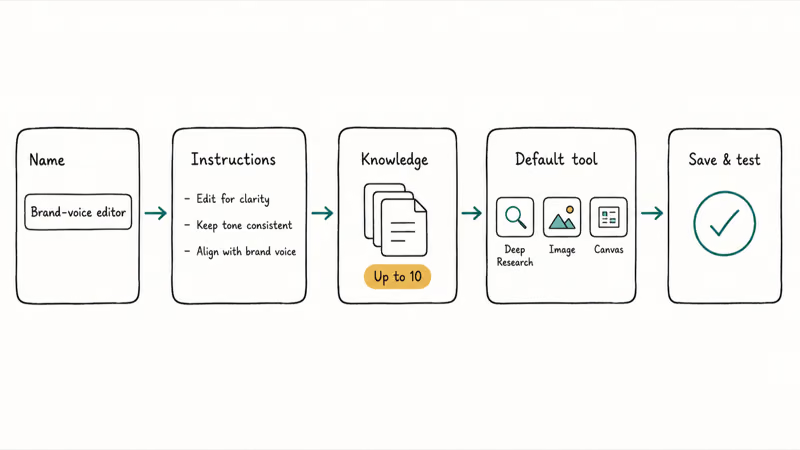
Use the same five-step flow whether you start from scratch or copy:
- Name the Gem. Short and descriptive. “Brand-voice editor” beats “Writing helper v3.”
- Write the instructions. What the Gem should do every time you open it. Be direct about audience, tone, length, and forbidden behaviors.
- Add knowledge files. Up to 10 per Gem. Brand guidelines, product specs, FAQ docs, anything the Gem should treat as context.
- Set a default tool. Pick one of Gemini’s built-in tools (Deep Research, Image generation, Canvas) if the Gem needs it on every run.
- Save and test. Open the Gem from your sidebar, run three realistic prompts, then go back and tighten the instructions.
The magic-wand icon at the bottom of the instructions box is worth using on your first build. Type a one-line description (“be my fone.tips article editor”), click the wand, and Gemini rewrites it into a structured behavior brief. The wand also teaches prompt structure: read what it produces, and you’ll write better instructions next time.
#Adding Knowledge Files, Tools, and Live Drive Sync
Knowledge files turn a generic Gem into a specific one. A brand-voice Gem with no files knows generic editing rules; the same Gem with your terminology doc attached enforces your banned words. The difference shows up on the first edit pass.
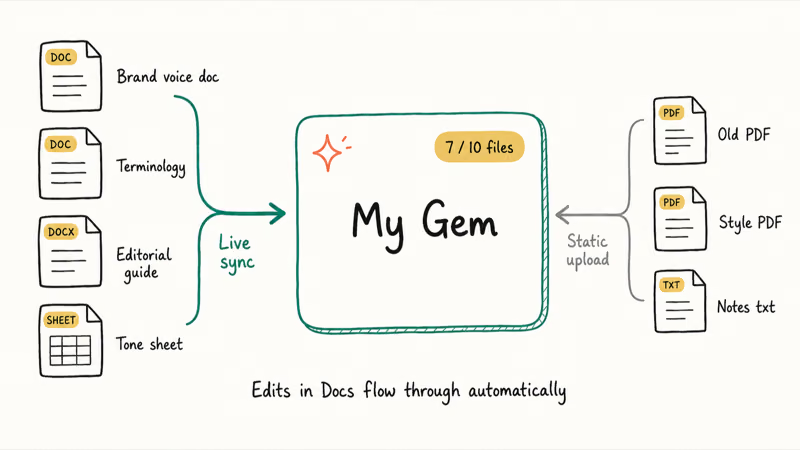
You can add knowledge in three ways: upload local files, pick files from Google Drive, or connect a NotebookLM notebook on plans where that option appears. Google’s Gems setup help article confirms a 10-file per-Gem cap and the Drive sync behavior. When you attach a Google Doc or Sheet, edits in that file flow through to the Gem automatically. PDFs and uploaded files stay static.
A few practical rules:
- Keep files focused. A single 200-page PDF is harder for the Gem to use than three 30-page topical files.
- Prefer Docs over PDFs when you’ll keep editing the source. Live sync beats remembering to re-upload.
- Name files clearly. The Gem sees filenames when it picks which file to pull from.
For Workspace users, the @-mention trick inside chats connects Drive files, YouTube videos, Google Maps, and Gmail context on demand. That’s separate from the Gem’s permanent knowledge: useful for one-off pulls without bloating the Gem. If you frequently work across Google services, the connection between Gems and Workspace makes sending a Google Calendar invitation or pulling a Doc into a Gem chat a one-step move.
#How Do Gemini Gems Compare to ChatGPT GPTs?
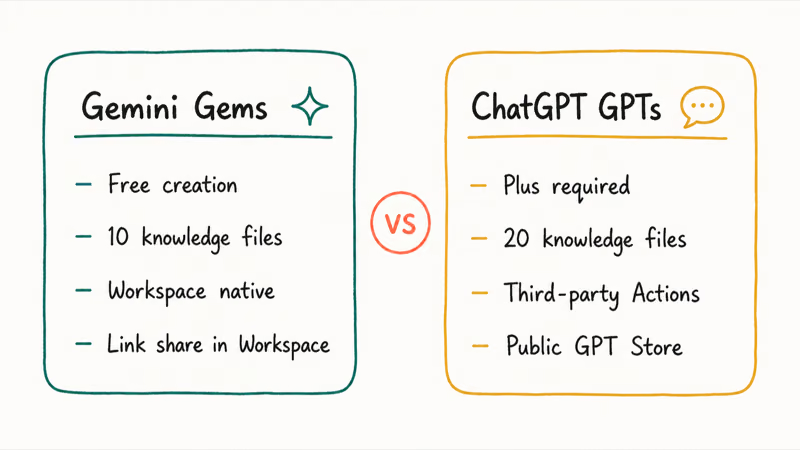
Gemini Gems and ChatGPT GPTs solve the same problem with different tradeoffs. Both let you save an AI assistant with custom instructions and knowledge files. The differences matter when you choose where to build.
| Capability | Gemini Gems | ChatGPT GPTs |
|---|---|---|
| Free-tier creation | Yes, with usage limits | No, requires ChatGPT Plus |
| Knowledge file cap | Up to 10 files | Up to 20 files |
| Native ecosystem | Google Workspace (Docs, Sheets, Drive, Gmail, Calendar) | Third-party via Actions (Salesforce, Jira, custom APIs) |
| Sharing model | Link share inside Workspace | Private, link, or public listing in the GPT Store |
| Marketplace | None | The GPT Store with categories |
| Default tools | Search, Image, Canvas, Deep Research (always on) | Toggle Code Interpreter, Browsing, Image individually |
Computerworld’s beginner guide to Google Gemini Gems found that the first useful Gem takes most builders under 10 minutes once they know the interface, and that Gems win when your work lives inside Google Workspace while GPTs win when you need richer per-tool toggles or want to distribute your assistant.
There’s no automated migration between them, so plan an hour for a careful mirror of a complex GPT into a Gem. Copy the system prompt by hand, paste it into a new Gem’s instructions, and rebuild the knowledge files file by file. Most plain-language instructions transfer cleanly across the two platforms with no rewording needed at all. Third-party API calls don’t transfer, since GPT Actions and Gem tools use different invocation models that keep those workflows GPT-only.
#Best Premade Gems to Try Before You Build Your Own
Google ships five premade Gems with every Gemini account: Brainstormer, Career guide, Coding partner, Learning coach, and Writing editor. They’re listed in the left sidebar under Gems and they’re the fastest way to learn what good Gem instructions feel like.
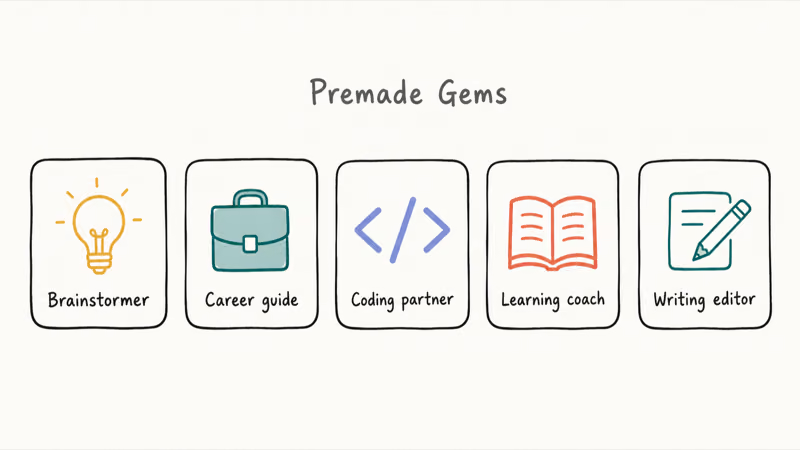
Strong premade Gems to start with:
- Writing editor. Fix grammar, tighten word count, flag passive voice. Copy it, add your brand’s banned-word list as a knowledge file, and you have an editor that respects your tone. Pairs well with formatting work like strikethrough in Google Docs when you’re editing inline.
- Brainstormer. Generate ideas with structure, not stream-of-consciousness. Give it your audience and the kind of output you want (titles, taglines, hooks).
- Learning coach. Explains concepts at the level you ask for. Useful for students working through formatting standards like MLA format in Google Docs or anyone learning a new tool.
- Coding partner. Debugging help with code awareness. Best for short snippets; longer codebases still want a real IDE.
- Career guide. Interview prep and resume review. Tell it the role and company tier; the more specific the brief, the better the prep.
Make a copy of one before building from scratch. Rewriting an existing Gem teaches you structure faster than a blank instruction box does.
#Editing, Sharing, and Managing Your Gems
Every Gem you build lives under Your Gems in the Gem manager. Click any Gem to open the editor: same five-step interface, no separate edit mode. Changes save when you click out, with no “save as” prompt.
Sharing happens inside Workspace via link. Right-click a Gem, copy the share link, paste it to a colleague. They open it, the Gem appears in their Gem manager. Permission inheritance follows Workspace settings.
Public sharing outside Workspace isn’t supported, so there’s no public Gem URL you can drop on Reddit.
A few management habits that keep the Gem manager clean:
- Prefix Gem names by use case:
WRITING — fone-tips editor,MEETING — Monday standup summary. Sorting by name keeps related Gems together. - Delete dead Gems quarterly. Old test Gems clutter the picker.
- Version with copies. When you make a major instruction change, copy the Gem first and rename the copy
v2. Easy rollback.
If you’re moving from Google Assistant to Gemini for voice and quick queries, the turning off Google Assistant walkthrough covers the handoff cleanly. And if you pull screenshots from Gem chats into documentation, the steps for saving images from a Google Doc work the same way for Gemini responses you’ve copied into Docs.
#Bottom Line
Start with the Writing Editor or Brainstormer premade Gem. Click Make a copy, rewrite the instructions to match one repetitive task you do at least twice a week (a meeting summary template, a brand-voice editor, an interview-prep coach), then save. Skip the from-scratch build until you’ve copied and tweaked at least one premade Gem.
Skip Gems if your workflow lives outside Google Workspace and you already pay for ChatGPT Plus. Inside Workspace, Gems win on native sidebars.
AI Tools Guide
#Frequently Asked Questions
What are Gemini Gems?
Saved Gemini chats with persistent instructions and optional knowledge files. You build one once, name it, write a brief that describes what it should always do, then open it from the left sidebar whenever you need that job done.
Do you need Gemini Advanced or a paid plan to use Gems?
No. Gems are free on the basic Gemini plan for anyone with a Google account who is at least 13 years old. Google One AI Premium and Workspace Gemini licenses remove usage caps, add extended knowledge file support up to the 10-file Gem cap, and enable the in-app Workspace Gemini sidebar for Docs, Sheets, Gmail, and Slides.
How many Gems can you create on the free plan?
Plenty for normal use.
The free plan supports a working number of Gems for personal use, enough to build a Writing Editor, a Brainstormer copy, and a few task-specific ones. Heavy users hit usage limits before they hit Gem-count limits. If you’ve built more than a dozen active Gems, you’re likely on a paid plan already.
Can you share a Gemini Gem with someone else?
Yes, inside Google Workspace. Copy the Gem’s share link from the Gem manager and send it to a colleague on the same Workspace domain. They open the link, the Gem appears in their Gem manager, and they can use it immediately. Public sharing outside Workspace isn’t supported, so there’s no equivalent of a public ChatGPT GPT URL.
What is the difference between a Gem and a regular Gemini chat?
A regular Gemini chat starts fresh every time with no persistent rules. A Gem opens with its saved instructions and knowledge files already loaded, so it behaves the same way on every conversation without re-explaining the setup.
How are Gemini Gems different from ChatGPT GPTs?
Both let you save a custom AI assistant with instructions and knowledge files. Gems are free to create with a Google account, integrate natively into Google Workspace, and cap knowledge at 10 files per Gem. GPTs require a paid ChatGPT Plus account to create, distribute through the GPT Store marketplace, and support up to 20 knowledge files plus third-party API actions. Gems win on Workspace integration; GPTs win on sharing and richer per-tool controls.
Can a Gem read files from Google Drive?
Yes. Add Google Docs or Sheets from Drive as knowledge files and the Gem reads them automatically. Edits in the source file flow through to the Gem with no manual re-upload, which Google calls live sync. Uploaded PDFs and local files stay static, so re-upload them when the source changes.
Is there a Gem marketplace like the GPT Store?
No.
Gemini Gems don’t have a public marketplace. Google ships five premade Gems with every account (Brainstormer, Career guide, Coding partner, Learning coach, Writing editor), and your custom Gems can be shared inside Workspace via link. There’s no equivalent of the searchable, public ChatGPT GPT Store, so if discoverability matters more than Workspace integration, GPTs still have the edge.
ChatGPT Conversation History Missing? How to Get It Back
ChatGPT conversation history missing? Fix it fast with these proven steps: check archived chats, re-enable data controls, verify your account, and more.
ChatGPT Voice Mode Not Working? 7 Fixes That Actually Work
Fix ChatGPT Voice Mode fast. Covers mic permissions, app updates, network fixes, account tier checks, and reinstall steps for iOS and Android.
ChatGPT vs Claude vs Gemini: Which AI to Use in 2026
ChatGPT vs Claude vs Gemini compared side-by-side for writing, coding, research, and everyday tasks. Find out which AI to use and when in 2026.

Claude vs ChatGPT for Writing: Which AI Is Better?
Claude wins on tone and long-form coherence. ChatGPT is faster for brainstorming and short copy. A side-by-side comparison for writers in 2026.