How to Use ChatGPT Projects: Complete 2026 Setup Guide
Set up ChatGPT Projects step by step: name it, upload sources, write per-project instructions, and avoid the file-limit gotcha for every tier.
Quick AnswerOpen ChatGPT, click + New Project in the sidebar, name it for one specific goal, add your reference files under Sources, write project-only instructions, and move related chats in via right-click.
ChatGPT Projects is the workspace feature that groups related chats, files, and instructions under one folder so the assistant stops forgetting what you uploaded last week. The setup decisions that matter are smaller and less obvious than most 2026 guides admit.
- A Project is a sidebar workspace that holds chats, files, and instructions for one ongoing effort, and it stops you from re-uploading the same brief every Monday morning
- The per-project file ceiling scales with your plan, with Free the most restrictive and paid tiers (Plus, Go, Pro, Business, Enterprise) raising it, and the uploader accepts files in small batches rather than one large drop
- Project-only instructions take priority over your global custom instructions inside that project, which is the single feature that makes the workspace actually feel different
- Right-click any sidebar chat to move it into a Project, though chats created by a Custom GPT can’t be moved
- One Project per ongoing effort beats one Project per broad category, because the second naming style turns the workspace back into the chat list you were trying to escape
#What ChatGPT Projects Are (and What They Aren’t)
A Project is a folder in the ChatGPT sidebar that pins three things together: a list of chats you assign to it, a set of source files you upload once, and a block of instructions that only apply inside that workspace. Open any chat under the Project and ChatGPT has the files and the instructions loaded before you type. Open a chat outside the Project and none of it follows you.
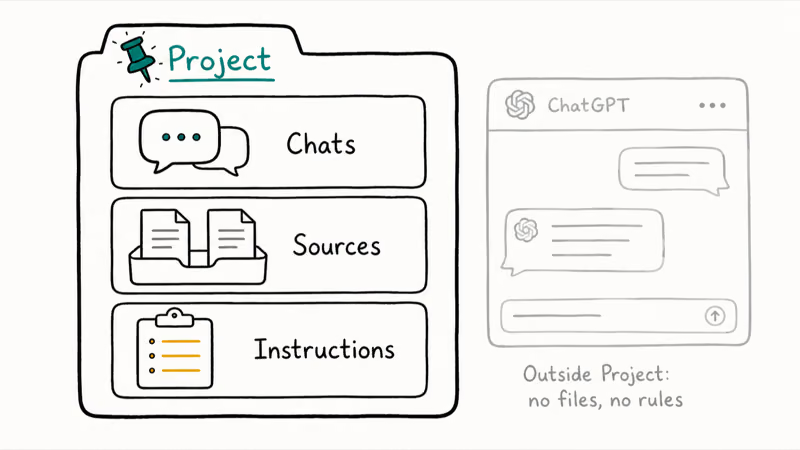
The point is to stop re-explaining context. A long “Job Hunt Notes” chat can bury the resume PDF under hundreds of messages. Projects fixes that by pinning the resume under Sources.
Projects are not the same thing as Siri’s ChatGPT integration on iPhone, which is covered in our Apple Intelligence requirements breakdown. Projects live inside the ChatGPT app and don’t talk to Siri.
#How to Create Your First Project
Open ChatGPT on the web or on the iOS or Android app, look at the left sidebar, and find the Projects section. Click the small + icon next to the section header. A modal asks for a name, and that name is the first decision that actually matters.
The mechanics are easy. On web, the + New Project icon sits above your recent chat list. In the ChatGPT iOS app, tap the sidebar handle in the top-left, then the + next to Projects. On Android the sidebar layout matches iOS.
Launching ChatGPT from an Action Button shortcut drops the chat outside any Project. Open the Project first instead.
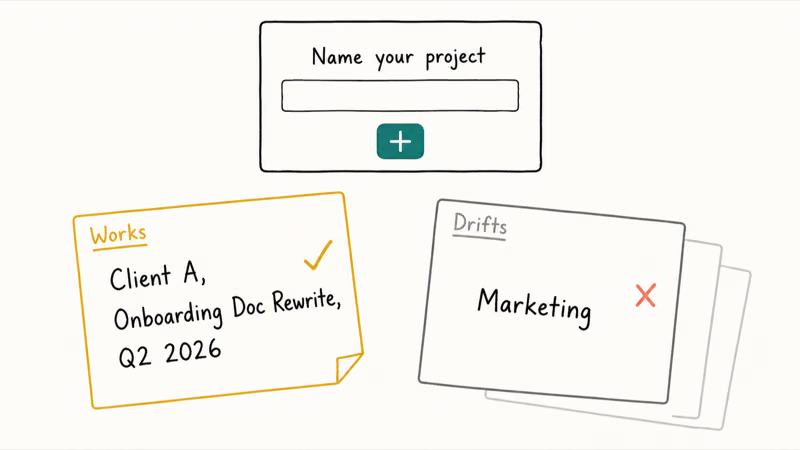
The naming step is where most people slip. Calling a Project “Marketing” feels organized for about a week, until you have three marketing Projects and can’t remember which one holds the Q3 campaign assets. According to Tom’s Guide’s tester account, Projects pay off most when each one maps to a single concrete outcome with a deadline. A format like “Category, Specific Outcome, Date” keeps “Client A, Onboarding Doc Rewrite, Q2 2026” clearer than “Client Work.”
Voice entry works inside Projects too. If you trigger ChatGPT by voice through Siri, the voice transcript still posts into whichever chat you have open. When Hey Siri stops working, the in-app microphone writes into the Project context the same way. Voice on Android works the same on devices Apple Intelligence doesn’t reach.
#Adding Sources: Files, Limits, and What Belongs
Inside a Project, click Sources, then Add Sources. Drag in PDFs, Word documents, spreadsheets, code files, or images, and they become available to every chat in the Project. You upload your brand guide once, not at the start of every conversation.
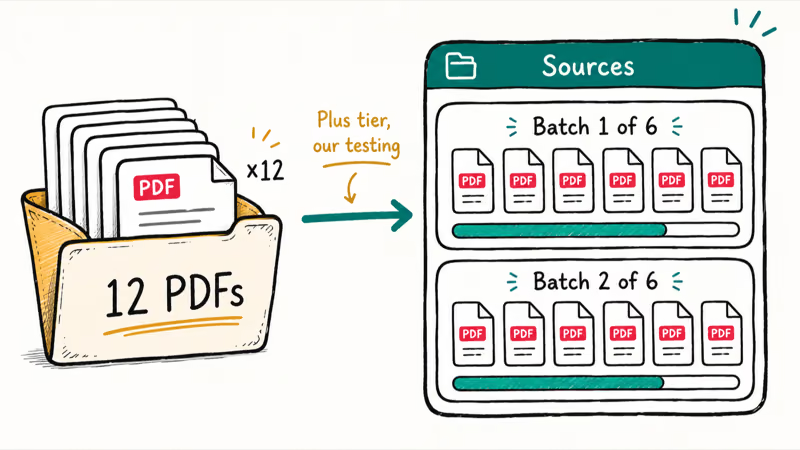
The file ceiling matters and depends on your subscription tier. Free is the most restrictive, and the paid plans (Plus, Go, Pro, Business, and Enterprise) raise the per-project ceiling as you move up. OpenAI’s official Projects documentation recommends checking the current limit inside the Sources panel, since the exact numbers shift over time. Trust the figure your own account shows, not a fixed number from a third-party post.
There’s a second cap that’s easier to miss: the uploader takes files in small batches, not one large drop. Plan on splitting larger uploads into a couple of drag-and-drop passes.
What belongs under Sources is everything you’ll reference more than twice in this Project. What doesn’t belong is everything you might reference someday.
Stale files actively hurt because ChatGPT cites them with the same confidence it cites the current version, and you end up with answers built on a draft you replaced months ago. If you keep study materials like Chegg PDFs or academic papers in a Project, replace them whenever the source updates rather than stacking new versions next to old ones.
A common mistake is dumping your entire Drive into one Project. A focused library of five well-chosen documents produces better answers than forty mixed-quality files, because the assistant doesn’t have to guess which document is authoritative.
Uploads are stored on OpenAI’s servers and inherit your workspace’s retention policy. Don’t upload anything you wouldn’t paste into a normal ChatGPT conversation.
#Writing Project-Only Instructions That Actually Override
Open a Project, click the settings icon, and find the Instructions field. This block is the second decision that matters. Whatever you write here applies to every chat inside the Project, and it takes priority over your global custom instructions for the duration.
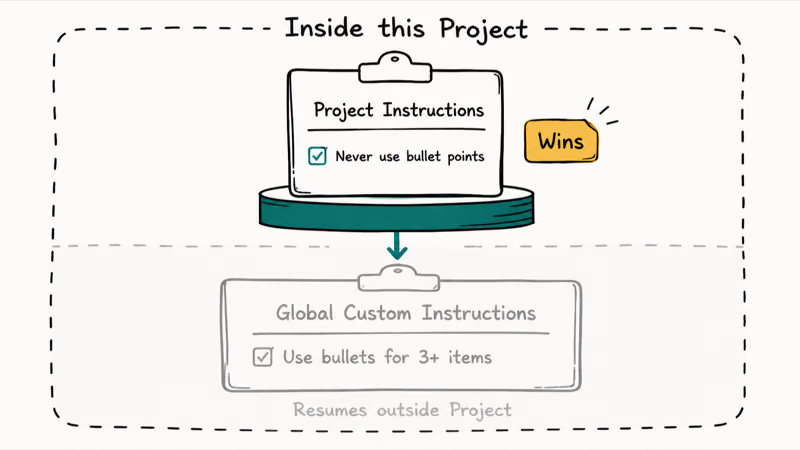
Project-only instructions take priority over global custom instructions inside that Project, so put the stricter rule in the Project field when the two conflict.
What to write: the role ChatGPT is playing, the audience for the output, the format you want answers in, and any terminology rules.
A working example for a code Project: “You are reviewing a React 19 codebase with TypeScript and Tailwind; flag any class component usage; default to functional components with hooks; cite line numbers in feedback.” A working example for a writing Project: “You are editing for a tech-publication audience; reading level is grade 9; strip jargon; keep sentences under 25 words unless cadence demands more.”
What not to write: vague directives like “be helpful and concise.” ChatGPT defaults to that and the instruction wastes characters. The instruction field is also not the place for your reference data; that goes under Sources.
You can also enable project-only memory in the same settings panel. With it on, ChatGPT remembers details from chats inside the Project but doesn’t fold them into your main account-wide memory. Turn this on for any Project involving a client name or anything sensitive that shouldn’t surface in an unrelated chat next month.
#Why Should You Move Existing Chats Into a Project?
Because the chat already has the context you need, and moving it forward into a Project is faster than starting from scratch.
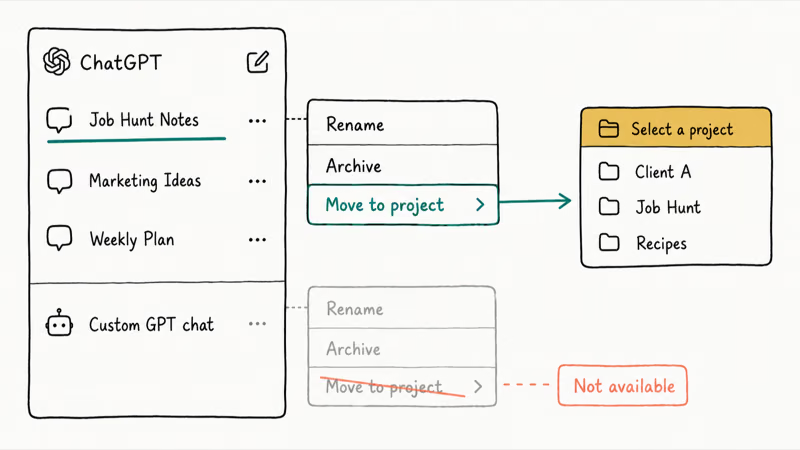
In the sidebar, right-click any chat you want to assign and select “Move to project.” Pick the destination Project from the dropdown. The chat moves, and from that point on it inherits the Project’s files and instructions for every new message. Past responses don’t retroactively change, only future ones use the new context.
There’s one documented exception: chats created by a Custom GPT can’t be moved into Projects. The “Move to project” option isn’t available on the right-click menu for GPT-generated chats. If you’ve built up history inside a Custom GPT and want it under a Project, you’ll have to copy the relevant message text into a new Project chat manually. It’s a documented platform limit, not a glitch.
Move chats in batches rather than all at once. Moving an unrelated chat into a Project pollutes that Project’s context, and the assistant will start referencing the moved chat’s topic in unrelated responses.
According to Tom’s Guide tester accounts of organizing chats with Projects, Projects pay off when the chats inside them share a real topic, and dilute when they don’t.
If you find a chat you wish you’d started inside a Project but didn’t, there’s also a “Save response as project source” option on individual messages. It turns a long answer into a reusable Source document when a back-and-forth produces a usable brief or template.
#Projects vs Custom GPTs: Which Should You Use?
Projects and Custom GPTs solve adjacent problems and people frequently use the wrong one.
A Project is a personal workspace for one ongoing effort. Chats, files, and instructions only you can see.
A Custom GPT is a packaged assistant you can share with other people. You set up its instructions, give it knowledge files, optionally enable web browsing or code interpreter, and publish it to the GPT Store or share it via private link.
The right time to build a Custom GPT is when you’ve found a workflow you want to give to your team or your readers as a turnkey tool, like “always-on writing coach for our brand voice” or “FAQ bot trained on our help docs.”
Use Projects when only you’ll work in it. Use Custom GPTs when a teammate or audience needs the same workflow.
One more practical note: Custom GPTs run on the model versions OpenAI binds them to, while Projects use whichever model you select for the chat. If you want a Project’s chats on the newest model the moment it ships, Projects update with the model picker. Custom GPTs sometimes lag.
#Bottom Line
If you use ChatGPT more than a few times a week and you have at least one ongoing effort that drags in the same files or context every session, turn it into a Project today. Name it for one specific outcome with a date, upload only the current reference files (not last quarter’s drafts), and write three or four sentences of project-only instructions.
Skip Projects for one-off questions; those belong in regular chats. Reach for a Custom GPT only when the workflow needs to be shared.
AI Tools Guide
#Frequently Asked Questions
Is ChatGPT Projects free to use?
Yes. Projects ships on the Free tier, which has the tightest per-project file ceiling, while paid tiers get larger ceilings.
How many files can I upload to a project?
The per-project ceiling depends on your subscription, with Free the most restrictive and paid plans (Plus, Go, Pro, Business, Enterprise) allowing progressively more. OpenAI changes these numbers over time, so trust the figure your own Sources panel shows. A separate uploader quirk is small batches, not one big drop, so split large source sets into multiple drag-and-drop passes.
Do project instructions replace my custom instructions?
Inside the Project, yes. Project-only instructions take priority over your account-wide custom instructions for every chat in that workspace. Outside the Project, your global custom instructions resume.
Can I move an existing chat into a project later?
Right-click any sidebar chat and select “Move to project.” The only exception is Custom GPT chats, which refuse to move.
What’s the difference between Projects and Custom GPTs?
A Project is a personal workspace tied to your account: chats, files, and instructions you don’t want to re-explain every session, invisible to anyone else. A Custom GPT is the opposite shape, a packaged assistant you publish so other people can run the workflow you designed. The deciding question is who else will run this. If nobody else will, build a Project; if a teammate or public audience will, build a Custom GPT instead.
Does project memory mix with my main ChatGPT memory?
Only if you let it. Each Project has a project-only memory setting that, when enabled, keeps memories generated inside the Project sealed from your main account-wide memory. Turn it on for anything client-related or sensitive.
Can I share a project with my team?
On Business, Enterprise, and Edu workspaces, yes: you can share Projects with teammates so the same workspace, files, and instructions are available across the team. On Free, Plus, Go, and Pro accounts, Projects are single-user. If you need team collaboration on those tiers, a Custom GPT is the closest substitute.
ChatGPT Conversation History Missing? How to Get It Back
ChatGPT conversation history missing? Fix it fast with these proven steps: check archived chats, re-enable data controls, verify your account, and more.
ChatGPT Voice Mode Not Working? 7 Fixes That Actually Work
Fix ChatGPT Voice Mode fast. Covers mic permissions, app updates, network fixes, account tier checks, and reinstall steps for iOS and Android.
ChatGPT vs Claude vs Gemini: Which AI to Use in 2026
ChatGPT vs Claude vs Gemini compared side-by-side for writing, coding, research, and everyday tasks. Find out which AI to use and when in 2026.

Claude vs ChatGPT for Writing: Which AI Is Better?
Claude wins on tone and long-form coherence. ChatGPT is faster for brainstorming and short copy. A side-by-side comparison for writers in 2026.