How to Set Up Passkeys on iPhone: Complete 2026 Guide
Set up passkeys on iPhone in five steps: enable iCloud Keychain, turn on AutoFill, then create your first passkey from Safari or any supported app.
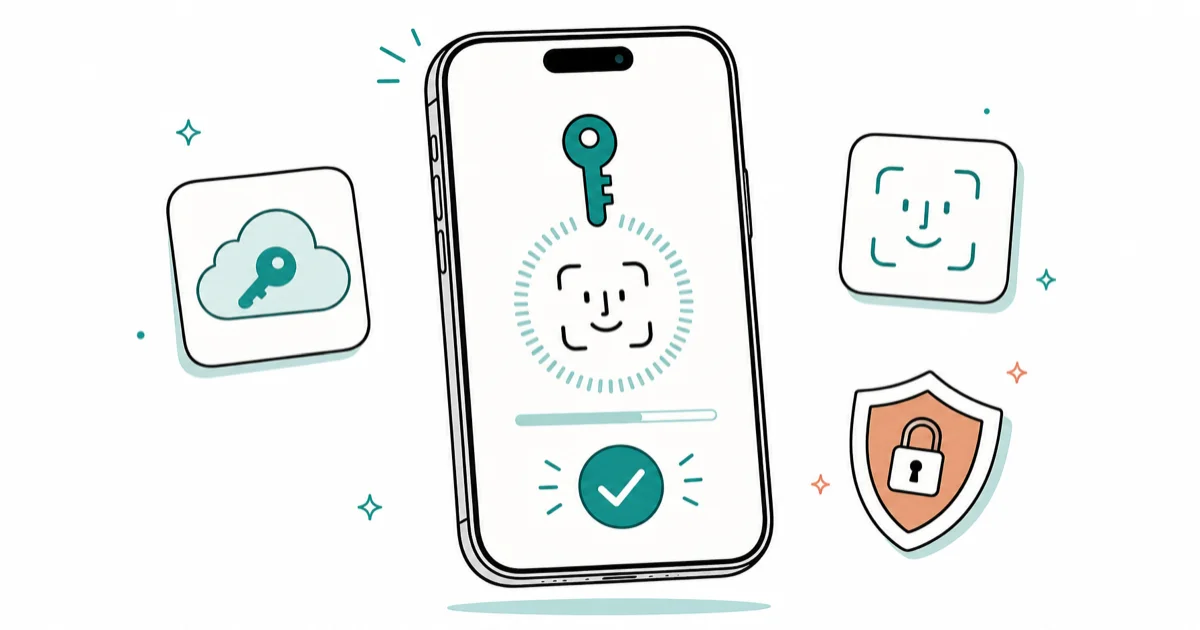
Quick AnswerUpdate to iOS 16 or later, turn on iCloud Keychain with two-factor authentication, enable AutoFill, then create a passkey at a supported site using Face ID.
Setting up passkeys on iPhone takes five minutes once iCloud Keychain is on. The full flow works across iPhone, iPad, and Mac signed in to the same Apple Account.
- Passkeys need iCloud Keychain on every Apple device, plus two-factor authentication on your Apple Account
- iOS 16 is the minimum; the dedicated Passwords app appears in iOS 18 and surfaces passkeys alongside saved passwords
- Creating a passkey takes one Face ID or Touch ID confirmation in Safari, with no password to type or remember
- Cross-device sign-in works on Windows or Android laptops through a QR code and short-range Bluetooth handshake
- Keep the old password active for the first 30 days as a fallback while you confirm the passkey syncs across every device
#What Is a Passkey and Why Use One on iPhone?
A passkey is a passwordless credential that lives on your device and proves your identity through Face ID, Touch ID, or your passcode. Two cryptographic keys are generated when you sign up: a private key that never leaves your iPhone, and a public key the website stores on its server.
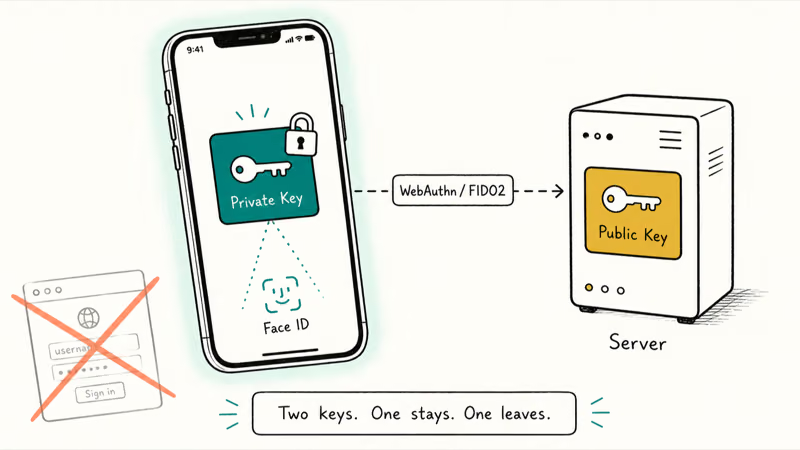
The FIDO Alliance confirms that passkeys, built on FIDO2 and WebAuthn standards from 2018, are phishing resistant by design because there’s no shared secret to steal between user and server. A fake login page can’t capture your passkey the way it can capture a typed password. A server breach exposes only the public half. If you’re still deciding whether to go passwordless, our breakdown of passkeys vs passwords vs 2FA compares the three on phishing resistance and recovery.
For iPhone owners the practical upside is shorter sign-ins, no SMS codes for accounts that already issued a passkey, and full recovery if you lose the device, as long as iCloud Keychain is on.
#Setting Up the Prerequisites: iCloud Keychain, 2FA, and AutoFill
Three things must be in place before any passkey will save. The first is iOS 16 or later on your iPhone; iOS 17 or 18 is better because Apple expanded the Passwords app and AutoFill picker. Open Settings, tap your name at the top, then iCloud, then Passwords, and turn on Sync this iPhone.
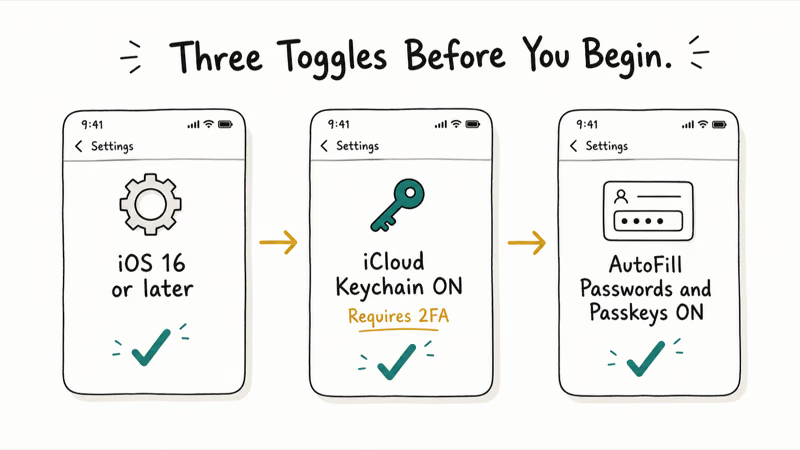
According to the Apple Support iCloud Keychain setup guide, iCloud Keychain requires two-factor authentication on your Apple Account before it will enable, and the same setup applies to every iPhone, iPad, and Mac running iOS 16, iPadOS 16, or macOS 13 or later that you want included in sync. The page states that iCloud Keychain autofills usernames, passwords, and passkeys, which is what makes the passkey sheet appear automatically when a site asks for sign-in.
Finally, check AutoFill. Open Settings, then Passwords (iOS 17) or the Passwords app on the home screen (iOS 18), tap Password Options, and confirm AutoFill Passwords and Passkeys is on.
These steps apply only to your own Apple Account and devices. You shouldn’t enable passkeys on accounts you don’t own because explicit consent is required, and modifying another person’s account may break privacy law or terms of service in your jurisdiction. Passkeys store cryptographic credentials on the iPhone itself, so treat the device passcode and Apple Account recovery as privacy-sensitive personal data. Our iPhone privacy settings checklist covers the wider device hygiene before any new account change.
#How Do You Create a Passkey on iPhone?
Once the prerequisites are set, creating your first passkey is a single Face ID confirmation. Open Safari and visit a site that supports passkeys, such as your Apple Account, a Google account, GitHub, or one of the growing list of banks. Sign in normally with your existing password, then look for the option labeled Create a passkey, Use a passkey, or Enable sign-in without a password in the security settings.
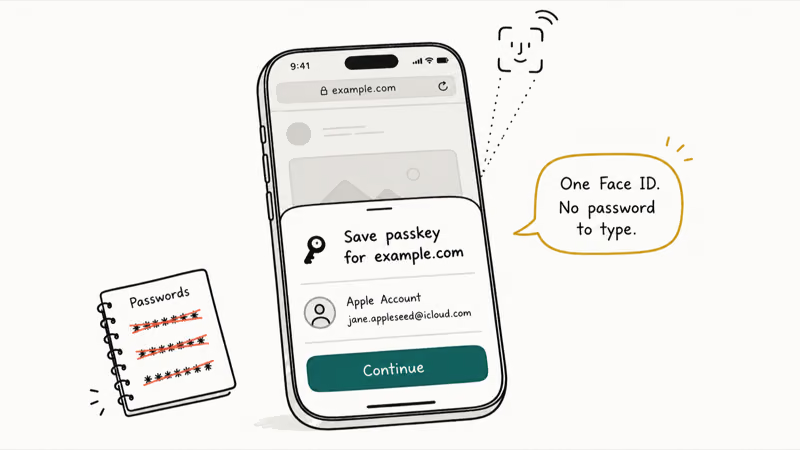
When you tap it, iOS shows a sheet titled Save passkey for [site]?. Confirm with Face ID or Touch ID, and the passkey is stored in iCloud Keychain.
Two details worth checking the first time. The sheet shows which Apple Account will hold the passkey, which matters if you use a family or work account. The site usually displays a confirmation that the passkey was registered; if you don’t see that confirmation, refresh the security page and look for a new entry under saved passkeys before you assume the sign-up failed and try again.
#Signing In With a Passkey on iPhone
Signing in on the same iPhone is the simplest case. Open the site or app, tap the username field, and Face ID prompts almost instantly.
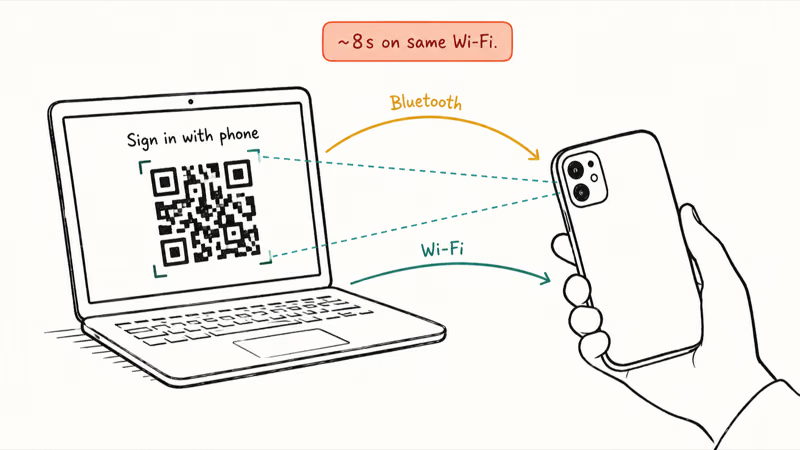
Cross-device sign-in is where passkeys quietly impress. Signing into a Google account from a Windows laptop using the iPhone QR-code flow usually completes quickly when both devices share the same Wi-Fi with Bluetooth on, and can take a little longer over a busy public network. The laptop displays a QR code, you scan it with your iPhone camera, and a short-range Bluetooth handshake confirms the two devices are physically near each other.
If iPhone passkeys never appear on Windows, read our fix for iPhone passkeys that never appear on Windows.
If Face ID fails repeatedly, iOS falls back to your device passcode. That fallback uses the same cryptographic key, so the website still sees a strong sign-in. Our notes on Face ID not working cover the usual sensor fixes.
#Where Passkeys Are Stored and How They Sync Across Devices
Passkeys live in iCloud Keychain alongside saved passwords. On iOS 18 they appear in the Passwords app; on iOS 17 they sit under Settings, then Passwords, marked with a small key icon.
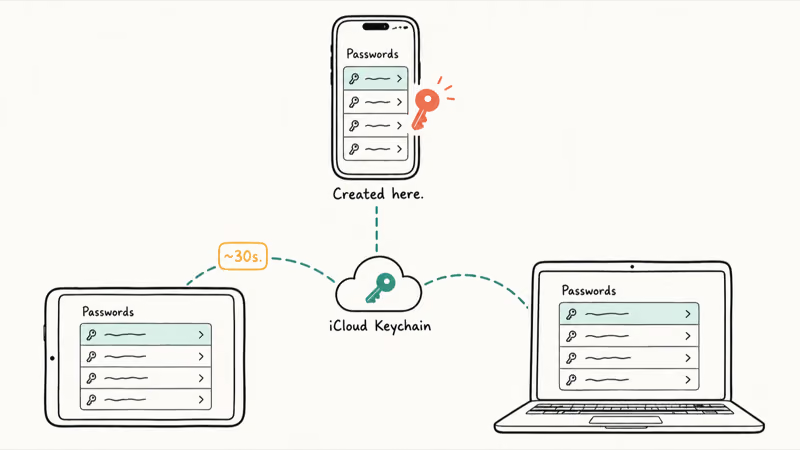
When you create a passkey on one device, it normally appears on your other Apple devices signed in to the same Apple Account shortly after, with no manual refresh needed. Apple’s view saved passwords and passkeys guide confirms this same surface shows both credential types side by side.
If a passkey fails to appear on a second device, the fix is almost always toggling iCloud Keychain off and back on. After that, the missing passkey typically reappears on the second device shortly after. If you can’t get iCloud Keychain itself to unlock, see our walk-through on forgot keychain password recovery before doing anything destructive.
The storage layer is the same one that holds Wi-Fi credentials. Our guide on the Passwords app on iPhone covers that for a different use case.
#Managing, Sharing, and Removing Passkeys
Day-to-day management happens in the Passwords app (iOS 18) or Settings, then Passwords (iOS 17). Tap a site, and you can rename it, see when the passkey was created, share it through AirDrop or a Family Sharing group, or delete it. Apple’s passkeys documentation walks through the share and delete flows.
Sharing through AirDrop is useful when a partner already has accounts that overlap with yours. The receiving iPhone must run iOS 17 or later and accept the share. The passkey then lives in their iCloud Keychain as a full credential, not a temporary copy, so they can sign in independently from then on. AirDrop sharing requires both devices to have iCloud Keychain on, which prevents accidental copies that can’t sync.
Removing a passkey takes two taps. If iCloud Keychain ever pops a login prompt you did not initiate, treat it the same as the keychain login prompts Mac users see, and verify the source.
#Bottom Line
Turn on iCloud Keychain on every Apple device you own before creating your first passkey, then start at a high-value account like Apple Account, Google, or GitHub rather than a random forum login. Keep the matching password active for the first 30 days as a fallback while you verify the passkey syncs to iPad and Mac and signs in cleanly from at least one non-Apple device on the network.
Switch your daily accounts to passkey-only after that check, not before. If sync ever fails, the answer is almost never to delete the passkey; toggle iCloud Keychain off and on, then check the second device. Other signs your iPhone is compromised justify a panic-reset, missing sync alone does not.
#Frequently Asked Questions
Do passkeys need iCloud Keychain to work on iPhone?
Yes. Apple’s iCloud Keychain setup documentation confirms that two-factor authentication and iCloud Keychain are required before passkeys will save or sync. Without iCloud Keychain on, you can technically create a passkey, but it only lives on the one device and disappears if you reset it.
Where are my passkeys stored on iPhone?
On iOS 18 they live in the dedicated Passwords app on your home screen, and on iOS 17 or earlier they sit under Settings, then Passwords, marked with a small key icon.
How do I find saved passkeys on iPhone?
Open the Passwords app (iOS 18) or Settings, then Passwords (iOS 17), and search the site name. Tap the entry to see when the passkey was created, which device it was created on, and the options to share or delete it. Apple’s saved-credentials guide confirms the same flow surfaces both passwords and passkeys side by side.
Can I use a passkey from my iPhone to sign in on a Windows PC?
Yes, through the QR-code flow any modern browser supports. The Windows browser shows a QR code, you scan it with your iPhone, and Bluetooth verifies the devices are physically close before the iPhone displays the passkey sheet. Sign-in usually takes only a few seconds on a shared Wi-Fi network and a bit longer over a busy public connection. The PC doesn’t store the passkey, so the next sign-in repeats the QR step unless you save a device-bound passkey on Windows.
What happens to my passkeys if I lose my iPhone?
Your passkeys are stored in iCloud Keychain and restored automatically when you sign into iCloud on a new iPhone with two-factor authentication. Apple recommends keeping a trusted recovery contact or recovery key on your Apple Account so you can regain access if you also lose other Apple devices. Until you sign in on the new phone, the passkeys aren’t gone; they’re simply not reachable. Once you finish iCloud sign-in, every saved passkey reappears within a couple of minutes.
Can I delete a passkey and go back to a password?
Yes. Open the Passwords app, tap the site, then choose Delete Passkey. The matching password on the site remains active unless you removed it there as well.
Why is passkey support uneven across websites?
Adoption is uneven because each site has to add server-side support and update its sign-in UI. The FIDO Alliance reports that adoption has accelerated across Apple, Google, Microsoft, and the major banks, but smaller services often add passkeys only after their account-takeover incidents climb. Apple, Google, GitHub, PayPal, and most large banks already support them, and the list grows roughly every month.

Is This Bank App Real? Spot a Fake App on Your Home Screen
A bank app can land on your home screen from a web page with no install warning. Learn the checks that tell a real banking app from a phishing web app.

Passkeys Not Syncing Between iPhone and Windows? Read This
Passkeys not syncing between iPhone and Windows is by design, not a bug. Here is why iCloud passkeys skip Windows Hello and the three ways to fix it.

VPN Not Working on Snapdragon X? Why It Fails, How to Fix
Your VPN won't install or connect on a Snapdragon X Copilot Plus PC because Windows on ARM can't emulate the network driver. Here are the fixes that work.

How to Check If a Link Is Safe Before You Click It
Learn how to check if a link is safe with official-first steps: read the real domain, use the app instead, and treat scanners as a second opinion only.