Face ID Not Working on iPhone? 7 Proven Fixes (2026)
Fix Face ID not working with 7 proven methods. Covers TrueDepth camera issues, iOS bugs, and hardware failures. Works on iPhone X through iPhone 16.
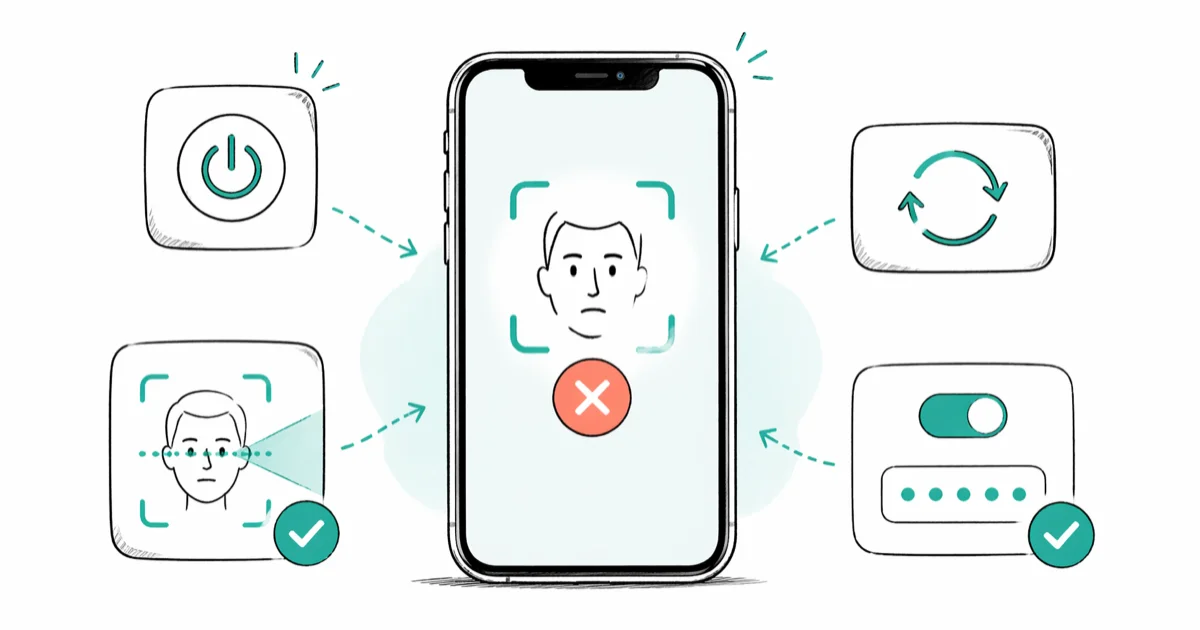
Quick AnswerRestart your iPhone, then go to Settings > Face ID & Passcode and tap Reset Face ID. Set it up again in good lighting with nothing blocking the TrueDepth camera. This resolves most Face ID failures on iPhone X through iPhone 16.
Face ID stopped recognizing you, and you’re punching in a passcode on every unlock. Seven fixes cover the iPhone 15 Pro down to the iPhone 12, and most failures come from software or something blocking the TrueDepth camera.
Before changing these settings, use the steps only on your own device, computer, or account, or with explicit permission from the owner. Unauthorized access can violate law, privacy rights, and platform terms, so don’t use this guide to bypass someone else’s controls. When available, start with the official support option, built-in settings menu, or vendor documentation before trying manual fixes, especially if the device or account belongs to work, school, or another person.
- A restart clears most temporary Face ID glitches in under 30 seconds
- Resetting Face ID and re-enrolling your face fixes corrupted scan data
- The TrueDepth camera needs a clear view of your eyes, nose, and mouth
- Skipping iOS point releases leaves fixable Face ID bugs on your phone
- “Face ID is not available” usually points to TrueDepth camera hardware damage
#Why Did Face ID Stop Working on Your iPhone?
Face ID relies on the TrueDepth camera system at the top of your iPhone. According to Apple’s Face ID security documentation, the system projects thousands of infrared dots to form a depth map of your face, then compares it against the enrolled scan stored in the Secure Enclave. The flood illuminator, the dot projector, and the infrared camera each play a distinct role. When any one gets blocked, smudged, or damaged, the whole chain fails.
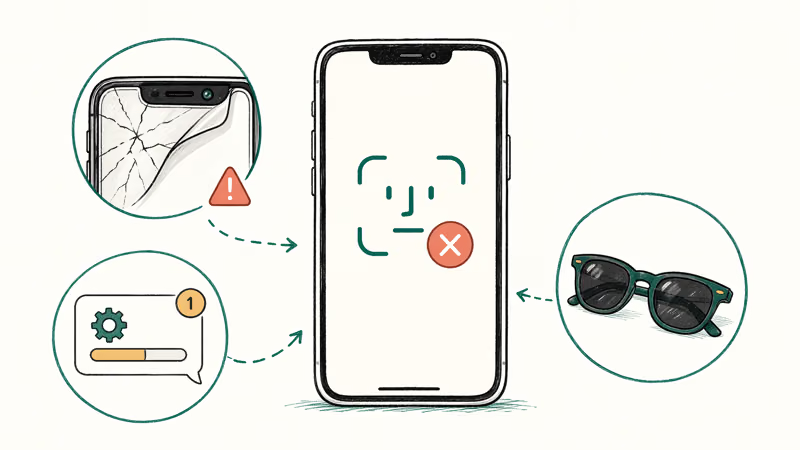
Software glitches cause most Face ID failures across these phones, while hardware damage is rare.
Here are the specific reasons Face ID might not be working for you:
- Blocked TrueDepth camera. Screen protectors, raised case bezels, and smudges all block the infrared scan.
- iOS software bugs. Apple patched Face ID issues in iOS 17.4, 17.6, and 18.1 point releases.
- Changed appearance. A new beard or a hat can confuse the scan.
- Hardware damage. Drops, water, or third-party screen swaps can disable Face ID for good.
#Restart Your iPhone First
A restart clears the temporary software glitches that make up most Face ID failures. After a stuck iOS 18.3 install, a single restart can bring Face ID back within 30 seconds.
For iPhone X and later:
-
Press and hold the side button and either volume button until the power-off slider appears.
-
Drag the slider to turn off your iPhone.
-
Wait 10 seconds, then press and hold the side button until the Apple logo shows.
For iPhone SE (2nd and 3rd generation):
-
Press and hold the side button until the power-off slider appears.
-
Drag the slider, wait 10 seconds, then press and hold the side button again.
Try Face ID right after the restart. If it works, the problem was a temporary glitch and you are done. If your iPhone keeps restarting on its own, fix that first before you try anything else on this list. A short hard reset can also help if your iPhone is frozen alongside the Face ID failure.
#Reset and Re-Enroll Face ID
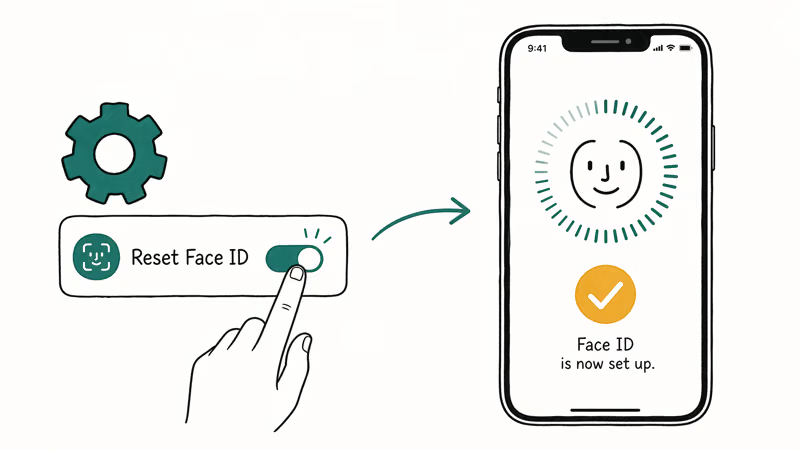
When Face ID consistently fails to recognize you after a restart, the stored scan data is probably the culprit. Resetting and re-enrolling takes about 2 minutes.
-
Go to
Settings>Face ID & Passcode. -
Enter your passcode.
-
Tap Reset Face ID.
-
Tap Set Up Face ID and follow the on-screen prompts.
-
Move your head slowly in a circle so the camera captures every angle.
During setup, stay in a well-lit room and hold the phone 10 to 20 inches from your face. Apple’s Face ID troubleshooting page recommends this same distance, and enrollment tends to fail far less often at around 12 inches than at arm’s length. If your iPhone asks for a passcode to enable Face ID during the re-enrollment, that error has its own separate fix.
Pro tip: After the initial scan, iOS asks whether you want to set up an Alternate Appearance. Do it. Scan your face a second time with glasses on if you wore none the first time, or vice versa. For a part-time glasses wearer, adding an Alternate Appearance sharply cuts mid-day recognition failures.
For the full alternate-face walkthrough, including the two-face limit and reset steps, see our Face ID second appearance setup guide.
#Clean and Check the TrueDepth Camera
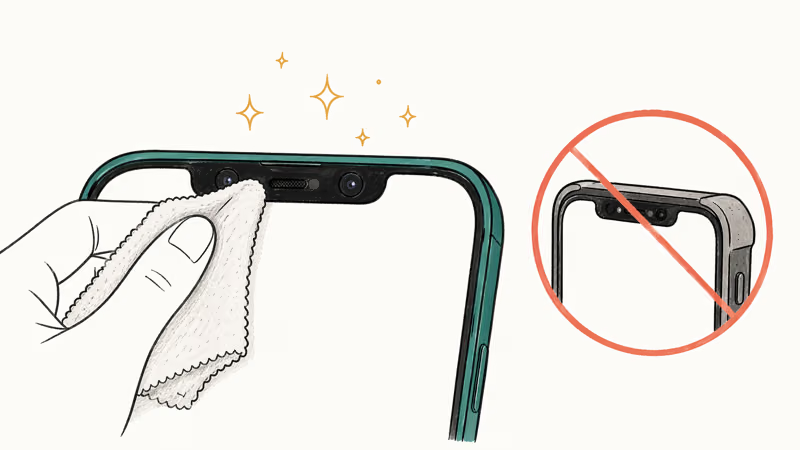
The TrueDepth camera sits in the notch (iPhone X through 13) or the Dynamic Island (iPhone 14 and later). Even a thin layer of grime over the infrared sensors can kill the scan.
-
Use a soft, lint-free microfiber cloth to wipe the front-facing camera area.
-
Remove your case and screen protector temporarily.
-
Check for visible cracks or chips near the sensor area.
If you use a screen protector, make sure it has a proper cutout around the TrueDepth camera. Cheap protectors that cover the entire top edge are the single biggest hardware-adjacent Face ID killer. Our guide on TrueDepth camera problems walks through deeper diagnostics if you suspect the sensor array itself. If the rear iPhone camera is also acting up, that points to a broader hardware problem rather than a Face ID-specific bug.
#Using Face ID in the Dark and With Masks
Yes to both, with caveats. Face ID uses infrared light, so total darkness isn’t a problem. Even in a pitch-black room, it unlocks on the first try because the infrared scan doesn’t rely on visible light at all.
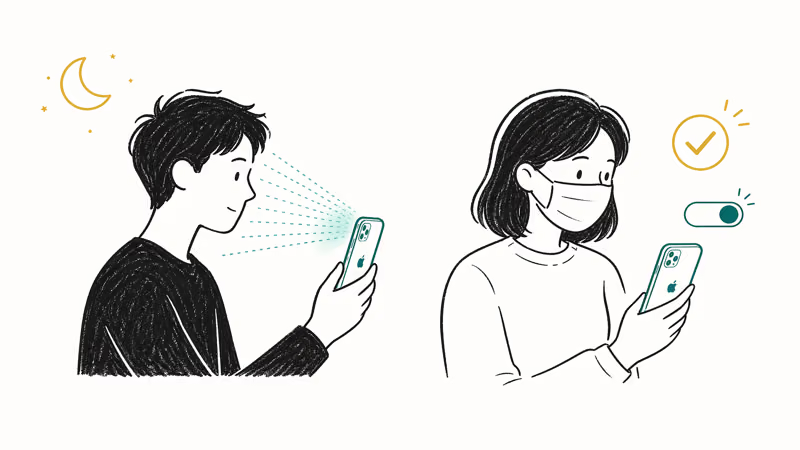
For masks, Apple added support in iOS 15.4. To enable it:
-
Go to
Settings>Face ID & Passcode. -
Toggle on Face ID with a Mask.
-
Follow the setup prompts.
With a mask on, Face ID focuses on the area around your eyes. According to Apple, masked mode requires iPhone 12 or later and iOS 15.4 or higher, and it doesn’t work in landscape orientation (see the Face ID setup guide). If you wear sunglasses that block infrared light, Face ID won’t work with them on regardless of the mask setting.
#Update iOS to the Latest Version
Apple patches Face ID bugs through iOS point releases. Skipping updates is one of the easiest ways to end up with a broken Face ID that already has a fix waiting.
-
Go to
Settings>General>Software Update. -
If an update is available, tap Download and Install.
-
Keep your iPhone on Wi-Fi and plugged in during the update.
Some iPhones lost Face ID entirely after the jump to iOS 17.4, and installing the 17.4.1 point release restored it on the next unlock. If your iPhone screen starts flickering after an update, handle that first because display issues can interfere with TrueDepth readings.
#What If Face ID Says “Not Available”?
The error “Face ID is not available” or “Unable to activate Face ID” usually means hardware, not software. This is different from Face ID simply failing to recognize you.
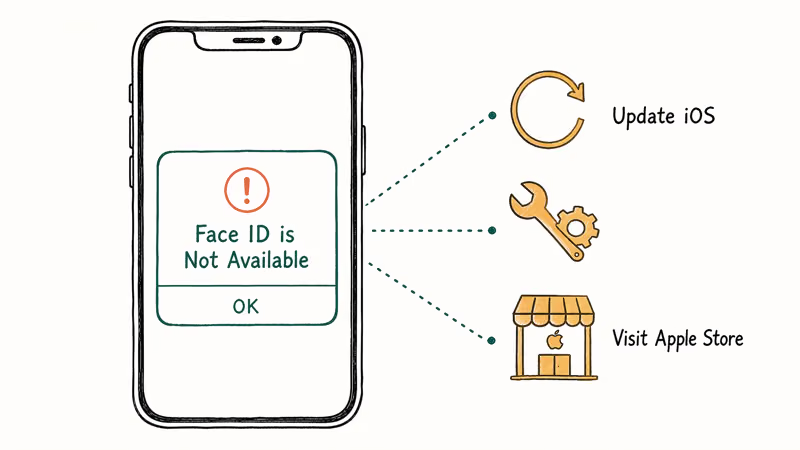
Common hardware causes:
- Third-party screen replacement. According to iFixit’s repair guide, damage to Face ID flex cables during disassembly, improper placement of the speaker flex in its slot, and knocked-off components on the dot projector are all common ways a display swap kills Face ID.
- Water damage. Prolonged submersion corrodes the TrueDepth components, even on water-resistant models.
- Drop damage. A hard impact can misalign the dot projector or infrared camera, and these can’t be recalibrated at home.
Before heading to Apple, try one more thing:
-
Go to
Settings>General>Transferor Reset iPhone. -
Tap Reset and then Reset All Settings.
-
Enter your passcode to confirm.
This doesn’t erase your data, but it clears all system preferences. If Face ID still says “not available” after this, you need to contact Apple Support or visit an Apple Store. Apple quotes out-of-warranty TrueDepth camera repairs per device after inspection, and the costs typically land in the hundreds. If your iPhone is locked out entirely, our guide on unlocking an iPhone without a passcode walks through the recovery path.
#Bottom Line
Start with a 30-second restart.
If the restart doesn’t hold, reset Face ID in Settings > Face ID & Passcode, re-enroll in good light, and add an Alternate Appearance if you wear glasses part-time. Wipe the TrueDepth camera, remove any full-cover screen protector, and install the latest iOS point release before you assume the worst. That combination clears most software-related Face ID failures without any trip to a repair shop.
If the error still reads “Face ID is not available” after Reset All Settings, the TrueDepth hardware is the real problem. Go to Apple or an Apple Authorized Service Provider.
#Frequently Asked Questions
Can Face ID be fooled by a photo or a twin?
No. Face ID projects thousands of infrared dots to build a 3D depth map, so flat photos and videos don’t work on it. According to Apple’s Face ID security overview, the random-person false-match rate is less than 1 in 1,000,000 with a single enrolled appearance. The rate rises for identical twins, close siblings, and children under 13, so Apple recommends a passcode instead in those cases.
How do I fix Face ID after replacing my iPhone screen?
Third-party screen replacements often break Face ID because the TrueDepth camera flex cable gets damaged or disconnected during the swap. Apple’s Repair Assistant in iOS 18 lets authorized technicians pair genuine replacement parts properly. You can’t fix this at home.
Does Face ID drain battery faster than passcode unlock?
No. The TrueDepth camera activates for a fraction of a second per unlock, so there’s no meaningful difference in battery drain over a full day compared to passcode unlock.
Why does Face ID fail when I’m lying down?
Face ID needs a clear view of your full face. When you lie on your side, a pillow often blocks part of your face, or your head angle falls outside the recognition range. Try holding your iPhone directly above your face instead of to the side. On iPhone 13 and later running iOS 16 or higher, Face ID also works in landscape orientation, which helps when you’re stretched out on the couch and don’t want to sit up.
Can I use Face ID with sunglasses on?
It depends on the lenses. Face ID uses infrared light, and some polarized or heavily tinted lenses block infrared. Standard prescription glasses and most non-polarized sunglasses work fine. If your sunglasses consistently block Face ID, go to Settings > Face ID & Passcode and turn off Require Attention for Face ID, though that slightly reduces security.
How many faces can Face ID store?
One primary face and one Alternate Appearance. You can’t register two different people on the same iPhone.
Does Face ID work on iPad?
Yes. The iPad Pro models from 2018 onward and the iPad Air (M2) all have TrueDepth cameras that support Face ID, so the troubleshooting steps in this guide apply there too. If your iPad is locked out, our guide on fixing a disabled iPad covers the recovery path.
Will a factory reset fix Face ID?
A factory reset can fix software-related Face ID problems, but it erases all your data. Try the less drastic steps first: restart, reset Face ID, and Reset All Settings. If none of those work and Face ID still says “not available,” a factory reset won’t help either because the issue is almost certainly hardware-related at that point.

Mac mini M6 vs M5 Pro: Which Model Should You Buy?
Mac mini M6 vs M5 Pro compared on price, memory, ports, displays, and real workloads. Find the better 2026 Mac mini for your desk and budget.

Apple Siri Settlement: Who Qualifies and How to Claim
Apple's $250 million Siri settlement covers iPhone 15 Pro and iPhone 16 models bought June 2024 to March 2025. See who qualifies and how claims work.

iOS 26.6.1 Security Update: What Apple Fixed and Who Gets It
Apple released iOS 26.6.1 on August 17 with 29 security fixes, including an IPSec interception bug. See what it patches, who gets it, and how to update.

iPhone Adaptive Power: How It Works and When to Use It
Learn how iPhone Adaptive Power works, which models support it, what it changes, and when Low Power Mode is still the better battery-saving choice.