How to Tell If Your Phone Is Hacked: 2026 Checklist
Eleven warning signs your iPhone or Android is hacked, the Apple and Google official check menus, and the recovery sequence for your own device.
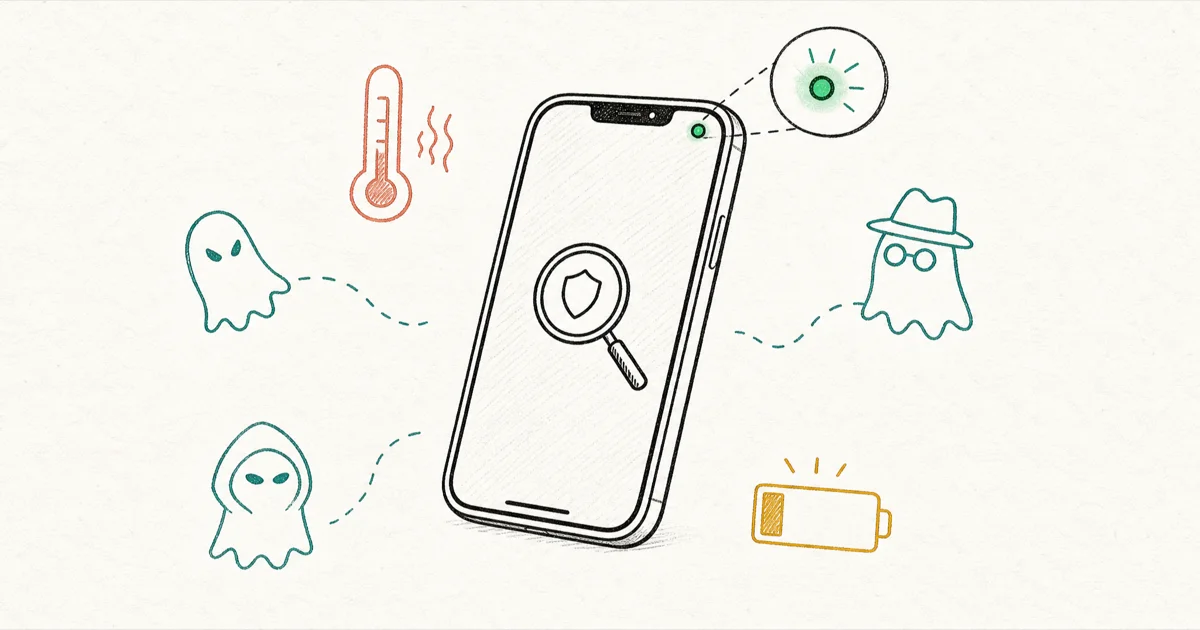
Quick AnswerIf your own phone overheats while idle, drains battery overnight, or its camera dot activates unexpectedly, run Apple Safety Check on iPhone or Google Play Protect on Android.
You picked up your own phone and something feels off. Maybe the battery is half-empty before lunch, or the camera dot flickered on when no app was open. This guide walks through the warning signs to check on your own device.
It covers Apple and Google’s official check menus plus the recovery sequence if something’s wrong. Every step assumes the phone and accounts belong to you.
- The earliest signs of a compromised phone are usually behavioral: unexpected camera or microphone indicators, idle overheating, sudden battery drain, unknown apps, and login alerts you didn’t trigger
- Apple Safety Check on iOS 16 and later is the fastest way to revoke shared data, app access, and connected devices on your own Apple ID in one pass
- Google Play Protect scans installed apps and incoming installs on your own Android device, and it’s most useful for spotting sideloaded packages that never went through the Play Store
- If you confirm a compromise, change your Apple ID or Google Account password from a different device first, then enable two-factor authentication before touching the suspected phone
- Factory reset only works as a clean break if you set the phone up as new, because restoring from a post-compromise backup can put the malicious app right back
#Eleven Behavioral Signs Your Phone Has Been Compromised
According to Norton’s hacked-phone overview, Norton lists 11 behavioral warning signs of a compromised phone. The device looks the same, but it acts differently. The signs below match Norton’s framework and they apply to both iOS and Android.
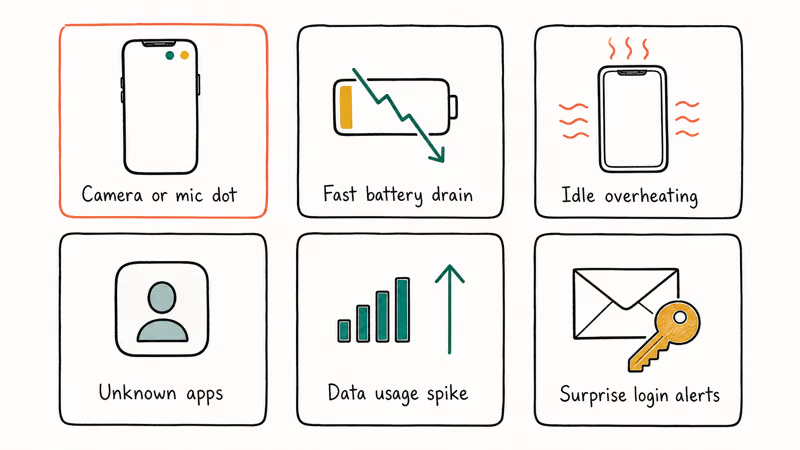
- Camera or microphone indicator activating unexpectedly. On iOS 14 and later, a green dot at the top of the screen means the camera is in use. An orange dot means the microphone is in use. Android 12 and later show a similar indicator in the status bar. If either turns on while no app is in the foreground, an app is recording in the background.
- Rapid battery drain without a usage change. A spyware or stalkerware app that records audio, uploads files, or pings GPS coordinates keeps the phone awake. Battery drops 20 to 30 percent in a few idle hours when it used to last all day.
- Idle overheating. The phone feels warm in your pocket or on the nightstand when nothing is open. Background processes drive the CPU and the battery, which together generate heat.
- Unknown apps on the home screen or app drawer. An app you don’t remember installing is suspicious, especially one with a generic icon, no name in your language, or a name that mimics a system process (
Sync,Service,WiFi Helper). Our hidden app finder guide covers how to surface apps that have been moved out of the launcher. - High mobile data usage with no behavior change. Spyware uploads recordings, location, and screenshots over cellular when WiFi isn’t available. A sudden jump in data usage on a line that used to sip a few hundred megabytes is a tell.
- Unexpected pop-ups and browser redirects. Adware and some surveillance apps inject ads or redirect Safari and Chrome to scam pages. The pop-ups appear even outside the browser.
- Unfamiliar calls in the outgoing log. Premium-rate numbers in your call history that you didn’t dial usually mean a malicious app is silently placing calls.
- Missing incoming calls or texts. A SIM swap or a call-forwarding override redirects calls and SMS away from your phone. That’s why a quiet phone is sometimes the loudest sign. Our USSD codes to check phone status reference covers the carrier-level checks for this.
- Account lockouts and unexpected password-reset emails. An attacker testing your credentials triggers lockouts and reset emails on Apple ID, Google, banks, and social accounts.
- Battery drains aggressively in standby. This is a stronger version of sign two. Even with the screen locked, the battery loses more than 10 percent overnight when previously it would lose two or three.
- Unrecognized configuration profiles on iPhone. Configuration Profiles can route traffic through a VPN, install custom certificates, or enroll the phone in a mobile-device-management policy. We cover the menu path in the Safety Check section below.
Most users hit two or three of these signs before realizing something is wrong.
A separate question is whether someone is intentionally watching the phone rather than running random malware. The signs above overlap with adware and a tired battery. A single sign in isolation is rarely conclusive.
Two or three signs together push the threshold higher. The camera or microphone indicator plus unknown apps plus account alerts is when running the official checks becomes urgent. If you suspect the person watching is someone with physical access to the phone, our notes on spy software detection methods cover the broader picture.
#How Do You Run Apple’s Safety Check on iPhone?
Apple Safety Check is built into iOS 16 and later. The feature lives at Settings > Privacy & Security > Safety Check.
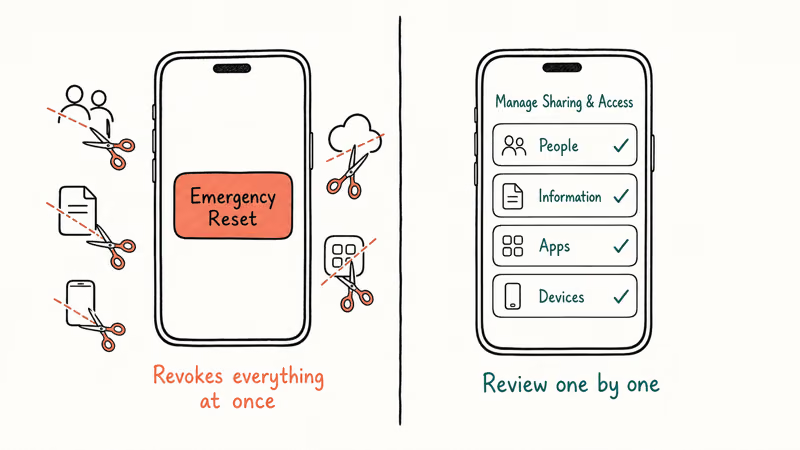
Apple’s Personal Safety Guide confirms that the feature has 2 paths: Emergency Reset, which immediately revokes shared data and app permissions, and Manage Sharing & Access, which lets you review each connection one at a time.
If your iPhone is on iOS 15 or older, you don’t have Safety Check yet, and you’ll need to audit Apple ID device list, app permissions, and configuration profiles manually using the menus listed below. Updating to iOS 16 unlocks Safety Check, but doesn’t undo any compromise that happened before the update.
Start with Emergency Reset if you suspect active surveillance.
Emergency Reset. Tap Emergency Reset, authenticate, and confirm. The reset signs you out of iCloud on every other device that uses your Apple ID. It revokes Find My access for shared people, removes shared photo libraries, and resets every app’s permissions on the current iPhone. The flow also gives you an opportunity to change your Apple ID password without leaving the menu.
Emergency Reset is designed for the fastest clean break: it revokes sharing, resets app access, and gives you a path to change your Apple ID password inside the same flow.
If Emergency Reset feels too aggressive, the second path is more surgical.
Manage Sharing & Access. Use this option if you share a calendar with a co-parent you trust and only want to revoke one specific connection, or if you have a legitimate shared Family Sharing setup with kids or a spouse. The menu walks through People, Information, Apps, and Devices, and each step asks what to keep. The path takes longer (5 to 10 minutes for a fully-shared Apple ID), but you keep your legitimate connections intact.
While you’re in Privacy & Security, audit two more menus on your own iPhone:
Settings>General>VPN & Device Management. Any configuration profile or MDM entry you didn’t install yourself should be removed. Many stalkerware kits arrive as a sideloaded profile, so an unknown profile here is one of the strongest single signs of compromise. Our detect spyware on iPhone guide goes deeper on iOS-specific persistence points.Settings>Privacy & Security>Microphone/ Camera / Location Services. Look for apps with permissions you don’t remember granting. Revoke anything you don’t actively use.
After the audit, finish by reviewing the devices signed in to your Apple ID at Settings > [Your Name]. Scroll to the device list and remove anything you don’t recognize. If you see an unknown laptop or tablet, change your Apple ID password from a different device first (covered in the recovery section). Changing it from the suspected iPhone can tip off whoever is watching before you complete the cleanup.
#Google Play Protect: Android’s Built-In Malware Scan
Android doesn’t have a single Safety Check menu the way iOS does. Instead, the official path on your own Android phone is Google Play Protect plus a manual app audit. According to Google’s Android malware removal guide, Play Protect scans installed apps and every incoming install against Google’s known-malware database, then prompts you to remove flagged apps.
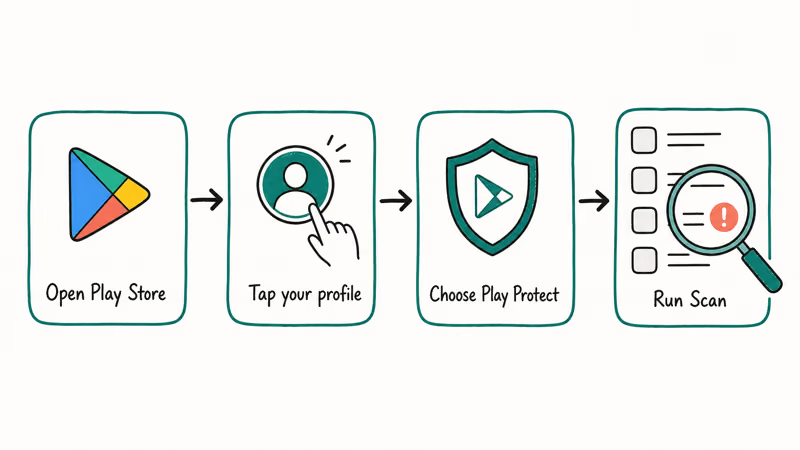
To run a Play Protect scan: open the Google Play Store, tap your profile icon, choose Play Protect, then Scan. The scan finishes in under a minute on most modern Android phones.
Play Protect is most useful for packages that never went through the Play Store, which is the surface area where many stalkerware installs try to live.
After the scan, audit four more menus on your own Android:
Settings>Apps>Seeall apps. Scroll the full list. Any app you don’t remember installing is a candidate for removal, especially apps with generic system-process names likeService,Sync,Updater, or apps with no visible icon.Settings>Apps>Specialapp access > Device admin apps. This is a common spyware persistence point on Android. A device admin app can prevent uninstallation and read sensitive data. The only apps in this list should be ones you recognize (typically Find My Device, your employer’s MDM if you have a work phone, and nothing else).Settings>Apps>Specialapp access > Accessibility. Stalkerware often abuses Accessibility services to read screen content and inject input. Anything here that isn’t a genuine accessibility tool should be turned off and uninstalled.- myaccount.google.com >
Security>Manageall devices. Open this on a different computer or tablet, not the suspected phone. Review every device signed in to your Google Account and sign out anything you don’t recognize.
If a suspicious app has been hidden from the launcher itself, the Android Settings > Apps > See all apps list still shows every package installed on the device, regardless of what the launcher displays.
#Is Your Behavior the Cause, or Is Someone Watching?
Before assuming the worst, rule out the boring explanations. A swollen or aging battery overheats. iOS and Android system updates run background indexing for a day or two and drain power. A roommate who borrowed your phone may have logged into a streaming service you both share.
The question is whether the signs cluster around a single trigger event. If your phone started misbehaving the day after you clicked a suspicious link, plugged into an unfamiliar USB port, lent the phone to someone unsupervised, or installed a free app from outside the App Store or Play Store, those are deliberate-intrusion triggers. If the signs started after a hot week or a major OS update, the cause is more likely environmental.
If you suspect someone has installed monitoring software on your own phone without your consent, that’s illegal in most jurisdictions across the United States, European Union, United Kingdom, Canada, and Australia. This includes a former partner, an overstepping employer, an estranged family member, or anyone with physical access during a vulnerable moment. Treat this as a safety planning issue, not a technical one.
The Federal Trade Commission and most state attorneys general treat covert monitoring of an intimate partner as a form of domestic abuse, not a privacy footnote. Several state-level criminal statutes carry felony penalties for the installer.
For coercive-control safety planning, contact NNEDV’s Safety Net Project at techsafety.org or the National Domestic Violence Hotline at 1-800-799-7233. Don’t confront the suspected installer until you’re in a safe environment and have a plan. Changing settings on the phone can itself trigger an alert to whoever is watching.
Safety first, technical cleanup second.
Awareness of the broader surveillance market helps too. Articles like our examples of tracker app behavior reference and the location tracking via text awareness write-up describe what stalkerware looks like from the user-facing side, so you know what to recognize on your own device.
#Safe-Device First Steps Before You Touch the Phone
If Apple Safety Check, Google Play Protect, or your own audit confirms something is wrong, the first four steps happen from a different device. Use a laptop, tablet, or another phone you trust. If the malicious app has account-level access, changing the password from the suspected phone can sync the new credential back to the attacker. Logging in from a clean device avoids that trap.
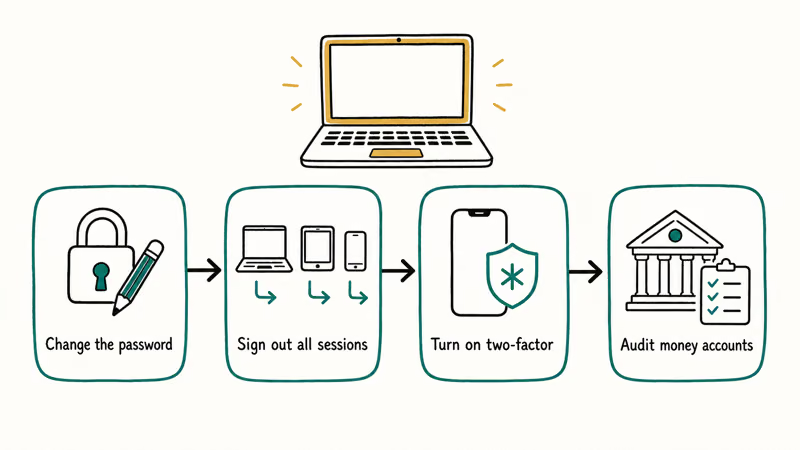
- Change your Apple ID or Google Account password. For Apple ID, go to
appleid.apple.comand sign in. For Google, go tomyaccount.google.com > Security > Password. Pick a password you’ve never used on the suspected phone. - Sign out of all sessions. Apple ID: from the same
appleid.apple.compage, scroll to Devices and remove every device. Google: frommyaccount.google.com > Security > Manage all devices, sign out every session. - Enable two-factor or a passkey. Apple ID and Google both default to two-factor by SMS, which is the weakest factor. Upgrade to an authenticator app or a hardware key.
- Audit financial accounts. Banking, brokerage, Venmo, PayPal, Cash App, and any account that holds money. Change passwords on the safe device and turn on two-factor.
The goal of these four steps is to break the attacker’s account access before the phone learns you’re cleaning up. Changing passwords on the suspected phone first can sync the new password back to whoever is watching.
#Erase and Set Up as New, Then Reinstall One App at a Time
Only after the safe-device account work is done should you touch the suspected phone. If you have a recent backup from before the suspected compromise window, you can restore the iPhone from that iCloud backup or restore the Android from that Google backup. If you can’t pinpoint when the compromise started, don’t restore. Erase and set up as new.
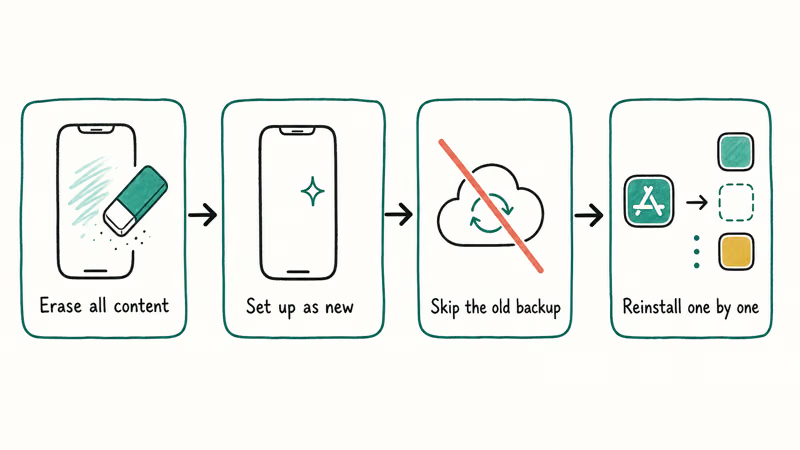
- iPhone erase path:
Settings>General>Transferor Reset iPhone>Erase All Content and Settings. After the erase, set the phone up as a new iPhone. Don’t sign in to iCloud yet, and don’t restore from any backup. - Android erase path:
Settings>System>Resetoptions > Erase all data (factory reset). After the erase, set the phone up as new and skip the “restore from Google account” prompt at first boot. - Install only the apps you actively need. Reinstall from the App Store or Play Store, one at a time. Don’t sideload anything. Don’t install profiles from links in text messages.
- Re-add accounts one at a time, with two-factor on each. Apple ID, Google, email, banks, social. Each account gets its own strong password.
- Document the incident. Take screenshots of the unfamiliar app, the device list, and any account alerts before you erase. If you file a report with your carrier’s fraud line or with law enforcement, that evidence matters. Our iPhone privacy settings audit checklist is a good post-recovery hardening pass.
A note on third-party “hacked phone scanner” apps: most of the apps that appear at the top of App Store and Play Store searches for “phone hack scanner” are themselves the problem you’re trying to solve. They request broad permissions, fabricate alerts, and sell upsells.
Run Apple Safety Check or Google Play Protect first. Reputable supplementary scanners exist (Malwarebytes is one) but they’re a follow-up step, not the primary path. Malwarebytes’ hacked phone overview covers the supplementary-scan angle.
#Bottom Line
If you think your own phone has been hacked, don’t panic and don’t confront anyone yet. Run Apple Safety Check on iPhone (Settings > Privacy & Security > Safety Check > Emergency Reset) or Google Play Protect on Android (Play Store > Profile > Play Protect > Scan). These two official tools surface most compromised settings and revoke unwanted access in one pass, with no third-party app required.
Order of operations matters more than tool selection.
If either tool flags something, or if you see unfamiliar configuration profiles, device admin apps, or unknown logged-in devices in your Apple ID or Google Account, change your account password from a different device immediately and turn on two-factor authentication. As a final step, factory-reset the phone and set it up as new. Restoring from a backup that includes the compromise can re-install the malicious app and put you back where you started.
If the suspected compromise came from a former partner or anyone with physical access, call the National Domestic Violence Hotline at 1-800-799-7233 first. Avoid third-party hacked-phone-scanner apps because many are scams.
#Frequently Asked Questions
How can I tell if my iPhone has been hacked without using an app?
Use the menus already on the iPhone. Apple Safety Check (Settings > Privacy & Security > Safety Check) surfaces shared data and app access in one pass. The VPN & Device Management menu (Settings > General > VPN & Device Management) shows configuration profiles, where most iOS stalkerware persists. Check both menus plus the device list under Settings > [Your Name], all in under 10 minutes with no third-party app needed.
Does Apple’s Safety Check tell me who is monitoring my phone?
No. Apple Safety Check shows what’s shared and who has access, but doesn’t name a specific installer. Figuring out who put the access there is your job, based on context.
Will factory resetting my Android remove all spyware?
A factory reset followed by setting up the phone as new will remove the vast majority of consumer stalkerware and adware from your own Android. The risk is restoring from a Google backup taken after the compromise, because Play Store apps are part of the backup and the malicious app comes right back along with everything else. To break that loop cleanly, decline the “restore from Google account” prompt at first boot.
Set up as new, then reinstall apps one at a time from the Play Store. A small category of advanced surveillance reaches deeper than user apps and may survive a reset, but that’s rare outside of journalist and activist threat models.
Can someone hack my phone from just my phone number?
Mostly no, but partially yes. A number alone isn’t enough to install spyware, but it’s enough to attempt SIM swaps, phishing, or malicious links. The mitigation is a carrier port-out PIN, two-factor on accounts, and skepticism toward unexpected links.
Is Google Play Protect enough to detect spyware?
Play Protect is the right starting point on your own Android, but it isn’t a complete solution by itself. Its primary scope is apps installed through the Play Store and sideloaded packages that match a known signature. Custom or freshly compiled stalkerware, especially apps installed via accessibility-service abuse or device-admin elevation, can evade signature-based detection. Combine Play Protect with a manual audit of Special app access (device admin apps and accessibility) for stronger coverage.
Should I tell the suspected installer that I found their app?
Not until you’re in a safe environment with a plan. If the installer is a former partner, a family member, or anyone with physical access to your phone, confronting them while still in the same household or relationship can escalate the situation. Call the National Domestic Violence Hotline at 1-800-799-7233 or NNEDV’s Safety Net team for safety planning first.
What is the difference between a hacked phone and a phone with adware?
A hacked phone implies a third party has access to your accounts, files, or live data: they can read messages, see your location, or pull photos. Adware is more annoying than dangerous because it injects ads, redirects browsers, and harvests advertising identifiers, but usually doesn’t read your messages.
The signs overlap (pop-ups, battery drain, mystery apps) but the response is different. Adware usually clears with an uninstall and a Play Protect scan; a confirmed hack needs the full recovery sequence.
When should I contact the police if I think my phone is hacked?
Call your local police non-emergency line if you can document a specific harm: money moved from a bank account, threatening messages tied to information that could only come from your phone, or evidence that the installer is someone subject to a restraining order.
For coercive-control or domestic-violence contexts, call NNEDV’s Safety Net team at 1-800-799-7233 first, because they can coordinate with local law enforcement and a digital safety advocate at the same time. The FBI’s Internet Crime Complaint Center at ic3.gov takes online-fraud reports if money is involved.

Is This Bank App Real? Spot a Fake App on Your Home Screen
A bank app can land on your home screen from a web page with no install warning. Learn the checks that tell a real banking app from a phishing web app.

Passkeys Not Syncing Between iPhone and Windows? Read This
Passkeys not syncing between iPhone and Windows is by design, not a bug. Here is why iCloud passkeys skip Windows Hello and the three ways to fix it.

VPN Not Working on Snapdragon X? Why It Fails, How to Fix
Your VPN won't install or connect on a Snapdragon X Copilot Plus PC because Windows on ARM can't emulate the network driver. Here are the fixes that work.

How to Check If a Link Is Safe Before You Click It
Learn how to check if a link is safe with official-first steps: read the real domain, use the app instead, and treat scanners as a second opinion only.