iPhone Privacy Settings Checklist: 10 Toggles for 2026
Tighten every iPhone privacy setting in one pass: ATT, Location, Photos, Lockdown Mode, Apple Intelligence. A 10-toggle iOS 18 audit checklist.
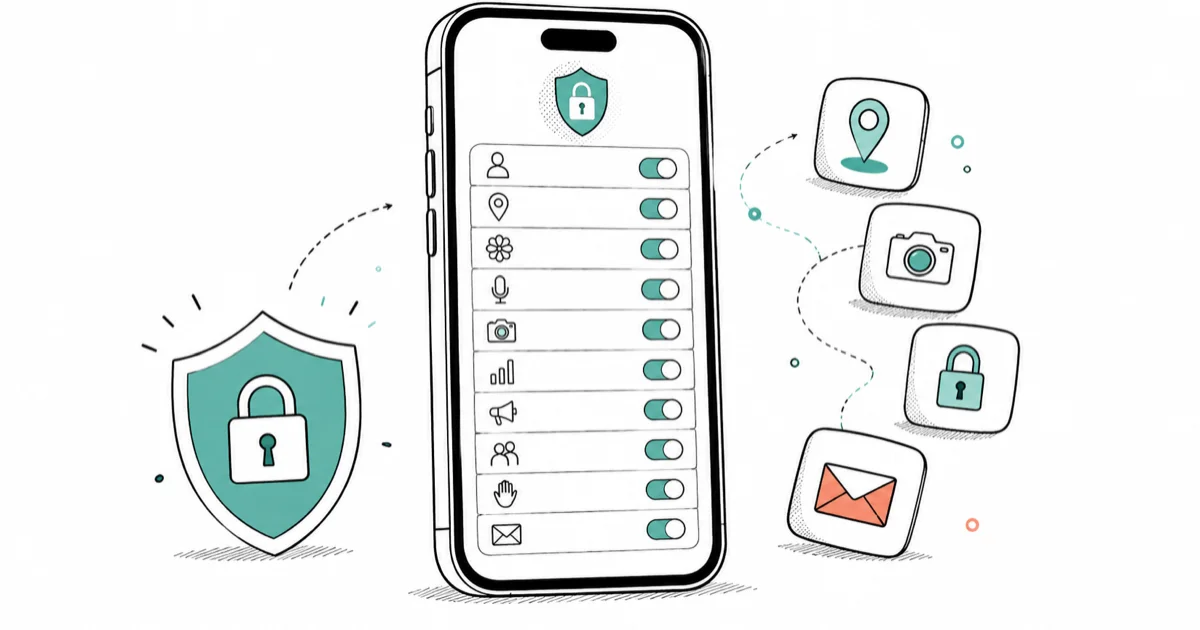
Quick AnswerOpen Settings > Privacy & Security and review ten toggles: App Tracking Transparency, Location Services, Photos, Microphone, Camera, Analytics, Apple Advertising, Safety Check, Lockdown Mode, and Hide My Email.
Your iPhone privacy settings live in a single screen. Most of the defaults still favor the apps over you. Settings > Privacy & Security is the entire audit surface, and a full pass through every toggle takes about twelve minutes on current iOS.
Settings>Privacy & Securityis the one screen that holds every iPhone privacy toggle worth touching, including ATT, Location Services, Photos, Microphone, and Camera- App Tracking Transparency turned on at the global level blocks future tracking prompts and silently denies any app that asks
- Location Services should default to “Ask Next Time or When I Share” with Precise Location disabled for everything except Maps and ride-share apps
- Lockdown Mode is the iPhone’s highest privacy posture but breaks attachments, link previews, FaceTime from unknown numbers, and most third-party browser features
- Apple Intelligence runs on-device by default and routes only complex requests through Private Cloud Compute, which Apple says is stateless and unauditable in real time
#App Tracking Transparency: Stop App-to-App Data Sharing
App Tracking Transparency (ATT) controls whether apps can follow you between other apps and websites. Tap Settings > Privacy & Security > Tracking, then turn off “Allow Apps to Request to Track.”
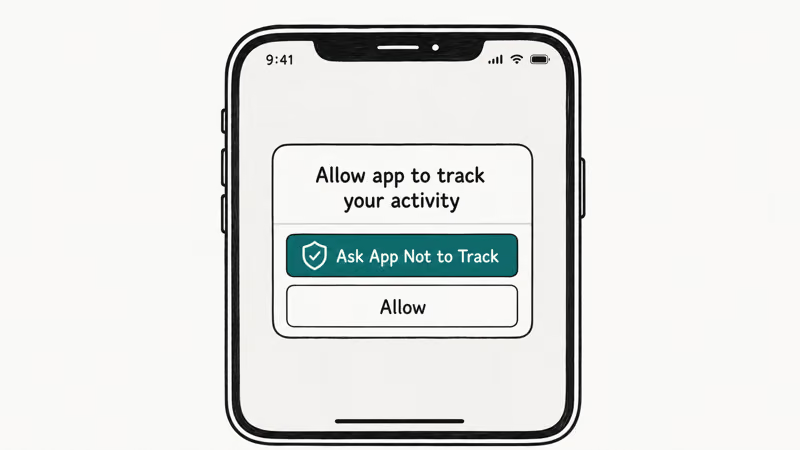
According to Apple’s App Tracking Transparency support page, ATT shipped with iOS 14.5 and requires apps to request explicit permission before linking your data across other companies’ apps, websites, or data brokers for ad targeting or measurement. The global toggle does two things at once. It stops the prompt from appearing, and it silently denies any future request from new apps.
Apps you installed before iOS 14.5 may already hold a tracking permission.
Scroll the same screen and review the list. Flip individual switches off for anything you don’t actively want sharing your activity with advertisers.
Run this audit on an older iPhone and you’ll often find a dozen or more apps holding standing tracking permission from years ago, including forgotten utilities and store apps. Apple’s setting only blocks future prompts. Old grants stay until you sweep them.
#Location Services: Cut Precise Location and Background Access
Go to Settings > Privacy & Security > Location Services. The top-level toggle is fine to leave on, but every app below it deserves a review.
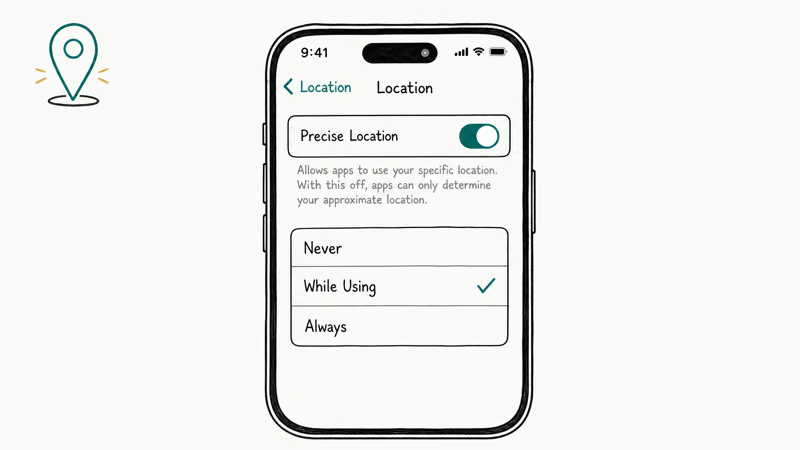
For each app, pick the strictest setting that still lets it work. Maps and ride-share apps need “While Using” with Precise Location on. Food delivery, weather, and social apps can almost always run on “Ask Next Time or When I Share.” Anything set to “Always” is a red flag unless you actually want background tracking, which most apps don’t need.
The Precise Location toggle is the one most people miss.
With it off, an app gets your approximate region, not your street address. The approximation covers a wide area, plenty for “what’s the weather” but useless for “deliver to my door.”
Apple includes a System Services menu at the bottom of Location Services. Open it and audit those toggles too. Significant Locations stores a private history of places you visit and is on by default. It’s worth turning off on every iPhone you set up.
If you need to hide your iPhone location from someone specific, the standalone guide on how to hide your location on iPhone covers the per-contact options inside Find My and Messages.
#Photos: Switch to Limited Library Access
Tap Settings > Privacy & Security > Photos. For each app that has access, choose Limited Access instead of Full Access. You then pick exactly which photos that app can see.
Limited Access shipped in iOS 14 and Apple refined the picker in iOS 17 so changing the selected photos no longer requires reinstalling the app. When an app asks for additional photos, iOS shows a sheet where you check the new ones and confirm. The app sees only the union of what you’ve approved.
Social apps and AI photo editors are the worst offenders. Camera filter apps and AI background removers routinely request the full library on launch even though their advertised function only needs one photo at a time. Limited Access blocks the over-reach without breaking the feature.
If an app refuses to work on Limited Access, that’s a signal worth taking seriously.
#Microphone and Camera: Audit Per-App Permissions
Microphone and Camera each get their own row inside Settings > Privacy & Security. Tap each one and review the list of apps that hold a permission.
The pattern to look for is apps that don’t need the permission at all. A note-taking app doesn’t need microphone access. A measuring app doesn’t need camera access until the moment you actually measure something. Revoke anything that fails the “would I notice if this broke” test, and iOS will re-prompt the next time the app actually needs the hardware.
iOS shows a tiny orange dot in the status bar when the microphone is in use and a green dot for the camera.
If you ever see the dot when no app should be listening, the Control Center pull-down identifies which app triggered it.
#Should You Disable Analytics and Improvements?
Settings > Privacy & Security > Analytics & Improvements holds the toggles that ship aggregated usage data to Apple and, separately, to app developers. You can turn both off without breaking anything.
Apple states that Share iPhone Analytics sends anonymized diagnostic data to help improve iOS. Share With App Developers ships crash logs to the developer of an app that crashed. Neither is required for iOS to function.
The trade-off is that disabling both means your iPhone contributes nothing to the dataset that drives the next iOS bug fix. In practice, turning both off changes nothing you would notice day to day, so the privacy gain comes at no real functional cost on a normal daily-driver iPhone.
A reasonable default is to leave Share iPhone Analytics off and only flip Share With App Developers on for an app you’re actively helping investigate a crash. The deeper rows under Analytics & Improvements include Improve Siri & Dictation and Improve Health Records. They’re off by default for new iPhones but may have been enabled on older devices.
#Apple Advertising: Reset the Identifier and Limit Tracking
Settings > Privacy & Security > Apple Advertising is the row for Apple’s own ad system in the App Store, Apple News, and Stocks. Turn off “Personalized Ads.”
The setting kills Apple’s own targeting based on your usage patterns, which is separate from ATT.
ATT controls third-party tracking. Apple Advertising controls Apple-internal targeting. Both need to be turned off if you want minimum tracking.
The Reset Advertising Identifier button on the same screen rotates the ID Apple uses for ad attribution, which forces any vendor still riding the old ID to drop their profile. You can reset the identifier as often as you want; once a quarter is a sensible cadence.
Safari has its own privacy layer that runs alongside ATT and Apple Advertising. The guide on preventing cross-site tracking in Safari covers the Safari-only toggles that block third-party cookies and fingerprinting. Private Browsing in Safari isn’t anonymous, by the way, and the explainer on whether private browsing leaves a trail on iPhone walks through what private mode does and doesn’t hide.
#Safety Check: Review Who Still Has Access
Settings > Privacy & Security > Safety Check is the iOS 16-and-later panel that audits every person and app you’re sharing information with. It gives you two modes: Emergency Reset and Manage Sharing & Access.
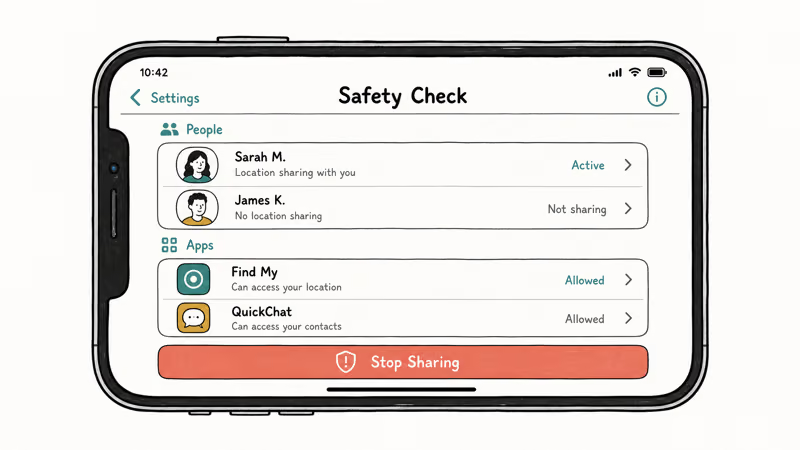
Apple’s Safety Check guide confirms that Emergency Reset stops all sharing immediately and signs you out of iCloud on other devices, while Manage Sharing & Access lets you walk person-by-person and app-by-app. The feature was built for people leaving abusive relationships. It works as a general audit tool for everyone.
Run Manage Sharing & Access once a year.
On an old iCloud account, the full walkthrough commonly turns up former roommates still listed in shared Find My circles, long-forgotten apps with permission to read Health data, and an old employer’s MDM profile that was supposedly removed years earlier. None of those would surface from a casual settings glance.
The Quick Exit button at the top of the Safety Check screen jumps you out to the home screen and clears the Settings stack if someone walks in mid-audit. It’s a small detail Apple added for the safety-from-stalker use case.
Suspect monitoring software? The spyware-detection guide for iPhone covers symptoms Safety Check misses.
#Is Lockdown Mode Right for Your iPhone?
Lockdown Mode is the iPhone’s highest privacy posture. Find it under Settings > Privacy & Security > Lockdown Mode. Tap Turn On Lockdown Mode, then Restart.
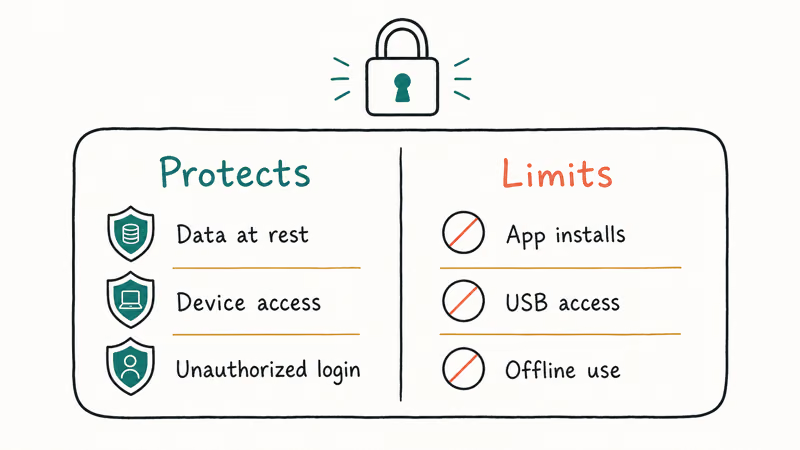
According to Apple’s Lockdown Mode support page, the feature shipped in iOS 16 and is designed for individuals who might be personally targeted by sophisticated digital threats such as state-sponsored mercenary spyware.
That’s a lot.
Apple’s documentation lists the exact features Lockdown Mode disables. The list covers most message attachment types, link previews, FaceTime calls from unknown numbers, complex web technologies like just-in-time JavaScript compilation, shared albums, and configuration profile installation.
Wired and wireless connections to a computer are blocked when the iPhone is locked. Web pages render slower because Safari turns off JIT. Photos shared via Messages may not preview. Group FaceTime calls from people not in your contacts won’t connect.
Apple recommends Lockdown Mode for journalists, activists, lawyers, and people who have a credible reason to expect targeted attacks. For everyone else, friction wins.
Turn it on selectively. The per-app exemption panel softens the impact long-term.
#Hide My Email and iCloud+ Private Email Forwarding
Hide My Email generates random aliases that forward to your real address. The feature requires an iCloud+ paid plan. Find it under Settings > [Your Name] > iCloud > Hide My Email.
Apple’s Sign in with Apple Hide My Email page confirms that aliases work with Sign in with Apple flows. The broader iCloud+ feature lets you generate aliases manually for newsletters, store signups, and anywhere else you would otherwise hand over your real email. You can deactivate an alias if it starts receiving spam, and the original real address stays hidden from the sender.
The use case that matters most for privacy is breaking the email address as a tracking identifier.
If you give every service a different alias, a data breach at any one service leaks only that alias. The address every other service knows you by stays clean. The iCloud+ plan starts at $0.99 per month for 50 GB and includes Hide My Email at every tier.
The aliases aren’t anonymous in the legal sense. Apple knows the alias maps to your account, and a subpoena to Apple can resolve it. The privacy gain is against marketers, data brokers, and breach attackers, not against law enforcement. Network-layer privacy is a separate gate, and our what is a VPN on iPhone guide covers when a paid VPN adds meaningful protection beyond iCloud Private Relay.
#Apple Intelligence Privacy: What Stays on Device?
Apple Intelligence is iOS 18’s on-device generative AI layer. On supported iPhones, find its settings at Settings > Apple Intelligence & Siri.
Older iPhones don’t show the row because they don’t meet the hardware floor (see iOS 26 Apple Intelligence requirements for the exact device list).
Apple states that Apple Intelligence runs the core 3-billion-parameter model on-device whenever the request fits in local memory. Complex requests get routed to Private Cloud Compute, which Apple announced is built on stateless Apple Silicon servers that delete the request after processing and submit their software image to independent researchers for audit. The privacy posture is significantly stronger than mainstream cloud AI vendors, but it’s still a remote inference for those specific requests.
The toggle to disable Apple Intelligence entirely lives under the same Settings row. Disabling it turns off the writing tools, the smarter Siri, and the image generation features. Notification summarization continues to work as a separate Siri-era feature even with Apple Intelligence off.
If you want to keep the features but limit data exposure, the most useful toggle is the per-app permission row that appears once Apple Intelligence is on.
Each app gets its own switch. A good balance is to leave it on for Mail and Messages and off for third-party apps.
#Bottom Line
Walk through this ten-toggle checklist once on every new iPhone and once after each major iOS upgrade. ATT off, Location set to Ask Next Time, Photos limited, Personalized Ads off, and a Safety Check pass take ten minutes and cover most of the routine privacy exposure on a daily-driver iPhone.
Save Lockdown Mode for travel into hostile networks or for situations where you have a credible reason to expect targeted attacks. Don’t run it as a daily driver. The broken attachments, link previews, and FaceTime calls add up fast.
Hide My Email is worth the $0.99 iCloud+ plan if you sign up for anything online. Keep Apple Intelligence enabled on Mail and Messages, but leave it off for third-party apps.
#Frequently Asked Questions
Does Lockdown Mode break apps I use every day?
Yes. Lockdown Mode blocks most message attachment types, link previews, FaceTime calls from unknown numbers, complex Safari JavaScript, and incoming wired or wireless connections when the iPhone is locked. The per-app exemption panel softens the impact, but the default state breaks enough that we only recommend Lockdown Mode for people with a credible reason to expect targeted attacks.
What does App Tracking Transparency actually stop?
ATT blocks cross-app and cross-site tracking. It doesn’t stop apps from collecting data on you inside themselves, and it doesn’t block Apple’s own ad system. Turn off Personalized Ads under Apple Advertising separately for the Apple side.
Can I undo the Reset Advertising Identifier change?
No, and that’s the point. The reset permanently rotates the ID. Any old profile keyed to the previous identifier is unrecoverable from your side.
You can reset it again later, but each reset starts fresh. Apps and ad networks that fingerprint you with IP address or installed-app patterns can still rebuild some of their profile, just not with the previous Apple ad ID as the join key.
Is Apple Intelligence private on iPhone?
Apple Intelligence runs locally on-device for most requests and routes complex requests through Private Cloud Compute. Apple states that Private Cloud Compute servers are stateless, delete the request after processing, and submit their software image to independent researchers for audit. The privacy posture is stronger than mainstream cloud AI vendors. Treat it as private for most purposes but not anonymous in the legal sense, because Apple still operates the servers.
Will limited Photos access break the app permanently?
Usually not. Most apps that legitimately need photo access work fine with Limited Access selected, and you can grow the approved set later from inside the app.
How often should I run Safety Check?
Once a year covers the routine case. Run it immediately if you end a relationship, leave a job, change your Apple ID password, or lose a device that was signed in. Manage Sharing & Access is the panel you want for the routine annual pass. Emergency Reset is the nuclear button for the leaving-an-abusive-situation case, and it signs you out of iCloud on other devices, so don’t tap it casually.
Does Hide My Email require iCloud+?
Yes. The manual alias creation in Settings sits behind any paid iCloud+ tier, which starts at $0.99 per month for 50 GB.
Sign in with Apple is a separate feature that lets you hide your email when signing into supported apps. That flow works on the free 5 GB tier, but you can’t generate aliases on demand without iCloud+.

Mac mini M6 vs M5 Pro: Which Model Should You Buy?
Mac mini M6 vs M5 Pro compared on price, memory, ports, displays, and real workloads. Find the better 2026 Mac mini for your desk and budget.

Apple Siri Settlement: Who Qualifies and How to Claim
Apple's $250 million Siri settlement covers iPhone 15 Pro and iPhone 16 models bought June 2024 to March 2025. See who qualifies and how claims work.

iOS 26.6.1 Security Update: What Apple Fixed and Who Gets It
Apple released iOS 26.6.1 on August 17 with 29 security fixes, including an IPSec interception bug. See what it patches, who gets it, and how to update.

iPhone Adaptive Power: How It Works and When to Use It
Learn how iPhone Adaptive Power works, which models support it, what it changes, and when Low Power Mode is still the better battery-saving choice.