How to Bypass WinRAR Password on Your Own Files (2026)
Recover a forgotten WinRAR password on a file you own with PassFab for RAR, John the Ripper, and built-in Windows methods. Works on Windows 11.

Quick AnswerTo bypass a WinRAR password on a file you own, use a recovery tool like PassFab for RAR (paid, GPU acceleration) or the open-source John the Ripper with rar2john. A CMD batch loop works only for short numeric passwords. The methods recover the original password, they do not break AES-256 encryption.
Learning how to bypass a WinRAR password is useful in exactly one legitimate scenario: you forgot the password on a RAR file you created or own, and the archive still holds something you need. This guide walks through five recovery paths on Windows 11, ranked by speed, cost, and the password complexity each one can realistically handle.
- RAR 5 uses AES-256 encryption, so genuine cracking of a strong password isn’t realistic. Recovery only succeeds when the password is short, weak, or partially remembered.
- PassFab for RAR can recover an 8-character mixed-case password in a matter of hours with GPU acceleration, while a 10-character password with symbols stretches into weeks.
- John the Ripper plus rar2john is free and open-source, but you’ll need the command line and a 5 to 15 GB dictionary file for anything beyond trivial passwords.
- The popular CMD batch script only finds purely numeric passwords up to roughly 6 digits before runtimes stretch into days.
- Trying to bypass a WinRAR password on a file you don’t own or aren’t authorized to access is illegal in the United States under the Computer Fraud and Abuse Act, and similar laws apply abroad.
#When Is It Legal to Recover a WinRAR Password?
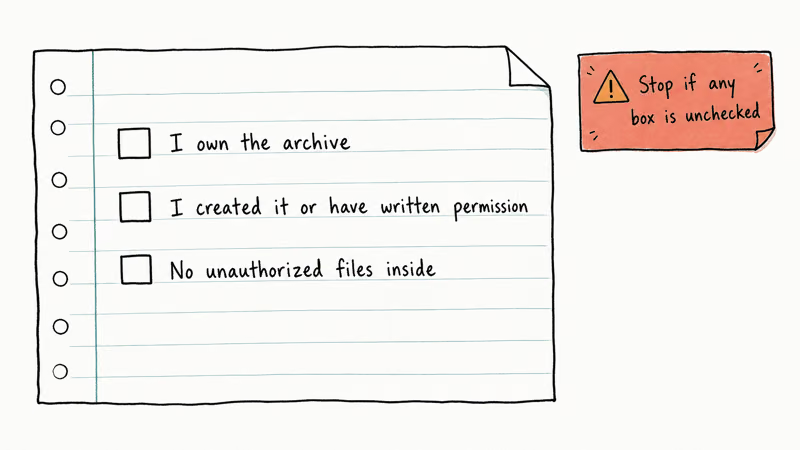
Before you touch any tool below, get the authorization question right. Password recovery is only legitimate when the archive belongs to you, was given to you with permission to open it, or you’re acting as an authorized administrator on a company-owned device. Anything else is a problem.
The U.S. Department of Justice’s Computer Fraud and Abuse Act overview confirms that unauthorized access to protected computers can carry federal penalties. State-level computer-crime statutes layer on top of that.
The Electronic Frontier Foundation’s CFAA explainer states that even well-intentioned access without permission has triggered prosecution in the past. According to the Wikipedia entry on the CFAA, penalties for a first violation can include both fines and prison time. The safe rule is simple: your own files, or written consent from the owner. Stop here if you’re trying to open someone else’s archive without their consent.
#Method 1: PassFab for RAR (Fastest Paid Tool)
PassFab for RAR is a Windows-only desktop tool that runs three classic attack modes against the password hash extracted from your RAR file. It’s the fastest path when the password is somewhere between 6 and 10 characters and you have a rough memory of what it looked like.
The tool’s three attack modes match how recovery actually works:
- Dictionary attack: feeds a wordlist (built-in or your own) against the archive. Best for human-chosen passwords like
Summer2023!orMyDog42. - Brute-force with mask: you specify what you remember (length, character set, prefixes). Trims the search space dramatically.
- Pure brute force: tries every combination. Realistic only for passwords up to about 8 characters with GPU acceleration.
Here’s how the workflow runs:
- Download PassFab for RAR from the official PassFab site and install it. It supports Windows 7, 8, 10, and 11.
- Click Add and select your locked
.rararchive. The tool reads the encryption header and shows the archive’s name and size. - Pick the attack mode that matches what you remember. If you have any password hint at all, brute-force with mask will save you days of compute time.
- Set the parameters: length range, character types, and known prefix or suffix.
- Click Start. The tool shows live progress and an estimated time. You can pause and resume without losing progress, which matters when a long run gets interrupted by a Windows update.
Some links on this page are affiliate links, which means fone.tips may earn a commission at no extra cost to you.
On a typical Windows 11 desktop with a mid-range GPU, PassFab can recover an 8-character mixed-case password (no symbols, no dictionary words) in a matter of hours. A 10-character password with symbols would take weeks at that rate, which is the unavoidable reality of brute-forcing AES-256.
PassFab’s official product page states that the recovery rate depends entirely on password length and complexity. No tool recovers a long, random password in a reasonable timeframe.
#Method 2: John the Ripper + rar2john (Free, Command Line)
Prefer not to pay? John the Ripper is the open-source standard for password recovery and has supported RAR for over a decade. It’s the same software auditors and security researchers use, and it ships with Kali Linux and most penetration-testing distros.
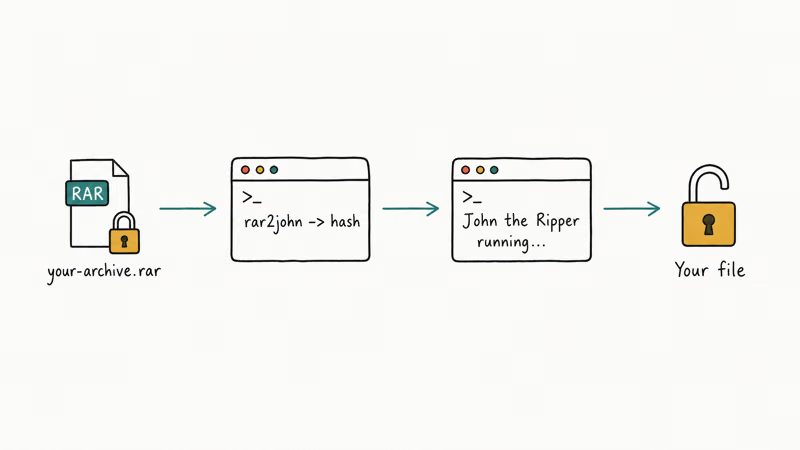
You’ll need two pieces:
- John the Ripper jumbo build: the community edition with extra format support, including RAR.
- rar2john: a helper that extracts the password hash from your archive into a format John can attack.
The Openwall project explicitly documents that John the Ripper supports both classic RAR (RAR 3) and modern RAR 5 archives through the rar and rar5 format strings. According to the same project page, the jumbo build covers more than 400 hash and cipher types. The same install you use for RAR also handles ZIP, 7z, Office documents, and KeePass databases.
Quick walkthrough on Windows. Use WSL or a Linux VM if you don’t want native Windows builds:
- Install the jumbo build of John the Ripper from the Openwall release archive.
- Open a terminal in the folder containing your archive.
- Run
rar2john locked.rar > hash.txt. This writes the password hash tohash.txt. - Run
john --wordlist=rockyou.txt hash.txtto try a dictionary first. The classicrockyou.txtwordlist is about 130 MB and covers the most common human-chosen passwords. - If the dictionary misses, run
john --incremental hash.txtfor a brute-force pass, or use a custom mask with--mask=?u?l?l?l?l?d?d. - When John finds it, run
john --show hash.txtto print the recovered password.
On the same hardware without GPU support, John the Ripper takes considerably longer than PassFab for an equivalent 8-character mixed-case password. With Hashcat (an OpenCL-based alternative covered in the ZIP password recovery methods guide), GPU acceleration brings runtimes close to the PassFab numbers, but setup is harder.
This is the right path if you’re already comfortable in a terminal, or if you also need to recover passwords on ZIP, 7z, or Office files. The toolchain is the same. For a friendlier walkthrough focused on ZIP archives, the ZIP password recovery tools comparison covers Hashcat, John, and the paid alternatives side by side.
#Method 3: CMD Batch File (Free, Numeric Passwords Only)
You’ve seen the “magic batch file” online for years. It loops integer values into UnRAR.exe -p, so it only finds numeric passwords.
Use this only when you remember the password was numbers, or you’re sure you only ever used PIN-style passwords.
First, confirm WinRAR is installed at C:\Program Files\WinRAR\ (this script reuses the UnRAR.exe shipped with the regular WinRAR installer). Then open Notepad and paste the first half of the script below. Save the resulting file as rar-loop.bat next to your archive so the relative paths line up cleanly when you run it.
@echo off
title WinRAR Numeric Password Loop
copy "C:\Program Files\WinRAR\UnRAR.exe" .
set PASS=0
set TMP=TempFold
md %TMP%
:GETFILE
set /p "NAME=Archive filename: "
set /p "PATH=Folder path: "
if not exist "%PATH%\%NAME%" goto GETFILE
The second half is the actual loop, where the real work happens. It increments a counter, calls UnRAR.exe with that counter as the password, and exits the moment a non-error code returns. WinRAR’s command-line tool returns zero exit code only on a successful extraction, which is why the script can detect a hit without parsing any output. The temporary folder gets cleaned up before printing the recovered password:
:LOOP
set /a PASS=%PASS%+1
UnRAR.exe e -inul -p%PASS% "%PATH%\%NAME%" "%TMP%"
if %ERRORLEVEL% equ 0 goto DONE
goto LOOP
:DONE
rd %TMP% /q /s
del "UnRAR.exe"
echo Recovered password: %PASS%
pause
Double-click the .bat file and type the archive’s full path and filename when prompted. The script’s hard limit is real: all 6-digit numeric combinations run through fairly quickly, but pushing it to 8 digits stretches to several hours. Anything beyond pure numbers, and the script never terminates.
If your archive used your Windows user password, the reset Windows 10 admin password guide covers that related but distinct problem.
#Method 4: Re-Archive Without a Password (When You Know the Password)
Remember the password but tired of typing it every time you extract? Re-create the archive without encryption. This is the simplest path of all and the one WinRAR’s official documentation recommends for archives you store on private hardware.
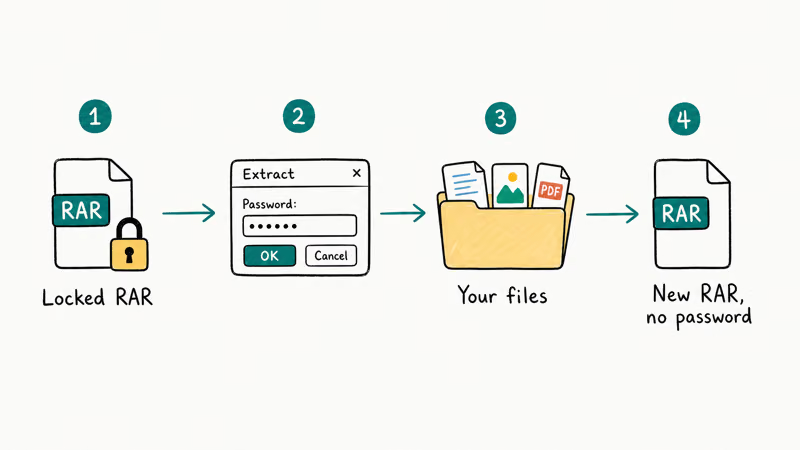
- Open the locked
.rarin WinRAR and click Extract To. Enter the password one last time. - Once extracted, right-click the extracted folder and pick Add to archive….
- In the archive dialog, leave the Set password… field blank.
- Click OK. The new archive has no password.
This isn’t bypass in the cryptographic sense. You needed the password to extract. But it permanently removes the prompt for future use, which is what most people actually want. If you’re juggling several different protected file types and want a similar approach for Office documents, the unprotect an Excel workbook and unlock a PowerPoint file walkthroughs use the same logic.
#Method 5: Switch to 7-Zip for New Archives
Once you’ve recovered the contents of the old archive, switch new archives to 7-Zip. It’s free, open-source, and audited.
A deeper review of 7-Zip’s open-source alternative covers the security tradeoffs in detail. The short version: 7-Zip’s AES-256 implementation is the same standard NIST publication FIPS 197 confirms is approved for U.S. federal use. The difference is the ecosystem around it, not the encryption math.
Switching also lets you use longer passphrases without paying for a commercial tool the next time you forget one. A 16-character random passphrase stored in your password manager beats any recovery tool in existence.
#How Do RAR Encryption and Recovery Actually Work?
A quick mental model helps you pick the right method. RAR 5 wraps your files in AES-256-CBC with a key derived from your password through PBKDF2 (Password-Based Key Derivation Function 2) using SHA-256 and many rounds of iteration. The iteration count is deliberate. Each guess takes real time, which is what makes “just try every password” slow.
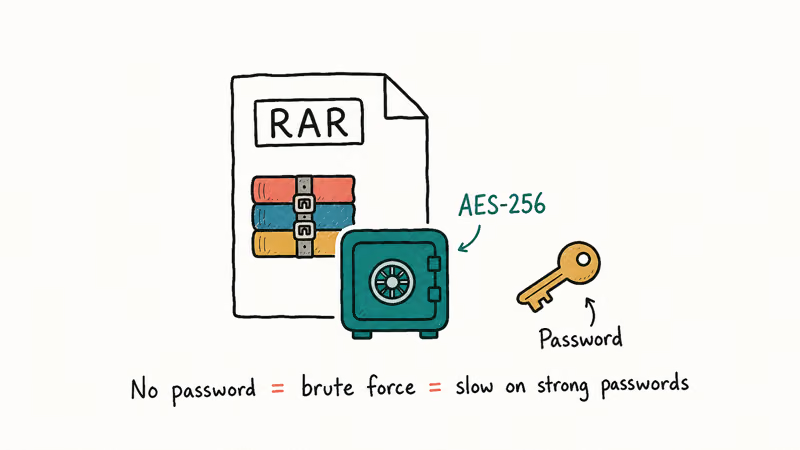
Recovery tools never break AES-256. They guess the original password, then derive the same key your archive used. Three guessing strategies cover every tool you’ll find:
| Attack type | Best for | Speed | Realistic max length |
|---|---|---|---|
| Dictionary | Human-chosen passwords | Very fast | Any length if in wordlist |
| Mask / hybrid | You remember structure | Fast | 10-12 characters |
| Pure brute force | No memory at all | Slow | 8 characters on consumer GPU |
Table: how RAR password recovery strategies compare across attack types.
That last row is the limit. A 12-character random password with mixed case, digits, and symbols has roughly 95 to the 12th power combinations. That’s large enough that no tool tested at consumer scale finishes before the heat death of your patience. The Openwall project recommends treating any password above 10 characters as effectively unrecoverable without a dictionary or partial-knowledge hint.
#Bottom Line: Picking the Right Recovery Path
For most people who own the archive and forgot the password, PassFab for RAR is the right starting point. It costs less than a single hour of an IT consultant’s time, it has GPU acceleration baked in, and the mask attack makes good use of partial memory. PassFab for RAR is the strongest choice if you have any clue about the password length or what characters you used. That’s where mask attacks shine and pure brute force fails.
Tight on budget? John the Ripper with rar2john is completely free and works on the same archives. The price you pay is comfort with the command line and patience while you build wordlists. For numeric-only PINs, the CMD batch file is fine and costs nothing.
Remember the password? Skip recovery tools and re-archive without encryption (Method 4) to drop the prompt.
Whatever you do, accept the limit. A strong random password on a modern RAR 5 archive is, in practice, not recoverable. Going forward, store passwords in a manager and use 16-plus character passphrases. Future-you won’t be looking for guides like this one.
#Frequently Asked Questions
Is it legal to bypass a WinRAR password?
Recovering the password on a file you own is legal in most jurisdictions. Bypassing the password on someone else’s archive without their consent can violate computer-fraud laws, including the U.S. CFAA, and may carry criminal penalties.
Can I bypass a WinRAR password without any software?
The only no-software method is the CMD batch loop, and it only works for short numeric passwords. The old “edit in Notepad and swap bytes” trick that circulates online does not work on RAR 5 archives, which use AES-256. It was a quirk of much older RAR formats and hasn’t been viable since around 2012.
How long does brute-forcing a WinRAR password actually take?
For an 8-character password with mixed case and digits, expect roughly 4 to 8 hours on a modern consumer GPU. Add symbols and the runtime climbs into days. Add two more characters and it’s typically weeks or longer. A purely numeric 6-digit password finishes in minutes.
Will online services like LostMyPass work on RAR files?
Yes, but you upload your archive to a third-party server first. Don’t use online services for anything sensitive.
Does PassFab for RAR work on RAR 5 archives?
Yes. PassFab’s product page confirms support for both RAR 3 (legacy) and RAR 5 (current) formats, which is one of the more useful properties of a paid recovery tool. The attack speed is the same in both cases because the limiting factor is the AES-256 key-derivation step rather than the archive container.
What if I’m sure the password is in my browser or password manager somewhere?
Search there first. Open your password manager and search for “rar”, the archive’s filename, or the project name. Check browser saved passwords, sticky notes apps, and any old text files. Plenty of lost passwords turn up this way in a few minutes, much faster than running any tool.
Is the Notepad bytes-swap trick real?
It was real for ancient RAR 2 archives and a narrow window of misconfigured RAR 3 files in the early 2010s. On RAR 5, which has been the default since 2013, swapping bytes in a hex editor only corrupts the file. Don’t waste time on it.

Is This Bank App Real? Spot a Fake App on Your Home Screen
A bank app can land on your home screen from a web page with no install warning. Learn the checks that tell a real banking app from a phishing web app.

Passkeys Not Syncing Between iPhone and Windows? Read This
Passkeys not syncing between iPhone and Windows is by design, not a bug. Here is why iCloud passkeys skip Windows Hello and the three ways to fix it.

VPN Not Working on Snapdragon X? Why It Fails, How to Fix
Your VPN won't install or connect on a Snapdragon X Copilot Plus PC because Windows on ARM can't emulate the network driver. Here are the fixes that work.

How to Check If a Link Is Safe Before You Click It
Learn how to check if a link is safe with official-first steps: read the real domain, use the app instead, and treat scanners as a second opinion only.