How to Unlock a PowerPoint File: 6 Easy Methods (2026)
Unlock your own password-protected PowerPoint files using 6 proven methods. Works with PPT 2007 through 2024. Online and offline options included.
Quick AnswerTo unlock a password-protected PowerPoint file you own, open PowerPoint, go to File, then Info, click Protect Presentation, and select Encrypt with Password. Delete the existing password and save. For forgotten passwords, use a dedicated PPT password recovery tool or an online service like LostMyPass.
You set a password on your PowerPoint presentation weeks ago, and now you can’t remember it. This happens more often than you’d think. There are six different ways to regain access to your own locked PPT files, and the right method depends on whether you remember part of the password or have completely forgotten it.
- PowerPoint’s built-in Encrypt with Password option removes protection in under 30 seconds
- LostMyPass recovers about 22% of weak passwords for free and 61% of strong ones for $29-49
- Desktop tools like Passper support brute force, dictionary, and mask attacks for forgotten passwords
- PPT 2007 and older files use weaker encryption that cracks in minutes, while 2010+ files take hours
- Editing restrictions are separate from open passwords and can be removed without any recovery tool
#Removing a Password From Your Own PowerPoint File
If you still remember the password, removing it takes about 30 seconds. Works on PowerPoint 2007 through 2024.
-
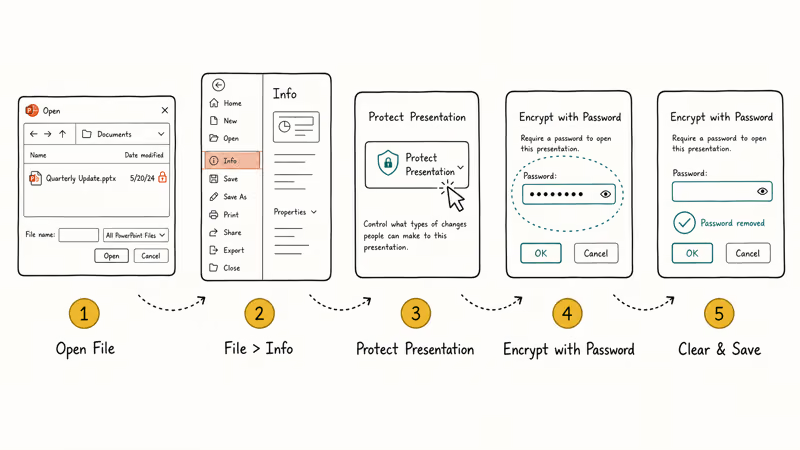
Open the locked presentation and enter your password when prompted
-
Go to
File>Info -
Click Protect Presentation, then select Encrypt with Password
-
Delete the password from the field and leave it blank
-
Click OK and save the file
Done. On PowerPoint 2007 through 2024, the change applies immediately once you save the file.
According to Microsoft’s documentation on presentation protection, the password to open a file and the password to modify it are two separate settings, and someone without the modify password can still open the presentation and save it under a different file name. Removing the encryption password doesn’t affect any editing restrictions you may have also set.
Got a read-only file instead? Skip ahead to the editing restrictions section below.
#What Are the Best Offline Tools for Recovering a Forgotten PPT Password?
When you’ve completely forgotten the password, you need a recovery tool. These programs try thousands of password combinations per second using different attack strategies. Three solid options stand out.
#Passper for PowerPoint
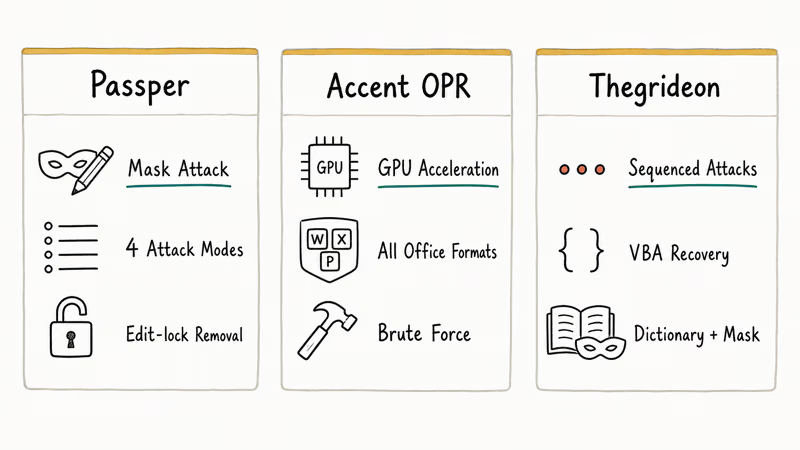
Passper uses four attack modes: brute force, dictionary, mask, and combination. The mask attack is the most practical option when you remember even a fragment of your password. You tell the tool the approximate length and any characters you recall, and it narrows down the search space.
A mask attack on a short password, like a 6-character string in a PowerPoint 2016 file, can finish in minutes on a typical laptop, while a longer mixed-case password takes much longer. The more characters you can supply, the faster it resolves.
Passper also removes editing restrictions with one click. Instant, no password needed for that part.
#Accent Office Password Recovery
This tool covers all Microsoft Office formats, not just PowerPoint. It supports GPU acceleration through NVIDIA and AMD cards, which speeds up brute force attacks considerably. Based on Accent’s product page, the tool handles PowerPoint versions from XP through 2021.
The interface looks dated. GPU acceleration still makes it one of the faster options for pure brute force attacks, though.
#Thegrideon PowerPoint Password
Thegrideon lets you queue multiple attack modes in sequence: dictionary first, then mask, then brute force.
It also includes a VBA password recovery feature, which is useful if you’ve locked the macros in your presentation and lost that password too. According to Microsoft’s VBA project protection guidelines, VBA passwords use a separate mechanism from file-level encryption.
If your file was created in PowerPoint 2007 or earlier, any of these tools should crack it within minutes. The older encryption standard was significantly weaker. Files from PowerPoint 2010 onward use AES-128 or AES-256, which takes much longer to break through.
#Unlocking a PowerPoint File Online Without Installing Software
Online services run the recovery on their servers. No installation required, but you are uploading your file to a third party.
#LostMyPass
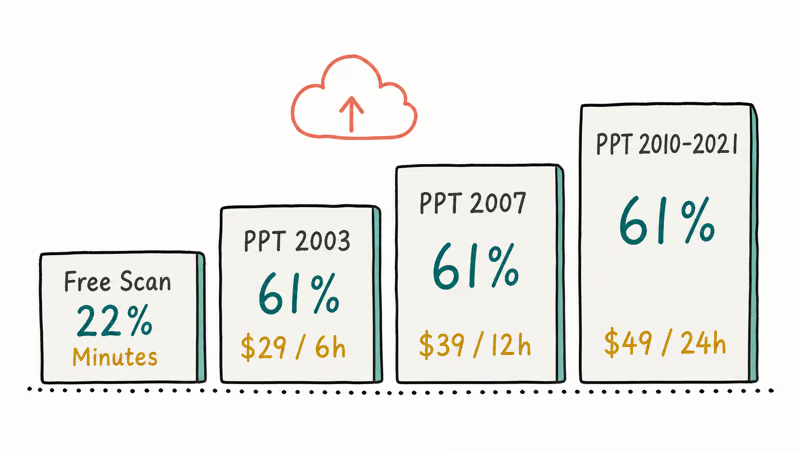
LostMyPass runs a free weak-password check against a database of over 3 million common passwords. If your password isn’t in that database, you can pay for a stronger recovery attempt.
Here’s what their pricing looks like:
| Recovery Type | Success Rate | Time | Price |
|---|---|---|---|
| Weak password check | ~22% | A few minutes | Free |
| Strong recovery (2003 and earlier) | ~61% | ~6 hours | $29 |
| Strong recovery (2007) | ~61% | ~12 hours | $39 |
| Strong recovery (2010-2021) | ~61% | ~24 hours | $49 |
| Brute force with mask | Up to 100% | Varies | Custom |
You only pay if the recovery succeeds. Max upload: 100 MB.
A weak 4-character password is the kind LostMyPass typically clears in a couple of minutes during the free scan. For the paid tier, the 61% success rate means roughly 4 out of 10 complex passwords won’t be recovered.
#Password-Online.com
Similar process here. Upload, add any hints about the password, enter your email, and wait.
One thing to keep in mind with any online service: you’re sending your presentation to an external server. If your slides contain sensitive business data or personal information, a desktop tool gives you more control over where your file goes.
#Removing Editing Restrictions Without the Password
PowerPoint has two types of protection: open passwords (blocks viewing entirely) and editing restrictions (view-only, no changes allowed). Removing editing restrictions is much easier than cracking open passwords.
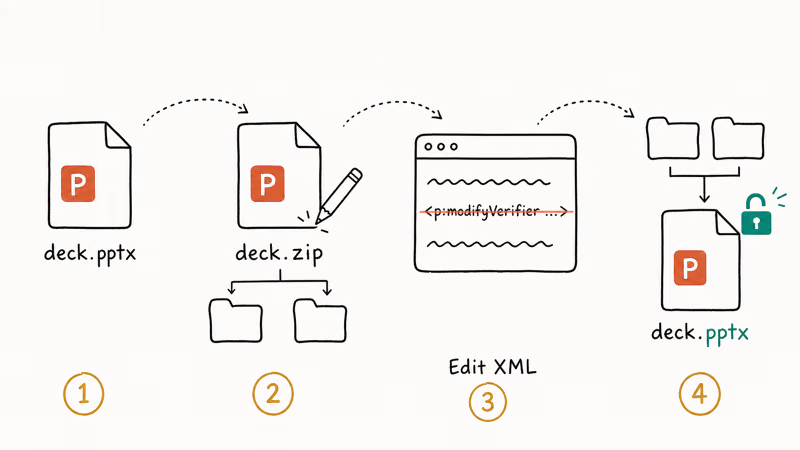
#The ZIP Method
PowerPoint files (.pptx) are actually ZIP archives containing XML files. You can modify the protection settings directly:
-
Make a copy of your .pptx file
-
Change the file extension from
.pptxto.zip -
Extract the ZIP file
-
Open the
ppt/presentation.xmlfile in a text editor like Notepad -
Look for the
<p:modifyVerifier>tag and delete the entire line -
Save the XML file, repackage everything back into a ZIP, and rename it to
.pptx
This method works because editing restrictions aren’t encrypted the same way open passwords are. The restriction is stored as a hash in the XML, and removing that hash removes the restriction.
On a PowerPoint 2019 file with “Mark as Final” and password-protected editing, the ZIP method clears both restrictions in a few minutes. If you also work with Word documents, the same XML approach applies to .docx files. You might find our guide on recovering unsaved Word documents helpful for similar situations.
#Save As a New File
If the file opens in read-only mode but lets you view the content:
-
Open the presentation
-
Go to
File>Save As -
Save it with a new filename
The new copy won’t carry over the editing restrictions. This doesn’t work for open-password-protected files since you can’t even view those without the password.
#What Should You Do Before Setting a PowerPoint Password?
A few minutes of setup now saves hours of password recovery later.
Use a password manager. Bitwarden is free. 1Password costs $3/month. Either one stores file passwords alongside your web logins so you never lose track.
Write down password hints. No password manager? At least store a hint in your notes app. Even a cryptic reminder beats nothing.
Keep an unprotected backup. Save a copy in a password-protected cloud folder (Google Drive, OneDrive) before adding file-level encryption. That way you always have a fallback if the password slips your mind, and the cloud folder’s own security still protects the file from unauthorized access.
Pick the right protection level. For preventing accidental edits during review, “Mark as Final” or editing restrictions work fine. Reserve full encryption passwords for files containing confidential data like financial reports or client information.
If you deal with other Microsoft Office files regularly, you might also want to check our guides on recovering unsaved Excel files and fixing Excel files that won’t open.
#Tips for Choosing a PPT Password Recovery Tool
Not all recovery tools deliver the same results. Here’s what to look for:
Check PowerPoint version support. Some tools only work with older formats (.ppt). Make sure the tool handles .pptx files if you’re using PowerPoint 2007 or newer.
GPU acceleration matters. According to Elcomsoft’s password recovery research, tools with NVIDIA or AMD GPU support run dramatically faster on AES-encrypted files than CPU-only tools.
Mask attacks save time. If you remember any part of the password (first letter, approximate length, whether it had numbers), a mask attack is far more efficient than pure brute force. A tool that supports masks should be your first choice.
Free trials are limited. Most desktop tools offer free trials that show whether they can find your password but require payment to reveal it. Budget $20-50 for a one-time recovery.
For those who’ve also lost track of PowerPoint files entirely, our guide on recovering PowerPoint from temp files covers how to find auto-saved versions.
#Bottom Line
Start with the built-in removal method if you know your password. For forgotten passwords, try LostMyPass’s free scan first since it costs nothing and takes just minutes. If that doesn’t work, a desktop tool with mask attack support gives you the best odds. Passper for PowerPoint is a reliable pick thanks to its mask mode, but any tool with GPU acceleration will get the job done on older file formats.
Set up a password manager now to avoid this problem in the future. If you regularly work with sensitive files, our guide on recovering files from an external hard drive is worth bookmarking too.
#Frequently Asked Questions
Can you unlock a PowerPoint file without any software?
Yes, but only for editing restrictions. Rename .pptx to .zip, delete the protection tag from the XML, and repackage. Open passwords still require a recovery tool.
Is it legal to unlock a password-protected PowerPoint file?
Unlocking your own files is completely legal. Password recovery tools are designed for legitimate use on files you own or have explicit authorization to access. Using these tools on someone else’s files without permission violates computer fraud laws in most countries.
How long does it take to recover a forgotten PowerPoint password?
Recovery time depends on password complexity and the PowerPoint version. Weak passwords (common words, short length) can be found in minutes. Strong passwords on PowerPoint 2010+ files with AES-256 encryption can take hours or even days. Knowing part of the password reduces recovery time significantly.
Are online password recovery services safe to use?
Reputable services like LostMyPass use secure servers and delete files after recovery. For confidential presentations, use a desktop tool instead.
What is the difference between an open password and an editing restriction in PowerPoint?
An open password blocks viewing entirely and uses strong encryption. An editing restriction only prevents changes and can be bypassed using the ZIP method or by saving a new copy.
Does changing .pptx to .zip damage the PowerPoint file?
No, PowerPoint .pptx files are ZIP archives by design. Renaming the extension just tells your operating system to treat the file as a regular archive instead of opening it in PowerPoint. You can extract the contents, edit the XML files, repackage everything back into a ZIP, and rename to .pptx without losing any data or corrupting the presentation.
Can you recover a password from a .ppt file created in PowerPoint 2003 or earlier?
Yes, and it’s usually faster than recovering passwords from newer formats. PowerPoint 2003 and earlier used RC4 encryption, which is weaker than the AES encryption in later versions. Most recovery tools can crack these older passwords within minutes, even with a basic brute force attack.
Will removing a password affect the content or formatting of my presentation?
No. Your slides, animations, notes, and formatting stay exactly the same. Only the encryption metadata gets removed.

Is This Bank App Real? Spot a Fake App on Your Home Screen
A bank app can land on your home screen from a web page with no install warning. Learn the checks that tell a real banking app from a phishing web app.

Passkeys Not Syncing Between iPhone and Windows? Read This
Passkeys not syncing between iPhone and Windows is by design, not a bug. Here is why iCloud passkeys skip Windows Hello and the three ways to fix it.

VPN Not Working on Snapdragon X? Why It Fails, How to Fix
Your VPN won't install or connect on a Snapdragon X Copilot Plus PC because Windows on ARM can't emulate the network driver. Here are the fixes that work.

How to Check If a Link Is Safe Before You Click It
Learn how to check if a link is safe with official-first steps: read the real domain, use the app instead, and treat scanners as a second opinion only.